> ## Documentation Index
> Fetch the complete documentation index at: https://formhug.ai/docs/llms.txt
> Use this file to discover all available pages before exploring further.
# Payment Fields
> Add products, prices, stock, discounts, and payment collection to your FormHug forms
Payment fields let you add prices, products, order totals, discounts, and payment collection to a form. Use them for donations, product orders, ticket sales, hotel packages, deposits, paid registrations, and other workflows where the submitter needs to choose what they are paying for.
For a step-by-step scenario guide, see [Create a Payment Form](/guides/use-cases/payment-form). To connect online payment, see [Stripe](/integrations/stripe). For the product-level workflow, see the payment form builder or start from order and payment templates.
## Payment Field Types
Choose the field based on what the submitter needs to select before checkout.
| Field | Best For | Example |
| ---------------- | ------------------------------------------------------------------------------------------- | ---------------------------------------- |
| **Price-Only** | A fixed amount or custom amount without product details | Donation, deposit, registration fee |
| **Product** | Visual products with images, descriptions, variants, stock, and quantities | T-shirt, tote bag, sticker pack |
| **Text Product** | Products or packages that do not need images but still need variants, stock, and quantities | Hotel rooms, service packages, workshops |
| **Text Option** | A single paid choice built from text option groups | Ticket type + attendance option |
The demo forms linked from this page are configured to show the product experience, but they do not need to be connected to a live payment account while you are testing setup.
## Shared Capabilities
Payment fields share a few important settings.
| Capability | How It Works |
| --------------------- | ---------------------------------------------------------------------------------- |
| **Currency** | Sets the currency shown on prices and totals. |
| **Stripe account** | Connects the form to a Stripe payment account when you want online payment. |
| **Discounts** | Applies early-bird or bulk discounts as a percentage or fixed amount. |
| **Order summary** | Shows selected products, quantities, discounts, and the final amount due. |
| **Display-only mode** | Lets you show product selections and totals without sending submitters to payment. |
Product, Text Product, and Text Option also support variant-style pricing. Each variant row can have its own price, original price, stock, default quantity, minimum quantity, and maximum quantity.
## Price-Only
Use **Price-Only** when the payment amount is the main field. It is the simplest choice for donations, deposits, registration fees, service charges, and pay-what-you-want payments.
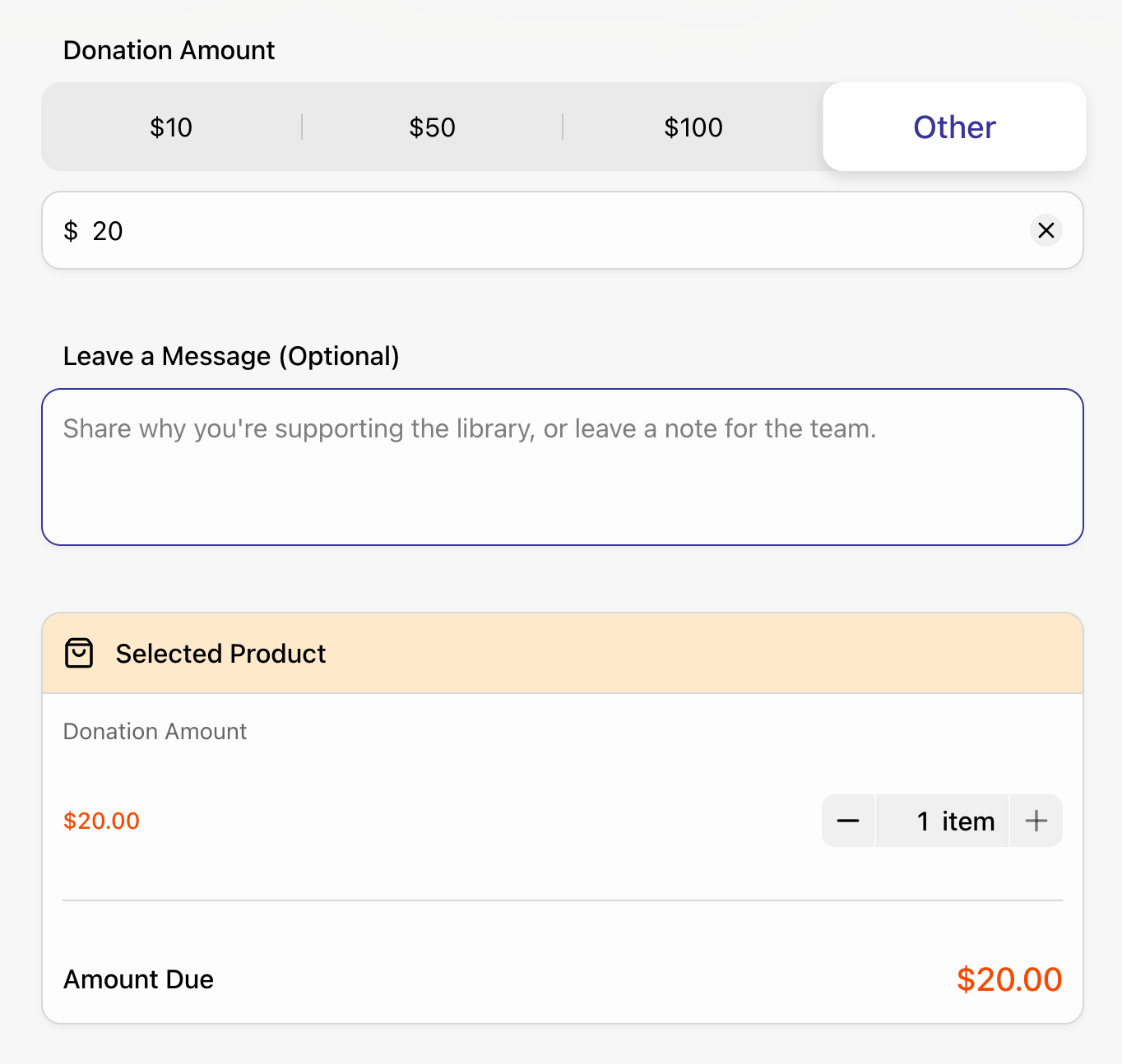 In this donation example, submitters choose a preset amount or enter another amount. The selected amount appears in the order summary before submission.
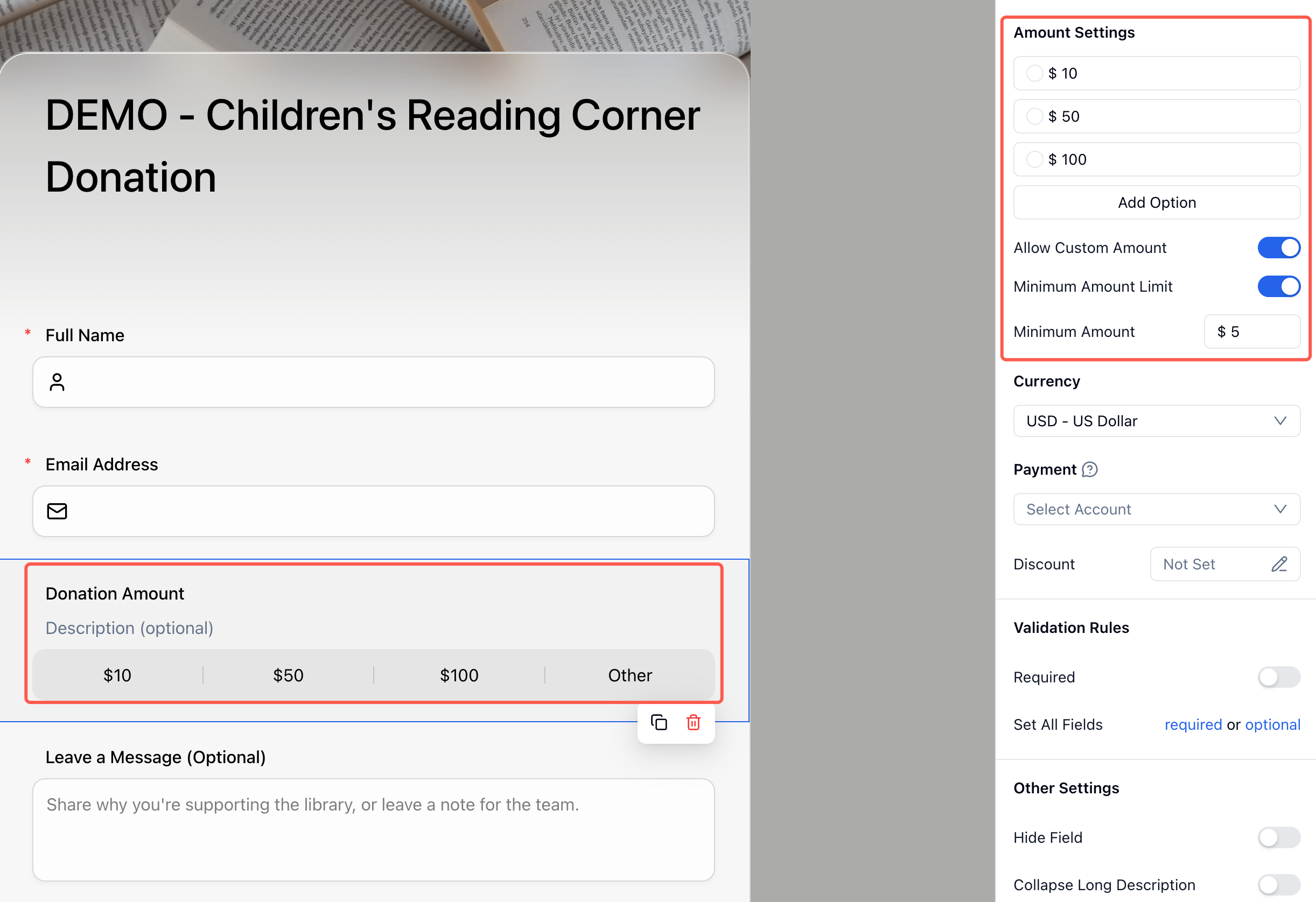 **Key settings:**
* Fixed amount options
* Custom amount input
* Minimum custom amount
* Currency
* Stripe payment account
* Discount
* Required and validation rules
See a Price-Only field used for a children's reading corner donation form.
## Product
Use **Product** when submitters need to compare visual products. Product fields support product images, descriptions, variants, stock, quantity rules, discounts, and selected-product summaries.
**Key settings:**
* Fixed amount options
* Custom amount input
* Minimum custom amount
* Currency
* Stripe payment account
* Discount
* Required and validation rules
See a Price-Only field used for a children's reading corner donation form.
## Product
Use **Product** when submitters need to compare visual products. Product fields support product images, descriptions, variants, stock, quantity rules, discounts, and selected-product summaries.
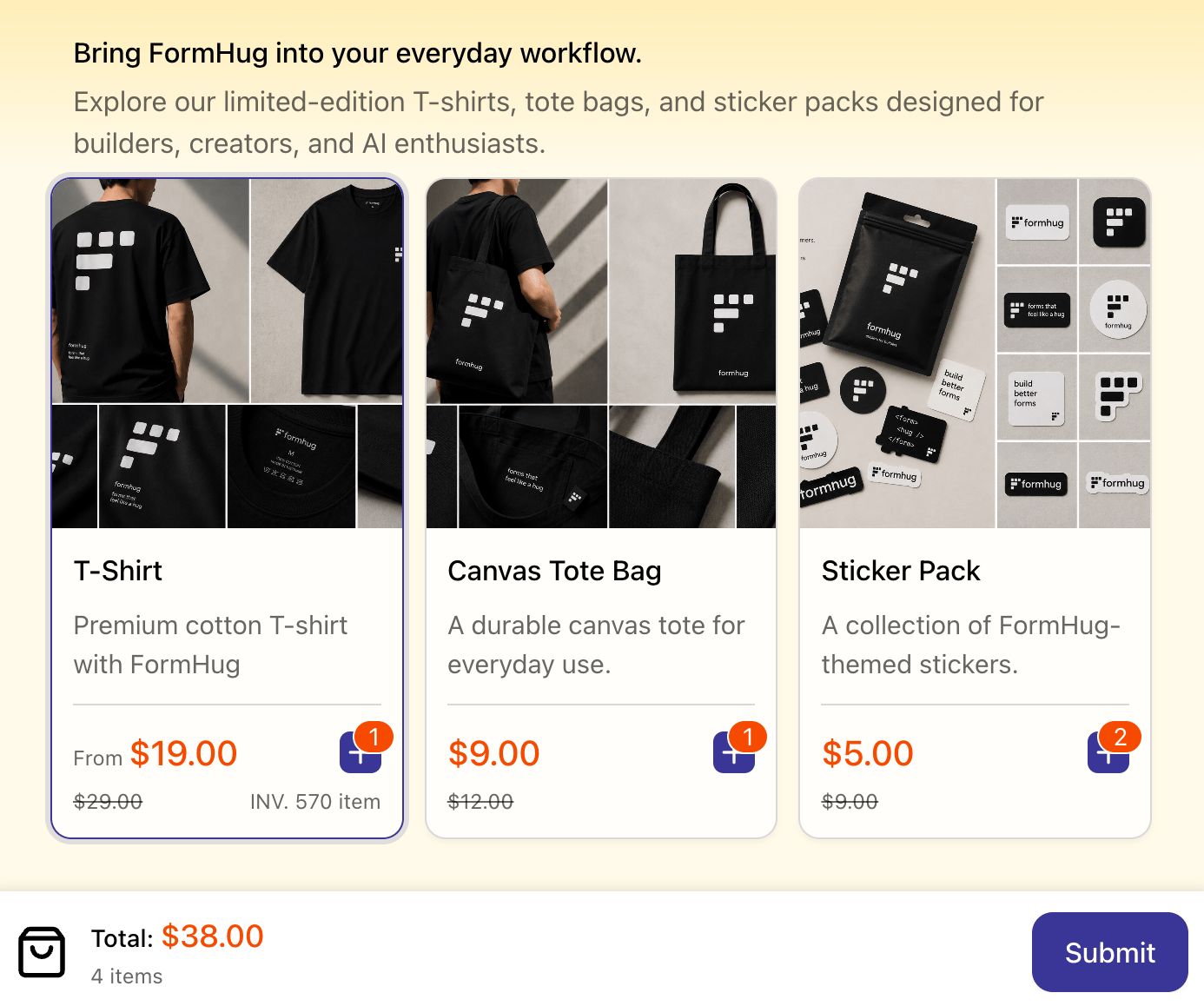 In this merchandise store example, each product has images, a description, a price, an original price, stock-aware quantity controls, and an add-to-cart button.
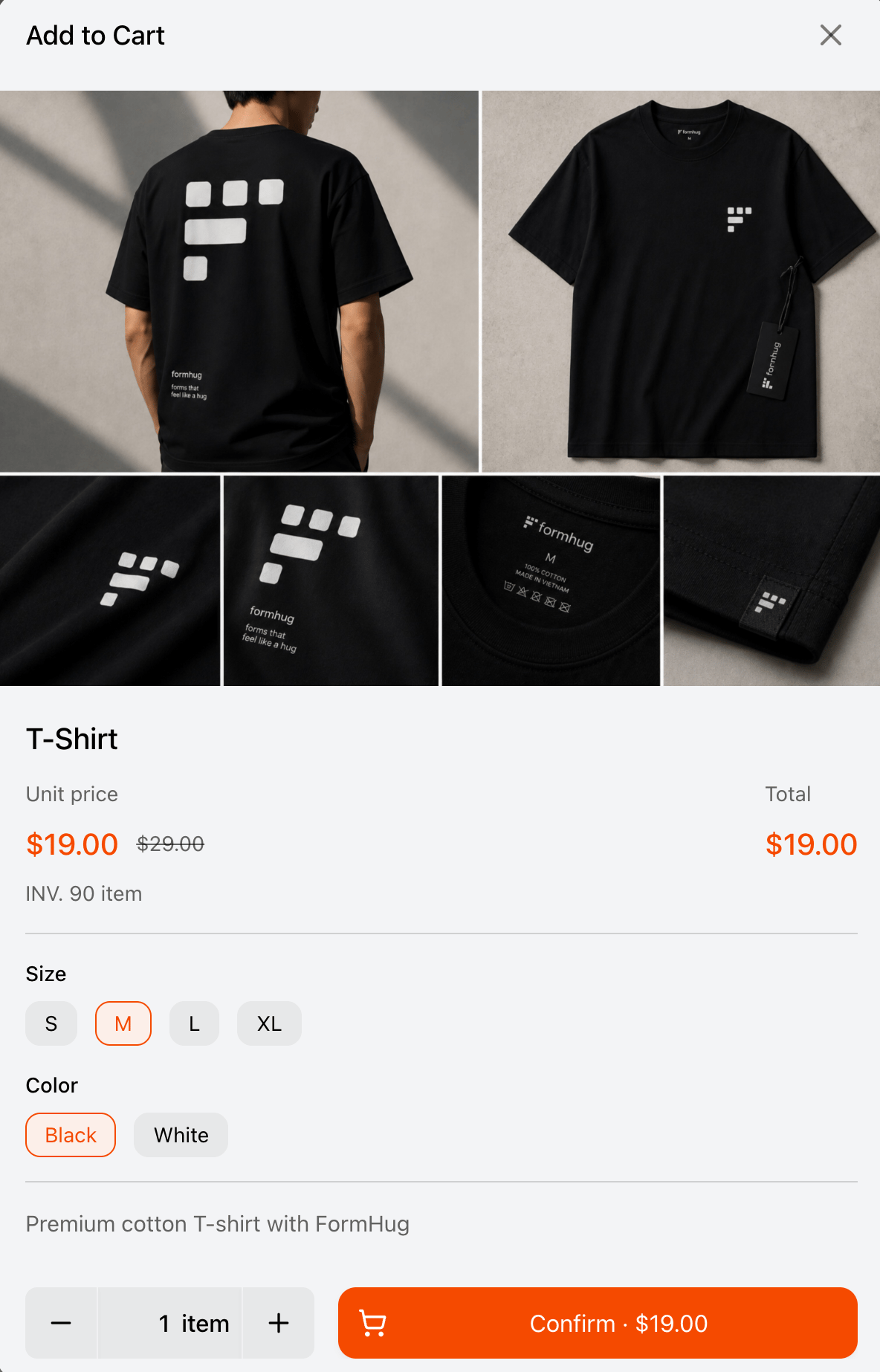 Use variants for choices such as size, color, material, bundle, or edition. FormHug combines variant options into purchasable rows, so each combination can have its own price and stock.
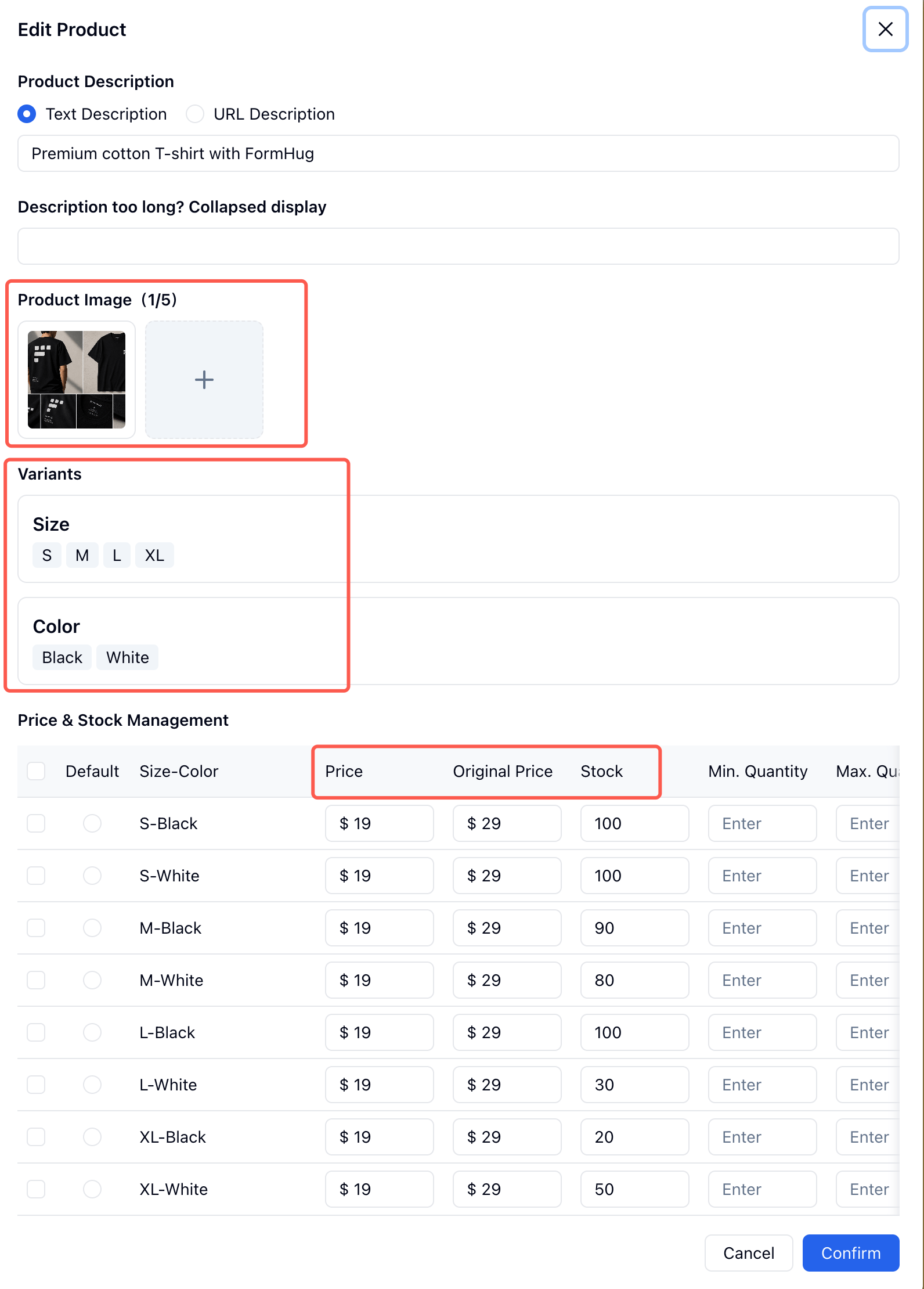 **Key settings:**
* Product name and description
* Product images
* Variant groups such as Size and Color
* Price and original price
* Stock per product or variant
* Default, minimum, and maximum quantity
* Unit text and stock text
* Discount
**Key settings:**
* Product name and description
* Product images
* Variant groups such as Size and Color
* Price and original price
* Stock per product or variant
* Default, minimum, and maximum quantity
* Unit text and stock text
* Discount
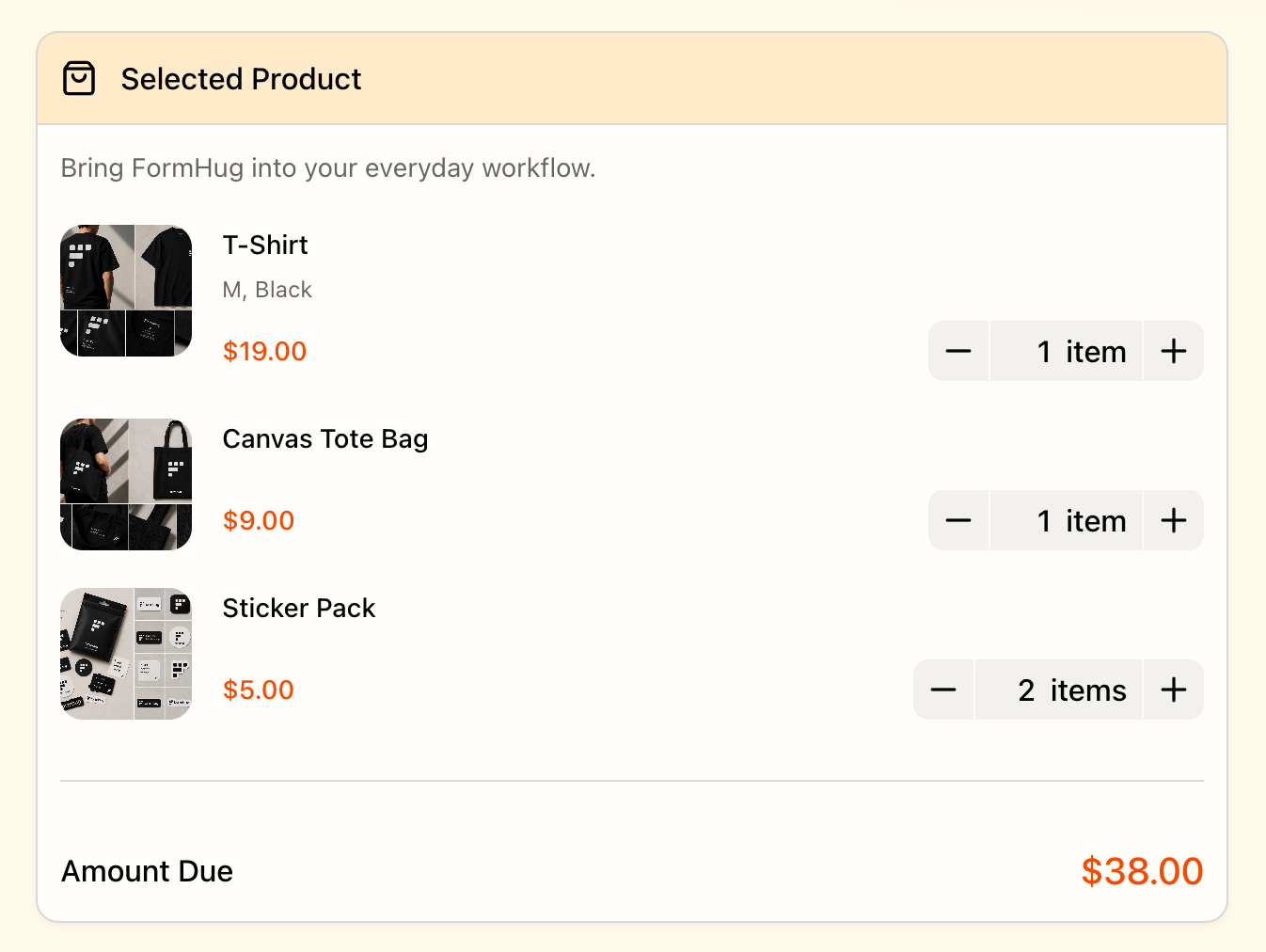 See a Product field used for T-shirts, tote bags, and sticker packs.
## Text Product
Use **Text Product** when the product or package does not need images. It works well for hotel packages, service packages, workshop passes, appointments with fixed packages, and other text-first purchases.
See a Product field used for T-shirts, tote bags, and sticker packs.
## Text Product
Use **Text Product** when the product or package does not need images. It works well for hotel packages, service packages, workshop passes, appointments with fixed packages, and other text-first purchases.
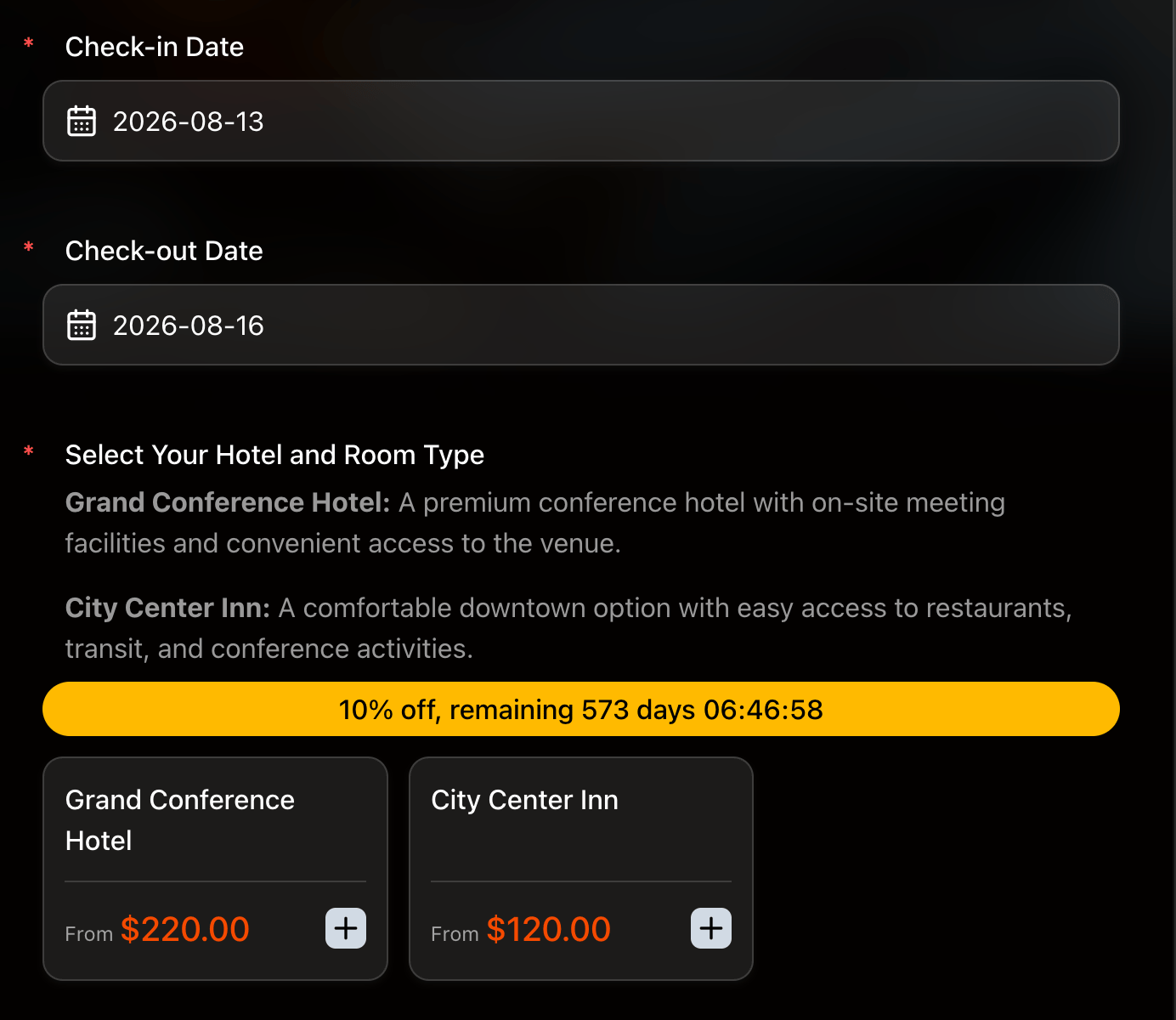 In this hotel booking example, the products are hotels. The variant is the room type, and the quantity is shown as nights.
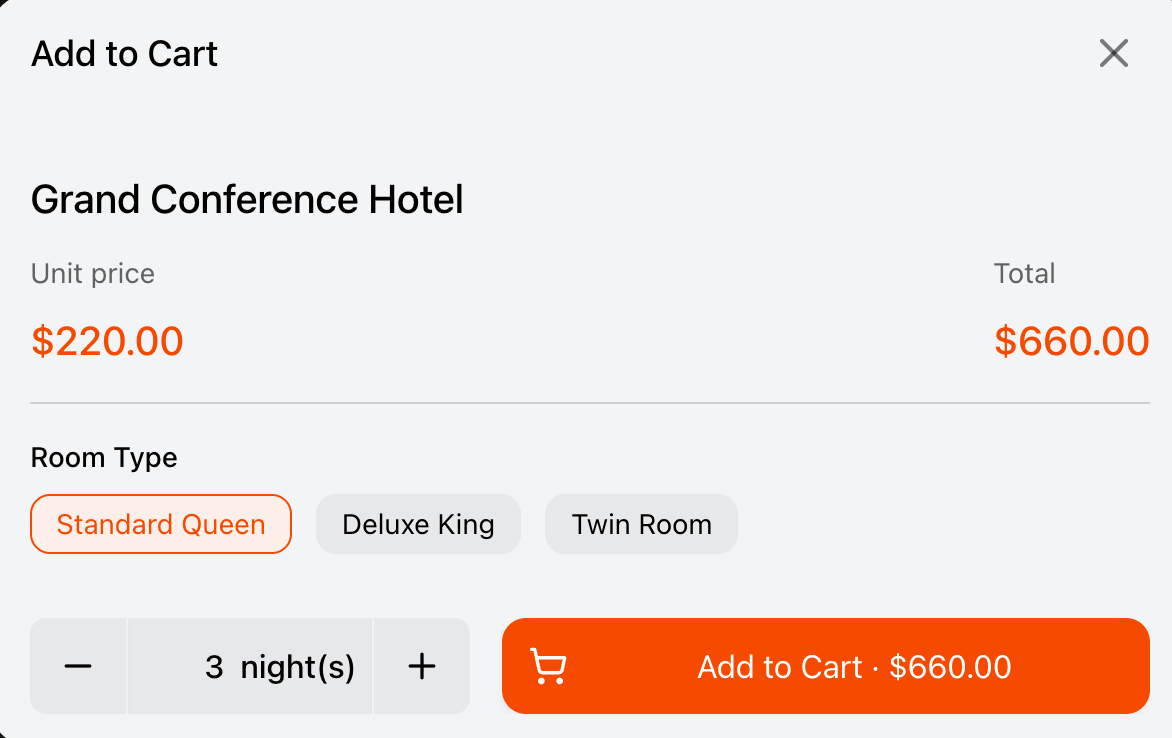 Text Product supports text or URL descriptions. Long descriptions can be collapsed so the public form stays compact.
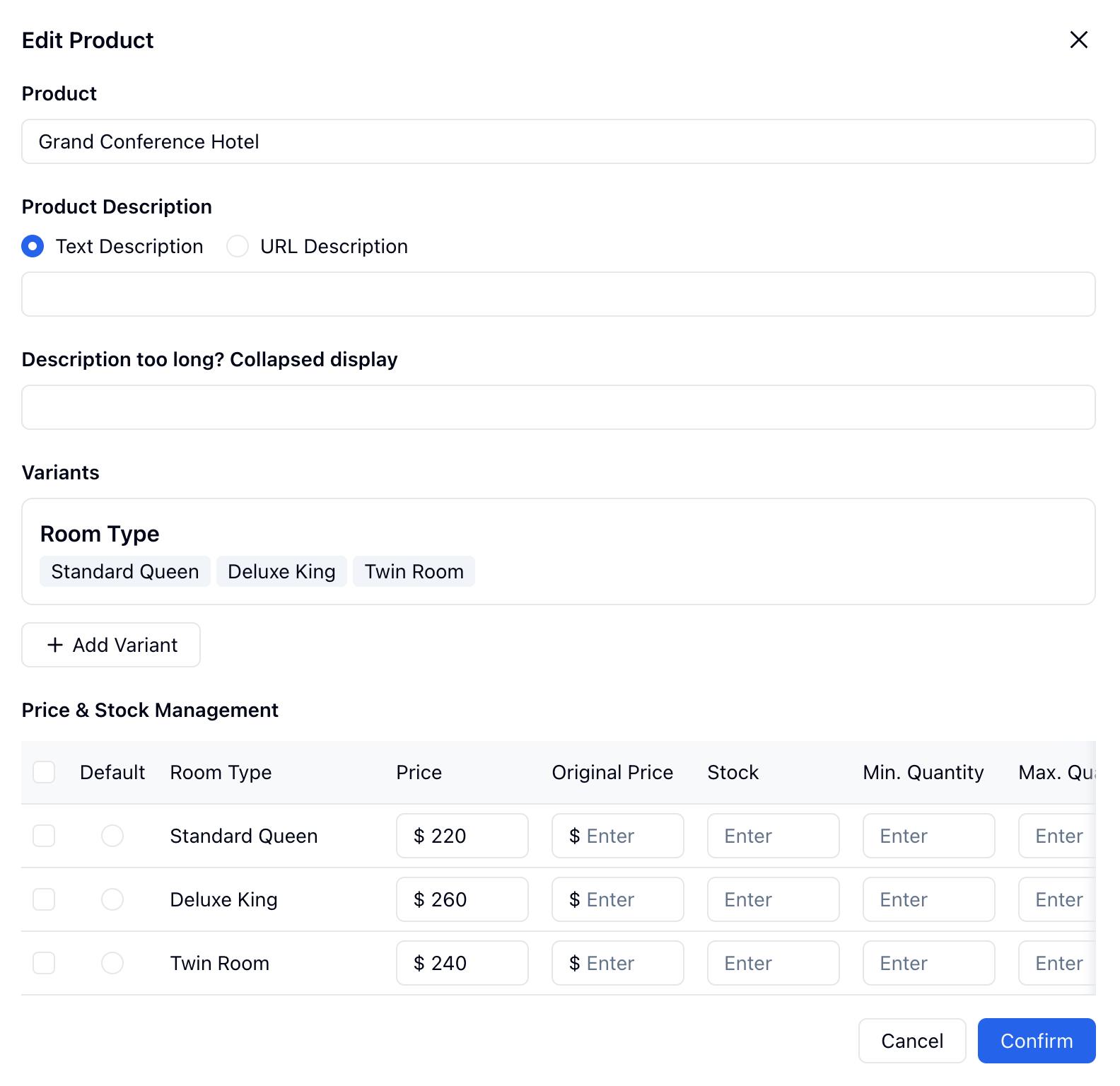 **Key settings:**
* Product name
* Text description or URL description
* Collapsed display for long descriptions
* Variant groups such as Room Type
* Price and original price
* Stock per product or variant
* Default, minimum, and maximum quantity
* Unit text such as nights or rooms
* Restore stock on deletion
**Key settings:**
* Product name
* Text description or URL description
* Collapsed display for long descriptions
* Variant groups such as Room Type
* Price and original price
* Stock per product or variant
* Default, minimum, and maximum quantity
* Unit text such as nights or rooms
* Restore stock on deletion
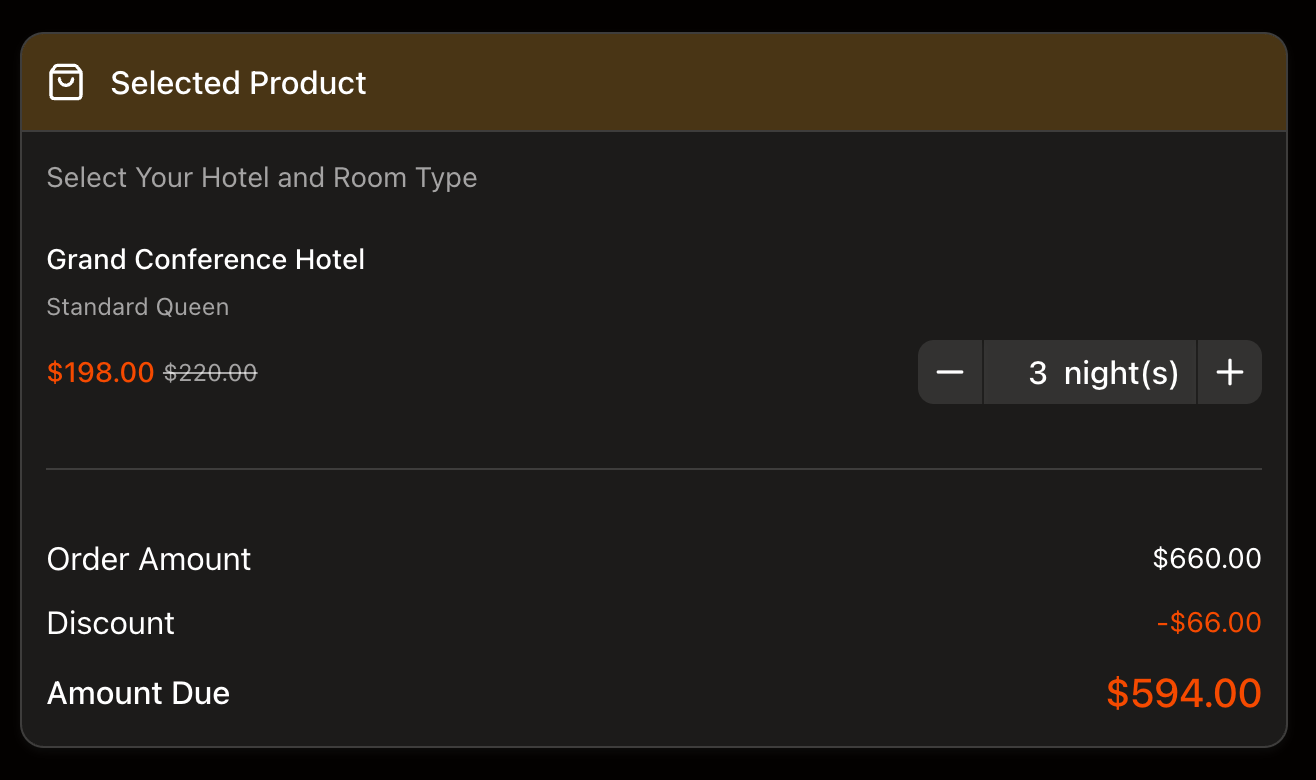 See a Text Product field used for a conference hotel booking form.
## Text Option
Use **Text Option** when one paid offer is determined by text choices. It is useful for ticket booking, plans, packages, or registration options where the submitter chooses from option groups.
See a Text Product field used for a conference hotel booking form.
## Text Option
Use **Text Option** when one paid offer is determined by text choices. It is useful for ticket booking, plans, packages, or registration options where the submitter chooses from option groups.
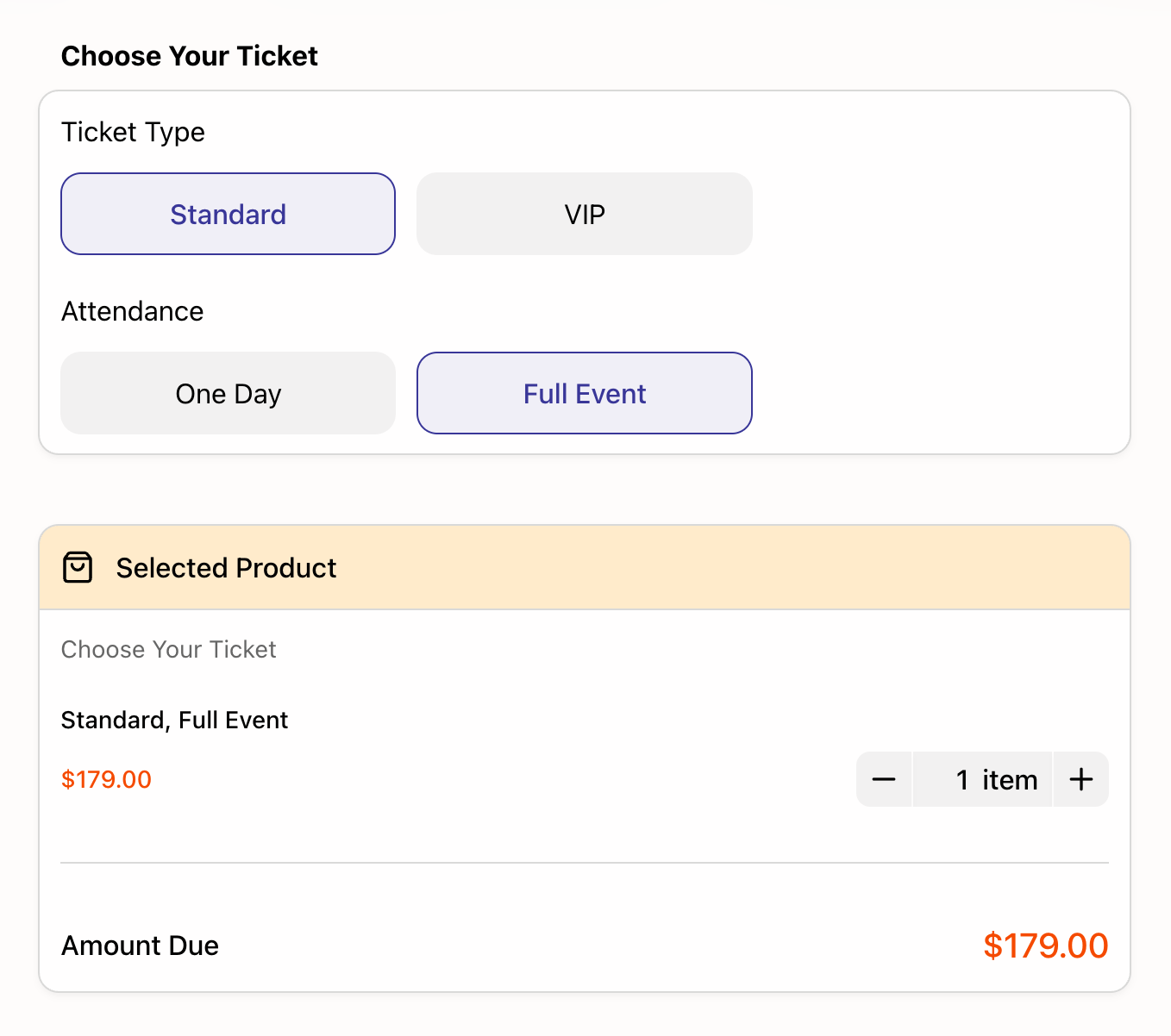 In this ticket example, the price is based on the selected ticket type and attendance option.
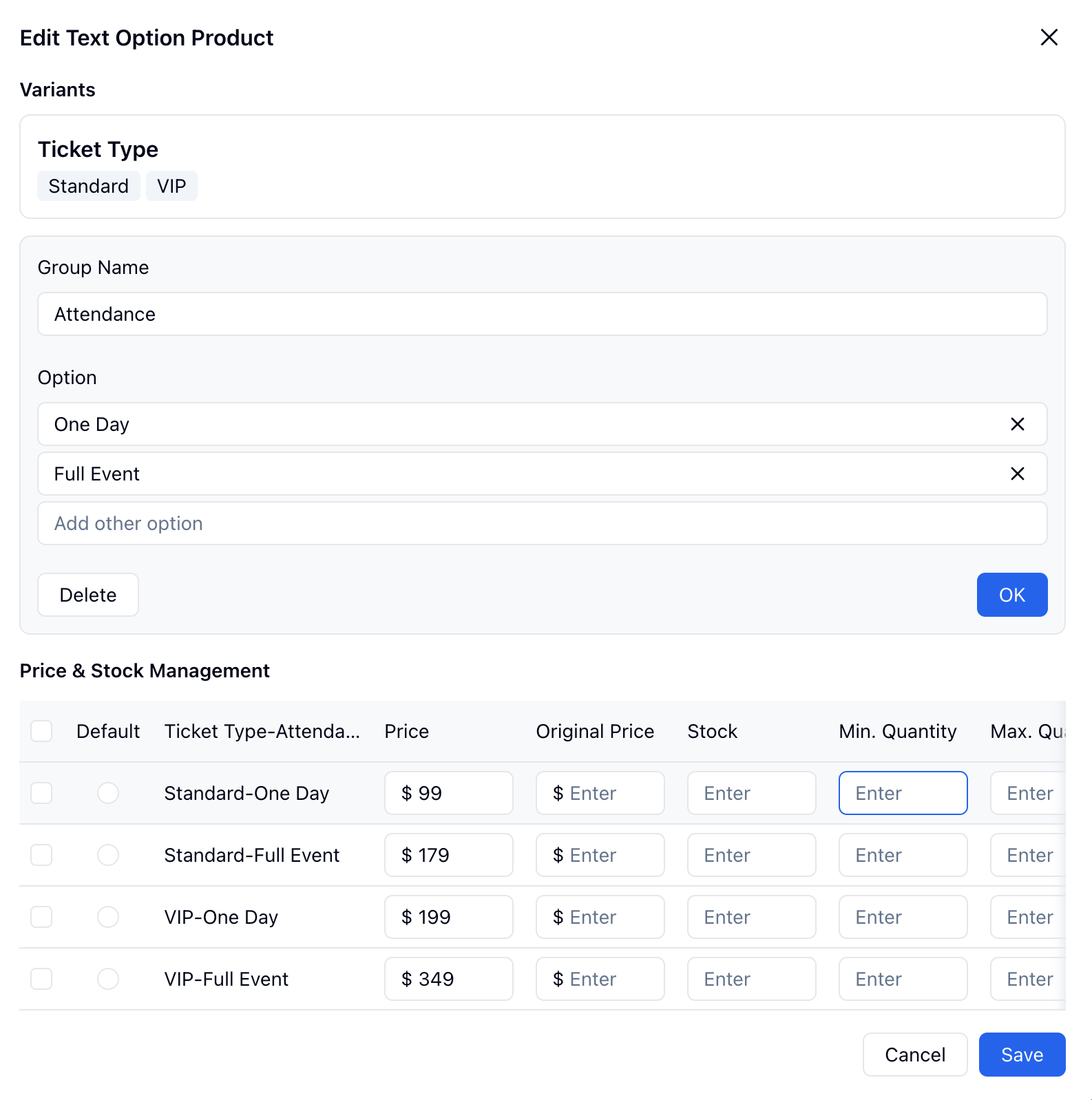 **Key settings:**
* Option groups
* Option labels
* Combination pricing
* Original price
* Stock per option combination
* Default, minimum, and maximum quantity
* Default option
See a Text Option field used for workshop ticket booking.
## Discounts
Payment fields can apply discounts before checkout.
| Discount Type | Use It For |
| ----------------- | --------------------------------------------------------------------- |
| **Early Bird** | Reduce the price when the submitter purchases before a date and time. |
| **Bulk Discount** | Reduce the total when the submitter buys enough items in one order. |
**Key settings:**
* Option groups
* Option labels
* Combination pricing
* Original price
* Stock per option combination
* Default, minimum, and maximum quantity
* Default option
See a Text Option field used for workshop ticket booking.
## Discounts
Payment fields can apply discounts before checkout.
| Discount Type | Use It For |
| ----------------- | --------------------------------------------------------------------- |
| **Early Bird** | Reduce the price when the submitter purchases before a date and time. |
| **Bulk Discount** | Reduce the total when the submitter buys enough items in one order. |
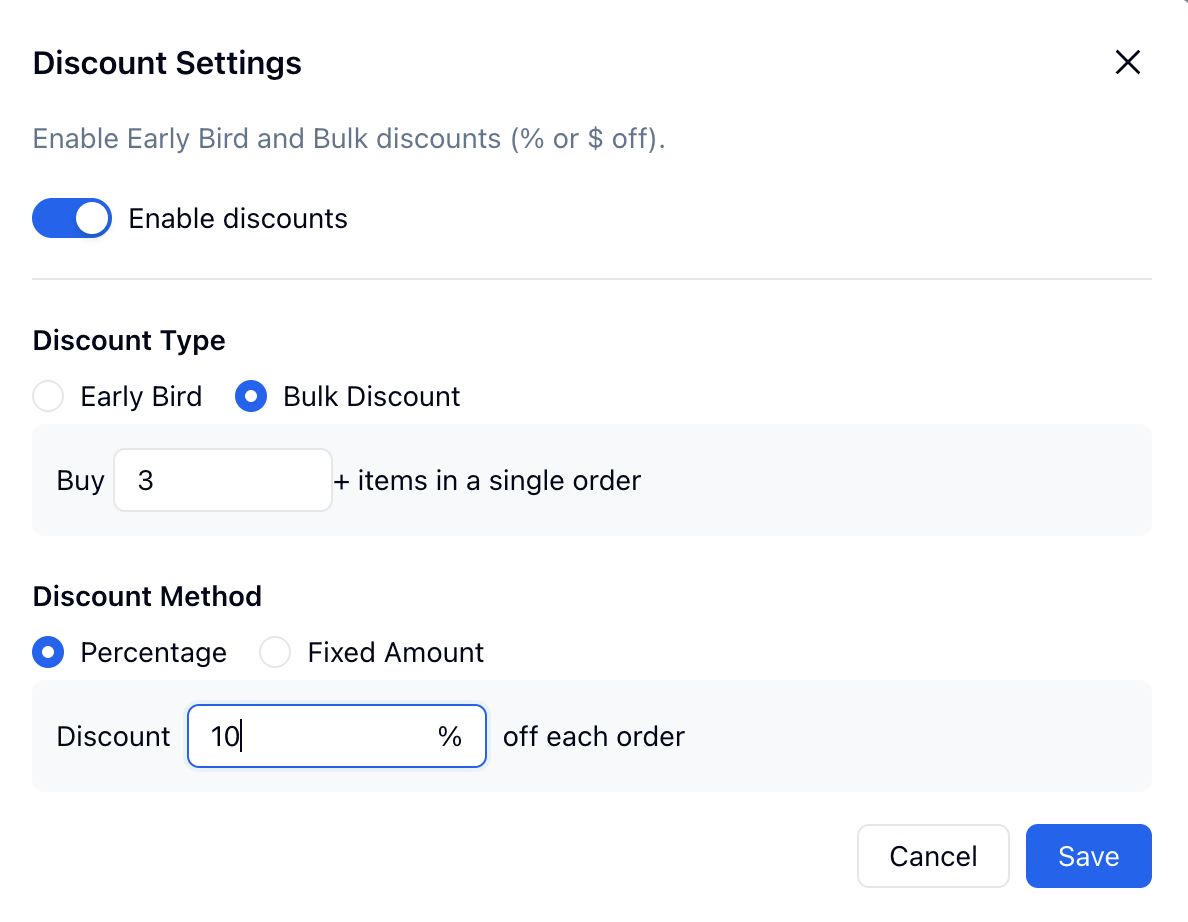 Discounts can be percentage-based or fixed-amount. Depending on the field setup, they can reduce the total order amount or product pricing shown in the selected-product summary.
## Currency, Stripe, and Testing
Set the currency before you publish a payment form. If you want online payment, choose a connected Stripe account in the payment settings. If you only want to test product configuration, you can leave the form unconnected and use the payment fields in display-only mode.
For the full connection flow, see [Stripe](/integrations/stripe).
Forms that already have submissions may restrict changes to currency or payment method. This helps keep past payment records consistent.
## Related
Build donation, merchandise, hotel booking, and ticket payment forms
Connect Stripe before collecting online payments
Connect Stripe and review payment status and receipts
Add and configure fields in the form editor
Start from product order and payment templates
Send notifications after paid or display-only submissions
Discounts can be percentage-based or fixed-amount. Depending on the field setup, they can reduce the total order amount or product pricing shown in the selected-product summary.
## Currency, Stripe, and Testing
Set the currency before you publish a payment form. If you want online payment, choose a connected Stripe account in the payment settings. If you only want to test product configuration, you can leave the form unconnected and use the payment fields in display-only mode.
For the full connection flow, see [Stripe](/integrations/stripe).
Forms that already have submissions may restrict changes to currency or payment method. This helps keep past payment records consistent.
## Related
Build donation, merchandise, hotel booking, and ticket payment forms
Connect Stripe before collecting online payments
Connect Stripe and review payment status and receipts
Add and configure fields in the form editor
Start from product order and payment templates
Send notifications after paid or display-only submissions