> ## Documentation Index
> Fetch the complete documentation index at: https://formhug.ai/docs/llms.txt
> Use this file to discover all available pages before exploring further.
# Basic Settings
> Control how your form is accessed, filled out, and when it accepts submissions
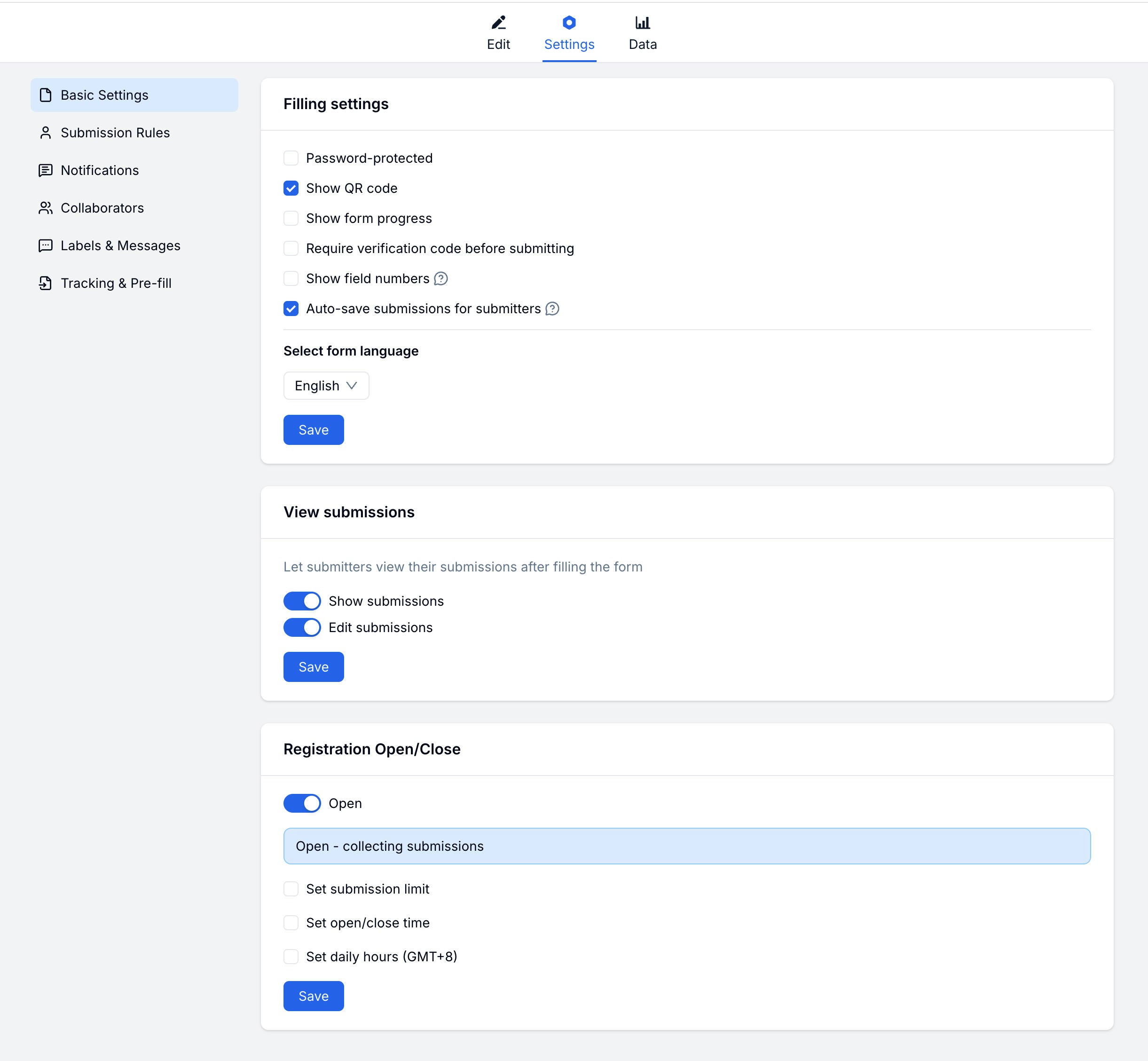
Basic Settings cover the core behavior of your form — from password protection and display options to open/close scheduling and submission access.
 These settings matter most for registration forms, private applications, limited-time surveys, and capacity-based signups.
## Filling Experience
Shape how submitters interact with your form:
| Setting | Description |
| ------------------------ | ---------------------------------------------------------- |
| **Password Protection** | Require a password to access the form |
| **Progress Bar** | Show completion progress at the top |
| **Auto-save** | Automatically save progress so submitters can return later |
| **Show QR Code on Form** | Display a QR code on the form page |
| **Show Field Numbers** | Number each field for easier reference |
| **Language** | Set the form display language |
### Password Protection
Restrict access to your form with a password.
Go to **Settings → Basic → Password Protection** and toggle it on.
Enter the password submitters will need to access the form.
Share the password with authorized submitters separately.
### Auto-save
Let submitters save progress and continue later. Progress is saved as they fill the form — they can close the browser and return without losing their answers.
## Submission Access & Editing
Decide what submitters can do after submitting:
| Setting | Description |
| -------------------- | ---------------------------------------------------- |
| **View Submissions** | Let submitters see their past responses |
| **Edit Submissions** | Allow submitters to edit a response after submitting |
## Open & Close Rules
Control when your form accepts submissions:
| Setting | Description |
| -------------------- | ------------------------------------------------ |
| **Submission Limit** | Maximum total submissions before the form closes |
| **Schedule** | Set open and close dates |
| **Countdown** | Show time remaining until the form closes |
### Setting a Schedule
Go to **Settings → Basic → Open & Close Rules** and enable scheduling.
Choose when the form should start accepting submissions.
Choose when the form should stop accepting submissions.
### Submission Limit
Cap the total number of accepted submissions:
1. Enable **Submission Limit**
2. Enter the maximum number
3. Optionally customize the message shown when the form is closed
## Related
Control who can submit and how often
Set up email alerts for new submissions
Configure access, limits, and close rules for sign-up forms
Start from event, course, webinar, and membership registration templates
These settings matter most for registration forms, private applications, limited-time surveys, and capacity-based signups.
## Filling Experience
Shape how submitters interact with your form:
| Setting | Description |
| ------------------------ | ---------------------------------------------------------- |
| **Password Protection** | Require a password to access the form |
| **Progress Bar** | Show completion progress at the top |
| **Auto-save** | Automatically save progress so submitters can return later |
| **Show QR Code on Form** | Display a QR code on the form page |
| **Show Field Numbers** | Number each field for easier reference |
| **Language** | Set the form display language |
### Password Protection
Restrict access to your form with a password.
Go to **Settings → Basic → Password Protection** and toggle it on.
Enter the password submitters will need to access the form.
Share the password with authorized submitters separately.
### Auto-save
Let submitters save progress and continue later. Progress is saved as they fill the form — they can close the browser and return without losing their answers.
## Submission Access & Editing
Decide what submitters can do after submitting:
| Setting | Description |
| -------------------- | ---------------------------------------------------- |
| **View Submissions** | Let submitters see their past responses |
| **Edit Submissions** | Allow submitters to edit a response after submitting |
## Open & Close Rules
Control when your form accepts submissions:
| Setting | Description |
| -------------------- | ------------------------------------------------ |
| **Submission Limit** | Maximum total submissions before the form closes |
| **Schedule** | Set open and close dates |
| **Countdown** | Show time remaining until the form closes |
### Setting a Schedule
Go to **Settings → Basic → Open & Close Rules** and enable scheduling.
Choose when the form should start accepting submissions.
Choose when the form should stop accepting submissions.
### Submission Limit
Cap the total number of accepted submissions:
1. Enable **Submission Limit**
2. Enter the maximum number
3. Optionally customize the message shown when the form is closed
## Related
Control who can submit and how often
Set up email alerts for new submissions
Configure access, limits, and close rules for sign-up forms
Start from event, course, webinar, and membership registration templates