> ## Documentation Index
> Fetch the complete documentation index at: https://formhug.ai/docs/llms.txt
> Use this file to discover all available pages before exploring further.
# Tracking & Pre-fill
> Create named tracking links per source and generate pre-fill links with field values already populated
Tracking & Pre-fill help you understand where submissions come from and make forms faster to complete for specific audiences.
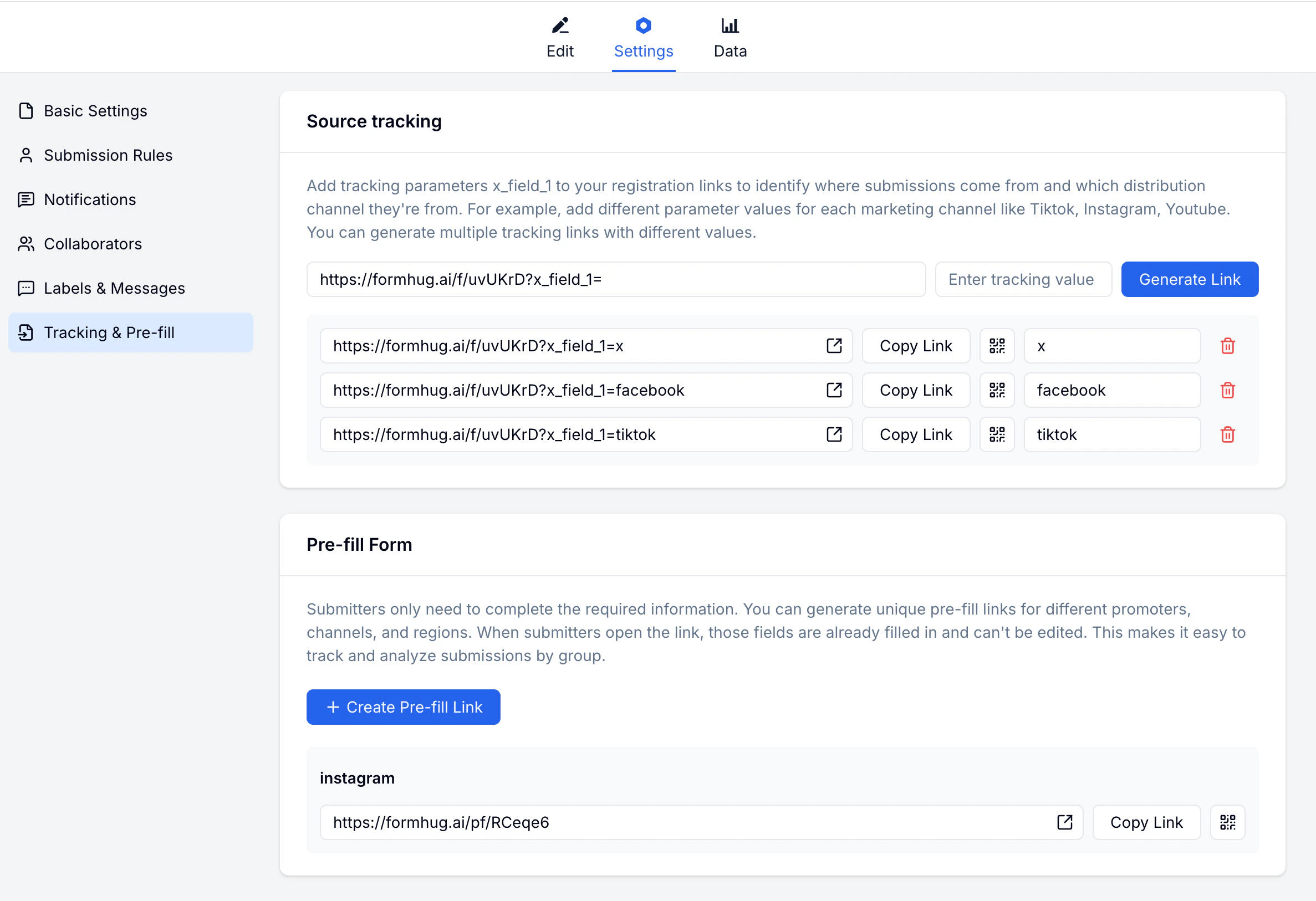 This is useful for lead generation, partner campaigns, event invitations, and source-specific survey links.
## Source Tracking
Create named tracking links for each traffic source. Each link uses the same form URL but tags submissions with the source name, so you can see where responses originated.
**Common tracking sources:**
| Source name | Channel |
| ----------- | ------------------------ |
| `x` | Posts on X (Twitter) |
| `facebook` | Facebook posts or ads |
| `tiktok` | TikTok bio or posts |
| `email` | Email campaigns |
| `website` | Links from your own site |
Each tracking link has a **Copy Link** button and a **QR code** icon for quick sharing.
### Creating a Tracking Link
Go to your form → **Settings → Tracking & Pre-fill**.
Enter a name for the source (e.g. `instagram`).
Copy the generated tracking link and use it when sharing to that channel.
## Pre-fill Links
Generate a link with certain fields already completed. Useful for personalized invitations or when you already know some of the submitter's data.
### Creating a Pre-fill Link
Go to your form → **Settings → Tracking & Pre-fill** and find the Pre-fill section.
Enter a descriptive name so you can identify this pre-fill link later.
Choose which fields to pre-fill and enter the values.
Copy the generated URL with pre-fill parameters included.
Use a pre-fill link with a locked field to pass a referral code or event name that submitters can't change.
## Related
Publish and share your form
View and filter your responses
Learn how to structure campaign forms and track response sources
Start from demo, quote, callback, and early-access forms
This is useful for lead generation, partner campaigns, event invitations, and source-specific survey links.
## Source Tracking
Create named tracking links for each traffic source. Each link uses the same form URL but tags submissions with the source name, so you can see where responses originated.
**Common tracking sources:**
| Source name | Channel |
| ----------- | ------------------------ |
| `x` | Posts on X (Twitter) |
| `facebook` | Facebook posts or ads |
| `tiktok` | TikTok bio or posts |
| `email` | Email campaigns |
| `website` | Links from your own site |
Each tracking link has a **Copy Link** button and a **QR code** icon for quick sharing.
### Creating a Tracking Link
Go to your form → **Settings → Tracking & Pre-fill**.
Enter a name for the source (e.g. `instagram`).
Copy the generated tracking link and use it when sharing to that channel.
## Pre-fill Links
Generate a link with certain fields already completed. Useful for personalized invitations or when you already know some of the submitter's data.
### Creating a Pre-fill Link
Go to your form → **Settings → Tracking & Pre-fill** and find the Pre-fill section.
Enter a descriptive name so you can identify this pre-fill link later.
Choose which fields to pre-fill and enter the values.
Copy the generated URL with pre-fill parameters included.
Use a pre-fill link with a locked field to pass a referral code or event name that submitters can't change.
## Related
Publish and share your form
View and filter your responses
Learn how to structure campaign forms and track response sources
Start from demo, quote, callback, and early-access forms