> ## Documentation Index
> Fetch the complete documentation index at: https://formhug.ai/docs/llms.txt
> Use this file to discover all available pages before exploring further.
# Create a Multilingual Form
> Use AI translation to publish one form in multiple languages, with automatic browser-language matching and a manual language switcher
A multilingual form helps one link serve people who prefer different languages. FormHug can translate your form with AI, let you review the wording, automatically match a respondent's browser language, and still let respondents switch languages manually.
This guide uses a **Community Health Screening Registration** form as the example. It is a good fit because the respondents may include families, older adults, new residents, or community members who should not need to rely on browser translation to understand important registration details.
 ## Example Form
Keep the form short so the language experience is easy to understand.
| Field | Type |
| ------------------------------------------ | ------------- |
| Full Name | Name |
| Email Address | Email |
| Phone Number | Phone |
| Preferred Language | Dropdown |
| Screening Type | Single choice |
| Preferred Time | Single choice |
| Need an Interpreter? | Single choice |
| Anything we should know before your visit? | Long text |
| Consent | Checkbox |
The same approach works for event registrations, school forms, public-service intake forms, customer feedback surveys, applications, and appointment requests.
## Why Use Native Form Translation
Browser translation can help people read a page, but a form often needs more control:
* Field labels and options should be translated consistently.
* Consent and eligibility text may need review.
* Submit buttons, validation messages, and navigation should match the form language.
* Respondents should be able to switch languages without finding browser tools.
* The form owner should keep one share link instead of creating separate copies.
## Step 1: Create the Source Form
Create the form in the language your team uses to manage it. For many teams, this is English.
Start from AI, a template, or a blank form.
Use a small set of clear fields. This makes the translated form easier to review and easier for respondents to complete.
Confirm that the source form reads correctly before adding translation languages.
## Example Form
Keep the form short so the language experience is easy to understand.
| Field | Type |
| ------------------------------------------ | ------------- |
| Full Name | Name |
| Email Address | Email |
| Phone Number | Phone |
| Preferred Language | Dropdown |
| Screening Type | Single choice |
| Preferred Time | Single choice |
| Need an Interpreter? | Single choice |
| Anything we should know before your visit? | Long text |
| Consent | Checkbox |
The same approach works for event registrations, school forms, public-service intake forms, customer feedback surveys, applications, and appointment requests.
## Why Use Native Form Translation
Browser translation can help people read a page, but a form often needs more control:
* Field labels and options should be translated consistently.
* Consent and eligibility text may need review.
* Submit buttons, validation messages, and navigation should match the form language.
* Respondents should be able to switch languages without finding browser tools.
* The form owner should keep one share link instead of creating separate copies.
## Step 1: Create the Source Form
Create the form in the language your team uses to manage it. For many teams, this is English.
Start from AI, a template, or a blank form.
Use a small set of clear fields. This makes the translated form easier to review and easier for respondents to complete.
Confirm that the source form reads correctly before adding translation languages.
 ## Step 2: Open Language Settings
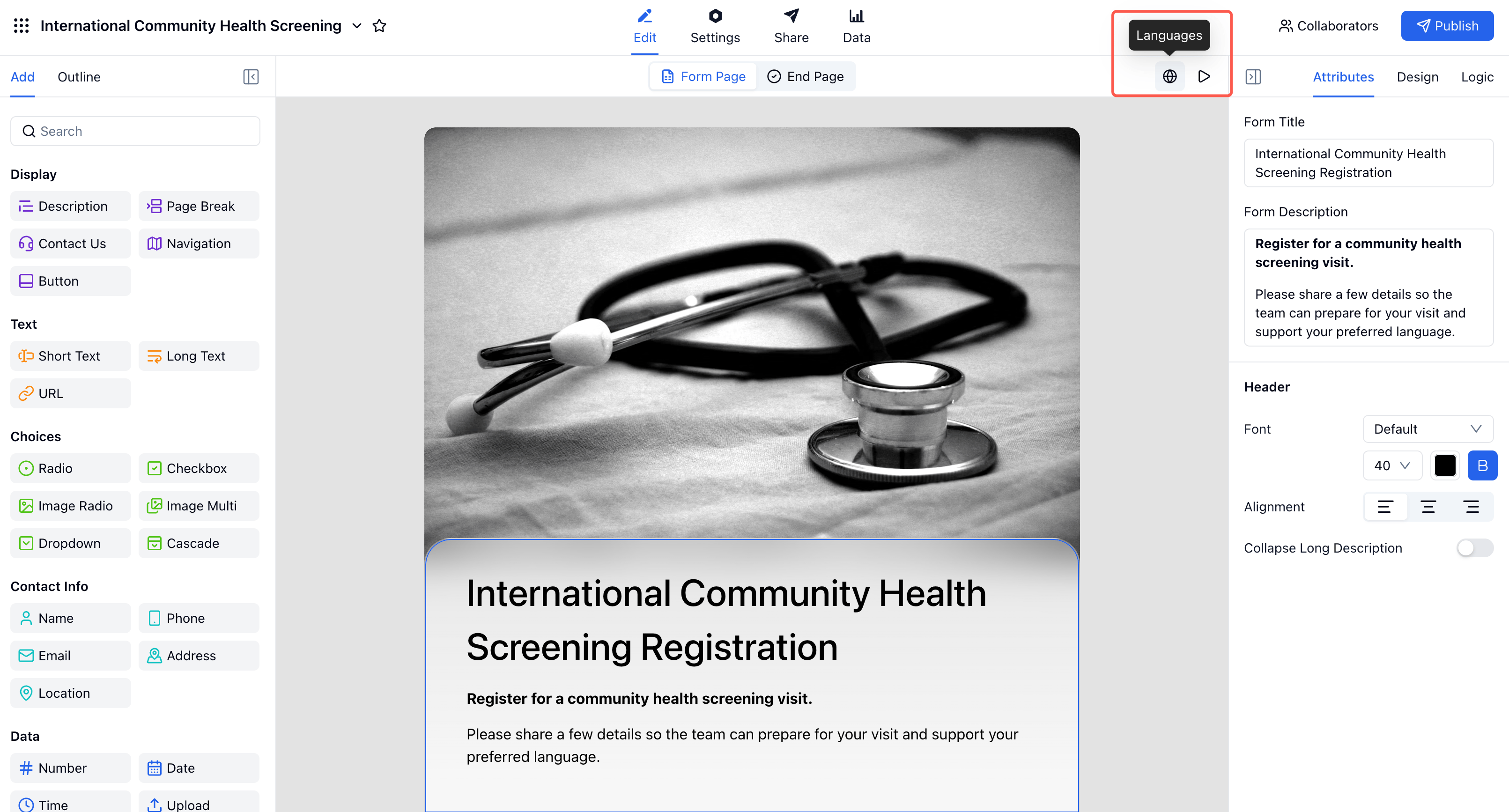
Open language settings from the form editor toolbar or from **Settings -> Languages**.
## Step 2: Open Language Settings
Open language settings from the form editor toolbar or from **Settings -> Languages**.
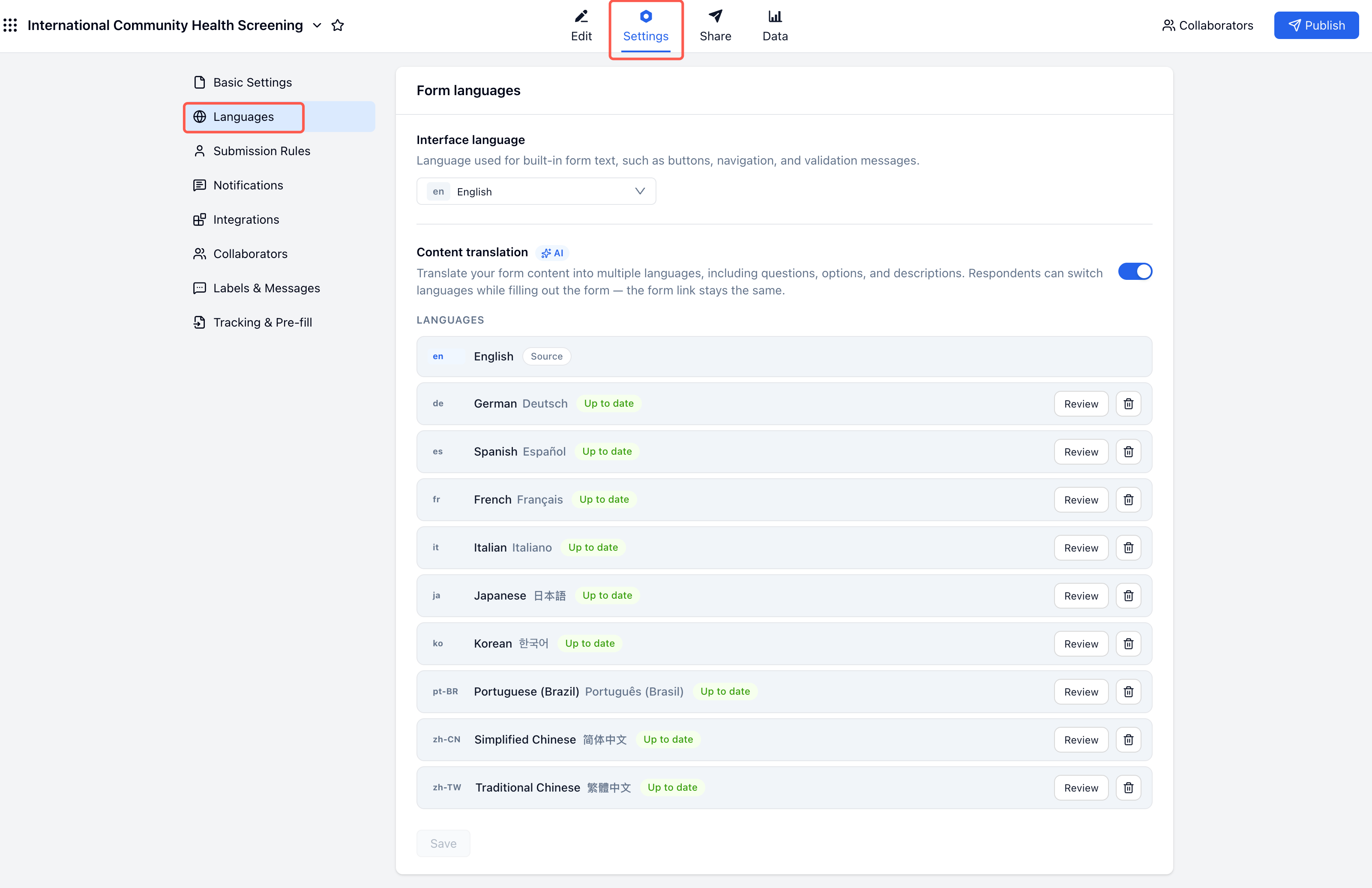 The page includes two separate settings:
* **Interface language** controls built-in form text such as buttons, navigation, and validation messages.
* **Content translation** translates the form content itself, including questions, options, descriptions, and submission-related content.
## Step 3: Add Translation Languages
Turn on **Content translation**, click **Add a language**, and choose the languages you want to support.
The page includes two separate settings:
* **Interface language** controls built-in form text such as buttons, navigation, and validation messages.
* **Content translation** translates the form content itself, including questions, options, descriptions, and submission-related content.
## Step 3: Add Translation Languages
Turn on **Content translation**, click **Add a language**, and choose the languages you want to support.
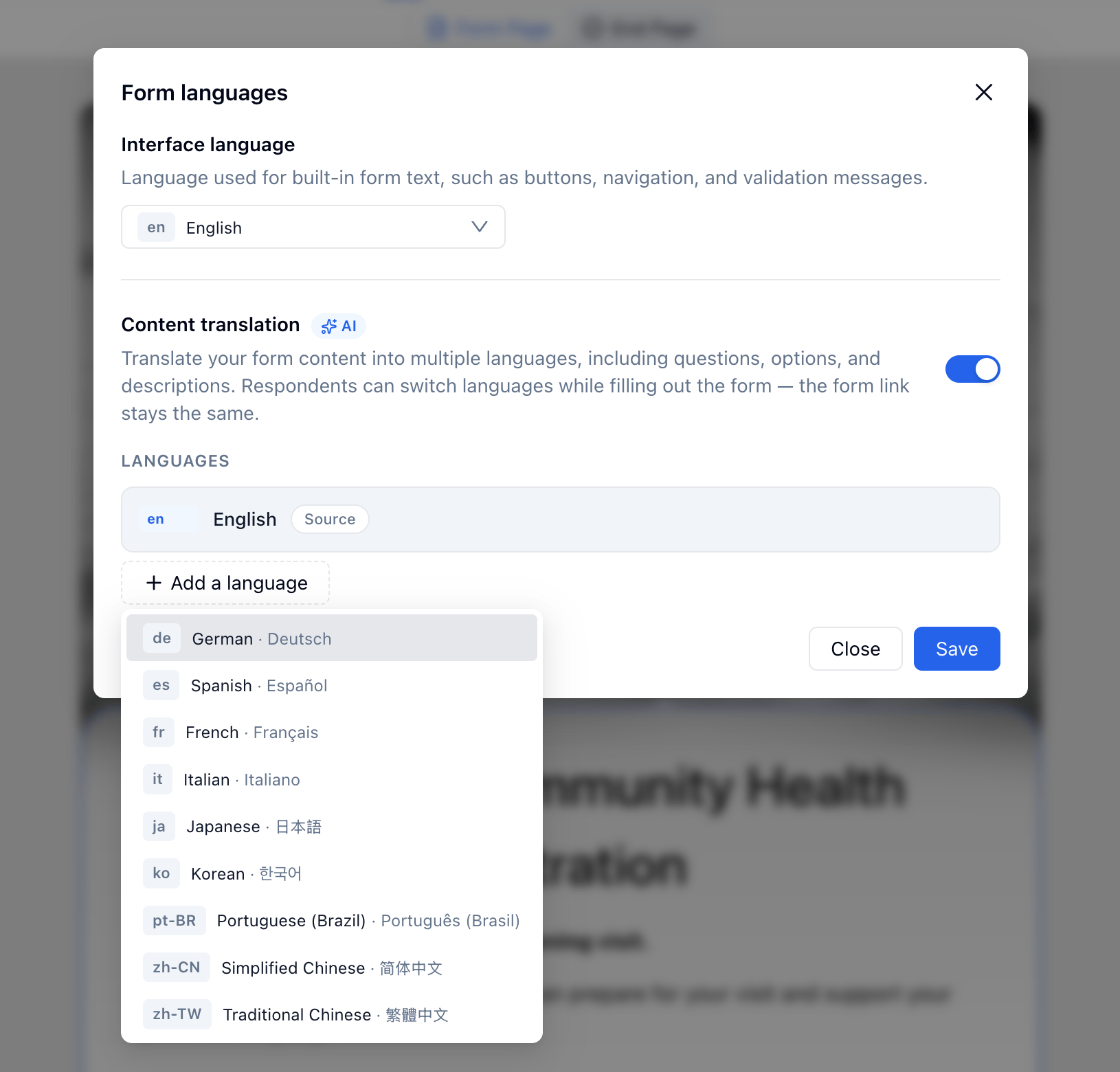 When you add a language, FormHug starts AI translation automatically. You can add several languages to the same form.
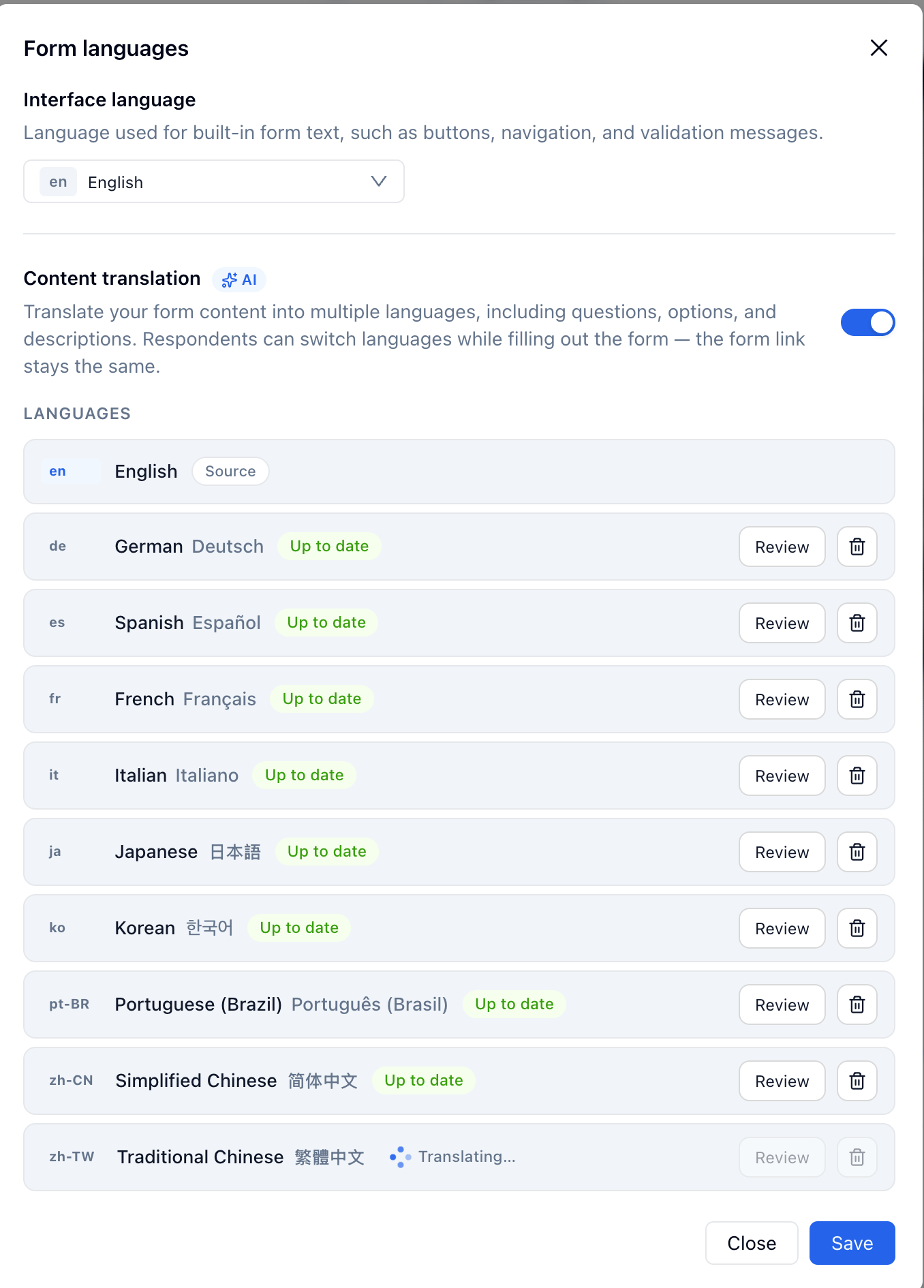 FormHug currently supports 10 form languages for this workflow: English, German, Spanish, French, Italian, Japanese, Korean, Portuguese (Brazil), Simplified Chinese, and Traditional Chinese.
## Step 4: Review Translation Quality
Click **Review** next to a language to compare the source text with the translated text.
FormHug currently supports 10 form languages for this workflow: English, German, Spanish, French, Italian, Japanese, Korean, Portuguese (Brazil), Simplified Chinese, and Traditional Chinese.
## Step 4: Review Translation Quality
Click **Review** next to a language to compare the source text with the translated text.
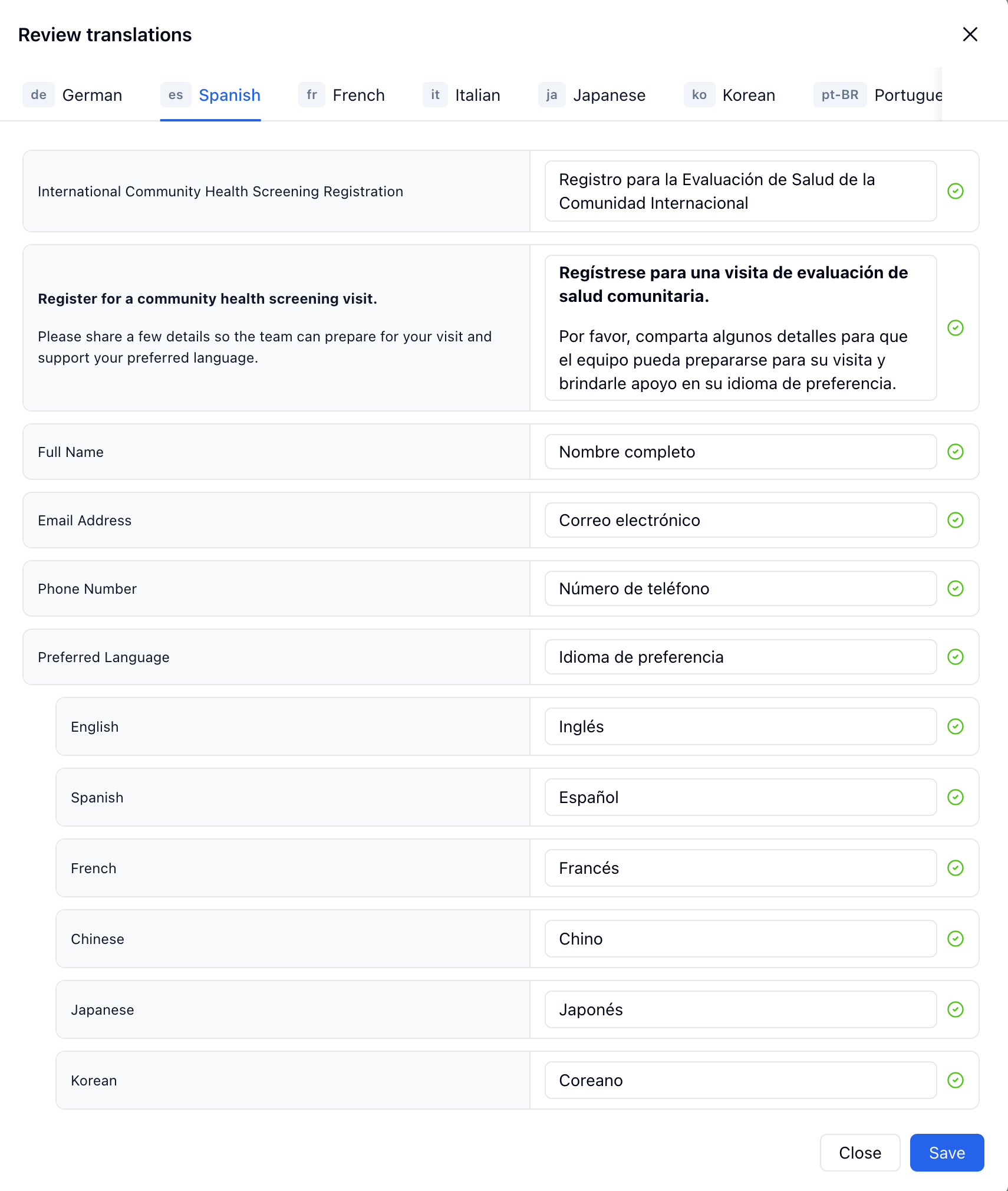 Review translations for:
* Form title and description
* Field labels
* Choice options
* Help text
* Consent or policy wording
* Any text shown after submission
You can edit individual translations manually. This is useful when a literal translation is understandable but not the phrase your audience would naturally use.
## Step 5: Share One Link
The public form link stays the same for every language.
When a respondent opens the form, FormHug checks the browser language:
* If a matching translation exists, the form opens in that language.
* If no matching translation exists, the form falls back to the original form language.
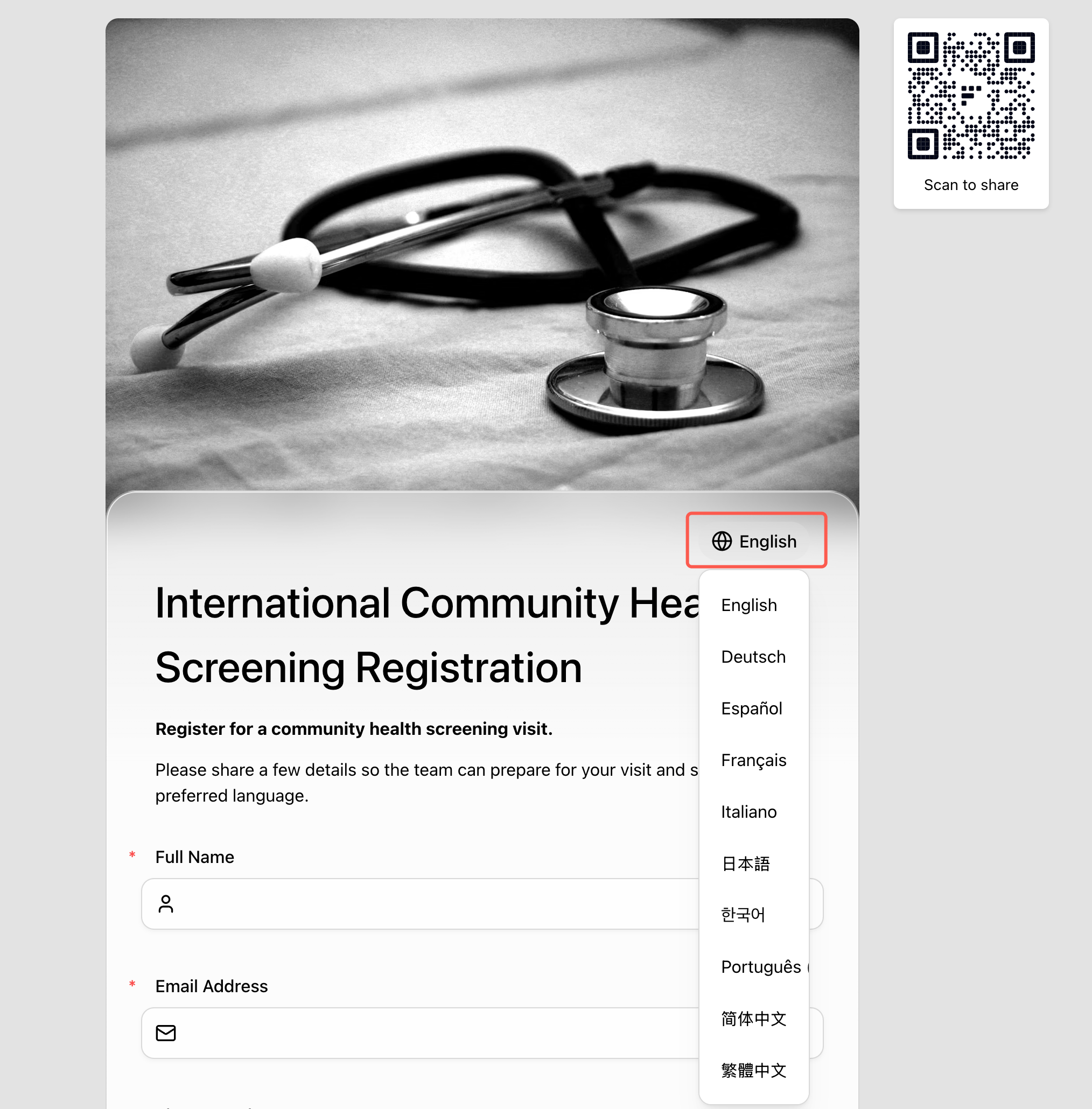
* The respondent can still switch languages manually from the top of the form.
Review translations for:
* Form title and description
* Field labels
* Choice options
* Help text
* Consent or policy wording
* Any text shown after submission
You can edit individual translations manually. This is useful when a literal translation is understandable but not the phrase your audience would naturally use.
## Step 5: Share One Link
The public form link stays the same for every language.
When a respondent opens the form, FormHug checks the browser language:
* If a matching translation exists, the form opens in that language.
* If no matching translation exists, the form falls back to the original form language.
* The respondent can still switch languages manually from the top of the form.
 ## Step 6: Check the Respondent Experience
Open the public form and switch to another language to confirm the translated experience.
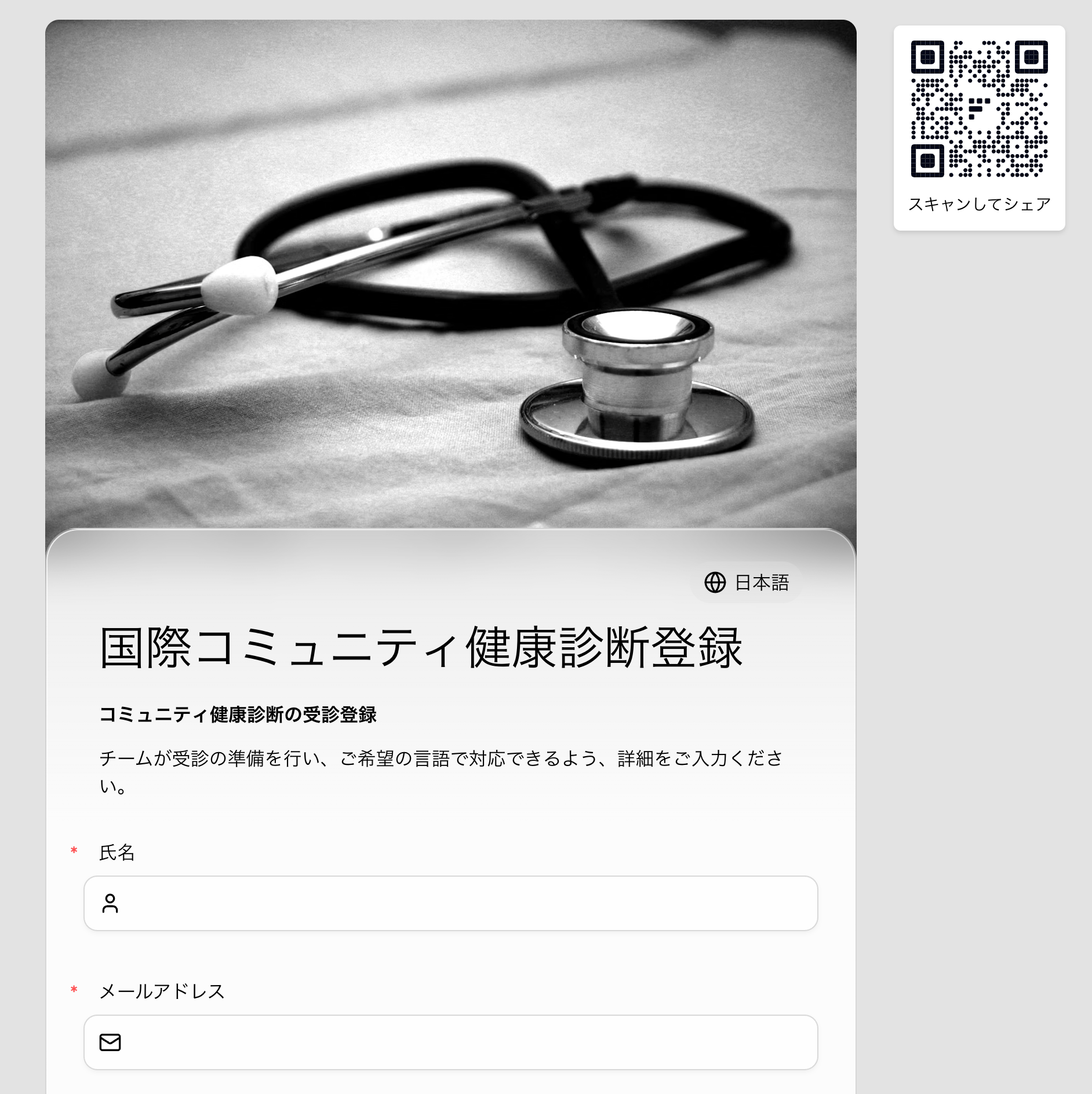
For a community health screening form, this means a Japanese-speaking respondent can read the title, description, required fields, QR code label, and field labels in Japanese while using the same public form link as every other respondent.
## Related
Configure interface language, AI translations, review, and respondent language switching
Build the core sign-up form before adding translations
Publish and share one form link for every language
Customize built-in labels and messages for your form
## Step 6: Check the Respondent Experience
Open the public form and switch to another language to confirm the translated experience.
For a community health screening form, this means a Japanese-speaking respondent can read the title, description, required fields, QR code label, and field labels in Japanese while using the same public form link as every other respondent.
## Related
Configure interface language, AI translations, review, and respondent language switching
Build the core sign-up form before adding translations
Publish and share one form link for every language
Customize built-in labels and messages for your form