> ## Documentation Index
> Fetch the complete documentation index at: https://formhug.ai/docs/llms.txt
> Use this file to discover all available pages before exploring further.
# Create a Payment Form
> How to build payment forms for donations, product orders, hotel packages, and ticket booking using FormHug payment fields.
A payment form collects selections, calculates totals, and optionally sends submitters to online payment. The right setup depends on what people are paying for: a simple amount, a visual product, a text-based package, or a ticket option.
For the field-by-field reference, see [Payment Fields](/docs/features/building/fields/payment-fields). For online payment setup, see [Stripe Collect Payments](/docs/integrations/stripe). The public demo forms in this guide show complete product configuration without requiring a live payment account.
## Match the Field to the Scenario
| Scenario | Payment Field | Use It When |
| ------------------------- | ------------- | ------------------------------------------------------------------------------------ |
| **Donation** | Price-Only | People choose a fixed amount or enter a custom amount. |
| **Merchandise store** | Product | People compare visual products such as T-shirts, bags, and stickers. |
| **Hotel booking package** | Text Product | People choose a text-based product such as a hotel, room type, and number of nights. |
| **Ticket booking** | Text Option | People choose from text option groups such as ticket type and attendance length. |
## Build Your Payment Form
Start with the field that matches the buying decision. Use Price-Only for amount-only payments, Product for visual goods, Text Product for text-based packages, and Text Option for option-driven pricing.
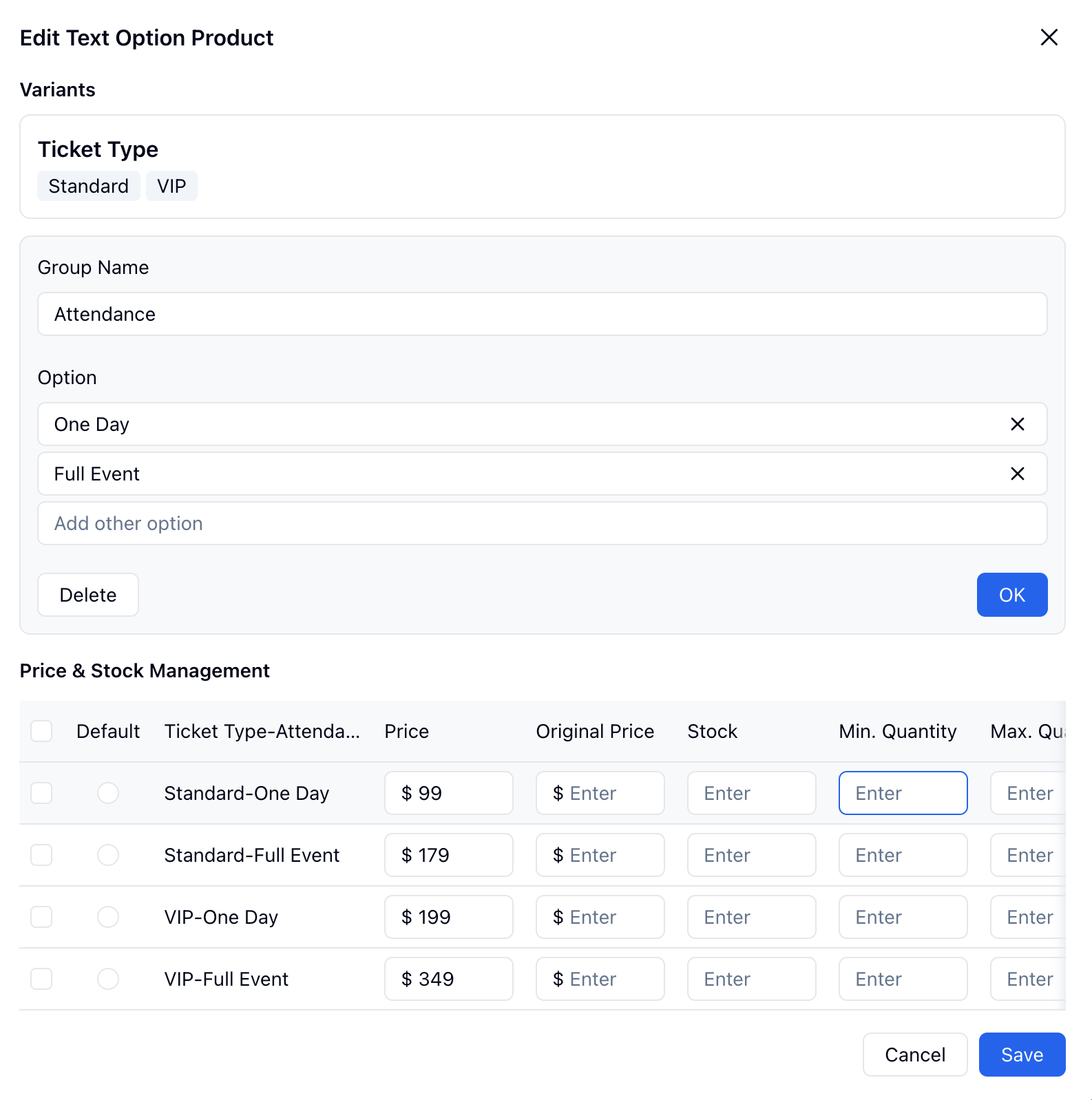
Add products, amount options, or option groups. For Product, Text Product, and Text Option, configure each variant row with price, original price, stock, default quantity, minimum quantity, and maximum quantity as needed.
Use early-bird discounts for purchase-by-date campaigns, or bulk discounts when buying more items should reduce the total.
Choose the currency. When you are ready to collect online payments, connect Stripe and select the payment account. You can leave the form unconnected while testing product configuration.
Test the public form. Confirm the add-to-cart flow, selected-product summary, discount, quantity controls, and amount due all match your setup.
## Donation Form
Use **Price-Only** for donation forms, deposits, and simple fees.
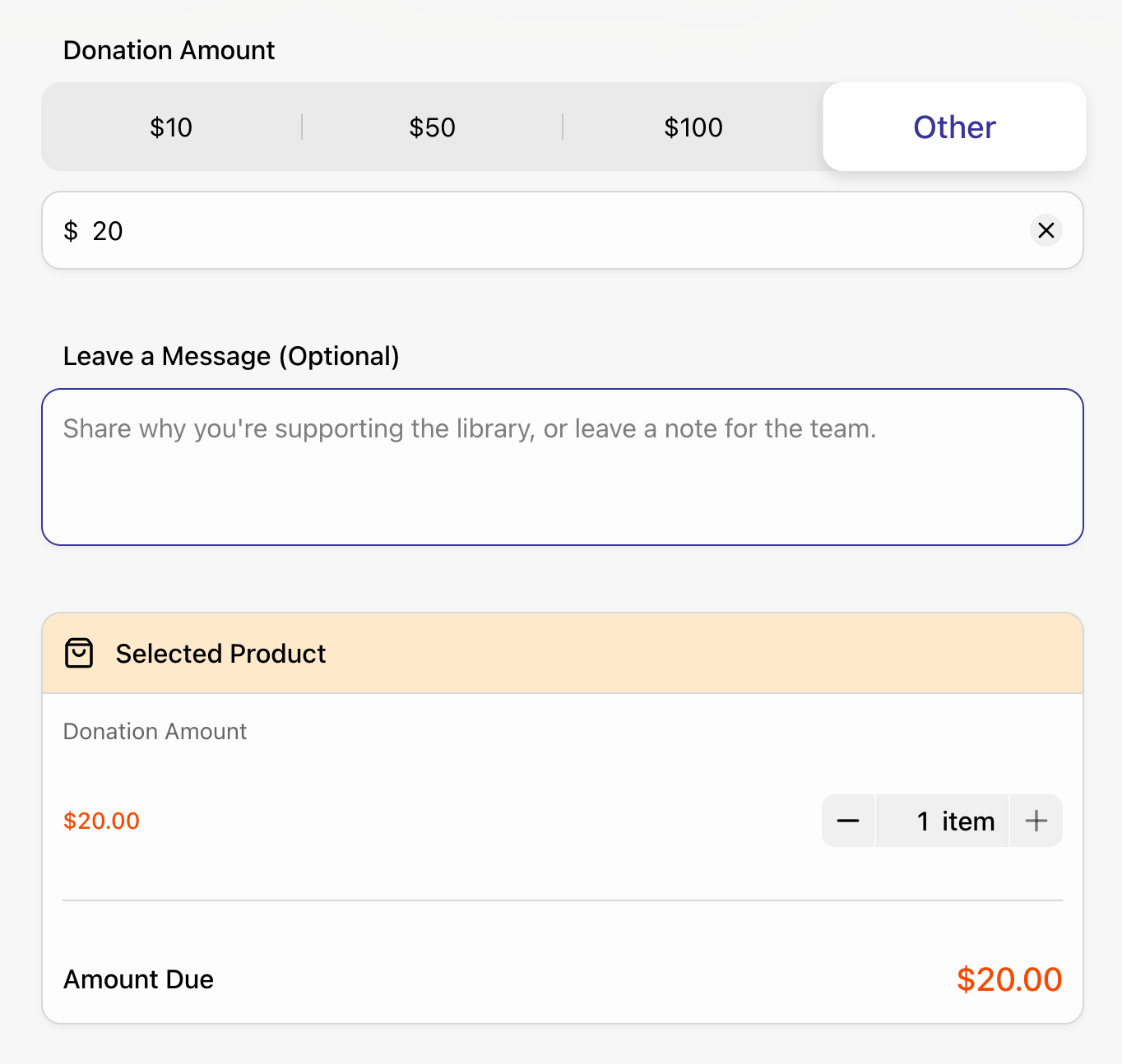 In this example, supporters choose `$10`, `$50`, `$100`, or enter another amount. The selected donation appears in the payment summary before submission.
Demo: Children's Reading Corner Donation
## Merchandise Store
Use **Product** when images matter. This is the best fit for T-shirts, tote bags, stickers, product catalogs, and physical goods.
In this example, supporters choose `$10`, `$50`, `$100`, or enter another amount. The selected donation appears in the payment summary before submission.
Demo: Children's Reading Corner Donation
## Merchandise Store
Use **Product** when images matter. This is the best fit for T-shirts, tote bags, stickers, product catalogs, and physical goods.
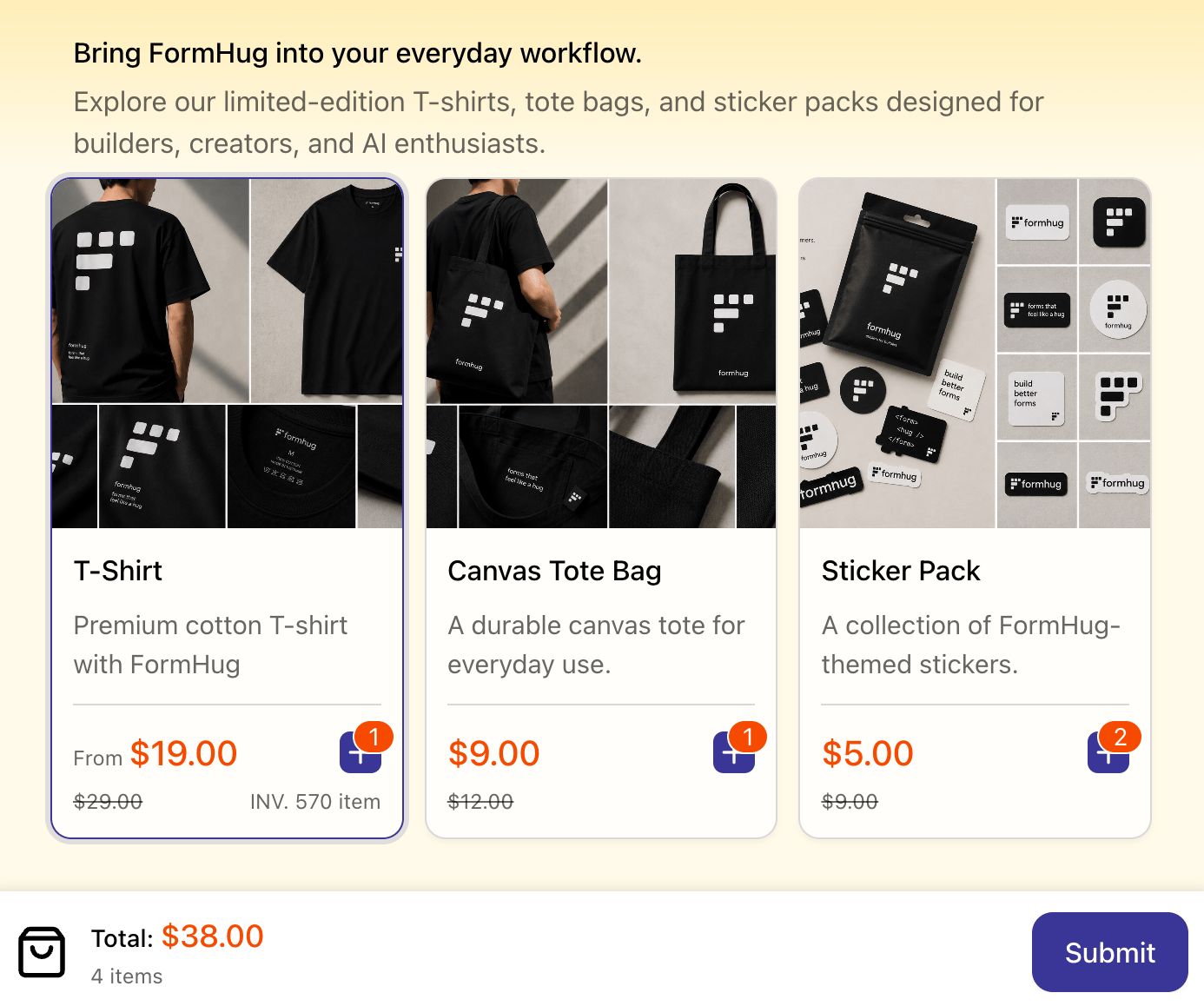 The merchandise example uses product cards with images, prices, original prices, quantity controls, and selected-product totals.
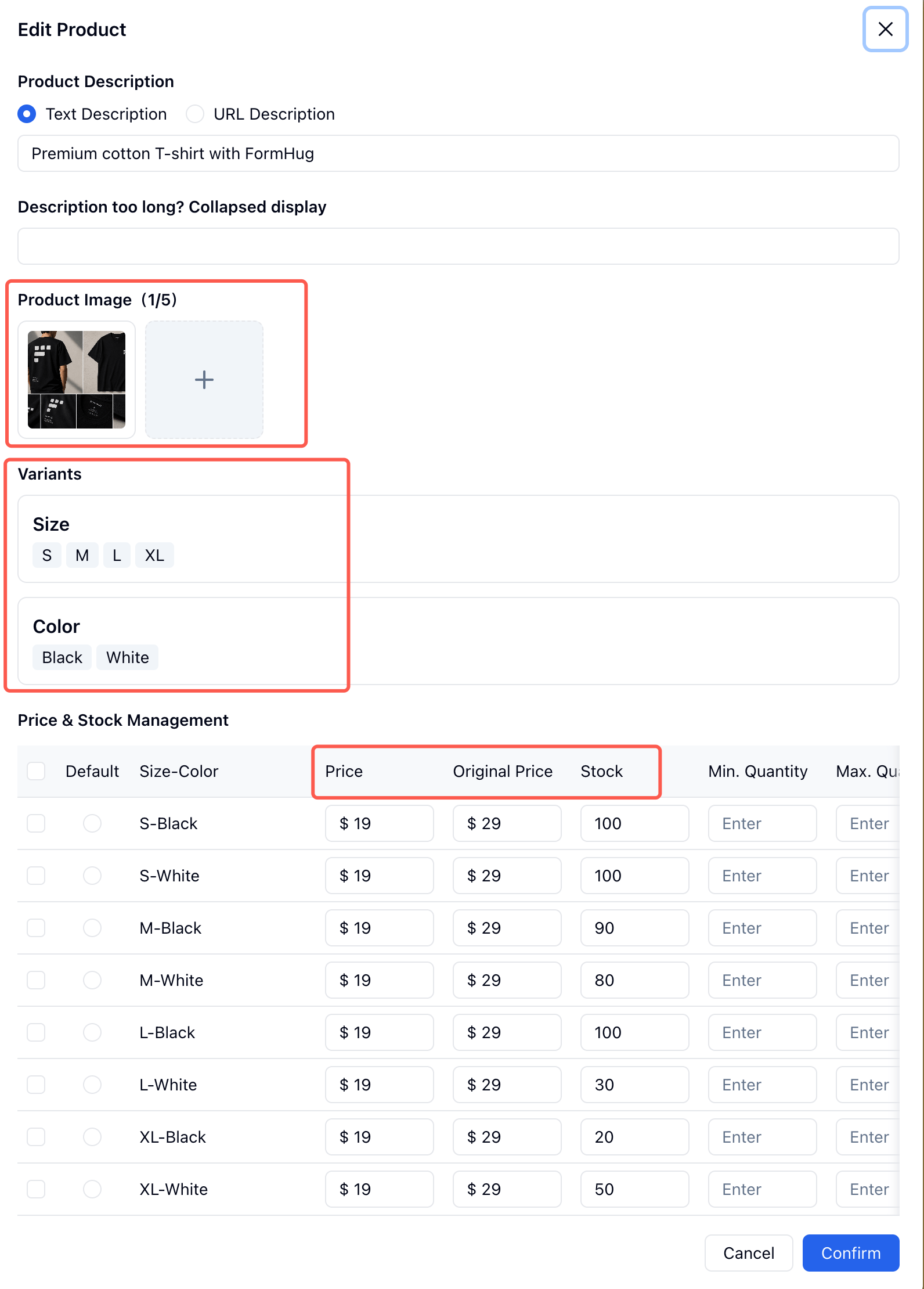 Use variants for options such as Size and Color. Configure price, original price, stock, and quantity rules for each variant combination.
Demo: FormHug Merchandise Store
## Hotel Booking Package
Use **Text Product** for packages that are easier to compare by name and description than by image. Hotel booking is a good example: the products are hotels, the variant is room type, and the quantity can represent nights or rooms.
Use variants for options such as Size and Color. Configure price, original price, stock, and quantity rules for each variant combination.
Demo: FormHug Merchandise Store
## Hotel Booking Package
Use **Text Product** for packages that are easier to compare by name and description than by image. Hotel booking is a good example: the products are hotels, the variant is room type, and the quantity can represent nights or rooms.
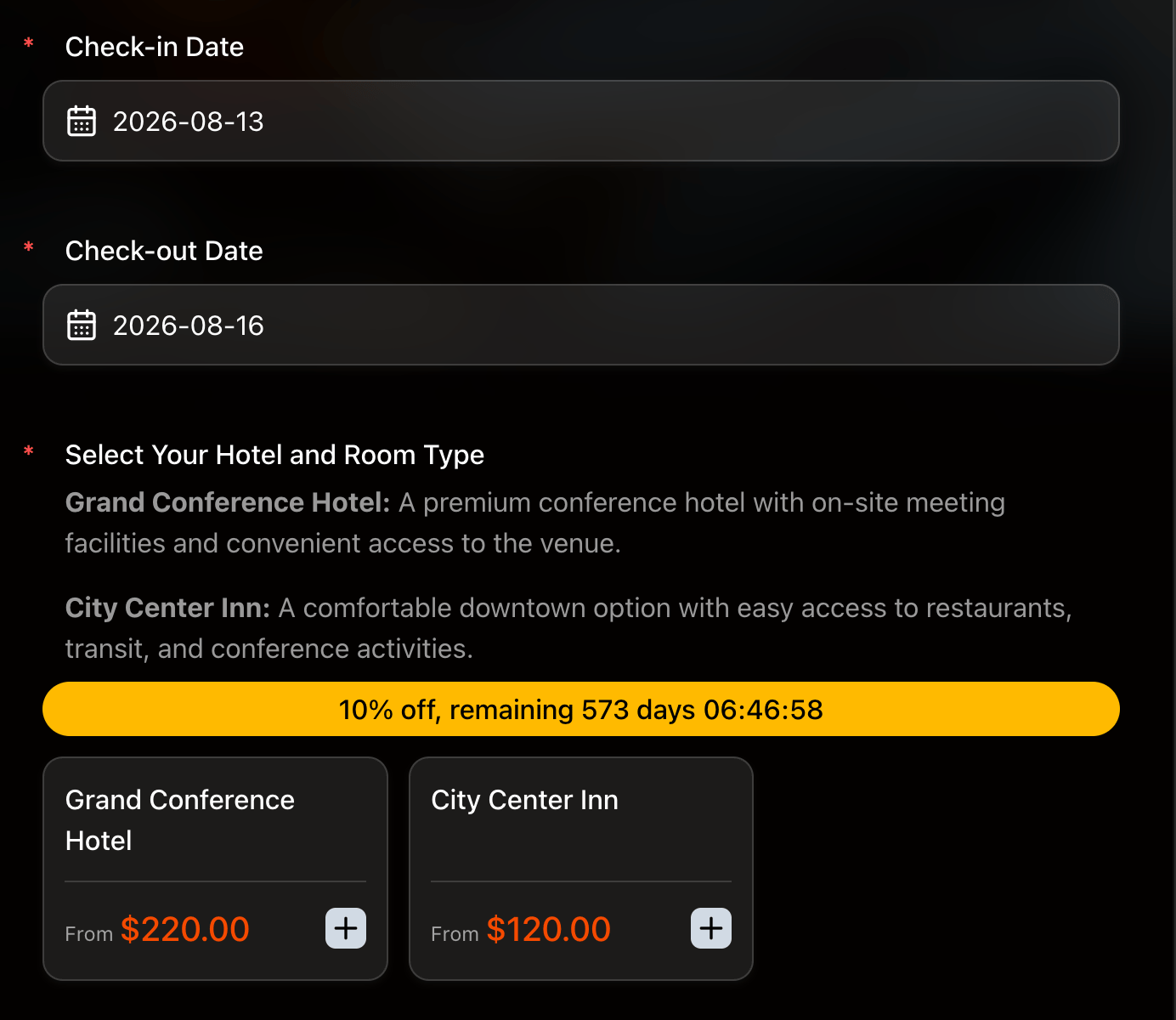 The hotel example pairs check-in and check-out date fields with a Text Product field. The selected room is added to the order summary with a discount and amount due.
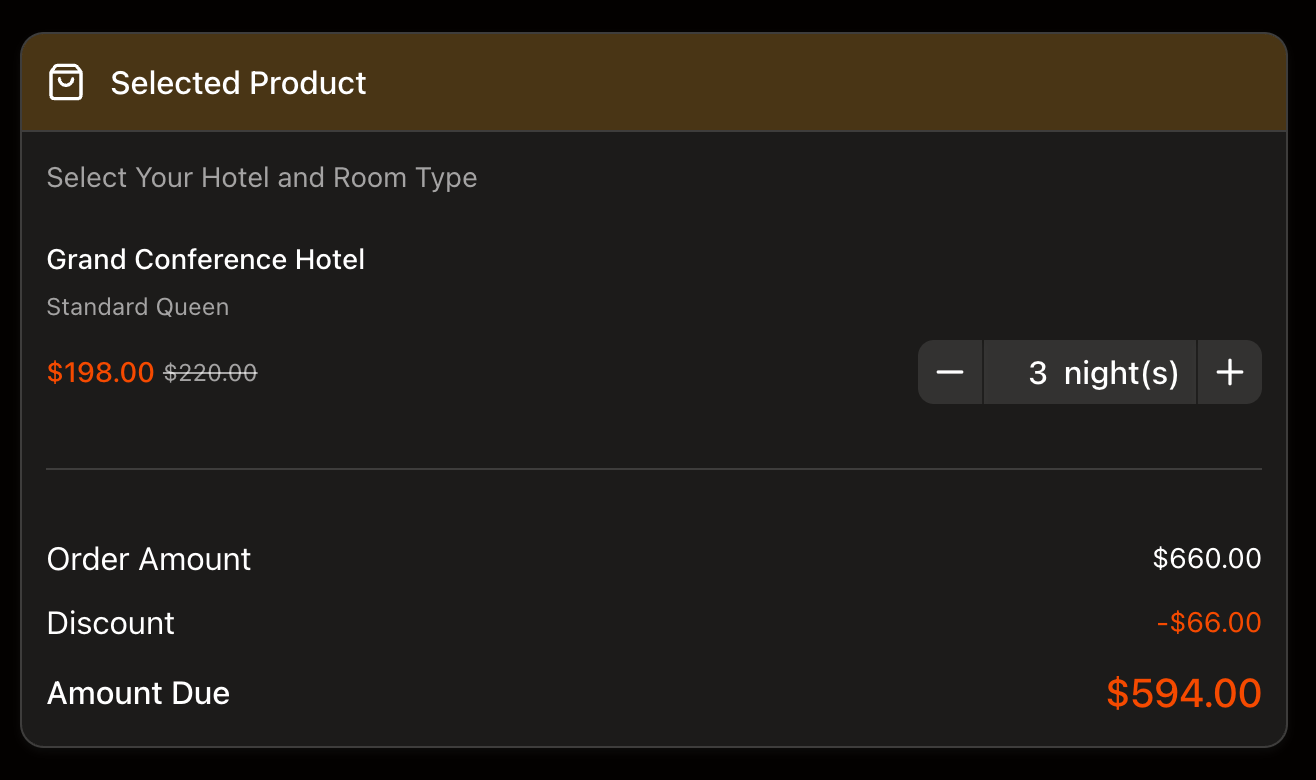 Use Text Product for predefined hotel packages. If submitters need to freely choose available time slots or dates from a booking calendar, use the Booking field instead.
Demo: Conference Hotel Booking Form
## Ticket Booking
Use **Text Option** when the final price comes from text choices. Ticket forms often combine ticket type, attendance option, access level, or workshop package.
Use Text Product for predefined hotel packages. If submitters need to freely choose available time slots or dates from a booking calendar, use the Booking field instead.
Demo: Conference Hotel Booking Form
## Ticket Booking
Use **Text Option** when the final price comes from text choices. Ticket forms often combine ticket type, attendance option, access level, or workshop package.
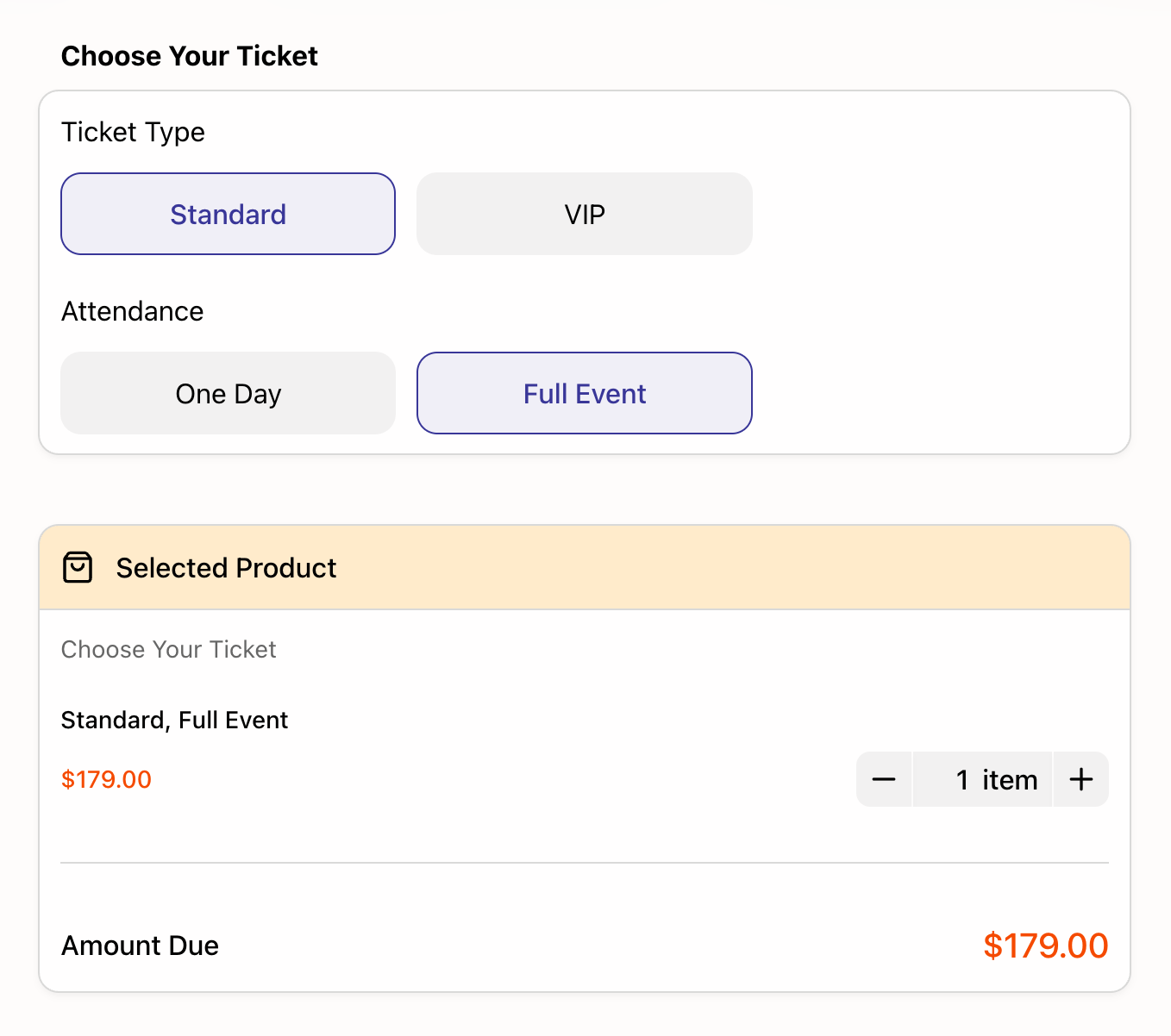 In this example, the submitter chooses a ticket type and attendance option. The selected combination controls the price shown in the summary.
 Demo: UX Design Workshop Registration and Payment
## Payment Form Checklist
* Choose the field type that matches the buying decision.
* Set currency before publishing.
* Add prices, original prices, stock, and quantity limits where needed.
* Configure early-bird or bulk discounts if the offer depends on purchase timing or quantity.
* Connect Stripe only when you are ready to collect real online payments. See [Stripe Collect Payments](/docs/integrations/stripe) for the connection flow.
* Submit a test entry and check the selected-product summary before sharing the form.
## Related
Learn every payment field type and setting
Connect Stripe and review payment status and receipts
Control capacity, submission limits, and closing behavior
Send confirmations and internal alerts after submissions
Start from ready-made order and payment templates
Demo: UX Design Workshop Registration and Payment
## Payment Form Checklist
* Choose the field type that matches the buying decision.
* Set currency before publishing.
* Add prices, original prices, stock, and quantity limits where needed.
* Configure early-bird or bulk discounts if the offer depends on purchase timing or quantity.
* Connect Stripe only when you are ready to collect real online payments. See [Stripe Collect Payments](/docs/integrations/stripe) for the connection flow.
* Submit a test entry and check the selected-product summary before sharing the form.
## Related
Learn every payment field type and setting
Connect Stripe and review payment status and receipts
Control capacity, submission limits, and closing behavior
Send confirmations and internal alerts after submissions
Start from ready-made order and payment templates