> ## Documentation Index
> Fetch the complete documentation index at: https://formhug.ai/docs/llms.txt
> Use this file to discover all available pages before exploring further.
# Slack Integration
> Connect Slack to FormHug and automatically post form submission messages to a channel or direct message
The **Slack integration** posts FormHug submission updates to a Slack channel or direct message. Use it when your team needs to see new responses quickly without opening the FormHug dashboard.
You can choose the Slack workspace, pick a target channel or user, select the trigger events, and customize the message text with FormHug fields.
## When to Use Slack
Slack is useful when submissions need fast attention, routing, or team discussion.
* **New lead alerts**: notify a sales or growth channel when someone submits a demo request, partner inquiry, or waitlist signup.
* **Support and operations intake**: send bug reports, account requests, or internal tickets to the team that handles them.
* **Event and booking updates**: alert organizers when a registration, RSVP, booking, or cancellation arrives.
* **Payment or order monitoring**: notify finance or fulfillment teammates when paid submissions need review.
* **High-priority form responses**: route important submissions to a specific teammate by direct message.
* **Team visibility**: keep a shared channel updated so teammates can react, assign owners, or follow up from Slack.
## Before You Start
Make sure you have:
* A FormHug form that is ready to collect submissions
* Access to the Slack workspace you want to connect
* Permission to install or authorize apps in that Slack workspace
* A target Slack channel or user for the messages
* A message format that includes the fields your team needs for follow-up
Slack workspace admins may restrict who can install apps or grant app permissions. If authorization is blocked, ask a Slack admin to approve the FormHug app.
## Connect Slack
Open the form you want to connect, then go to **Settings -> Integrations** and choose **Slack**.
Click **Connect Slack**.
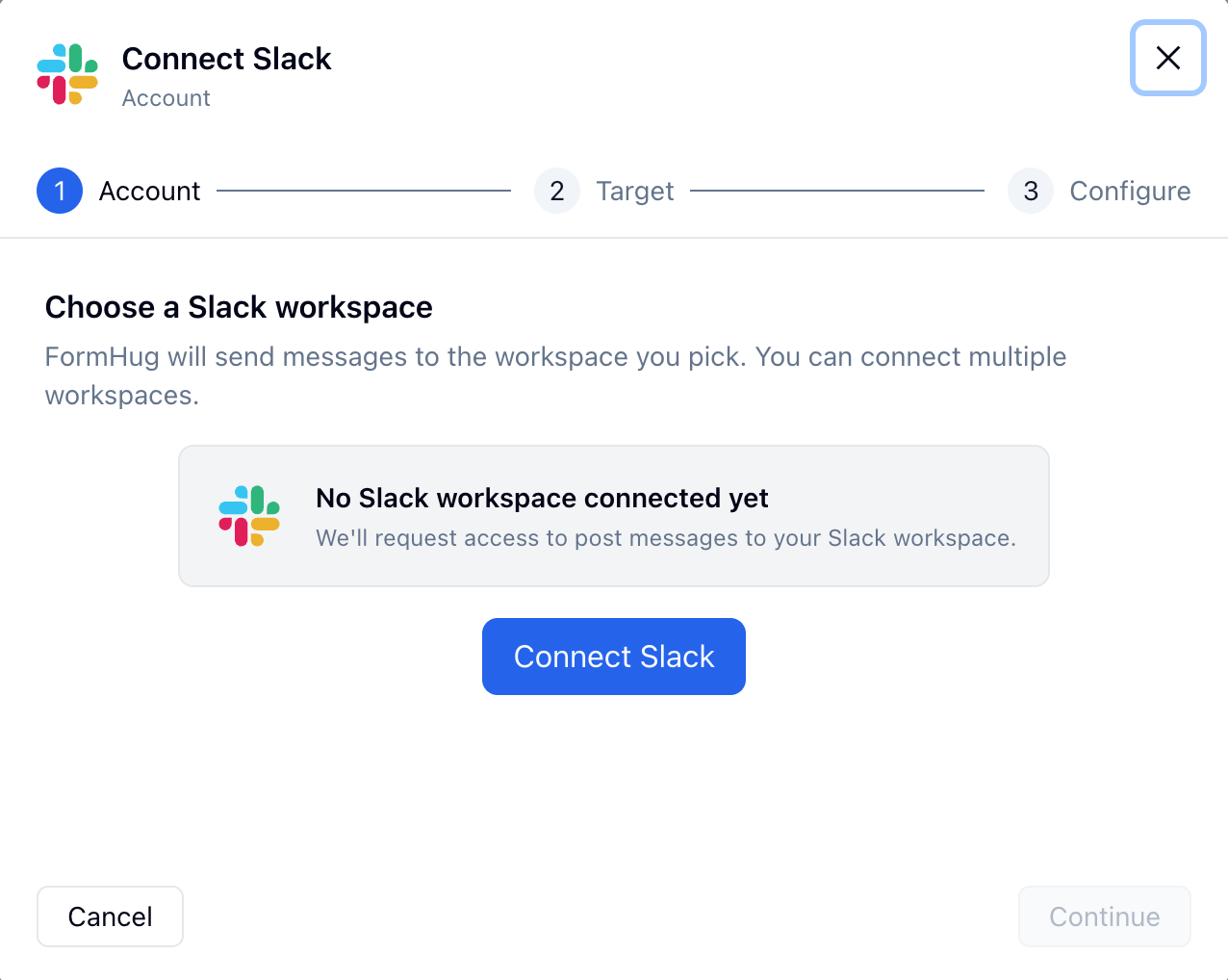 Slack opens an authorization screen. Choose the workspace, review the requested permissions, then click **Allow**.
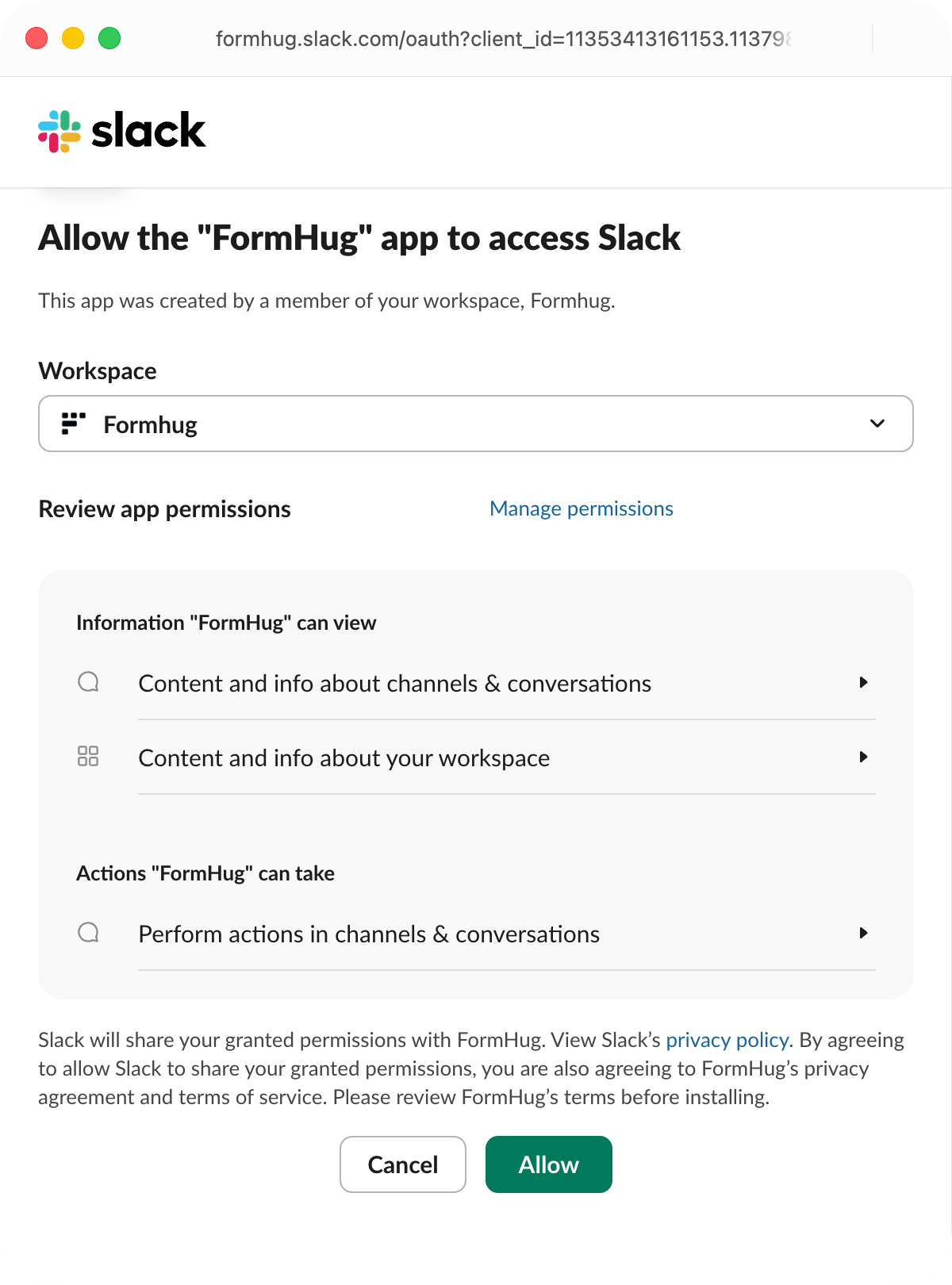 FormHug uses Slack's OAuth flow to connect your workspace. Slack shows the permissions being granted before you approve the app.
## Choose a Message Target
After connecting Slack, choose where FormHug should post messages.
### Send to a Channel
Choose **Channel**, search for the channel, select it, then click **Continue**.
FormHug uses Slack's OAuth flow to connect your workspace. Slack shows the permissions being granted before you approve the app.
## Choose a Message Target
After connecting Slack, choose where FormHug should post messages.
### Send to a Channel
Choose **Channel**, search for the channel, select it, then click **Continue**.
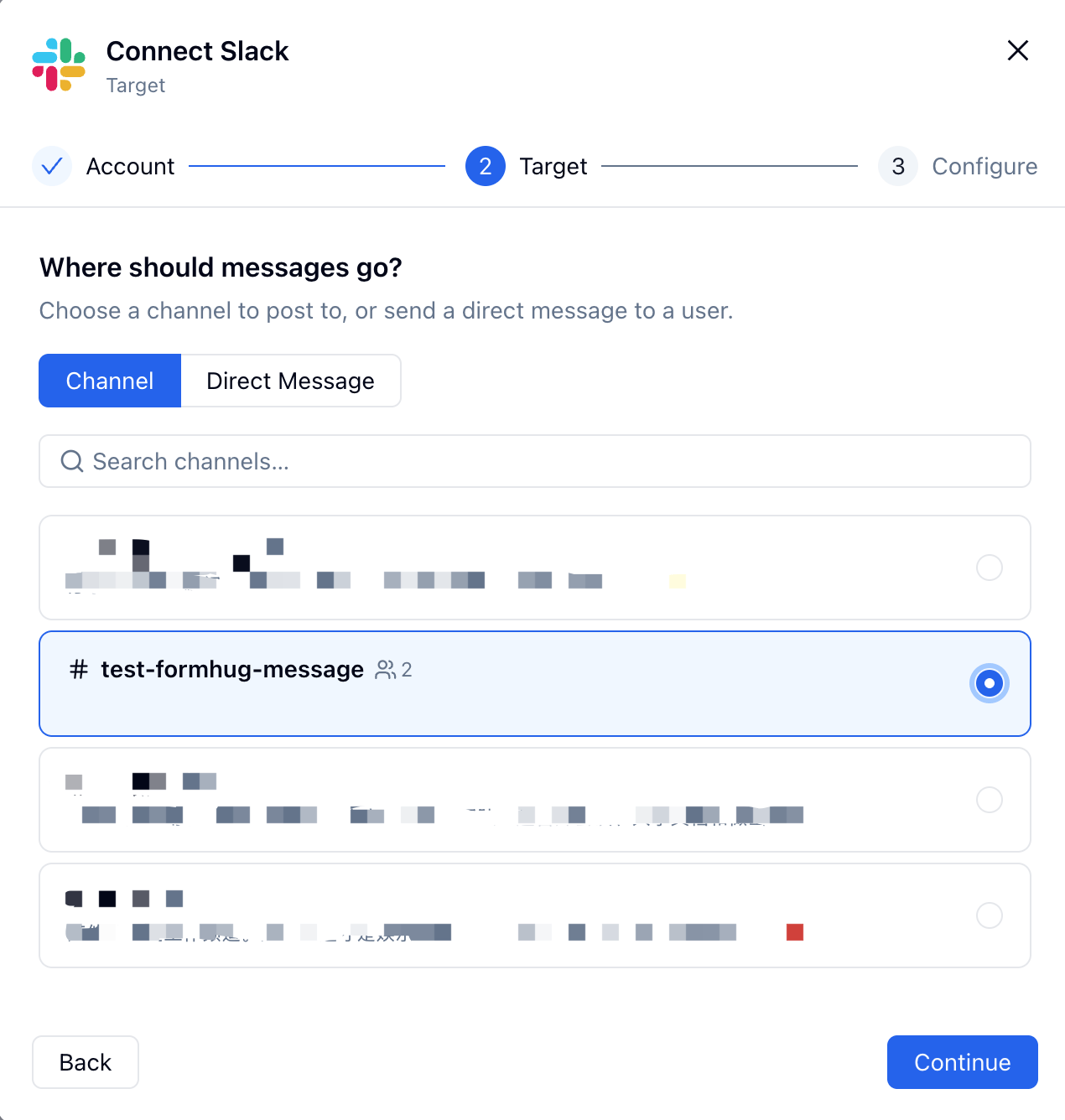 Use a channel when multiple teammates should see and discuss new submissions.
### Send a Direct Message
Choose **Direct Message**, search for a user, select the recipient, then click **Continue**.
Use a channel when multiple teammates should see and discuss new submissions.
### Send a Direct Message
Choose **Direct Message**, search for a user, select the recipient, then click **Continue**.
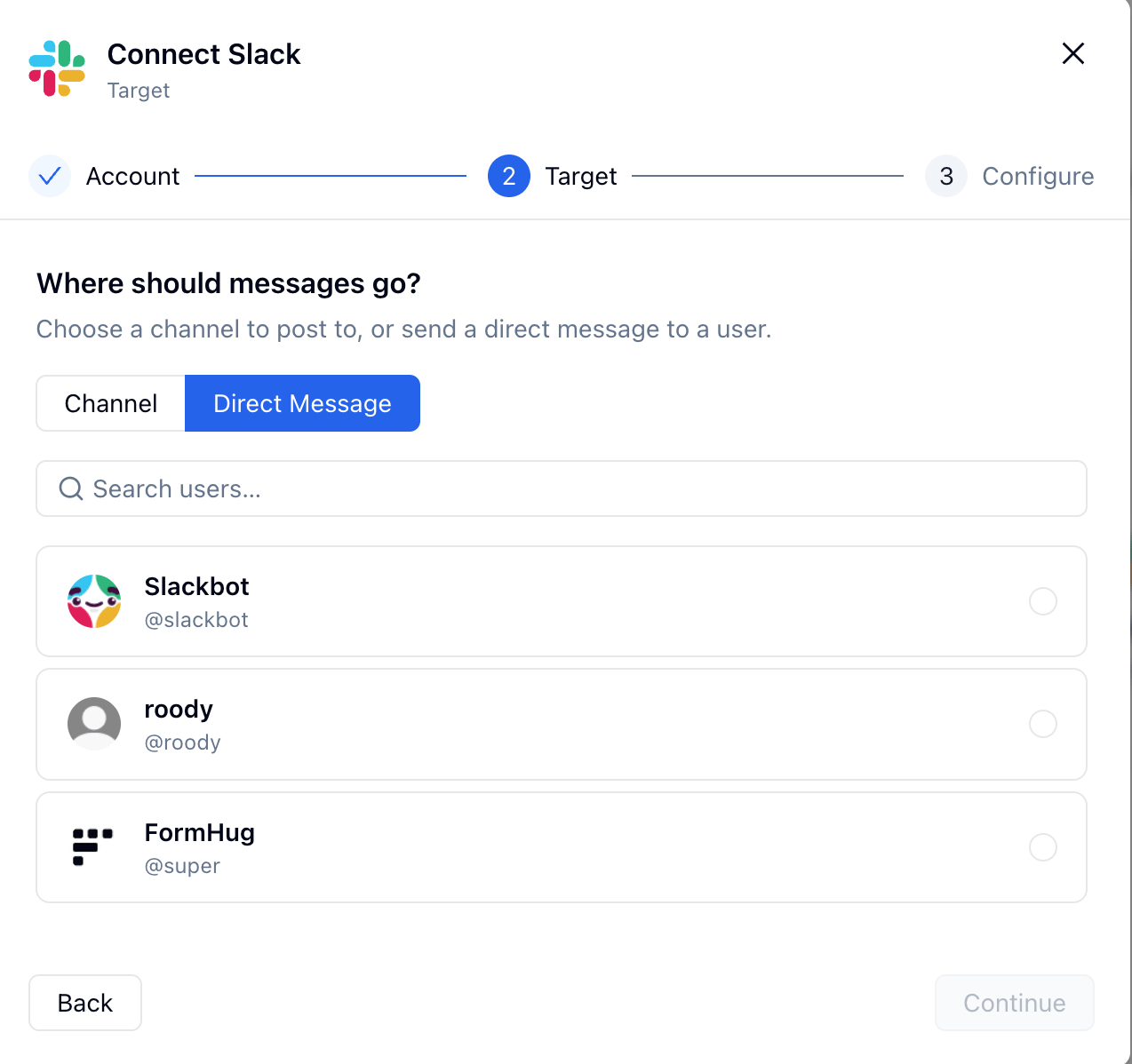 Use a direct message when one person owns follow-up, such as an account owner, recruiter, support lead, or event coordinator.
For private channels, make sure FormHug has access to the channel. If a channel is missing from the list, check Slack permissions or authorize the app again with the right access.
## Configure the Message
Choose which submission events should trigger a Slack message, then write the message text.
Use a direct message when one person owns follow-up, such as an account owner, recruiter, support lead, or event coordinator.
For private channels, make sure FormHug has access to the channel. If a channel is missing from the list, check Slack permissions or authorize the app again with the right access.
## Configure the Message
Choose which submission events should trigger a Slack message, then write the message text.
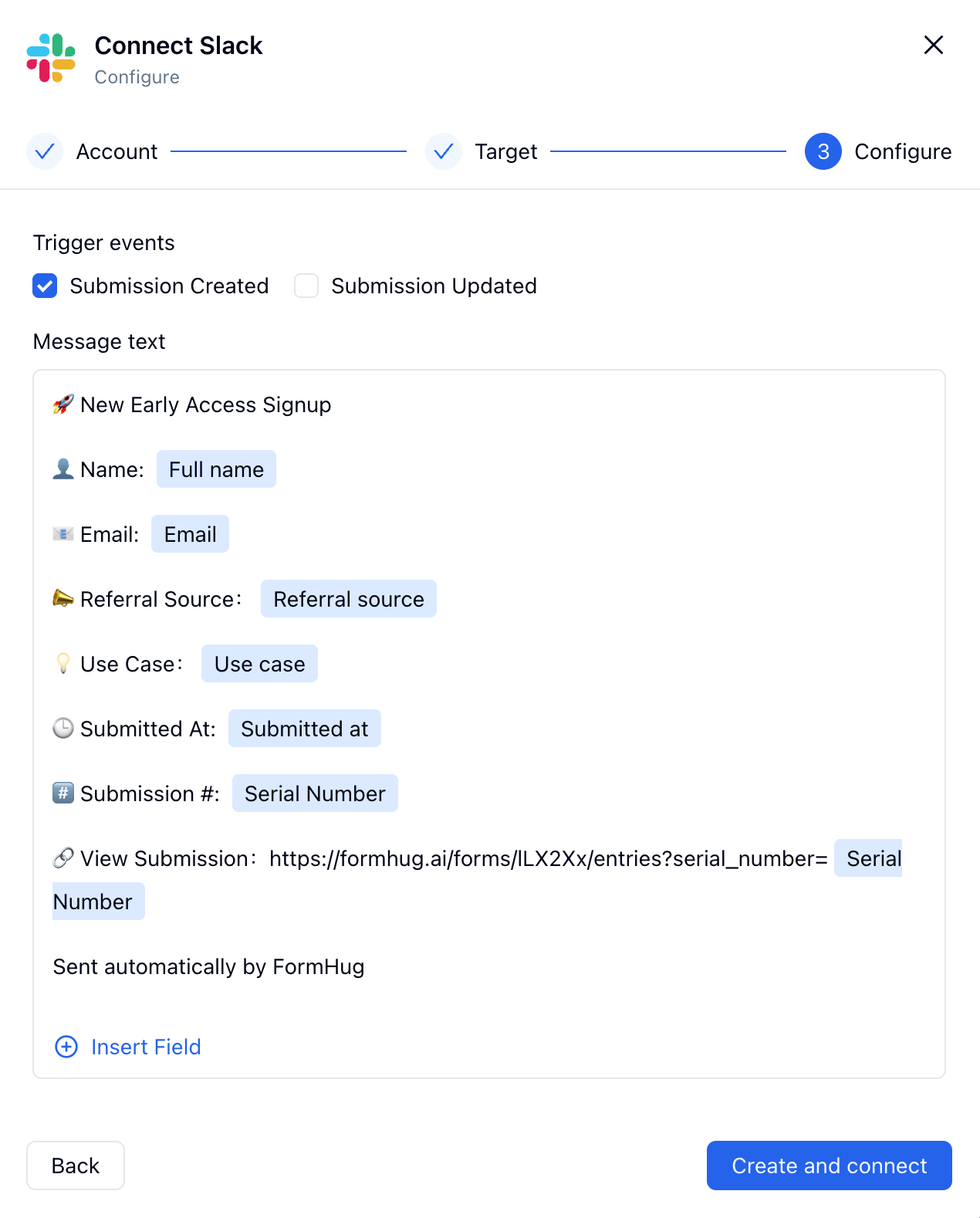 ### Trigger Events
Select one or both events:
| Event | When it sends a Slack message |
| ------------------ | ----------------------------- |
| Submission Created | A new entry is submitted |
| Submission Updated | An existing entry is edited |
### Message Text
Use **Insert Field** to add FormHug fields to the Slack message. You can include:
* Submitter name and contact details
* Answers that help your team qualify or route the submission
* Submitted time
* Submission serial number
* A link back to the FormHug entry
* Static text, labels, and formatting your team recognizes
For example:
```text theme={null}
New Early Access Signup
Name: Full name
Email: Email
Referral Source: Referral source
Use Case: Use case
Submitted At: Submitted at
Submission #: Serial Number
View Submission: https://formhug.ai/forms/FORM_ID/entries?serial_number=Serial Number
Sent automatically by FormHug
```
When the message looks right, click **Create and connect**.
## Manage the Slack Connection
After setup, the Slack connection appears in **My connections** on the Integrations page.
### Trigger Events
Select one or both events:
| Event | When it sends a Slack message |
| ------------------ | ----------------------------- |
| Submission Created | A new entry is submitted |
| Submission Updated | An existing entry is edited |
### Message Text
Use **Insert Field** to add FormHug fields to the Slack message. You can include:
* Submitter name and contact details
* Answers that help your team qualify or route the submission
* Submitted time
* Submission serial number
* A link back to the FormHug entry
* Static text, labels, and formatting your team recognizes
For example:
```text theme={null}
New Early Access Signup
Name: Full name
Email: Email
Referral Source: Referral source
Use Case: Use case
Submitted At: Submitted at
Submission #: Serial Number
View Submission: https://formhug.ai/forms/FORM_ID/entries?serial_number=Serial Number
Sent automatically by FormHug
```
When the message looks right, click **Create and connect**.
## Manage the Slack Connection
After setup, the Slack connection appears in **My connections** on the Integrations page.
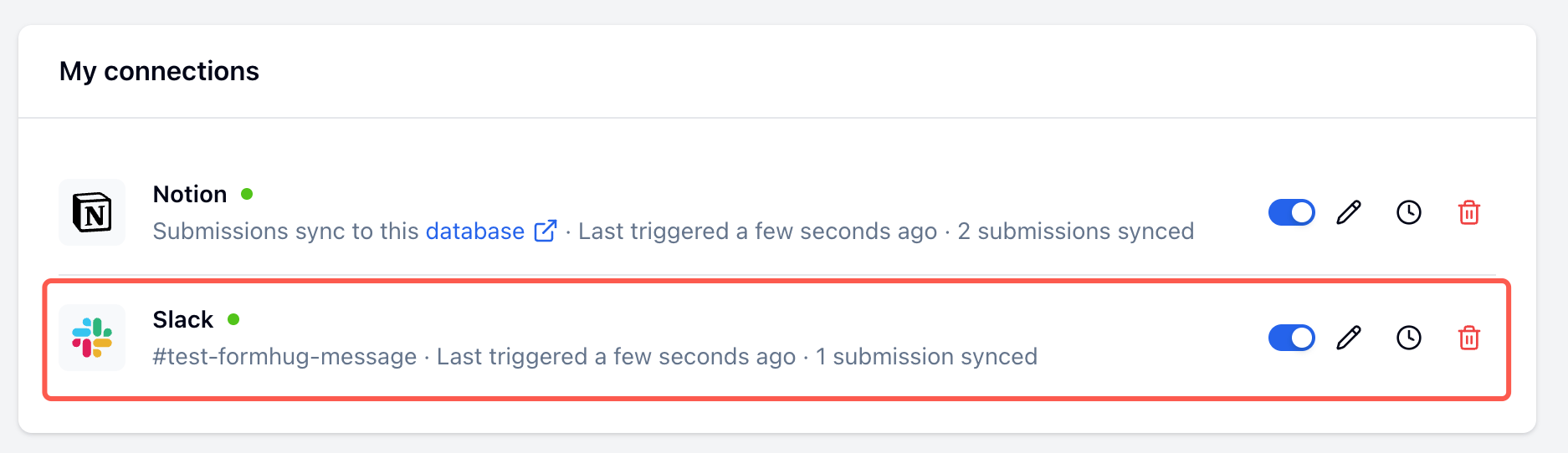 From this page you can:
| Action | How |
| -------------------------- | --------------------- |
| Enable or disable messages | Toggle the switch |
| Edit the target or message | Click the pencil icon |
| View event logs | Click the clock icon |
| Delete the connection | Click the trash icon |
## Check Event Logs
Use the event logs to confirm whether Slack messages were delivered successfully or to troubleshoot failed deliveries.
From this page you can:
| Action | How |
| -------------------------- | --------------------- |
| Enable or disable messages | Toggle the switch |
| Edit the target or message | Click the pencil icon |
| View event logs | Click the clock icon |
| Delete the connection | Click the trash icon |
## Check Event Logs
Use the event logs to confirm whether Slack messages were delivered successfully or to troubleshoot failed deliveries.
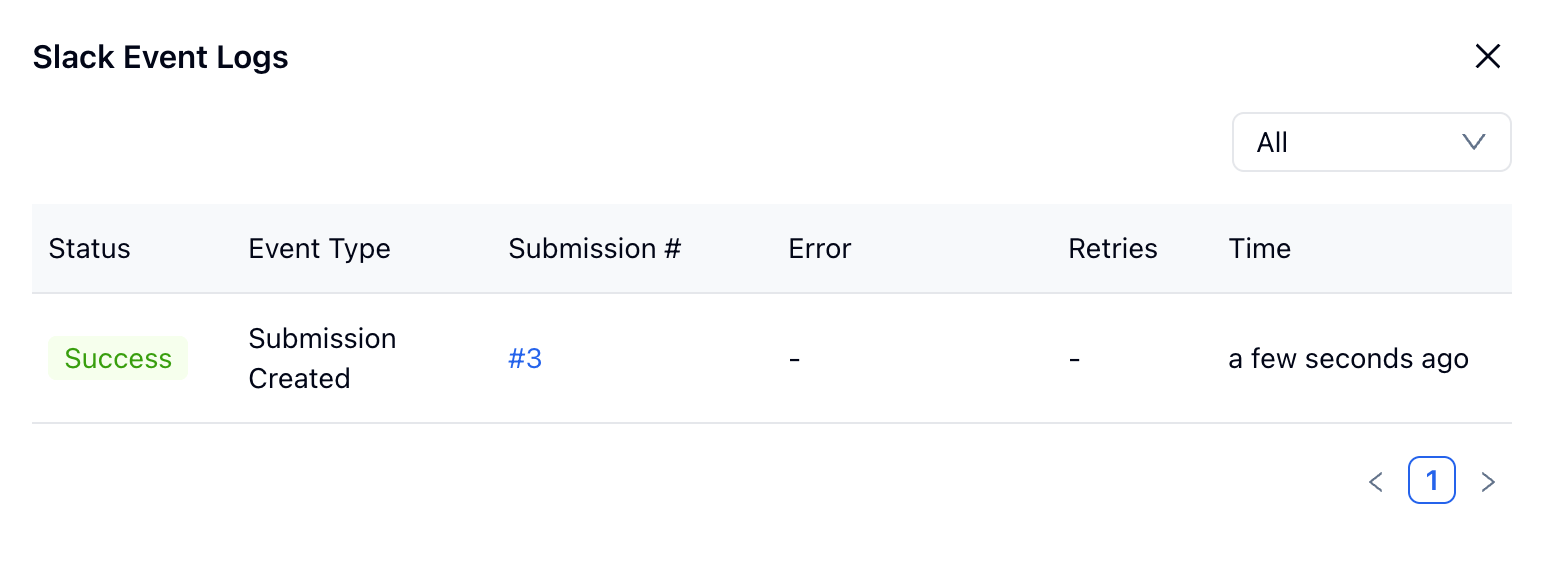 Each log includes the status, event type, submission number, error message if any, retry count, and time.
## Check the Slack Message
Submit a test entry after creating the connection. Then open the target Slack channel or direct message and confirm that the message appears.
Each log includes the status, event type, submission number, error message if any, retry count, and time.
## Check the Slack Message
Submit a test entry after creating the connection. Then open the target Slack channel or direct message and confirm that the message appears.
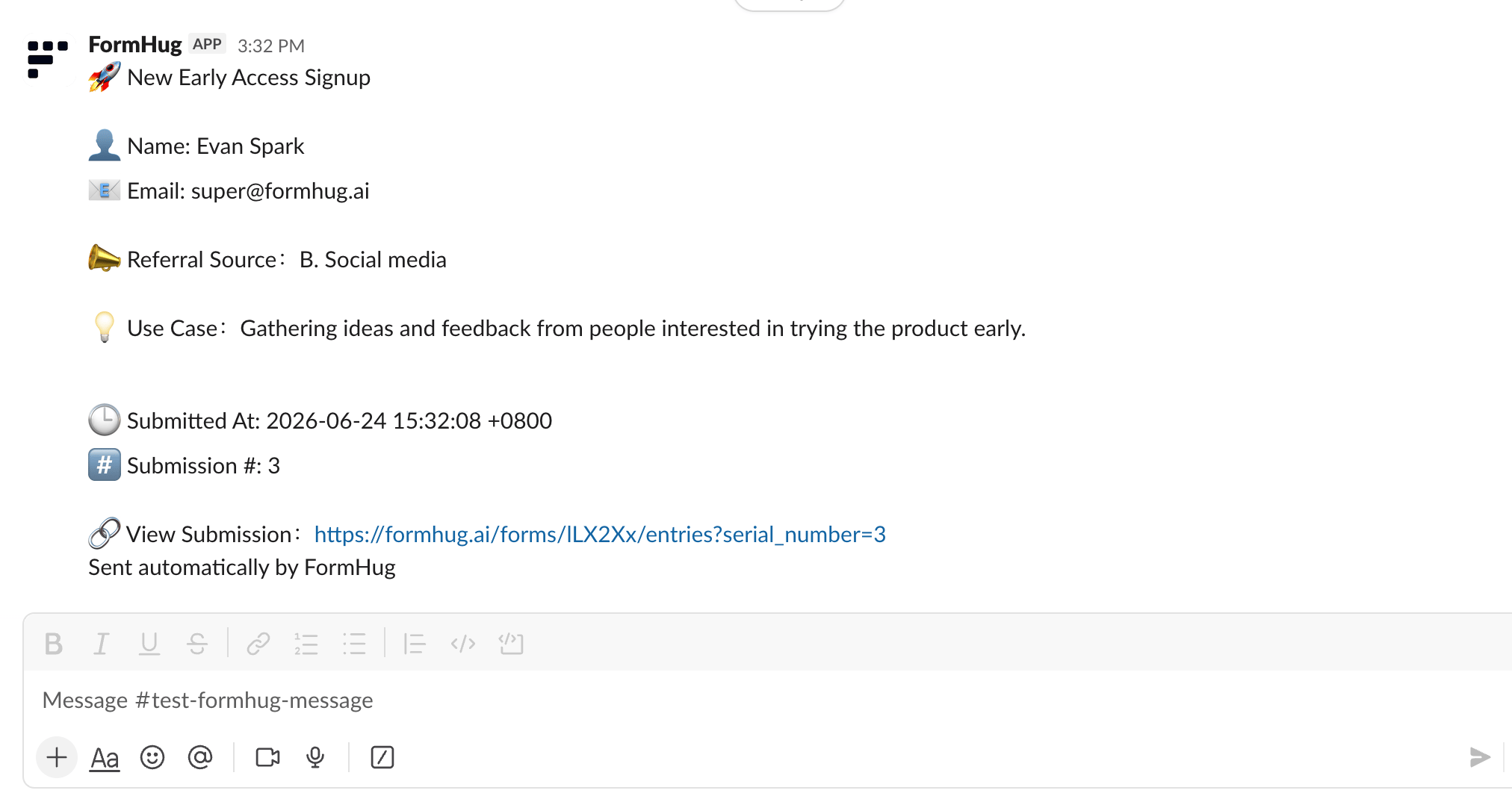 The message uses the template you configured, with inserted FormHug fields replaced by the submission values.
## Limitations
* The integration sends messages for new events after the connection is created.
* Changes made in Slack do not update the original FormHug submission.
* If you rename channels, remove users, or change Slack app permissions, review the connection in FormHug.
* If a Slack workspace admin removes or restricts the FormHug app, messages may stop until the app is authorized again.
* Message links back to FormHug require the viewer to have permission to access the form or submission.
## Troubleshooting
| Issue | What to check |
| ----------------------------- | ----------------------------------------------------------------------------------------------------- |
| Cannot authorize Slack | Confirm you have permission to install apps in the workspace, or ask a Slack admin to approve FormHug |
| Channel is missing | Check whether the channel is private, archived, or unavailable to the connected Slack user |
| Messages are not appearing | Make sure the Slack connection is enabled, then open the event logs |
| Wrong fields appear in Slack | Edit the message template and replace the inserted fields |
| Submission link does not open | Check the viewer's FormHug access and whether the link points to the correct form |
For more detail about Slack app authorization and message posting, see Slack's guides to installing with OAuth and sending messages.
## Related
Sync submissions to a spreadsheet automatically
Create Notion database pages from form submissions
Push submission data to your own HTTP endpoint
Automate workflows across CRM, email, and productivity apps
View and manage all entries in FormHug
The message uses the template you configured, with inserted FormHug fields replaced by the submission values.
## Limitations
* The integration sends messages for new events after the connection is created.
* Changes made in Slack do not update the original FormHug submission.
* If you rename channels, remove users, or change Slack app permissions, review the connection in FormHug.
* If a Slack workspace admin removes or restricts the FormHug app, messages may stop until the app is authorized again.
* Message links back to FormHug require the viewer to have permission to access the form or submission.
## Troubleshooting
| Issue | What to check |
| ----------------------------- | ----------------------------------------------------------------------------------------------------- |
| Cannot authorize Slack | Confirm you have permission to install apps in the workspace, or ask a Slack admin to approve FormHug |
| Channel is missing | Check whether the channel is private, archived, or unavailable to the connected Slack user |
| Messages are not appearing | Make sure the Slack connection is enabled, then open the event logs |
| Wrong fields appear in Slack | Edit the message template and replace the inserted fields |
| Submission link does not open | Check the viewer's FormHug access and whether the link points to the correct form |
For more detail about Slack app authorization and message posting, see Slack's guides to installing with OAuth and sending messages.
## Related
Sync submissions to a spreadsheet automatically
Create Notion database pages from form submissions
Push submission data to your own HTTP endpoint
Automate workflows across CRM, email, and productivity apps
View and manage all entries in FormHug