> ## Documentation Index
> Fetch the complete documentation index at: https://formhug.ai/docs/llms.txt
> Use this file to discover all available pages before exploring further.
# Webhooks
> Push form submission data to your server in real time when entries are created, updated, or paid
Webhooks let FormHug push submission data to your server the moment something happens — no polling, no manual exports. Your endpoint receives a POST request with the full entry payload within seconds of the event.
Use webhooks when the built-in integrations aren't enough and you need full control over what happens after a form is submitted. Common scenarios:
* **Sync to your own database** — a waitlist form pushes each signup directly into your backend, calculates a queue position based on referral count, and sends a personalized confirmation email
* **Trigger a workflow** — a booking form fires your internal scheduling logic the moment someone submits, rather than waiting for a nightly sync
* **Connect to any tool** — send submissions to a CRM, Slack channel, data warehouse, or any system that accepts HTTP, without being limited to pre-built integrations
* **Filter before processing** — use conditions to only fire the webhook when specific criteria are met, so your backend only receives the submissions it cares about
 ## Create a Webhook
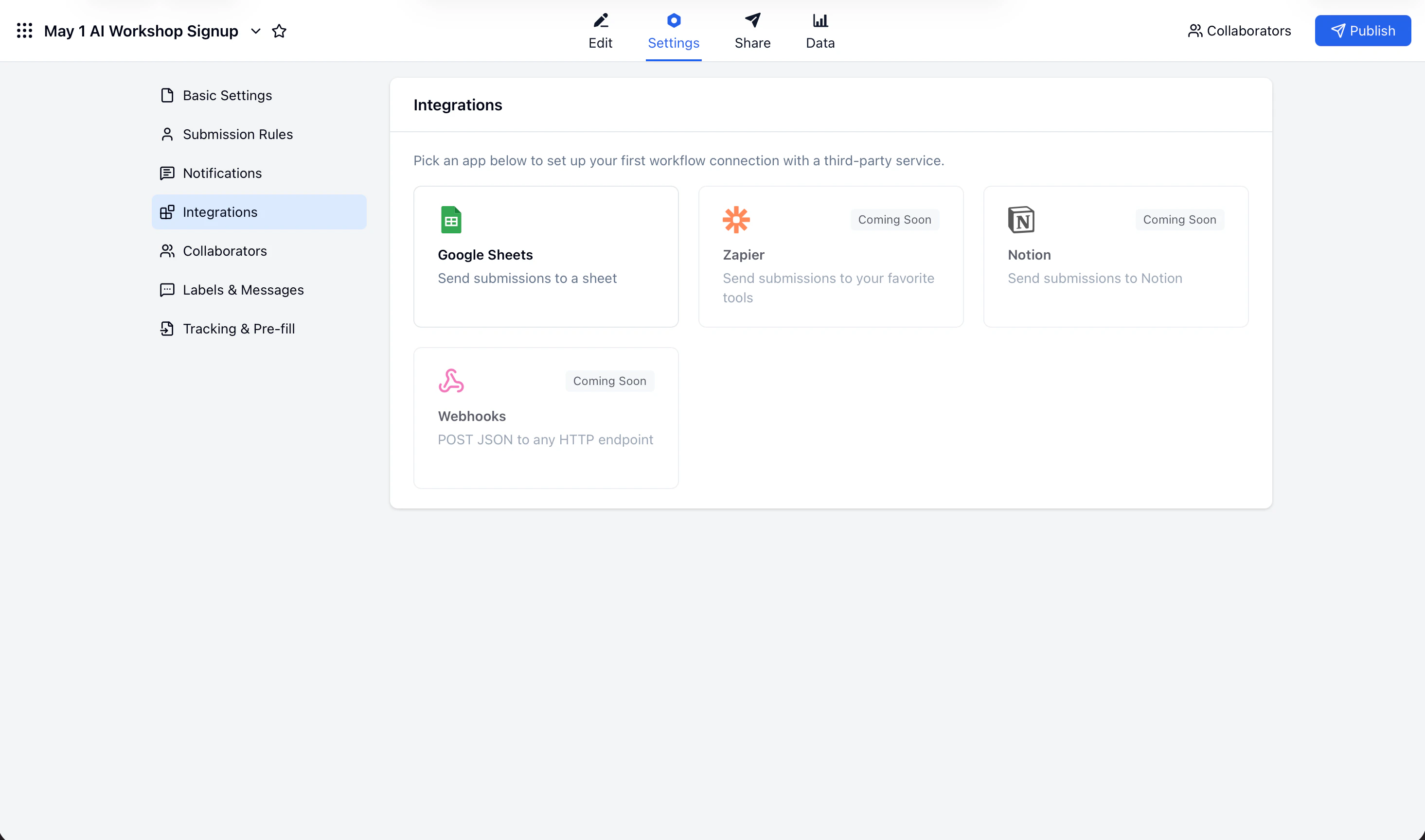
 Open your form and go to **Settings** → **Integrations**.
Click **Add connection** and select **Webhook**.
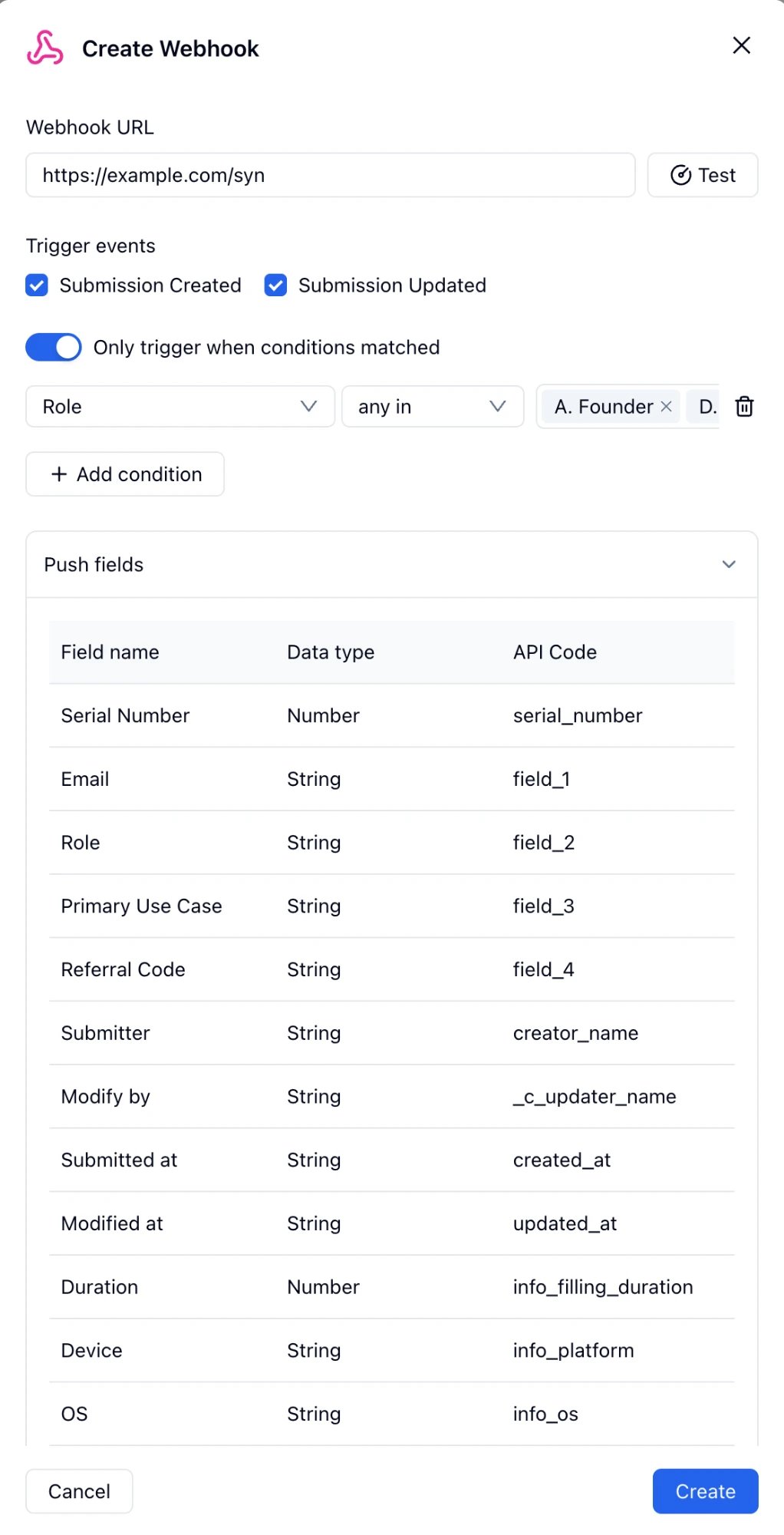
Paste your server's URL into the **Webhook URL** field. Click **Test** to send a sample request and verify your endpoint is reachable.
Check one or both events:
* **Submission Created** — fires when a new entry is submitted
* **Submission Updated** — fires when an existing entry is edited
Toggle **Only trigger when conditions matched** to filter which submissions fire the webhook. For example, only notify your backend when `Role` is `Founder` or `Developer`.
Expand **Push fields** to see exactly which fields and API codes will be included in the payload. All fields are pushed by default.
Click **Create**. The webhook appears in **My connections** and starts firing immediately.
## Trigger Events
| Event | When it fires |
| --------------- | --------------------------------- |
| `entry_created` | A new submission is received |
| `entry_updated` | An existing submission is edited |
| `entry_paid` | A payment submission is completed |
## Payload Format
FormHug sends a `POST` request with `Content-Type: application/json`. The body follows this structure:
```json theme={null}
{
"data": {
"event_type": "entry_created",
"data": {
"form": "KPBpZA",
"form_name": "Gen-AI Product Waitlist",
"entry": {
"serial_number": 42,
"field_1": "alex@example.com",
"field_2": "Founder",
"field_3": "Content creation & copywriting",
"field_4": "REF-SARAH",
"creator_name": "Alex Chen",
"created_at": "2025-06-09T09:23:41Z",
"updated_at": "2025-06-09T09:23:41Z",
"info_filling_duration": 87,
"info_platform": "Desktop",
"info_os": "macOS",
"info_browser": "Chrome",
"info_remote_ip": "203.0.113.42"
}
}
}
}
```
### Entry fields
| API Code | Field name | Type | Description |
| ----------------------- | ---------------- | ------ | --------------------------------------- |
| `serial_number` | Serial Number | Number | Auto-incrementing entry number |
| `field_1` … `field_N` | Your form fields | String | Submitted field values, in form order |
| `creator_name` | Submitter | String | Name of the submitter (if collected) |
| `created_at` | Submitted at | String | ISO 8601 timestamp |
| `updated_at` | Modified at | String | ISO 8601 timestamp of last edit |
| `info_filling_duration` | Duration | Number | Time spent filling the form, in seconds |
| `info_platform` | Device | String | `Desktop` or `Mobile` |
| `info_os` | OS | String | Submitter's operating system |
| `info_browser` | Browser | String | Submitter's browser |
| `info_remote_ip` | IP Address | String | Submitter's IP address |
The exact API codes for your form fields (`field_1`, `field_2`, etc.) are listed in the **Push fields** table inside the webhook configuration dialog.
## Receiving the Webhook
Your endpoint must return a `2xx` response. Here is a minimal example in Node.js:
```js theme={null}
app.post('/webhook/formhug', express.json(), (req, res) => {
const { event_type, data } = req.body.data;
const entry = data.entry;
if (event_type === 'entry_created') {
// entry.field_1 → Email
// entry.field_2 → Role
// entry.field_3 → Primary Use Case
// entry.field_4 → Referral Code
addToWaitlist(entry);
}
res.sendStatus(200);
});
```
Respond with `200` before doing any slow work (database writes, email sends). If your endpoint times out or returns a non-2xx status, FormHug will retry the delivery.
## Manage Webhooks
Active webhooks appear in **My connections** on the Integrations page.
Open your form and go to **Settings** → **Integrations**.
Click **Add connection** and select **Webhook**.
Paste your server's URL into the **Webhook URL** field. Click **Test** to send a sample request and verify your endpoint is reachable.
Check one or both events:
* **Submission Created** — fires when a new entry is submitted
* **Submission Updated** — fires when an existing entry is edited
Toggle **Only trigger when conditions matched** to filter which submissions fire the webhook. For example, only notify your backend when `Role` is `Founder` or `Developer`.
Expand **Push fields** to see exactly which fields and API codes will be included in the payload. All fields are pushed by default.
Click **Create**. The webhook appears in **My connections** and starts firing immediately.
## Trigger Events
| Event | When it fires |
| --------------- | --------------------------------- |
| `entry_created` | A new submission is received |
| `entry_updated` | An existing submission is edited |
| `entry_paid` | A payment submission is completed |
## Payload Format
FormHug sends a `POST` request with `Content-Type: application/json`. The body follows this structure:
```json theme={null}
{
"data": {
"event_type": "entry_created",
"data": {
"form": "KPBpZA",
"form_name": "Gen-AI Product Waitlist",
"entry": {
"serial_number": 42,
"field_1": "alex@example.com",
"field_2": "Founder",
"field_3": "Content creation & copywriting",
"field_4": "REF-SARAH",
"creator_name": "Alex Chen",
"created_at": "2025-06-09T09:23:41Z",
"updated_at": "2025-06-09T09:23:41Z",
"info_filling_duration": 87,
"info_platform": "Desktop",
"info_os": "macOS",
"info_browser": "Chrome",
"info_remote_ip": "203.0.113.42"
}
}
}
}
```
### Entry fields
| API Code | Field name | Type | Description |
| ----------------------- | ---------------- | ------ | --------------------------------------- |
| `serial_number` | Serial Number | Number | Auto-incrementing entry number |
| `field_1` … `field_N` | Your form fields | String | Submitted field values, in form order |
| `creator_name` | Submitter | String | Name of the submitter (if collected) |
| `created_at` | Submitted at | String | ISO 8601 timestamp |
| `updated_at` | Modified at | String | ISO 8601 timestamp of last edit |
| `info_filling_duration` | Duration | Number | Time spent filling the form, in seconds |
| `info_platform` | Device | String | `Desktop` or `Mobile` |
| `info_os` | OS | String | Submitter's operating system |
| `info_browser` | Browser | String | Submitter's browser |
| `info_remote_ip` | IP Address | String | Submitter's IP address |
The exact API codes for your form fields (`field_1`, `field_2`, etc.) are listed in the **Push fields** table inside the webhook configuration dialog.
## Receiving the Webhook
Your endpoint must return a `2xx` response. Here is a minimal example in Node.js:
```js theme={null}
app.post('/webhook/formhug', express.json(), (req, res) => {
const { event_type, data } = req.body.data;
const entry = data.entry;
if (event_type === 'entry_created') {
// entry.field_1 → Email
// entry.field_2 → Role
// entry.field_3 → Primary Use Case
// entry.field_4 → Referral Code
addToWaitlist(entry);
}
res.sendStatus(200);
});
```
Respond with `200` before doing any slow work (database writes, email sends). If your endpoint times out or returns a non-2xx status, FormHug will retry the delivery.
## Manage Webhooks
Active webhooks appear in **My connections** on the Integrations page.
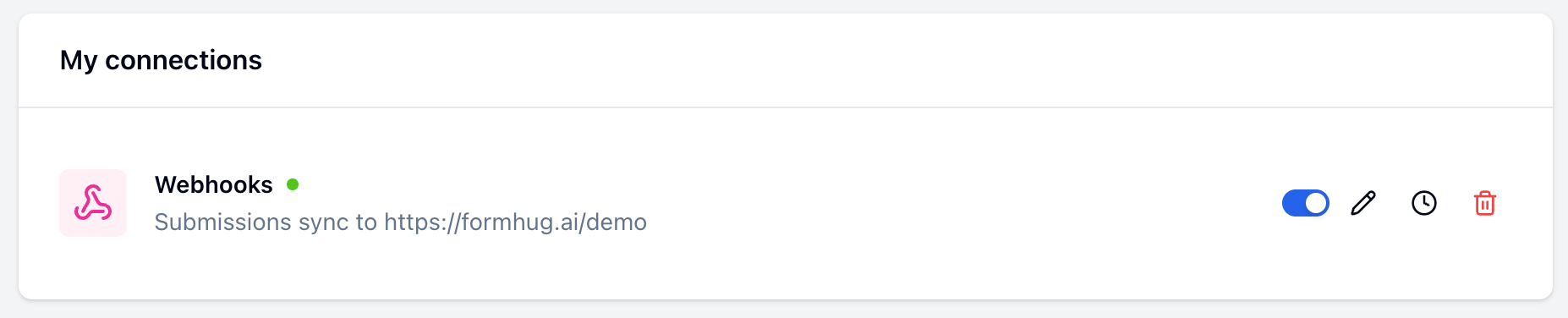 From there you can:
| Action | How |
| ------------------------------- | --------------------- |
| Enable / disable | Toggle the switch |
| Edit URL, events, or conditions | Click the pencil icon |
| View delivery history | Click the clock icon |
| Delete | Click the trash icon |
## Related
Sync submissions to a spreadsheet automatically
Create Notion database pages from form submissions
Post submission alerts to a channel or direct message
Automate workflows across CRM, email, and productivity apps
Collect payments directly inside your form
View and manage all entries in FormHug
From there you can:
| Action | How |
| ------------------------------- | --------------------- |
| Enable / disable | Toggle the switch |
| Edit URL, events, or conditions | Click the pencil icon |
| View delivery history | Click the clock icon |
| Delete | Click the trash icon |
## Related
Sync submissions to a spreadsheet automatically
Create Notion database pages from form submissions
Post submission alerts to a channel or direct message
Automate workflows across CRM, email, and productivity apps
Collect payments directly inside your form
View and manage all entries in FormHug