> ## Documentation Index
> Fetch the complete documentation index at: https://formhug.ai/docs/llms.txt
> Use this file to discover all available pages before exploring further.
# Zapier Integration
> Connect FormHug to Zapier and automate workflows across CRM, email, database, and productivity apps
The **Zapier integration** lets FormHug trigger automated workflows in Zapier. A new or updated FormHug submission can start a Zap, then Zapier can send that data to HubSpot, Gmail, Airtable, Mailchimp, Notion, Slack, Google Sheets, or thousands of other apps.
This guide shows a complete example: create a HubSpot contact from a FormHug submission.
## When to Use Zapier
Use Zapier when you want FormHug submissions to power workflows outside FormHug, especially when the destination app is not available as a built-in integration.
* **Create CRM records**: turn demo requests, waitlist signups, or contact forms into HubSpot contacts, deals, or tasks.
* **Route leads and applications**: send submissions to sales, recruiting, admissions, or partner pipelines.
* **Start email workflows**: add submitters to a mailing list, campaign, or follow-up sequence.
* **Update databases and spreadsheets**: create records in Airtable, Zapier Tables, Google Sheets, or another database-style app.
* **Notify teams**: post a formatted message to Slack, Microsoft Teams, or an internal alerting workflow.
* **Chain multi-step automations**: filter, format, enrich, branch, or delay submissions before sending them to another app.
## Before You Start
Make sure you have:
* A FormHug account connected to Zapier
* A FormHug form with at least one recent submission for testing
* A Zapier account
* Access to the destination app you want to automate, such as HubSpot
* A clear mapping between FormHug fields and the destination app fields
In this example, FormHug is the trigger app and HubSpot is the action app. You can replace HubSpot with any Zapier app that supports the action you need.
## Open FormHug in Zapier
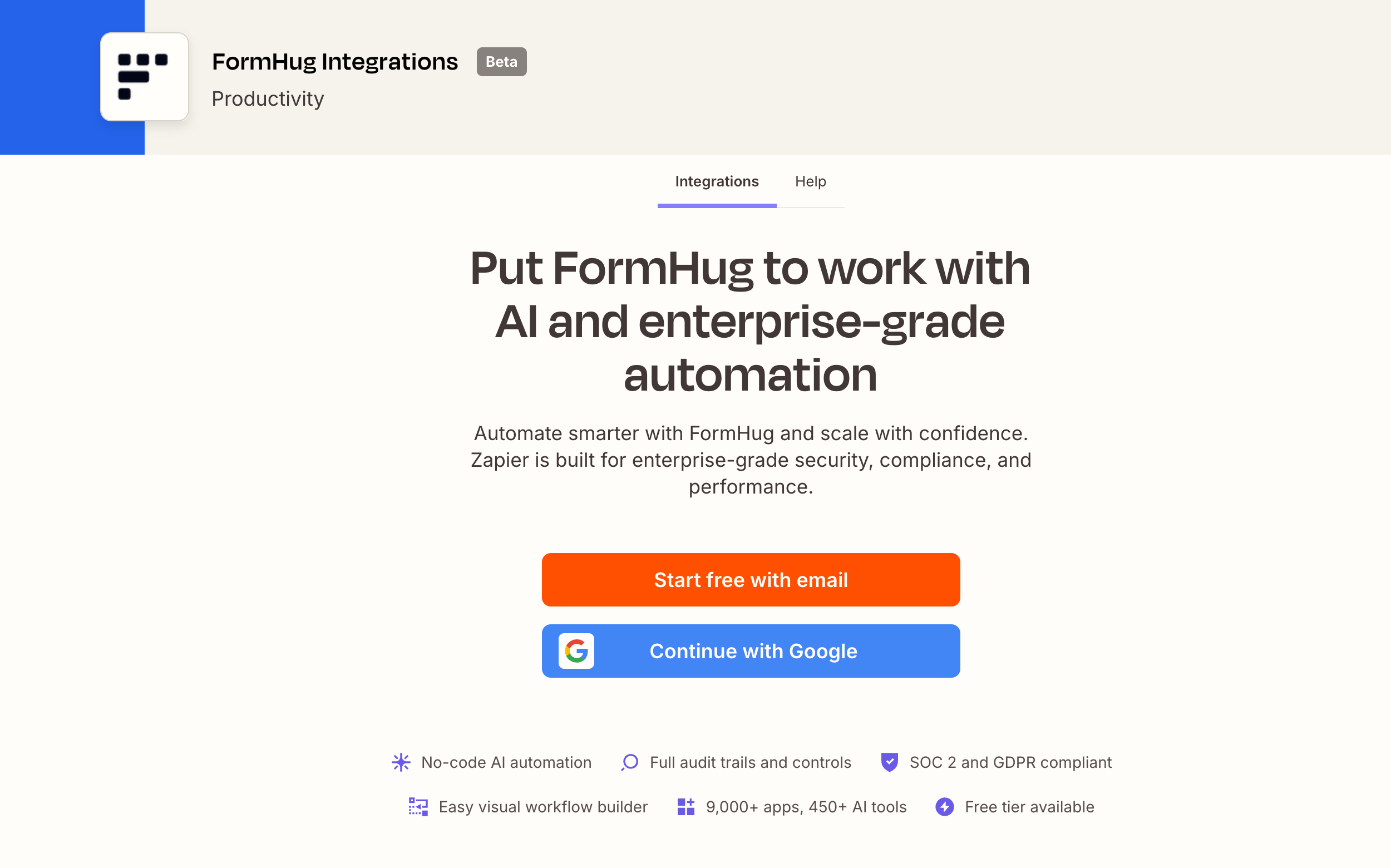
Open the FormHug app page in Zapier and sign in or continue with your Zapier account.
 ## Connect Your FormHug Account
When Zapier asks to connect FormHug, choose the FormHug account you want to use and confirm the connection.
## Connect Your FormHug Account
When Zapier asks to connect FormHug, choose the FormHug account you want to use and confirm the connection.
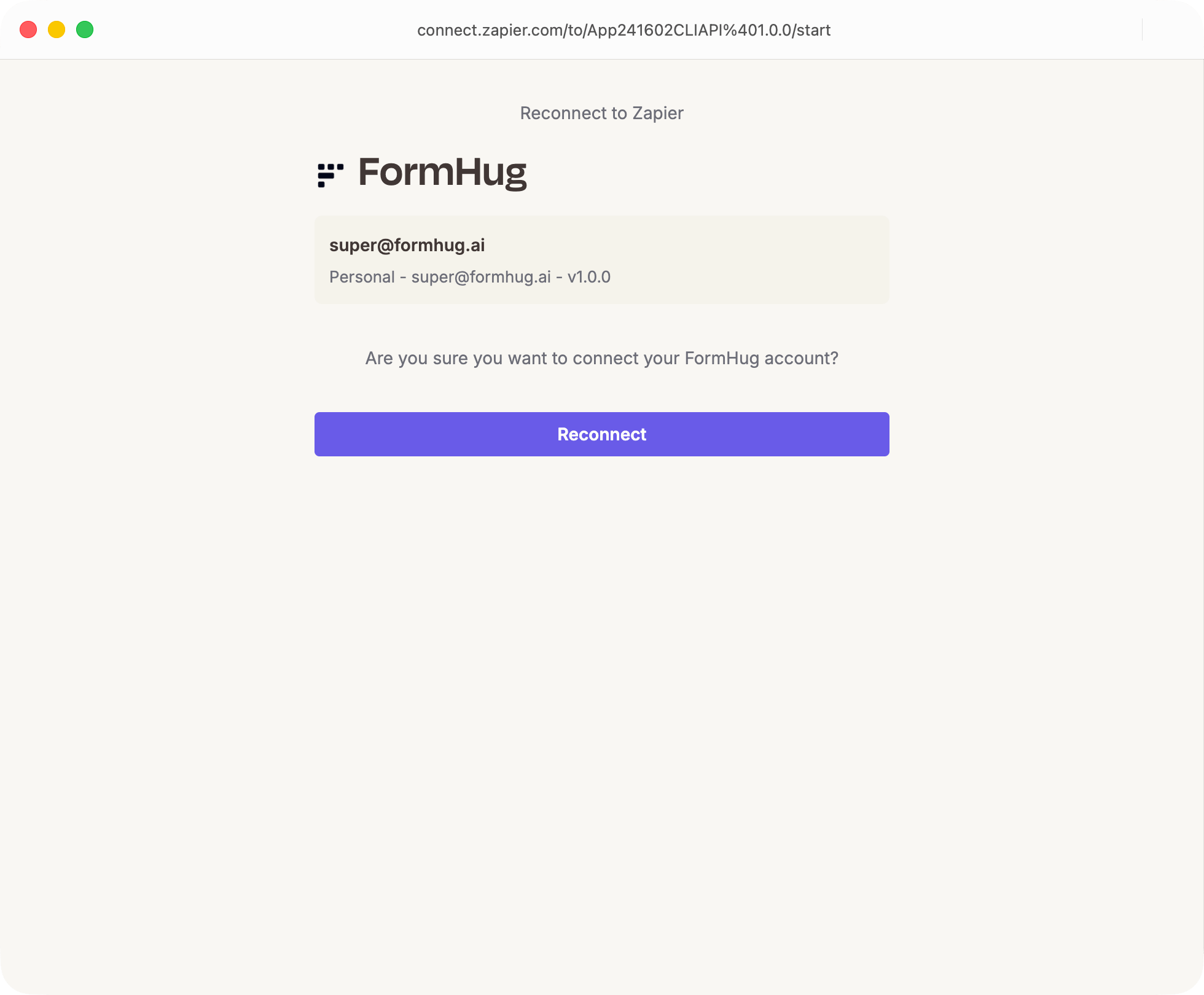 Zapier uses this connection to read sample submissions and trigger the Zap when matching events happen.
## Create the FormHug Trigger
Start a new Zap and choose **FormHug** as the trigger app.
Zapier uses this connection to read sample submissions and trigger the Zap when matching events happen.
## Create the FormHug Trigger
Start a new Zap and choose **FormHug** as the trigger app.
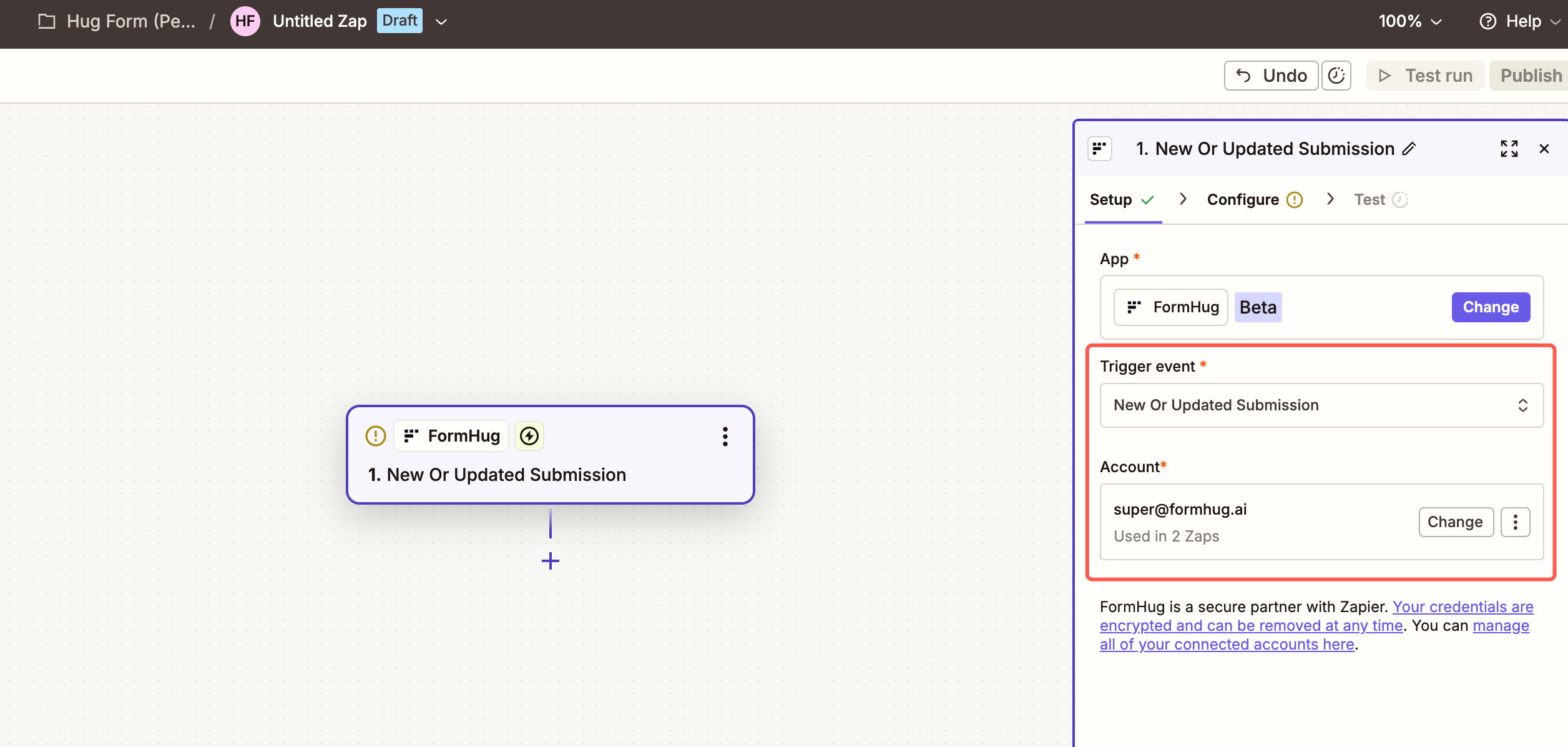 Select **New Or Updated Submission**.
Select the FormHug account you connected.
Click **Continue** to choose the form and event type.
## Choose the Form and Event
In the trigger configuration, choose the FormHug form and event type that should start the Zap.
Select **New Or Updated Submission**.
Select the FormHug account you connected.
Click **Continue** to choose the form and event type.
## Choose the Form and Event
In the trigger configuration, choose the FormHug form and event type that should start the Zap.
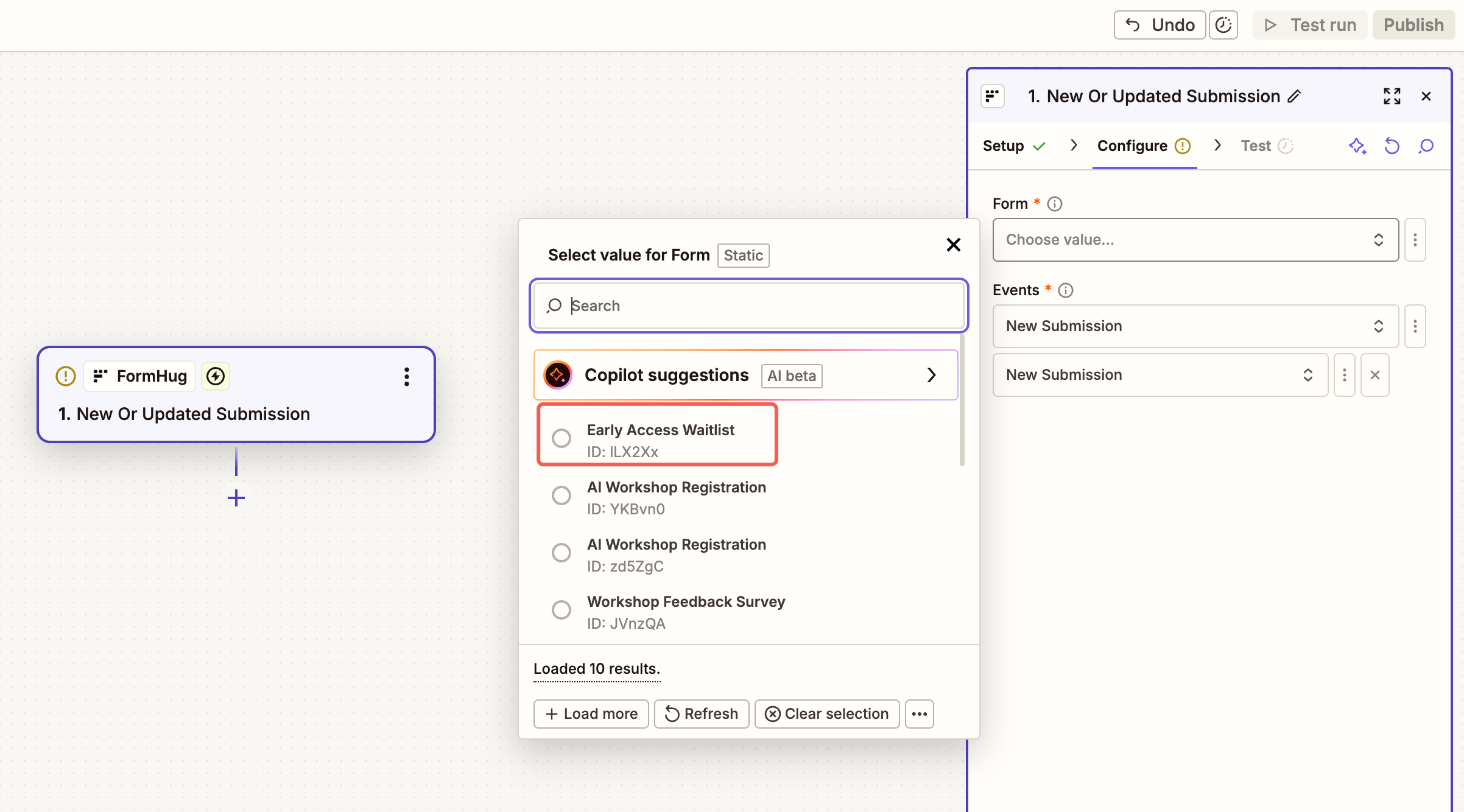 For example, choose:
| Field | Example |
| ------ | --------------------- |
| Form | Early Access Waitlist |
| Events | New Submission |
Use **New Submission** when the Zap should run only when someone submits the form. Use the updated-submission option when downstream systems should also react to edits.
## Test the FormHug Trigger
Test the trigger so Zapier can load a recent FormHug submission.
For example, choose:
| Field | Example |
| ------ | --------------------- |
| Form | Early Access Waitlist |
| Events | New Submission |
Use **New Submission** when the Zap should run only when someone submits the form. Use the updated-submission option when downstream systems should also react to edits.
## Test the FormHug Trigger
Test the trigger so Zapier can load a recent FormHug submission.
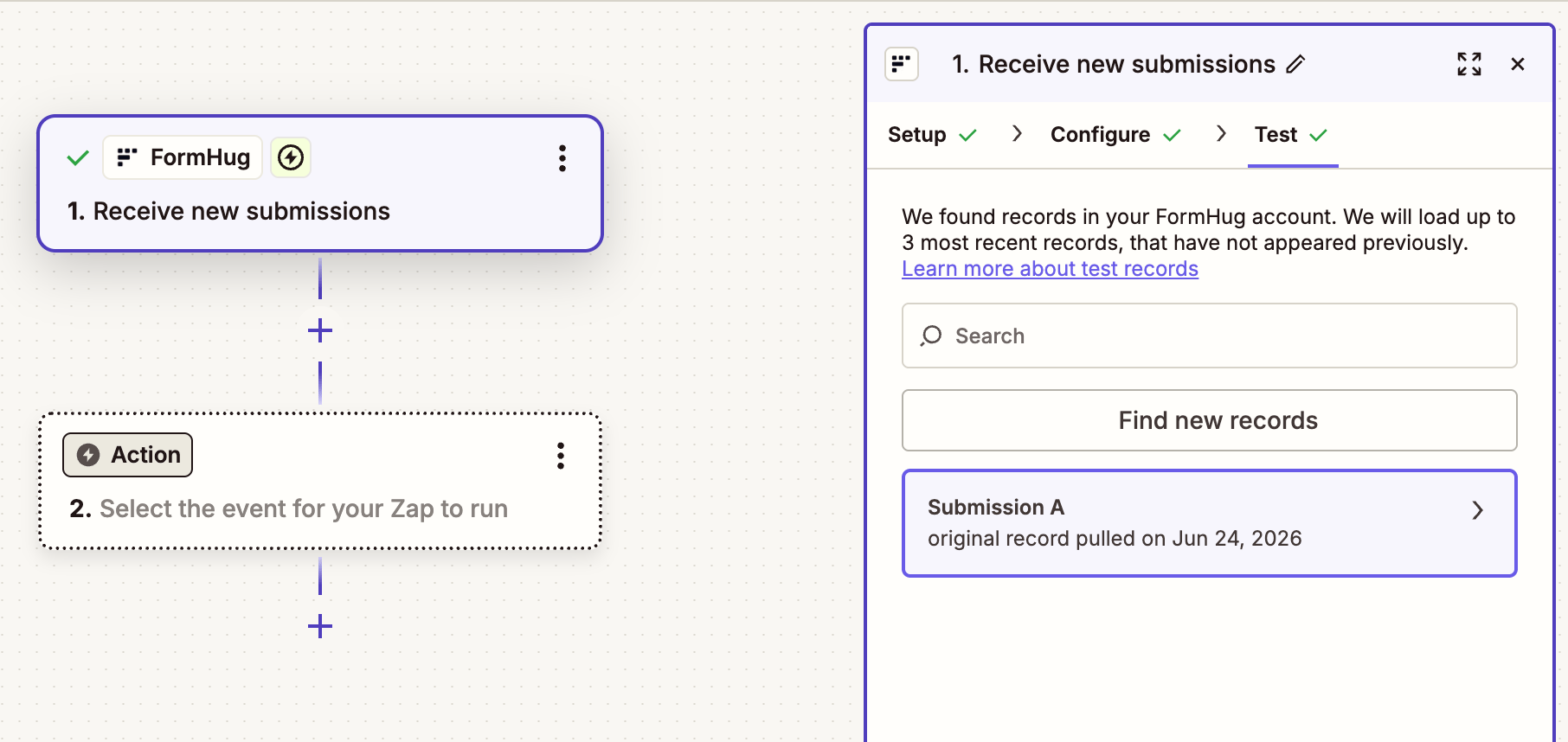 This sample record provides the fields you will map into the action step, such as name, email, submitted time, serial number, and form answers.
If Zapier cannot find a sample record, submit a test entry in FormHug, then click **Find new records** again.
## Add a HubSpot Action
Add an action step, then choose **HubSpot** from Zapier's app list.
This sample record provides the fields you will map into the action step, such as name, email, submitted time, serial number, and form answers.
If Zapier cannot find a sample record, submit a test entry in FormHug, then click **Find new records** again.
## Add a HubSpot Action
Add an action step, then choose **HubSpot** from Zapier's app list.
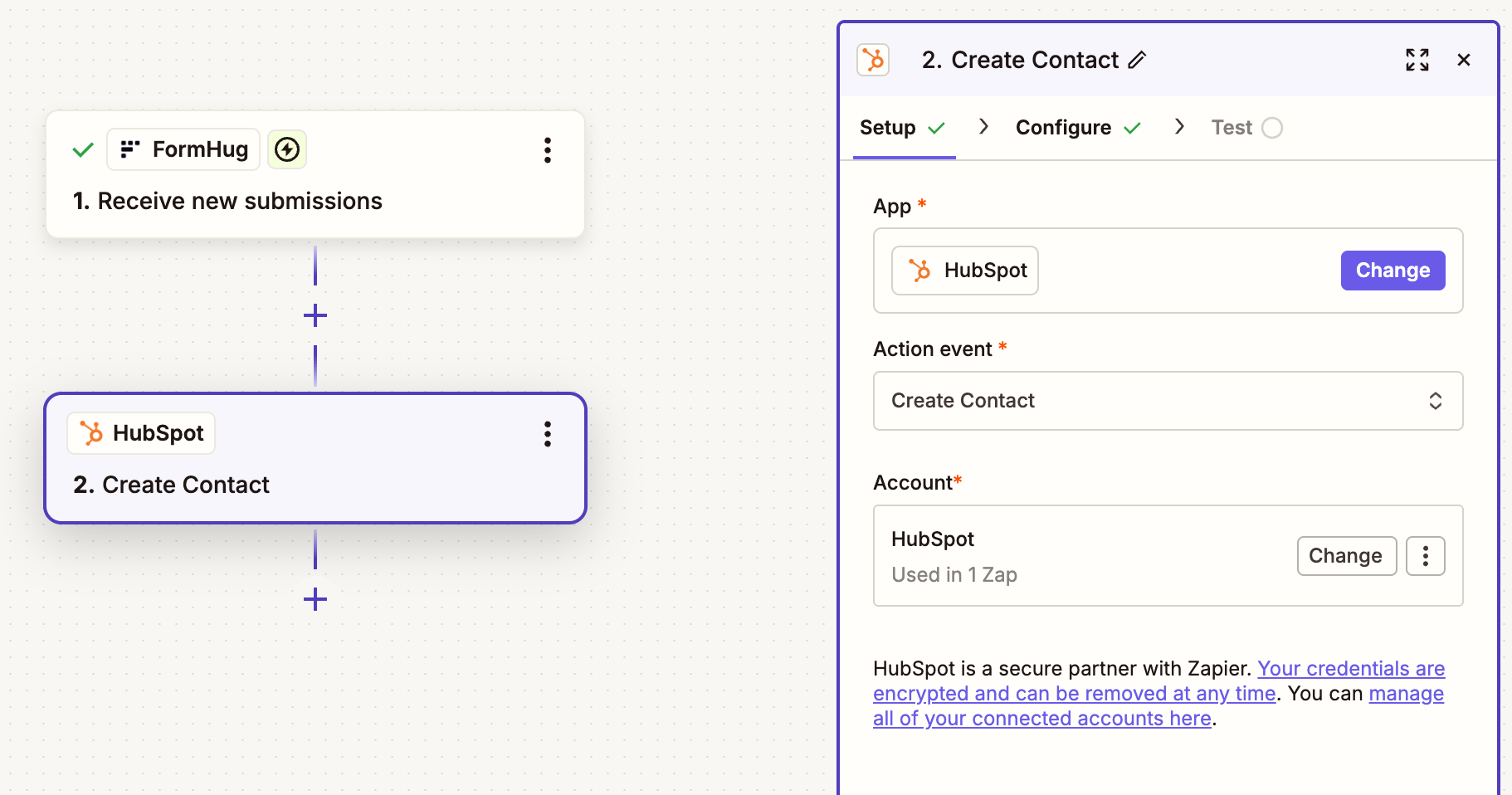
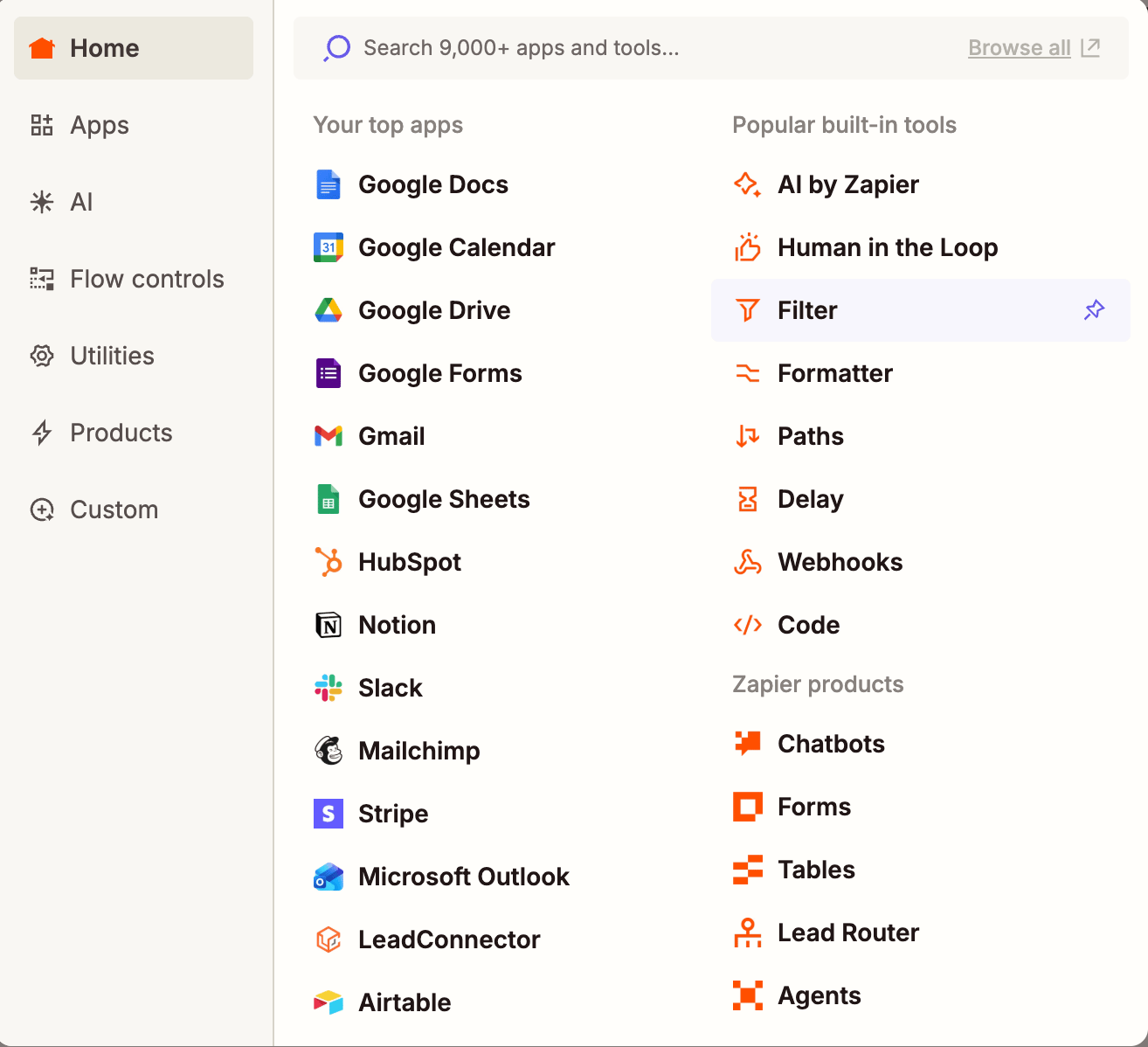 Choose **Create Contact** as the HubSpot action event and connect your HubSpot account.
 ## Map FormHug Fields to HubSpot
In the HubSpot action configuration, map FormHug submission fields into HubSpot contact fields.
## Map FormHug Fields to HubSpot
In the HubSpot action configuration, map FormHug submission fields into HubSpot contact fields.
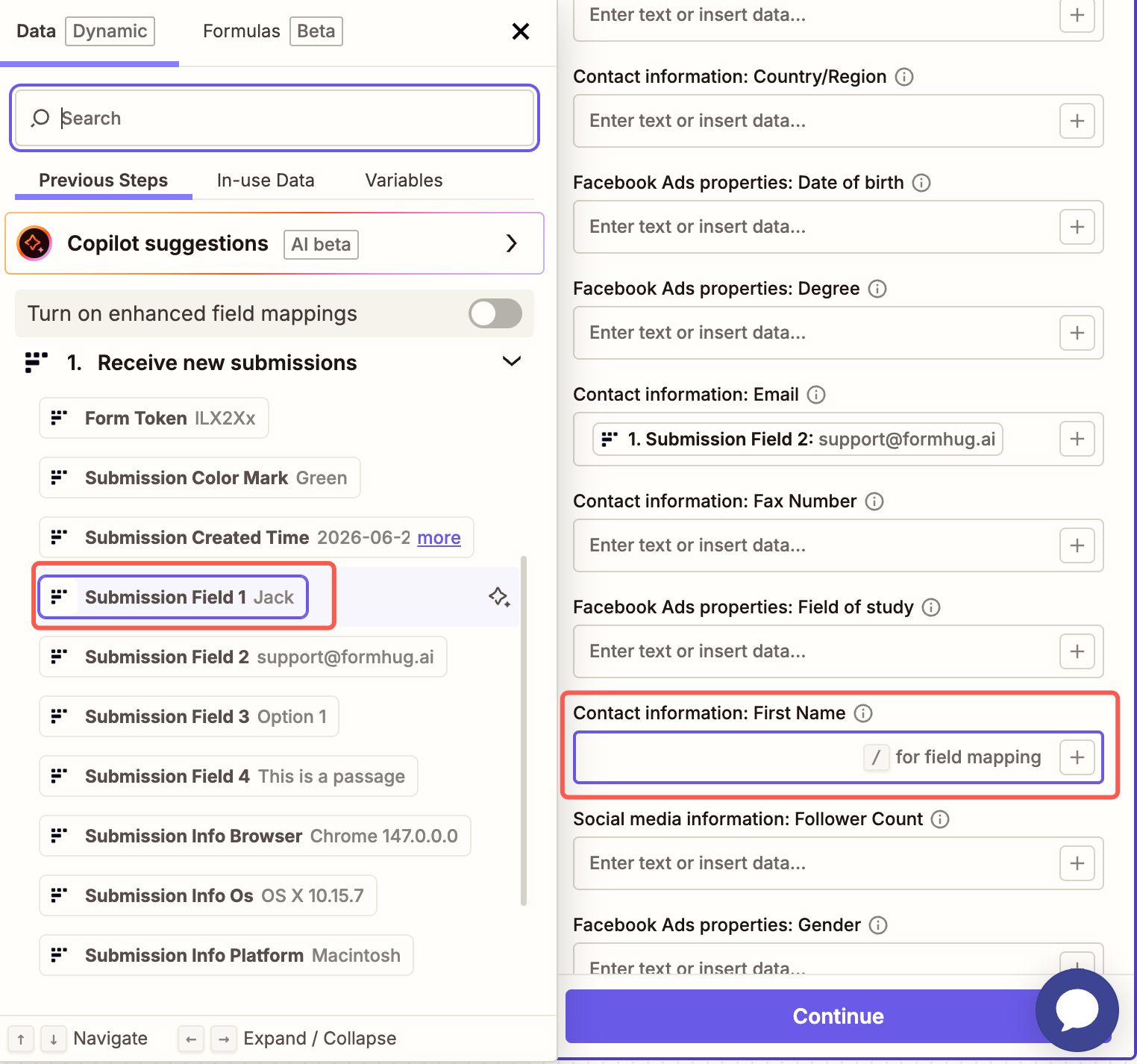 For a basic contact, map at least:
| HubSpot field | FormHug value |
| ------------- | ------------------------------------------------- |
| Email | Submission Field 2 or your email field |
| First Name | Submission Field 1 or your name field |
| Company | A static company value or a FormHug company field |
You can also map optional fields such as phone number, lifecycle stage, lead source, form name, submitted time, or the FormHug submission link.
Zapier shows FormHug fields by their trigger output labels. Use the sample values to confirm you are mapping the right field into the right HubSpot property.
## Test the HubSpot Action
Test the action. Zapier sends the sample contact to HubSpot and shows the response from HubSpot.
For a basic contact, map at least:
| HubSpot field | FormHug value |
| ------------- | ------------------------------------------------- |
| Email | Submission Field 2 or your email field |
| First Name | Submission Field 1 or your name field |
| Company | A static company value or a FormHug company field |
You can also map optional fields such as phone number, lifecycle stage, lead source, form name, submitted time, or the FormHug submission link.
Zapier shows FormHug fields by their trigger output labels. Use the sample values to confirm you are mapping the right field into the right HubSpot property.
## Test the HubSpot Action
Test the action. Zapier sends the sample contact to HubSpot and shows the response from HubSpot.
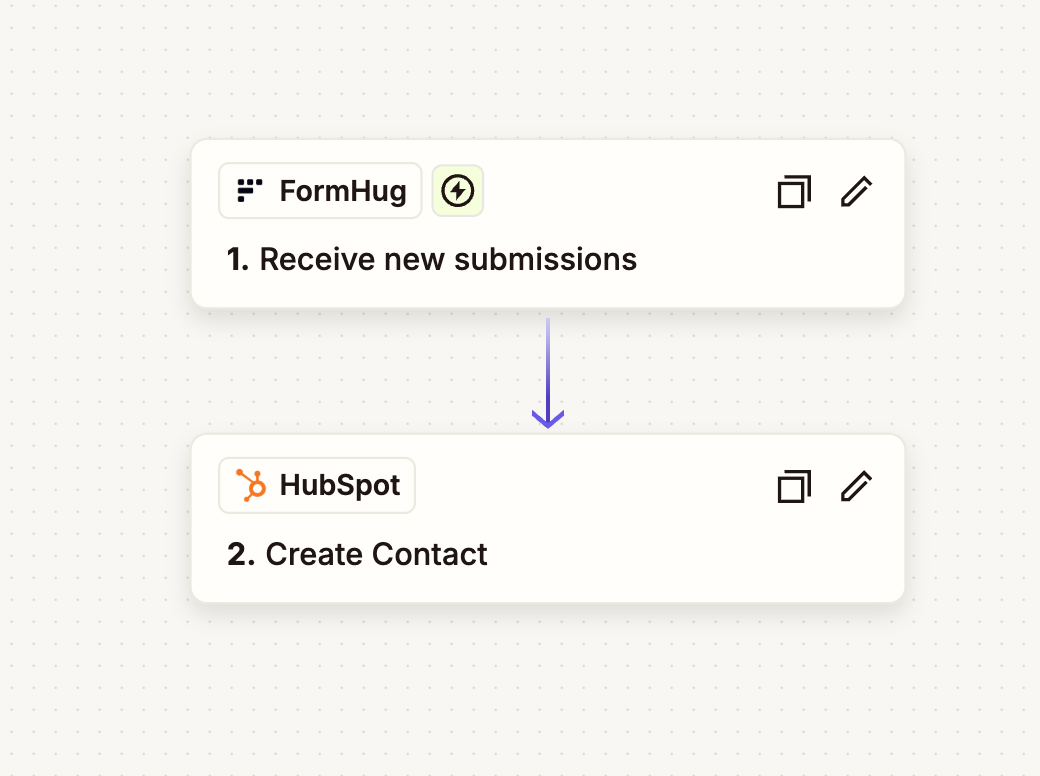
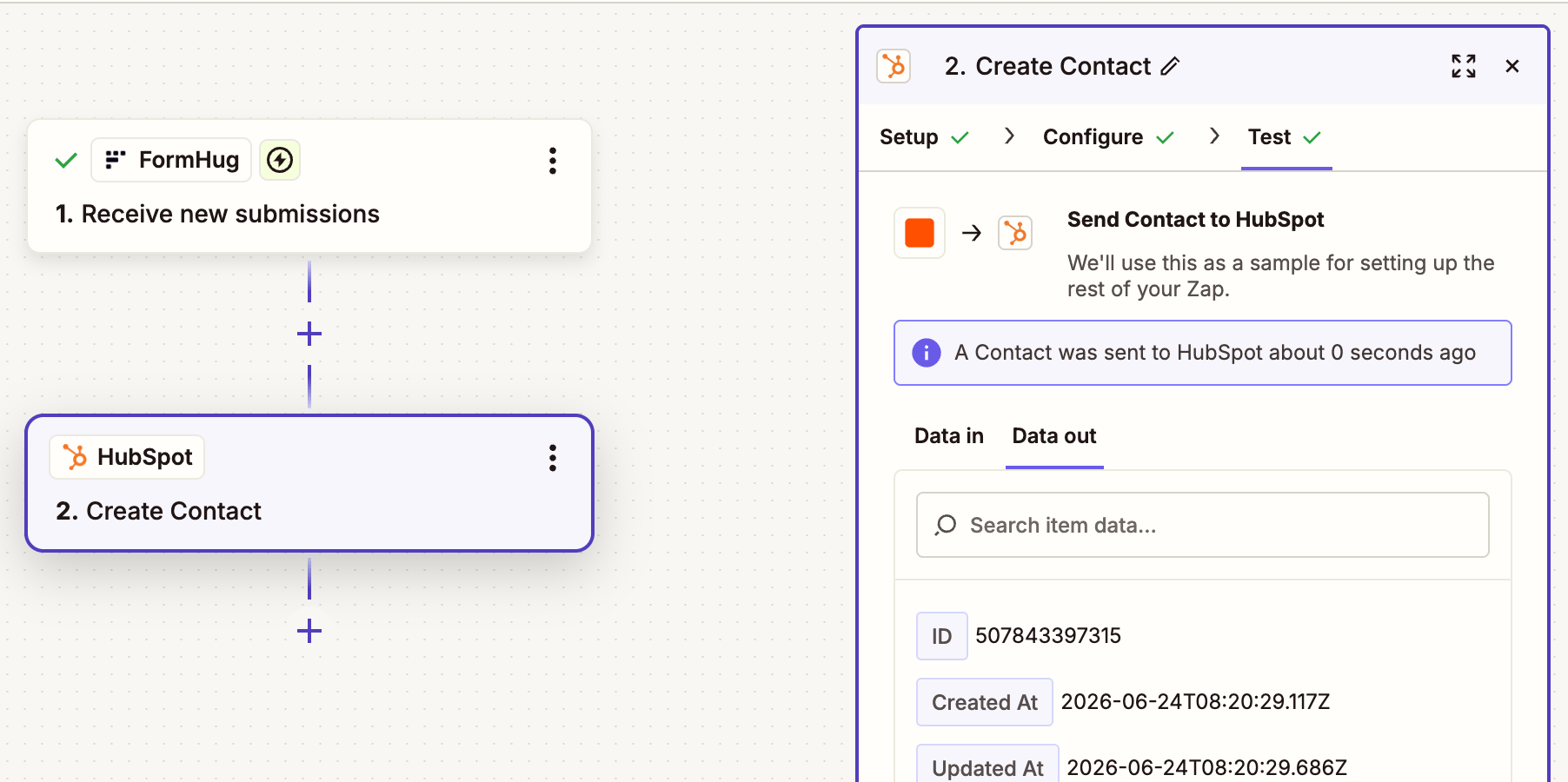 After the test succeeds, review the Zap overview and publish the Zap.
 ## Check the HubSpot Contact
Open HubSpot and confirm that the contact was created with the mapped FormHug values.
## Check the HubSpot Contact
Open HubSpot and confirm that the contact was created with the mapped FormHug values.
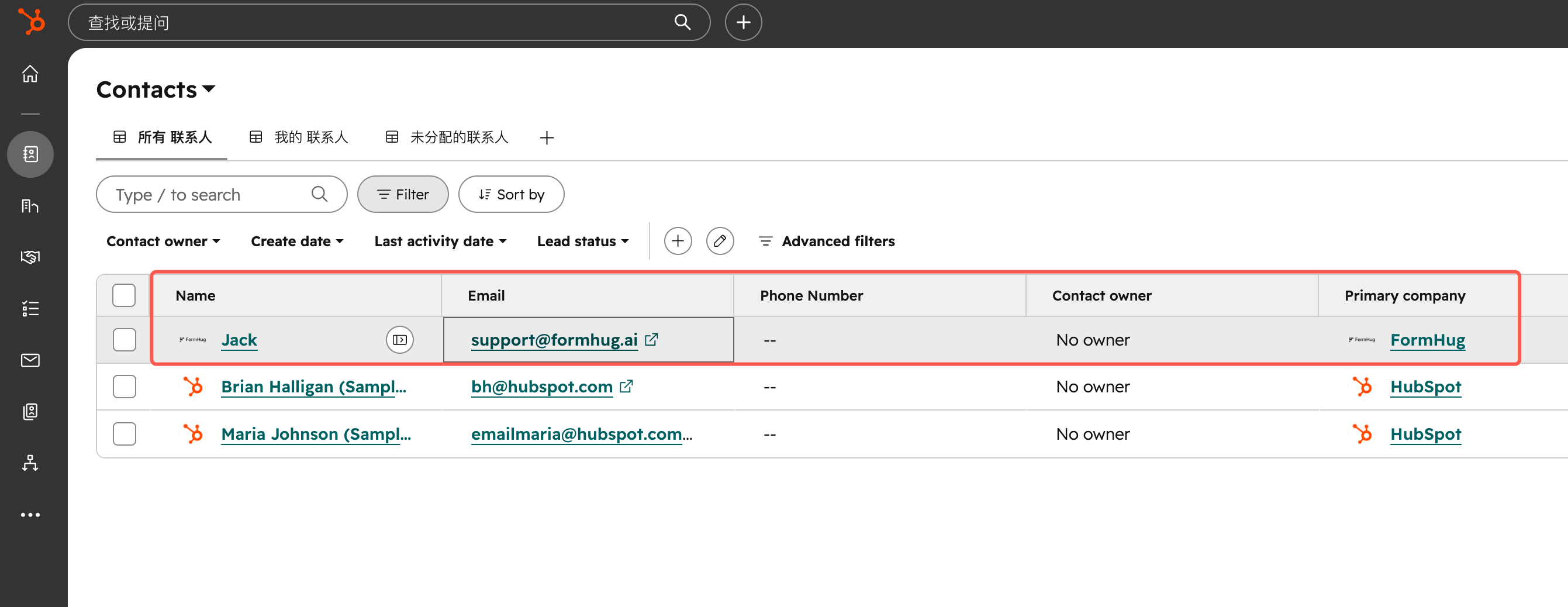 When the Zap is published, future matching FormHug submissions will create HubSpot contacts automatically.
## Manage the Zapier Connection in FormHug
After setup, the Zapier connection appears in **My connections** on the FormHug Integrations page.
When the Zap is published, future matching FormHug submissions will create HubSpot contacts automatically.
## Manage the Zapier Connection in FormHug
After setup, the Zapier connection appears in **My connections** on the FormHug Integrations page.
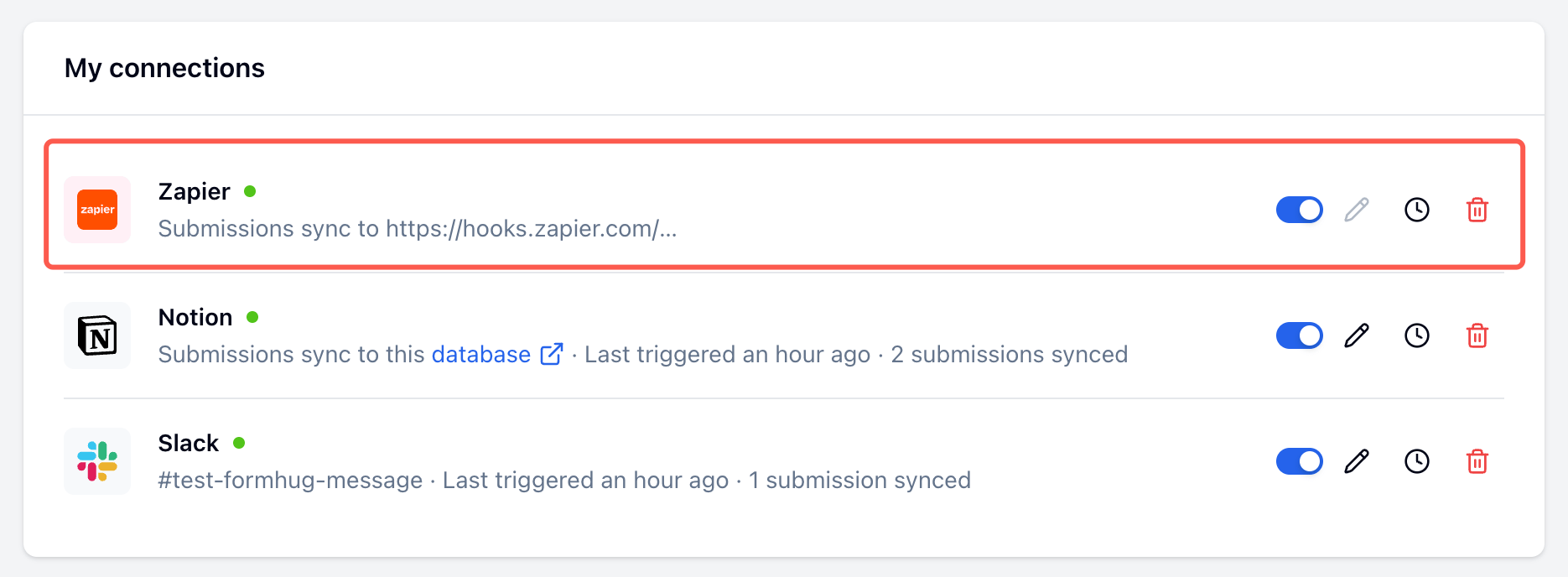 From this page you can:
| Action | How |
| -------------------------------- | --------------------- |
| Enable or disable the connection | Toggle the switch |
| Edit the connection | Click the pencil icon |
| View event logs | Click the clock icon |
| Delete the connection | Click the trash icon |
## Tips for Reliable Zaps
* Keep your FormHug form field labels stable after publishing a Zap.
* Test with a real submission before turning on the Zap.
* Add required fields in the destination app only when the matching FormHug data is always present.
* Use Zapier Filters to prevent incomplete or unwanted submissions from reaching downstream apps.
* Use Formatter when you need to split names, clean phone numbers, convert dates, or reshape text before the action step.
* Add a link back to the FormHug submission when your team needs to review the original entry.
## Limitations
* Zapier runs on the trigger and task behavior of your Zapier plan.
* Existing FormHug submissions are not automatically replayed unless Zapier loads them as test records or you rebuild the workflow around historical data.
* Changes made in HubSpot or another destination app do not update the original FormHug submission.
* If you rename or remove FormHug fields, review any Zaps that map those fields.
* Destination apps may have their own required fields, rate limits, duplicate handling, and permission rules.
## Troubleshooting
| Issue | What to check |
| --------------------------------- | ---------------------------------------------------------------------------------------------------- |
| Zapier cannot connect FormHug | Reconnect the FormHug account in Zapier and confirm you are using the right FormHug login |
| No sample records appear | Submit a fresh FormHug entry, then test the trigger again |
| The wrong form triggers the Zap | Check the selected form in the FormHug trigger configuration |
| HubSpot contact is missing fields | Review field mapping and make sure the sample values match the intended HubSpot properties |
| Duplicate contacts are created | Check HubSpot's duplicate handling and consider adding a search or filter step before Create Contact |
| Zap is on but not running | Check Zapier task history and FormHug event logs for errors |
For more detail about building Zaps and mapping data between steps, see Zapier's Help Center for Zap workflows.
## Related
Push submission data to your own HTTP endpoint
Post submission alerts to a channel or direct message
Sync submissions to a spreadsheet automatically
View and manage all entries in FormHug
From this page you can:
| Action | How |
| -------------------------------- | --------------------- |
| Enable or disable the connection | Toggle the switch |
| Edit the connection | Click the pencil icon |
| View event logs | Click the clock icon |
| Delete the connection | Click the trash icon |
## Tips for Reliable Zaps
* Keep your FormHug form field labels stable after publishing a Zap.
* Test with a real submission before turning on the Zap.
* Add required fields in the destination app only when the matching FormHug data is always present.
* Use Zapier Filters to prevent incomplete or unwanted submissions from reaching downstream apps.
* Use Formatter when you need to split names, clean phone numbers, convert dates, or reshape text before the action step.
* Add a link back to the FormHug submission when your team needs to review the original entry.
## Limitations
* Zapier runs on the trigger and task behavior of your Zapier plan.
* Existing FormHug submissions are not automatically replayed unless Zapier loads them as test records or you rebuild the workflow around historical data.
* Changes made in HubSpot or another destination app do not update the original FormHug submission.
* If you rename or remove FormHug fields, review any Zaps that map those fields.
* Destination apps may have their own required fields, rate limits, duplicate handling, and permission rules.
## Troubleshooting
| Issue | What to check |
| --------------------------------- | ---------------------------------------------------------------------------------------------------- |
| Zapier cannot connect FormHug | Reconnect the FormHug account in Zapier and confirm you are using the right FormHug login |
| No sample records appear | Submit a fresh FormHug entry, then test the trigger again |
| The wrong form triggers the Zap | Check the selected form in the FormHug trigger configuration |
| HubSpot contact is missing fields | Review field mapping and make sure the sample values match the intended HubSpot properties |
| Duplicate contacts are created | Check HubSpot's duplicate handling and consider adding a search or filter step before Create Contact |
| Zap is on but not running | Check Zapier task history and FormHug event logs for errors |
For more detail about building Zaps and mapping data between steps, see Zapier's Help Center for Zap workflows.
## Related
Push submission data to your own HTTP endpoint
Post submission alerts to a channel or direct message
Sync submissions to a spreadsheet automatically
View and manage all entries in FormHug