> ## Documentation Index
> Fetch the complete documentation index at: https://formhug.ai/docs/llms.txt
> Use this file to discover all available pages before exploring further.
# Share Link
> Publish your form and share it via link, QR code, social media, AI poster, or source tracking links
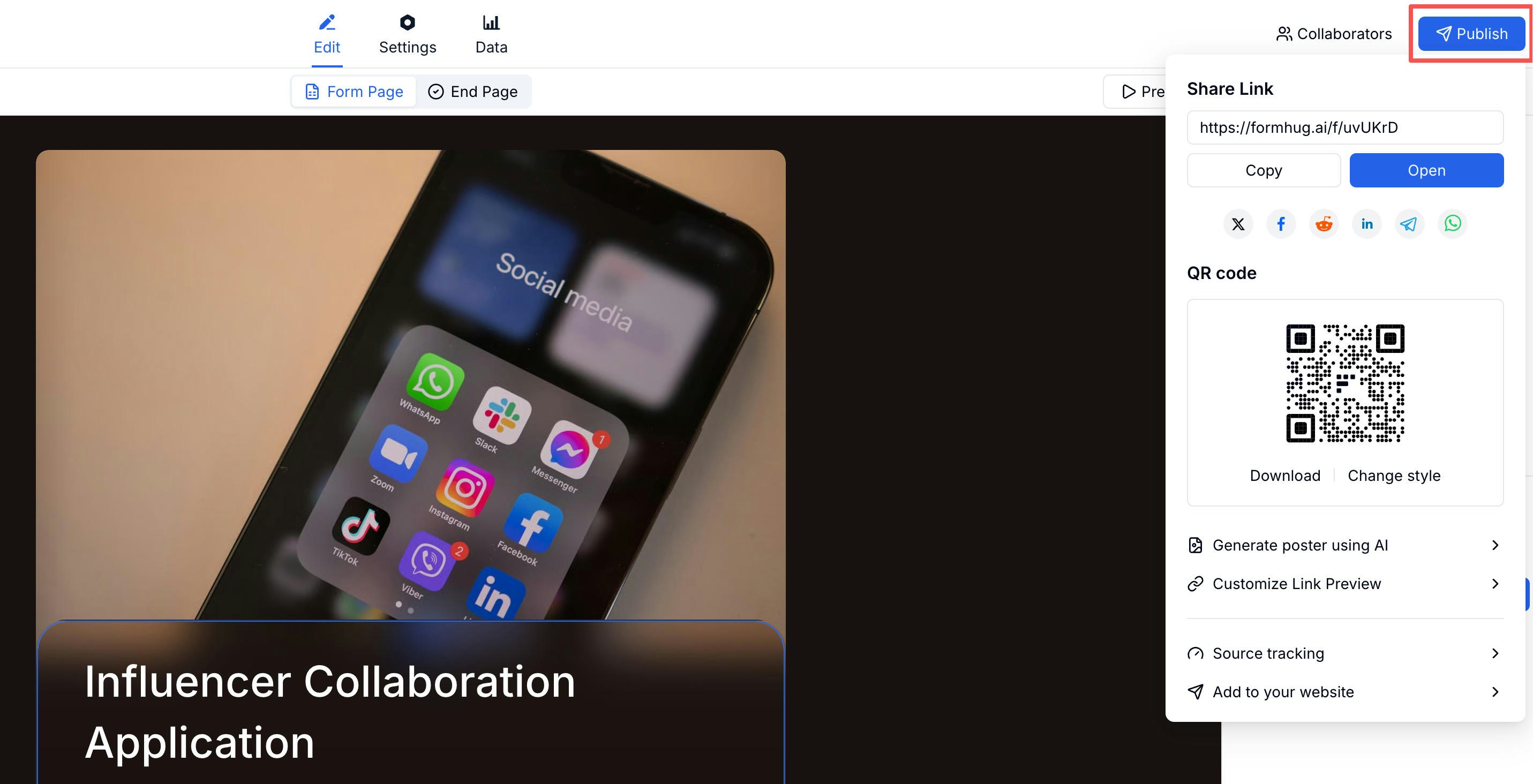
The Share panel is where you publish your form and access every sharing option — a direct link, QR code, social media shortcuts, an AI-generated poster, link preview customization, source tracking, and embed options.
 For public campaigns, pair share links with lead generation templates, registration templates, order and payment templates, or a QR code for in-person distribution. For campaign-style forms, the lead generation form guide covers how to match the link, offer, and follow-up.
## Publishing Your Form
Click **Publish** in the top-right corner of the form editor. Once published, your form is live and accepting submissions.
## Sharing Options
The Share panel gives you everything in one place:
| Option | Description |
| -------------------------- | ----------------------------------------------------------------------------------------------- |
| **Form link** | The direct URL — copy and paste anywhere |
| **Social icons** | One-click share to common platforms |
| **QR code** | Download a QR code for print or digital use |
| **AI poster** | Generate a shareable image poster using AI |
| **Customize Link Preview** | Set the image, title, and description shown when your link is shared |
| **Source tracking** | Create named links per channel (see [Tracking & Pre-fill](/features/settings/tracking-prefill)) |
| **Add to website** | Quick access to embed code (see [Embed Options](/features/sharing/embed)) |
## Customizing the Link Preview
When someone shares your form link on social media or messaging apps, they see a preview card. You can control what that card looks like.
For public campaigns, pair share links with lead generation templates, registration templates, order and payment templates, or a QR code for in-person distribution. For campaign-style forms, the lead generation form guide covers how to match the link, offer, and follow-up.
## Publishing Your Form
Click **Publish** in the top-right corner of the form editor. Once published, your form is live and accepting submissions.
## Sharing Options
The Share panel gives you everything in one place:
| Option | Description |
| -------------------------- | ----------------------------------------------------------------------------------------------- |
| **Form link** | The direct URL — copy and paste anywhere |
| **Social icons** | One-click share to common platforms |
| **QR code** | Download a QR code for print or digital use |
| **AI poster** | Generate a shareable image poster using AI |
| **Customize Link Preview** | Set the image, title, and description shown when your link is shared |
| **Source tracking** | Create named links per channel (see [Tracking & Pre-fill](/features/settings/tracking-prefill)) |
| **Add to website** | Quick access to embed code (see [Embed Options](/features/sharing/embed)) |
## Customizing the Link Preview
When someone shares your form link on social media or messaging apps, they see a preview card. You can control what that card looks like.
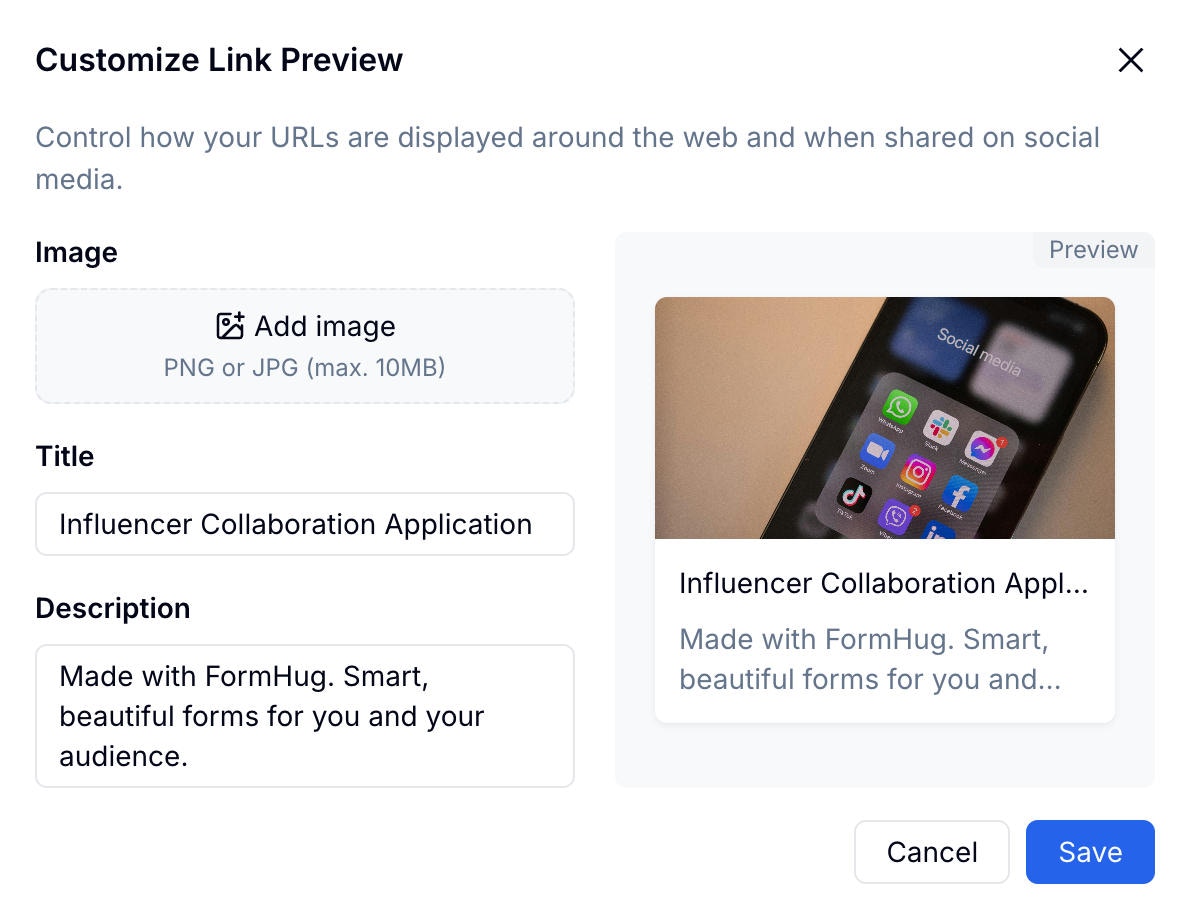 In the Share panel, click **Customize Link Preview**.
Choose an image that represents the form. This appears as the card thumbnail.
Enter the title and description text shown in the preview card.
Review how the card will look in the preview pane on the right.
## Related
Add your form directly to a website
Create source tracking links
Download and customize your form QR code
Share event, workshop, course, and membership sign-up forms
Publish forms for demos, callbacks, quotes, and early access
Share donation, product order, ticket, deposit, and paid registration forms
Connect source links, form fields, and follow-up around one campaign goal
In the Share panel, click **Customize Link Preview**.
Choose an image that represents the form. This appears as the card thumbnail.
Enter the title and description text shown in the preview card.
Review how the card will look in the preview pane on the right.
## Related
Add your form directly to a website
Create source tracking links
Download and customize your form QR code
Share event, workshop, course, and membership sign-up forms
Publish forms for demos, callbacks, quotes, and early access
Share donation, product order, ticket, deposit, and paid registration forms
Connect source links, form fields, and follow-up around one campaign goal