> ## Documentation Index
> Fetch the complete documentation index at: https://formhug.ai/docs/llms.txt
> Use this file to discover all available pages before exploring further.
# Gmail Email Notifications
> How to connect Gmail to FormHug and send automatic confirmation emails and bulk reminders to form submitters.
FormHug does more than collect submissions. By connecting your Gmail account, you can automatically send a confirmation email the moment someone submits your form — and send bulk reminder emails to selected submitters whenever you need to follow up.
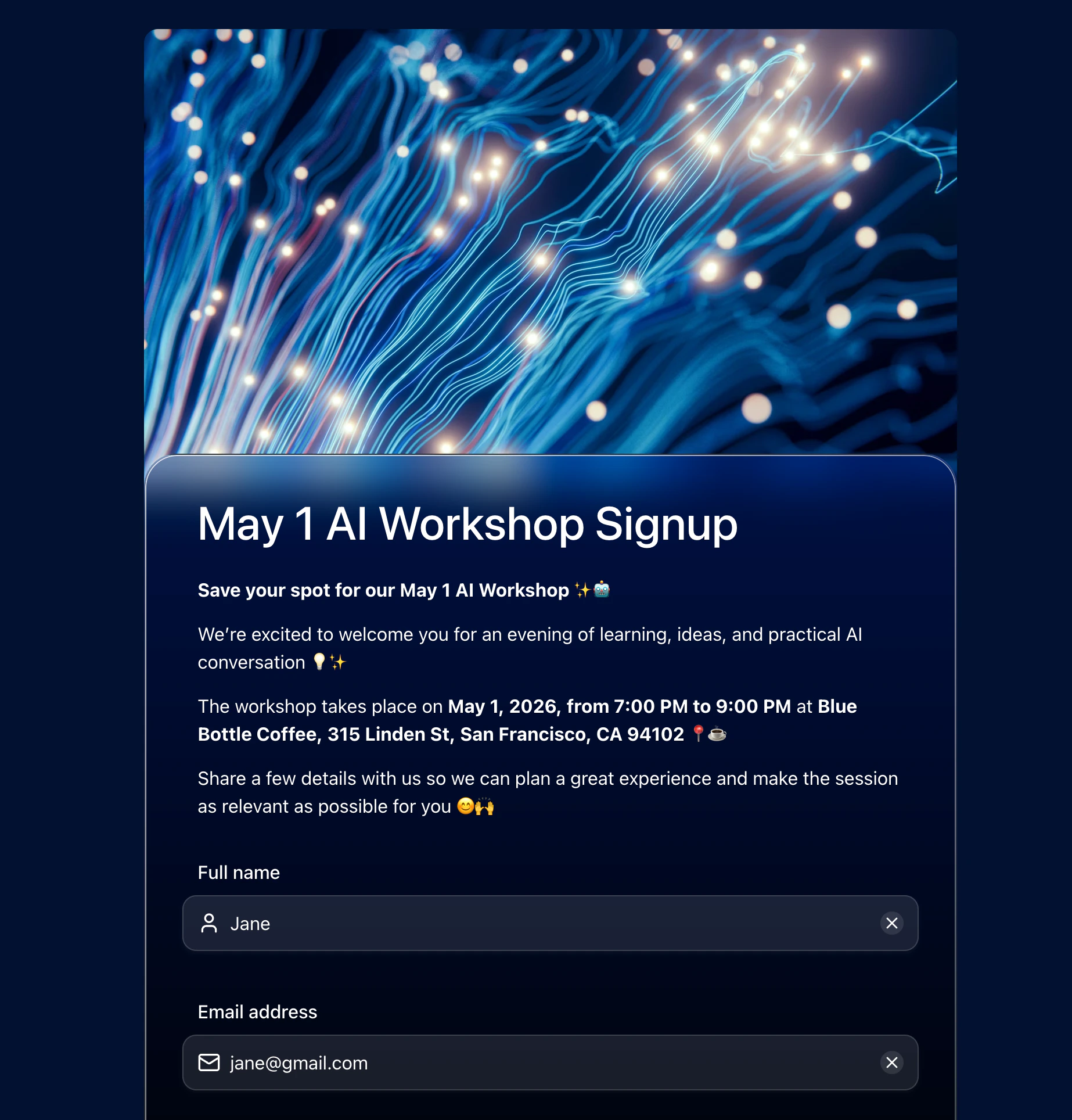
This guide walks through both using an AI workshop signup as the example.
For the companion blog walkthrough, read how to send emails to form submitters.
## When Would You Use This?
A few situations where this comes up naturally:
**You're running an event or workshop.**
Someone registers and immediately wonders: *did my sign-up go through?* With an automatic confirmation email, they get an answer before they even close the tab — with the date, time, and location already in the message. The day before the event, you bulk-select all registrants and send a reminder in two clicks.
**You're collecting job applications or program sign-ups.**
An applicant submits their information and hears nothing. That silence creates anxiety and follow-up emails to you. An automatic "Application received — we'll be in touch" email fixes that immediately, and costs you nothing to set up.
**You run a recurring class or membership.**
At the start of each cycle, you filter your submission list by relevant entries, write a quick update, and send it to everyone at once — no export, no paste-into-Mailchimp, no separate tool.
**You need to ask submitters to fix something.**
A batch of submissions came in with an incomplete field. Select those records, write a targeted message, and send — it reads like a personal email from you, not a system alert.
## Two Ways to Send Emails
| Mode | What it does | When to use |
| ------------- | ---------------------------------------- | --------------------------------------------- |
| **Automatic** | Fires immediately after each submission | Confirmation, receipt, next-step instructions |
| **Bulk send** | You select submissions and send manually | Reminders, updates, announcements |
Both modes use your connected Gmail account as the sender. Submitters receive the email as if you sent it personally.
## Before You Start
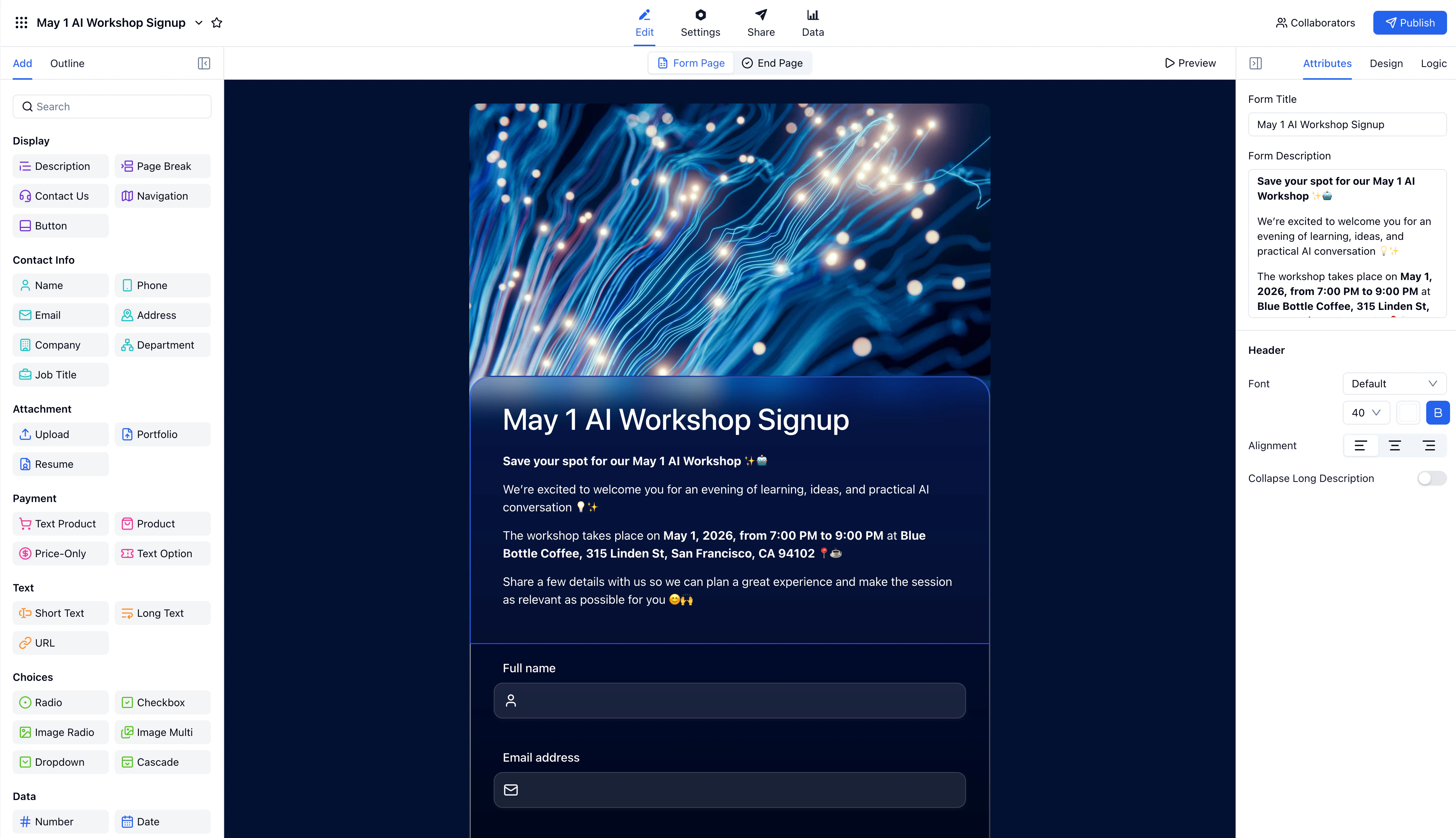
Make sure your form includes an **Email** field — this is what FormHug uses to address each outgoing email.
* You have a Gmail account available to use as the sender
* Gmail personal accounts send up to \~500 emails per day — suitable for most small to mid-size forms
## Part 1: Send an Automatic Confirmation Email
When someone signs up for the AI workshop, they should immediately receive a confirmation with the event details.
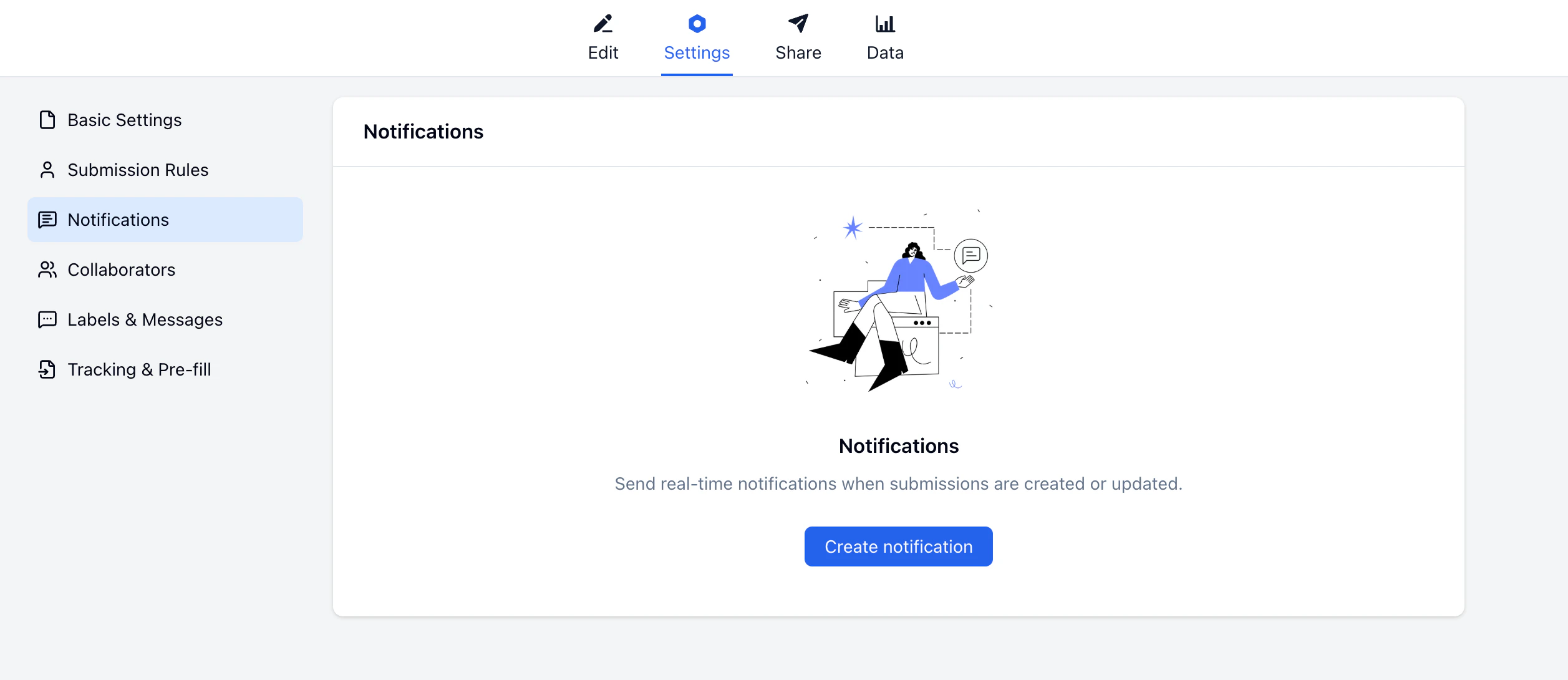
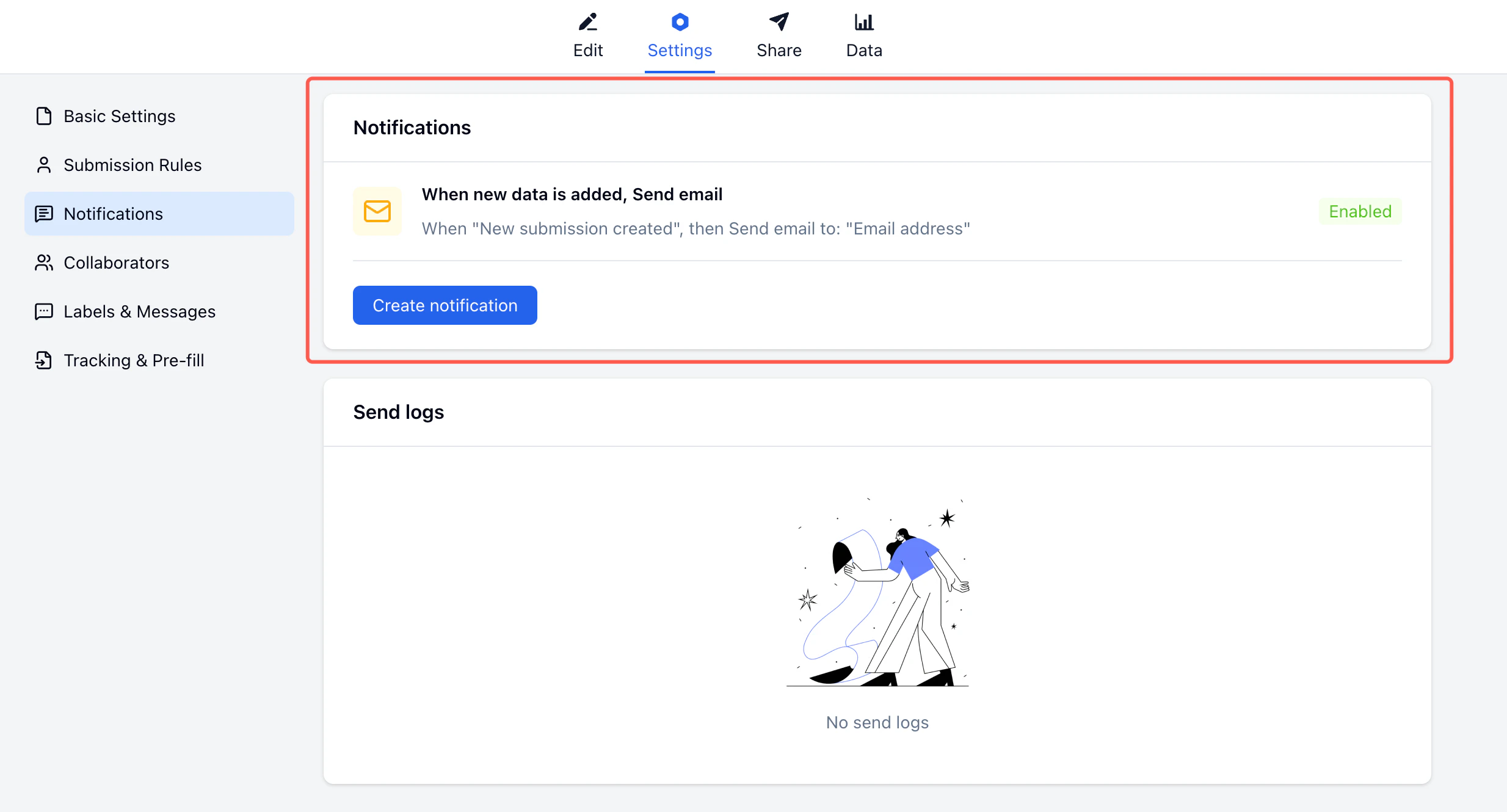
Go to your form → **Settings → Notifications**, then click **Create notification**.
Set **When the following occurs** to **New submission created**.
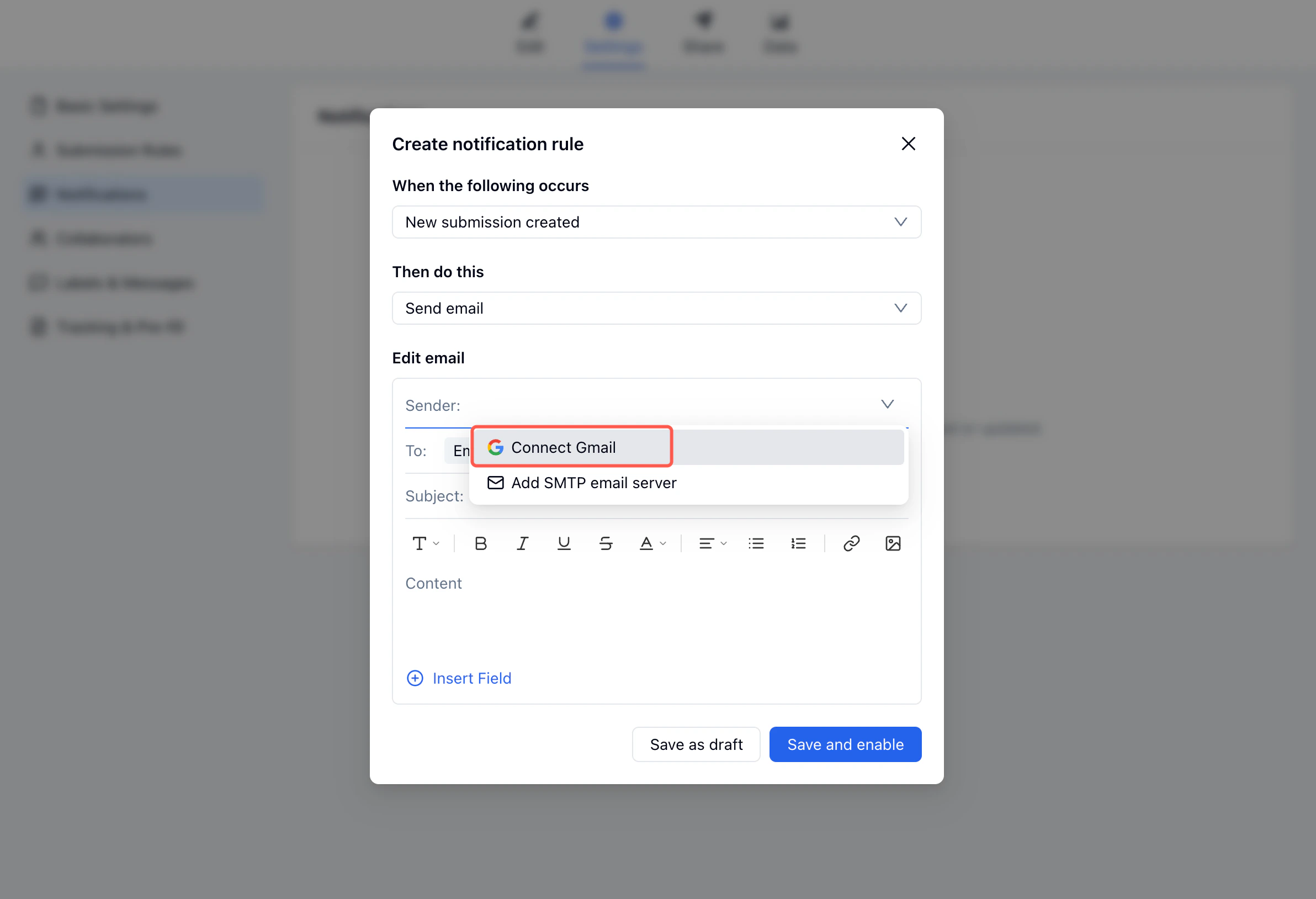
Under **Edit email**, click the **Sender** dropdown and select **Connect Gmail**.
A Google authorization screen opens. Click **Continue** to grant FormHug permission to send emails from your account.
Your Gmail address now appears as the sender. This authorization applies to all your forms — you only need to do this once.
In the **To** field, select the form field that holds the submitter's email address (e.g., **Email address**).
Enter a subject line and body. Use **Insert Field** to personalize both with values from the submission.
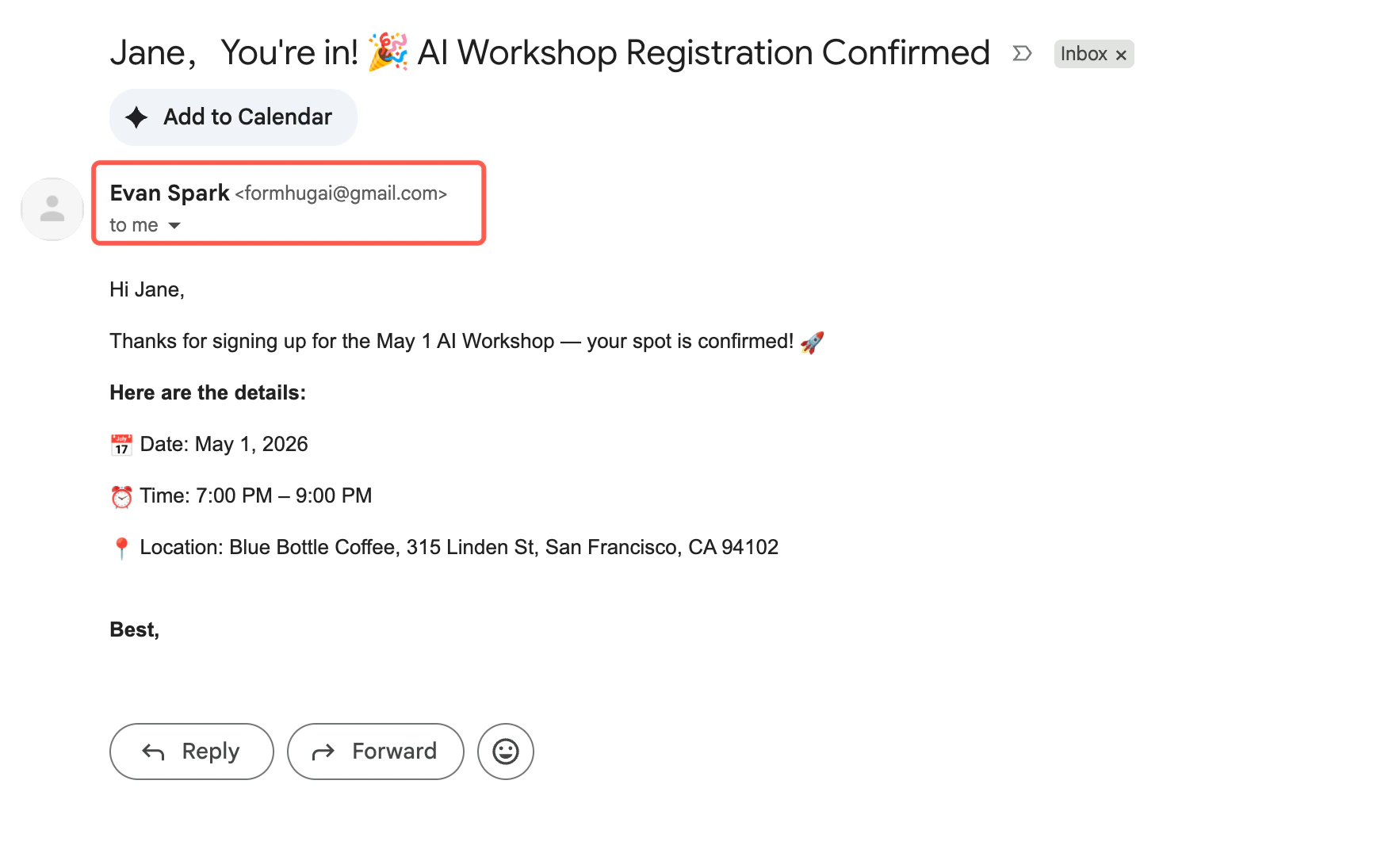
For the workshop example, the subject reads: *Jane, You're in! 🎉 AI Workshop Registration Confirmed* — the name is inserted from the form field automatically.
Click **Save and enable**. The rule activates immediately — every new submission fires the email.
When someone submits the form, the end page confirms their registration and sets the expectation that a confirmation email is on its way.
Seconds later, the email arrives in their inbox — sent from your Gmail address.
## Part 2: Send a Bulk Reminder Email
The day before the workshop, you want to remind all registrants. Go to the submissions table and send directly from there.
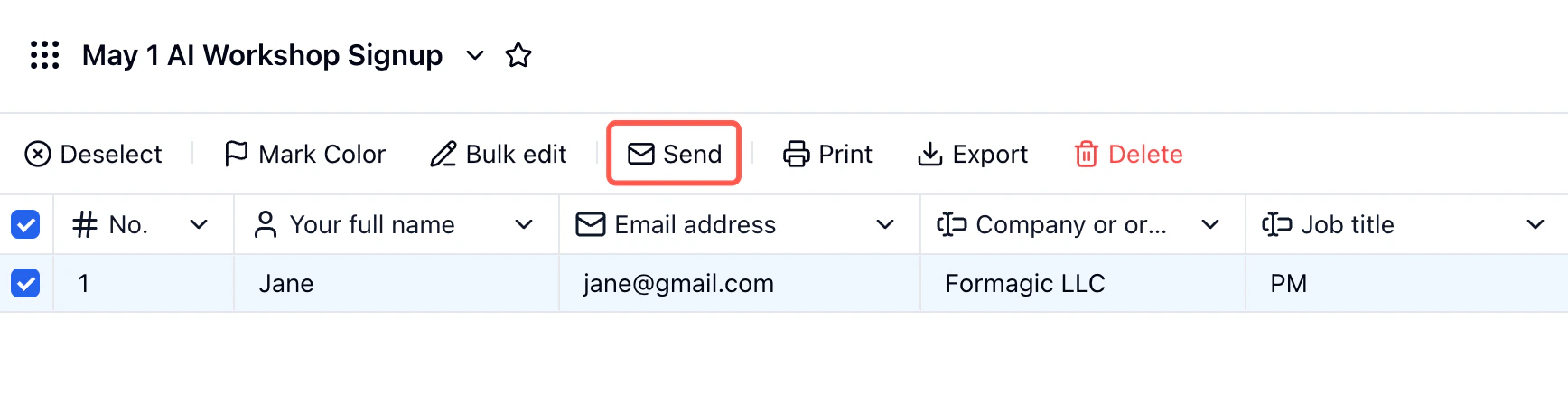
Open your form and click **Data** at the top.
Check the boxes next to the submissions you want to email. To select all, check the header checkbox.
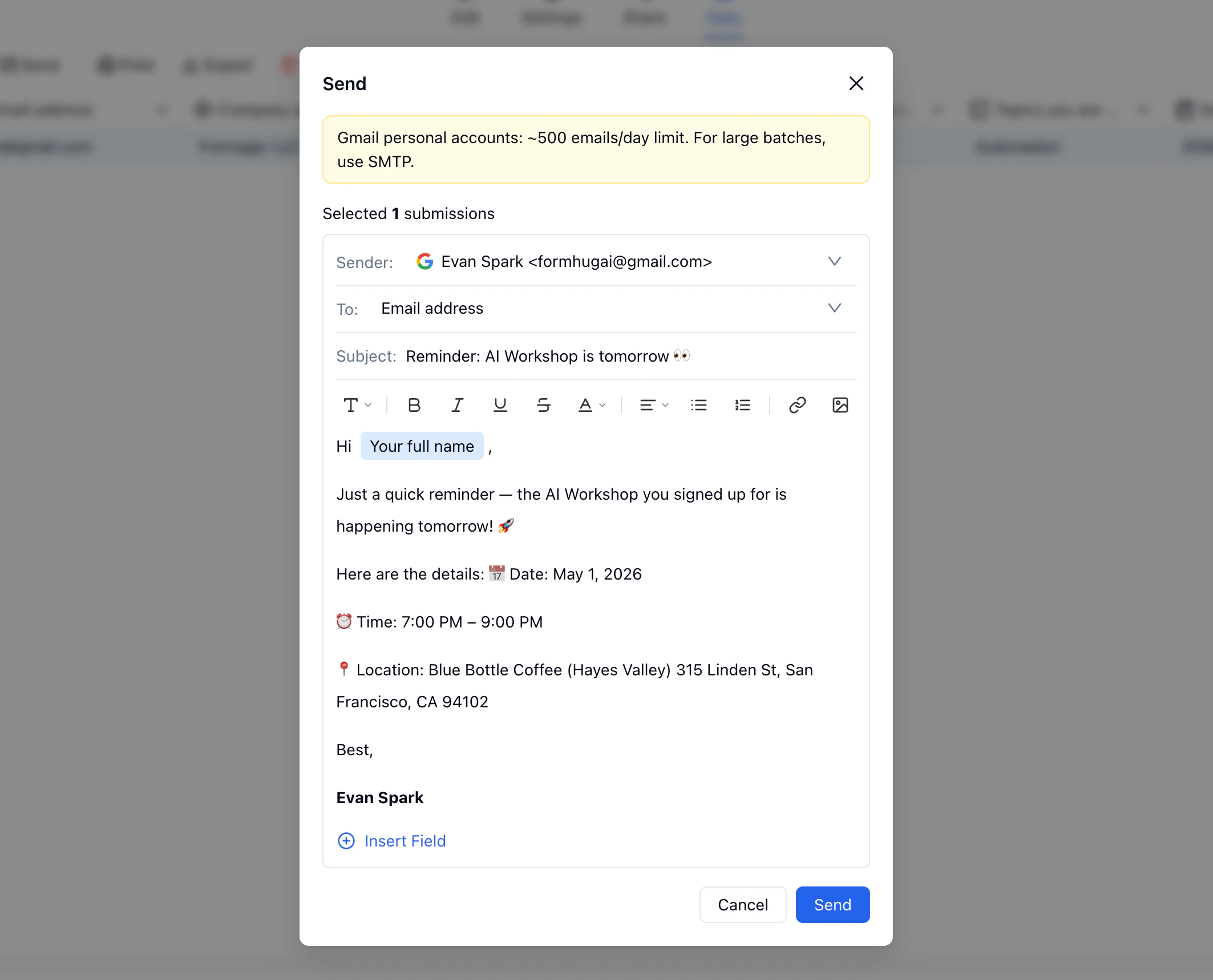
Click the **Send** button in the toolbar. The send dialog opens showing your connected Gmail as sender and the number of selected submissions.
Enter a subject and body. Use **Insert Field** to address each person by name. Keep the message focused — one reminder, one call to action.
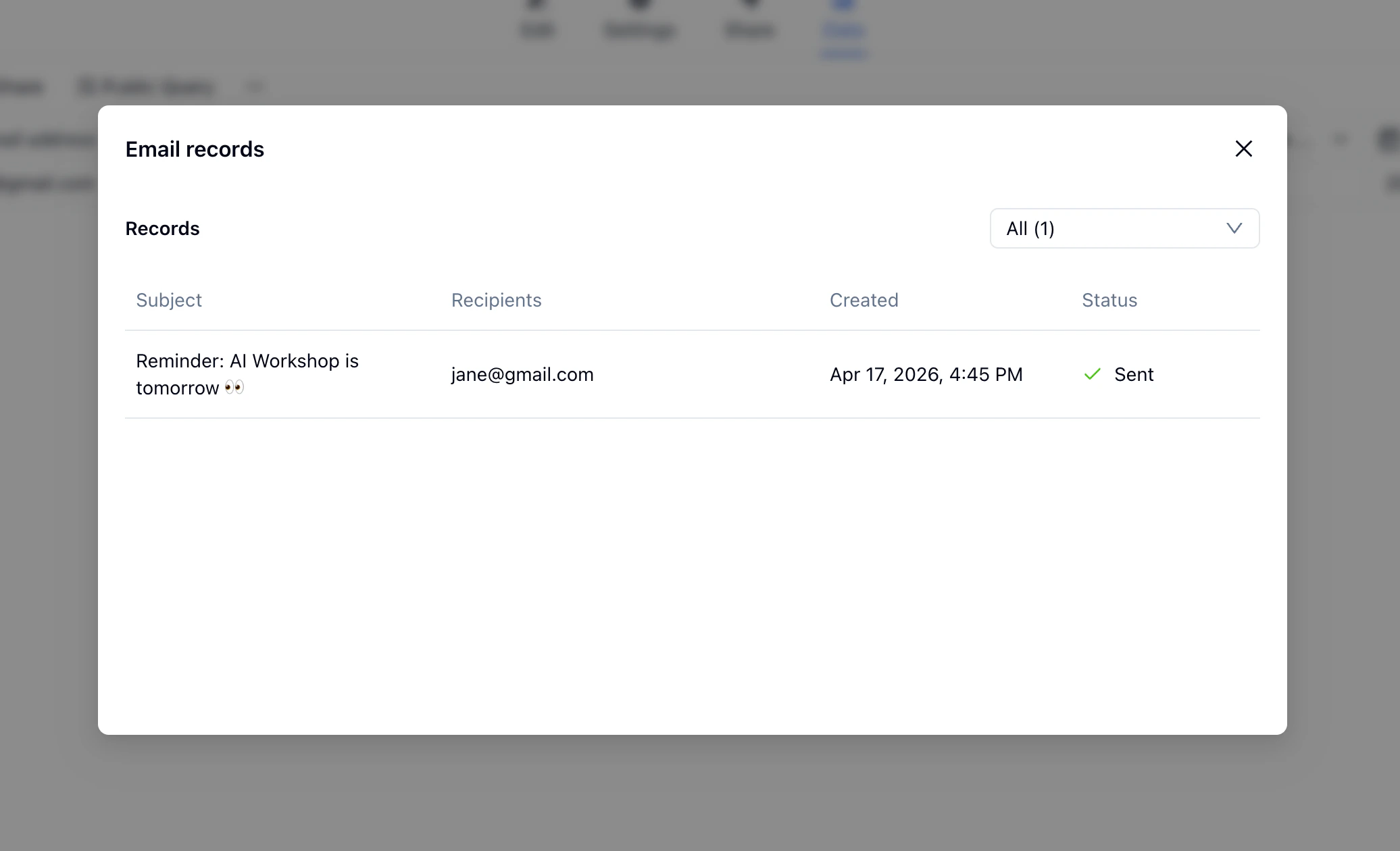
Click **Send**. An **Email records** panel confirms delivery — subject, recipient, timestamp, and status for each email.
## Check Email Records
Sent emails are tracked in two separate places depending on how they were sent.
**Automatic notification emails** are logged in **Settings → Notifications → Send logs**. Each entry shows the recipient, send time, and delivery status — useful for verifying that confirmation emails fired correctly after new submissions.
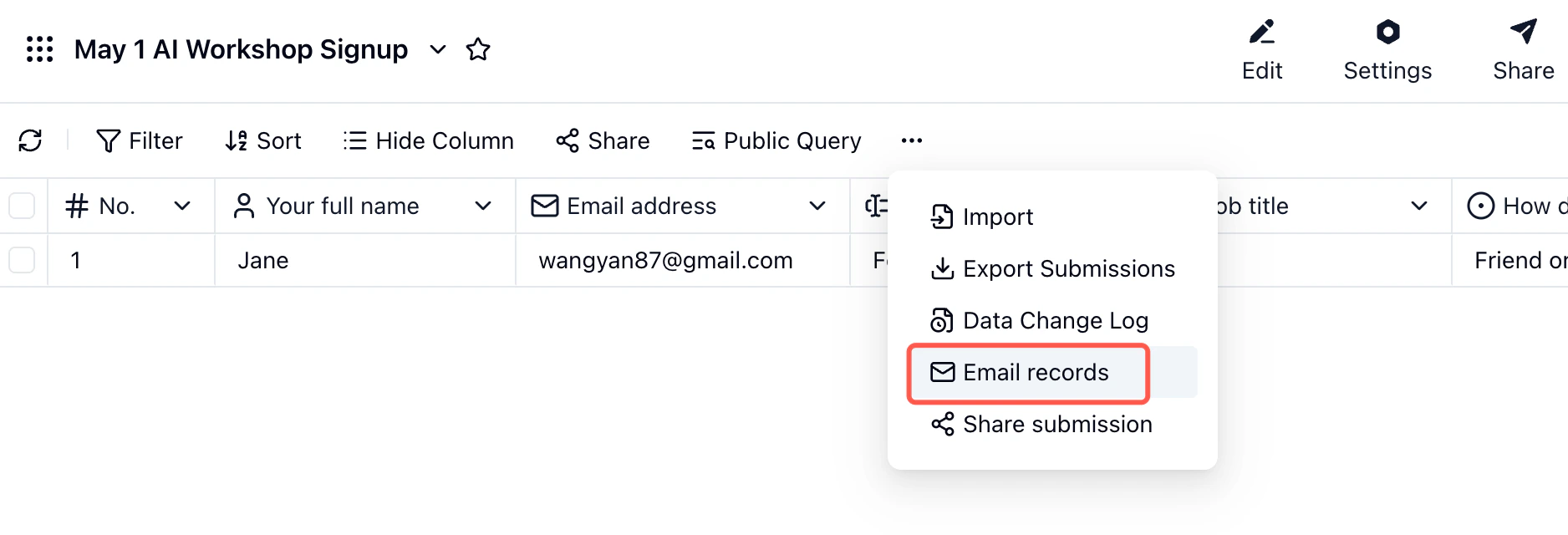
**Bulk emails sent from the Data tab** are accessible via the **`...` menu → Email records** in the submissions table. This shows the subject, recipients, timestamp, and status for each manual send.
## Personalization
Both the subject line and email body support **Insert Field** — click it to insert any form field or system field as a variable. FormHug replaces it with the actual submitted value when the email is sent.
| What to insert | Example result |
| ------------------------- | --------------------------------------------- |
| Submitter's name | "Hi Jane," |
| Event name field | "Your spot at May 1 AI Workshop is confirmed" |
| Submission serial number | "Your reference number is #0042" |
| Job title or organization | "We're glad to have you, PM at Formagic LLC" |
Personalizing the subject line with the submitter's name is especially effective — it reads as a direct reply rather than a mass send.
## Limitations
* Emails are sent from **your connected Gmail address**. Submitters reply to that address.
* Only submissions with a **valid email address** field can receive emails. Bulk send automatically skips records without one.
* Gmail personal accounts are limited to approximately **500 emails per day**. For higher volume, connect an SMTP server instead (available in the Sender dropdown).
* This feature is designed for **form-related follow-up** — confirmations, reminders, and updates. It is not intended for cold outreach or newsletter-style campaigns.
## Related
Reference guide: notification rules, triggers, Gmail vs SMTP, and send logs
Build the form that collects sign-ups with capacity limits
Manage, filter, and export form submission data
Set capacity limits and close a form when it's full
See the full confirmation and reminder workflow in article form
 ## Two Ways to Send Emails
| Mode | What it does | When to use |
| ------------- | ---------------------------------------- | --------------------------------------------- |
| **Automatic** | Fires immediately after each submission | Confirmation, receipt, next-step instructions |
| **Bulk send** | You select submissions and send manually | Reminders, updates, announcements |
Both modes use your connected Gmail account as the sender. Submitters receive the email as if you sent it personally.
## Before You Start
Make sure your form includes an **Email** field — this is what FormHug uses to address each outgoing email.
## Two Ways to Send Emails
| Mode | What it does | When to use |
| ------------- | ---------------------------------------- | --------------------------------------------- |
| **Automatic** | Fires immediately after each submission | Confirmation, receipt, next-step instructions |
| **Bulk send** | You select submissions and send manually | Reminders, updates, announcements |
Both modes use your connected Gmail account as the sender. Submitters receive the email as if you sent it personally.
## Before You Start
Make sure your form includes an **Email** field — this is what FormHug uses to address each outgoing email.
 * You have a Gmail account available to use as the sender
* Gmail personal accounts send up to \~500 emails per day — suitable for most small to mid-size forms
## Part 1: Send an Automatic Confirmation Email
When someone signs up for the AI workshop, they should immediately receive a confirmation with the event details.
* You have a Gmail account available to use as the sender
* Gmail personal accounts send up to \~500 emails per day — suitable for most small to mid-size forms
## Part 1: Send an Automatic Confirmation Email
When someone signs up for the AI workshop, they should immediately receive a confirmation with the event details.
 A Google authorization screen opens. Click **Continue** to grant FormHug permission to send emails from your account.
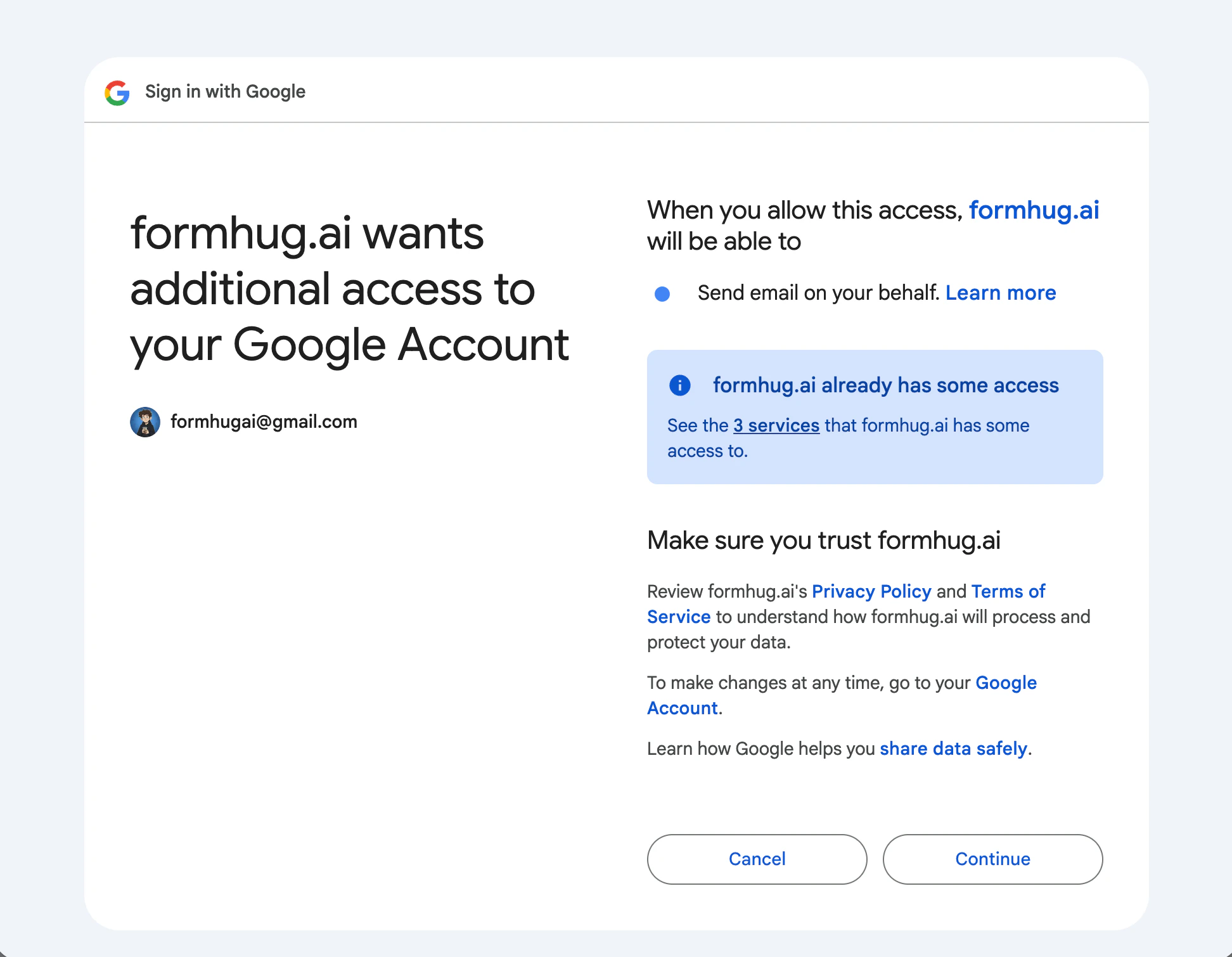 Your Gmail address now appears as the sender. This authorization applies to all your forms — you only need to do this once.
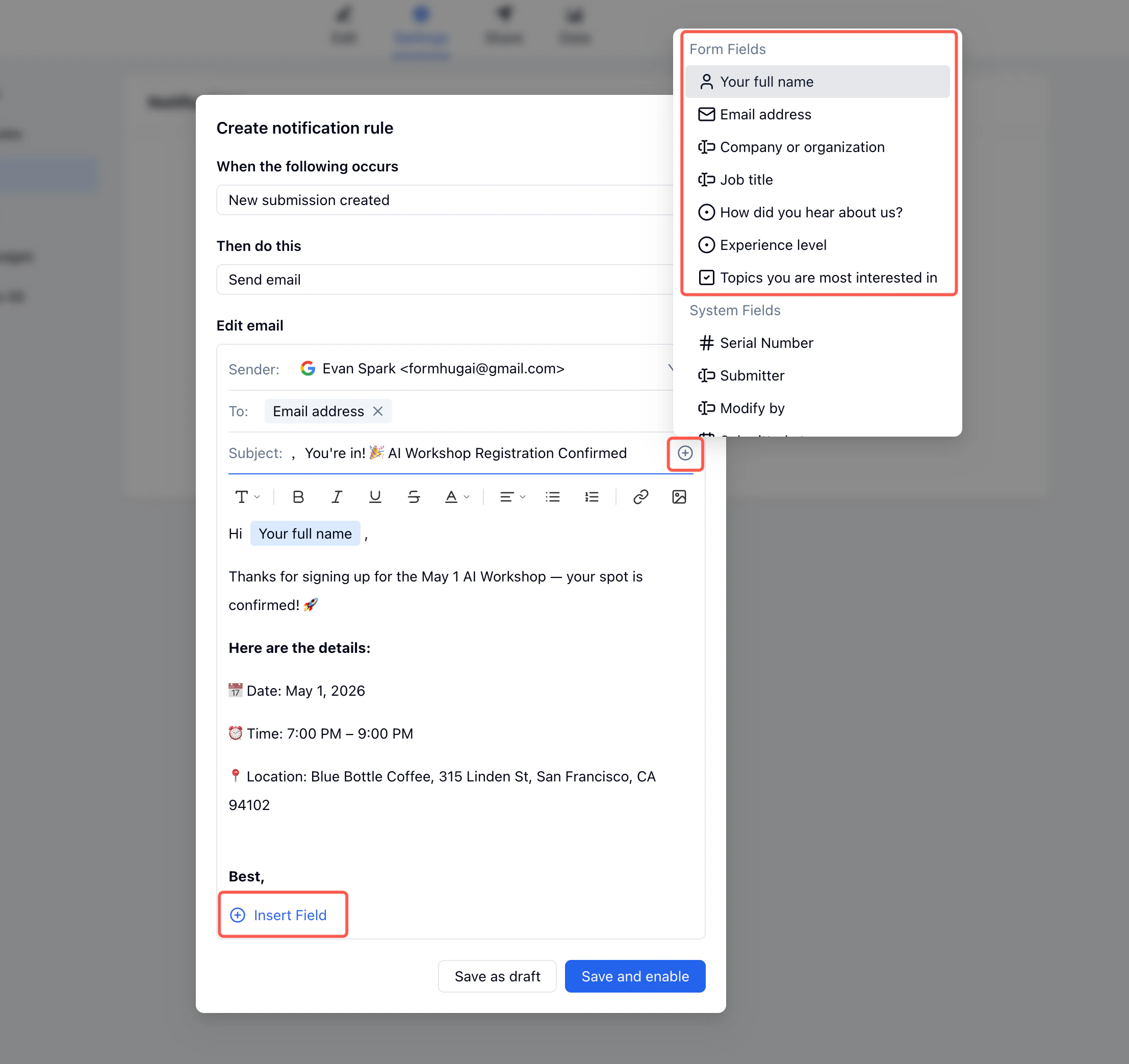 For the workshop example, the subject reads: *Jane, You're in! 🎉 AI Workshop Registration Confirmed* — the name is inserted from the form field automatically.
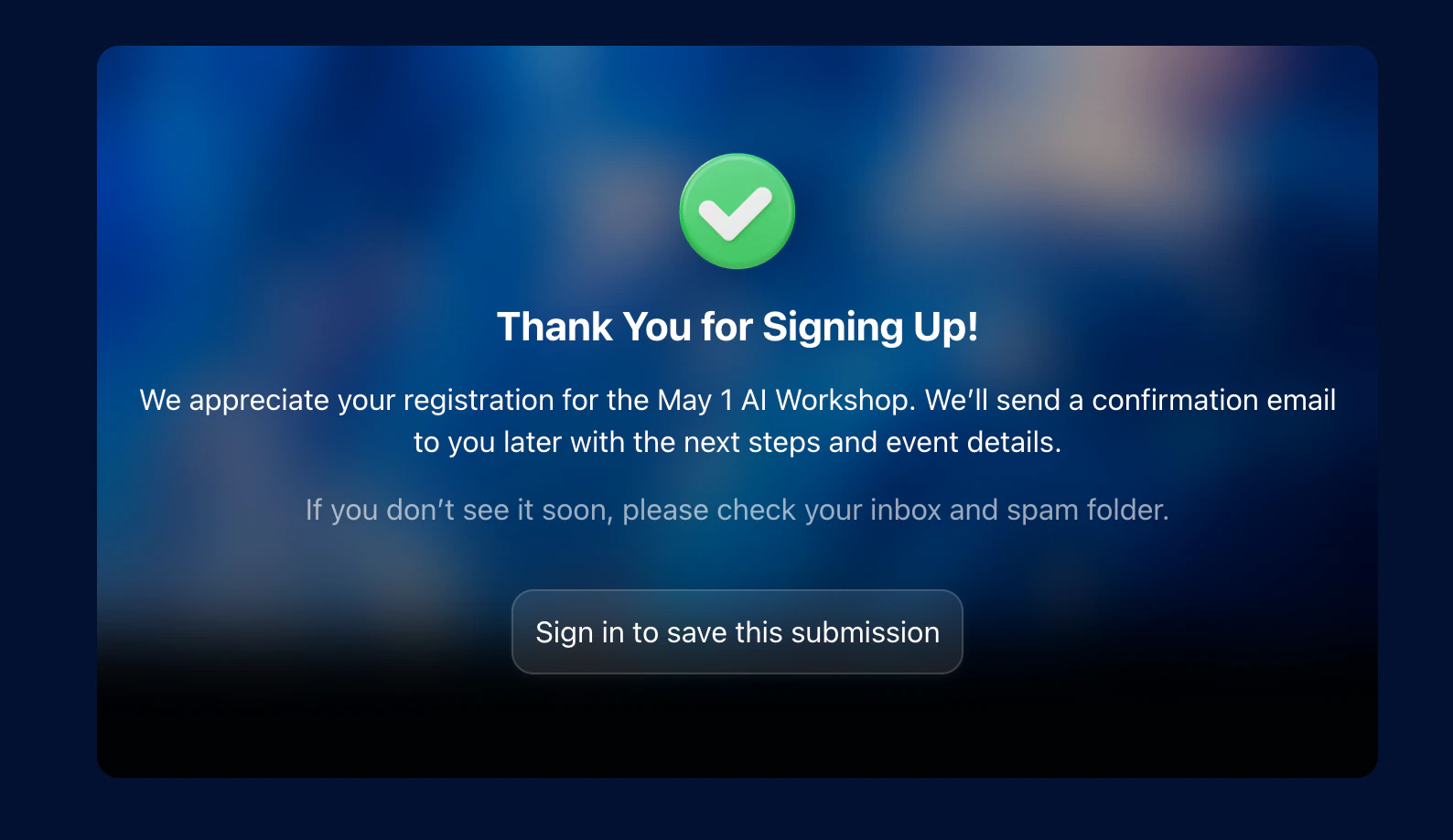 Seconds later, the email arrives in their inbox — sent from your Gmail address.
 ## Part 2: Send a Bulk Reminder Email
The day before the workshop, you want to remind all registrants. Go to the submissions table and send directly from there.
## Part 2: Send a Bulk Reminder Email
The day before the workshop, you want to remind all registrants. Go to the submissions table and send directly from there.
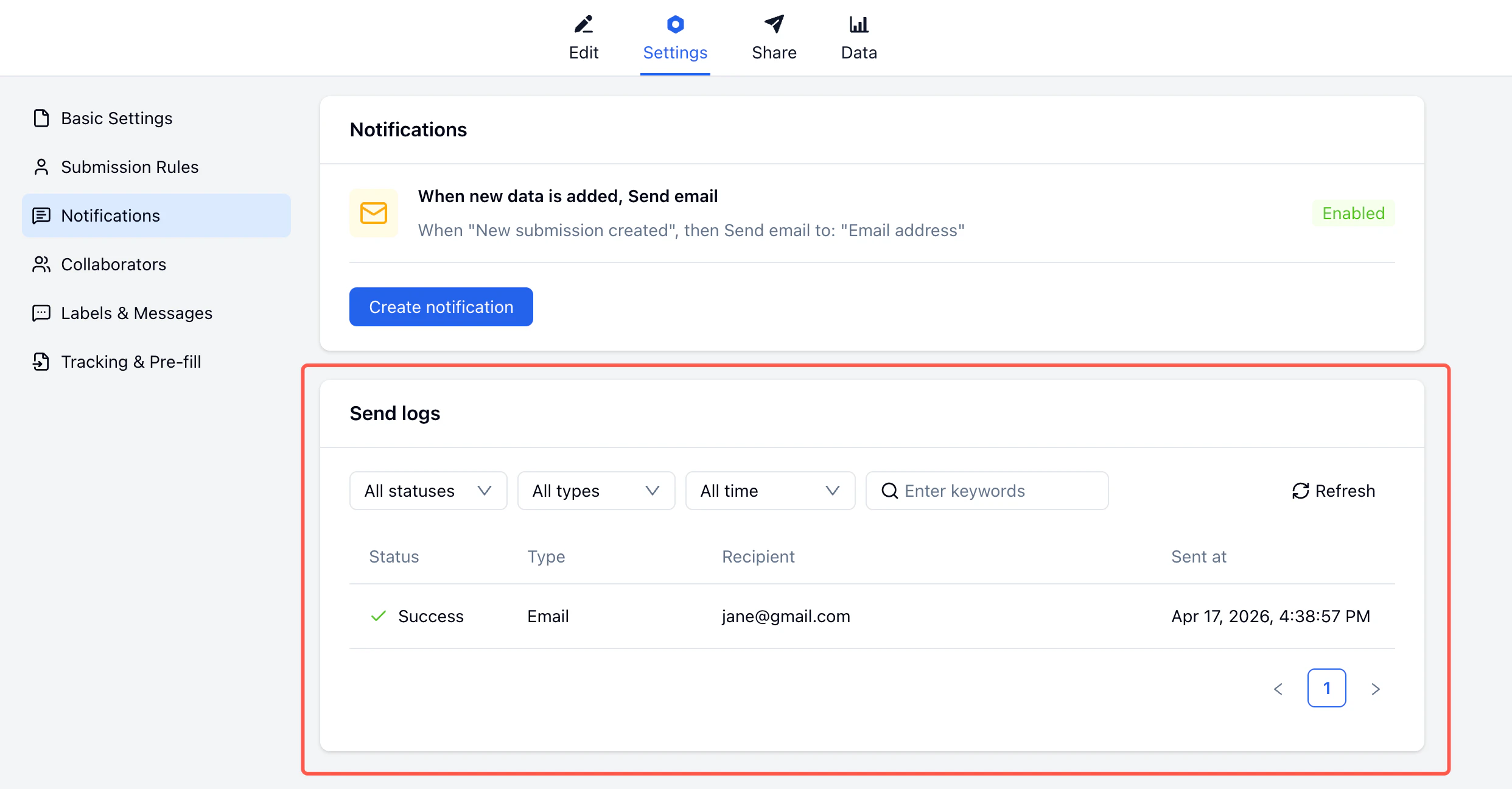 **Bulk emails sent from the Data tab** are accessible via the **`...` menu → Email records** in the submissions table. This shows the subject, recipients, timestamp, and status for each manual send.
 ## Personalization
Both the subject line and email body support **Insert Field** — click it to insert any form field or system field as a variable. FormHug replaces it with the actual submitted value when the email is sent.
| What to insert | Example result |
| ------------------------- | --------------------------------------------- |
| Submitter's name | "Hi Jane," |
| Event name field | "Your spot at May 1 AI Workshop is confirmed" |
| Submission serial number | "Your reference number is #0042" |
| Job title or organization | "We're glad to have you, PM at Formagic LLC" |
Personalizing the subject line with the submitter's name is especially effective — it reads as a direct reply rather than a mass send.
## Limitations
* Emails are sent from **your connected Gmail address**. Submitters reply to that address.
* Only submissions with a **valid email address** field can receive emails. Bulk send automatically skips records without one.
* Gmail personal accounts are limited to approximately **500 emails per day**. For higher volume, connect an SMTP server instead (available in the Sender dropdown).
* This feature is designed for **form-related follow-up** — confirmations, reminders, and updates. It is not intended for cold outreach or newsletter-style campaigns.
## Related
## Personalization
Both the subject line and email body support **Insert Field** — click it to insert any form field or system field as a variable. FormHug replaces it with the actual submitted value when the email is sent.
| What to insert | Example result |
| ------------------------- | --------------------------------------------- |
| Submitter's name | "Hi Jane," |
| Event name field | "Your spot at May 1 AI Workshop is confirmed" |
| Submission serial number | "Your reference number is #0042" |
| Job title or organization | "We're glad to have you, PM at Formagic LLC" |
Personalizing the subject line with the submitter's name is especially effective — it reads as a direct reply rather than a mass send.
## Limitations
* Emails are sent from **your connected Gmail address**. Submitters reply to that address.
* Only submissions with a **valid email address** field can receive emails. Bulk send automatically skips records without one.
* Gmail personal accounts are limited to approximately **500 emails per day**. For higher volume, connect an SMTP server instead (available in the Sender dropdown).
* This feature is designed for **form-related follow-up** — confirmations, reminders, and updates. It is not intended for cold outreach or newsletter-style campaigns.
## Related