How to Send Confirmation and Reminder Emails After Form Submission
Create with AI
Describe the workflow and get a form draft
Use FormHug to create forms from prompts, then share, automate, and reuse the structured responses.
The form collects the registration. Then what?
Someone exports the email addresses, switches to Gmail, pastes the list, and writes something — or forgets until the day before. The confirmation arrives late. The reminder never comes. Someone shows up not sure they were even registered.
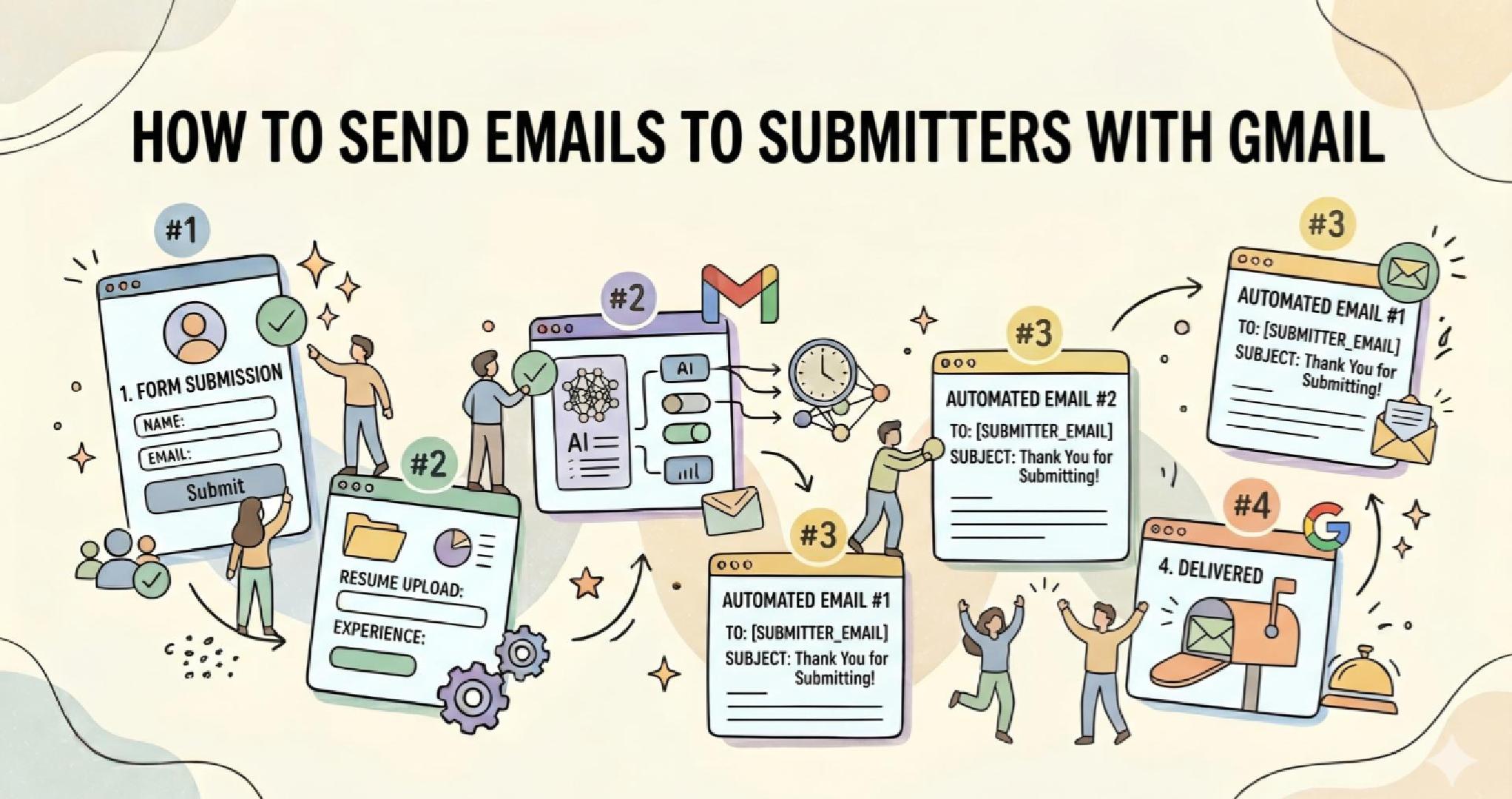
This gap between submission and follow-up is where most form workflows break. FormHug connects Gmail directly to the form workflow, so you can send confirmation emails automatically after every submission and reminder emails later to selected submitters — without leaving your form data or adding a separate tool.
TL;DR — FormHug lets you send confirmation emails automatically after form submission and reminder emails later to selected submitters using Gmail.
- Automatic confirmation emails — triggered on every new submission, sent immediately via your connected Gmail account
- Bulk reminder emails — sent manually to selected submissions from the Data tab, with personalization
- Works for: event registrations, applications, RSVP forms, and bookings
- No export, no copy-paste, no separate email workflow required
Why Form Workflows Don’t End at Submission
A form submission is the beginning of an interaction, not the conclusion of one.
Someone registers for a workshop and wants to know it worked. An applicant submits their information and expects acknowledgment. An organizer needs to remind 200 registrants before the event. These are standard expectations — and they don’t go away just because your form tool doesn’t support them.
Confirmation and reminder emails are among the most-read messages in any workflow — they get opened because they’re directly tied to an action the submitter just took.
The problem isn’t sending email. The problem is the gap: form data lives in one place, email lives somewhere else, and bridging them requires manual work every time.
The Two Emails Most Forms Actually Need
Most submission-based workflows require exactly two follow-up moments.
Immediate confirmation
The first email answers one question: did it work?
A confirmation sent within seconds of submission eliminates uncertainty (“did my form go through?”), gives the submitter a timestamped record, and sets expectations for what happens next. For a workshop signup, it might include the date, location, and what to bring. For an application, it might simply say “we received your application and will follow up within three business days.”
It doesn’t need to be long. It needs to arrive immediately.
Timed reminder or update
The second email is not automatic — you send it when you decide to, to the group that needs it.
This is for reminders before an event, schedule changes, follow-ups to shortlisted applicants, or any update that applies to a specific subset of submissions. Instead of exporting email addresses and composing a separate campaign, you select submissions from your form data and send directly from there.
Together, these two moments cover the vast majority of what submission-based workflows actually need. Neither is email marketing. Both are expected responses to an action someone already took.
When This Workflow Really Matters
Five submission types generate the most follow-up friction — and all of them benefit from the same two-email pattern.
Workshop and event registrations — send a confirmation with session details immediately after signup, then a reminder 24 hours before. RSVP forms are a natural fit for this two-step flow.
Applications and inquiries — acknowledge receipt automatically, then follow up with specific applicants once reviewed. Applicants who get a quick confirmation are less likely to assume something went wrong.
Client intake and onboarding — confirm that information was received, then send welcome details or next steps. Client intake forms paired with a confirmation email make a noticeably better first impression.
Class and course enrollments — send joining instructions immediately after signup, then reminders before each session.
Booking forms — confirm the appointment date and time right away, then send a reminder closer to the date.
In all of these cases, the form did its job. The email workflow completes it.
How to Send Automatic Confirmation Emails After Form Submission
Automatic confirmation emails make every new submission feel acknowledged immediately — without anyone on your team needing to do anything.
Connect your Gmail account in Settings → Integrations, then open Form Settings → Notifications. Create a notification rule with the trigger set to “New submission created” and the recipient mapped to the email field on your form.
Write the confirmation message and use the Insert field button to pull submitted data into the subject line and body — the person’s name, session date, event details, or any other field. Once saved, every new submission triggers the email automatically.
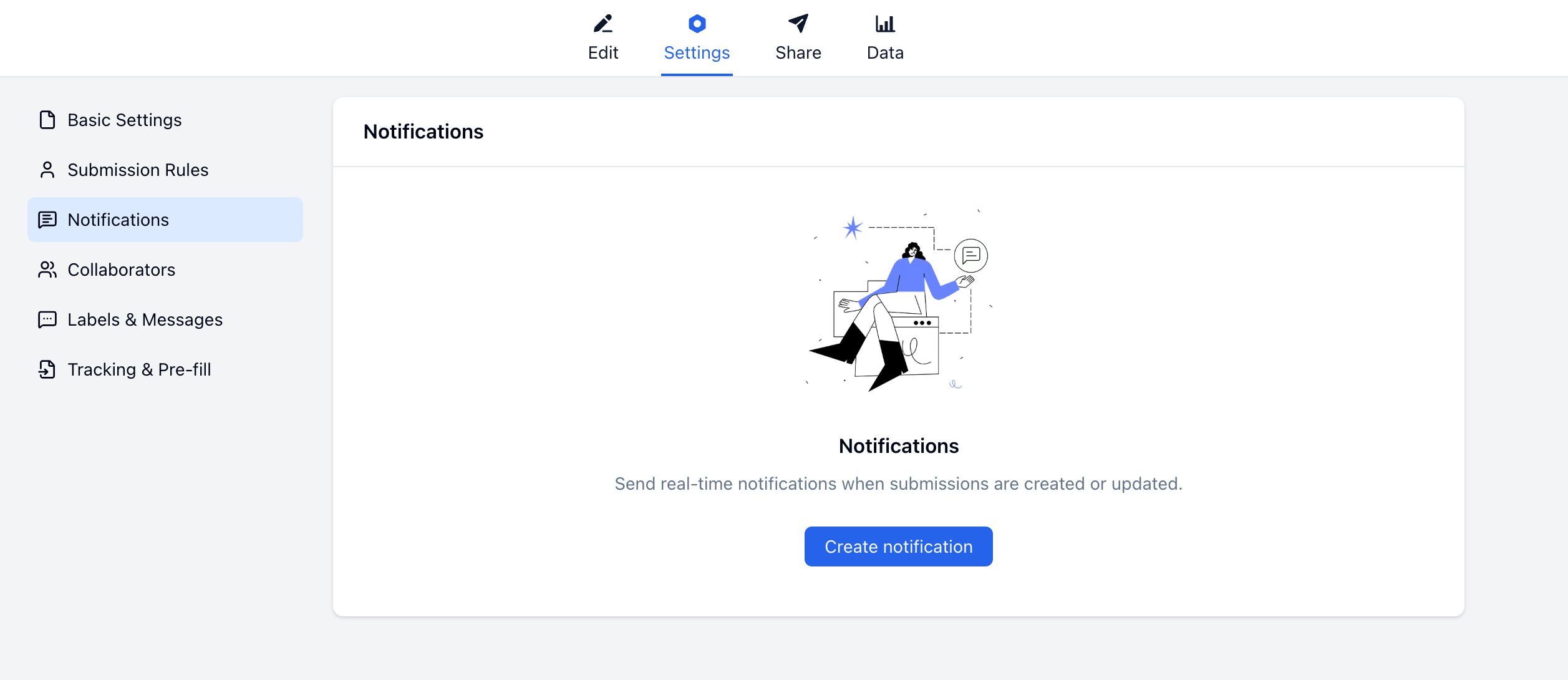
Save the rule, then submit the form yourself to test that the confirmation arrives, personalizes correctly, and doesn’t land in spam. We built this exact flow for the AI workshop signup form in the video below — the notification rule takes about two minutes to configure.
For the complete step-by-step setup, see how to set up Gmail email notifications in FormHug →
How to Send Bulk Reminder Emails to Selected Submitters
Bulk reminder emails let you follow up with selected submitters later, without exporting your submission list or switching to a separate email tool.
Open your form’s Data tab, select the submissions you want to reach — all of them, a filtered group, or individual rows — and click the email icon. The compose window opens with recipients already filled in from the form’s email field.
Write your message, personalize it with field variables, and send. Delivery status for each recipient is tracked in Email Records on the same tab, so you can confirm who received it and when.
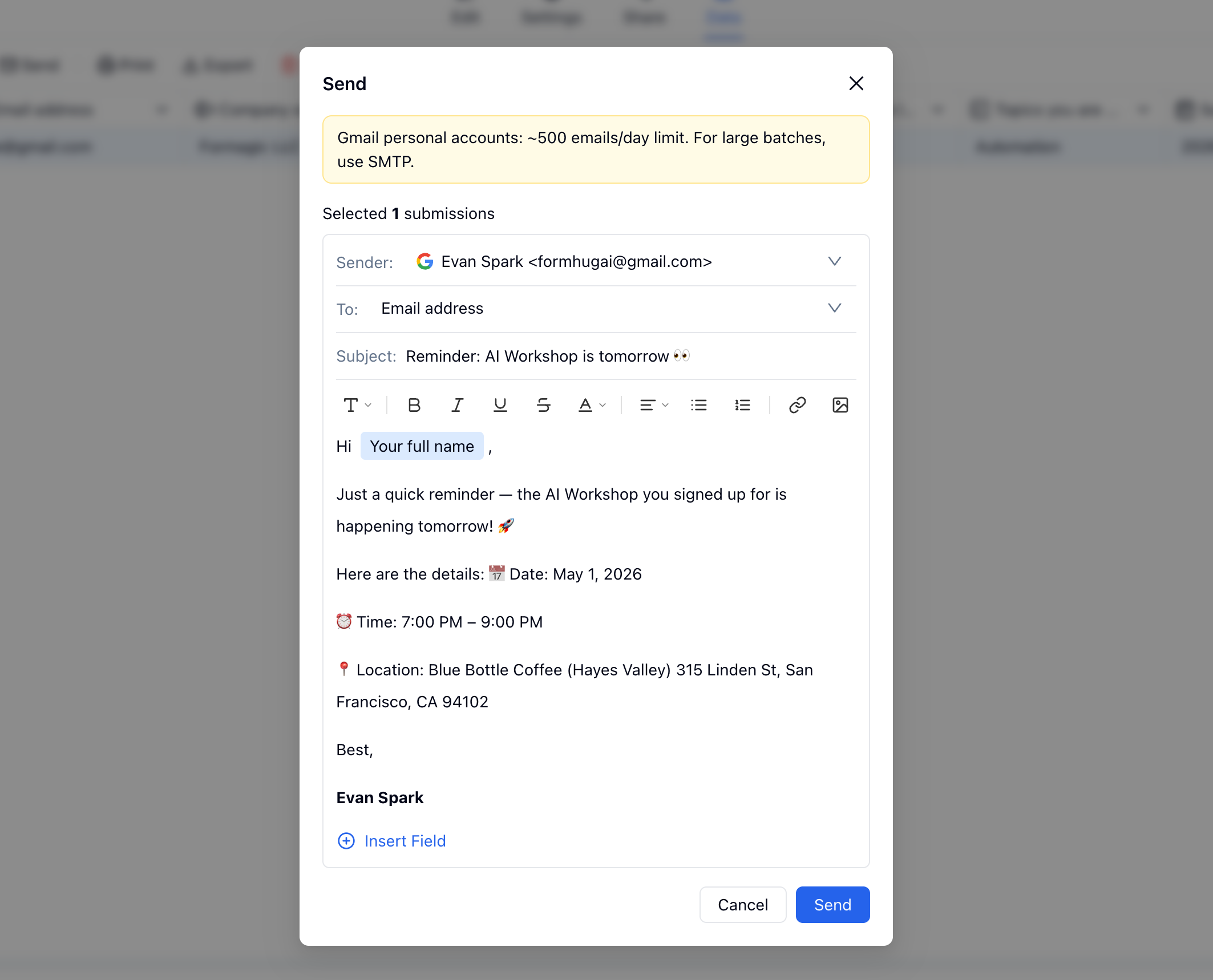
This works for event reminders, schedule changes, follow-ups to specific applicants, or any message that applies to a subset of your submissions. It’s not a broadcast tool — it’s targeted, submission-level communication.
Send emails to form submitters with Gmail: full setup guide →
Watch It in Action
We recorded a short walkthrough of this full workflow. Watch the Gmail confirmation + reminder workflow on YouTube →
The video covers three steps: building the AI workshop signup form, setting up the automatic confirmation notification rule, and sending a bulk reminder to all registrants from the Data tab before the event.
Personalizing Emails with Submitted Data
Generic follow-up emails get ignored. Personalized ones get opened and acted on.
FormHug supports field variable insertion in both subject lines and email bodies. Any field on your form — name, selected session, event date, reference number — can be pulled directly into the message. This applies equally to automatic notifications and bulk sends.
A subject line like “Jane, You’re in — AI Workshop Registration Confirmed” feels connected to the action that just happened. The same applies to the body: referencing the specific session, registration ID, or next step makes the email feel like a direct response rather than an automated blast.
A few patterns that consistently work:
- Name in the subject line → “Sarah, your application was received”
- Specific event or session → “You’re registered for the April 22 morning workshop”
- Reference number → “Your registration ID: FH-20482”
The goal isn’t personalization for its own sake — it’s making the email feel like a direct response to what the person just did.
Templates to Get Started
These templates are built for the use cases where confirmation and reminder emails matter most:
- Registration Form Templates — workshop signups, event registration, class enrollment, conference registration, and more
- RSVP & Invitation Templates — event responses with attendance confirmation built in
- Application Form Templates — job applications, program applications, and inquiry forms
Frequently Asked Questions
How do you send an automatic email after form submission?
Connect Gmail in FormHug’s Integrations settings, then create a notification rule in Form Settings → Notifications. Set the trigger to “New submission created”, map the recipient to the email field on your form, write the confirmation message, and save. Every new submission triggers the email automatically from that point forward.
Can I send reminder emails to selected form submitters later?
Yes. Open your form’s Data tab, select the submissions you want to reach — by filter, by row, or all at once — and click the email icon to compose a message. FormHug sends from your connected Gmail account and tracks delivery in Email Records on the same tab.
What kinds of emails can I send after form submission?
The most common types are confirmation emails (sent automatically right after submission), reminder emails (sent in bulk to selected submissions before an event or deadline), and update emails (sent when something changes — a schedule, a status, a next step). FormHug supports all three through its notification and bulk send features.
Can I personalize confirmation emails with the submitter’s data?
Yes. Both automatic notifications and bulk reminder emails support field variable insertion. Any submitted value — name, session, reference number, or custom field — can go directly into the subject line and body.
What happens if a submitter didn’t enter a valid email address?
The notification won’t fire for that submission. Make the email field required on any form where confirmation delivery matters.
What form types benefit most from this?
Workshop and event registration forms, application and inquiry forms, RSVP forms, client intake forms, class enrollment forms, and booking forms. Any workflow where someone submits information and expects a response.
Is this for marketing emails or newsletters?
No. This workflow is for transactional and operational follow-up — messages tied directly to a specific form submission. Confirmations, reminders, and updates. For broadcast campaigns to a general mailing list, a dedicated email marketing tool is a better fit.
Does this work with Gmail Workspace accounts?
Yes. FormHug connects to both personal Gmail accounts and Google Workspace accounts. Gmail and Workspace accounts are subject to Google’s own daily sending limits, which vary by account type — check Google’s current documentation for exact figures.
Why not just export email addresses and send from Gmail manually?
You can, but it adds friction every time. Exporting, pasting, and sending manually means the confirmation is delayed, the reminder requires separate effort, and there’s no delivery tracking tied back to the form. Keeping it in one workflow means the loop actually gets closed — not just when someone remembers to do it.
Is FormHug free to use?
FormHug has a free plan that includes form building and submissions. The Gmail integration and bulk email features are available on paid plans. You can create a form for free to try the builder before upgrading.
Related
- How to Create an RSVP Form — build an event response form with conditional logic and confirmation emails
- How to Create an Intake Form — client onboarding forms that close with an automatic follow-up
- How to Create an Online Booking Form — appointment booking with confirmation and reminder email built in
Your form already collects the right information — the only missing step is making sure every submitter hears back. Try FormHug free →

Written by
FormHug TeamProduct, research, and form automation team
The FormHug Team brings together product builders, workflow researchers, and form automation practitioners who study how people collect, route, and act on information online. Our guides are based on hands-on product testing, template analysis, customer workflow patterns, and deep experience with forms, surveys, quizzes, AI-assisted creation, integrations, and results sharing.