> ## Documentation Index
> Fetch the complete documentation index at: https://formhug.ai/docs/llms.txt
> Use this file to discover all available pages before exploring further.
# Google Sheets Integration
> Connect Google Sheets to FormHug and automatically send new form submissions to a spreadsheet
The **Google Sheets integration** sends new FormHug submissions to a connected spreadsheet. Use it when you want a live spreadsheet for reporting, sharing, filtering, or downstream workflows.
You can create a new Google Sheet from FormHug or connect an existing spreadsheet in your Google account.
If you want people to search spreadsheet rows without exposing the sheet itself, pair this with Public Query or read how to build a lookup page from Excel.
## When to Use Google Sheets
Google Sheets is useful when your team already works from spreadsheets, or when form data needs to be shared outside FormHug.
* Share submissions with teammates who do not need dashboard access
* Build lightweight reports, charts, and pivot tables
* Review event registrations, applications, or survey responses in a familiar table
* Use spreadsheet formulas or Google Workspace automations after submissions arrive
## Before You Start
Make sure you have:
* A FormHug form that is ready to collect submissions
* A Google account you can authorize
* Permission to create or edit the target Google Sheet
The Google Sheets integration sends new submissions after the connection is created. Existing submissions may need to be exported separately if you want historical data in the same sheet.
## Connect Google Sheets
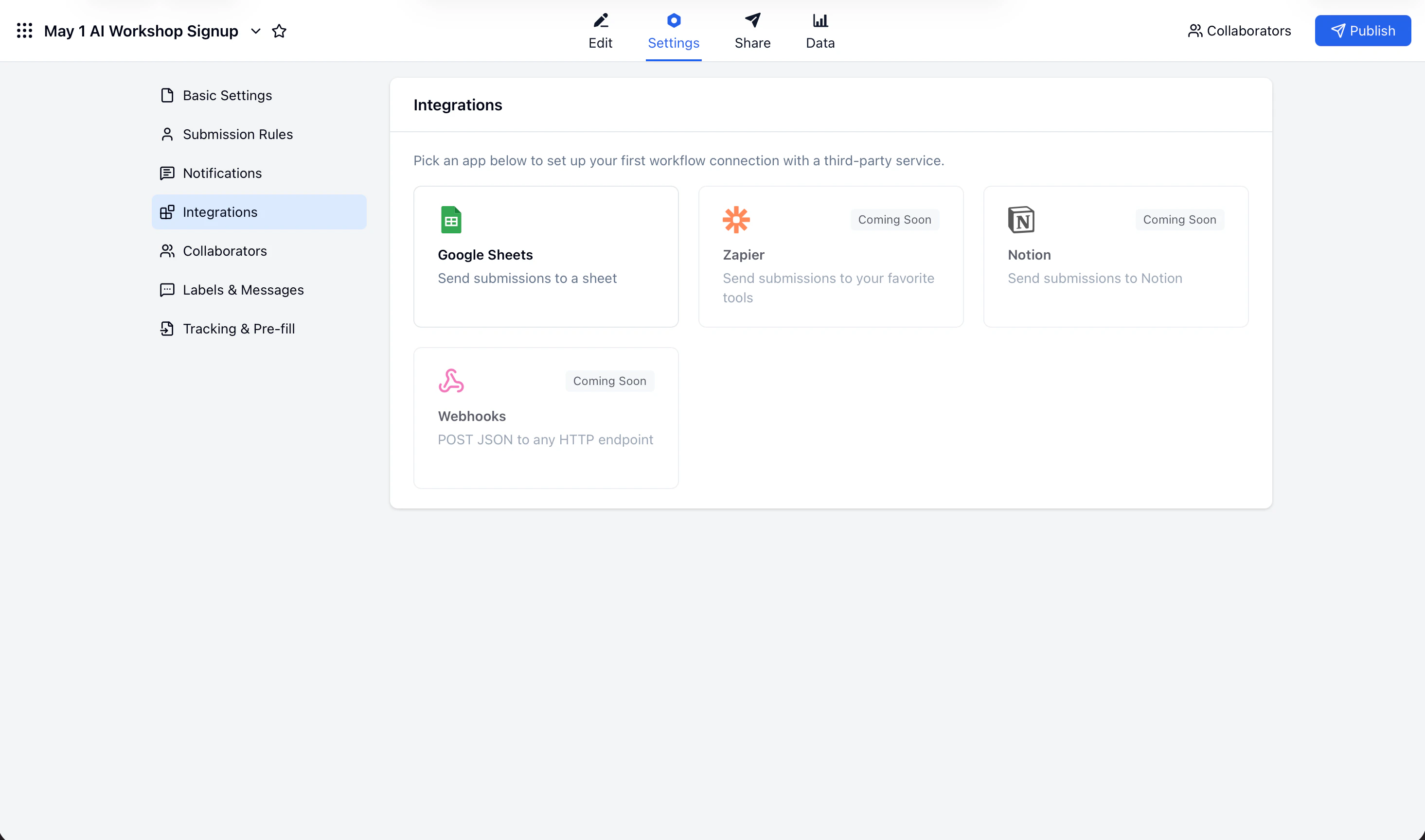
Open the form you want to connect, then go to **Settings → Integrations**.
In **Integrations**, choose **Google Sheets**.
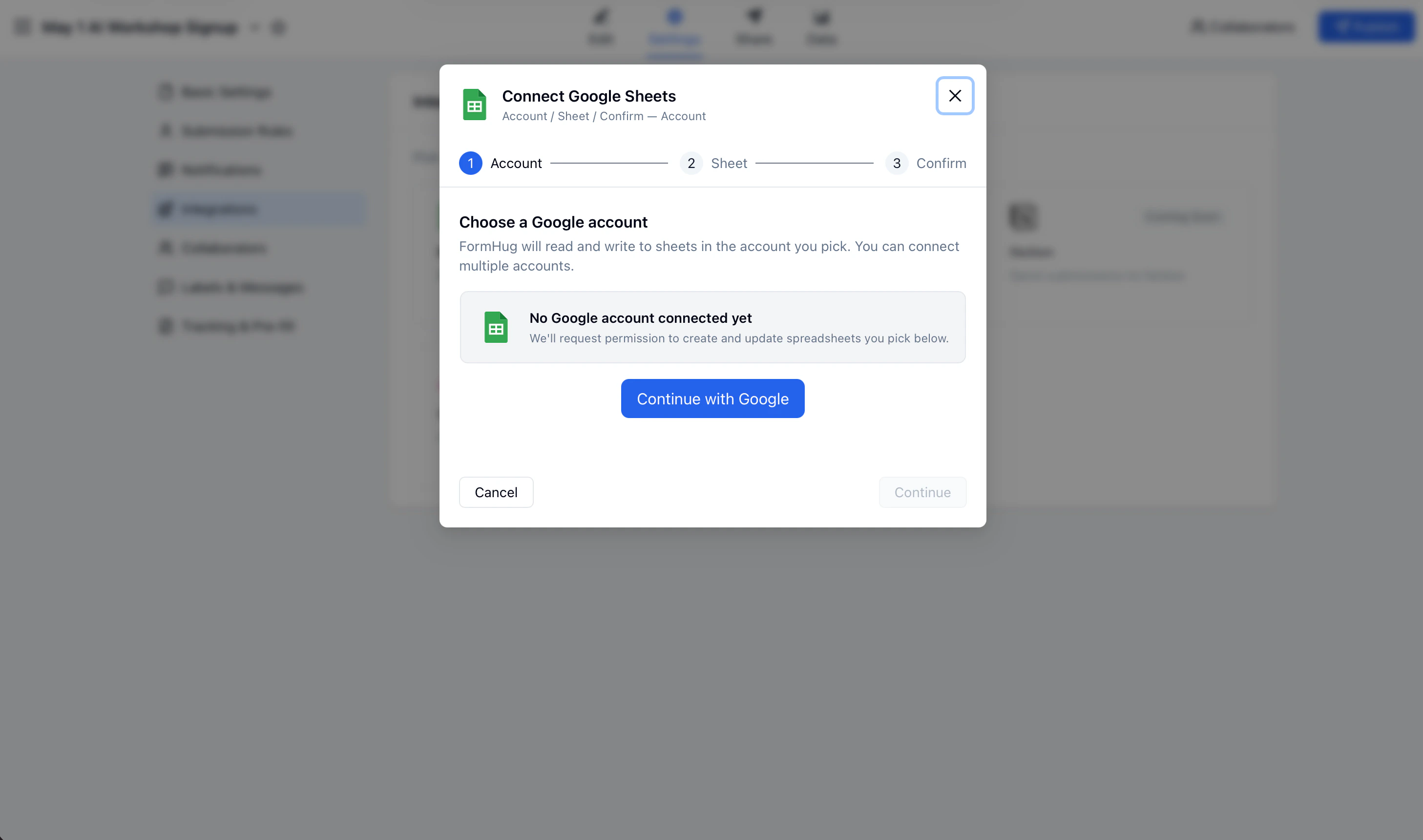
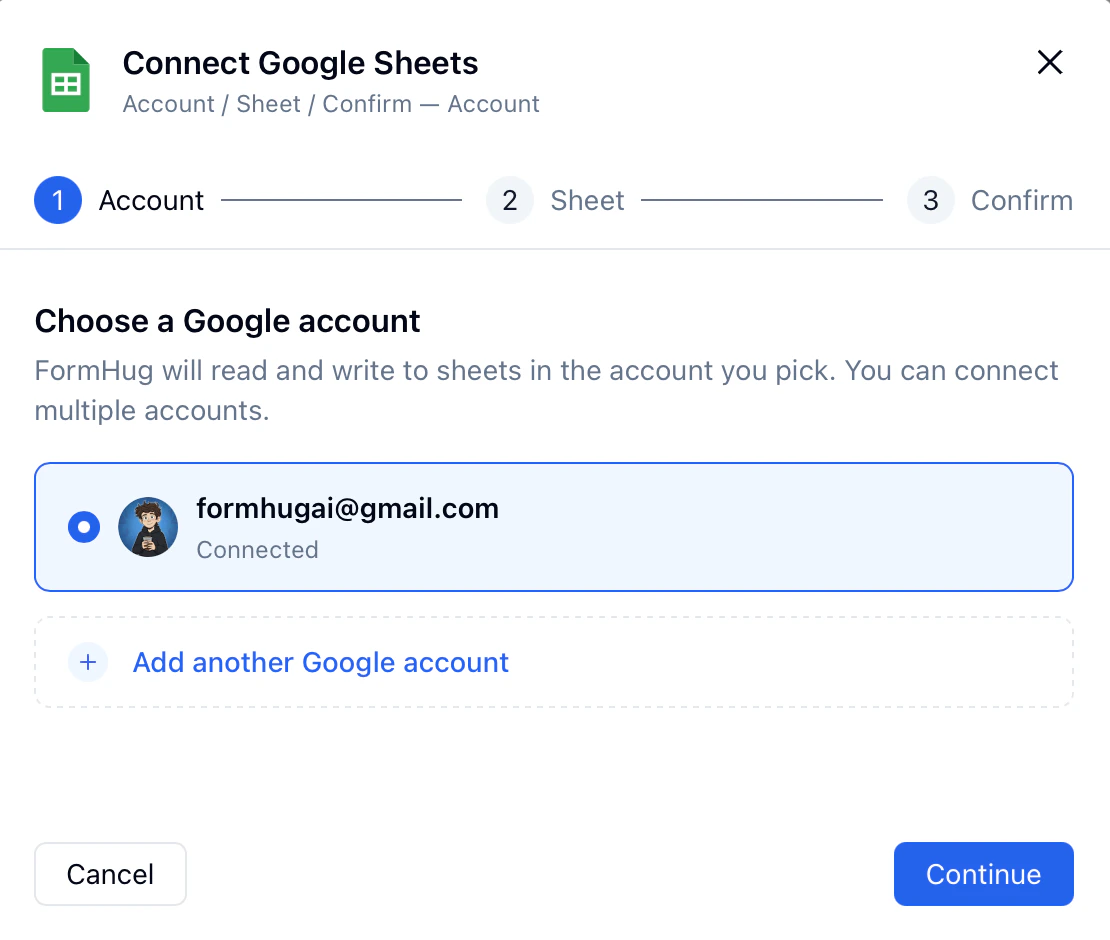
Click **Connect Google Account**, then sign in and allow FormHug to create and update Google Sheets for your account.
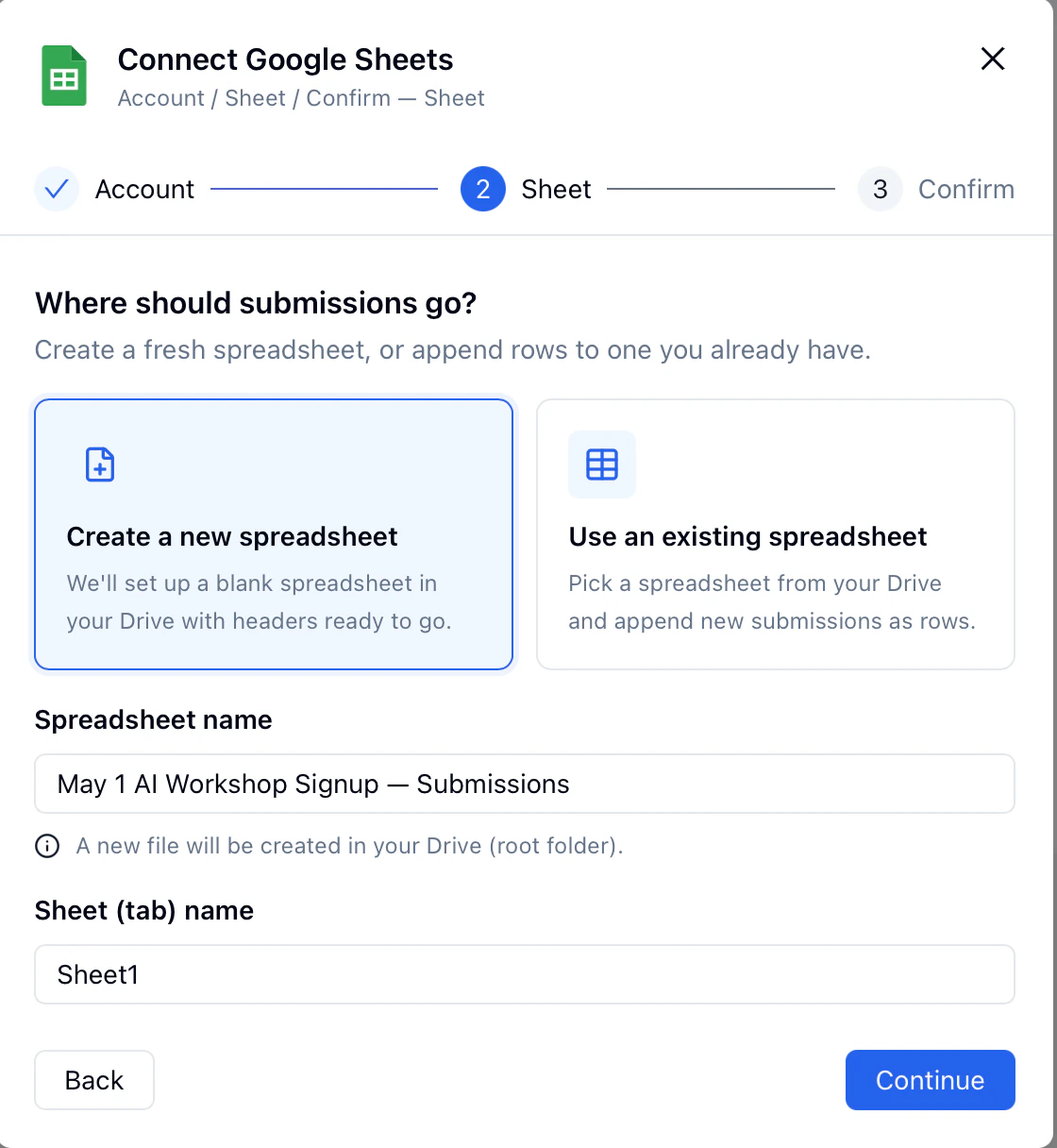
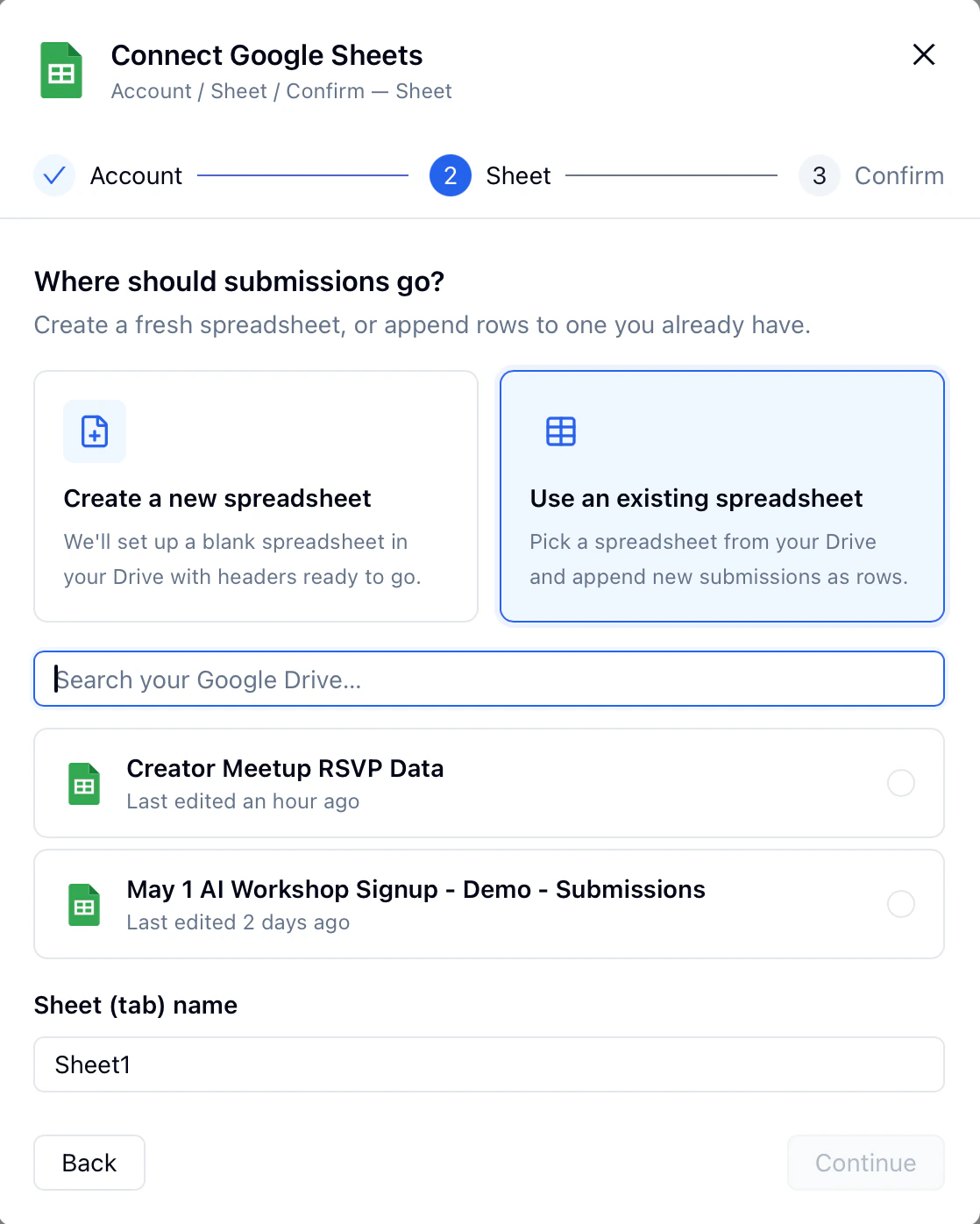
Select whether to create a new spreadsheet or use an existing spreadsheet.
## Create a New Google Sheet
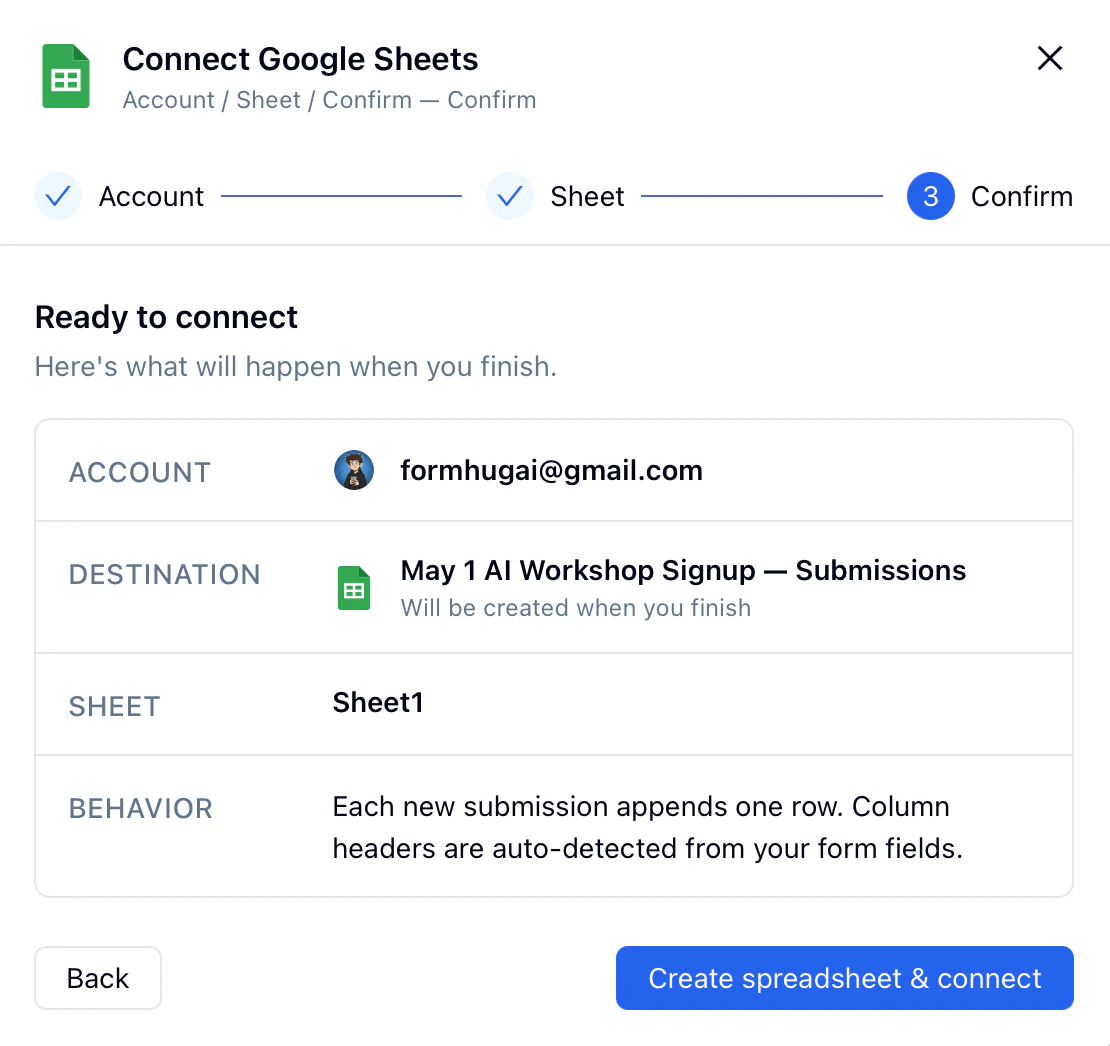
Choose **Create new spreadsheet** when you want FormHug to generate a spreadsheet for this form.
Enter a spreadsheet name. FormHug uses your form fields as columns so incoming submissions stay structured.
Confirm the Google account, spreadsheet name, and form you are connecting.
Click **Confirm** to create the spreadsheet connection. New submissions will appear in the connected sheet.
## Use an Existing Google Sheet
Choose **Use existing spreadsheet** when your team already has a spreadsheet prepared.
Pick a spreadsheet from your Google account. Choose a sheet that you can edit.
Check the selected account and spreadsheet before saving.
Click **Confirm**. FormHug starts sending new submissions to the selected spreadsheet.
## Manage Connections
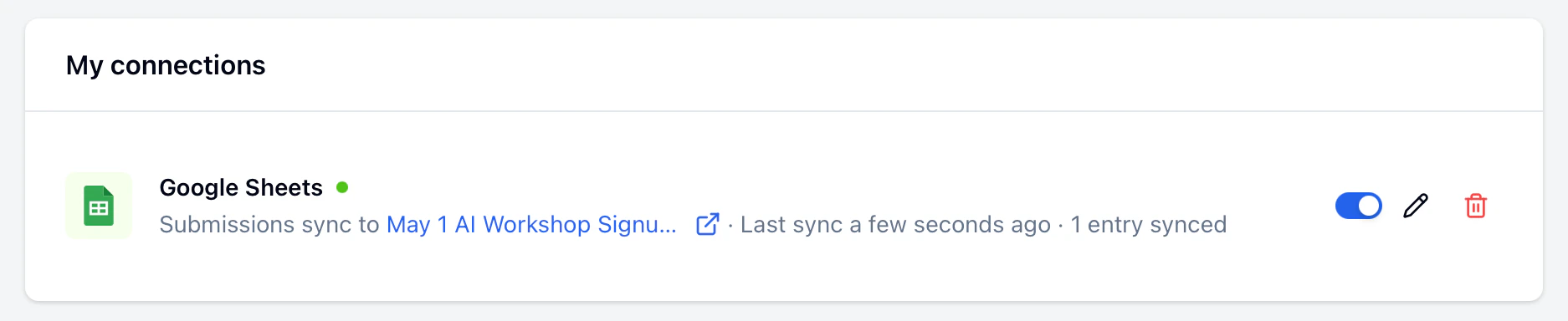
After setup, the Google Sheets integration page shows your active connections. Use this list to check which spreadsheet is connected to the form.
If you no longer want to send submissions to a spreadsheet, remove the connection from this page.
## Check Synced Submissions
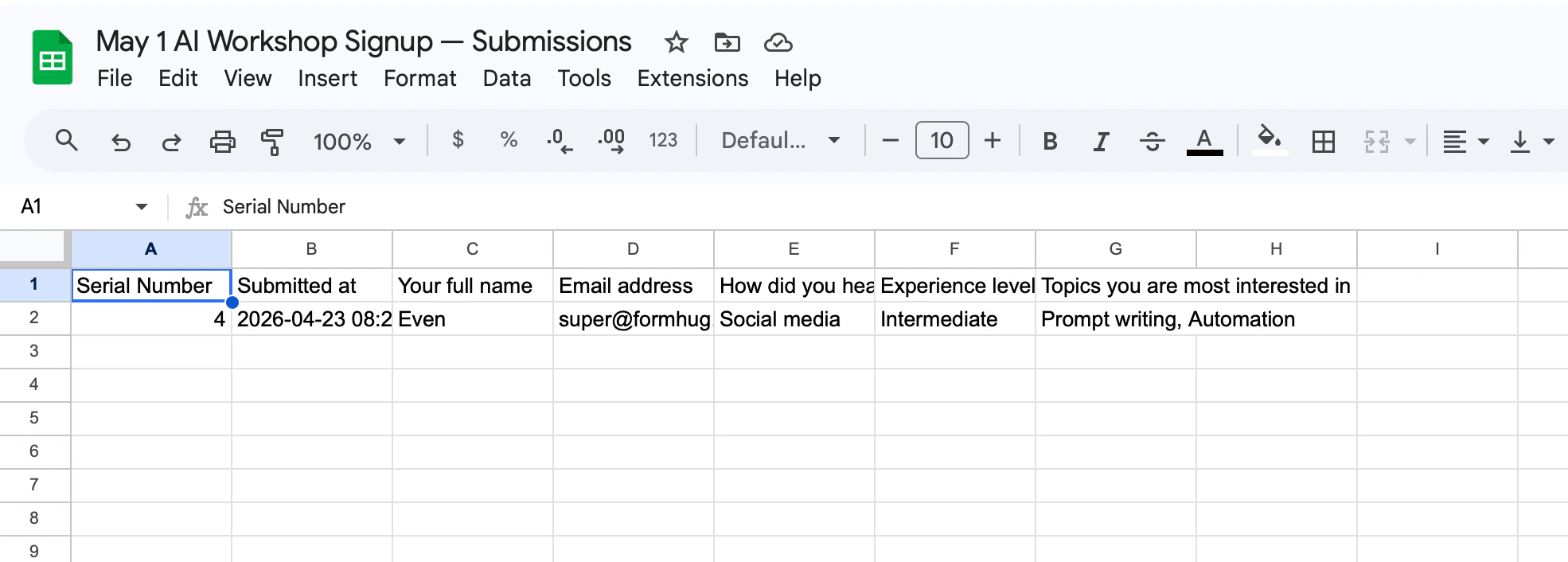
Submit a test entry after creating the connection. Then open the connected Google Sheet and check that the new row appears.
Each row represents one FormHug submission. Form fields become spreadsheet columns, which makes the data easy to filter, sort, and share.
## Limitations
* The integration syncs new submissions after the connection is created.
* Changes made inside Google Sheets do not update the original FormHug submission.
* If you remove or rename form fields, review your connected sheet to make sure the columns still match your workflow.
* Google account access is managed by Google. If authorization expires, reconnect the account from the integration page.
## Related
View, filter, and export submissions in the FormHug dashboard
Analyze form results with built-in charts and summaries
Share a published form with submitters
Send confirmation emails and reminders from a connected Gmail account
Create Notion database pages from form submissions
Post submission alerts to a channel or direct message
Automate workflows across CRM, email, and productivity apps
Turn spreadsheet-style data into a self-service lookup page
Let visitors search their own record without opening your spreadsheet
 If you no longer want to send submissions to a spreadsheet, remove the connection from this page.
## Check Synced Submissions
Submit a test entry after creating the connection. Then open the connected Google Sheet and check that the new row appears.
Each row represents one FormHug submission. Form fields become spreadsheet columns, which makes the data easy to filter, sort, and share.
If you no longer want to send submissions to a spreadsheet, remove the connection from this page.
## Check Synced Submissions
Submit a test entry after creating the connection. Then open the connected Google Sheet and check that the new row appears.
Each row represents one FormHug submission. Form fields become spreadsheet columns, which makes the data easy to filter, sort, and share.
 ## Limitations
* The integration syncs new submissions after the connection is created.
* Changes made inside Google Sheets do not update the original FormHug submission.
* If you remove or rename form fields, review your connected sheet to make sure the columns still match your workflow.
* Google account access is managed by Google. If authorization expires, reconnect the account from the integration page.
## Related
## Limitations
* The integration syncs new submissions after the connection is created.
* Changes made inside Google Sheets do not update the original FormHug submission.
* If you remove or rename form fields, review your connected sheet to make sure the columns still match your workflow.
* Google account access is managed by Google. If authorization expires, reconnect the account from the integration page.
## Related