> ## Documentation Index
> Fetch the complete documentation index at: https://formhug.ai/docs/llms.txt
> Use this file to discover all available pages before exploring further.
# Submission Notifications
> Send automatic emails to form submitters when a new submission is created, using your Gmail account or an SMTP server.
Notifications let you send emails automatically when someone submits your form. Connect your Gmail account as the sender — no SMTP setup required — and emails go out from your own address the moment a submission arrives.
 For a step-by-step use case, see how to send emails to form submitters. For appointment and booking workflows, the appointment reminder email templates article gives copy you can adapt inside a notification.
## How It Works
Each notification is a rule: **when** a trigger fires, **then** send an email to a recipient you choose. The recipient can be your own address, a teammate, or the submitter themselves — using any email field from the form.
## Creating a Notification Rule
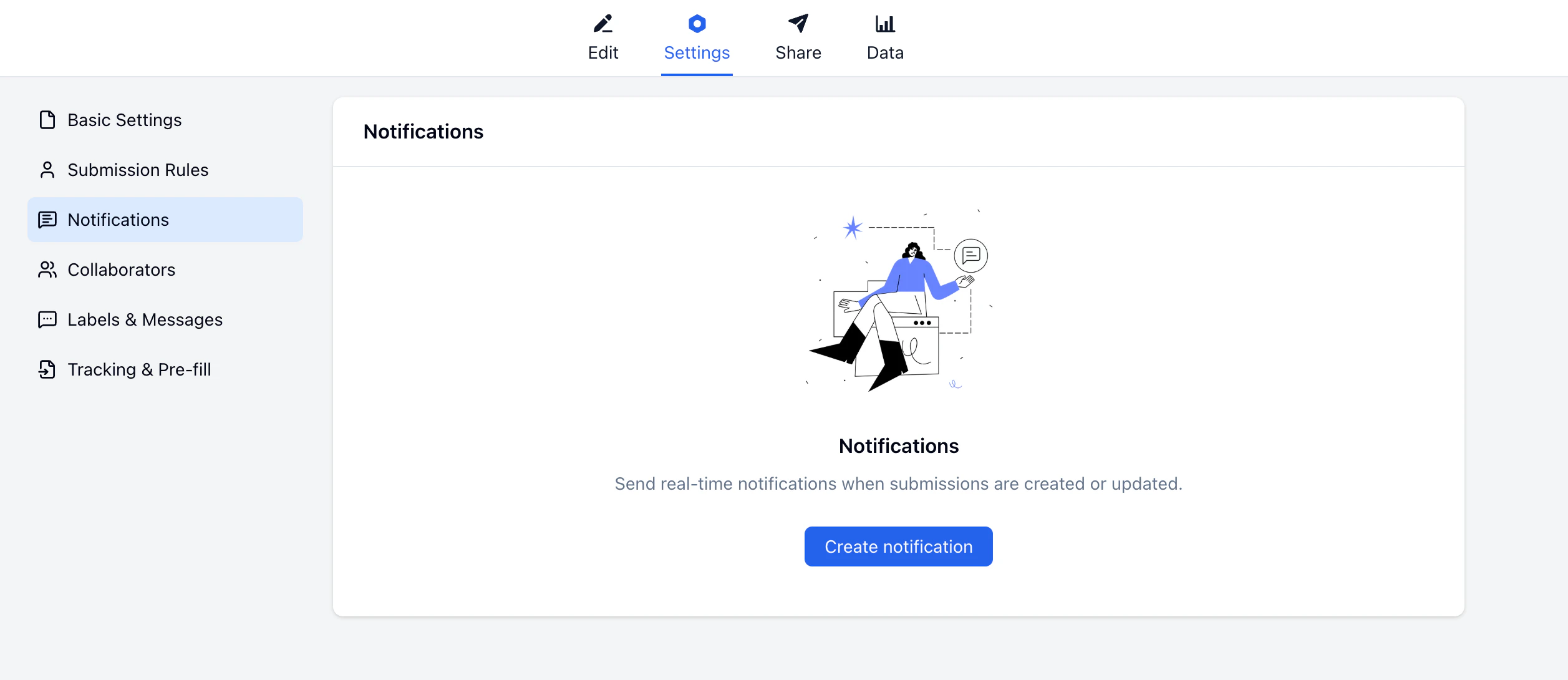
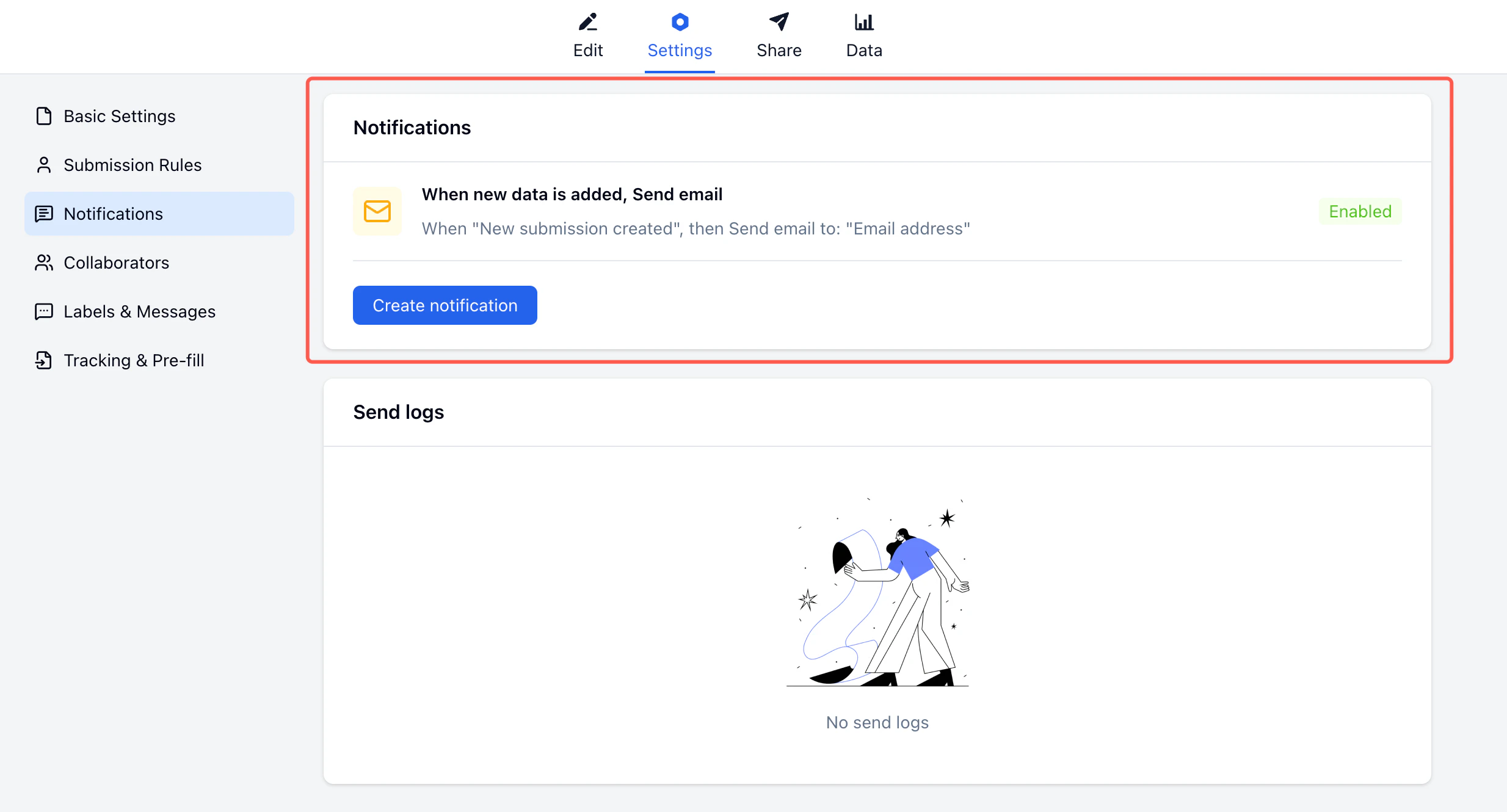
Go to your form → **Settings → Notifications**, then click **Create notification**.
Select when the notification should fire: **New submission created** or **Submission updated**.
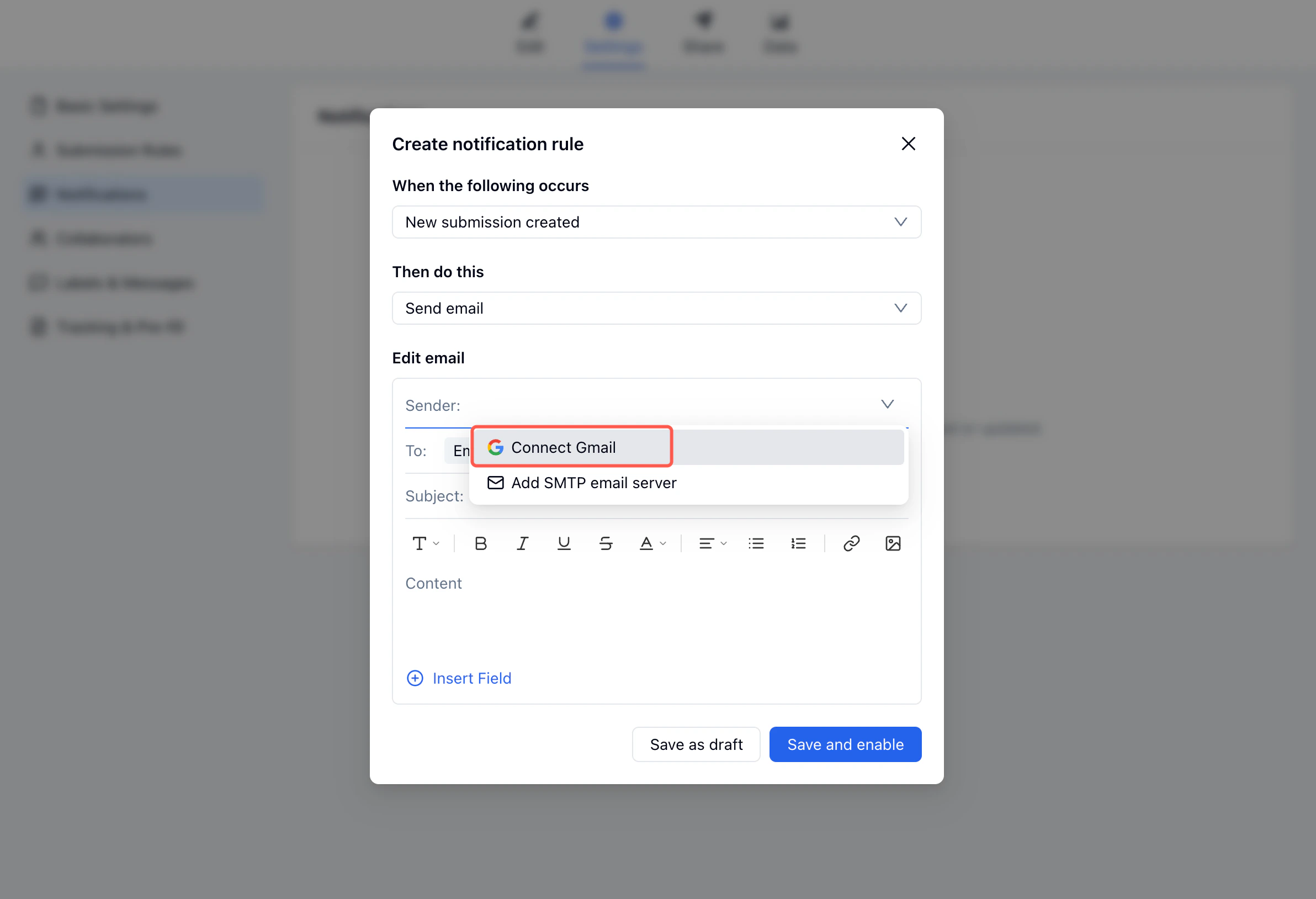
In the **Sender** dropdown, select **Connect Gmail**. A Google authorization screen will open — click **Continue** to grant FormHug permission to send email on your behalf. Once authorized, your Gmail address appears as the sender.
For a step-by-step use case, see how to send emails to form submitters. For appointment and booking workflows, the appointment reminder email templates article gives copy you can adapt inside a notification.
## How It Works
Each notification is a rule: **when** a trigger fires, **then** send an email to a recipient you choose. The recipient can be your own address, a teammate, or the submitter themselves — using any email field from the form.
## Creating a Notification Rule
Go to your form → **Settings → Notifications**, then click **Create notification**.
Select when the notification should fire: **New submission created** or **Submission updated**.
In the **Sender** dropdown, select **Connect Gmail**. A Google authorization screen will open — click **Continue** to grant FormHug permission to send email on your behalf. Once authorized, your Gmail address appears as the sender.
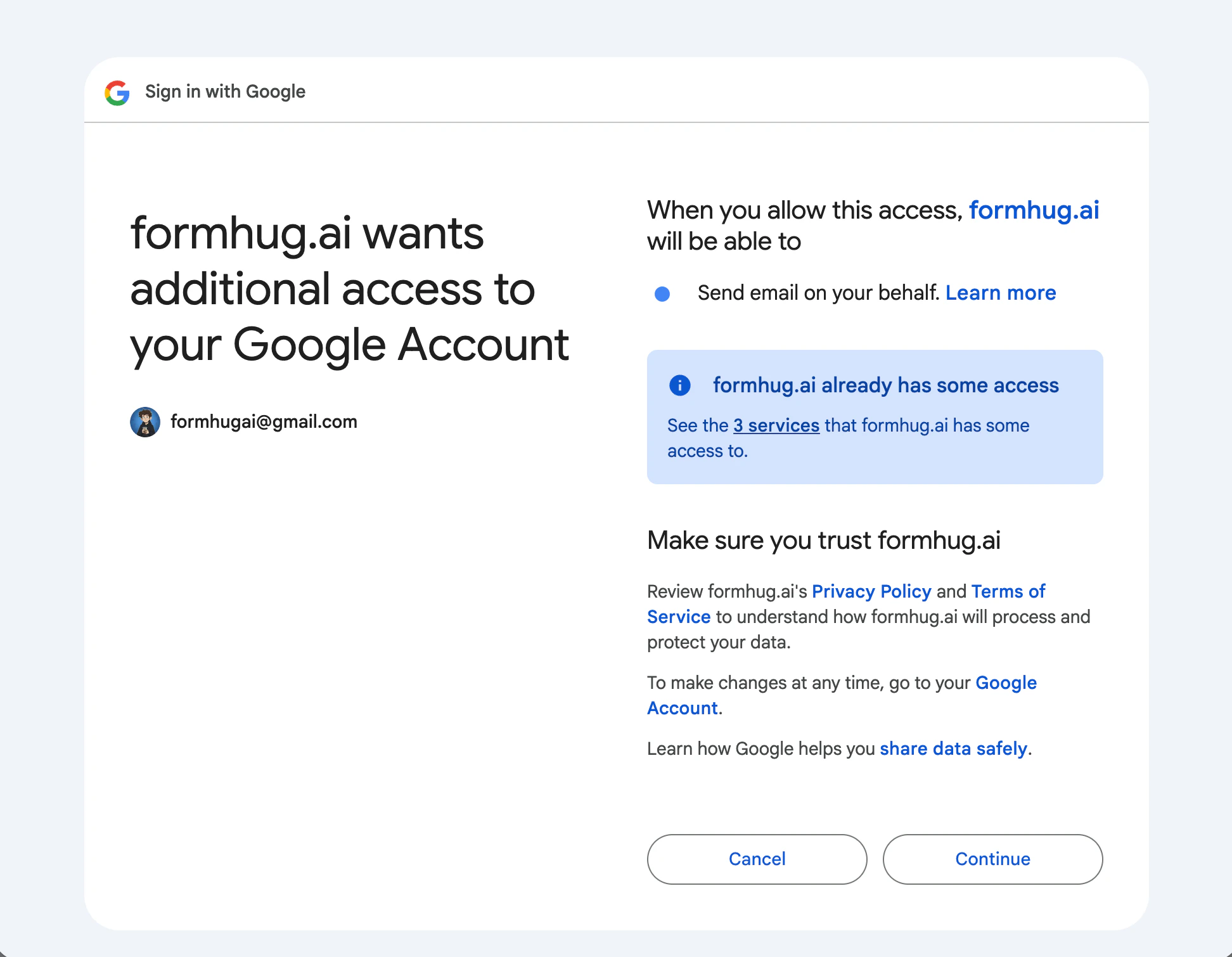 Gmail is connected at the account level. Once you authorize it, all your forms can use the same Gmail address as sender.
Set the **To** field to the form field that collects the submitter's email address. Write a subject and body — use **Insert Field** to pull in submission data like the submitter's name, registration details, or any custom field value.
Gmail is connected at the account level. Once you authorize it, all your forms can use the same Gmail address as sender.
Set the **To** field to the form field that collects the submitter's email address. Write a subject and body — use **Insert Field** to pull in submission data like the submitter's name, registration details, or any custom field value.
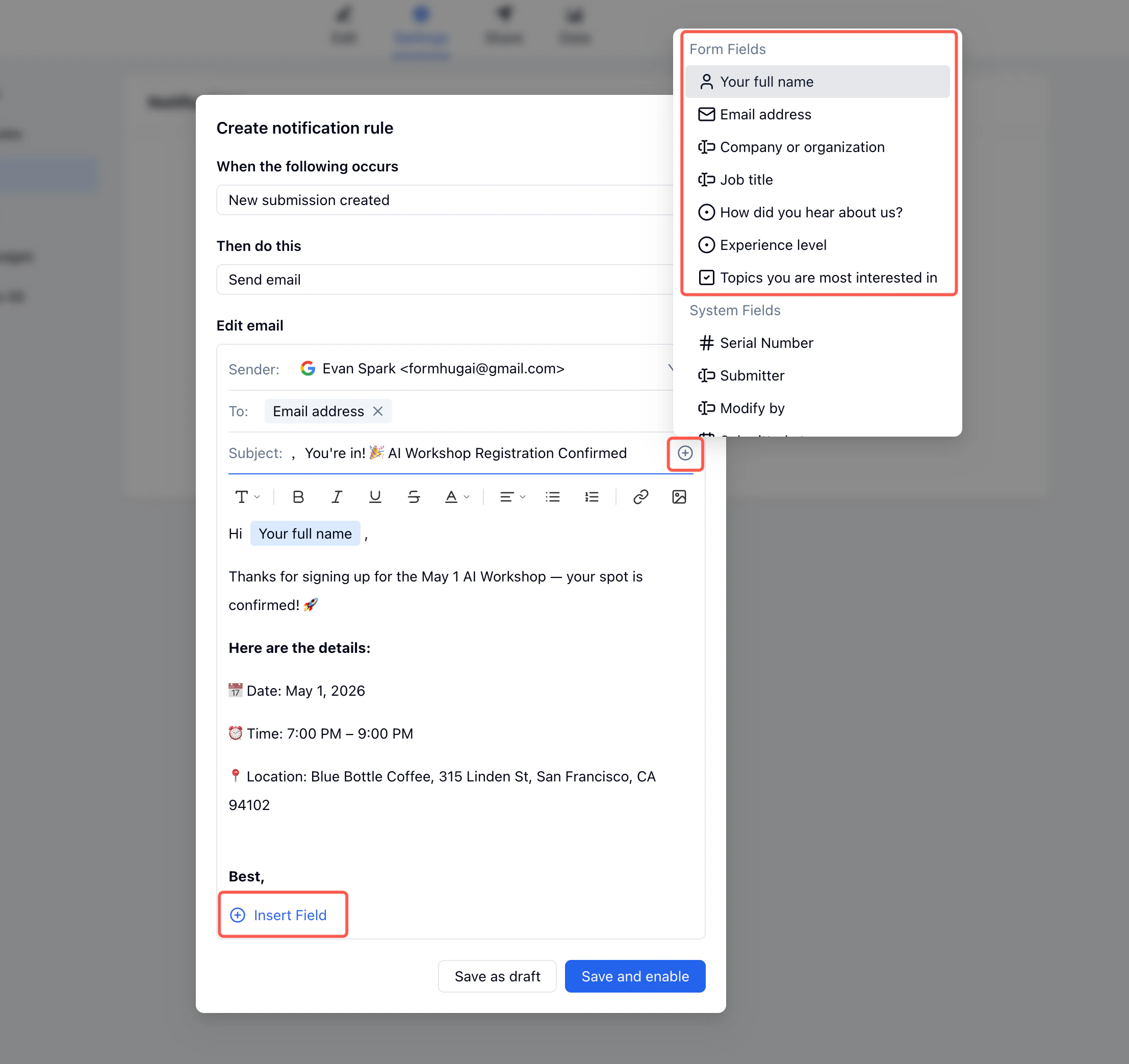 Click **Save and enable**. The rule activates immediately — every new submission that matches the trigger will fire the email.
 ## Trigger Events
| Trigger | When it fires |
| -------------------------- | -------------------------------------------- |
| **New submission created** | Each time someone submits the form |
| **Submission updated** | When a submission is edited after submitting |
## Inserting Field Values
Use **Insert Field** in the subject or body to include submission data in each email. FormHug replaces each field reference with the actual submitted value at send time.
| Insert | Example output |
| ------------------------- | -------------------------------------- |
| Submitter's name field | "Hi Jane," |
| Email subject with name | "Jane, your registration is confirmed" |
| Submission serial number | "Reference #0042" |
| Choice or selection field | "Experience level: Intermediate" |
| Any custom field | Any value the submitter entered |
Both form fields and system fields (serial number, submitter, timestamp) are available.
## Send Logs
Every email sent through a notification rule appears in the **Send logs** section below the notification list. Each entry shows the recipient address, send time, and status.
## Trigger Events
| Trigger | When it fires |
| -------------------------- | -------------------------------------------- |
| **New submission created** | Each time someone submits the form |
| **Submission updated** | When a submission is edited after submitting |
## Inserting Field Values
Use **Insert Field** in the subject or body to include submission data in each email. FormHug replaces each field reference with the actual submitted value at send time.
| Insert | Example output |
| ------------------------- | -------------------------------------- |
| Submitter's name field | "Hi Jane," |
| Email subject with name | "Jane, your registration is confirmed" |
| Submission serial number | "Reference #0042" |
| Choice or selection field | "Experience level: Intermediate" |
| Any custom field | Any value the submitter entered |
Both form fields and system fields (serial number, submitter, timestamp) are available.
## Send Logs
Every email sent through a notification rule appears in the **Send logs** section below the notification list. Each entry shows the recipient address, send time, and status.
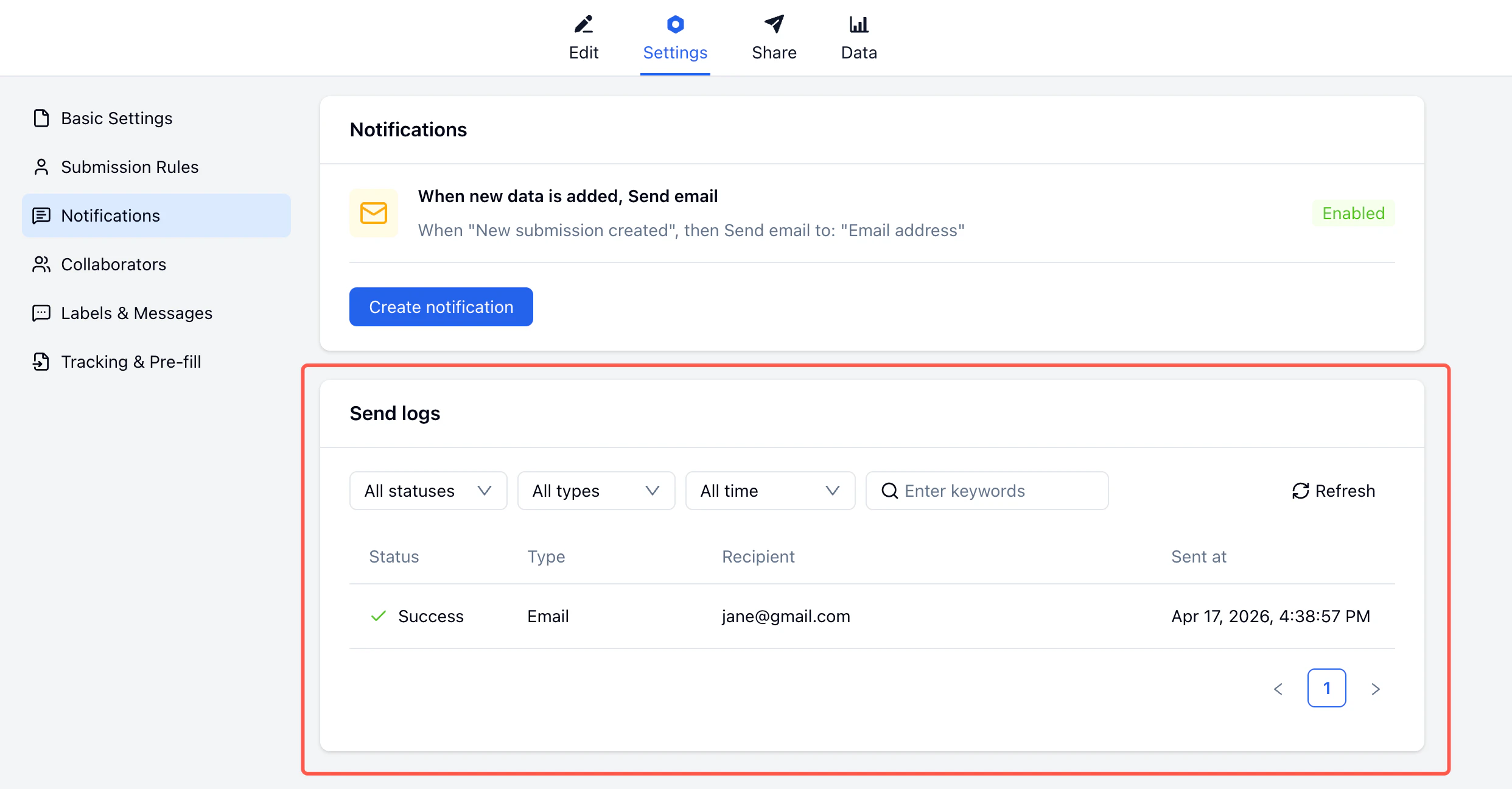 Use send logs to confirm delivery or diagnose failed sends.
## Gmail vs. SMTP
| | Gmail | SMTP |
| -------------- | ----------------------------- | ------------------------------ |
| Setup | One-click OAuth | Server credentials required |
| Sender address | Your Gmail address | Any domain |
| Daily limit | \~500 emails (personal Gmail) | Depends on provider |
| Best for | Small to mid-size forms | High-volume or branded sending |
Gmail personal accounts can send approximately 500 emails per day. For forms with high submission volume, consider connecting an SMTP server instead.
## Related
Step-by-step tutorial using an AI workshop signup as an example
Set capacity limits and control what happens when they're reached
Invite team members to manage your form
Customize form text and button labels
Walk through confirmation emails, reminders, personalization, and send logs
Use reminder copy for bookings, consultations, and classes
Use send logs to confirm delivery or diagnose failed sends.
## Gmail vs. SMTP
| | Gmail | SMTP |
| -------------- | ----------------------------- | ------------------------------ |
| Setup | One-click OAuth | Server credentials required |
| Sender address | Your Gmail address | Any domain |
| Daily limit | \~500 emails (personal Gmail) | Depends on provider |
| Best for | Small to mid-size forms | High-volume or branded sending |
Gmail personal accounts can send approximately 500 emails per day. For forms with high submission volume, consider connecting an SMTP server instead.
## Related
Step-by-step tutorial using an AI workshop signup as an example
Set capacity limits and control what happens when they're reached
Invite team members to manage your form
Customize form text and button labels
Walk through confirmation emails, reminders, personalization, and send logs
Use reminder copy for bookings, consultations, and classes