> ## Documentation Index
> Fetch the complete documentation index at: https://formhug.ai/docs/llms.txt
> Use this file to discover all available pages before exploring further.
# End Page
> Configure what submitters see after they submit — confirmation, quiz results, assessment reports, or a redirect
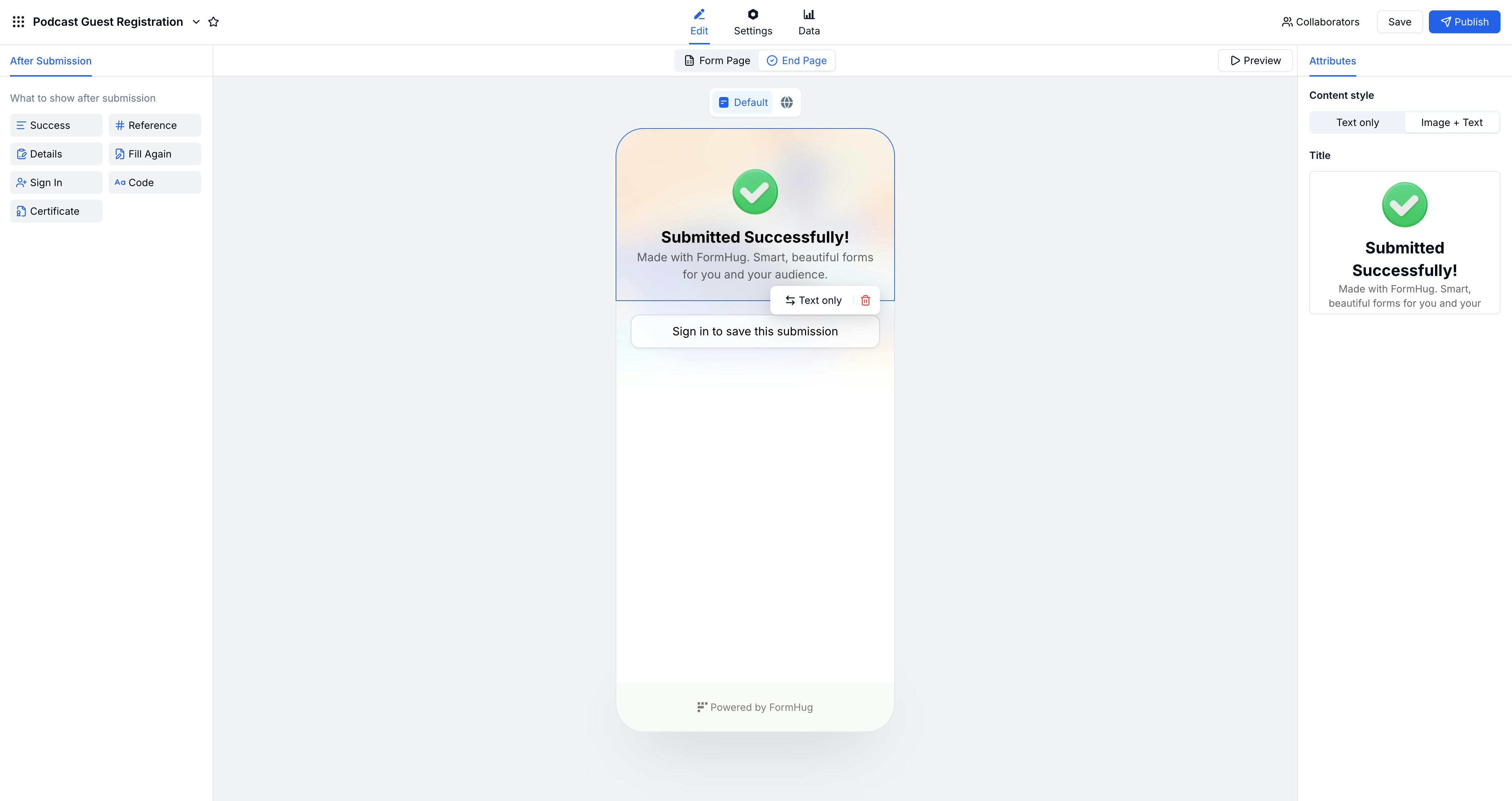
The **end page** is the screen submitters see as soon as they finish your form. FormHug gives you four end page types so the post-submit experience fits your use case.
 End pages are especially important for quizzes, assessments, registrations, and confirmation-heavy workflows.
For result-heavy forms, compare the quiz workflow in how to create an online quiz with the broader idea in Everything Can Be a Quiz.
## Default End Page
The default end page focuses on confirmation and follow-up:
| Element | What the submitter gets |
| --------------------- | --------------------------------------------------- |
| **Success message** | A thank-you and short confirmation you set |
| **Submission ID** | A unique reference number they can save |
| **Response summary** | A copy of what they submitted (optional) |
| **Login to save** | Option to create an account and save their response |
| **Verification code** | A code for check-in (e.g. events, tickets) |
| **Certificate** | A downloadable completion certificate |
Use this when you want a clean "thank you" plus optional proof or a copy of their submission.
## Quiz Results Page
For quizzes and tests, the end page becomes a results screen:
| Element | What the submitter gets |
| ------------------- | ----------------------------------------------- |
| **Score** | Points and percentage earned |
| **Feedback** | Messages you define by score range |
| **Correct answers** | Which answers were right or wrong |
| **Certificate** | A pass/finish certificate when criteria are met |
## Assessment Report
For skills and assessments, the end page shows a structured report:
| Element | What the submitter gets |
| -------------------- | --------------------------------------------- |
| **Overall score** | Total score and grade |
| **Dimension scores** | Breakdown by category |
| **Radar chart** | Visual view of strengths and areas to improve |
| **Feedback** | Short, personalized recommendations |
## Redirect Page
When the next step lives outside FormHug, send submitters directly to another URL.
End pages are especially important for quizzes, assessments, registrations, and confirmation-heavy workflows.
For result-heavy forms, compare the quiz workflow in how to create an online quiz with the broader idea in Everything Can Be a Quiz.
## Default End Page
The default end page focuses on confirmation and follow-up:
| Element | What the submitter gets |
| --------------------- | --------------------------------------------------- |
| **Success message** | A thank-you and short confirmation you set |
| **Submission ID** | A unique reference number they can save |
| **Response summary** | A copy of what they submitted (optional) |
| **Login to save** | Option to create an account and save their response |
| **Verification code** | A code for check-in (e.g. events, tickets) |
| **Certificate** | A downloadable completion certificate |
Use this when you want a clean "thank you" plus optional proof or a copy of their submission.
## Quiz Results Page
For quizzes and tests, the end page becomes a results screen:
| Element | What the submitter gets |
| ------------------- | ----------------------------------------------- |
| **Score** | Points and percentage earned |
| **Feedback** | Messages you define by score range |
| **Correct answers** | Which answers were right or wrong |
| **Certificate** | A pass/finish certificate when criteria are met |
## Assessment Report
For skills and assessments, the end page shows a structured report:
| Element | What the submitter gets |
| -------------------- | --------------------------------------------- |
| **Overall score** | Total score and grade |
| **Dimension scores** | Breakdown by category |
| **Radar chart** | Visual view of strengths and areas to improve |
| **Feedback** | Short, personalized recommendations |
## Redirect Page
When the next step lives outside FormHug, send submitters directly to another URL.
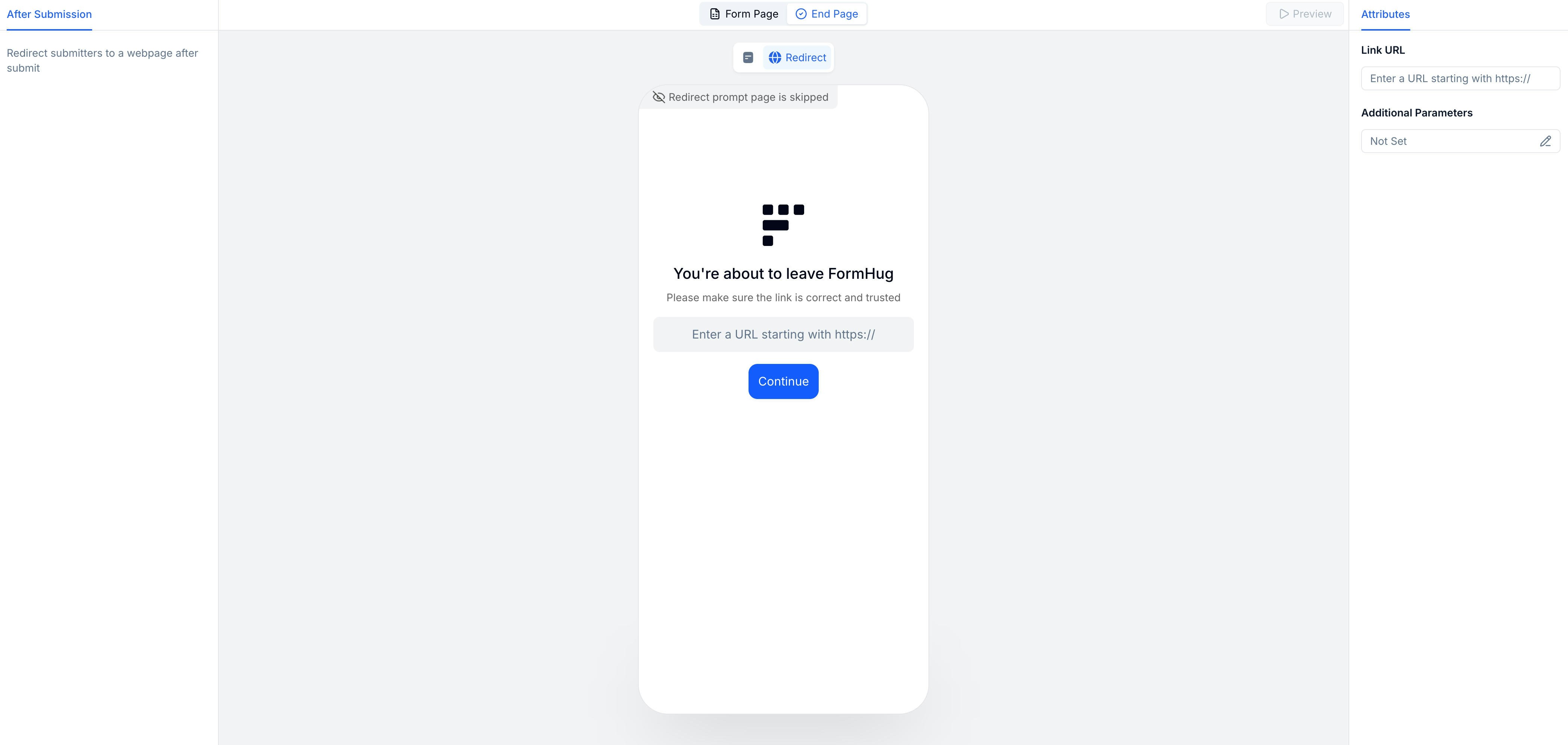 * Set any URL as the redirect destination (e.g. payment page, calendar, community)
* Pass submission data as URL parameters for integrations
* Useful for multi-step flows: form → payment → confirmation
## Configuring the End Page
In the form editor, click the **End Page** tab or open form settings.
Select Default, Quiz Results, Assessment Report, or Redirect.
Set the message, what to display (score, certificate, summary), or enter a redirect URL.
## Related
Form structure and fields
Build quizzes with scoring
Build skill assessments
Use quiz result pages for scores, feedback, and certificates
Use assessment reports for radar charts and personalized feedback
Plan scores, feedback ranges, and result pages before publishing
* Set any URL as the redirect destination (e.g. payment page, calendar, community)
* Pass submission data as URL parameters for integrations
* Useful for multi-step flows: form → payment → confirmation
## Configuring the End Page
In the form editor, click the **End Page** tab or open form settings.
Select Default, Quiz Results, Assessment Report, or Redirect.
Set the message, what to display (score, certificate, summary), or enter a redirect URL.
## Related
Form structure and fields
Build quizzes with scoring
Build skill assessments
Use quiz result pages for scores, feedback, and certificates
Use assessment reports for radar charts and personalized feedback
Plan scores, feedback ranges, and result pages before publishing