How to Create an Online Quiz with Automatic Scoring, Instant Feedback, and Certificates
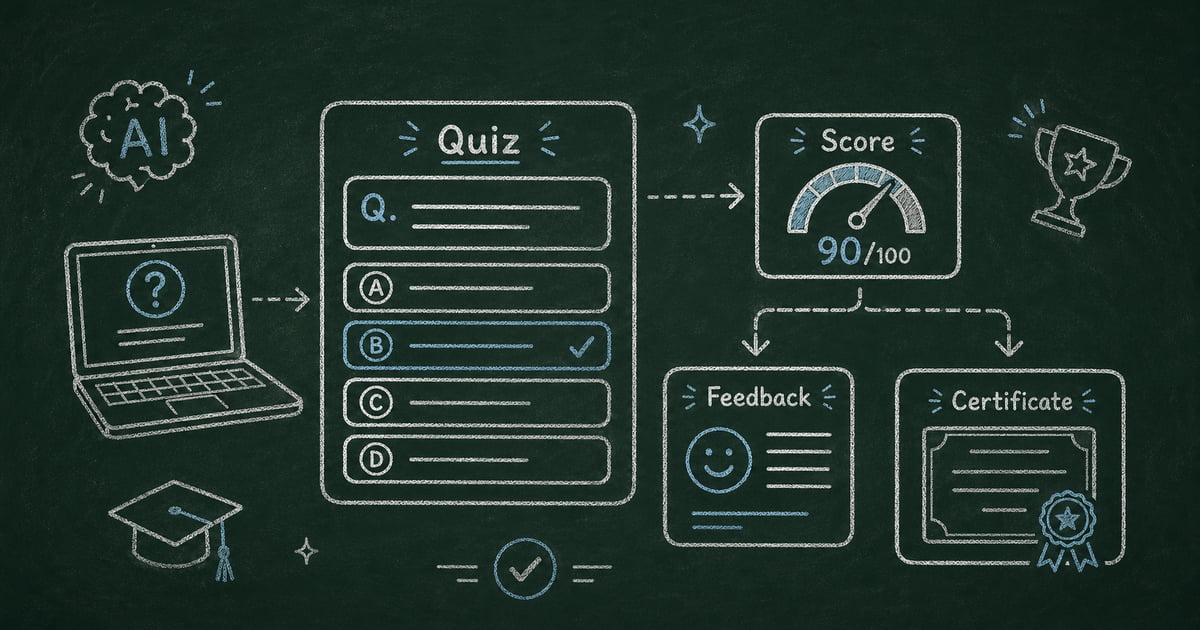
Make it interactive
Turn these questions into a scored quiz
Build a quiz with answer keys, result pages, explanations, and a shareable link.
Students who are tested on material immediately after learning it retain up to 50% more than those who review the same content passively — a finding from retrieval practice research replicated across hundreds of cognitive science studies. The quiz isn’t just a measurement tool. It’s the learning itself.
A quiz is one of the most versatile things you can publish online. Teachers use them to check comprehension. HR teams use them to verify that new hires actually read the onboarding handbook. Marketers use them to generate leads and drive shares. Community managers use them to run trivia nights. Training providers use them to issue certifications.
What all of these have in common: someone answers a set of questions with correct answers, and something meaningful happens at the end.
The problem is that most quiz tools stop at the score. You get a percentage. Maybe a pass/fail. And that’s it. The participant learned nothing about what they got wrong, received no context for why their answer was incorrect, and walked away with nothing to show for passing.
A well-built online quiz does more. It scores automatically, explains every wrong answer, adjusts its feedback based on where you landed, and — when the stakes are high enough — issues a certificate you can actually use.
The best way to build an online quiz with automatic scoring is to use a quiz maker that handles the full participant journey: instructions before the quiz starts, timed and randomized delivery during, and layered results — score, answer review, explanation, feedback message, and certificate — at the end.
FormHug is an interactive quiz maker and AI quiz generator that covers all of this — so you can create an online quiz for a classroom test, a certification exam, a training assessment, or a trivia game from the same place, free to start.
If you want the lighter tool-selection version before getting into certificates, anti-cheating, and advanced result settings, start with the free quiz maker guide.
TL;DR — An online quiz should score automatically, explain answers, adjust feedback by score, and optionally issue certificates when participants pass.
- Use the quiz type to choose settings — trivia, classroom tests, certifications, and marketing quizzes need different result pages.
- Explain every answer — scoring measures performance; explanations create the learning moment.
- Configure the results page carefully — feedback, answer review, certificates, and codes are where the quiz becomes useful.
- Works for: classroom tests, training exams, trivia, language practice, lead-gen quizzes, certification checks.
- Add time limits and anti-cheating only for formal assessment contexts.
When a quiz is the right format
Before building, it helps to know which kind of quiz you’re making — because the configuration differs.
Classroom tests and mini-exams — Teachers run these to check comprehension after a lesson, a chapter, or a unit. The key features here are answer explanations (so students learn from wrong answers), score-based feedback (so the message matches the grade level), and optionally a certificate for students who pass.
Training and certification exams — HR teams, compliance departments, and training providers run these to verify that participants absorbed required content. High stakes: you need a passing score threshold, a downloadable certificate, and anti-cheating measures. Random questions from a question pool ensure each attempt is different.
Language and vocabulary tests — Language teachers and self-study platforms use fill-in-the-blank and short answer formats. Explanations matter — participants need to see the correct form alongside what they got wrong.
Trivia and games — Trivia nights, social media quizzes, team icebreakers. Lower stakes: the fun is in the immediate score reveal and seeing how you compare. Random questions keep repeat players engaged.
Knowledge checks and microlearning — After a training video, an onboarding module, or an article, a short quiz increases retention. 3–5 questions, instant results, no certificate required. The goal is reinforcement, not assessment.
Compliance checks — Annual privacy training, safety awareness, policy acknowledgment. These need a record that the employee completed and passed, which is where the certificate (or a completion code) becomes useful as documentation.
Brand and marketing quizzes — “How well do you know our product?” or trivia tied to a campaign. Score-based feedback gives each participant a personalized result; a completion code unlocks a discount or a prize entry. For personality quiz maker use cases — “Which [product / character / style] are you?” — map each score range to a persona that feels personal enough to screenshot and share. These quizzes generate leads and drive organic shares.
Competition and event quizzes — Live or async quiz competitions. Random question draws from a large pool mean each participant gets a unique set. Time limits add urgency.
What most quiz makers get wrong
Most quiz tools give you questions, multiple choice options, a correct answer, and a final score. That covers the basics. Google Forms can score a quiz — but it shows only a total with no explanation of what went wrong. Typeform offers polished results pages, but score-based outcomes are locked behind its highest-tier plans. And neither functions well as a full online test maker with certificates and anti-cheating.
What all of these miss are the three moments that make a quiz worth completing:
The moment you see what you got wrong. If you score 6/10 and walk away with just a number, you learned nothing. Answer explanations — a sentence or two per question explaining why the correct answer is correct — transform a score into a learning moment. They’re also what makes a trivia quiz shareable: “I didn’t know that, but now I do.” In our experience, enabling answer explanations is the single most impactful quiz setting — and consistently the first feature educators and trainers ask for when switching from other tools.
The moment the feedback responds to you specifically. A blanket “Good job!” or “Try again” doesn’t land. Score-based feedback that changes based on where you landed — different messages for 0–60, 61–80, and 81–100 — feels personal. For marketing quizzes, this is the result people screenshot and send to friends.
The moment you have something to show for it. For training, compliance, and certification use cases, passing a quiz means something. A downloadable certificate that only appears when you hit the passing threshold gives that meaning a tangible form.
Most quiz tools handle one of these. FormHug handles all three — plus timed delivery, random question pools, anti-cheating settings, and AI-powered question generation — making it a strong Google Forms quiz alternative and Typeform quiz alternative for anyone who needs a complete quiz experience, not just a scored form.
How to Build an Online Quiz: Step by Step
Step 1: Create the quiz
Three ways to start:
Create with AI — The fastest way to generate quiz questions with AI. Describe your topic in one sentence, paste a source URL, or upload a question bank. FormHug’s AI (Evan) generates questions, answer options, correct answers, and scoring automatically — covering multiple choice, true/false, fill-in-the-blank, and more. Works as an AI trivia generator for entertainment quizzes and as an AI test generator for formal assessments.
Start from a template — 22+ ready-made templates covering trivia, general knowledge, true/false, MCQs, and more. Open a template, swap the questions, publish. Good for trivia and standard formats.
Build from scratch — Add questions one by one with full control over field types, point values, layouts, and settings. Best for formal assessments with specific requirements.
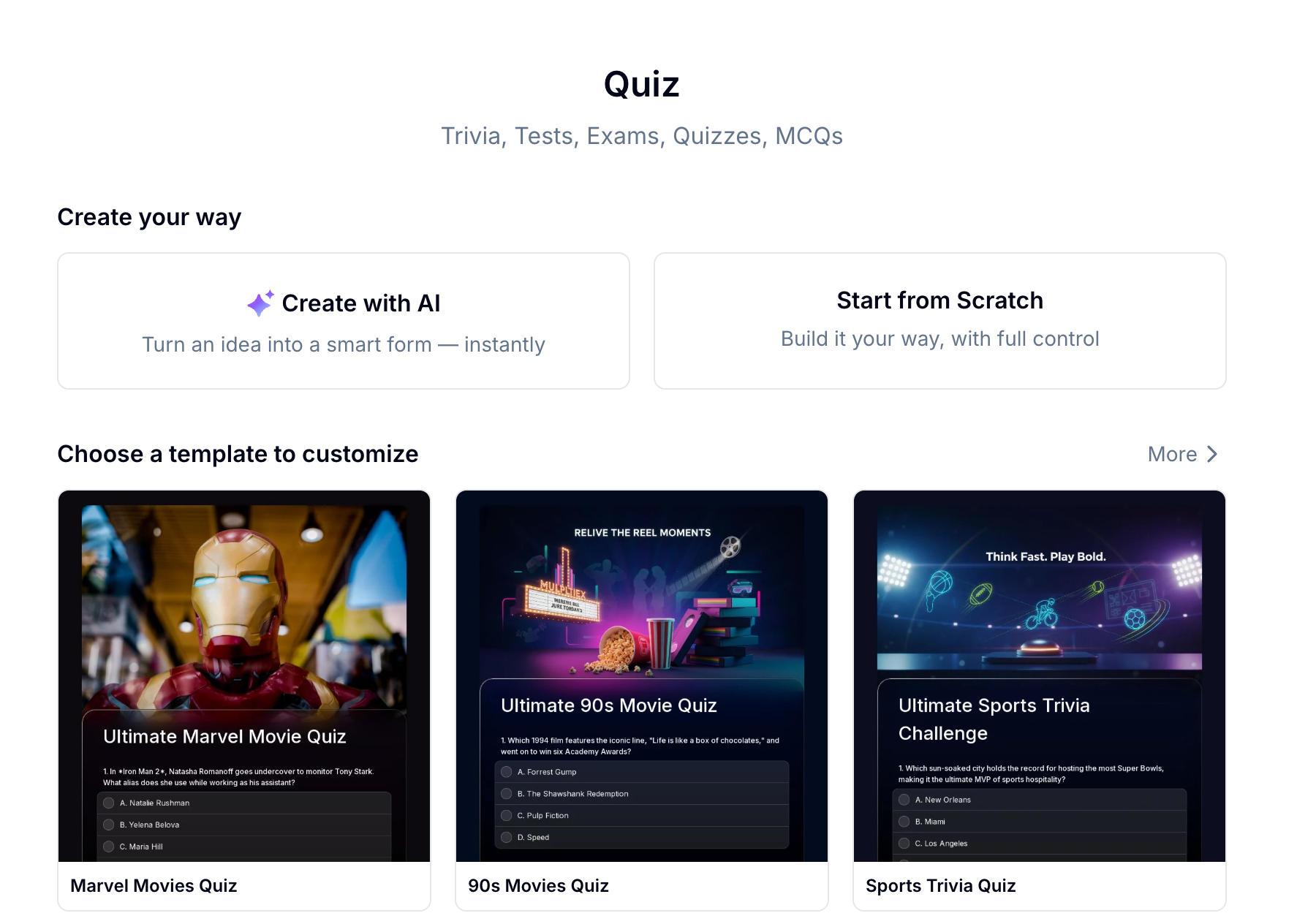 Three ways to start a quiz in FormHug: AI generation, a ready-made template, or a blank canvas.
Step 2: Add questions, scores, and explanations
The quiz editor shows your live question count and total score at the top. Add questions using the field types that fit your content (see the full list below). For each question, set the point value: simple recall questions might be worth 1 point; complex application questions worth 3 or 5.
A few principles for writing good quiz questions:
- One clear correct answer per question (unless you’re using multi-select checkbox)
- Plausible wrong options — distractors that a participant might genuinely choose
- Consistent difficulty within a section if you’re building a formal test
- For trivia: include one surprising or counterintuitive correct answer — those are the ones people remember and share
For each question, open the Answer & Score panel on the right. Mark the correct answer (or correct answers, for checkbox questions), set the point value, and write an answer explanation.
The explanation is the most underused feature in quiz building. Write one for every question — not just the hard ones. A good explanation:
- States why the correct answer is right, not just what it is
- For wrong answers, briefly notes the common misconception (“Many people choose B because… but the reason the correct answer is C is…”)
- Keeps it to 1–3 sentences — long enough to inform, short enough to read
Answer explanations appear after submission in the My Answers review section. Participants can filter by “Incorrect only” to focus on what they got wrong, with correct answers highlighted in green and wrong answers in red.
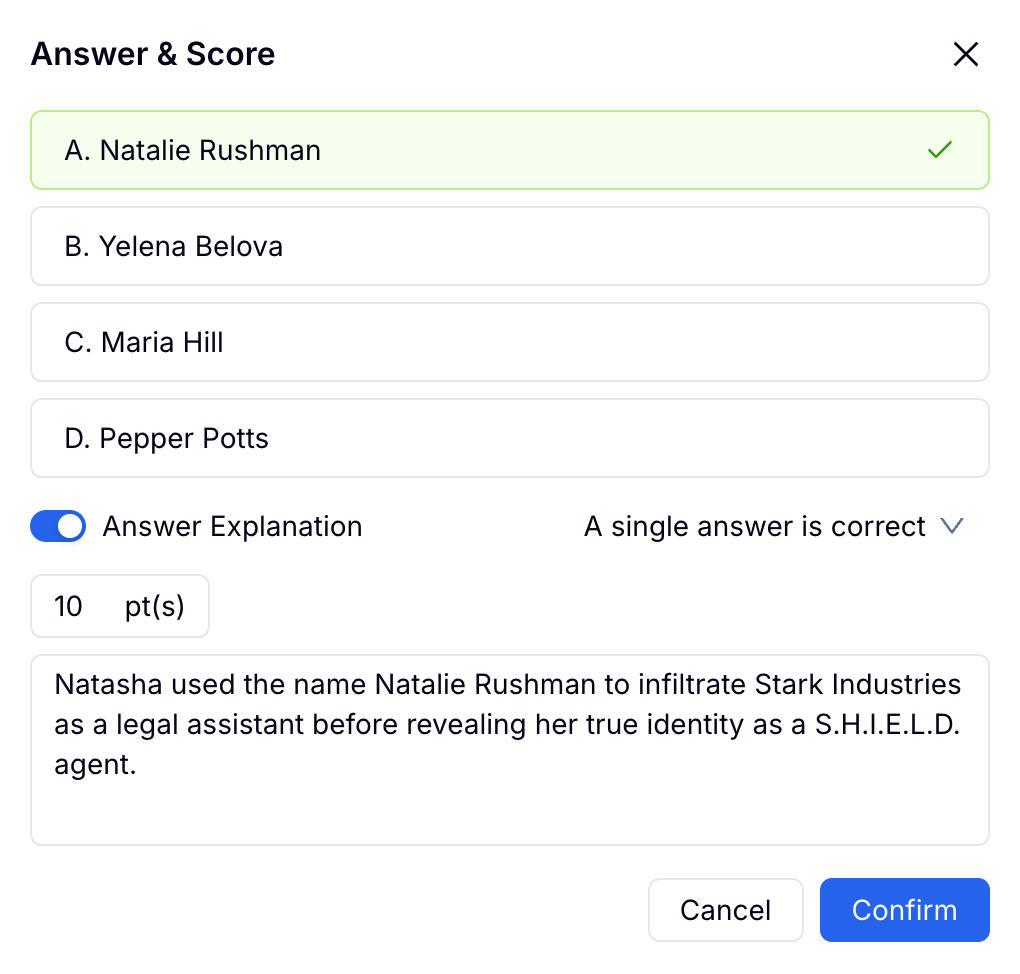 The Answer & Score panel: mark the correct answer, set the point value, and write the explanation that participants see after submitting.
Step 3: Configure the results page and advanced settings
The results page is where the participant experience is won or lost. Four modules control what happens there:
Score-Based Feedback — Write different messages for different score ranges. No limit on the number of ranges. For a classroom test: “0–59: Review the material and try again,” “60–79: Good effort — check your explanations,” “80–100: Excellent work.” For a certification exam: one range below the pass threshold, one above. For a trivia quiz: five tiers with progressively more enthusiastic praise.
My Answers — Show a full review of the participant’s answers. Enable Show Answers and Explanation to surface the green/red highlighting and your written explanations.
Certificate — Enable this to offer a downloadable certificate on the results page. Set a Display by Score threshold so only participants who reach the passing score receive one. Choose how the certificate is generated: automatically on page load, on button click, or manually by you.
Code — Display a unique code on the results page. Useful for discount codes tied to quiz completion, prize draw entry codes, or event check-in vouchers.
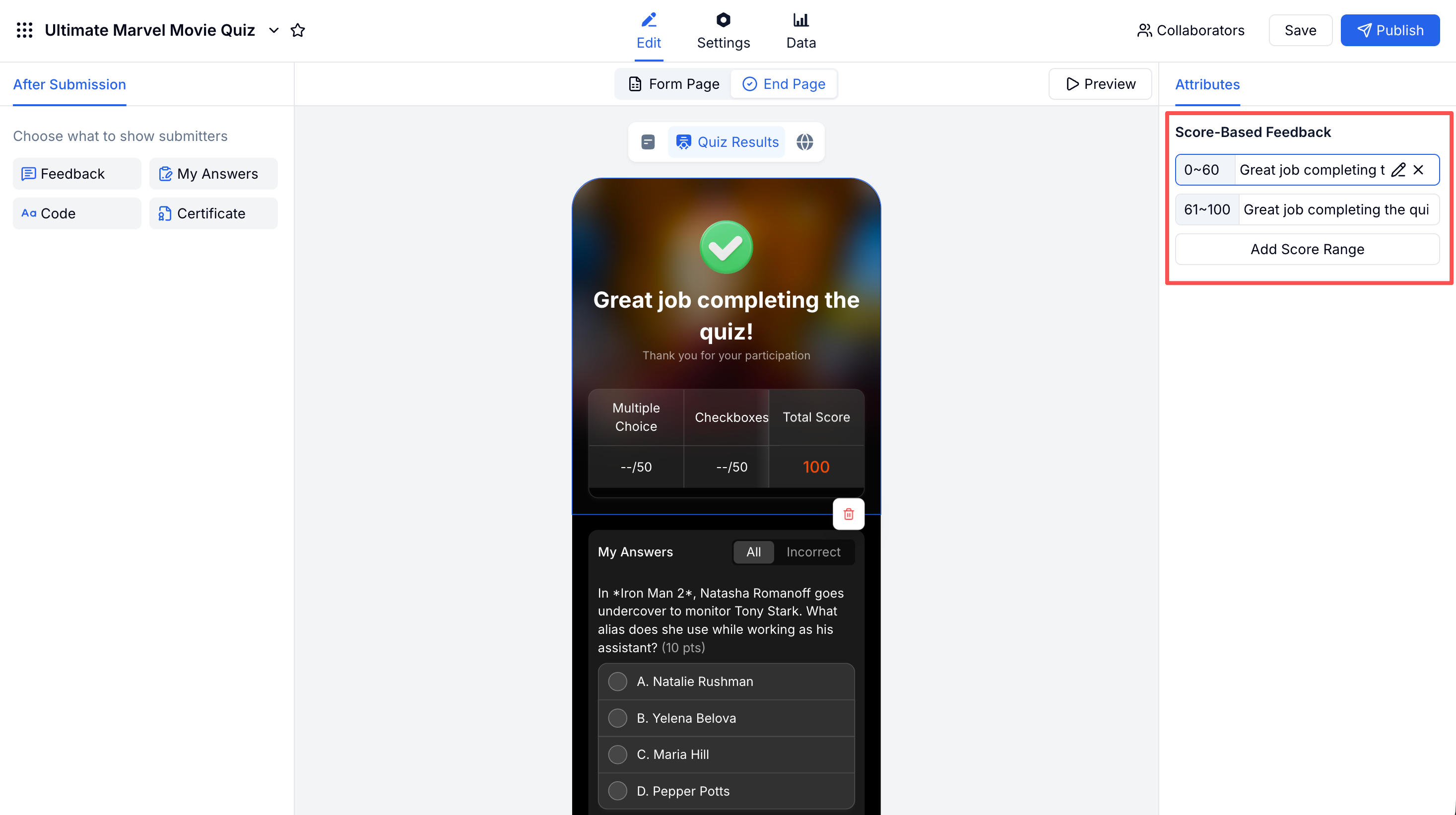 The quiz results page: score-based feedback, per-question answer review with explanations, and a certificate for participants who pass.
Under Settings → Quiz Settings, four options give you fine-grained control over quiz delivery:
Pre-Quiz Notice — Show instructions before participants start: how many questions, time limit, scoring rules, any special guidelines. Also lets you customize the start button label. Worth enabling for any formal assessment.
Time Limit — Set a countdown timer. The quiz auto-submits when time runs out. Set a warning alert (e.g., “5 minutes remaining”) so participants aren’t caught off guard. For trivia, time limits add urgency. For certification exams, they enforce exam conditions.
Random Questions — Draw a subset of questions from a larger pool, randomize question order, or both. A pool of 50 questions with a draw of 20 means each participant gets a unique set. Eliminates the value of memorizing question order between attempts.
Anti-Cheating — Restrict screen switching (detected when the participant leaves the quiz tab), disable text copying, disable pasting, and require fullscreen mode. These are deterrents appropriate for formal assessments; they’re not appropriate for trivia or marketing quizzes.
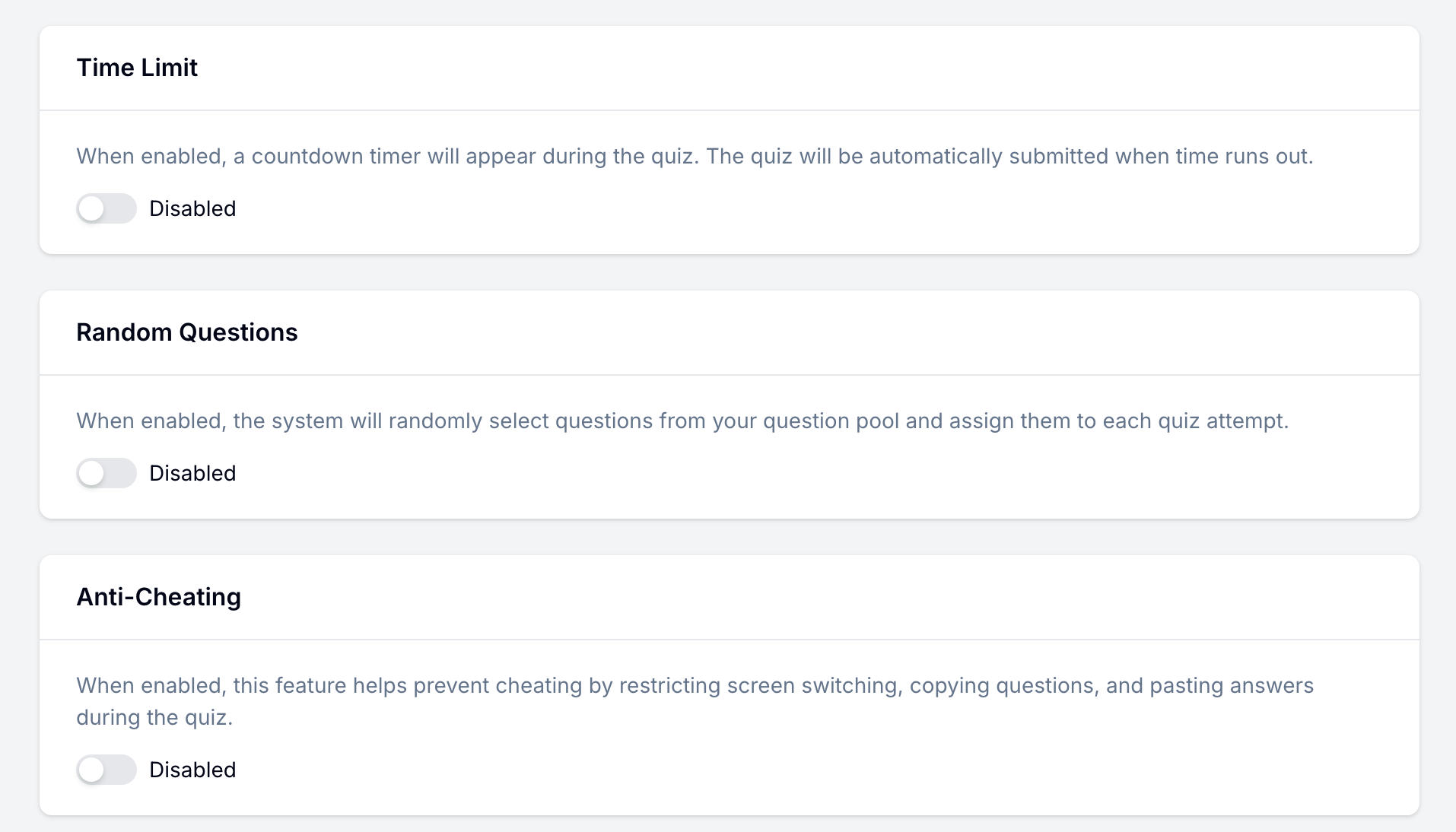 Quiz Settings: set a countdown timer, draw random questions from a pool, and configure anti-cheating restrictions for formal exams.
Step 4: Publish and share
Publish the quiz and share the link — by email, in a learning management system, via Slack, in a post, or embedded on your website. The quiz URL is the same for all participants. Results are stored in your FormHug dashboard.
For the full configuration reference, including quiz settings, result pages, and scoring behavior, see the FormHug quiz documentation.
Question types supported
| Type | Best For |
|---|---|
| Radio (single-answer MCQ) | Classic multiple choice — one correct answer |
| Checkbox (multi-select) | Questions with multiple correct answers |
| Image Radio / Image Multi | Visual questions with image-based answer options |
| True / False | Quick binary questions |
| Fill in the Blank | Short text answers — names, terms, dates |
| Numeric Fill in the Blank | Numeric answers — calculations, quantities |
| Essay | Open-ended questions — manually graded |
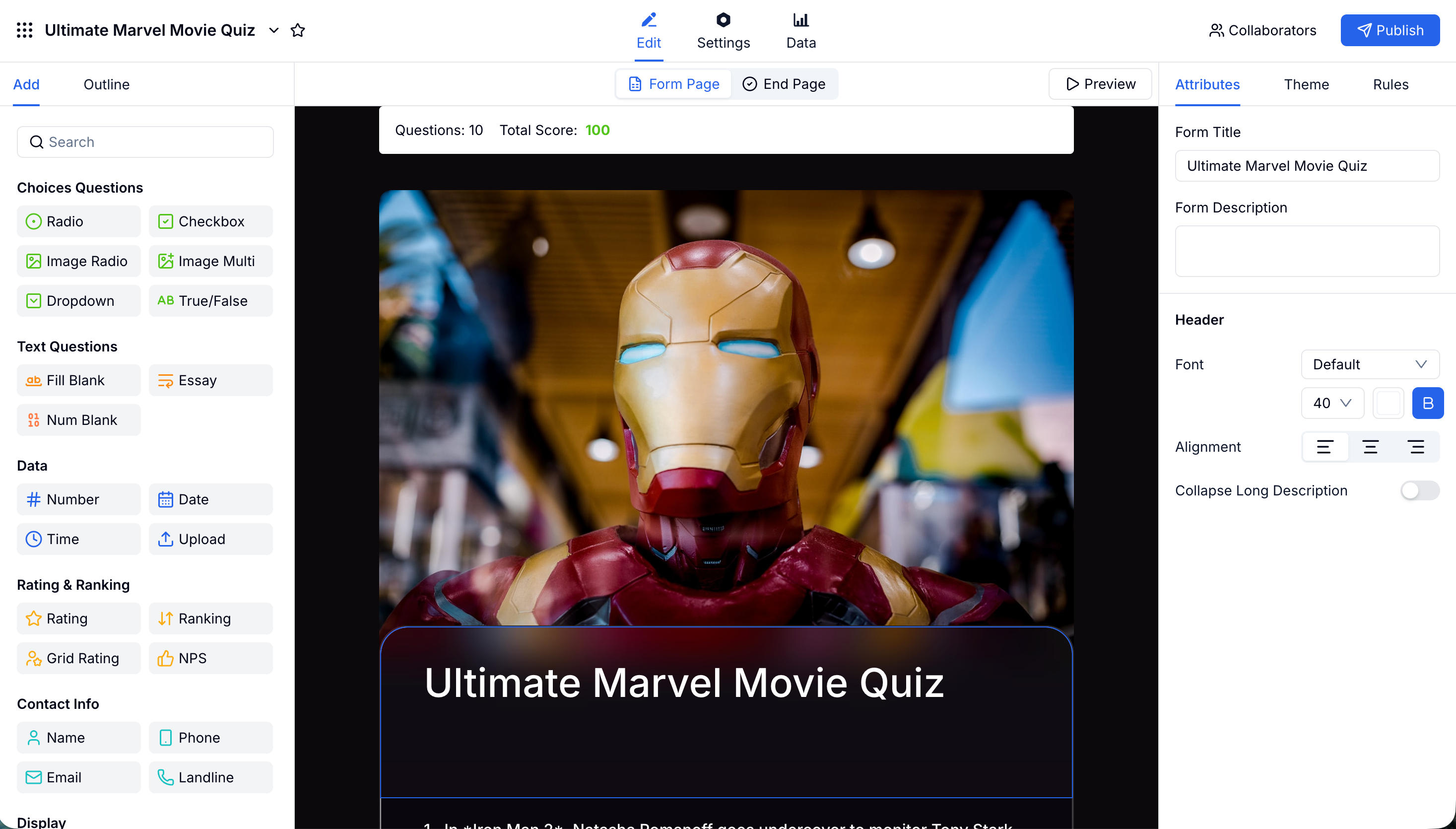 The quiz editor supports seven question types — from classic MCQ to image-based options and fill-in-the-blank.
FormHug works as a capable multiple choice quiz maker out of the box — Radio covers single-answer MCQs and Checkbox handles questions with more than one correct answer. For visual content (geography, art, product recognition), Image Radio adds image-based options. Fill in the Blank is ideal for language tests where the exact wording matters. The result is one of the most complete interactive quiz makers available without writing any code.
How to configure your quiz for different scenarios
Different use cases call for different settings combinations. Here’s a quick reference:
Classroom mini-exam or homework check
- Time Limit: optional — depends on whether it’s timed
- Random Questions: off (consistent questions for the class)
- Anti-Cheating: optional — screen switching restriction for in-class use
- My Answers: on, with explanations
- Certificate: optional — can issue for scores above passing grade
- Score-Based Feedback: 3 tiers (needs review / good / excellent)
Certification or compliance exam
- Time Limit: on — set a firm limit with warning
- Random Questions: on — draw from a larger pool, randomize order
- Anti-Cheating: all options on
- Passing Score: set a threshold (e.g., 80%)
- Certificate: on, Display by Score above passing threshold
- Score-Based Feedback: 2 tiers (below pass / above pass)
- Pre-Quiz Notice: on — state the rules and time limit upfront
Language or vocabulary test
- Time Limit: optional — for pressure, or off for self-paced
- Random Questions: on — draw from a vocabulary pool
- Fill in the Blank questions for production tasks, Radio for recognition
- My Answers with explanations showing correct form
- Score-Based Feedback: 3–4 tiers with encouragement at each level
Trivia night or team game
- Time Limit: on for each round (adds urgency)
- Random Questions: on — large question pool for variety
- Anti-Cheating: off
- Score-Based Feedback: 5 tiers, all positive, with personality
- Code: on — top scorers get a prize entry code
- No certificate needed
Knowledge check after training content
- Time Limit: off — this is reinforcement, not assessment
- 3–5 questions only
- My Answers with explanations — the learning value is the explanation
- Score-Based Feedback: encouraging across all ranges
- Anti-Cheating: off
- Certificate: off
Marketing or brand engagement quiz
- Time Limit: off — friction kills shares
- Anti-Cheating: off
- Score-Based Feedback: 4–5 tiers, each with a distinct name and personality
- Add a CTA on the results page: link to a product, newsletter, or share prompt
- Email field before submission to capture leads
Try a live quiz
See what the participant experience looks like before you build:
- Ultimate Marvel Movie Quiz — 10 MCU questions → formhug.ai/f/jlEVse
- Ultimate NBA Trivia Challenge — NBA history, 10 questions → formhug.ai/f/Buqp2A
- Ultimate Sports Trivia Challenge — 10 questions across global sports → formhug.ai/f/dtpAxp
To build your own, start from the FormHug dashboard or browse 22+ quiz templates.
Frequently Asked Questions
How do I create an online quiz with automatic scoring?
Build a quiz in FormHug, set the correct answer and point value for each question, and publish. FormHug scores every submission automatically when the participant clicks submit. You don’t need to grade anything manually — unless you include Essay questions, which require manual review.
Can I add answer explanations that appear after submission?
Yes. For each question, open the Answer & Score panel and write an explanation in the provided field. After submission, participants see the My Answers review with explanations displayed beneath each incorrect response. Enabling this is the single most effective way to increase the educational value of a quiz.
How do I create a timed online exam?
Go to Settings → Quiz Settings → Time Limit. Set the total allowed time in minutes, optionally set a warning alert, and enable auto-submit. The countdown timer appears during the quiz and the submission happens automatically when time runs out.
How do I issue certificates for participants who pass?
On the End Page, add the Certificate module. Enable Display by Score and enter the minimum score required to receive a certificate. Participants who meet the threshold will see the certificate download option on their results page; those who don’t, won’t.
Can each participant get different questions?
Yes. Under Settings → Quiz Settings → Random Questions, set the number of questions to draw from your pool and enable randomized order. Each participant gets a different subset in a different sequence. Useful for exams with large question banks and for trivia where repeat attempts should feel fresh.
What question types support automatic scoring?
Radio (single-answer MCQ), Checkbox (multi-select), Image Radio, Image Multi, True/False, Fill in the Blank, and Numeric Fill in the Blank are all automatically scored. For question-writing guidance, see multiple choice quiz questions and true or false quiz questions. Essay questions require manual grading and are not automatically scored.
Can I prevent cheating on an online exam?
Under Settings → Quiz Settings → Anti-Cheating, you can restrict screen switching (detect when the participant leaves the quiz tab), disable copying question text, disable pasting answers, and require fullscreen mode. These are effective deterrents for low-to-medium stakes assessments. For high-stakes exams, consider adding a human proctor.
How do I create a quiz with different feedback for different score ranges?
On the End Page, add the Score-Based Feedback module. Click to add a score range and write the message for that range. Add as many ranges as you need — the system automatically shows the matching message based on each participant’s final score.
Is there a way to show a discount code or prize code to quiz completers?
Yes. On the End Page, add the Code module. You can display a unique code to participants who complete (or pass) the quiz. Use this for discount codes, prize draw entries, or event check-in vouchers.
Can I build a quiz using AI?
Yes. Click “Create with AI” when starting a new quiz, describe your topic, and FormHug’s AI (Evan) generates questions, answer options, correct answers, and scoring. You can also paste a URL or upload a file and Evan will extract questions from the source content. This makes FormHug a practical AI quiz generator for both quick trivia and formal assessments.
Is there a free quiz maker with automatic scoring?
Yes. FormHug’s free plan includes automatic scoring, score-based feedback, answer explanations, and the full results page — no credit card required. Paid plans unlock higher submission limits and additional features like certificates and anti-cheating.
How does FormHug compare to Google Forms or Typeform for quizzes?
Google Forms can score a quiz but offers no answer explanations, no score-based feedback tiers, and no certificates. Typeform supports outcome-based results but gates the most useful features behind its highest-paid plan and doesn’t support formal assessment features like time limits, random question pools, or anti-cheating. FormHug is purpose-built as both a Google Forms quiz alternative and a Typeform quiz alternative for anyone who needs the full stack: scoring, explanations, tiered feedback, certificates, timed exams, and randomization — available from the free plan upward.
Is FormHug a good quiz maker for teachers?
Yes. Teachers use FormHug to create classroom mini-exams, homework checks, vocabulary tests, and end-of-unit assessments. Key features for education: answer explanations so students see exactly why they got each question wrong, score-based feedback with different messages for different grade ranges, optional certificates for passing grades, timed exam mode for in-class tests, and random question draws from a larger question bank so each sitting is unique.
Related
- Mini Exams: What They Are and How to Create One Online — focused guide for short knowledge-check assessments (5–15 questions, instant feedback, answer explanations)
- Free Quiz Maker — create a simple online quiz with AI drafts, scoring, and result pages
- 6 Best AI Quiz Makers in 2026 — how FormHug compares to Typeform, Quizgecko, Quizizz, and others
- Trivia Quiz Maker — build a lower-stakes scored quiz for events, classrooms, teams, and campaigns
A quiz that scores without explaining, or stops at a number without adjusting to where you landed, delivers a fraction of the value it could. Build your quiz →

Written by
FormHug TeamProduct, research, and form automation team
The FormHug Team brings together product builders, workflow researchers, and form automation practitioners who study how people collect, route, and act on information online. Our guides are based on hands-on product testing, template analysis, customer workflow patterns, and deep experience with forms, surveys, quizzes, AI-assisted creation, integrations, and results sharing.