> ## Documentation Index
> Fetch the complete documentation index at: https://formhug.ai/docs/llms.txt
> Use this file to discover all available pages before exploring further.
# Public Query
> Let participants look up their own scores, results, or status without contacting you — turn any form into a secure, self-service query page.
**Public Query** turns your form submissions or Excel data into a shareable lookup page. Visitors enter their ID, email, or any field you choose — and see only the one record that matches. No account needed, no browsing other people's data.
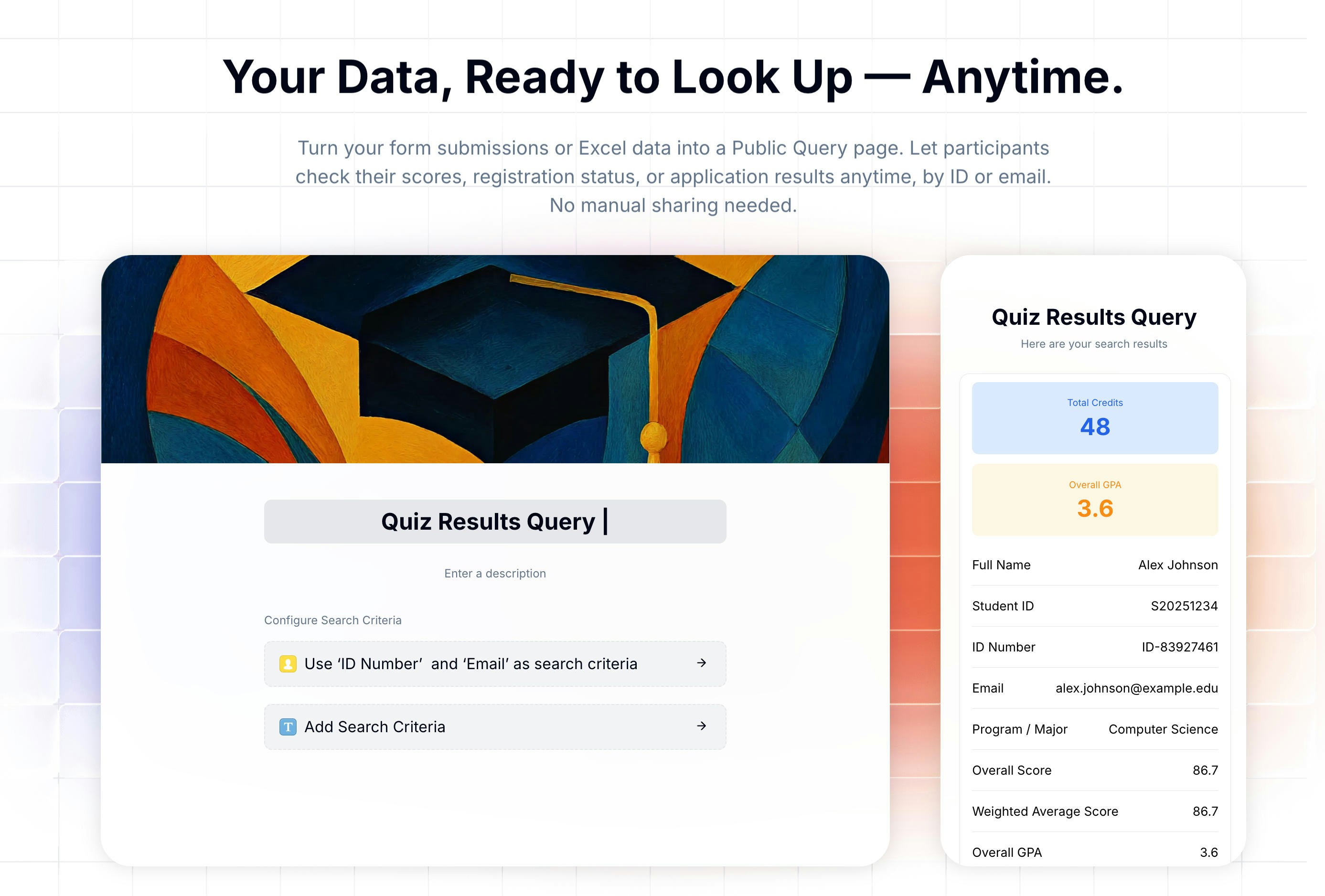 For a product-level overview of lookup pages, see Public Query. If your data starts in Excel, read how to build a lookup page from Excel. For results-style pages, the examples on sharing exam scores, race results, and training course results show common lookup patterns.
## What You Can Do with Public Query
| Scenario | Search by | Result shows |
| ------------------- | ----------------------- | ------------------------------------ |
| Competition results | Participant ID | Ranking, total score, judge feedback |
| Exam scores | Student ID + Email | Score, GPA, program details |
| Registration status | Registration ID | Status, event details, next steps |
| Application results | Application ID or Email | Status, reviewer notes |
## How to Create a Public Query Page
Select a data source for your Public Query page:
| Source | Best For |
| ---------------- | -------------------------------------------- |
| **Select Form** | Query data collected through a FormHug form |
| **Import Excel** | Query data you already have in a spreadsheet |
For a product-level overview of lookup pages, see Public Query. If your data starts in Excel, read how to build a lookup page from Excel. For results-style pages, the examples on sharing exam scores, race results, and training course results show common lookup patterns.
## What You Can Do with Public Query
| Scenario | Search by | Result shows |
| ------------------- | ----------------------- | ------------------------------------ |
| Competition results | Participant ID | Ranking, total score, judge feedback |
| Exam scores | Student ID + Email | Score, GPA, program details |
| Registration status | Registration ID | Status, event details, next steps |
| Application results | Application ID or Email | Status, reviewer notes |
## How to Create a Public Query Page
Select a data source for your Public Query page:
| Source | Best For |
| ---------------- | -------------------------------------------- |
| **Select Form** | Query data collected through a FormHug form |
| **Import Excel** | Query data you already have in a spreadsheet |
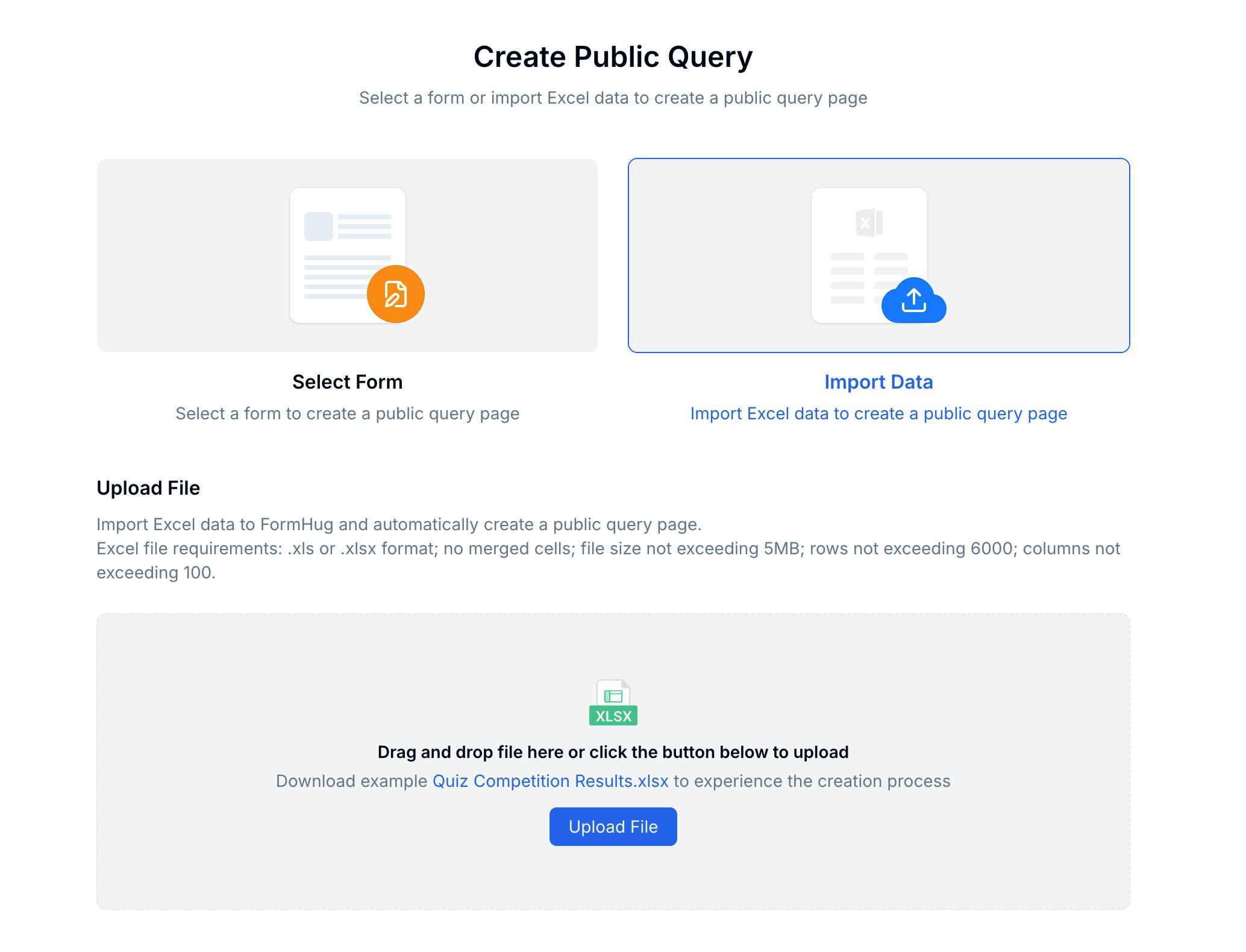 If you selected **Select Form** in the previous step, skip this step — FormHug maps the fields automatically and takes you straight to Step 3.
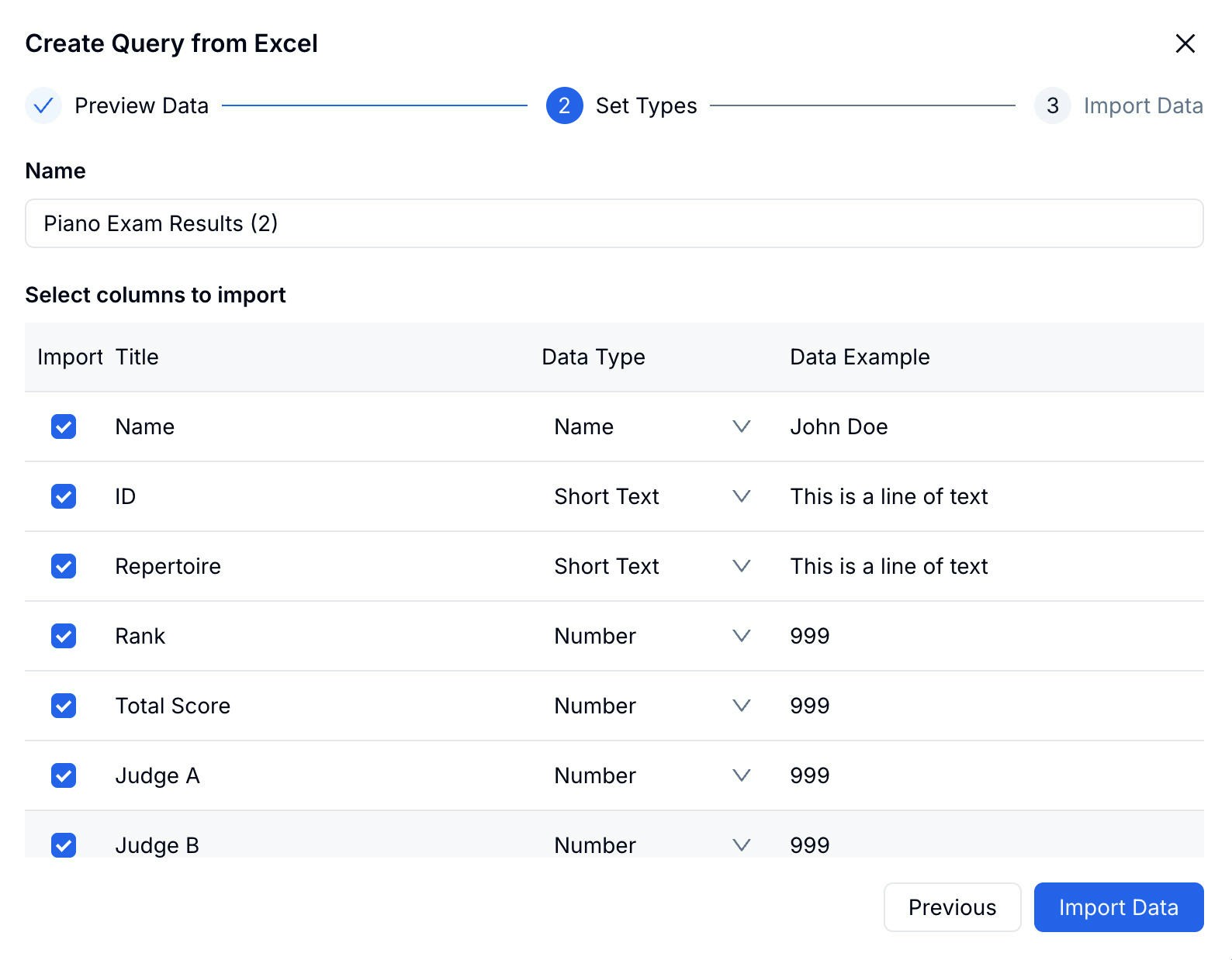
Upload your Excel file, preview the data, then assign a data type to each column (Name, Short Text, Number, etc.) and click **Import Data**.
If you selected **Select Form** in the previous step, skip this step — FormHug maps the fields automatically and takes you straight to Step 3.
Upload your Excel file, preview the data, then assign a data type to each column (Name, Short Text, Number, etc.) and click **Import Data**.
 Excel file requirements:
* Format: `.xls` or `.xlsx`
* No merged cells
* File size: 5 MB or less
* Rows: 6,000 or fewer
* Columns: 100 or fewer
Choose which fields visitors must enter to look up their record — for example, Participant ID alone, or ID + Phone for added security.
Excel file requirements:
* Format: `.xls` or `.xlsx`
* No merged cells
* File size: 5 MB or less
* Rows: 6,000 or fewer
* Columns: 100 or fewer
Choose which fields visitors must enter to look up their record — for example, Participant ID alone, or ID + Phone for added security.
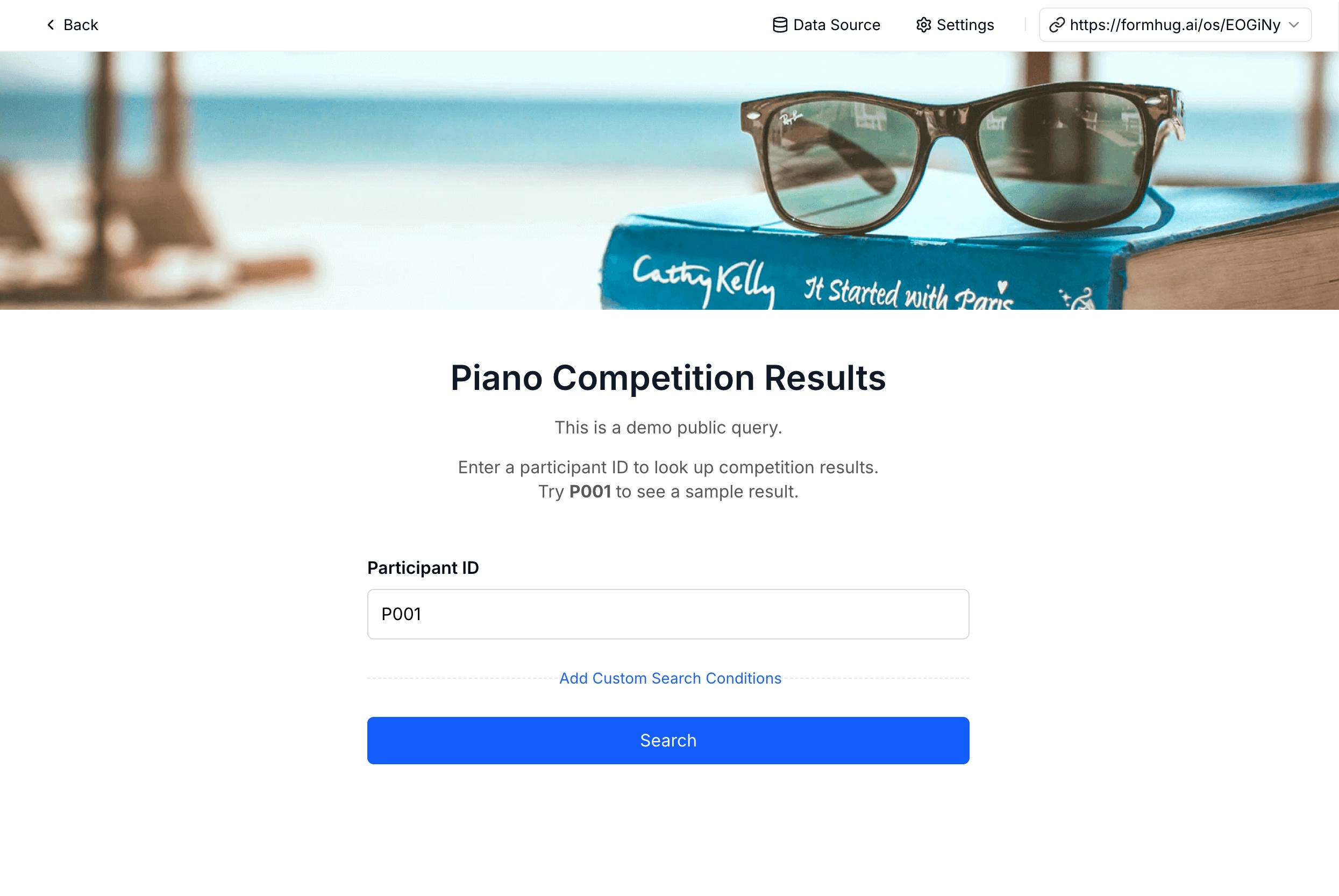 Use fields that are unique to each person — like a registration ID or phone number — so only the right person can access their record.
Choose which fields to show in the result. Each field has three display options:
Use fields that are unique to each person — like a registration ID or phone number — so only the right person can access their record.
Choose which fields to show in the result. Each field has three display options:
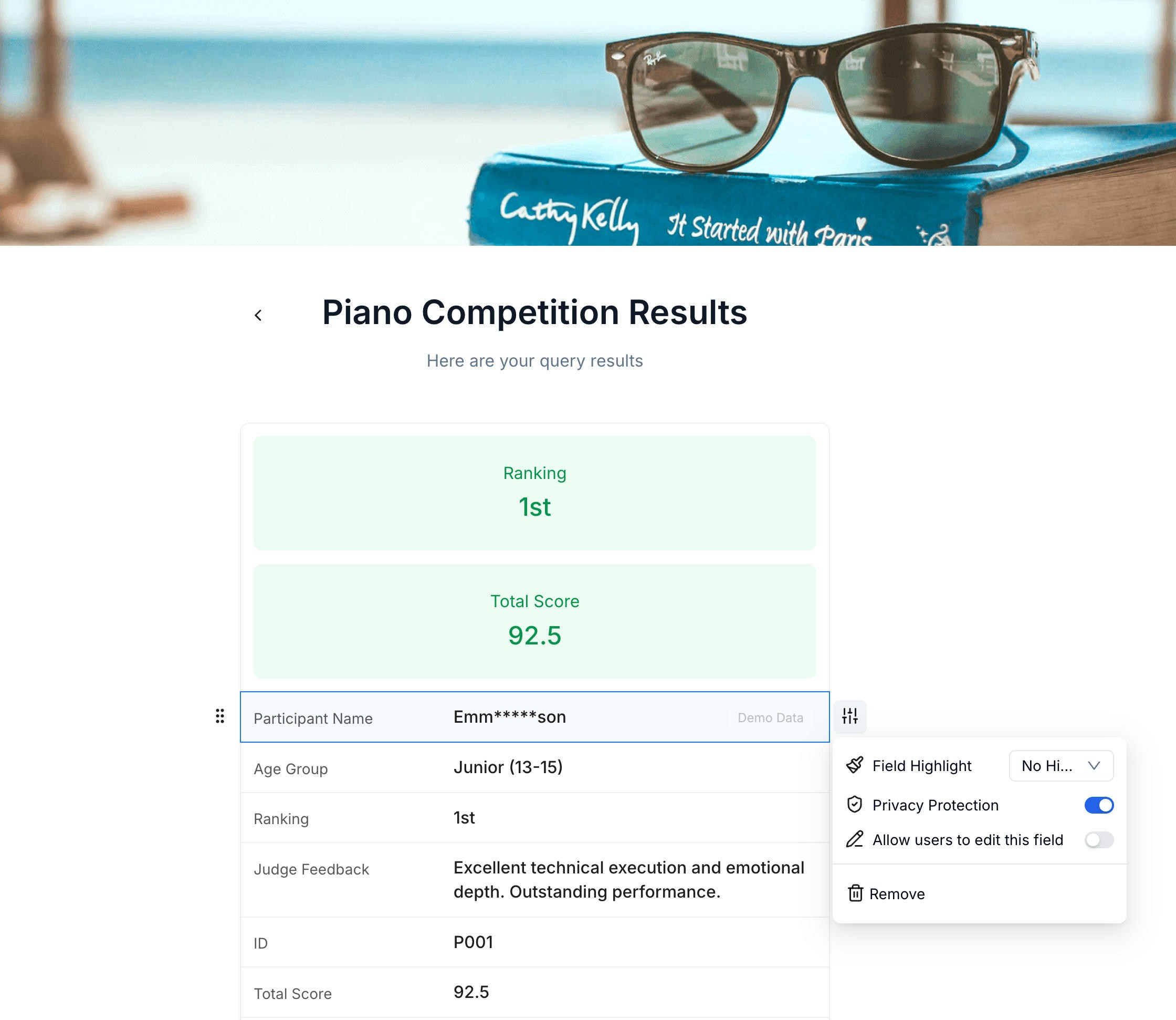 | Setting | Description |
| ---------------------------------- | -------------------------------------------------------------------------------------------------------------- |
| **Field Highlight** | Pin a key field (e.g. Ranking, Score) to display prominently at the top of the result, with large colored text |
| **Privacy Protection** | Partially mask the field value — for example, a name displays as `Emm*****son` |
| **Allow users to edit this field** | Let the visitor update this field directly from the result page |
Fields not included in the result are never exposed to visitors.
Your Public Query page gets a dedicated shareable URL (e.g. `formhug.ai/os/EOGiNy`). Copy the link from the top bar and distribute it — anyone with the link can open it and search, no account required.
Open a real Public Query page — enter participant ID **P001** to see a sample result
## Related
Accept appointments and manage availability
Manage and export form submission data
Turn spreadsheet rows into a private, self-service search page
See how Public Query works for score and result lookup pages
| Setting | Description |
| ---------------------------------- | -------------------------------------------------------------------------------------------------------------- |
| **Field Highlight** | Pin a key field (e.g. Ranking, Score) to display prominently at the top of the result, with large colored text |
| **Privacy Protection** | Partially mask the field value — for example, a name displays as `Emm*****son` |
| **Allow users to edit this field** | Let the visitor update this field directly from the result page |
Fields not included in the result are never exposed to visitors.
Your Public Query page gets a dedicated shareable URL (e.g. `formhug.ai/os/EOGiNy`). Copy the link from the top bar and distribute it — anyone with the link can open it and search, no account required.
Open a real Public Query page — enter participant ID **P001** to see a sample result
## Related
Accept appointments and manage availability
Manage and export form submission data
Turn spreadsheet rows into a private, self-service search page
See how Public Query works for score and result lookup pages