March 9, 2026 • 7 min read
How to Share Exam Scores and Competition Results Without Exposing Everyone's Data

Every time you run an exam, a competition, or an event with ranked outcomes, the same problem appears: how do you get 200 people their results without emailing them one by one, or posting a spreadsheet that anyone can scroll through?
The answer is a self-service results lookup page — a shareable URL where each visitor enters their own ID or email and sees only their matching record. Nothing else is visible. No account required. No spreadsheet to leak.
This post explains how this works, when it makes sense to use it, and how to set one up in about ten minutes using FormHug.
Why the standard approaches don’t work well
When sharing results with a group, there are two competing goals: accessibility (everyone finds their result quickly) and privacy (no one sees anyone else’s). Most common approaches fail on at least one.
Mass email solves privacy — each person gets only their data — but doesn’t scale. Sending 200 individual messages takes time, and every “I can’t find the email” reply turns into a support request.
Shared spreadsheet is the easiest setup but fails on privacy. Even with names removed and IDs only, participants can often infer whose row is whose. If the link leaks, everyone’s data is exposed at once.
Password-protected page is a step up, but a single shared password offers weak protection — the moment one person shares it, it’s gone. You also still need to distribute the password securely.
Custom-built lookup tool solves everything, but requires a developer and ongoing maintenance. Most organizations running recurring events or exams don’t have the bandwidth to build one.
How a results lookup page works
A results lookup page is a shareable URL where visitors find their own record by entering an identifier — a participant ID, student ID, email, or any field you choose. The page returns exactly one matching record. Nothing else is visible.
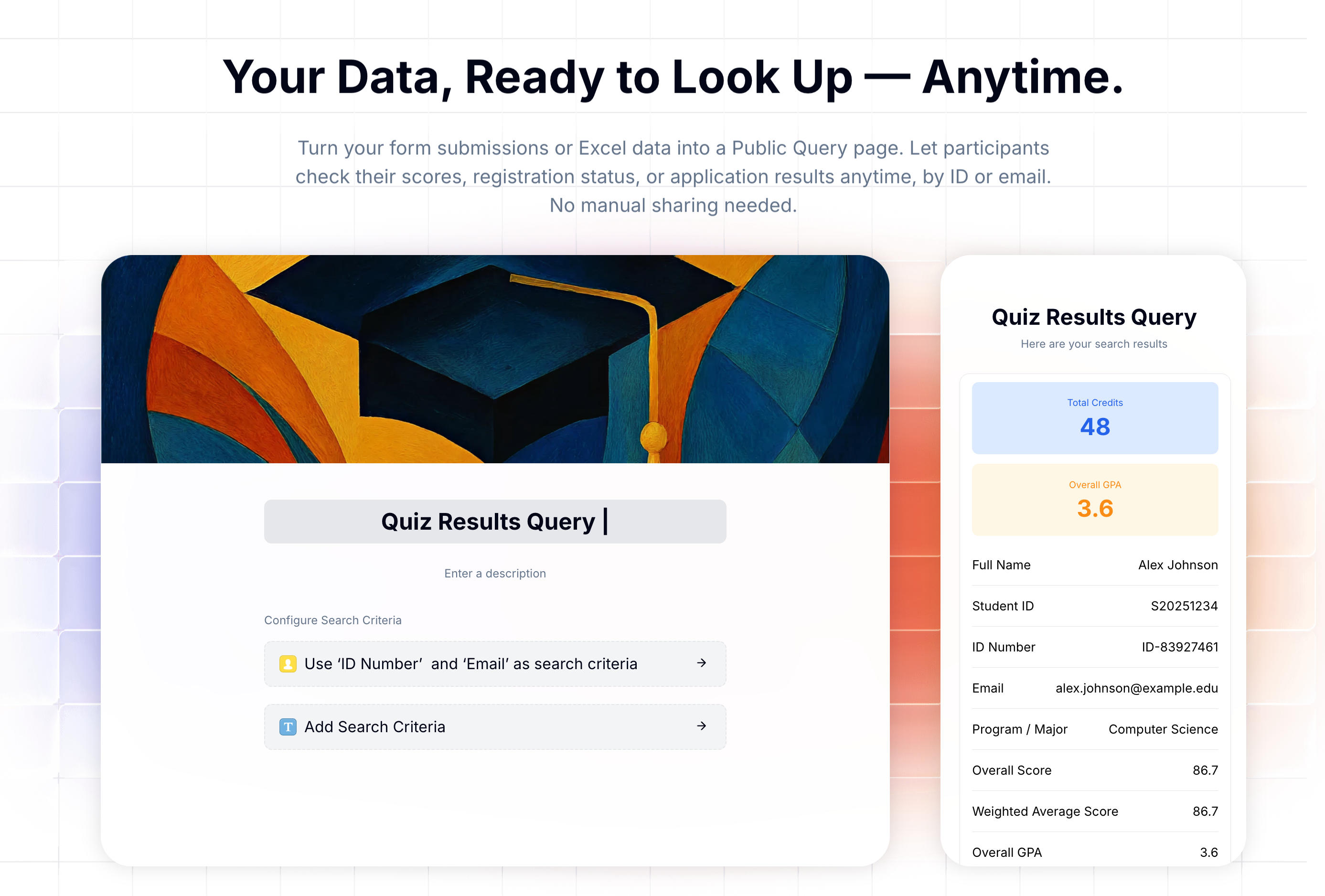 A results lookup page built with FormHug. The visitor enters their ID and sees only their own result.
You control the lookup key, which fields appear in the result, and whether sensitive data like a full name gets partially masked. The visitor experience is: enter your ID, see your result. No signup, no friction.
From your side, you create the page once, share one link, and the system handles every individual lookup. Whether you have 50 participants or 5,000, the operational work is the same.
FormHug calls this feature Public Query. It requires no code, and the setup typically takes under fifteen minutes.
When to use a results lookup page
This approach fits any situation where you have per-person structured data and need each person to access only their own row.
Competition and tournament results — Participants enter their ID and see ranking, total score, and judge feedback. You can highlight the most important field (rank or score) at the top with large colored text.
Exam scores and academic results — Students look up by Student ID, or by ID plus email for added security. Results can show overall score, subject breakdown, GPA, and instructor notes. Sensitive fields like full name can be partially masked.
Event registration status — Registrants check whether they’re confirmed, waitlisted, or need to take action. Useful for conferences and workshops with limited capacity.
Application and admission outcomes — Applicants enter an application ID or email and see their status plus any next steps, without a round of individual notification emails.
Certification and credential lookup — Graduates or trainees verify whether their certificate was issued and check its validity date.
This approach is not the right fit for situations that require real-time updates, deep historical record-keeping, or ongoing two-way communication between participants and organizers. Those use cases genuinely benefit from purpose-built platforms — an LMS, a race results service, or an applicant tracking system. For everything else, a lookup page is faster to set up and simpler to maintain.
How to set one up: four steps
Step 1: Choose your data source
Two options. If you collected data through a FormHug form — a registration form, an assessment, a survey — connect the lookup page directly to that form. Field mapping is automatic.
If your data is already in a spreadsheet, import the Excel file directly. FormHug accepts .xls and .xlsx files up to 5 MB, 6,000 rows, and 100 columns.
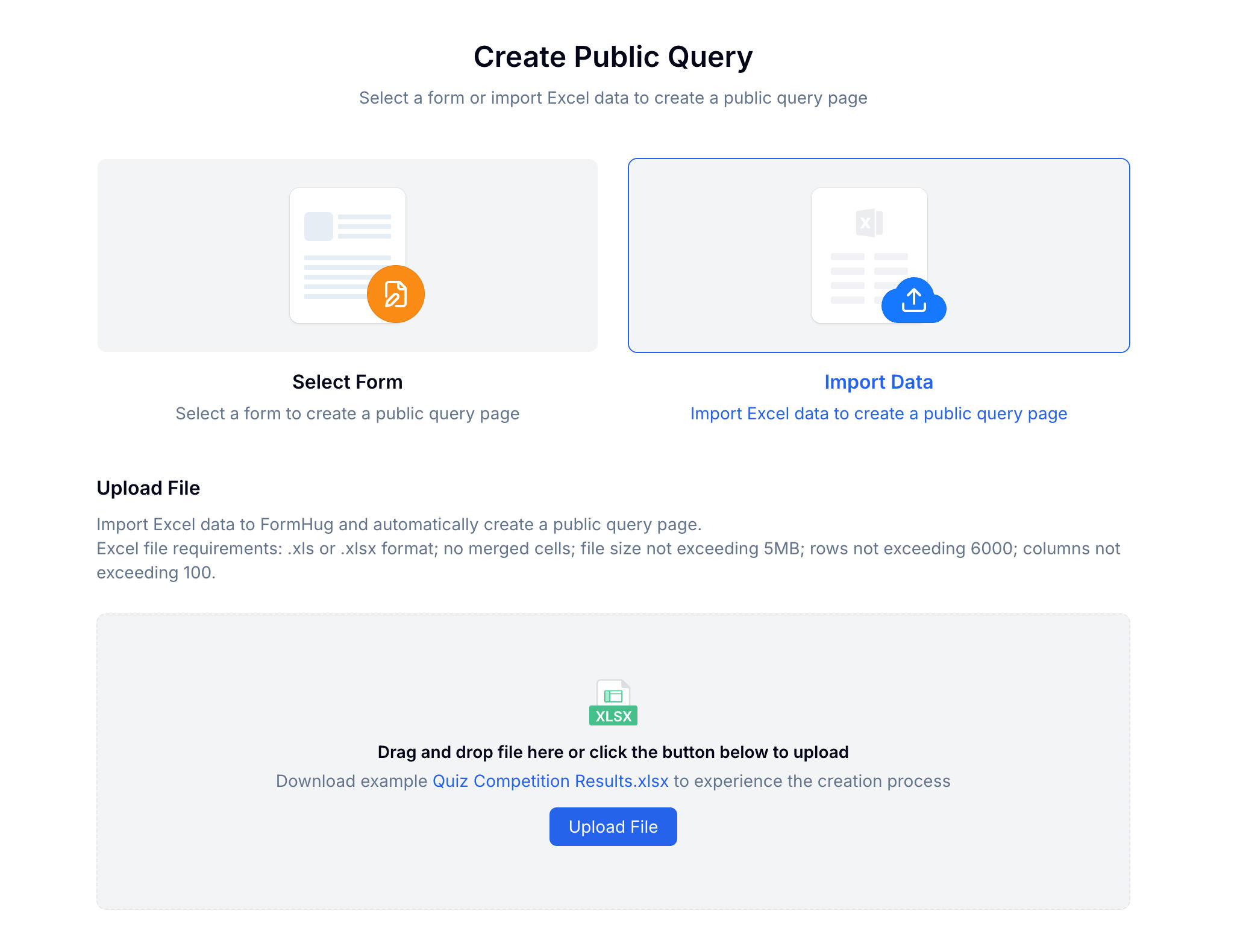 Choose to connect a FormHug form or upload an Excel file.
Step 2: Import your data (Excel only)
If you chose a FormHug form, skip this step — fields are mapped automatically.
For Excel imports: upload your file, preview the data, assign a data type to each column (name, number, short text, etc.), and confirm. The data is now ready for querying.
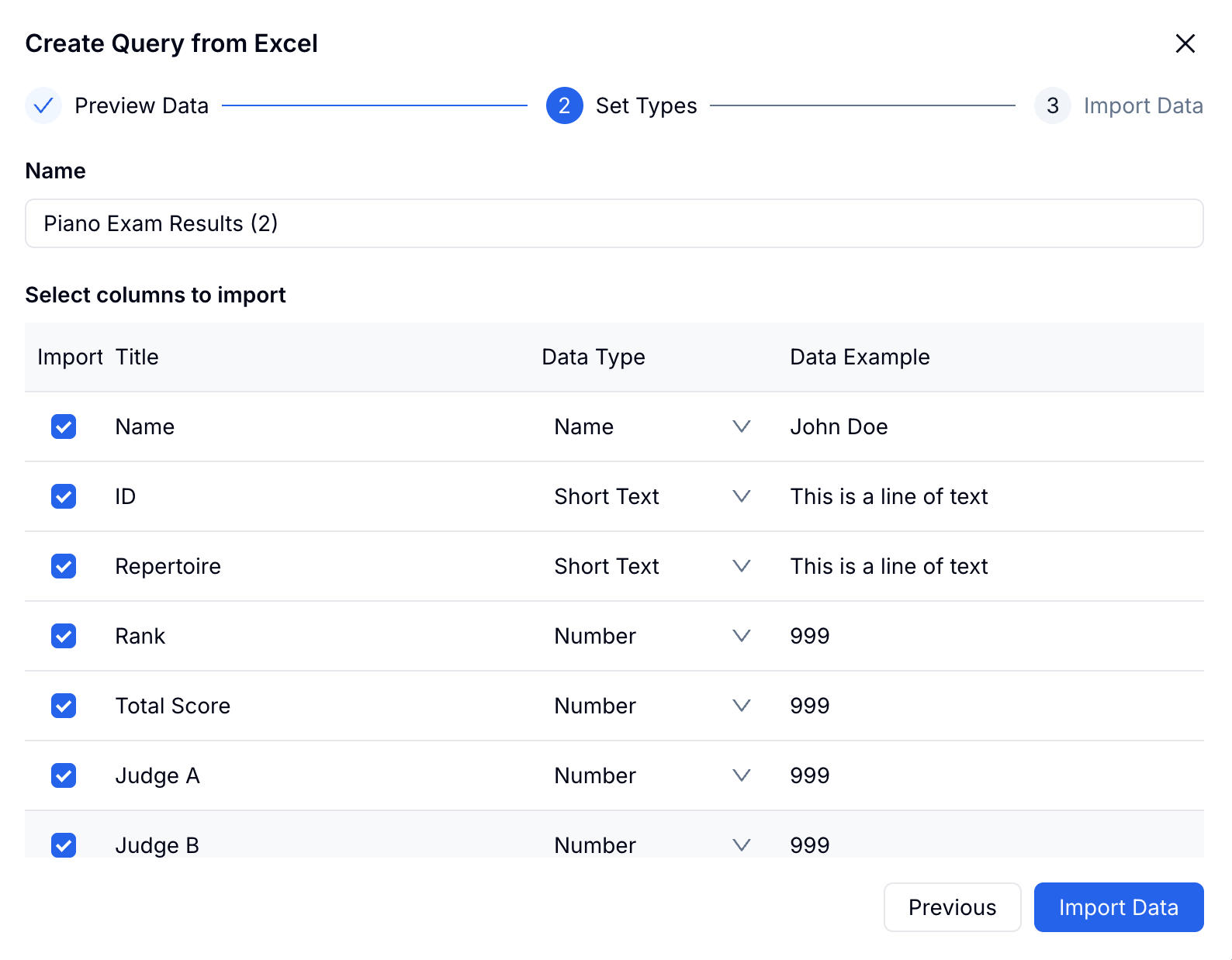 Assign a data type to each column, then import.
Step 3: Set search conditions
Choose which fields a visitor must enter to retrieve their record. One field (Participant ID) is simplest. Two fields (ID plus phone number) adds security — the chance of someone guessing both is negligible.
Use fields that are unique to each person. Registration IDs, student IDs, and phone numbers work. First names alone do not.
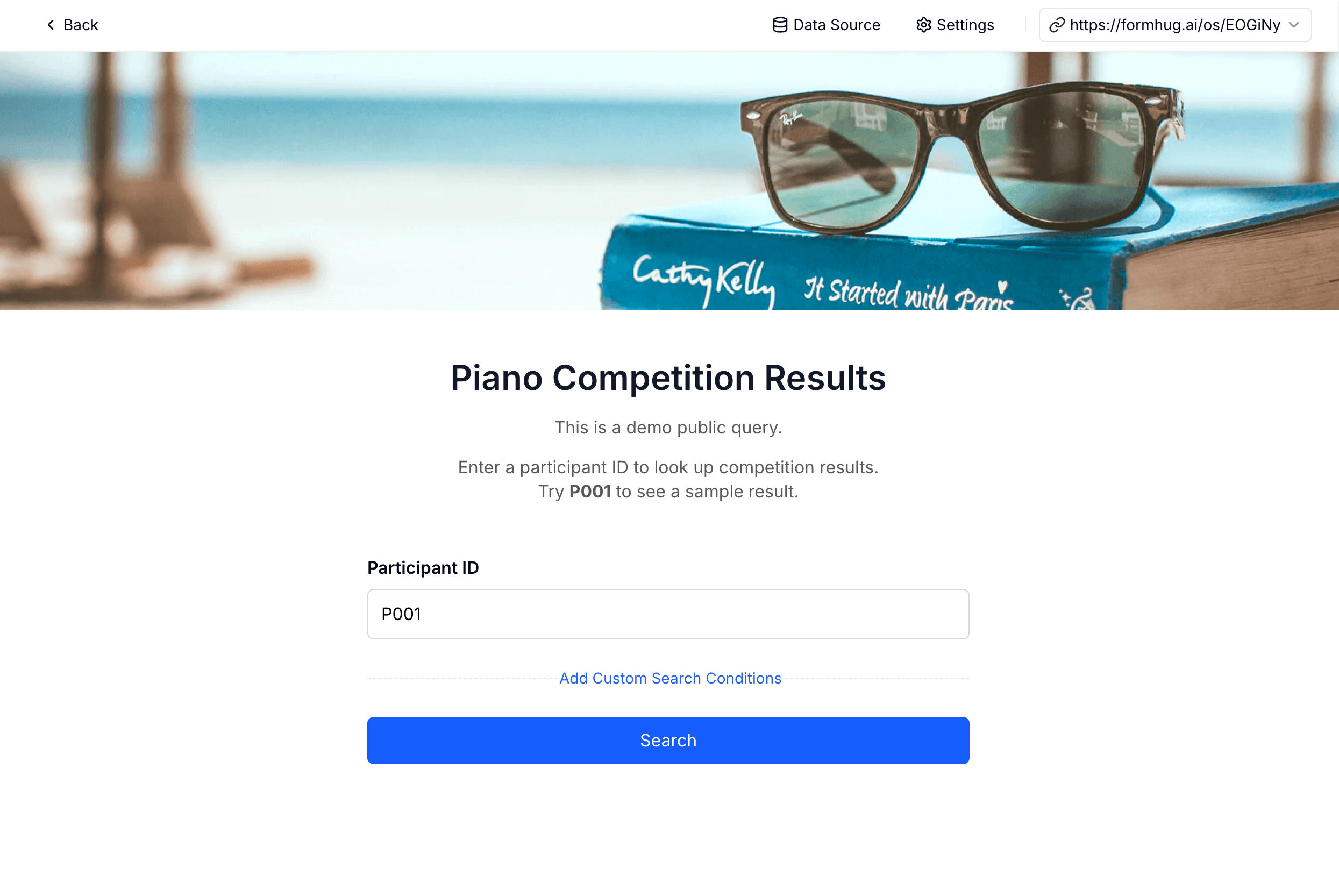 Require one or two fields. Two-field lookup significantly raises the privacy bar.
Step 4: Configure results and share
Choose which fields to display in the result. Each field has three settings:
- Field Highlight — Pin a key field to the top with large colored text. Use this for the most important number: rank, score, or status.
- Privacy Protection — Partially mask the value. “Emmerson” shows as “Emm*****son” — recognizable to its owner, opaque to everyone else.
- Allow editing — Let the visitor update that field from the result page. Useful for confirming attendance or correcting contact details.
Fields not included in the display are never exposed.
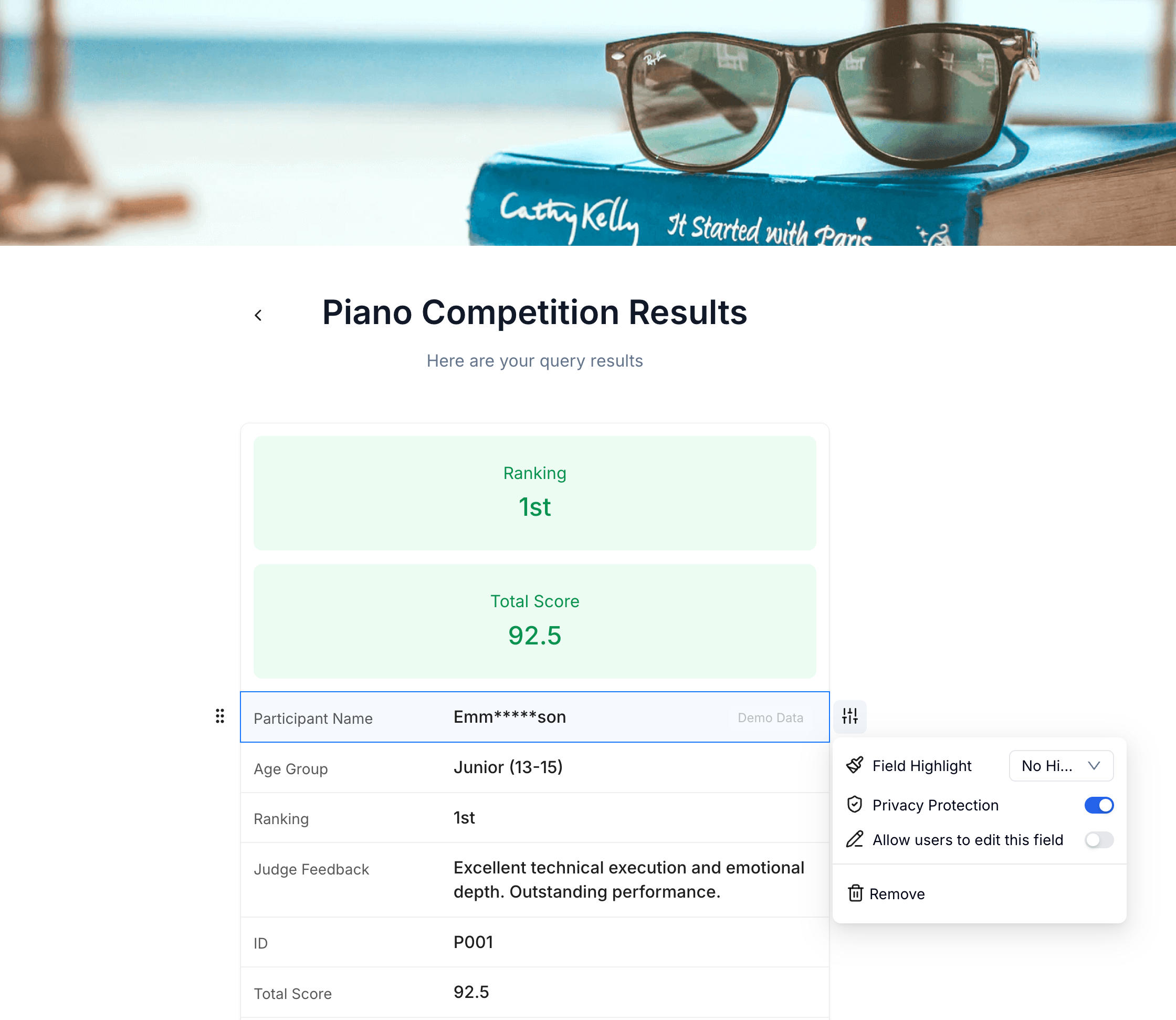 Configure each field independently. Highlight what matters, mask what’s sensitive.
Your page gets its own URL — for example, formhug.ai/os/EOGiNy. Copy it and send it to your participants. Anyone with the link can look up their record immediately.
A note on privacy and security
The most common question: what stops someone from guessing another person’s ID?
It depends on how your IDs are structured. Sequential integers (1, 2, 3…) are guessable. Random or alphanumeric IDs (REG-4H8K2P) are not practically guessable.
For stronger protection — exam scores, admissions results — require two lookup fields. Guessing a participant’s ID and their phone number simultaneously is essentially impossible.
The Privacy Protection masking adds another layer. Even if someone reached the wrong record, sensitive fields like names and emails are partially hidden.
If you need to take the page offline after the lookup window has passed, you can unpublish it from the FormHug dashboard.
Try it live
You can see the visitor experience before creating your own. Open the example page and enter participant ID P001:
To build your own, start from the FormHug dashboard. The free plan includes 3,000 submissions per month.
Frequently Asked Questions
Do visitors need a FormHug account to look up their results?
No. Anyone with the link can open the page and search immediately — no sign-up, no login required.
Can I use this with an existing Excel spreadsheet?
Yes. Import .xls or .xlsx files up to 5 MB and 6,000 rows. After uploading, you assign column types and publish. No need to re-enter data inside FormHug.
How do I stop someone from seeing another person’s record?
Require two fields for the lookup — for example, Participant ID and phone number. The chance of guessing both correctly is negligible. You can also enable Privacy Protection on sensitive fields to partially mask their values.
Can visitors edit their own record from the result page?
Yes, for fields you explicitly enable. This is useful for confirming attendance, correcting an email address, or filling in missing information.
Is this available on the free plan?
Yes. FormHug’s free plan includes 3,000 submissions per month — significantly more than most form tools offer on free tiers.
What file formats does Excel import support?
FormHug accepts .xls and .xlsx files. Maximum 5 MB, 6,000 rows, and 100 columns. Merged cells are not supported.
Related
- How to Share Race Results With Participants After a 5K, 10K, or Triathlon — the same approach applied to timed events and races
- How to Share Training Course Results With Students Without a Student Portal — for bootcamps, language schools, and certification courses
- How to Build a Lookup Page from an Excel Spreadsheet — start here if your data is already in Excel
- Public Query feature page — full feature overview and screenshot walkthrough
- Public Query setup guide — step-by-step documentation