How to Share Training Course Results With Students Without a Student Portal
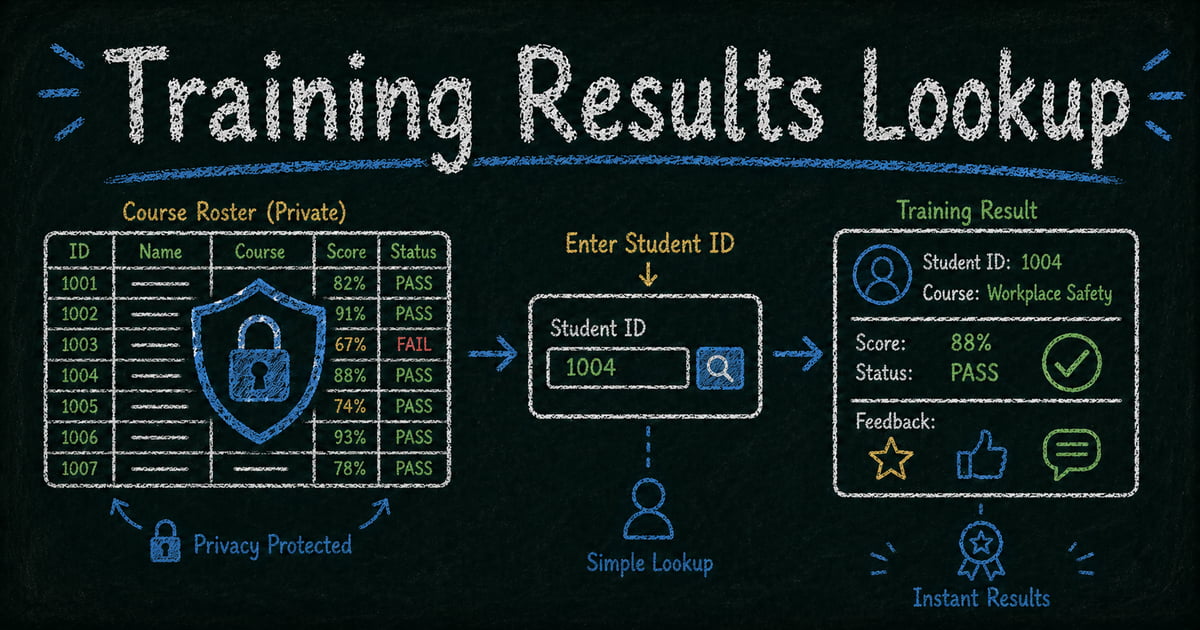
Share results safely
Let each respondent look up their own result
Create a controlled lookup workflow for exams, race results, course records, or private respondent data.
The average instructor running a cohort without an LMS spends 2–4 hours distributing results — individual emails, follow-up chases, and answering “did I pass?” from students who never got a reply. For programs of 40 or 400, the logistics scale worse than the teaching does.
You’ve just finished grading a cohort. Forty students completed your course, and every one of them wants to know if they passed, what they scored, and whether their certificate is on the way.
You have two realistic options: send forty individual emails, or drop a spreadsheet link in the group chat and quietly accept that everyone can now see everyone else’s grade.
Neither is right. And for most small training organizations, bootcamps, language schools, and independent instructors, the “real” solution — a proper learning management system with a student portal — is several thousand dollars and three months of setup away.
There’s a faster path: a self-service grade lookup page where each student enters their Student ID and sees only their own result. No portal. No mass email. One link, shared once with the whole cohort.
TL;DR — A grade lookup page lets each student enter an ID and see only their own course result, without a full LMS or private portal.
- Share one link with the cohort — students self-serve pass status, score, feedback, or certificate links.
- Use non-guessable IDs — avoid sequential numbers for sensitive student records.
- Import the gradebook once — update by re-importing when re-sits or corrections happen.
- Works for: bootcamps, language schools, workshops, certification cohorts, continuing education, training providers.
- Use a full LMS when you need assignments, attendance, content hosting, and gradebooks in one system.
The options small training orgs usually try
When you don’t have an LMS, distributing results becomes an ad hoc problem that gets solved differently every cohort. None of the common approaches are actually good.
Individual emails are the default for most small organizations. They feel personal, but they’re operationally painful at scale. Forty students means forty emails to compose, send, and follow up on. When a student says they didn’t receive theirs, you’re back in their inbox manually.
A shared spreadsheet is faster to set up but makes a quiet mess of privacy. Even if you remove names and keep only student IDs, students in the same cohort often know each other’s IDs. One curious scroll and they’ve seen the whole cohort’s grades.
A private message in your course platform (Slack, Discord, a course portal) only works if every student is still active in that platform after the course ends. Many aren’t.
Waiting to issue certificates as the results delivery mechanism delays feedback unnecessarily and gives students no visibility into scores or specific assessment results.
How a grade lookup page works
A grade lookup page is a shareable URL where students retrieve their own result by entering an identifier — typically their Student ID or enrollment number. The page returns exactly one matching record. No other student’s data is visible.
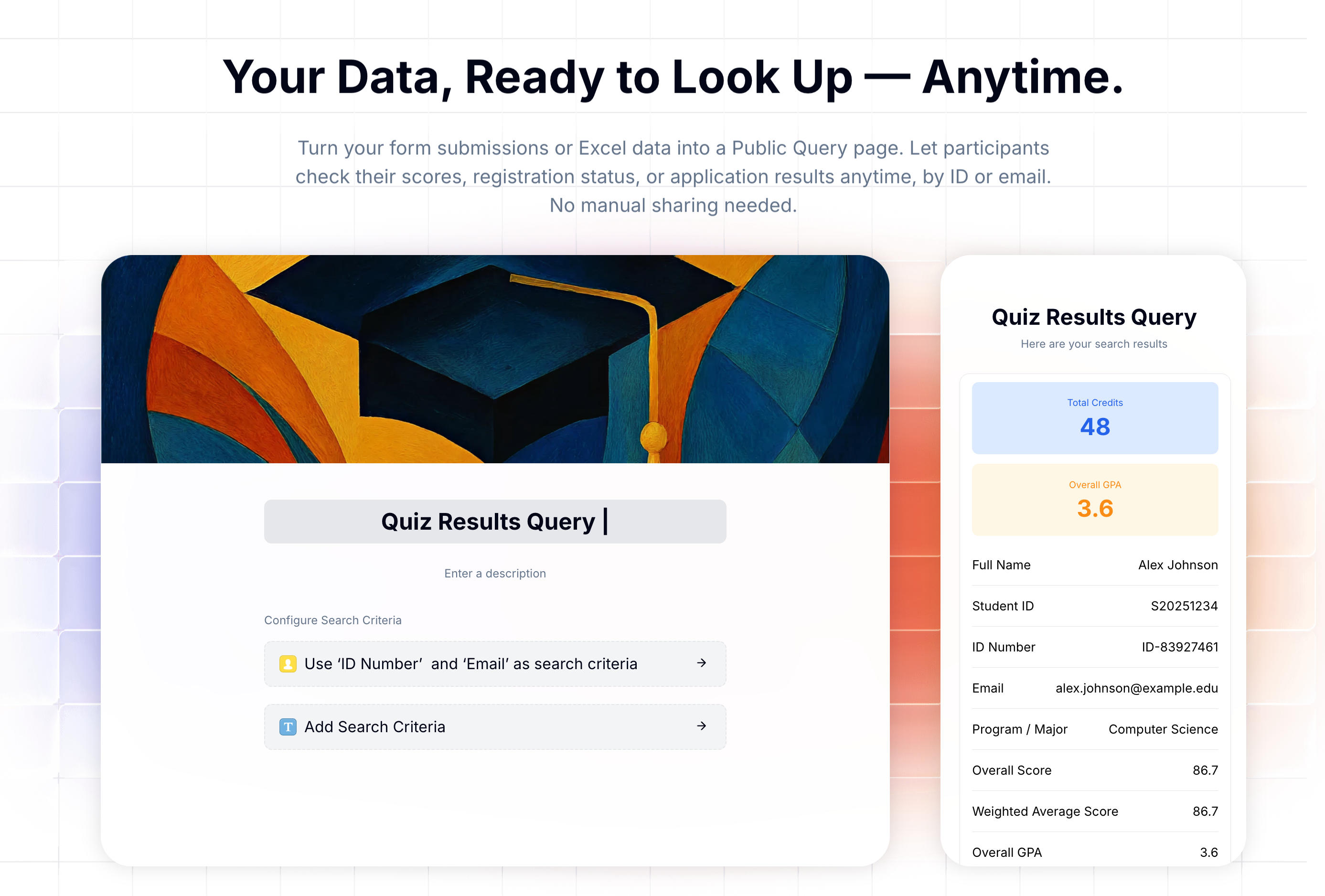 A grade lookup page: the student enters their ID and sees only their own result.
You publish it once after grading is complete, share the link with your cohort, and every student self-serves their result. Whether you have 20 students or 200, the process is the same on your end.
FormHug calls this feature Public Query. It can publish a lookup page from imported Excel data or from selected form submissions, so a course provider can use the same model whether grades live in a spreadsheet, quiz form, assessment form, or cohort registration record.
What to include in each student’s result
The lookup page displays whatever columns you include from your gradebook. Common fields for training courses and bootcamps:
- Pass / Fail status — pinned to the top in large colored text (green for pass, red for fail), so students know immediately without reading further
- Overall score or percentage — the primary grade
- Module or assessment breakdown — individual scores per section, useful for students who want to understand where they performed well or need improvement
- Certificate status — “Certificate issued” or “Certificate pending” if you’re issuing credentials
- Instructor notes — brief personalized feedback, if your workflow includes it
- Student name — optionally masked (showing “A*** Johnson” rather than the full name) if your cohort is small and students might recognize each other’s names from context
Fields you don’t include in the display are never exposed. Your internal columns — email addresses, payment status, cohort management notes — stay private.
Setting it up from a gradebook: four steps
Your gradebook is probably already a spreadsheet. That’s all you need to start.
Step 1: Prepare your gradebook
Make sure your spreadsheet has a unique identifier per student — Student ID, enrollment number, or any code that only you and the student know. If you’ve been tracking students by name or email only, add a Student ID column now. Sequential IDs (S001, S002…) work fine.
Include whichever result columns you want students to see: overall score, module scores, pass/fail, certificate status.
Step 2: Import the spreadsheet
Upload your .xls or .xlsx file in FormHug’s Public Query setup. You’ll see a preview and assign a column type to each field — name, number, short text, pass/fail status. FormHug accepts files up to 5 MB and 6,000 rows, which covers any cohort size a typical training organization runs.
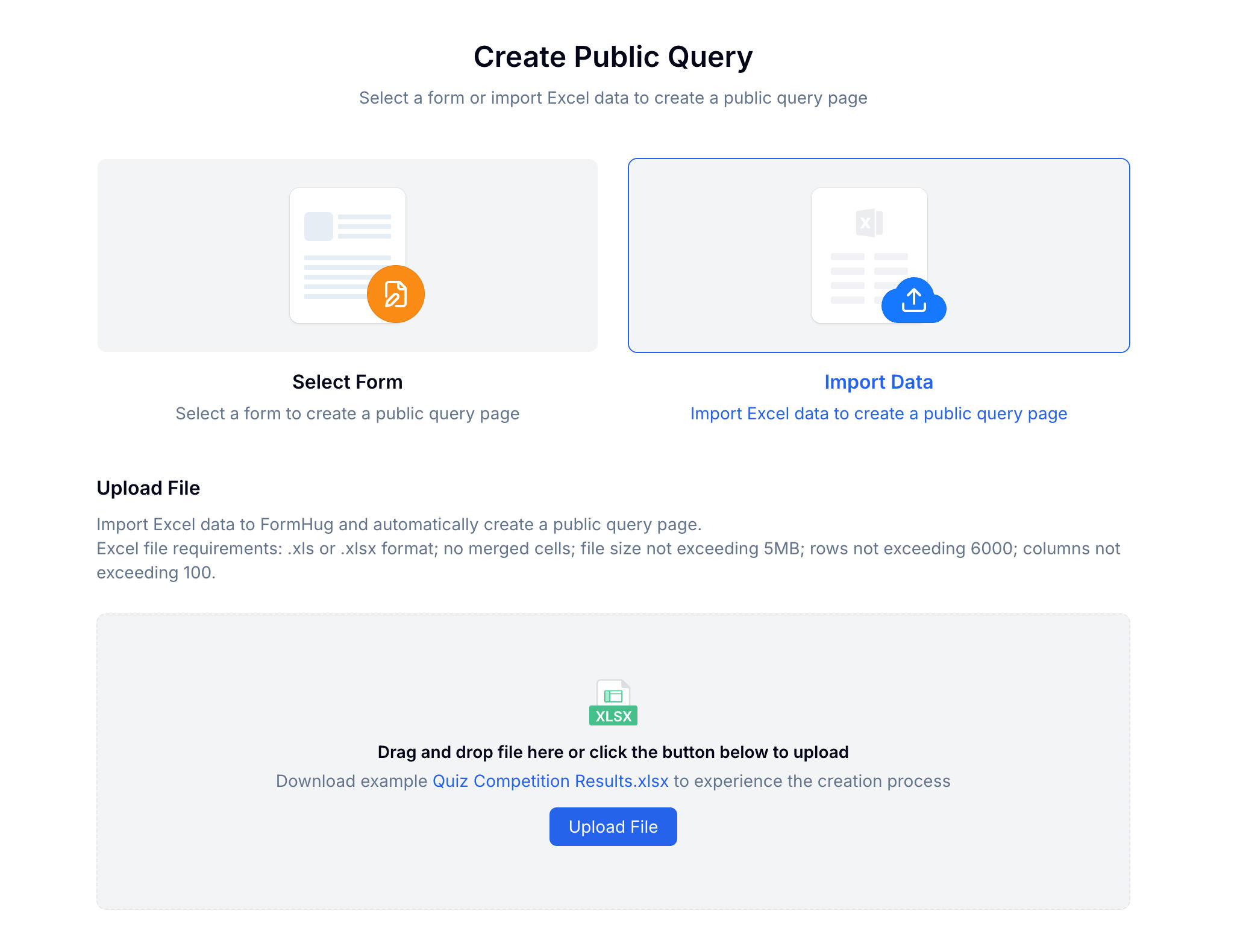 Upload your gradebook and assign column types. The data is ready to query immediately.
Step 3: Set the lookup field
Choose what students enter to retrieve their result. Student ID alone works for most courses — it’s unique per student and something only they know from their enrollment confirmation. For more sensitive results (professional licensing exams, high-stakes certifications), require Student ID plus enrollment email. Guessing both simultaneously is not practically possible.
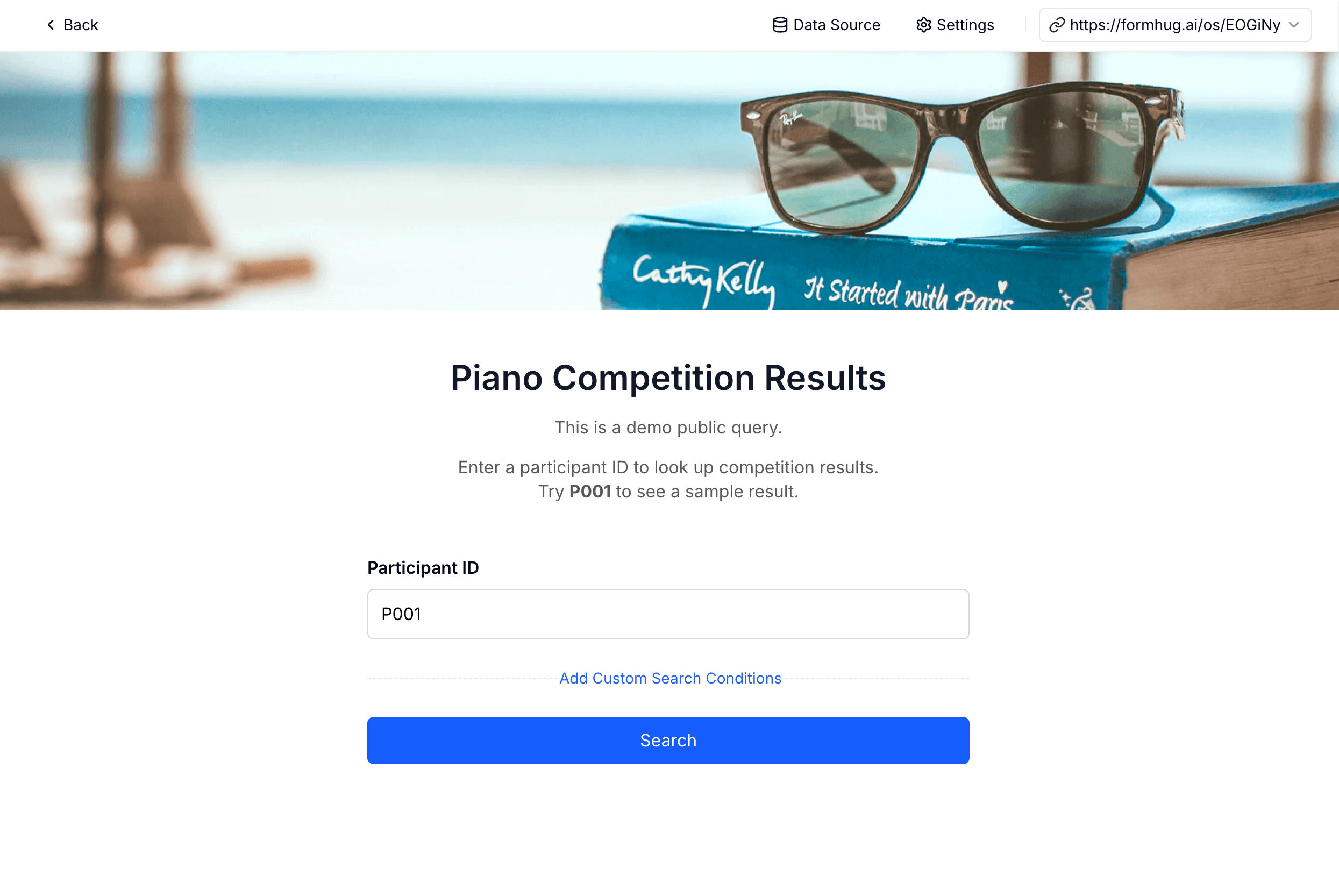 Set Student ID as the lookup field. Add enrollment email as a second field for higher-stakes results.
Step 4: Configure the display and share
Decide which fields appear in the result and how they’re presented. Pin the Pass/Fail status to the top with large text — that’s what students scroll to first. Show module scores below if you want to give students detailed feedback. Enable Privacy Protection on the student name if appropriate.
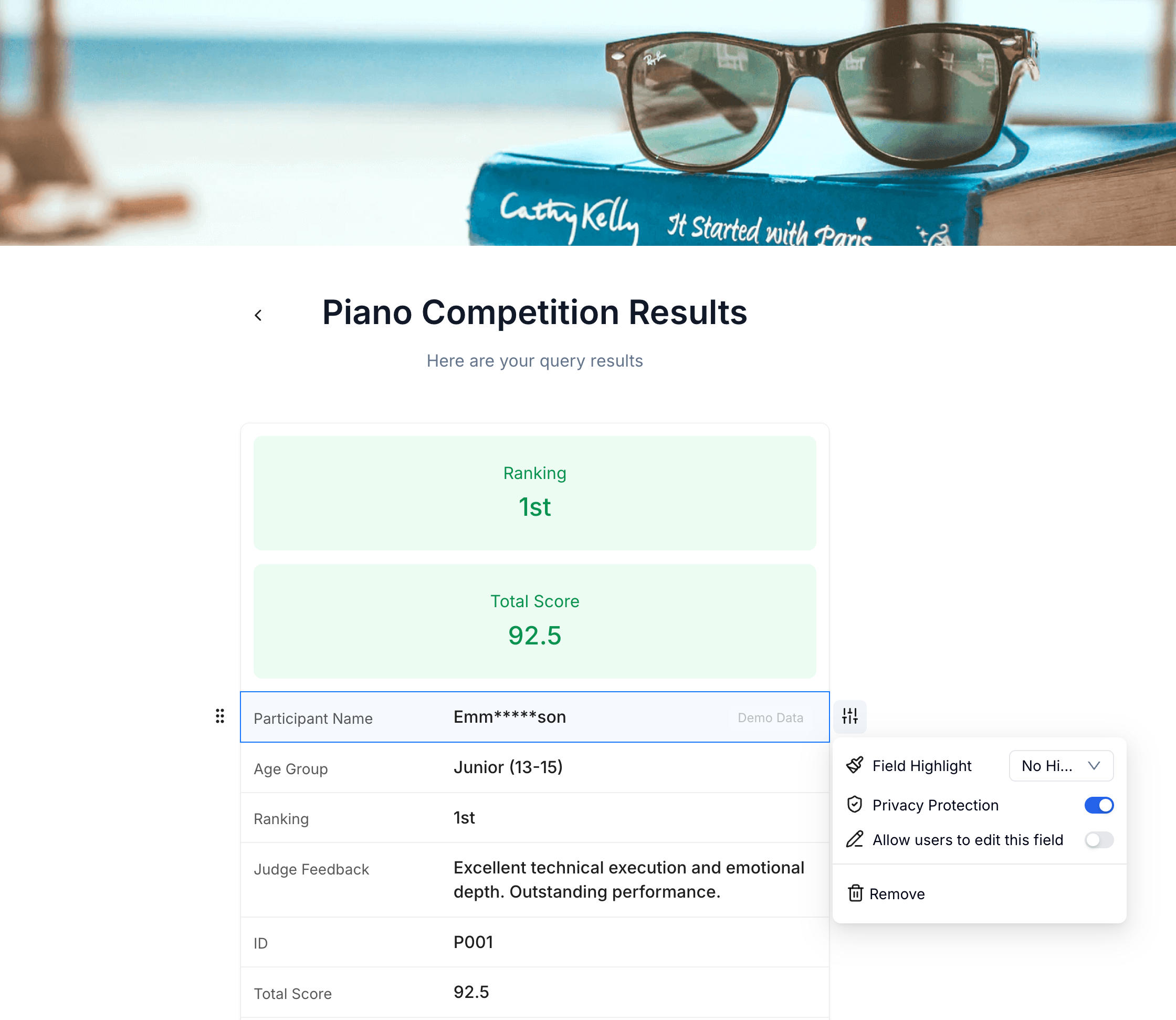 Highlight pass/fail status first, then show scores and module breakdown. Students get the full picture without seeing anyone else’s data.
Your lookup page gets a unique URL. Share it in your course completion email, your cohort Slack channel, or wherever your students expect to hear from you. Anyone with the link and their Student ID can look up their result immediately.
For the full settings reference, including two-field lookup and privacy masking, see the Public Query docs.
When this fits your workflow
This approach works well for:
- Coding bootcamps and intensive courses — cohorts of 15–100 students completing a structured program with final assessments
- Language schools and proficiency courses — students checking level placement results or end-of-term scores
- Professional certification prep courses — learners checking mock exam scores before the real certification date
- Corporate training programs — employees completing compliance training or internal skill assessments
- Workshop series with assessed outcomes — multi-session programs where completion requires a passing score
It’s not the right fit for ongoing academic programs that need gradebook history, discussion, or assignment submission. Those genuinely benefit from an LMS. But for the specific task of sharing final results with a completed cohort, a lookup page is faster and simpler.
Student privacy
Sharing grades is sensitive by default. A few practical guidelines:
Use non-guessable IDs. Sequential integers (1, 2, 3) can be guessed if students know the cohort size. Prefixed IDs (S2026-041) or randomly assigned codes are better. In our experience, the teams that set up a second lookup field — ID plus enrollment email — almost never receive a privacy complaint, while those using sequential integer IDs alone occasionally do.
Require two lookup fields for high-stakes results. For professional certifications or results with legal or employment implications, require Student ID plus another field like enrollment email. This eliminates any realistic chance of unauthorized access.
Don’t include more than you need. If you collected date of birth, home address, or payment information as part of enrollment, those fields should stay out of the results display entirely. Only include what students actually need to see.
Set an end date. Once students have had reasonable time to check their results, unpublish the page from your dashboard. Results don’t need to be accessible indefinitely.
Try it live
See the student experience before setting up your own. Open the example page and enter participant ID P001:
To set up a grade lookup page for your next cohort, start from the FormHug dashboard. The free plan includes 3,000 submissions per month.
Frequently Asked Questions
My gradebook is in Google Sheets, not Excel. Can I still use this?
Yes. Export from Google Sheets as .xlsx (File → Download → Microsoft Excel), then upload that file to FormHug. The process is the same from there.
What if I update grades after publishing — for example, after a re-sit?
Re-import an updated spreadsheet. The lookup page URL stays the same, but the underlying data refreshes. Students who look up their result after the re-import will see the updated grade.
Can students see each other’s results if they share the link?
No. The link alone isn’t enough — each student must enter their own Student ID to retrieve a result. If a student shares both the link and their own ID with someone else, that person could see their result. This is the same trust model as sharing a login — you can’t prevent it entirely, but it’s not a structural privacy gap.
Can I include a personalized message per student in the results?
Yes, if you include a text column in your spreadsheet. You could have an “Instructor feedback” or “Next steps” column with individual notes, and it will appear in each student’s result page alongside their scores.
Is this suitable for sharing results with minors (under-18 students)?
For courses involving minors, check your local requirements around educational data and parental consent. The lookup page itself doesn’t collect any data from visitors — it only displays what you’ve imported. But your obligations around where that data is stored and who can access it depend on your jurisdiction and the age of your students.
Can I run multiple cohorts on separate lookup pages?
Yes. Create a separate Public Query page for each cohort, each with its own URL. You can share cohort-specific links so students from one cohort can’t look up students from another, even if they happened to know someone else’s Student ID.
Related
- How to Create a Private Exam Results Lookup Page — the same approach for exams, certifications, and judged competitions
- How to Share Race Results With Participants After a 5K, 10K, or Triathlon — results distribution for timed events
- How to Build a Lookup Page from an Excel Spreadsheet — start here if your data is already in Excel
- Public Query — FormHug’s self-service lookup feature for form and spreadsheet data
Every cohort ends with the same question: “Did I pass?” A self-service lookup page answers it for every student at once — no emails, no spreadsheet, no privacy risk. Set up your grade lookup page →

Written by
FormHug TeamProduct, research, and form automation team
The FormHug Team brings together product builders, workflow researchers, and form automation practitioners who study how people collect, route, and act on information online. Our guides are based on hands-on product testing, template analysis, customer workflow patterns, and deep experience with forms, surveys, quizzes, AI-assisted creation, integrations, and results sharing.