FormHug Agent Prompts: 8 ChatGPT Form Builder Workflows
Create with AI
Describe the workflow and get a form draft
Use FormHug to create forms from prompts, then share, automate, and reuse the structured responses.
Most people start using an agent with one request: “Create a form for me.” That is useful, but it is only the first level.
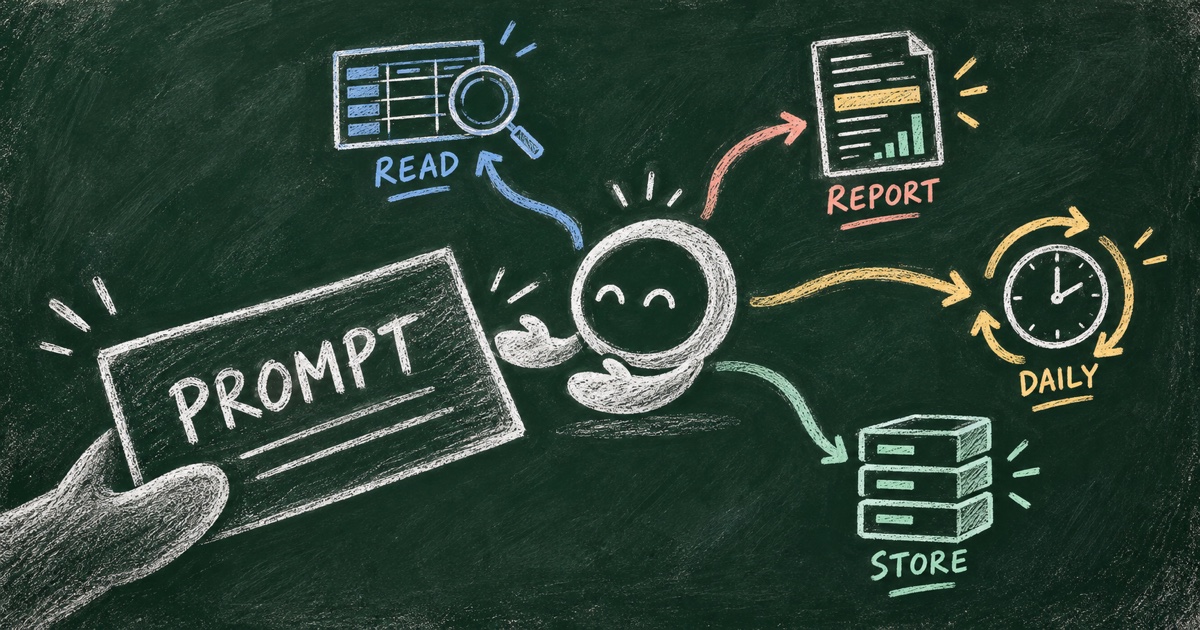
The real value appears when the agent can read submissions, find what needs attention, prepare a report, repeat the check tomorrow, or store structured records for later use.
This guide gives you eight FormHug agent prompts, moving from simple form creation to deeper workflows. Use them with FormHug in ChatGPT, Claude, or another agent connected to FormHug through an available plugin or MCP connection.
We built the examples around one practical progression: create the form, understand the data, then let the agent help with the work that follows.
TL;DR — FormHug agent prompts can move a workflow from creating a form to reading, analyzing, reporting on, and automating the data it collects.
- Start with the outcome — describe what should exist or be decided.
- Add evidence — ask the agent to show fields, response IDs, dates, or source data.
- Set a boundary — say what the agent may do and what needs approval.
- Works for: registration, feedback, intake, research, quizzes, recurring reviews, and structured records.
ChatGPT form builder prompts: Outcome → Evidence → Boundary
The best ChatGPT form builder prompts are not necessarily long. They make three things clear:
- Outcome: What should be created, found, or decided?
- Evidence: What should the agent inspect or show so the result can be checked?
- Boundary: What must the agent not send, edit, delete, or publish without approval?
For example:
Create a customer feedback form for a new mobile app.
Collect satisfaction, the feature used, what worked, what was confusing, and whether
the person wants a follow-up. Show me the field structure and public URL.
Do not share the form or contact respondents automatically.
This framework keeps an agent workflow clear even when the task becomes more advanced.
1. Create a form from a goal
Use this when you have an outcome but do not want to build the first draft manually.
Use FormHug to create a workshop registration form for “Practical AI for Operations.”

Collect:
- full name, required
- work email, required
- company or organization
- job title
- AI experience: Beginner, Intermediate, Advanced
- preferred sessions
- dietary restrictions
- questions for the workshop
- consent to receive workshop updates, required

Use clear field types and concise help text. Return the title, field list, and public URL.
Do not send or publish anything outside FormHug.
2. Modify an existing form safely
Use a focused request and state what must remain unchanged.
Update the workshop registration form we created earlier.

Add a required question: “Do you need an accessibility accommodation?”
If the answer is Yes, add a long-text follow-up asking the attendee to describe the need.
Keep the existing title, fields, options, and public URL unchanged.
Show me the revised structure before making another change.
3. Read the form before interpreting responses
Retrieval should come before analysis. This helps catch the wrong form, field, or date range.
Inspect the customer feedback form and its recent submissions.

First, list every field, its answer type, and whether it is required.
Then count submissions from the last 7 days.
Do not interpret the opinions or modify anything.
For a broader explanation of why agents need both form creation and data access, see MCP Form Builder: Give AI Agents a Way to Create and Read Forms.
4. Analyze submissions with evidence
Ask for patterns, but require the agent to show where the conclusions came from.
Analyze the last 30 days of submissions to the customer feedback form.

Report:
1. response count and date range;
2. satisfaction rating distribution;
3. the three strongest themes in open-ended answers;
4. representative response IDs for each theme;
5. questions that are often skipped.

Separate direct observations from interpretation. Do not invent examples or contact anyone.
5. Find anomalies instead of writing a generic summary
A summary tells you what is common. An anomaly check tells you what deserves review.
Review new submissions to the event registration form.

Flag possible anomalies:
- duplicate email addresses;
- registrations after the deadline;
- choices above the available capacity;
- missing details in otherwise complete submissions;
- direct requests for urgent follow-up.

For each flagged submission, show the response ID, relevant fields, triggered rule,
and confidence level. Do not edit, delete, reject, or message anyone.
6. Turn responses into a report
Name the audience and the decision the report should support.
Read this week’s employee pulse survey submissions.

Prepare a one-page report for the leadership team with:
- response count;
- top positive themes;
- top concerns and response counts;
- notable changes from last week;
- three questions leadership should discuss next;
- evidence behind each finding.

Use plain language, label uncertain conclusions, and save the report as a draft.
Do not reveal names or personal details unless necessary.
7. Schedule a recurring check
If your agent environment supports scheduled tasks, turn a useful review into a standing workflow.
Every weekday at 9:00 AM, read new submissions from the customer feedback form
since the previous run.

Check for urgent support requests, repeated complaints, a meaningful increase in low
ratings, and submissions that need a human reply.

Prepare a short report with response IDs and evidence. If nothing needs attention, say so.
Do not send emails, change submissions, or notify customers automatically.
The schedule, time range, duplicate handling, and approval boundary should all be explicit.
8. Use a form as a structured data store
The advanced use is not collecting new public responses. It is writing existing information into a deliberate form schema.
Use FormHug as a structured record for our weekly content ideas.

For each idea in the notes below, create one submission with:
- title
- target audience
- problem
- proposed format
- owner
- priority
- status
- source or evidence

Inspect the form fields first. If a value is missing, leave it blank and list it for review.
Do not overwrite existing submissions or publish anything.

[Paste the notes here]
This works when the record needs consistent fields, a human-readable history, and a clear write boundary. It does not mean every database should become a form.
Going beyond one plugin
FormHug can be one step in a larger agent workflow. Another connected tool might create a document, prepare an email, or update a calendar.
Read the approved customer feedback report from FormHug.
Create a draft weekly brief in the connected document tool.
Then prepare, but do not send, an email to the product team.

Include links to the relevant FormHug response IDs. Mark interpretations clearly.
Stop for my approval before sending anything.
The handoff is simple: FormHug provides structured information, another tool prepares the next artifact, and the human approves the external action.
A practical progression
Start with one form and one workflow. Move up only when the previous level is reliable:
- Create the form.
- Modify it without rebuilding it.
- Read the structure and submissions.
- Analyze patterns.
- Flag anomalies.
- Prepare reports.
- Schedule recurring checks.
- Store structured records and connect other tools.
The goal is not to make every prompt complex. It is to make each step clear enough that the agent can show its work and stop when human judgment is needed.
Frequently Asked Questions
What should I include in a FormHug agent prompt?
Include the desired outcome, the fields or data involved, the evidence the agent should return, and the actions it must not take without approval.
Can an AI agent read FormHug submissions?
An agent connected to FormHug with the necessary permissions can use submission data for tasks such as counting responses, finding patterns, preparing reports, or flagging possible anomalies.
Can I ask an agent to modify an existing FormHug form?
Yes. Ask for one focused change and explicitly say which title, fields, options, or links must remain unchanged.
Can an agent check FormHug submissions every day?
Yes, when the agent environment supports scheduled tasks. Define the time, the relevant period, the expected report, and the approval boundary.
Can FormHug store data that was not collected through a public form?
It can be used as a structured record when the form schema, permissions, and write workflow are appropriate. Do not use it as an unplanned warehouse for sensitive or consequential data.
How do I start using FormHug with an AI agent?
Connect FormHug through an available plugin or MCP connection, then start with the first prompt in this article: create one useful form and ask the agent to show its structure before sharing it.
Related
- The Form Is Becoming a Tool for Agents — why form creation is only the first agent workflow
- Agent-Ready Is Not Enough. You Have to Be Discoverable. — why agents need to find and trust the right tools
The simplest prompt creates a form. The more valuable prompt tells an agent what to inspect, what to prepare, and where to stop. Use FormHug as your ChatGPT form builder →

Written by
FormHug TeamProduct, research, and form automation team
The FormHug Team brings together product builders, workflow researchers, and form automation practitioners who study how people collect, route, and act on information online. Our guides are based on hands-on product testing, template analysis, customer workflow patterns, and deep experience with forms, surveys, quizzes, AI-assisted creation, integrations, and results sharing.