Scheduled Email Notifications: Send the Right Email at the Right Time
Start collecting responses
Turn this into a shareable survey
Draft the questions, publish a clean link, and keep every response organized in FormHug.
Most form notifications are built around a moment that has already happened: someone submits a form, a record changes, and an email goes out immediately.
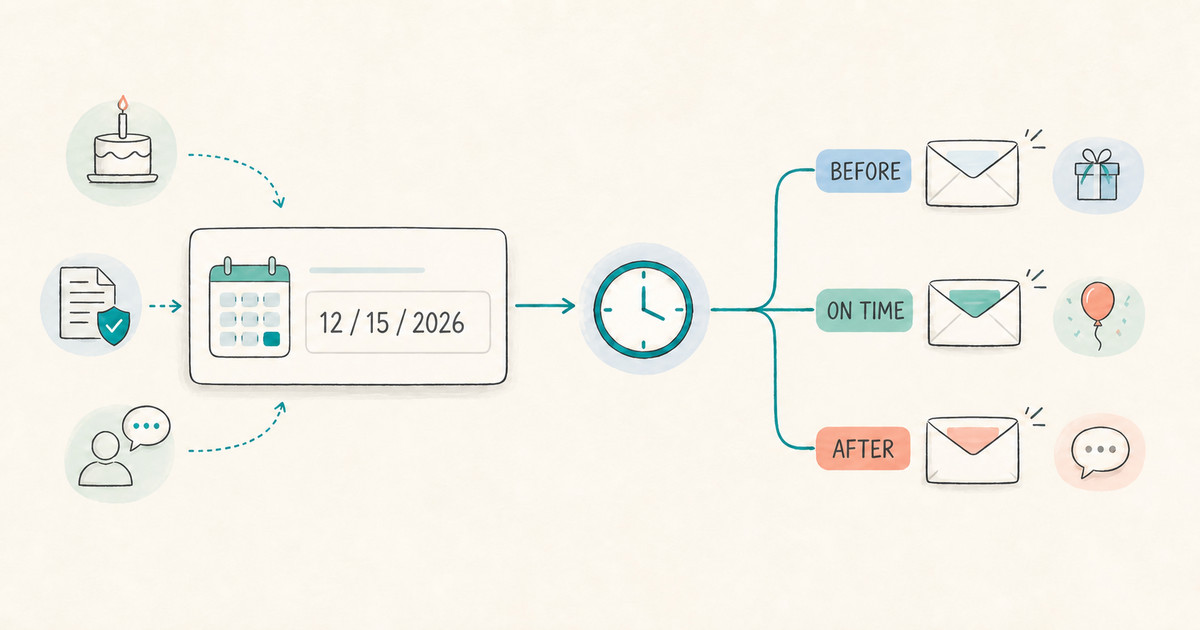
But scheduled email notifications run on a different clock. A member has a birthday next month. An insurance policy renews in three days. A customer should receive a satisfaction survey one week after placing an order. The important moment is not when the data was collected. It is when the date inside that data arrives.
Until now, these follow-ups were easy to plan and surprisingly hard to execute consistently. Someone had to keep a calendar, filter a spreadsheet, or remember to send the message manually. We built scheduled email notifications so FormHug can watch the date for you and send the email at the moment the workflow actually needs it.
What Changed
FormHug notifications now include a new trigger: Data reached scheduled time.
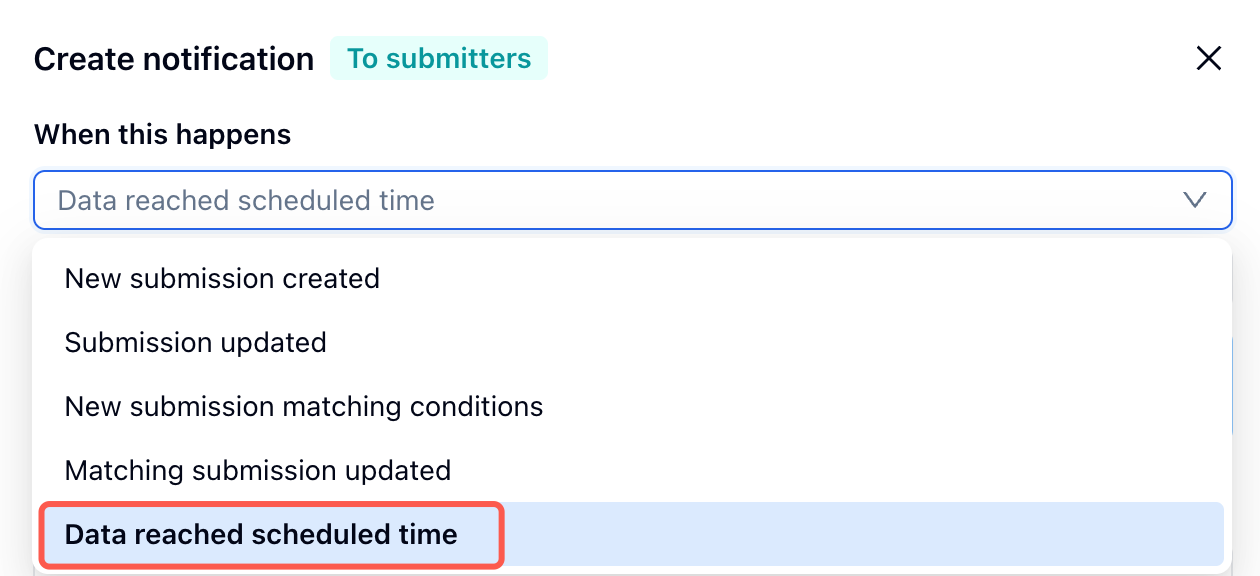
The scheduled time can come from one of three places:
- A date field in the form, such as a birthday, appointment, renewal date, due date, or event date
- The system Submitted at time for the entry
- The system Modified at time for the entry
From there, you can send the email on that day, a chosen number of days before it, or a chosen number of days after it. You also choose the exact hour and minute. Send times follow the form’s configured time zone, so the notification is tied to the operating time of that form.
This turns a date from something people read into something the workflow can act on.
Why Time-Based Automation Matters
Immediate notifications answer, “What just happened?” Scheduled notifications answer a different question: “What needs to happen next, and when?”
That distinction matters because timing changes the value of a message. A renewal reminder sent after a policy expires is late. An appointment reminder sent immediately after booking may be forgotten by the appointment date. A satisfaction survey sent seconds after an order is placed asks about an experience the customer has not had yet.
The date was already in the record. What was missing was a reliable way to turn it into action.
Scheduled notifications close that gap without asking someone to run a daily checklist. They also keep the email connected to the original form data. A birthday message can follow the birthday field. A post-purchase survey can follow the submission time. A check-in can follow the latest update to a record.
We built this because forms should not only capture a moment. They should help carry the relationship forward.
One Trigger, Many Kinds of Follow-Up
The same scheduling model works across very different workflows. Each one needs three decisions: the date to watch, the offset from that date, and the message that should arrive.
| Workflow | Date to watch | Example timing | What the email does |
|---|---|---|---|
| Member birthday | Birthday field | On that day at 09:00 | Sends a greeting, benefit, or member offer |
| Insurance renewal | Renewal date field | 3 days before at 10:00 | Reminds the policyholder to review or renew coverage |
| Appointment or consultation | Appointment date field | 1 day before at 17:00 | Confirms the time and reduces missed appointments |
| Event registration | Event date field | 2 days before at 09:00 | Shares arrival details, directions, or what to bring |
| Contract or certificate expiry | Expiration date field | 30 days before at 10:00 | Creates time to renew documents before access lapses |
| Invoice or payment due date | Due date field | 3 days before at 09:00 | Sends a courteous payment reminder before the deadline |
| Rental or borrowed equipment return | Return date field | 1 day before at 16:00 | Reminds the customer what, where, and when to return |
| Product order | Submitted at | 7 days after at 11:00 | Sends a customer satisfaction survey after time to use the product |
| New client or member onboarding | Submitted at | 3 days after at 10:00 | Checks whether the person completed the next step or needs help |
| Application or service request | Submitted at | 5 days after at 15:00 | Sets expectations or asks whether the request is still active |
| Updated support or case record | Modified at | 2 days after at 14:00 | Follows up after the latest change instead of the original submission |
These are operational emails, not generic campaigns. Each message is connected to a specific record and a specific moment in that record’s lifecycle.
How It Works
1. Choose the date that represents the real-world moment
Start with the date your workflow already knows. For a renewal or appointment, choose the relevant date field. For a delayed follow-up after someone completes a form, use Submitted at. For a workflow that should follow the latest change, use Modified at.
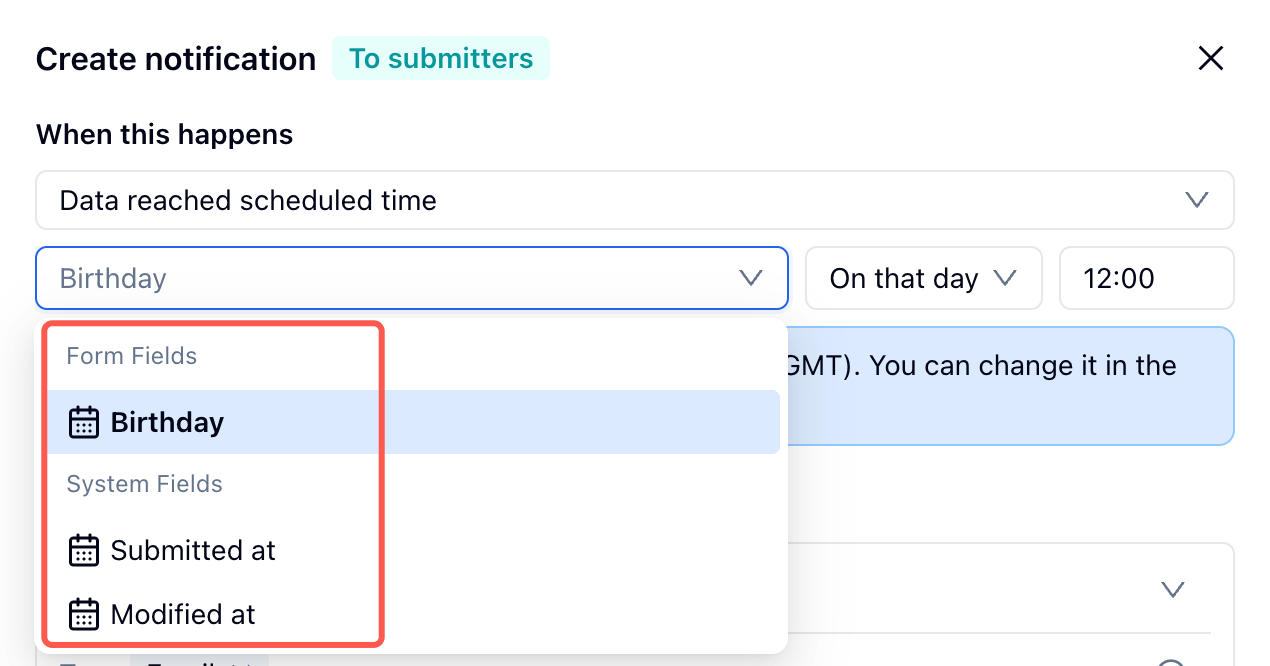
The best anchor is the one that matches the promise you are making to the recipient. “We will remind you before your appointment” should follow the appointment date. “We will check in a week after your order” should follow the submission time.
2. Decide whether the email belongs before, on, or after that date
Choose On that day, Before, or After. For before or after, set the number of days. This is the business logic of the notification: three days before renewal, seven days after an order, or on the date of an event.
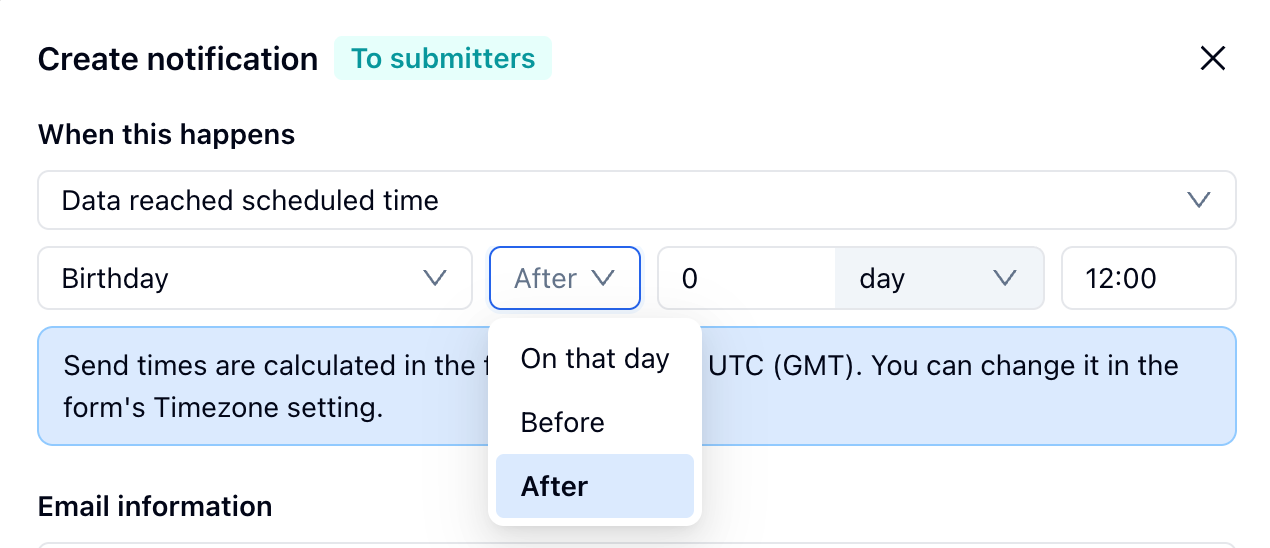
3. Choose the sending time and write the message for that moment
Set the hour and minute in the form’s time zone, then write the email around what the recipient needs at that point. A message sent before a deadline should make the next action clear. A message sent after an experience should ask one focused question. A message sent on a personal date should feel personal rather than procedural.
For sender setup and field-based personalization, the existing email notification workflow still applies. Teams that want mail to come from their own domain can also use the FormHug SMTP integration.
Who This Helps
Scheduled email notifications are useful anywhere a form record has a lifecycle beyond submission.
Membership and customer-success teams can remember birthdays, anniversaries, renewals, and onboarding check-ins without maintaining a separate reminder list. Insurance, education, certification, rental, and professional-service teams can communicate before due dates and expiration dates. Event and appointment teams can send information close enough to the scheduled time to be useful.
Product and research teams can wait until someone has had enough time to form an opinion, then send a customer satisfaction survey. Operations teams can base follow-up on when a record was created or last changed instead of building a separate scheduled process around exported data.
The common thread is simple: the data already knows when something matters. Now the notification can know too.
Next Step
Start with one follow-up your team currently has to remember manually. Identify its date source, decide whether the email belongs before, on, or after that date, and choose a time that makes sense for the recipient.
Then create a notification with Data reached scheduled time and test it with a sample entry before using it in a live workflow. Create your form in FormHug →

Written by
FormHug TeamProduct, research, and form automation team
The FormHug Team brings together product builders, workflow researchers, and form automation practitioners who study how people collect, route, and act on information online. Our guides are based on hands-on product testing, template analysis, customer workflow patterns, and deep experience with forms, surveys, quizzes, AI-assisted creation, integrations, and results sharing.