FormHug Notion Integration: Turn Form Submissions Into Team Workspaces
Create with AI
Describe the workflow and get a form draft
Use FormHug to create forms from prompts, then share, automate, and reuse the structured responses.
The moment after someone submits a form is where a lot of work quietly breaks.
A lead comes in, but sales lives in a Notion database. A customer leaves feedback, but product planning happens in a different workspace. An event registration arrives, but the organizing team tracks attendance, dietary notes, and follow-up status in Notion. The form collected the data. The team still has to move it.
That copy-and-paste step looks small until it happens 20 times. It also creates the exact kind of operational drift that teams hate: missing context, duplicate records, stale status fields, and a form dashboard that only one person remembers to check.
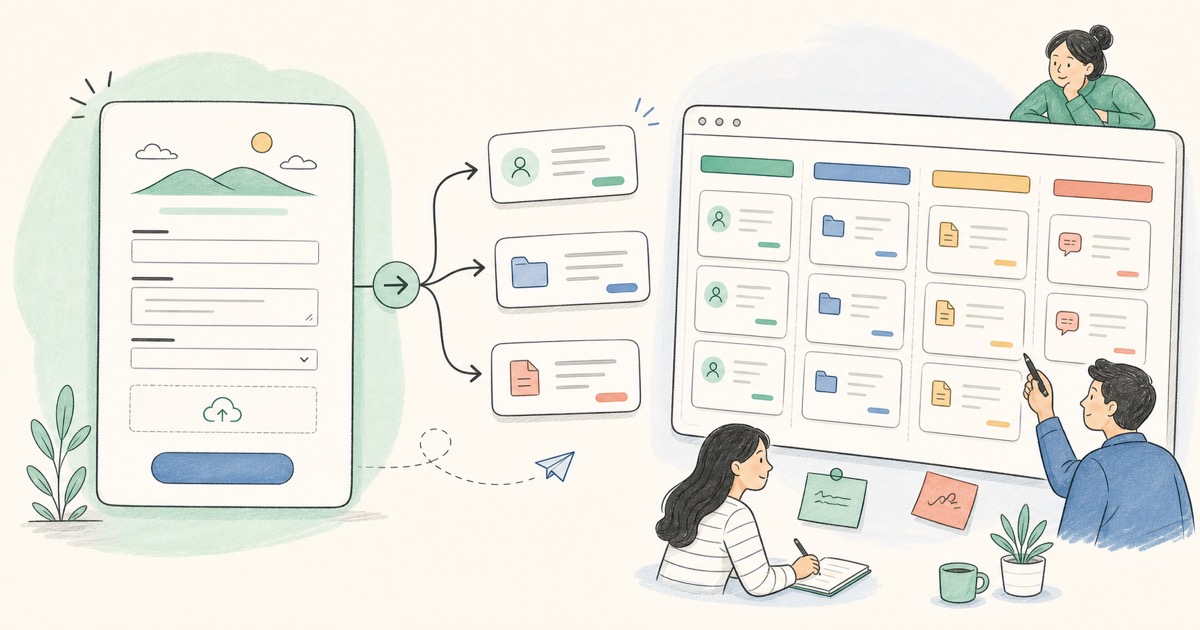
We built the FormHug Notion integration so a new form submission can become a new page in an existing Notion database automatically. The blog version of the story is simple: forms collect structured input from people, and Notion is where many teams turn that input into work.
What Changed
FormHug can now connect a form to Notion and create database pages from new submissions. You choose an existing Notion database, map FormHug fields to Notion properties, and define what should appear in the generated page body.
This is not a generic export. It is a workflow connection. A waitlist signup can become a Notion CRM row. A feedback form can become a research note. A content request can become an intake item with a clear owner, priority, and source. A quiz or assessment follow-up can become a review record for the team.
The integration works with an existing Notion database. That boundary matters: Notion remains the workspace where you design your database, views, status fields, and team process. FormHug sends fresh submission data into that structure.
For the full setup walkthrough, use the FormHug Notion integration docs.
Why Notion Is a Natural Place for Form Follow-Up
Form responses are rarely the final object. They are usually the beginning of a review, decision, assignment, or conversation.
That is why Notion is useful. A database page can carry both structured properties and messy human context. The property fields help teams filter and sort. The page body gives teammates the submission details they need before taking action.
Think about the difference between these two workflows:
- A form entry sits in a submissions table until someone remembers to check it.
- A form entry appears in the team’s Notion database with the right fields mapped and the long answers included in the page body.
The second workflow is easier to trust because it meets the team where planning already happens.
This also fits the larger FormHug idea behind AI forms for humans and agents: a form should be friendly for the person filling it out, but structured enough for the systems around it. Notion becomes one of those systems.
If Notion is the place for durable records, Slack is the place for fast attention. Teams that need both can pair this with the FormHug Slack integration: Notion stores the submission context, while Slack alerts the people who need to act.
How the Notion Integration Works
The setup has four conceptual steps.
Step 1: Prepare the Notion database
Create the target database in Notion before connecting it to FormHug. Decide which properties should be structured fields, such as name, email, status, source, date, category, priority, or score.
Longer answers usually belong in the page body instead of database properties. That keeps the database scannable while preserving the full submission context.
Step 2: Connect the Notion workspace
From the form’s integration settings, connect Notion and grant FormHug access to the page or database you want to use. Notion controls which pages can be shared with a connection, so the database needs to be available to the Notion account authorizing the integration.
Step 3: Map form fields to Notion properties
Choose which FormHug fields should populate which Notion database properties. For example, a waitlist form might map full name, email, company, referral source, and use case.
The useful principle is simple: map fields you want to filter, sort, group, or assign. Put narrative detail in the page content.
Step 4: Test the sync and watch the logs
Submit a test entry and confirm that a new Notion page appears in the database. FormHug also shows event logs, so you can see successful sync events or investigate failed ones.
The docs include the complete configuration flow, screenshots, limitations, and troubleshooting notes: read the Notion setup guide.
Who This Helps
The Notion integration is strongest for teams that already use Notion as an operating layer.
Product teams can send beta applications, feature requests, and research screeners into a shared database. Sales and partnerships teams can turn lead capture forms or inquiry forms into reviewable records. Event organizers can route RSVP details into an event planning database. Operations teams can collect internal requests without making someone manually triage every submission.
It is also useful for teams adopting AI workflows. A form collects structured input from a human. Notion stores the context. An AI assistant or teammate can later summarize, prioritize, or turn that database into next actions.
We built this integration because form data should not get trapped in the tool that collected it. Collection is only the first step. The real value comes when the right team can see the right submission in the place where they already work.
Next Step
If your team already runs follow-up in Notion, connect one important form first: a waitlist, contact form, feedback survey, or internal request form. Keep the mapping small, test one submission, then expand once the database structure feels right.
Use the Notion integration docs for the detailed setup steps, screenshots, and troubleshooting notes, then create a FormHug form that feeds the workspace your team actually uses.

Written by
FormHug TeamProduct, research, and form automation team
The FormHug Team brings together product builders, workflow researchers, and form automation practitioners who study how people collect, route, and act on information online. Our guides are based on hands-on product testing, template analysis, customer workflow patterns, and deep experience with forms, surveys, quizzes, AI-assisted creation, integrations, and results sharing.