How to Add a Header Image to a Google Form: Size, Steps, and Better Form Styling
Try a cleaner form workflow
Build the form without fighting settings
Use FormHug when you need a polished form, AI drafting, templates, quizzes, payments, or follow-up workflows.
A form header image is the first trust signal a respondent sees.
Before anyone answers the first question, they make a tiny judgment: Does this form look official? Does it match the event, school, brand, or team that sent it? Does it feel like a real workflow or a rushed link?
Google Forms lets you add a header image through its theme settings. The steps are simple, but the design problem is bigger than uploading a banner. A good header image tells people they are in the right place; a bad one gets cropped, feels generic, or makes the form look less trustworthy. This guide explains how to add a Google Forms header image, what kind of image works best, and how FormHug makes form styling less manual.
TL;DR - To add a header image to a Google Form, open the form, click Customize theme, choose Header, upload or select an image, then close the theme panel.
- Use the header as context - a good banner confirms the form’s purpose before the first question.
- Plan for cropping - keep important text, faces, logos, and details away from the edges.
- Match the form’s job - registration forms, surveys, quizzes, and feedback forms need different visual cues.
- Works for: event registration, classroom surveys, customer feedback, RSVP forms, quizzes, and internal requests.
- FormHug can recommend attractive header images, search Unsplash, accept uploads, and adapt the form style around the selected image.
What Is a Google Forms Header Image?
A Google Forms header image is the banner-style image that appears at the top of a form. It sits above the form title and questions, giving respondents visual context before they start filling it out.
Google’s help docs describe the header image as part of the form theme. In the same panel, you can change the header image, theme color, background color, and font styling.
Think of the header image as doing one of three jobs:
| Header type | Best for | What it signals |
|---|---|---|
| Informational | Events, classes, workshops, registrations | ”You are in the right place.” |
| Brand | Customer surveys, client intake, applications | ”This came from the organization you trust.” |
| Emotional | Community feedback, creator surveys, campaigns | ”This form has a tone, not just fields.” |
The best header image is not always the prettiest one. It is the one that makes the form feel intentional.
How to Add a Header Image to a Google Form
Google’s official steps are short: open a form, click Customize theme, then choose an image under Header.
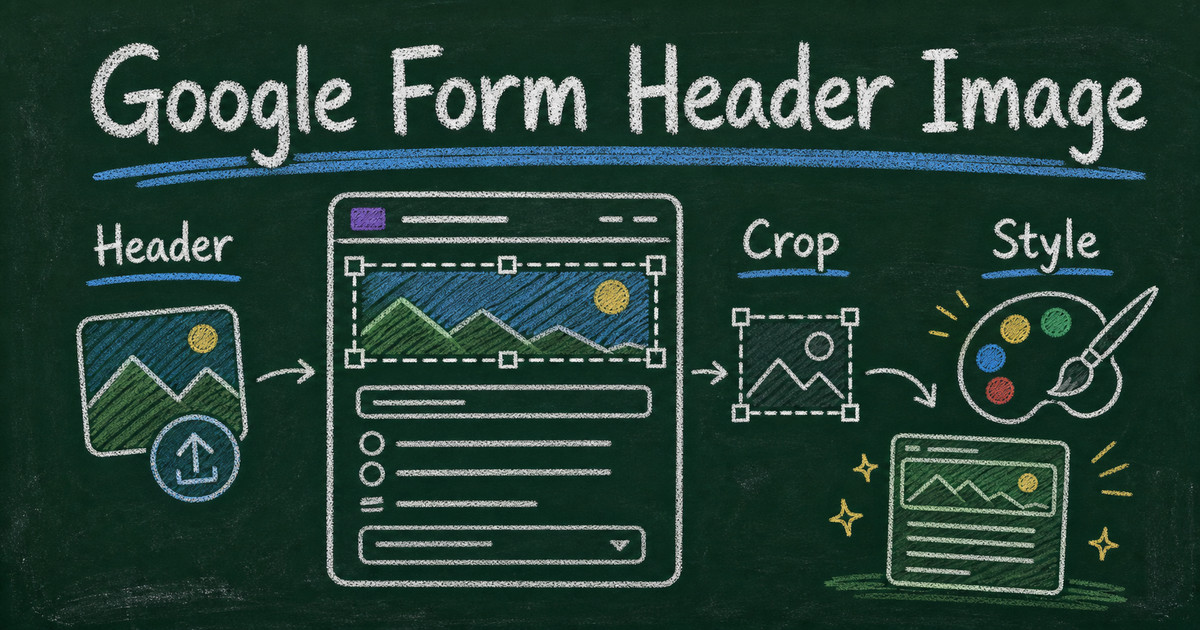
If you are mainly here for the steps, use this quick path: Customize theme -> Header -> Choose image -> Upload -> review the crop on desktop and mobile. The rest of the article helps you choose a banner that does not get cropped badly or make the form harder to trust.
Step 1: Open the form
Open the Google Form you want to style. If the form is still a draft, finish the title and first few questions before choosing the header image. The image should support the form’s purpose, not distract from it.
Step 2: Open Customize theme
Click the Customize theme icon in the top-right toolbar. This opens the theme panel where Google Forms lets you change text styling, header image, colors, and background.
Step 3: Choose a header image
Under Header, click Choose image. You can select one of Google’s options or upload your own photo or illustration.
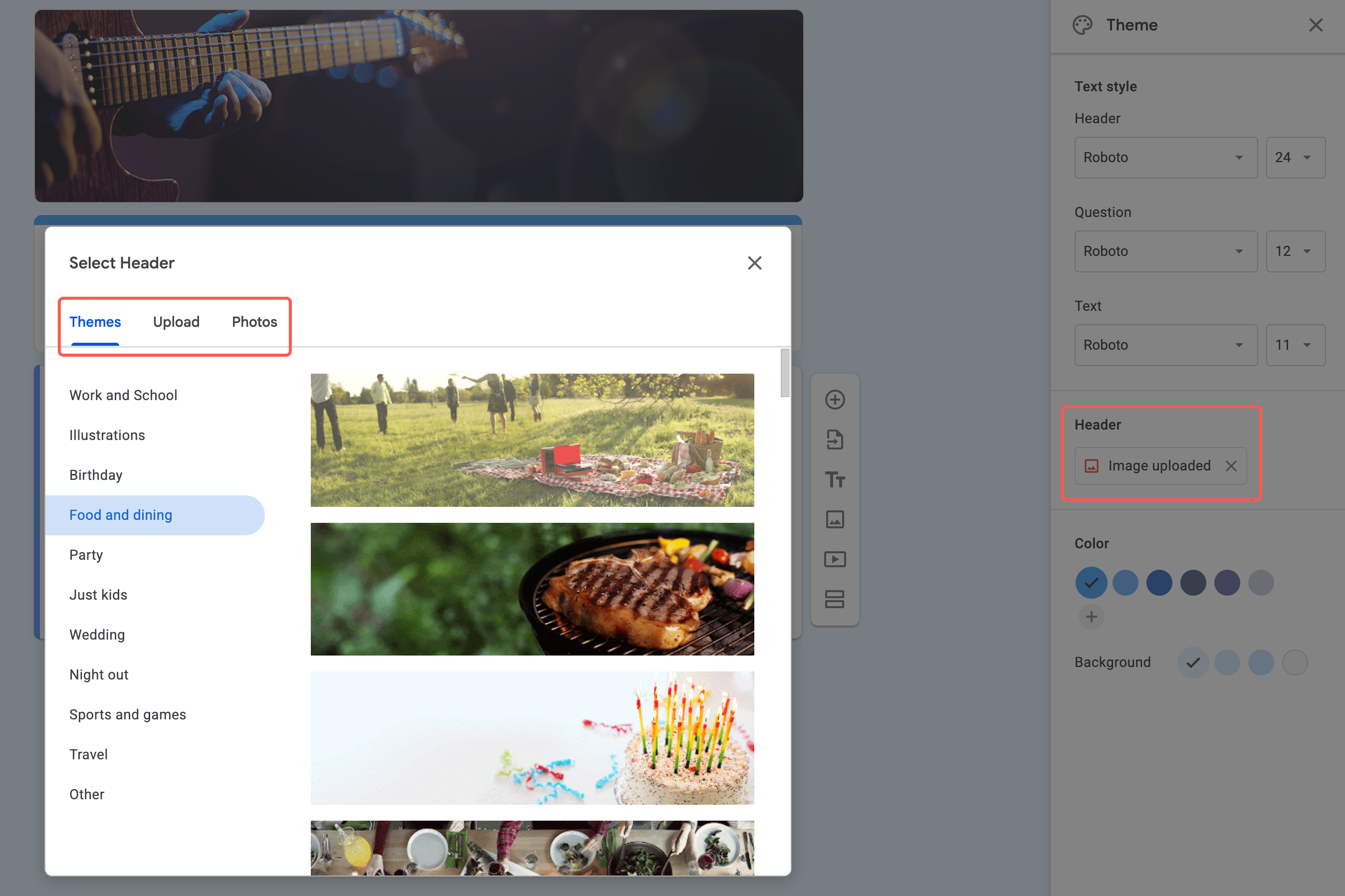
Step 4: Adjust the crop and review the form
After selecting an image, review how it appears at the top of the form. Google Forms may crop the image depending on screen size, so avoid placing important information at the far edges.
Step 5: Check mobile before sharing
Open the form preview on a phone or narrow browser window. A header that looks balanced on desktop can feel too busy on mobile. If the image contains text, make sure it is still readable.
Google Forms Header Image Design Rules
The header should reduce uncertainty, not decorate the page.
Use the Context -> Crop -> Contrast framework:
| Rule | What to check | Why it matters |
|---|---|---|
| Context | Does the image match the form’s purpose? | Respondents should know they opened the right form. |
| Crop | Will important details survive resizing? | Banners are often cropped on different screens. |
| Contrast | Can the title and form content still breathe? | A busy header makes the form feel harder to complete. |
For an event registration form, a venue or workshop image often works better than an abstract pattern. For a customer feedback survey, a subtle brand image or product context can help. For a classroom quiz, a clean learning-related image is better than a crowded graphic with tiny text.
Avoid putting long instructions inside the header. Use the form description for instructions; use the header image for confidence.
Google Forms Header Image Size and Cropping Tips
Google Forms treats the header as a responsive banner, so there is no single perfect size that survives every screen. The safest practical approach is to use a wide landscape image, keep the focal point near the center, and avoid tiny text.
Use these rules before uploading:
| Design choice | Safer approach |
|---|---|
| Logo placement | Keep it near the center, not the far left or right edge |
| Text in image | Avoid it, or use only a few large words |
| People or faces | Leave extra space above, below, and beside the subject |
| Busy background | Use a calmer crop so the form title remains easy to read |
| Mobile preview | Always check a narrow screen before sharing |
If the header image carries essential information, move that information into the form title or description instead. The banner should support the message; it should not be the only place the message exists.
Where Google Forms Header Images Get Awkward
Google Forms gives you a simple way to upload a header image, but the styling system is still limited.
The common pain points are:
- Cropping is easy to misjudge - important details can disappear across screen sizes.
- The form still looks like Google Forms - even with a custom header, the layout and overall visual language stay familiar.
- Color matching is manual - the selected image does not automatically create a full visual system for the form.
- Stock-style images can feel generic - a banner helps only if it makes the form feel more specific.
If the form represents your brand, event, course, or customer experience, the header image should be part of the full form style, not the only styled element.
What Header Images Look Like in FormHug
The FormHug point of view is that a form header should set the tone for the whole form, not just fill a rectangle.
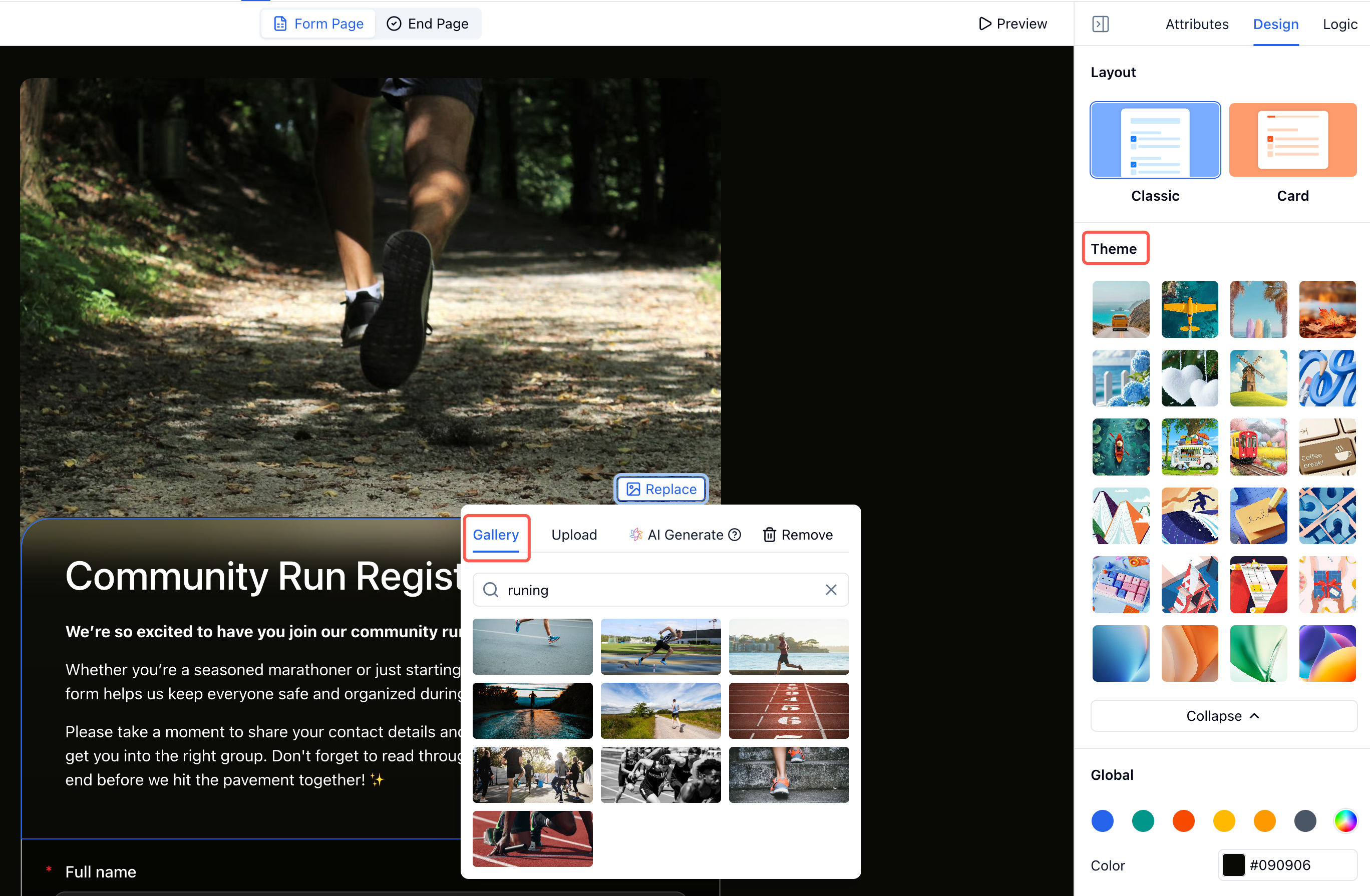
FormHug can recommend good-looking header images by default, search Unsplash from the form-building flow, and let you upload your own image. After an image is selected, the form style can adapt around it so the result feels more cohesive than a banner placed on top of an otherwise generic page.
That does not mean every form needs heavy branding. A quick internal poll can stay simple. But when the form is the first touchpoint for a workshop, application, survey, or public signup, the visual treatment should make the respondent more confident, not just make the page less empty.
Google Forms vs. FormHug for Header Images
| Need | Google Forms | FormHug |
|---|---|---|
| Add a header image | Built into Customize theme | Built into the form styling flow |
| Use built-in image options | Yes | Yes, with recommended images |
| Search Unsplash | Not part of the standard Google Forms flow | Supported in the image selection workflow |
| Upload your own image | Yes | Yes |
| Style adapts around image | Limited theme/color control | Image can influence the form’s visual style |
| Best fit | Quick forms that need a simple banner | Public-facing forms where the whole experience should feel designed |
Google Forms is enough when you need a basic banner. FormHug is stronger when the image is part of the form’s first impression.
Frequently Asked Questions
How do I add a header image to a Google Form?
Open the form, click Customize theme, find the Header section, choose an image, upload or select the image you want, then close the theme panel and preview the form.
What size should a Google Forms header image be?
Google Forms crops header images across screen sizes, so the safest approach is to use a wide banner image and keep important text, logos, faces, and details away from the edges. Always preview on desktop and mobile before sharing.
Can I upload my own photo as a Google Forms header?
Yes. In the Google Forms theme panel, choose an image under Header and upload your own photo or graphic.
Why does my Google Forms header image look cropped?
The header area is responsive, so Google Forms may crop the image to fit different screens. Use a wide image with the most important visual information near the center.
Should I put instructions in a form header image?
Usually no. Put instructions in the form title or description where they remain readable and accessible. Use the header image to reinforce context, brand, or tone.
Can FormHug help choose form header images?
Yes. FormHug can recommend header images, search Unsplash, accept uploaded images, and adapt the form’s visual style around the selected image.
Related
- FormHug vs Google Forms (2026): The Best Free Google Forms Alternative - compare Google Forms and FormHug across design, AI creation, quizzes, payments, booking, and more.
- How to Make Google Forms Anonymous - check privacy settings before asking for sensitive feedback.
- How to Make a QR Code for a Google Form - pair a trustworthy form design with a scannable entry point for posters, classrooms, and events.
A header image cannot fix a confusing form, but it can make a good form feel intentional from the first second. Create a better-looking form ->

Written by
FormHug TeamProduct, research, and form automation team
The FormHug Team brings together product builders, workflow researchers, and form automation practitioners who study how people collect, route, and act on information online. Our guides are based on hands-on product testing, template analysis, customer workflow patterns, and deep experience with forms, surveys, quizzes, AI-assisted creation, integrations, and results sharing.