How to Make Google Forms Anonymous: Settings, Limits, and a Trust-First Alternative
Start collecting responses
Turn this into a shareable survey
Draft the questions, publish a clean link, and keep every response organized in FormHug.
A Google Form can say “anonymous” and still make people hesitate.
That hesitation is the real problem. If a respondent sees an email warning, a sign-in prompt, a required name field, or a question that narrows them to a tiny group, the form stops feeling anonymous even if the creator meant well. Anonymous forms are not just a privacy setting. They are a trust promise between the form owner and the respondent.
Google Forms can collect anonymous responses when the right settings are used. The risk is that anonymity depends on several choices: email collection, sign-in requirements, one-response limits, question design, and how results are reviewed. This guide explains how to make a Google Form anonymous, where the promise can break, and how a more trust-first form workflow works in FormHug.
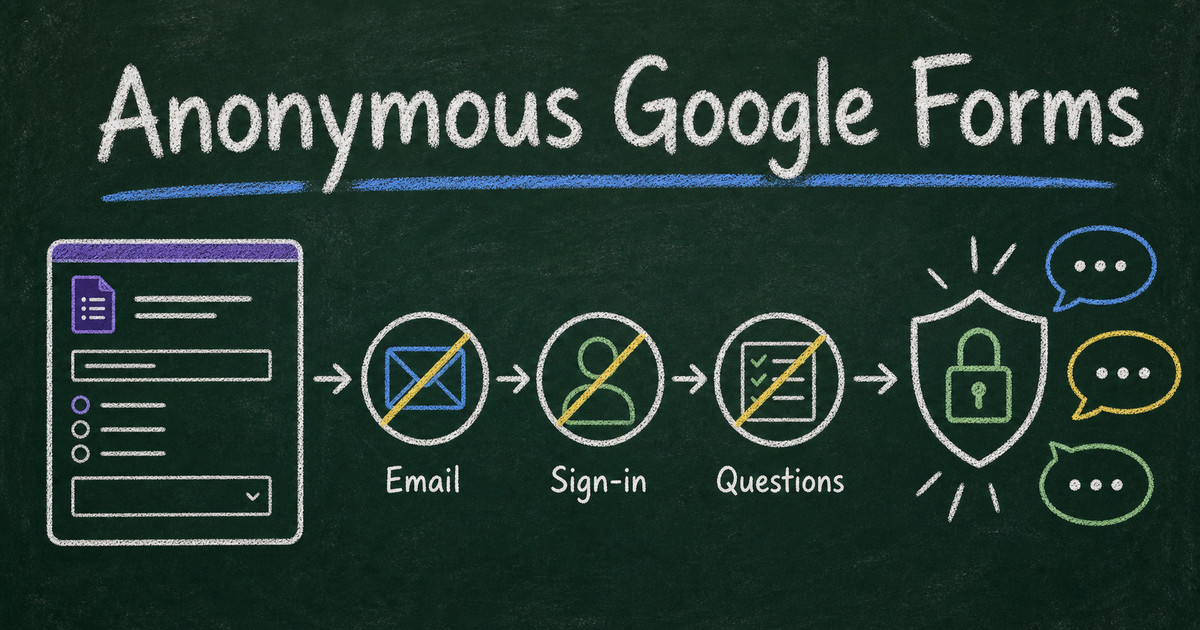
TL;DR - You can make Google Forms anonymous by turning off email collection, avoiding sign-in requirements, and removing any fields that identify the respondent.
- Check the identity layer - do not collect verified emails, manual email fields, names, IDs, or phone numbers.
- Check the access layer - “Limit to 1 response” requires respondents to sign in to a Google Account, even if usernames are not recorded unless email collection is enabled.
- Check the question layer - small demographic combinations can identify people even when the form has no name field.
- Works for: anonymous employee feedback, student surveys, customer feedback, community reports, and sensitive event retrospectives.
- FormHug forms are anonymous by default unless you deliberately add identity fields or require respondents to log in.
What Is an Anonymous Google Form?
An anonymous Google Form is a form that cannot connect a response to a specific person. In practice, that means the form does not collect the respondent’s name, email address, phone number, account ID, student ID, employee ID, or any other direct identifier.
It also means the form should avoid indirect identifiers. A response from “Marketing, Berlin office, senior manager, 10+ years” may identify one person even without a name. That is why anonymity is a design problem, not only a checkbox.
The clearest way to think about it is the Identity -> Access -> Question framework:
| Layer | What to check | Why it matters |
|---|---|---|
| Identity | Email collection, name fields, phone fields, IDs | Direct identifiers make the response traceable. |
| Access | Sign-in requirements, one-response limits, domain restrictions | Respondents may feel identified before they answer. |
| Question | Demographics, exact role, location, timestamps, free text | Answers can reveal identity indirectly. |
If one layer fails, the whole form may stop feeling anonymous.
Are Google Forms Anonymous by Default?
Google Forms are not automatically anonymous in every situation. They can be anonymous when the form does not collect email addresses, does not ask for names or other identifiers, and does not require a sign-in path that makes respondents feel traceable.
The safest way to think about Google Forms anonymity is this: the form is anonymous only after you check the settings and the questions. A blank form may not collect identity, but a creator can easily add identity through email collection, sign-in restrictions, required contact fields, small demographic questions, or open-text prompts that invite people to name themselves.
Before sharing an anonymous Google Form, preview it as a respondent and ask: “Would I believe this is anonymous if I saw this sign-in screen, these questions, and this explanation?”
How to Make Google Forms Anonymous
Google’s own help docs say Google Forms can collect email addresses through the Responses settings, either as verified emails or as manual responder input. Google’s sharing docs also note that limiting a form to one response requires respondents to sign in to a Google Account, even though usernames are not recorded unless email collection is turned on.
That gives you a practical checklist.
Step 1: Turn off email collection
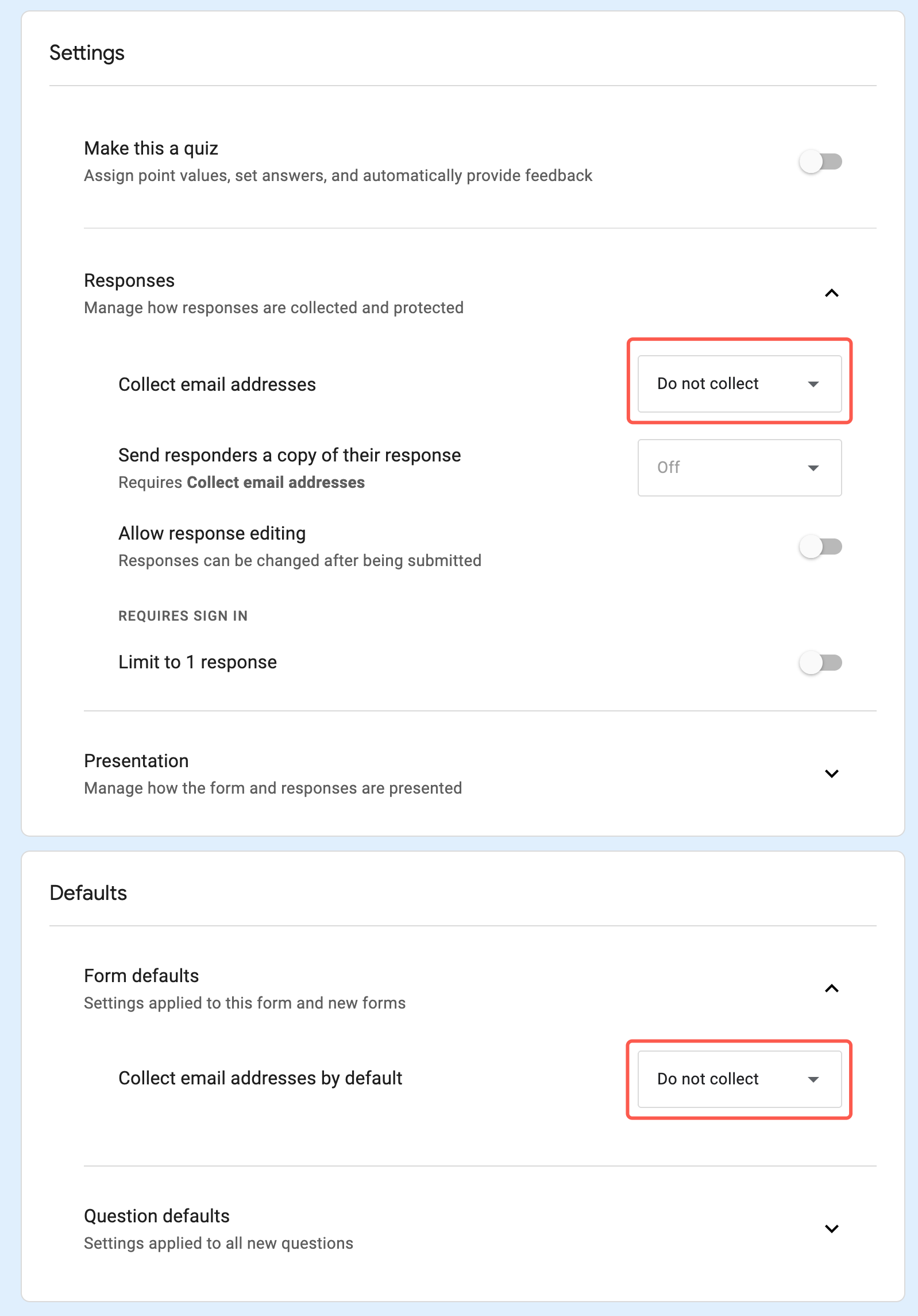
Open the form, go to Settings, expand Responses, and make sure email collection is not enabled. Do not use verified email collection if the form is meant to be anonymous. Do not add a separate required email question unless you are intentionally making the response identifiable.
If you need optional follow-up, make the tradeoff explicit:
“This survey is anonymous unless you choose to leave your email for follow-up.”
That sentence is clearer than promising full anonymity while adding a contact field at the end.
Step 2: Avoid sign-in requirements
Check whether the form is limited to one response. In Google Forms, the one-response limit requires respondents to sign in to a Google Account. Google says usernames are not recorded unless email collection is enabled, but the sign-in prompt still changes how anonymous the form feels to the respondent.
For sensitive feedback, perception matters. If people must sign in before answering a workplace, classroom, or community safety survey, some will assume the response can be traced even if the form owner cannot see their email.
Step 3: Remove identity fields
Delete required fields such as:
- Name
- Phone number
- Employee ID
- Student ID
- Account number
- Exact department or role in a small team
If you need to know which group the response came from, use broad categories. “Department” may be safer than “team and manager.” “Tenure range” is safer than “start date.”
Step 4: Check every question for indirect identification
Anonymous forms often fail through combinations, not single fields. A form might avoid names but ask for office, title, tenure, manager, and open-ended comments. Together, those fields can identify a person.
Use the 5-person test: if a segment could contain fewer than 5 people, do not report it as a separate group and consider removing it from the form.
Step 5: Explain the anonymity promise before the first question
Add a short note at the top:
“This form does not collect names or email addresses. Please avoid including identifying details in open-text answers. Results will be reviewed in aggregate.”
That one paragraph answers the questions respondents are silently asking: What are you collecting? What should I avoid writing? How will the answers be used?
Where Google Forms Anonymity Gets Awkward
Google Forms is flexible enough for anonymous surveys, but it was not designed around anonymity as the default experience. The form owner has to audit settings and wording carefully.
The most common awkward points are:
- One response vs. no sign-in - limiting each person to one response requires sign-in, which can make a sensitive survey feel less anonymous.
- Email receipts vs. anonymity - response receipts require email collection, which changes the identity promise.
- Workspace defaults - school or company accounts may have organization-level expectations that make respondents cautious.
- Manual contact fields - asking for optional contact details is fine only if you explain that the response becomes identifiable.
- Small segments - demographics can reveal identity even if Google Forms does not collect emails.
For a broader question-design view, the anonymous survey guide explains how to collect honest feedback without turning privacy into a vague promise.
What Anonymous Forms Look Like in FormHug
The FormHug point of view is simple: an anonymous form should start anonymous, then become identifiable only when the creator intentionally adds identity.
In FormHug, a published form can be filled out without the respondent logging in. You can add name, email, phone, or ID fields when the use case needs them, but a plain feedback form does not require respondent identity by default. If you want to restrict access to logged-in FormHug users, that is a deliberate setting, not the normal path for public feedback.
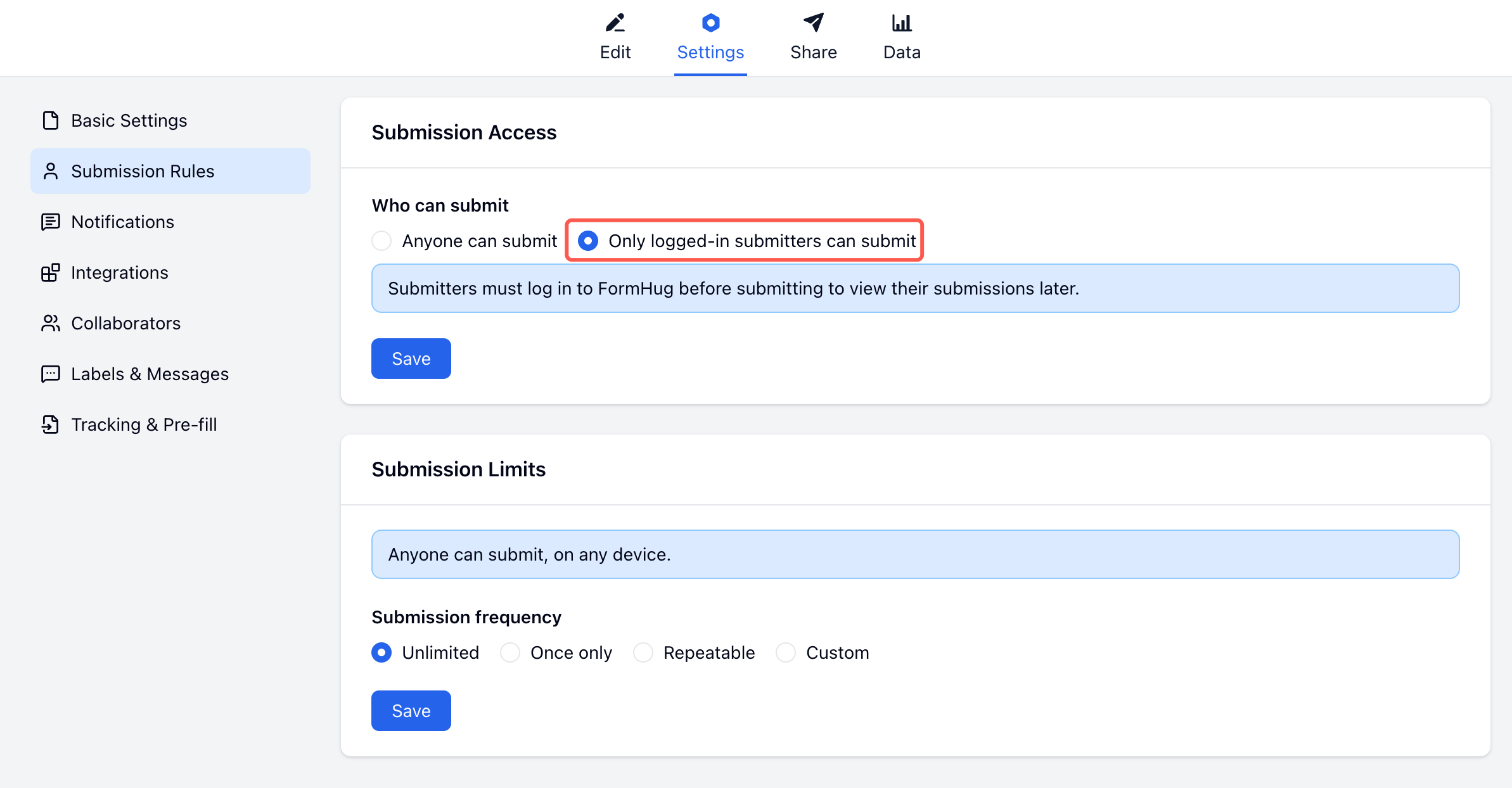
That difference matters for sensitive use cases. The creator should not have to remember to make a form private by removing identity; the creator should have to choose identity only when the workflow needs it.
Google Forms vs. FormHug for Anonymous Feedback
| Need | Google Forms | FormHug |
|---|---|---|
| Public anonymous filling | Possible when email collection and sign-in requirements are off | Default for public forms unless identity fields or login restriction are added |
| One response per person | Requires Google sign-in | Use identity or access controls only when the workflow needs them |
| Optional follow-up | Add an optional email field and explain the tradeoff | Add optional contact fields and make the identity tradeoff explicit |
| Trust statement | Manual description text | Manual description text |
| Sensitive survey design | Depends on question design | Depends on question design, with AI drafts you can prompt to avoid identity fields |
| Best fit | Simple anonymous surveys inside a Google workflow | Anonymous feedback where public access, design, and AI-assisted form creation matter |
Google Forms is enough when you need a quick anonymous survey and you are comfortable checking the settings. FormHug is stronger when the anonymous experience itself is part of the trust you are trying to build.
If you use FormHug for anonymous feedback, keep the workflow short: create a form without identity fields, add a trust statement at the top, and publish it as a public link. In our testing, prompts that explicitly say “no name, email, phone, ID, or login requirement” produce cleaner anonymous drafts than prompts that only say “anonymous survey.” If this is part of a larger survey workflow, the free survey maker guide can help you choose question types without turning the form into a long questionnaire.
Frequently Asked Questions
How do I make a Google Form anonymous?
Turn off email collection, avoid required sign-in settings such as “Limit to 1 response,” remove name and contact fields, and avoid demographic questions that identify small groups. Add a short note explaining that the form does not collect names or email addresses.
Are Google Forms anonymous by default?
Google Forms can be anonymous when email collection is off and the form does not require sign-in or identity fields. However, settings such as verified email collection, responder email input, and “Limit to 1 response” can change the respondent experience, so you should check the form before sharing it.
Can Google Forms collect emails anonymously?
Not really. Once a form collects an email address, the response is connected to an identity field. You can make an email field optional for follow-up, but you should tell respondents that leaving contact details makes their response identifiable.
Does “Limit to 1 response” make a Google Form not anonymous?
It requires respondents to sign in to a Google Account. Google says usernames are not recorded unless email collection is enabled, but the sign-in step can still reduce perceived anonymity for sensitive surveys.
Can a Google Form collect emails automatically?
Yes, if the creator enables email collection in the Responses settings. Google Forms supports verified email collection and manual responder input. For an anonymous form, avoid both unless the respondent is intentionally identifying themselves.
Can an anonymous form still identify someone?
Yes. Names and emails are not the only identifiers. A combination of department, location, job title, tenure, timestamp, and open-text details can identify a person in a small group.
What should I write at the top of an anonymous form?
Use plain language: “This form does not collect names or email addresses. Please avoid including identifying details in open-text answers. Results will be reviewed in aggregate.” Adjust the last sentence based on how you will actually use the responses.
Is FormHug anonymous by default?
A public FormHug form can be filled out without the respondent logging in. It becomes identifiable only if you add identity fields, ask for contact details, or require respondents to log in for that form.
Related
- Anonymous Survey: How to Collect Honest Feedback Without Losing Trust - design anonymous surveys that protect trust beyond a single settings toggle.
- Google Forms Response Receipts for Creators - understand how email copies change the privacy promise.
- FormHug vs Google Forms (2026): The Best Free Google Forms Alternative - compare Google Forms and FormHug across design, AI creation, quizzes, payments, booking, and more.
- How to Make a QR Code for a Google Form - share anonymous feedback forms in classrooms, events, stores, and other in-person settings.
If anonymity changes the quality of the answer, do not leave it to a half-remembered settings audit. Create your anonymous form ->

Written by
FormHug TeamProduct, research, and form automation team
The FormHug Team brings together product builders, workflow researchers, and form automation practitioners who study how people collect, route, and act on information online. Our guides are based on hands-on product testing, template analysis, customer workflow patterns, and deep experience with forms, surveys, quizzes, AI-assisted creation, integrations, and results sharing.