How to Make a QR Code for a Google Form: Links, Posters, and Easier Form Sharing
Start collecting responses
Turn this into a shareable survey
Draft the questions, publish a clean link, and keep every response organized in FormHug.
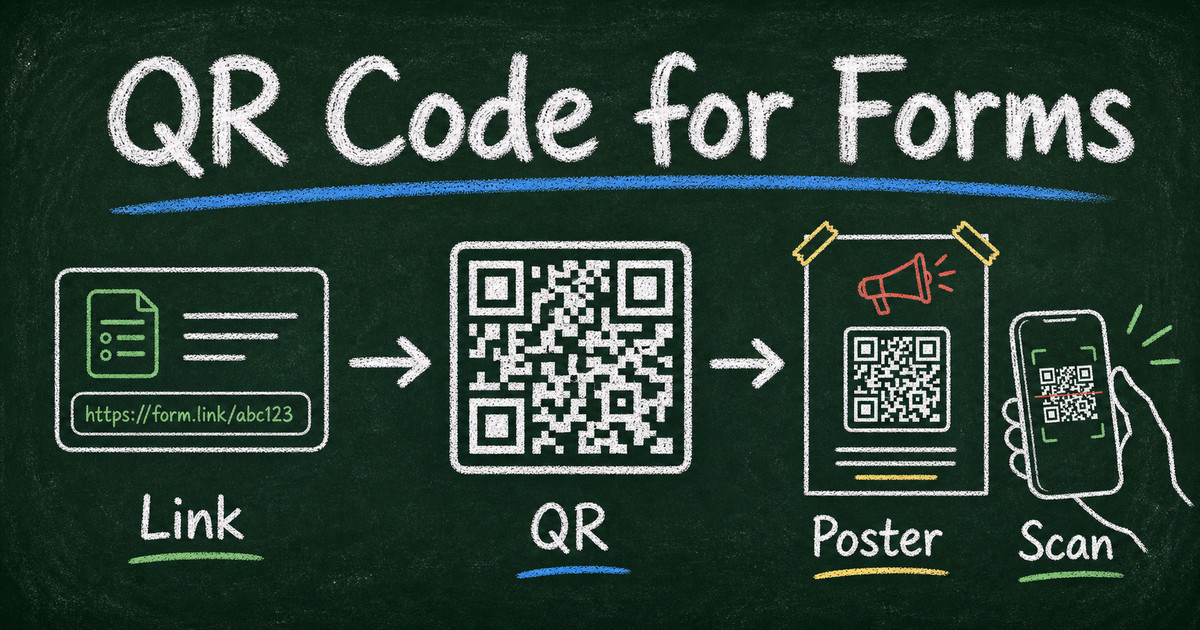
A QR code is not just a different version of a link.
It is the bridge between a physical moment and a digital response. A student sees a quiz code on a classroom screen. A customer scans a feedback poster at the counter. An event attendee points their phone at a check-in sign instead of typing a long URL. The form still lives online, but the decision to answer happens offline.
Google Forms can work with QR codes, but the usual workflow requires a few extra pieces: publish the form, copy the link, use a QR code generator, download the image, place it into a poster or slide, and test the scan. This guide explains how to make a QR code for a Google Form, what to check before you print it, and how FormHug treats QR sharing as part of the form distribution workflow.
TL;DR - To make a QR code for a Google Form, publish the form, copy its responder link, paste that link into a QR code generator, download the code, and test it on a phone before sharing.
- QR codes are distribution surfaces - they work best for classrooms, events, stores, restaurants, posters, flyers, and on-site feedback.
- Test the mobile path - a QR code is only useful if the form opens quickly and is easy to complete on a phone.
- Design the surrounding material - people need context, not just a square code with no reason to scan it.
- Works for: event registration, attendance check-in, customer feedback, classroom quizzes, product feedback, and in-person lead capture.
- FormHug can show a form QR code on the share page, support different QR styles, and help generate a poster with the QR code included.
What Is a Google Form QR Code?
A Google Form QR code is a scannable code that opens the public responder link for a Google Form. Instead of asking people to type or click a URL, you place the QR code on a poster, slide, receipt, package, table tent, classroom board, or event sign.
The QR code does not change the form itself. It changes the entry point.
That distinction matters. A strong QR workflow has three parts:
| Layer | Question to answer | Example |
|---|---|---|
| Form | Is the form short and mobile-friendly? | A 5-question feedback form after an event. |
| Code | Does the QR code scan reliably? | High contrast, enough quiet space, tested at print size. |
| Context | Why should someone scan it now? | ”Scan to vote for the next workshop topic.” |
A QR code without context is just a square. A QR code with a clear reason becomes a response channel.
How to Make a QR Code for a Google Form
Google’s sharing help explains that a published Google Form can be shared by email, social media, or embedded on a website. For a QR code, the practical path is to use the form’s public link with a QR code generator.
Step 1: Publish or prepare the Google Form
Open your Google Form and make sure it is ready for respondents. Check required questions, response settings, and mobile readability before you generate the QR code.
If the form is for anonymous feedback, review email and sign-in settings first. The Google Forms anonymous guide covers the settings that matter before you share a sensitive form.
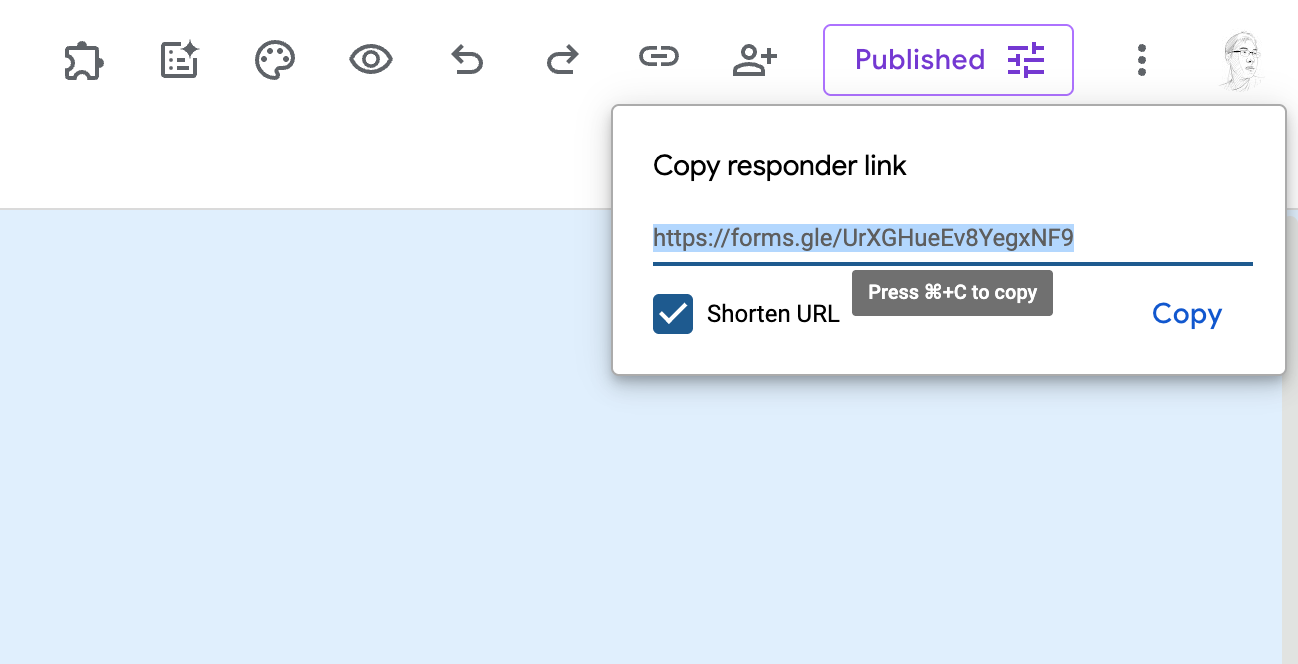
Step 2: Copy the responder link
Use the form’s Send or share option to copy the link respondents will use. Do not copy the editor URL from your browser address bar. The editor URL is for you; the responder link is for people filling out the form.
Shorten the link if Google Forms offers that option. A shorter URL can be useful as fallback text under the QR code.
Step 3: Paste the link into a QR code generator
Open a QR code generator, paste the Google Form responder link, and generate the code. For most forms, a static QR code is enough because it simply opens the form URL.
If you expect the destination to change later, use a dynamic QR code service that lets you edit the target URL after printing. That is useful for posters, packaging, or event signage that may stay in circulation.
Step 4: Download the QR code image
Download the QR code as a PNG or SVG if the generator supports it. For print, SVG or high-resolution PNG is safer than a small low-resolution image.
Keep a margin around the code. QR scanners need blank space around the square to read it reliably.
Step 5: Test the scan before sharing
Test the QR code with at least two phones if possible. Open the camera app, scan the code, and complete a test submission. Check:
- The QR code opens the respondent form, not the editor.
- The form loads on mobile data, not only office Wi-Fi.
- Required questions are clear on a small screen.
- The confirmation message makes sense.
- The printed or displayed code is large enough to scan from the expected distance.
The last point is where many QR forms fail. A code that scans from your laptop screen may not scan from the back of a classroom or across a busy event booth.
Where Google Form QR Codes Work Best
QR codes are strongest when people are already physically present and the form asks for a quick action.
Classroom quizzes and exit tickets
Teachers can place a QR code on a slide, whiteboard, or printed handout. Students scan, answer, and submit without typing a link. Keep the form short; classroom QR workflows work best when the scan-to-submit path takes less than 2 minutes.
Event registration and check-in
QR codes reduce friction at the door. Attendees can register, confirm details, or submit check-in information while standing in line. If the event requires payment, ticketing, or time slots, a more specialized event registration form workflow may be a better fit than a plain Google Form.
Customer feedback in stores or restaurants
Place the code near the moment of experience: counter, receipt, table tent, product packaging, or exit sign. Do not ask 20 questions. One rating, one reason, and one improvement prompt are usually enough.
Posters, flyers, and local lead capture
For community events, workshops, clinics, and small businesses, a QR code turns a printed poster into a lead or registration path. The poster should say what the person gets after scanning: RSVP, quote request, appointment request, feedback form, quiz, or waitlist.
QR Code Design Rules for Forms
A QR code has to be scannable before it can be beautiful.
Use the Scan -> Understand -> Act framework:
| Step | What the respondent needs | What to add |
|---|---|---|
| Scan | A reliable, visible code | High contrast, enough size, blank margin |
| Understand | A reason to scan | One-line prompt above or below the code |
| Act | A form that feels worth finishing | Short mobile-first questions |
Good QR copy is specific:
- “Scan to vote for the next workshop topic”
- “Scan to join the waitlist”
- “Scan to leave anonymous feedback”
- “Scan to get your event certificate”
- “Scan to register before seats fill”
Weak QR copy is vague:
- “Scan me”
- “Feedback”
- “More info”
- “Click here”
People scan when they understand the exchange.
What QR Sharing Looks Like in FormHug
The FormHug point of view is that a QR code belongs inside the sharing workflow, not as a separate afterthought.
When a form is ready to share, FormHug can show a QR code with the form and support different QR styles. For physical distribution, FormHug can also use AI to generate a poster that includes the QR code. That matters because most real QR use cases need more than the code: they need a headline, a reason to scan, a visual style, and enough context for someone to act immediately.
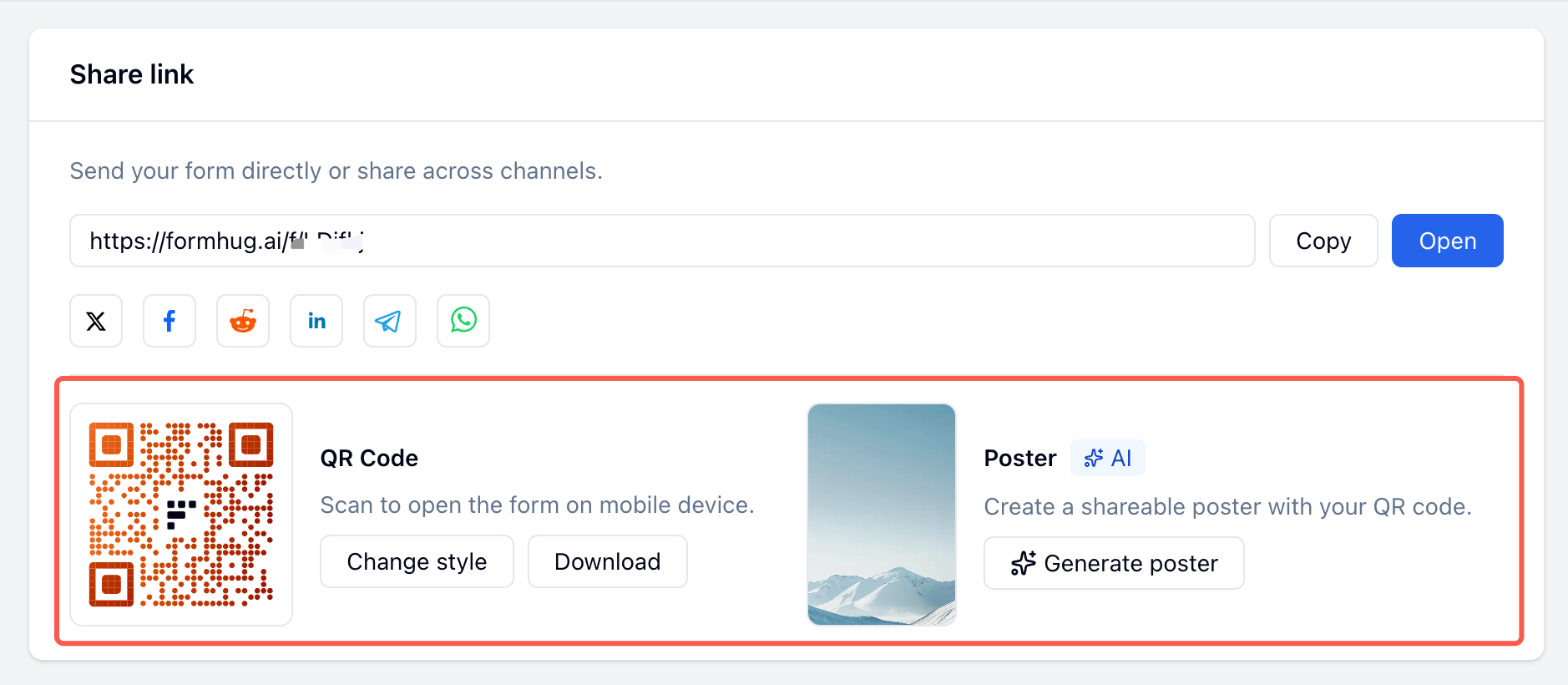
This is the difference between generating a QR code and designing an entry point.
Google Forms vs. FormHug for QR Code Sharing
| Need | Google Forms | FormHug |
|---|---|---|
| Create form link | Built in | Built in |
| Built-in QR display | Usually requires copying the link into a QR generator | QR code can be shown with the form sharing experience |
| QR styles | Depends on third-party QR generator | Supports different QR styles |
| Poster workflow | Create separately in a design tool | AI can generate a poster with the QR code included |
| Best fit | Simple links that you can turn into QR codes with another tool | Events, classrooms, stores, and campaigns where QR distribution is part of the form experience |
Google Forms is fine when you only need a scannable version of a link. FormHug is stronger when the QR code is part of the whole distribution surface: the form, the code, the style, and the poster.
If you use FormHug for a QR-first workflow, start with the offline moment. A QR code on a receipt should lead to a very short feedback form; a QR code on an event poster can ask for registration details because the respondent has stronger intent. In our testing, prompts that name the scan context produce better drafts than generic “create a feedback survey” prompts. For broader survey distribution planning, the online survey guide covers share links, QR code destinations, embeds, and response review.
Frequently Asked Questions
How do I make a QR code for a Google Form?
Publish the Google Form, copy the respondent link from the sharing options, paste that link into a QR code generator, download the QR code image, and test it on a phone before sending or printing it.
Can Google Forms generate a QR code automatically?
Google Forms gives you a shareable form link. If your account interface does not show a built-in QR option, use the public responder link with a QR code generator. Always test the code before printing or displaying it.
What Google Form link should I use for a QR code?
Use the responder link from the form sharing options, not the editor URL from your browser. The editor URL is for people who can edit the form; the responder link is for people who should fill it out.
Can I use a QR code for an anonymous Google Form?
Yes. A QR code can open an anonymous Google Form as long as the form itself does not collect email addresses, require sign-in, or ask for identifying fields. The QR code does not control anonymity; the form settings do.
What size should a QR code be on a poster?
It depends on scan distance, print quality, and placement. As a practical rule, test the code at the real size and distance before printing a full batch. Bigger is safer for classrooms, booths, and public signage.
Should I use a static or dynamic QR code for a form?
Use a static QR code when the form link will not change. Use a dynamic QR code if the printed material will stay in circulation and you may need to update the destination later.
Can FormHug create QR codes for forms?
Yes. FormHug can show a QR code as part of the form sharing experience, support different QR styles, and help generate a poster that includes the QR code.
Related
- FormHug vs Google Forms (2026): The Best Free Google Forms Alternative - compare Google Forms and FormHug when basic form sharing is no longer enough.
- How to Add a Header Image to a Google Form - make the form behind the QR code feel more official and easier to trust.
- How to Make Google Forms Anonymous - check the privacy settings before sharing sensitive feedback forms by QR code.
A QR code only earns its square inch when it turns a real-world moment into a completed response. Create your QR-friendly form ->

Written by
FormHug TeamProduct, research, and form automation team
The FormHug Team brings together product builders, workflow researchers, and form automation practitioners who study how people collect, route, and act on information online. Our guides are based on hands-on product testing, template analysis, customer workflow patterns, and deep experience with forms, surveys, quizzes, AI-assisted creation, integrations, and results sharing.