How to Make a Google Form Quiz: Points, Answers, Feedback, and Better Quiz Experiences
Make it interactive
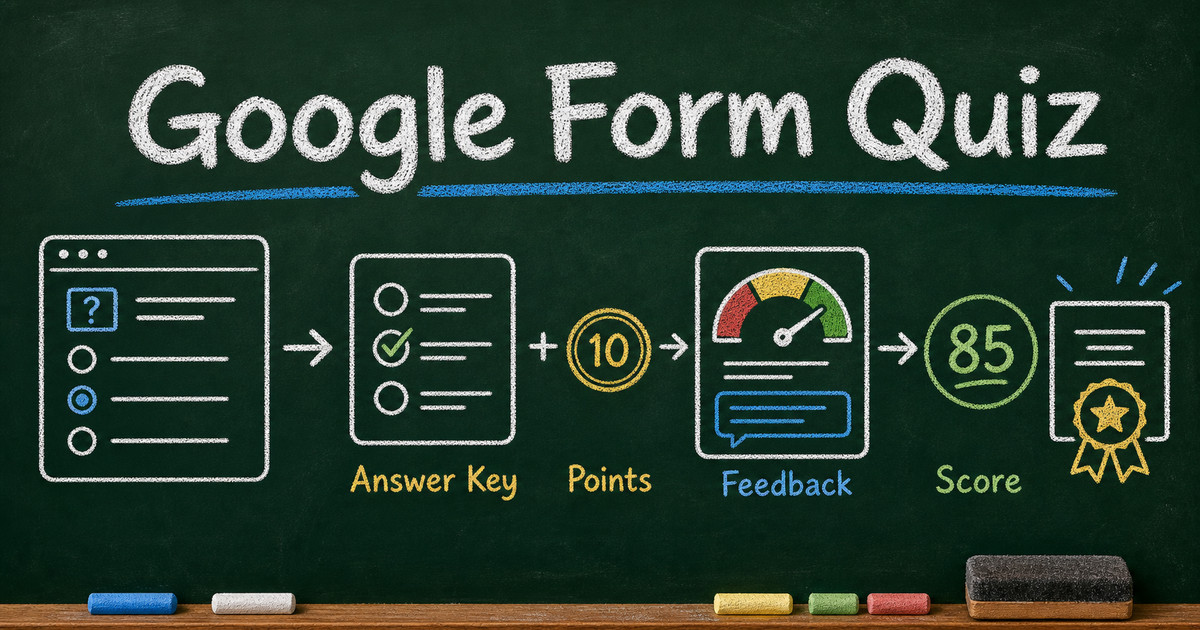
Turn these questions into a scored quiz
Build a quiz with answer keys, result pages, explanations, and a shareable link.
A quiz is not just a form with correct answers.
It is a feedback loop. Someone answers, sees what they understood, learns what they missed, and decides what to do next. That is why a useful quiz needs more than questions and a final score.
Google Forms can turn a regular form into a quiz, add answer keys, assign points, show correct answers, and release grades. That makes it a good starting point for simple classroom checks, training quizzes, and knowledge reviews. This guide explains how to make a Google Form quiz, what settings to check, and where a dedicated quiz builder like FormHug becomes more useful.
TL;DR - To make a Google Form quiz, open Settings, turn on Make this a quiz, add questions, use Answer key to mark correct answers, assign points, then choose what respondents can see after submission.
- Use answer keys carefully - correct answers, point values, and feedback shape the learning moment.
- Set release rules before sharing - choose whether grades release immediately or later after review.
- Match settings to quiz type - a classroom check, training exam, and trivia quiz need different result experiences.
- Works for: classroom quizzes, onboarding checks, training reviews, short exams, trivia, and knowledge checks.
- FormHug is stronger when you need AI-generated quizzes, answer explanations, score-range feedback, certificates, radar charts, or anti-cheating controls.
What Is a Google Forms Quiz?
A Google Forms quiz is a form with quiz mode enabled. Once quiz mode is on, you can create answer keys, assign point values, add feedback, and control what respondents see during or after the quiz.
Google’s help docs say answer keys work with several question types, including short answer, multiple choice, checkboxes, dropdown, multiple choice grid, and checkbox grid. You can also assign points and add feedback.
Use the Question -> Score -> Feedback framework when planning a quiz:
| Layer | What to decide | Why it matters |
|---|---|---|
| Question | What should the respondent know or choose? | Weak questions create weak scores. |
| Score | How many points is each answer worth? | Point values define importance and pass/fail meaning. |
| Feedback | What should the respondent learn after answering? | Feedback turns grading into learning. |
If the quiz only gives a number, it measures. If it explains the number, it teaches.
How to Make a Google Form Quiz
Google’s official quiz workflow starts in the form settings. You can also use Google’s g.co/createaquiz shortcut to start a quiz directly.
Step 1: Turn on Make this a quiz
Open your form in Google Forms. Click Settings at the top, then turn on Make this a quiz.
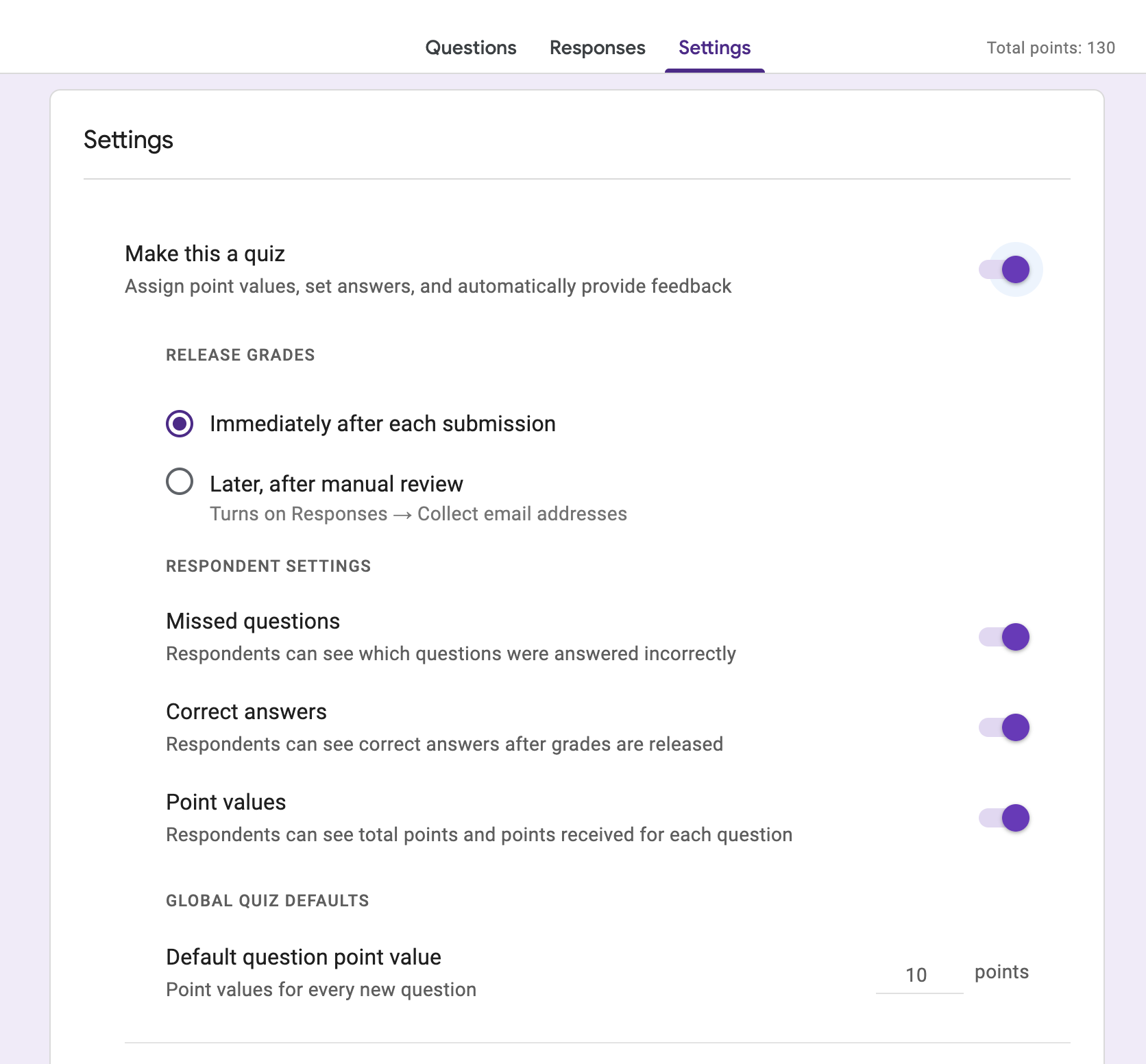
If you need to identify respondents, review email collection under Responses. If the quiz is a low-stakes knowledge check, you may not need email collection. If it is a training or certification quiz, collecting identity may be necessary.
Step 2: Add quiz questions
Add your questions and choose the right question type. Multiple choice works well for one correct answer. Checkboxes work when more than one option can be correct. Short answer can work for exact terms, but it needs more careful review.
For better question writing patterns, the multiple choice quiz questions guide covers distractors, difficulty, and answer clarity.
Step 3: Create the answer key
For each question, click Answer key. Select the correct answer or answers, set the point value, and add feedback if useful.
Feedback is where many simple quizzes miss their chance. A correct answer tells the respondent what was right; a short explanation tells them why.
Step 4: Choose what respondents can see
In quiz settings, decide whether respondents can see missed questions, correct answers, and point values. For practice quizzes, showing answers immediately can help learning. For formal tests, you may want to delay results or hide correct answers.
Step 5: Release grades
Google Forms lets you release grades immediately after submission or later after manual review. Immediate release is useful for self-paced practice. Later release is better when short answers need review or the quiz has higher stakes.
Google Forms Quiz Settings to Check
Before sharing the quiz, check these settings:
- Email collection - needed if you want to identify students, employees, or trainees.
- Release grades - immediate for practice, delayed for manual review.
- Respondent settings - decide whether people see missed questions, correct answers, and point values.
- Required questions - prevent accidental skips.
- Domain restrictions - if using a school or work account, confirm whether people outside the organization can access the quiz.
- Response destination - send responses to Google Sheets if you need spreadsheet analysis.
For very short knowledge checks, keep the settings light. For training, compliance, or certification, the settings carry more weight because the score may become a record.
Where Google Forms Quizzes Get Awkward
Google Forms is useful for simple scored quizzes, but it starts to feel limited when the quiz is part of a larger learning or assessment experience.
Common limits include:
- Result pages are basic - the final experience is mostly score and answer review.
- Certificates are not built in - passing a quiz does not automatically create a completion certificate.
- Score-range feedback is limited - it is hard to create rich result tiers like “needs review,” “passed,” and “excellent.”
- Question generation is manual - Google Forms does not turn a topic, document, or prompt into a complete quiz by itself.
- Anti-cheating controls are limited - formal exams may need time limits, random question pools, fullscreen, copy/paste restrictions, or screen-switch detection.
For simple classroom checks, that may be fine. For training, assessment, or certification, the quiz often needs to do more than collect a score.
What Quiz Building Looks Like in FormHug
The FormHug point of view is that the result page is part of the quiz, not an afterthought.
FormHug can generate quiz drafts with AI, including questions, answer options, scoring, and result logic. It also supports answer explanations, score-based feedback, certificates, time limits, random question pools, and anti-cheating controls for more formal assessments.
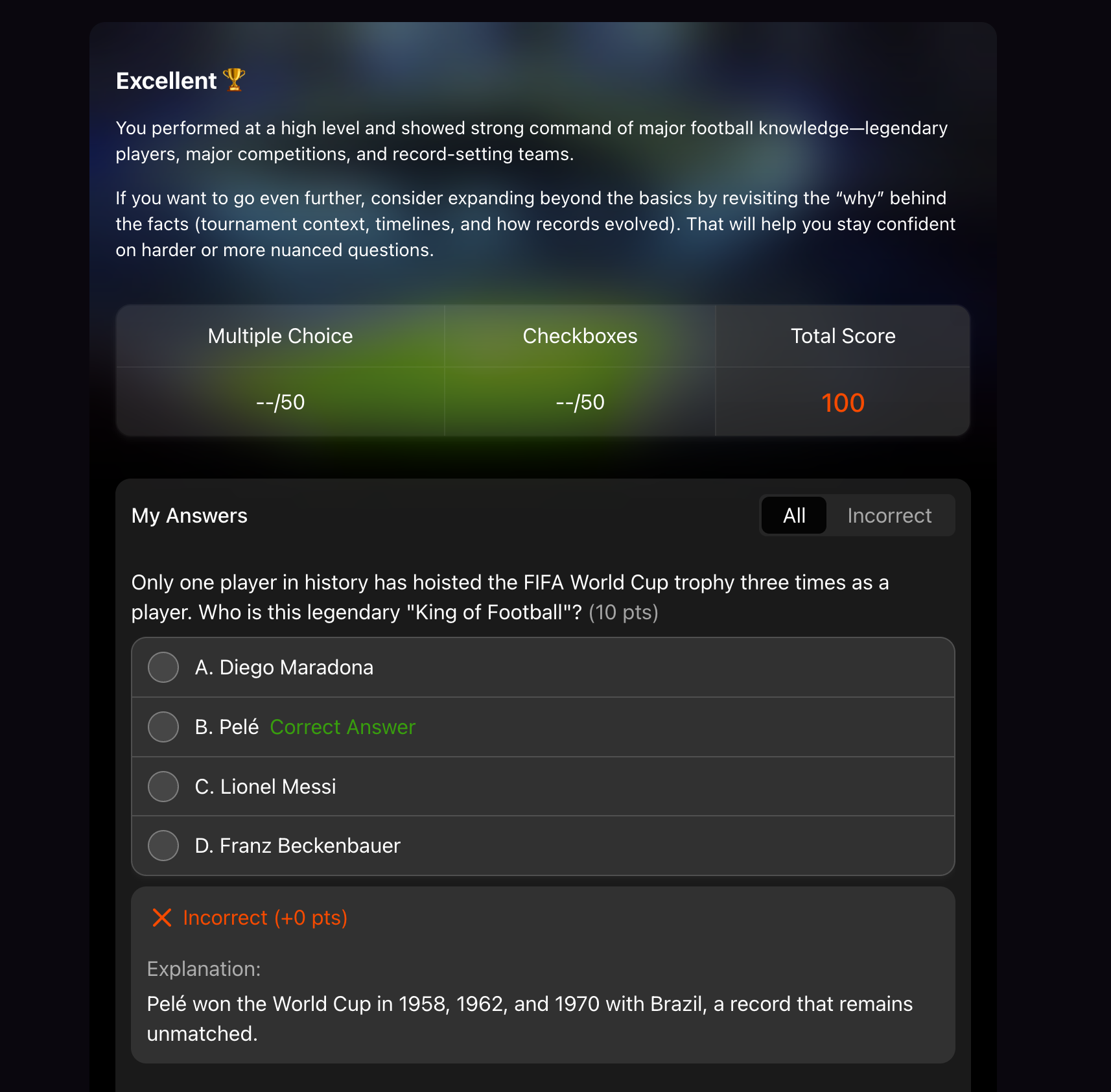
If a quiz is just a quick knowledge check, Google Forms may be enough. If the quiz needs to teach, certify, personalize feedback, or feel polished, a dedicated online quiz maker gives you more control over the participant journey.
Google Forms vs. FormHug for Quizzes
| Need | Google Forms | FormHug |
|---|---|---|
| Basic quiz mode | Built in | Built in |
| Answer keys and points | Yes | Yes |
| Written feedback | Yes | Yes, with richer result-page controls |
| AI quiz generation | Not built in | Built in |
| Score-range feedback | Limited | Supported |
| Certificates | Not built in | Supported |
| Time limits and anti-cheating | Limited | Supported for formal quiz workflows |
| Best fit | Simple classroom or knowledge-check quizzes | Training, assessment, certification, and polished quiz experiences |
The honest split is simple: Google Forms is a good quiz form. FormHug is better when the quiz itself is the experience.
Frequently Asked Questions
How do I make a Google Form quiz?
Open the form, click Settings, turn on Make this a quiz, add questions, click Answer key for each question, choose correct answers, assign points, and decide what respondents can see after submission.
Can Google Forms automatically grade quizzes?
Yes. Google Forms can automatically grade supported question types when you set answer keys and point values. Some responses, especially short answer or open-ended formats, may still need manual review.
How do I add points in a Google Forms quiz?
Open the question, click Answer key, then set the point value in the answer key panel. You can assign different point values to different questions.
Can Google Forms show quiz feedback?
Yes. Google Forms lets you add answer feedback, including written feedback and YouTube video explanations. You can also choose whether respondents see missed questions, correct answers, and point values.
If students or respondents need a copy of what they submitted, pair quiz feedback with the right receipt settings. The Google Forms response receipts guide explains when answer copies and edit links make sense.
Can Google Forms make quiz certificates?
Google Forms does not include built-in quiz certificate generation. You would need an add-on or a separate workflow. FormHug supports certificates as part of its quiz result experience.
Is Google Forms good enough for online quizzes?
It is good enough for simple classroom checks, trivia, and basic training reviews. Use a dedicated quiz maker when you need AI generation, certificates, score-range feedback, answer explanations, time limits, random question pools, or anti-cheating controls.
Can FormHug generate a quiz with AI?
Yes. FormHug can generate quiz questions, answer options, scoring, and result logic from a prompt, then let you edit the quiz before publishing.
Related
- FormHug vs Google Forms (2026): The Best Free Google Forms Alternative - compare Google Forms and FormHug when a quiz needs more than basic scoring.
- Can I See My Google Form Response? - help respondents understand whether they can recover submitted answers.
- How to Make a QR Code for a Google Form - share classroom quizzes, training checks, or trivia forms with a scannable code.
- How to Create an Online Quiz with Automatic Scoring, Instant Feedback, and Certificates - build richer quizzes with explanations, certificates, and result pages.
A quiz that only reports a score misses the best learning moment. Create a better quiz ->

Written by
FormHug TeamProduct, research, and form automation team
The FormHug Team brings together product builders, workflow researchers, and form automation practitioners who study how people collect, route, and act on information online. Our guides are based on hands-on product testing, template analysis, customer workflow patterns, and deep experience with forms, surveys, quizzes, AI-assisted creation, integrations, and results sharing.