How to Create a Private Exam Results Lookup Page
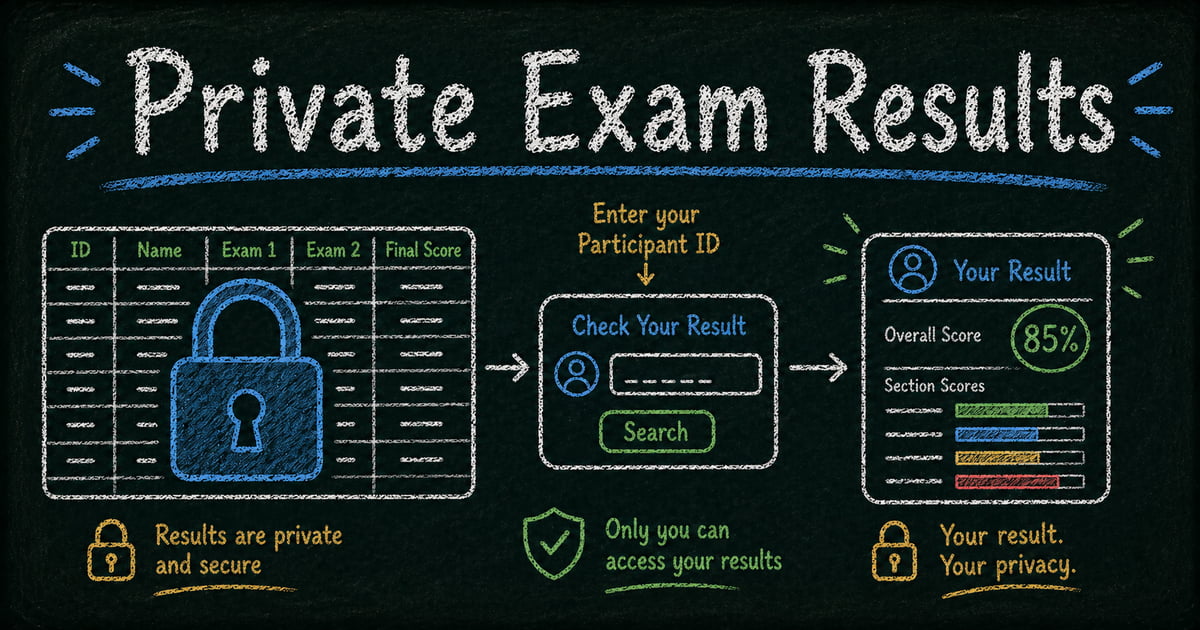
Share results safely
Let each respondent look up their own result
Create a controlled lookup workflow for exams, race results, course records, or private respondent data.
One spreadsheet can hold 300 exam scores. One share link can expose all 300 of them.
That is the uncomfortable gap most schools, course providers, and competition organizers run into after grading is finished. Emailing results one by one is slow. Posting a PDF or spreadsheet is fast, but it lets every participant see records that do not belong to them.
A private exam results lookup page solves the middle problem: publish one URL, let each person search with their own ID or email, and return only the matching score, rank, pass/fail status, feedback, or next step. This article explains how to build that page from either form submissions or an Excel spreadsheet.
TL;DR — An exam results lookup page turns form submissions or Excel rows into a private searchable page where each participant retrieves only their own result.
- Use Public Query — FormHug can turn form data or imported Excel data into a self-service lookup page.
- Require the right lookup key — student ID, candidate ID, email, phone, or two fields for sensitive results.
- Show only result fields — score, rank, status, feedback, certificate status, or next steps.
- Works for: exams, certifications, auditions, judged contests, admissions outcomes, training cohorts.
- Avoid shared spreadsheets when the result is personal, private, or easy to misread out of context.
What Is an Exam Results Lookup Page?
An exam results lookup page is a public URL with private row-level retrieval. A student, candidate, or participant enters a lookup value such as Student ID, Candidate Number, email, phone number, or registration code. The page returns only the matching record.
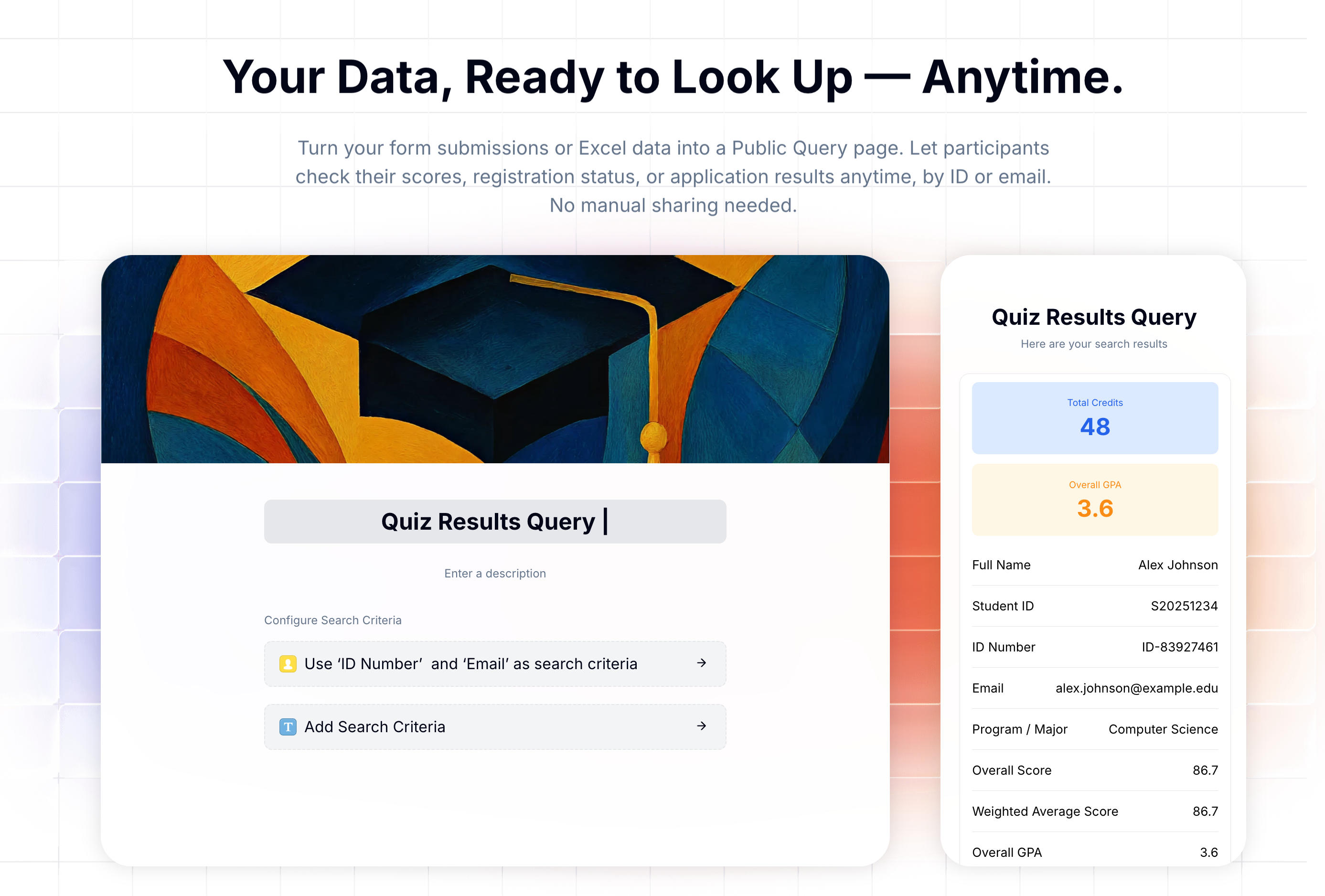
The visitor cannot browse every row. They cannot download the spreadsheet. They do not need a login or portal account. The organizer controls:
- Which field or fields visitors must enter
- Which result fields appear after a successful lookup
- Whether names, emails, or other values are partially masked
- When the lookup page is published or taken offline
FormHug calls this feature Public Query. It works with data collected through a FormHug form, such as a quiz, assessment, application, or registration form. It also works with imported Excel or CSV files when the results were calculated somewhere else.
Why Shared Spreadsheets Fail for Exam Results
Most result-sharing problems start with a reasonable instinct: “We already have the results in a spreadsheet. Why not share it?”
Because the spreadsheet is the database. If you share the whole file, you are sharing every row.
| Publishing method | Why teams use it | What goes wrong |
|---|---|---|
| Individual email | Private per student | Slow, hard to resend, easy to miss people |
| Shared spreadsheet | Fast to publish | Everyone can scroll through everyone else’s results |
| Posted PDF | Familiar and easy to attach | Usually exposes the whole list |
| Password-protected page | Simple access gate | One forwarded password exposes all records |
| LMS or student portal | Strong access control | Heavy setup for one result release |
| Lookup page | One link, private retrieval | Requires clean identifiers and careful display choices |
A lookup page is not a full learning management system. It is a narrower tool for a high-frequency job: let each participant find their own result without revealing the rest of the dataset.
For a spreadsheet-first version of this workflow, see how to build a lookup page from an Excel spreadsheet.
Start With the Source of Your Results
Public Query can start from two common data sources: a form or a spreadsheet. Choose the one closest to where your final results live.
Option 1: Results already live in a form
Use this path when the data came from a FormHug quiz, assessment, application form, competition entry form, or registration form.
Examples:
- A quiz form calculates score ranges and certificate eligibility
- A competition entry form stores team name, category, and judge result
- An application form records status, decision, and next step
- A registration form stores confirmation status or seat assignment
This path is useful because you do not have to export and re-import data. The lookup page can use selected form fields as its searchable source.
Option 2: Results live in Excel or CSV
Use this path when scoring happened in Excel, Google Sheets, a judging sheet, a timing system, an LMS export, or a legacy database.
FormHug accepts .xls, .xlsx, and .csv files up to 5 MB, 6,000 rows, and 100 columns. Before importing, make sure the file has:
- One header row
- One participant per row
- At least one unique lookup column
- Clear column labels such as
Candidate ID,Total Score,Pass/Fail, andFeedback - No merged cells or empty header names
If your data starts in Google Sheets, download it as an Excel file or CSV first. If it starts in a learning platform, export only the result fields you want participants to see.
Design the Lookup Key Before You Publish
The lookup key is the most important privacy decision on the page. It controls who can retrieve a record.
Good lookup keys include:
- Student ID
- Candidate ID
- Registration number
- Competition entry number
- Email address
- Phone number
- Application ID
Avoid first name or last name alone. Names collide, spelling varies, and small groups make names easy to guess.
For sensitive results, require two fields. A student might know another student’s ID, but they are much less likely to know both ID and phone number, or both candidate number and enrollment email.
| Result type | Safer lookup setup |
|---|---|
| Classroom quiz | Student ID + email |
| Certification exam | Candidate ID + phone number |
| Judged competition | Entry number, or entry number + email |
| Admissions decision | Application ID + birthdate or email |
| Training course | Employee ID + work email |
| Public contest ranking | Entry number |
Sequential IDs such as 101, 102, and 103 are easy to guess. If the result is sensitive, use non-sequential IDs such as STU-4H8K2P or CERT-2026-A7Q9.
Choose What Each Participant Can See
The result page should answer the participant’s question without exposing your working spreadsheet.
For exam results, display:
- Name, optionally masked
- Total score
- Pass/fail status
- Section or subject breakdown
- Instructor feedback
- Retake or appeal instructions
- Certificate status
For competition results, display:
- Participant or team name
- Category
- Rank
- Total score
- Award status
- Judge notes
- Next round instructions
Do not display home addresses, birthdates, emergency contacts, payment status, internal notes, raw judge calibration fields, or administrative flags. If a field does not help the participant understand their result, leave it out.
How to Create the Lookup Page in FormHug
Step 1: Create a Public Query page
In FormHug, create a new Public Query page. Choose whether the page should connect to an existing form or import results from Excel.
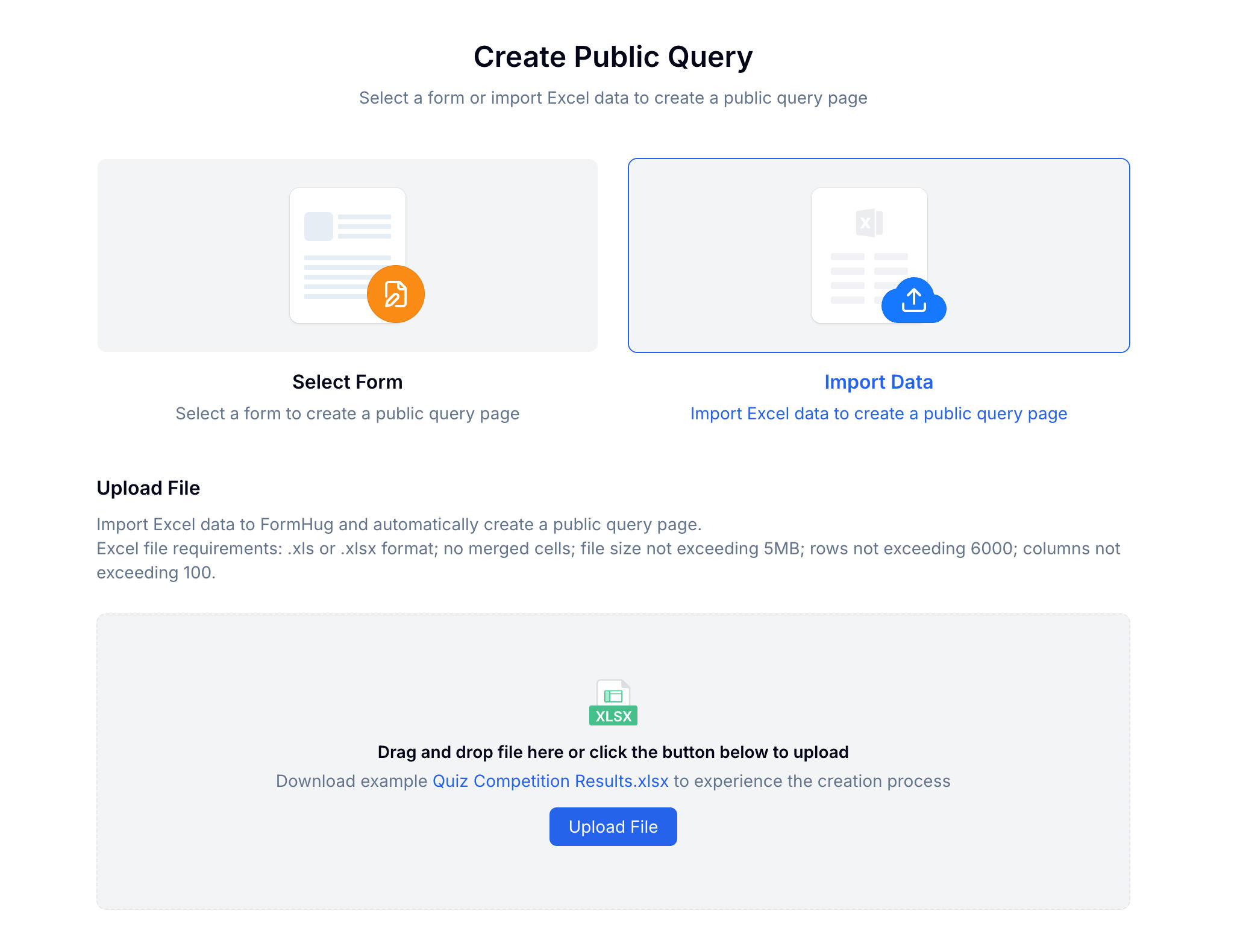
Use the form path when the results were collected or calculated inside FormHug. Use the spreadsheet path when you already have a final gradebook, scoring sheet, or competition results export.
Step 2: Review fields before publishing
If you import from Excel, FormHug previews the file and lets you assign field types. Mark scores and ranks as numbers where appropriate, dates as dates, and labels or statuses as text.
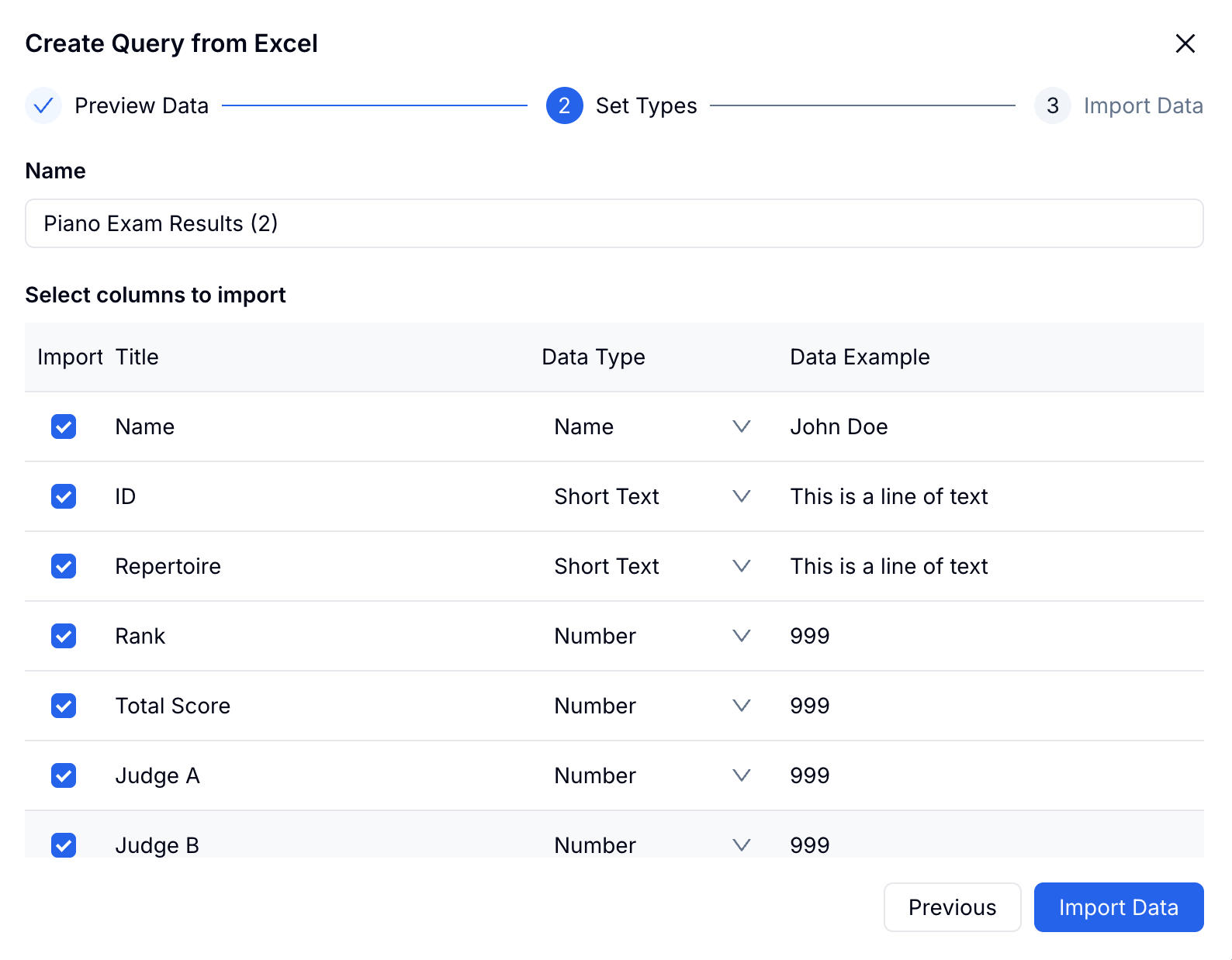
Clean headers matter because they become field labels. Total Score is better than Score_Final_v3. Candidate ID is better than id2.
For detailed spreadsheet cleanup, use the Excel lookup page guide.
Step 3: Set search conditions
Choose the field or fields visitors must enter. For low-sensitivity results, one unique ID can be enough. For exams, certifications, admissions, hiring-adjacent assessments, or results involving minors, use two fields.
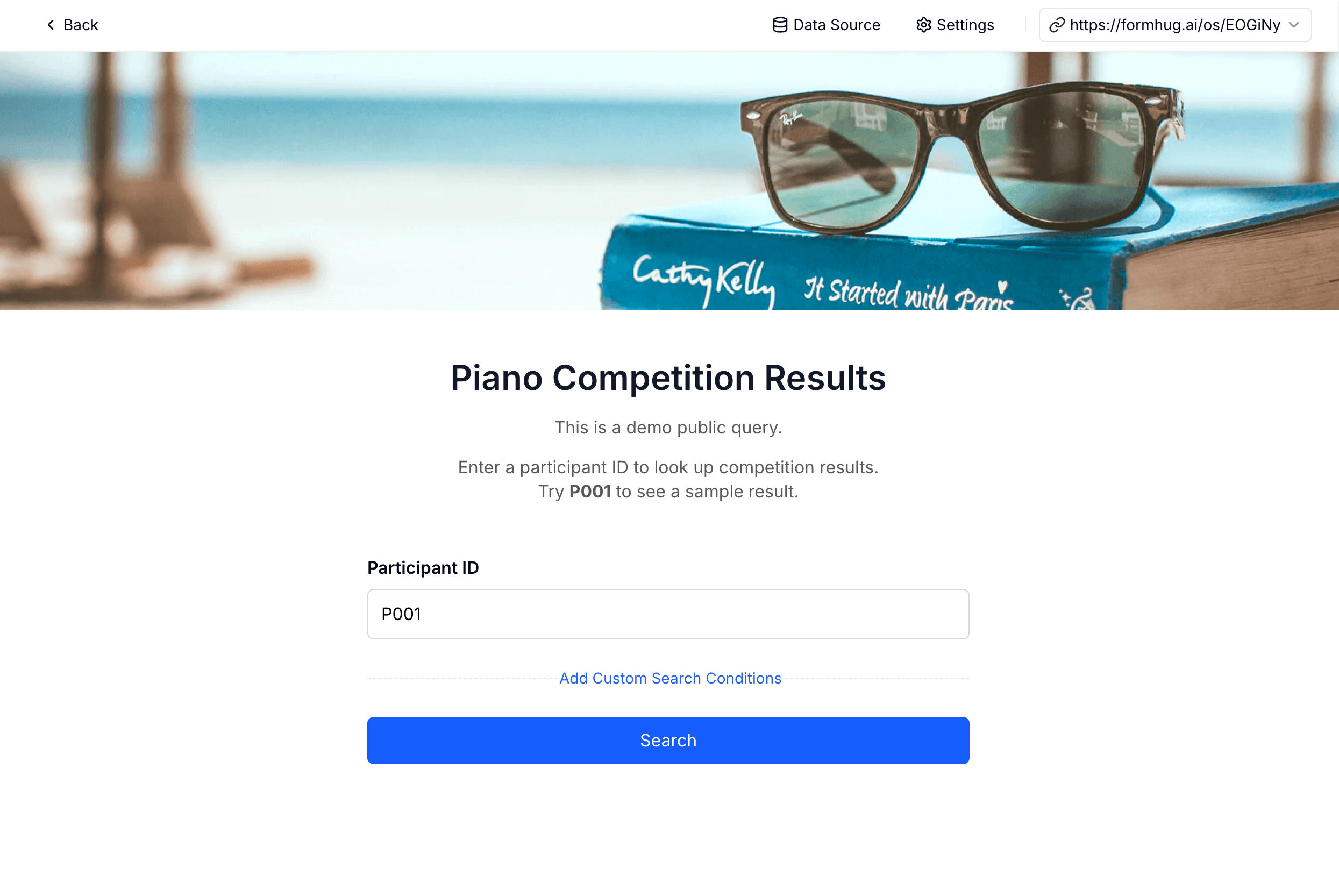
This is where FormHug differs from a shared sheet: the URL is public, but the data is not browsable. A visitor has to provide the matching lookup value to retrieve a record.
Step 4: Configure the result display
Select only the fields participants should see. Highlight the most important value at the top, such as Pass, Rank, Final Score, or Certificate Issued.
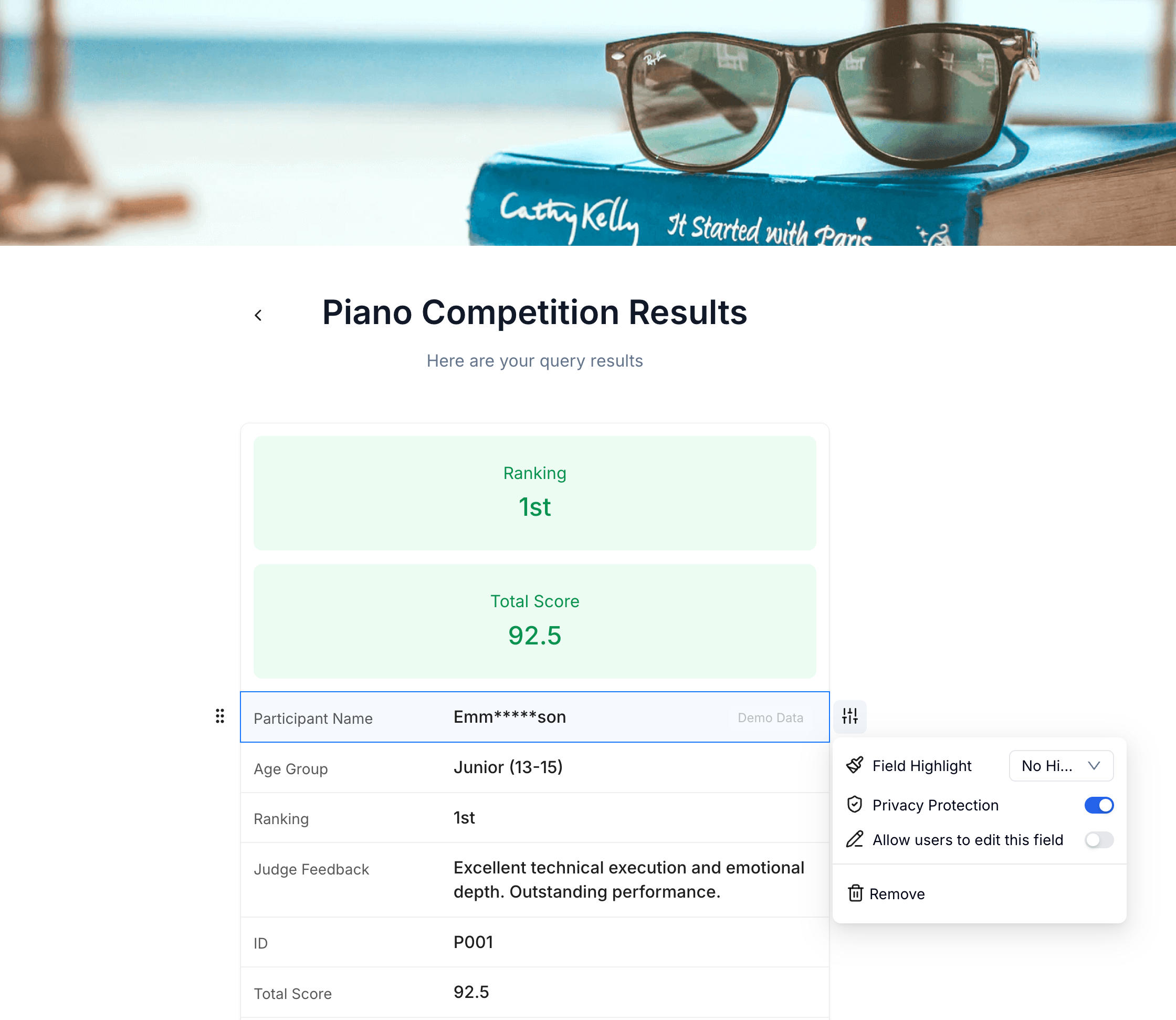
Use privacy masking for names, emails, or phone numbers when the value helps confirm the record but does not need to be fully visible. Then publish the page and share the URL by email, SMS, class announcement, competition portal, QR code, or results notice.
For the full settings reference, see the Public Query documentation.
Privacy Rules for Scores, Rankings, and Decisions
Exam scores and certification outcomes are personal records. A lookup page reduces exposure because it avoids publishing a full list, but the organizer still decides what data goes online.
Use these safeguards:
- Minimize fields — show the fewest fields that answer the participant’s question.
- Use two-field lookup for high-stakes results — ID plus email or phone is safer than ID alone.
- Avoid full names for minors — use masked names, participant IDs, or parent-facing communication.
- Set a lookup window — unpublish the page after the results window closes.
- Separate public rankings from private feedback — a contest may publish a public winner list while keeping judge notes private.
For school contexts in the United States, FERPA may apply. For EU and UK contexts, GDPR principles such as data minimization, purpose limitation, and retention windows matter. This article is not legal advice, but those principles are useful product decisions even when a specific law does not apply.
When to Use a Lookup Page Instead of a Portal
Use a lookup page when the job is narrow:
- “Did I pass?”
- “What was my score?”
- “What rank did my team get?”
- “Is my certificate ready?”
- “What is my application status?”
Use a full portal or LMS when participants need ongoing accounts, assignment history, discussion, content access, attendance records, payment history, or repeated secure interactions over time.
The difference is scope. A portal manages a relationship. A lookup page returns a record.
Frequently Asked Questions
How do I create an exam results lookup page?
Create a Public Query page, connect it to your form data or import an Excel file, choose a unique lookup field such as student ID or candidate ID, select which result fields to display, and publish the generated URL.
Can I build the lookup page from Excel?
Yes. FormHug can import .xls, .xlsx, and .csv files up to 5 MB, 6,000 rows, and 100 columns. Each row becomes a record that can be retrieved by the lookup field you choose.
Can I use form submissions instead of a spreadsheet?
Yes. Public Query can use existing FormHug form data, so results collected through quizzes, assessments, applications, registrations, or evaluations can become searchable without exporting to Excel first.
What should students enter to see their result?
Use a unique value they already know, such as student ID, candidate number, registration code, email, or phone. For sensitive results, require two fields such as ID plus email.
Can participants see other people’s results?
Not through the lookup page. Visitors only see the record that matches the values they enter. They cannot browse the full table or download the source spreadsheet.
Can I publish competition results with judge feedback?
Yes. Import the results, set entry number or participant ID as the search key, and display rank, score, category, award status, and judge notes. Keep internal scoring notes out of the public display.
Is this a replacement for an LMS or student portal?
No. It is best for releasing a specific result. Use an LMS or portal when students need ongoing accounts, assignments, content access, attendance, or long-term grade history.
Is Public Query free?
Public Query is available on paid FormHug plans. The free plan is useful for creating forms and collecting submissions, but lookup pages require a plan that includes Public Query.
Related
- How to Build a Lookup Page from an Excel Spreadsheet — the general workflow for turning spreadsheet rows into private lookups.
- How to Share Training Course Results With Students Without a Student Portal — useful for bootcamps, language schools, and continuing education.
- How to Share Race Results With Participants After a 5K or Triathlon — a race-specific version for bib numbers, chip time, and age group results.
- Public Query — FormHug’s product page for turning form or Excel data into searchable lookup pages.
Every shared results spreadsheet asks participants to ignore rows they should never see. A private lookup page changes the model: one URL, one search, one matching result. Create your results lookup page →

Written by
FormHug TeamProduct, research, and form automation team
The FormHug Team brings together product builders, workflow researchers, and form automation practitioners who study how people collect, route, and act on information online. Our guides are based on hands-on product testing, template analysis, customer workflow patterns, and deep experience with forms, surveys, quizzes, AI-assisted creation, integrations, and results sharing.