How to Create an RSVP Form for Any Event (Free Template Included)
Build the form
Create the workflow with AI
Start from a prompt, a template, or a blank form and publish a polished FormHug workflow.
Every event planner has lived through the same nightmare. You send the invite. Half the people reply “maybe.” Three people email their dietary restrictions separately. Someone adds a plus-one at the last minute without mentioning it. Two weeks before the event, you still don’t know how many chairs you need.
Managing event RSVPs through email, WhatsApp, or a shared spreadsheet turns a simple headcount into a full-time coordination job. By the time you’ve chased everyone down, the caterer has already asked twice and you’ve sent four reminder messages.
An online RSVP form solves this at the source. Guests fill it out in under two minutes, you get a clean list of attendees with every detail in one place, and the form handles the follow-up automatically. This guide covers what to include in an RSVP form, how to build one in FormHug, and templates for the most common event types.
TL;DR — An RSVP form collects attendance, guest details, meal choices, and follow-up information in one structured submission instead of scattered replies.
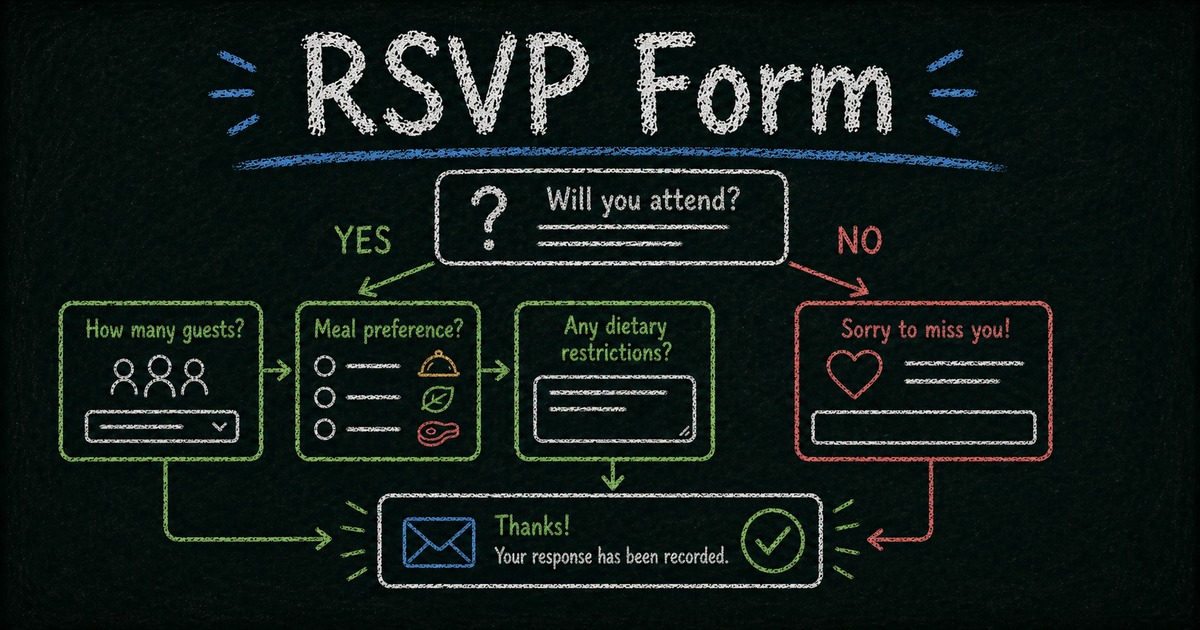
- Ask attendance first — people who decline should skip meal, guest, and planning questions.
- Use conditional fields — show meal choices, plus-one details, or session options only when relevant.
- Send confirmations automatically — guests need a record of what they selected.
- Works for: weddings, corporate events, conferences, sports events, parties, community gatherings.
- A good RSVP form replaces the spreadsheet, the reminder thread, and the manual headcount.
What Is an RSVP Form?
An RSVP form is an online form that collects confirmed attendance from event invitees. Unlike a simple yes/no reply, a well-designed RSVP form gathers everything you need to plan — attendance confirmation, guest count, meal preferences, dietary restrictions, session selections, and contact details — in a single structured submission.
It’s different from a booking form, which manages time slots and capacity scheduling. An RSVP form is built around a fixed event date: you’re not asking guests to choose a time, you’re confirming whether they’ll be there and collecting any planning details you need ahead of the event.
The key advantage over email responses is structure. Every guest submits the same fields in the same format. No more piecing together replies from three different threads to figure out who’s coming.
RSVP Form Builders: How FormHug Compares
Google Forms is the default free option for RSVP collection but treats all guests identically — there’s no built-in conditional logic, so every guest sees the same questions regardless of whether they’re attending. Eventbrite handles ticketed events well but adds a commerce layer that’s unnecessary for private events with no entry fee. Microsoft Forms and Airtable Forms offer structured collection but similarly lack field-level conditional logic on free plans.
FormHug’s combination — conditional logic (guests who decline skip meal choice questions entirely), no transaction fees, automatic confirmation emails, and a shareable link — makes it well-suited for private events, corporate gatherings, and community events where you need structured data without a paid-ticket workflow.
What to Include in an RSVP Form
Not every event needs the same fields. But most RSVP forms share a core set of questions, with optional additions based on the event type.
Core fields (every event)
- Name — first and last, or full name as one field
- Email — for confirmation emails and follow-up reminders
- Attendance confirmation — “Will you attend?” as a required Yes/No question. Make this the first real question, so anyone who selects “No” can optionally skip the rest.
Planning fields (most events)
- Number of guests / plus-one — conditional: only appears if attendance is “Yes”
- Dietary restrictions or food allergies — single text field or multi-select (vegetarian, vegan, gluten-free, nut allergy, other)
- Meal preference — if you’re offering a set menu with choices
Optional fields
- Session or workshop selection — for events with multiple tracks or activities
- T-shirt or swag size — for team events and conferences
- Special accommodations — accessibility needs, room preferences
- Message to the host — optional freeform field, useful for weddings and milestone events
- Phone number — only if you’re sending SMS reminders
The discipline: only ask for what you’ll actually use. Every extra field increases abandonment. If you don’t have a set menu, don’t ask for meal preferences. If you’re not sending SMS reminders, skip the phone number.
Use conditional logic to hide planning fields from anyone who answers “No” to the attendance question. Someone declining doesn’t need to fill out dietary restrictions.
How to Build an RSVP Form in FormHug: Step by Step
Step 1: Create your form
Three ways to get started in FormHug:
Use the AI builder — Describe your event in one sentence: “A wedding RSVP form with meal choice and dietary allergy info.” FormHug generates all the fields and sets up the conditional rules automatically — meal choice and dietary fields only appear when the guest selects Yes for attendance. Fastest path to a working form.
Start from a template — FormHug’s RSVP and invitation template library includes event RSVP forms for weddings, corporate events, birthday parties, and conferences. Open a template and swap in your event details.
Build from scratch — Add fields manually from the left panel if you want full control from the beginning.
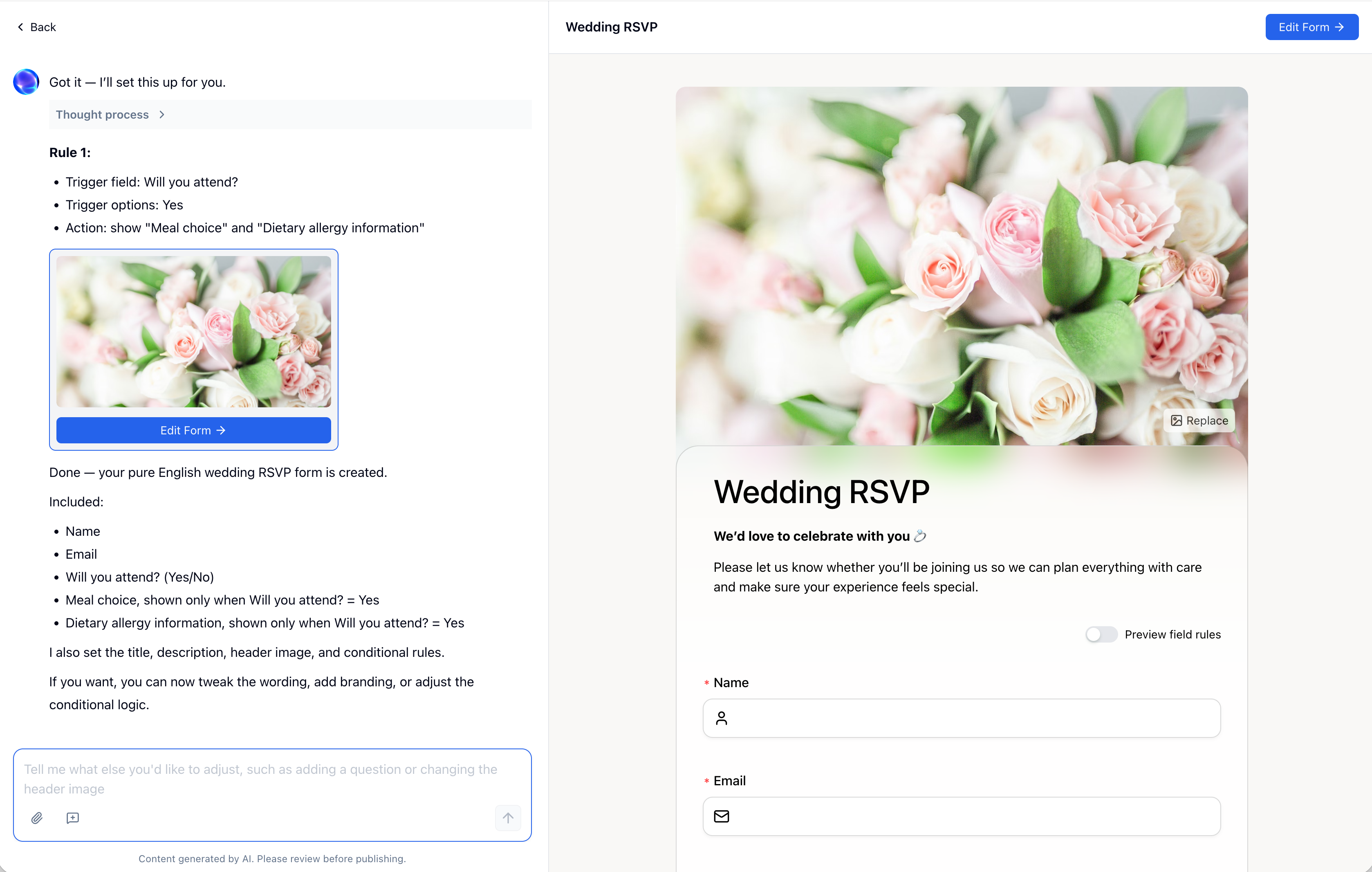 Describe the form in one sentence and the AI generates the fields and conditional logic in one pass — no manual rule setup needed.
Step 2: Set up the attendance question
Add a Single Choice field as the first real question: “Will you be attending?” with options for Yes and No.
This is the most important field in the form — it gates everything else. All the planning questions (meal choice, dietary restrictions, guest count) should only appear when the answer is Yes. Set each of those fields to conditional: show only if “Attendance = Yes.”
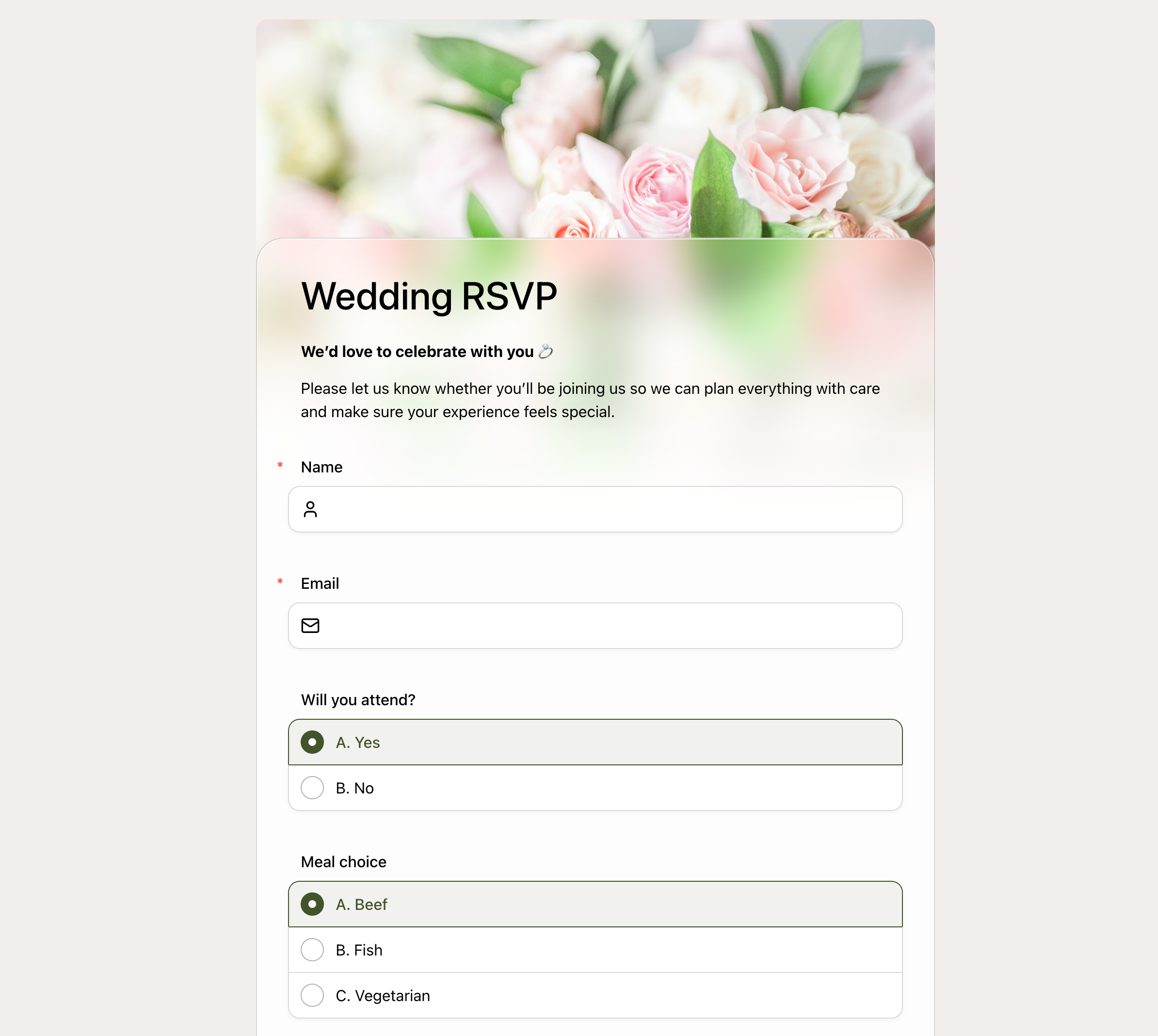 When the guest selects Yes, conditional planning fields appear instantly. Guests who select No skip straight to submit.
Step 3: Add your planning fields
After the attendance question, add the fields relevant to your event. For a formal dinner:
- Guest count — “How many people are you registering?” (Number field, min 1)
- Meal choice — “Please select your meal preference” (Single Choice: Chicken / Salmon / Vegetarian)
- Dietary restrictions — “Do you have any dietary restrictions or food allergies?” (Yes/No, then conditional text field)
For a conference or multi-session event:
- Session selection — “Which workshops will you attend?” (Multiple Choice)
- Networking dinner — “Will you join the networking dinner?” (Yes/No)
Step 4: Configure confirmation, deadline, and sharing
Go to Settings → Notifications and set up two notification emails:
To the guest — Send immediately on submission. Use Insert Field to pull in the guest’s name, attendance status, and meal choice directly into the email body. A personalised confirmation eliminates “did my RSVP go through?” messages and gives guests a record to refer back to.
To you — Set up a second notification to alert you or your team on each new submission. Include the respondent’s name, attendance answer, and meal selection so you can track responses without logging into the dashboard.
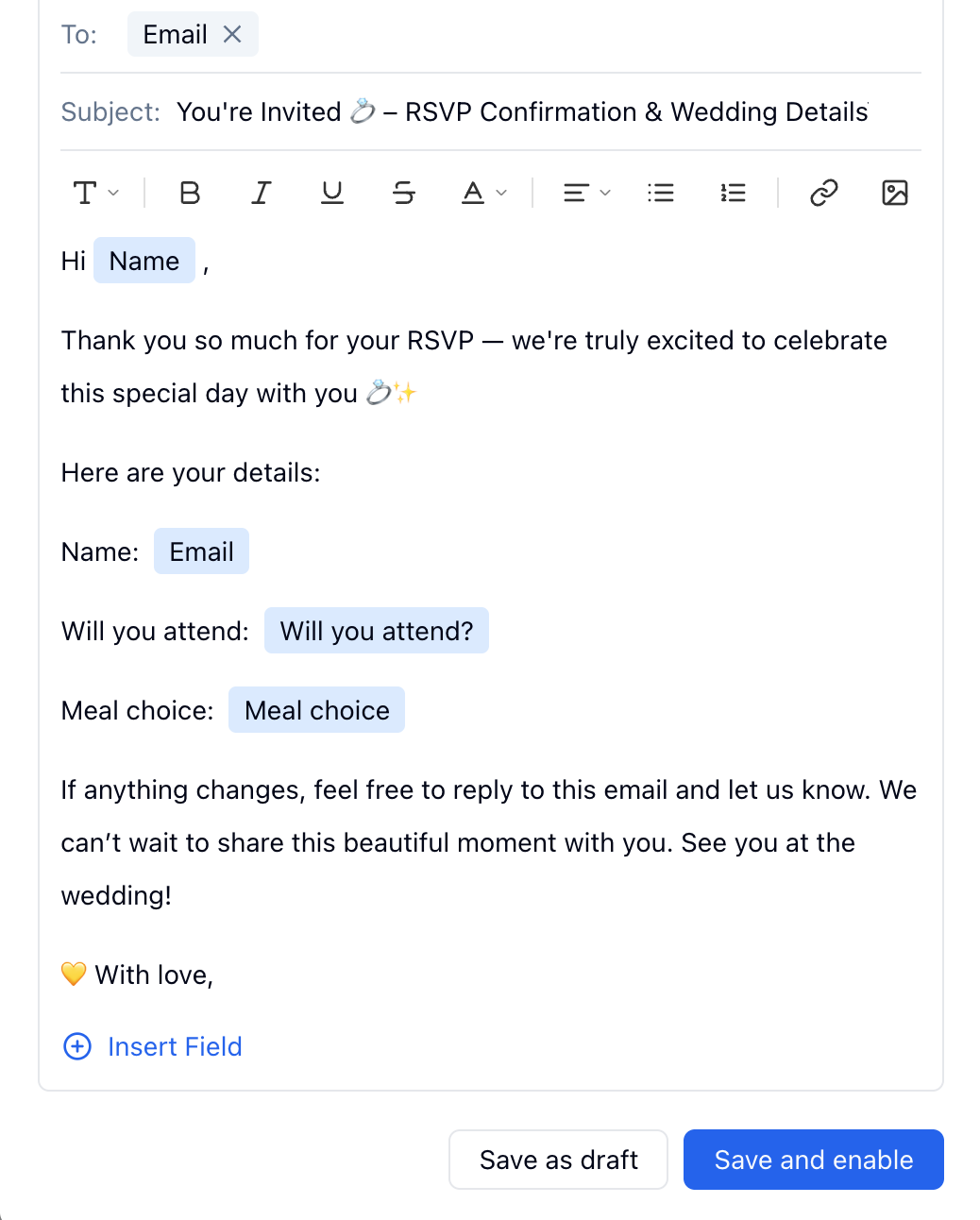 Use Insert Field to pull the guest’s name, attendance status, and meal choice into the confirmation email — each guest receives a personalised summary of their submission.
If your event has a catering or venue cutoff, add a note to the form intro or use FormHug’s form close date setting to automatically stop accepting responses after the RSVP deadline.
Then publish and share the link:
- Email invitation — embed the link or use a button
- Event description — include in calendar invites (Google Calendar, Outlook)
- Social or messaging — share via WhatsApp, Slack, or event group chats
- QR code — FormHug generates a QR code for each form, useful for printed invitations or on-site check-in
RSVP Form Templates by Event Type
Wedding RSVP form
Weddings have the most complex RSVP needs: multiple guests per submission, meal selections per person, dietary restrictions, optional attendance at different events (ceremony, reception, rehearsal dinner), and usually a deadline tied to the caterer’s final count.
Key fields: full name, partner/guest name, attendance per event, meal selection per attendee, dietary restrictions, song request (optional), note to the couple (optional).
Use conditional logic to show guest fields only if “Will you bring a guest?” is Yes, and to show dietary details only when “Yes” is selected for dietary restrictions.
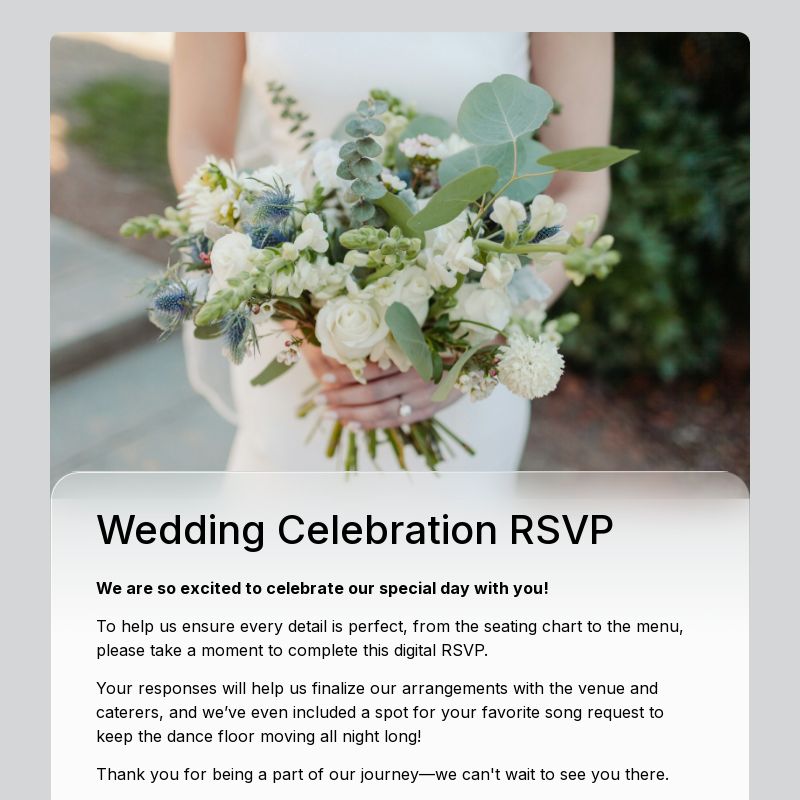
Wedding RSVP Form Template — Attendance, meal choice, dietary restrictions, and a note to the couple. Conditional logic pre-configured.
Corporate event / team dinner
Attendance confirmation, dietary restrictions, and sometimes a meal choice if the venue requires a pre-order. Keep it short — employees are more likely to complete a three-field form than a ten-field one.
Key fields: name, attendance, meal preference (if applicable), dietary restrictions, dietary notes.
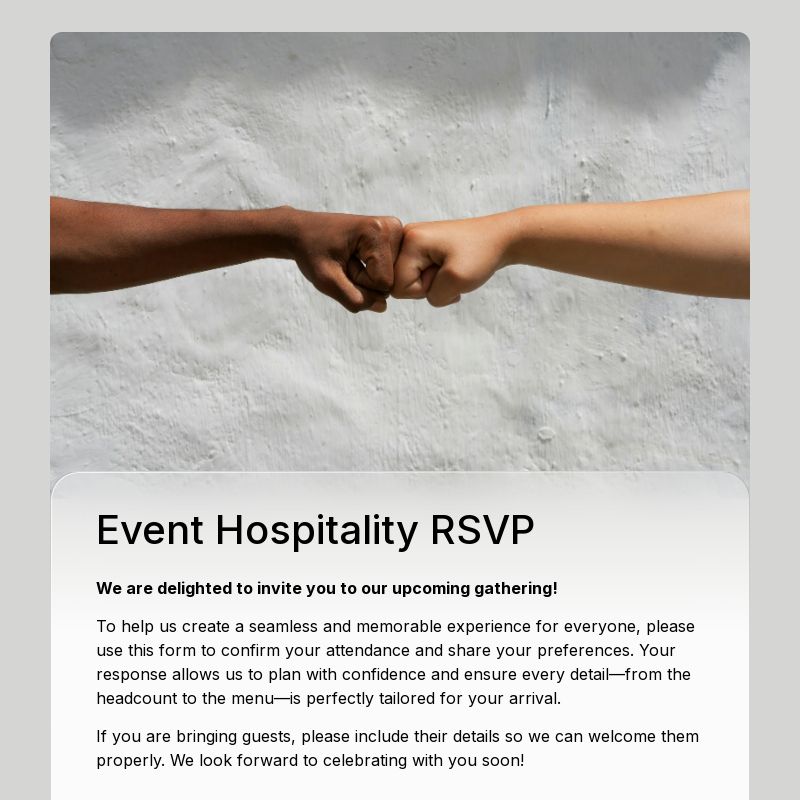
RSVP Form Template — A clean, general-purpose RSVP form for any internal gathering or company event.
Conference or multi-day event
Conference RSVPs often include session selection, which can generate a lot of fields fast. Use conditional logic and multi-page form layout to break the experience into sections: basic info first, then session choices, then logistics.
Key fields: name, email, company, job title, session selections, dietary restrictions (for catered meals), accessibility needs, T-shirt size (for branded events).
Personal Workshop Registration Template — Works for hobby classes, skill-sharing sessions, and small-scale professional workshops.

Birthday party or social event
Informal events need informal forms. Keep the field count low — the RSVP should take under 90 seconds.
Key fields: name, attendance, plus-one (if applicable), dietary restrictions, note to the host (optional).
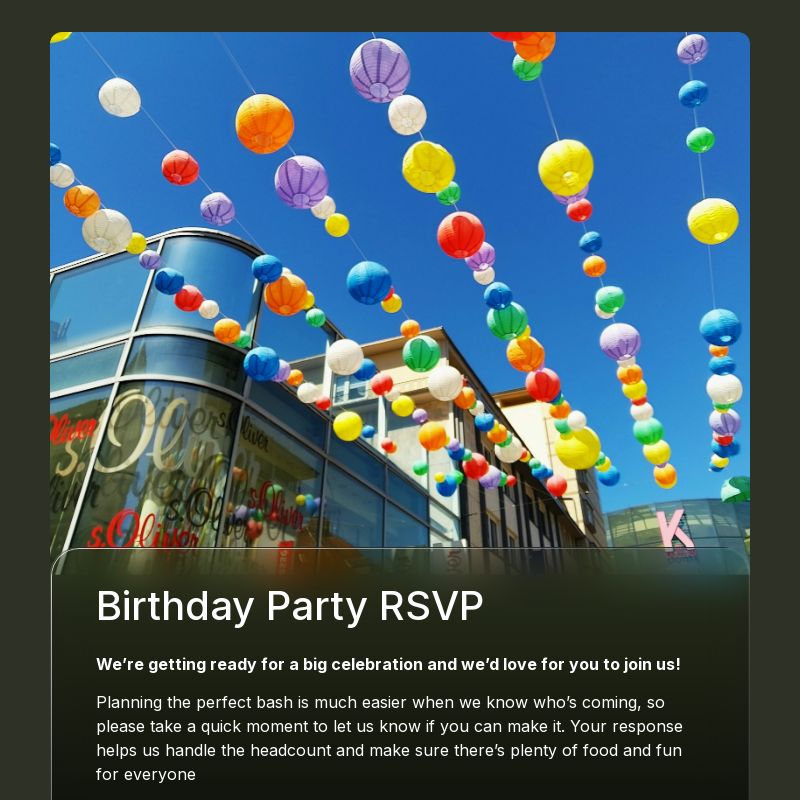
Birthday Party RSVP Form Template — Guest count, dietary needs, and plus-ones, ready to send with your invitation.
Sports event or competition
If you’re organizing a race, tournament, or competition and want to collect post-event results or send personalized results to participants, an RSVP form for registration pairs naturally with a results lookup. See How to Share Race Results With Participants for how to combine event registration with results delivery.
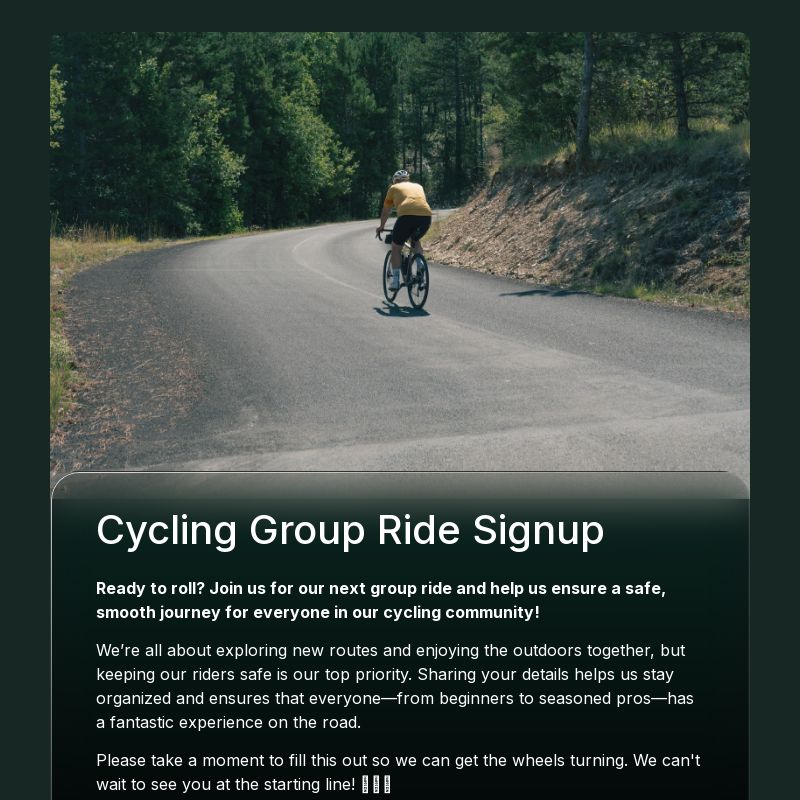
Cycling Group Ride Signup Template — Rider details, skill levels, and emergency contacts. Adaptable for any group sports event or outdoor activity.
Frequently Asked Questions
What should I put in an RSVP form?
At minimum: name, email, and attendance confirmation (Yes/No). For most events, also include guest count, meal preference if applicable, and dietary restrictions. Only add fields you’ll actually use — every extra question reduces completion rates. Use conditional logic to hide planning fields from guests who are not attending.
How do I collect meal choices for multiple guests in one submission?
Add a guest count field first, then use conditional logic to show additional attendee sections (name + meal choice) based on the count. Alternatively, ask guests to submit a separate RSVP for each attendee — simpler to set up and easier to manage for larger events.
Can I send automatic confirmation emails to guests?
Yes. In FormHug, go to Settings → Notifications and create a respondent notification that fires on each submission. Include the event name, date, location, and a summary of what the guest selected. This eliminates “did my RSVP go through?” messages.
How do I close the RSVP form after the deadline?
FormHug lets you set a form close date, after which submissions are no longer accepted. You can also manually unpublish the form at any time from your dashboard.
Can I collect RSVPs for multiple events in one form?
Yes — add a Single Choice field at the top asking which event the respondent is registering for, then use conditional logic to show relevant fields (session options, venue-specific questions) based on their selection.
Is there a limit on how many RSVP responses I can collect?
FormHug’s free plan includes unlimited responses. There’s no cap on submissions, so you can collect RSVPs for events of any size without upgrading.
How do I track who has and hasn’t responded?
FormHug’s results dashboard shows all submissions in real time. You can filter by attendance status, export the list as a spreadsheet, and use the data directly for catering orders, seating charts, or check-in lists.
Can I use FormHug for event check-in on the day?
Yes. FormHug’s Public Query feature lets you build a lookup page where staff can search attendee submissions by name or email on the day of the event. See How to Build a Lookup Page for the setup flow.
Related
- How to Create an Online Booking Form — for events where guests need to select a specific time slot or session
- How to Use Conditional Logic in Forms — hide meal choice and guest fields from respondents who aren’t attending
- How to Share Race Results With Participants Online — pair event registration with a post-event results lookup page
Every RSVP that arrives by email, text, or spreadsheet comment becomes one more detail you have to reconcile by hand. Put the answer, guest count, and meal choice in one form instead. Create your RSVP form →

Written by
FormHug TeamProduct, research, and form automation team
The FormHug Team brings together product builders, workflow researchers, and form automation practitioners who study how people collect, route, and act on information online. Our guides are based on hands-on product testing, template analysis, customer workflow patterns, and deep experience with forms, surveys, quizzes, AI-assisted creation, integrations, and results sharing.