

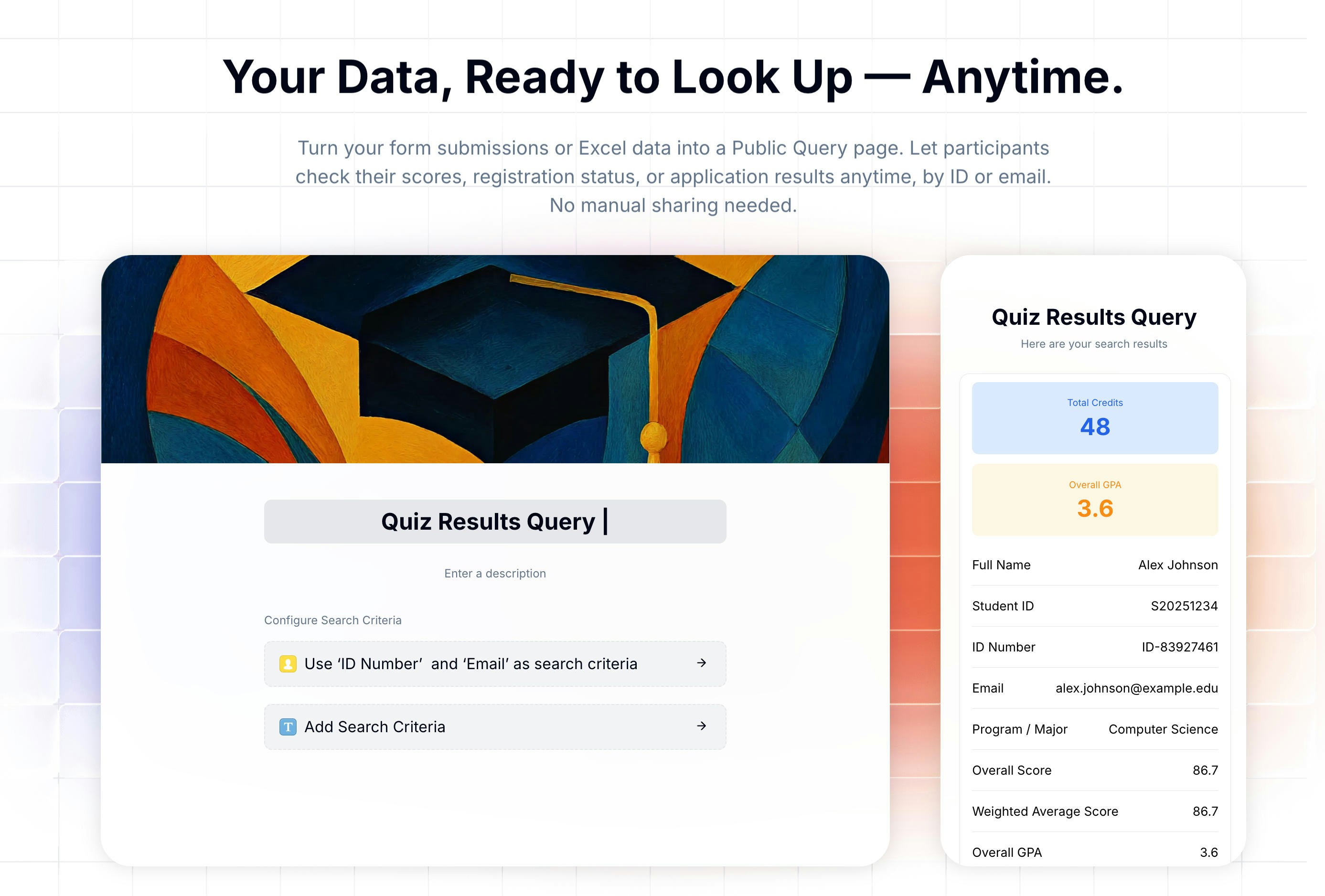
What You Can Do with Public Query
How to Create a Public Query Page
1
Choose a data source
Select a data source for your Public Query page: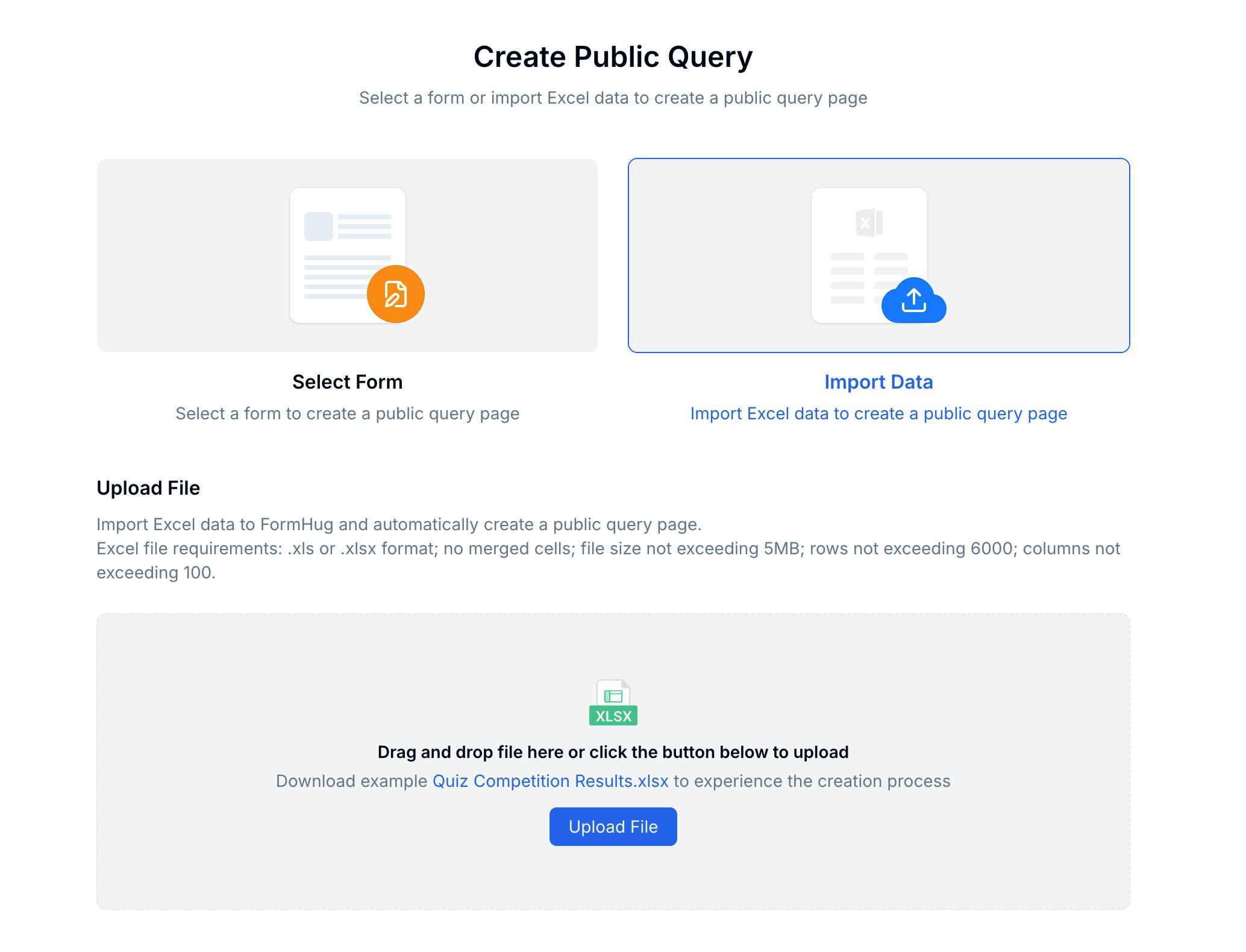
2
Import your data (Excel only)
If you selected Select Form in the previous step, skip this step — FormHug maps the fields automatically and takes you straight to Step 3.
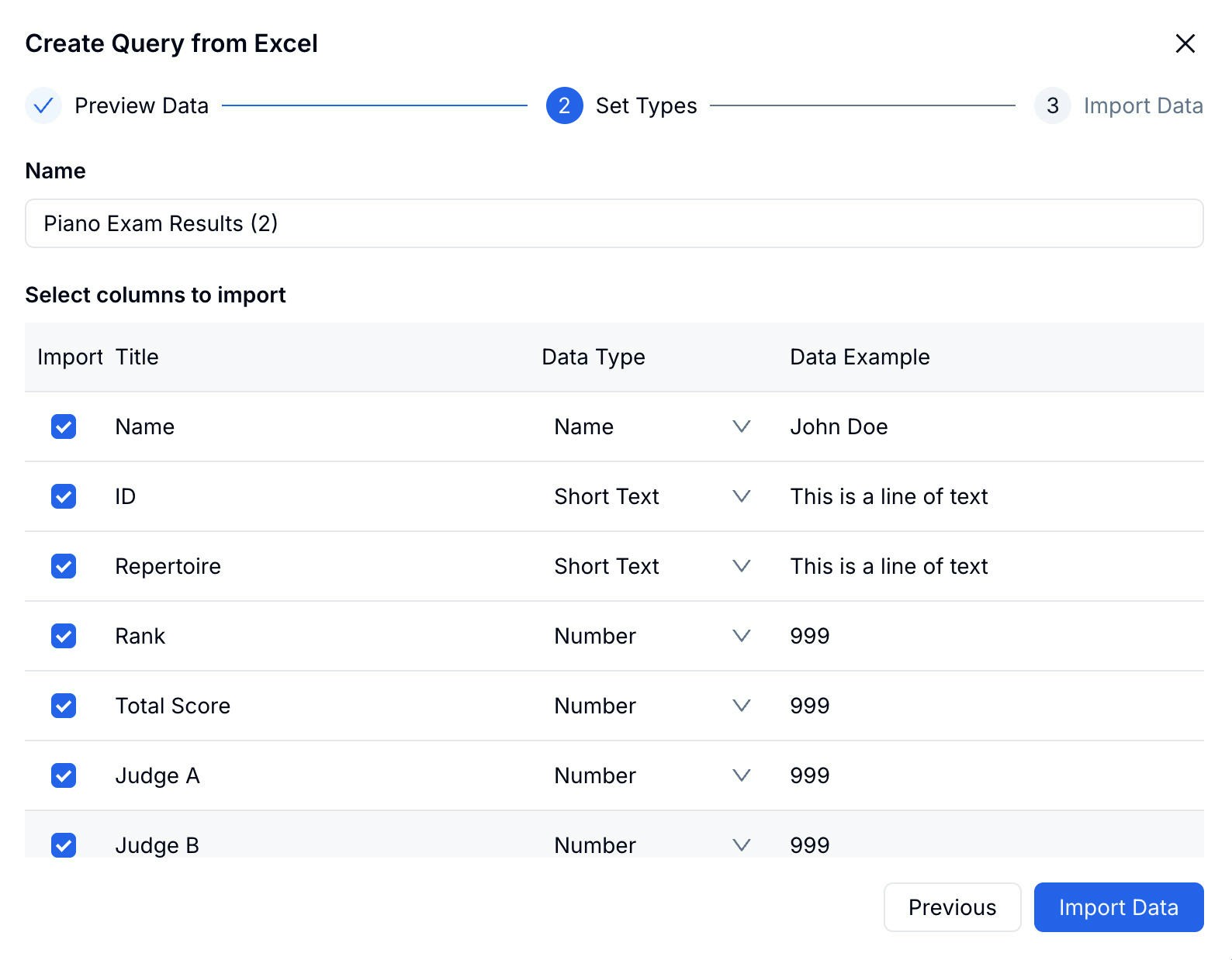
- Format:
.xlsor.xlsx - No merged cells
- File size: 5 MB or less
- Rows: 6,000 or fewer
- Columns: 100 or fewer
3
Set search conditions
Choose which fields visitors must enter to look up their record — for example, Participant ID alone, or ID + Phone for added security.
4
Configure results display
Choose which fields to show in the result. Each field has three display options: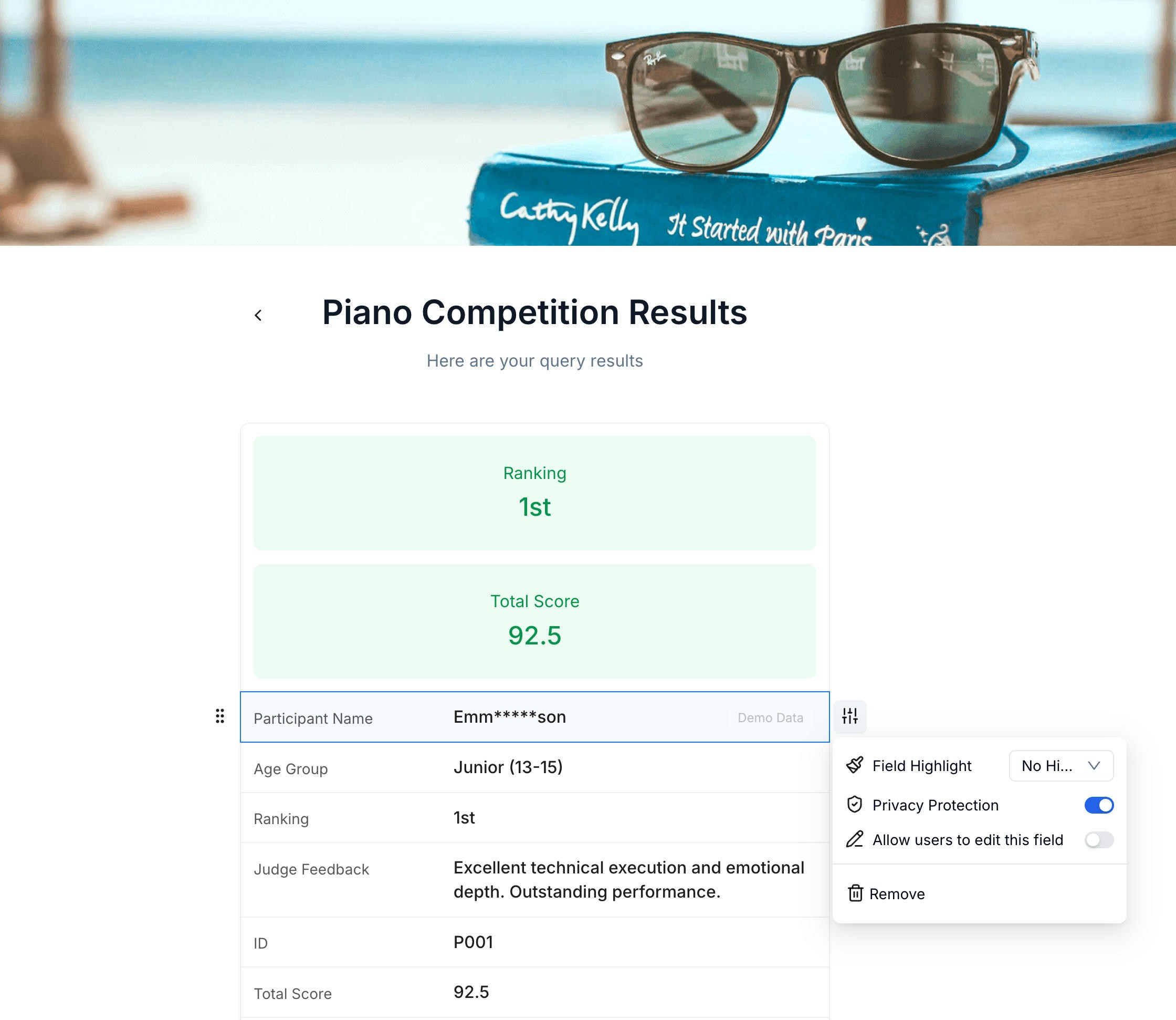
Fields not included in the result are never exposed to visitors.
5
Share your query page
Your Public Query page gets a dedicated shareable URL (e.g.
formhug.ai/os/EOGiNy). Copy the link from the top bar and distribute it — anyone with the link can open it and search, no account required.Try a live example
Open a real Public Query page — enter participant ID P001 to see a sample result
Related
Booking
Accept appointments and manage availability
Form Data & Submissions
Manage and export form submission data
Build a Lookup Page from Excel
Turn spreadsheet rows into a private, self-service search page
Share Exam Scores Online
See how Public Query works for score and result lookup pages