Can I See My Google Form Response? How Respondents Can Find or Save It
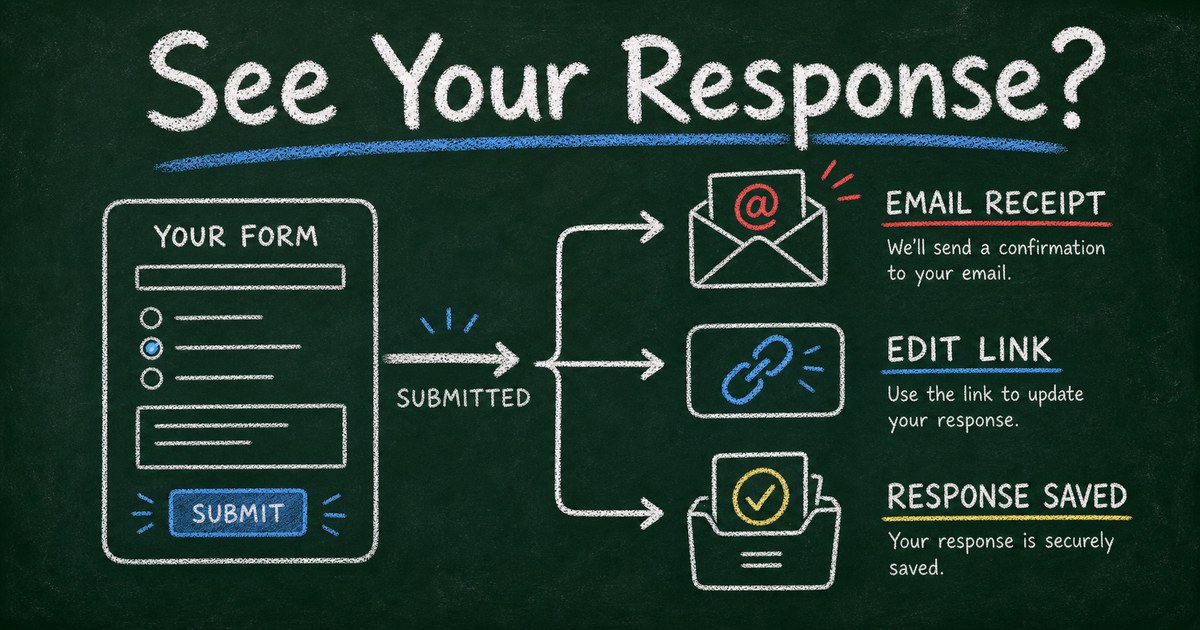
Share results safely
Let each respondent look up their own result
Create a controlled lookup workflow for exams, race results, course records, or private respondent data.
The phrase “Your response has been recorded” sounds reassuring until you close the tab and realize you still do not have a copy of what you submitted. For many respondents, that second after submission is the most stressful part of a Google Form.
Google Forms can show or send a submitted answer back to the respondent, but only when the creator enabled the right settings before the form was submitted. That is why the answer to “can I see my Google Form response?” is usually not a simple yes or no. It depends on whether the form created an email copy, showed an edit link, required sign-in, or collected an email address. In FormHug, respondents have more visible ways to get back to their own submitted data: they can sign in after submitting to save the submission to an account, or reopen the same form in the same browser to see locally remembered submission history.
This article explains the respondent side and the creator side: how to look for your own response, why a response may be unavailable, and how to build a clearer form experience in FormHug so people are not left guessing.
TL;DR - You can see a Google Form response only if the form creator enabled a response copy, edit-after-submit link, or sign-in-based response access before you submitted.
- Check email first - search for the form title, “Google Forms,” and “Your response has been recorded.”
- Look for the edit link - if the creator allowed edits, the link usually appears on the confirmation page or in the receipt.
- Anonymous forms are harder to recover - if no email, login, or edit link was used, there may be no way to reconnect you to one response.
- Works for: applications, event registrations, school forms, surveys, order requests, and client intake forms.
- FormHug can reduce response anxiety by letting respondents save a just-submitted response to an account or reopen browser-stored submission history later.
What Does “Your Response Has Been Recorded” Mean?
“Your response has been recorded” means the form accepted your submission. It does not always mean you received a copy, can view your answers later, or can edit what you submitted.
For respondents, the phrase answers only one question: did the form submit? It does not answer three other practical questions:
| Question | What you need |
|---|---|
| Can I view my answers later? | Email receipt, account access, or a saved response link |
| Can I edit my answers? | An edit-after-submit link from the creator |
| Can the owner find my response? | Enough identifying information to match the response to you |
If you only saw the confirmation message and no receipt arrived, start with the checklist below. The form may still be recorded correctly, but your path back to the exact answers depends on the creator’s settings.
What Does It Mean to See a Google Form Response?
“See my response” can mean three different things:
| What the respondent wants | What must be enabled | Where it usually appears |
|---|---|---|
| A copy of submitted answers | Email copy or “send me a copy” option | Email inbox |
| A way to change answers | Edit after submit | Confirmation page or receipt email |
| Proof that submission worked | Confirmation message | Post-submit page |
| A saved account record | Post-submit sign-in flow | Respondent’s FormHug account |
| Browser-local history | Same browser and local cache | FormHug submission drawer |
The important distinction is that Google Forms is creator-controlled. Respondents cannot force a saved copy after the fact. If the creator did not collect an email address, did not allow editing, and did not show a useful confirmation page, your browser may be the only place where the submission path still exists.
We built this checklist after testing the common Google Forms flows that create respondent confusion: anonymous forms, one-response forms, forms with optional answer copies, and forms where the edit link disappears after the confirmation page is closed.
How to Find Your Google Form Response
Start with the most likely places before contacting the form owner.
Search your email inbox
Search for:
- The title of the form
- “Google Forms”
- “Your response has been recorded”
- The organization or person who sent the form
If the creator enabled response receipts, the email copy may include your submitted answers and, in some cases, an edit link. Check spam, promotions, and updates tabs too. Automated receipts are easy to miss in a busy inbox.
Check the confirmation page or browser history
If you just submitted the form, return to the confirmation page if the tab is still open. Look for links such as “Edit your response” or “Submit another response.” If you closed the tab, check browser history for the original form page and any related Google Forms URLs.
Browser history is not a guaranteed recovery method. It can help you find the form again, but it may not reveal the exact response unless the form supports editing or account-based access.
Try the original form link
Open the original form link again. If the form used “Limit to 1 response” and you were signed in, Google may show that you have already responded. If editing is allowed, it may give you access to the previous response. If editing is not allowed, the page may only confirm that another response is not accepted.
This is one reason sensitive or anonymous workflows need extra care. The anonymous Google Forms guide explains how sign-in, email collection, and one-response limits affect respondent trust.
If You Own the Form: How to View Google Form Responses
If you are the form creator, the path is different. Open the Google Form, go to the Responses tab, and review the response summary, individual responses, or connected Google Sheet if you created one.
That owner view does not automatically help the respondent. If someone asks for their submitted answers, you still need enough information to identify which response belongs to them. That is why response receipts, edit links, and clear confirmation messages matter before the form is shared.
For the creator-side setup, read Google Forms response receipts for creators. It explains when to send answer copies, when edit links help, and when receipts conflict with an anonymity promise.
Why You Cannot See Your Google Form Response
There are four common reasons a response is not recoverable.
The creator did not enable an email copy
Google Forms response copies are not automatic in every form. If the form did not collect or request an email address, Google has nowhere to send a copy.
You did not choose “send me a copy”
Some forms let respondents choose whether to receive a copy. If you skipped the checkbox, the system may have recorded the response without sending anything back.
The form was anonymous
Anonymous forms are designed not to connect a response to a person. That is good for privacy, but it also means the system may not know which response belongs to you later.
Use the Privacy-Recovery Tradeoff: the easier a form makes response recovery, the more identity it usually has to collect. A truly anonymous feedback survey should not promise easy personal recovery unless it adds a separate, optional contact path.
The edit link was never saved
If the creator enabled editing after submit, the edit link can be the key. But if it only appeared on the confirmation page and you closed the tab, you may lose access unless it was also sent by email.
For Form Creators: Prevent Submission Anxiety
Creators can reduce support messages by making the post-submit experience clear. The goal is not just to collect responses; it is to let respondents know what happens next.
Use the Receipt -> Review -> Repair framework:
| Step | What to decide | Example wording |
|---|---|---|
| Receipt | Should respondents get a copy? | ”A copy of your answers will be emailed to you.” |
| Review | Can respondents view answers later? | ”Save this confirmation email for your records.” |
| Repair | Can they edit mistakes? | ”You can edit your response until May 31.” |
For event registrations, applications, intake forms, and order forms, a receipt is usually worth collecting an email address. For anonymous employee feedback or sensitive classroom surveys, recovery may be less important than privacy. The anonymous survey guide covers that tradeoff in more detail.
How FormHug Lets Respondents See Submitted Data
FormHug is useful when the response experience needs to feel more deliberate than a blank confirmation screen. Instead of relying only on an email receipt or a creator-controlled edit link, FormHug gives respondents two practical ways to get back to a submission after they send it.
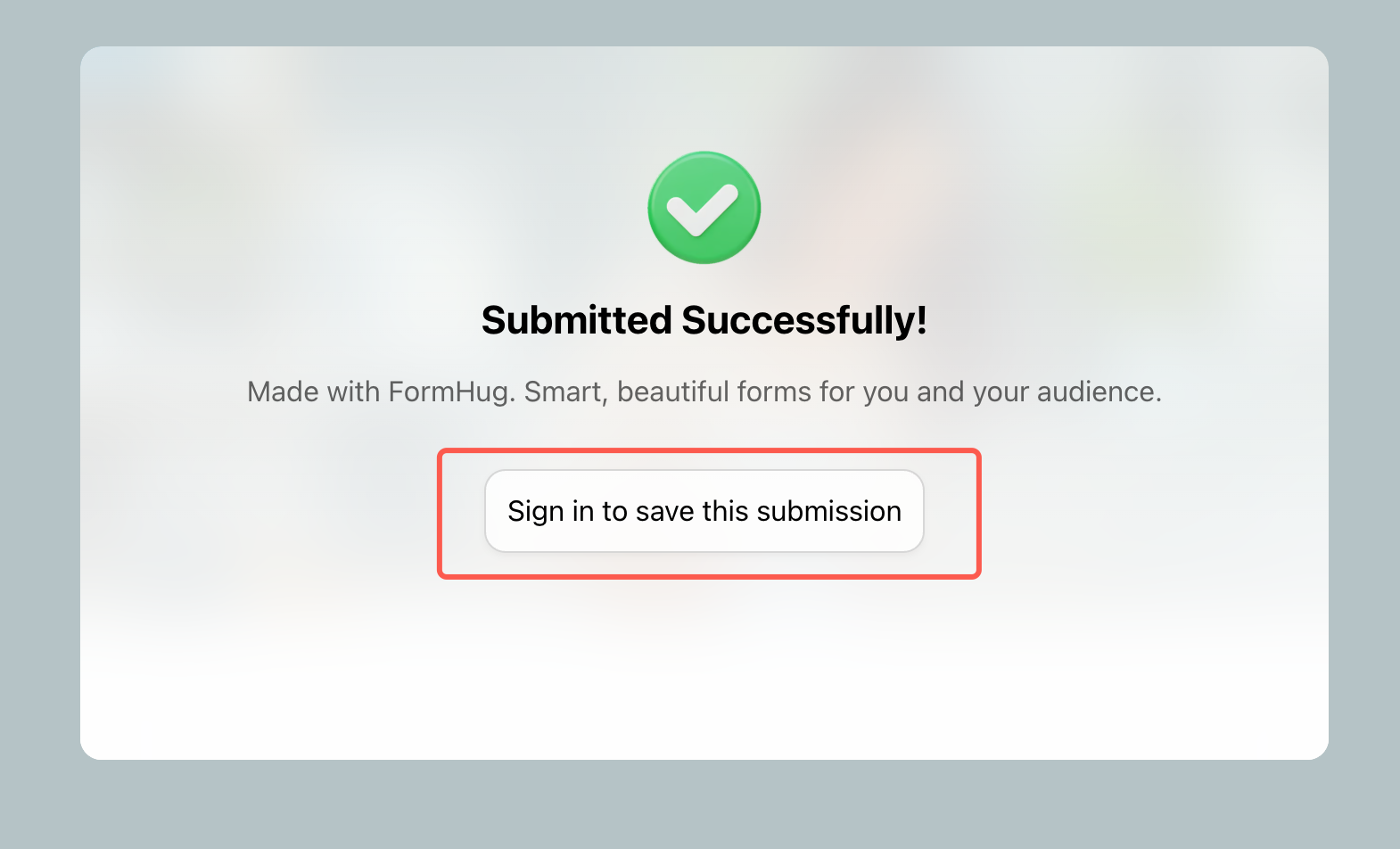
The first method is account-based. After a successful submission, the confirmation page can show a Sign in to save this submission button. If the respondent signs in at that moment, the just-submitted data is saved to their FormHug account so they can view it later from their own account history.
The second method is browser-local. If someone has already filled out a FormHug form page and opens the same form again in the same browser, FormHug can show a submissions prompt. The respondent can open the Submissions panel and review past submission records remembered by that browser.
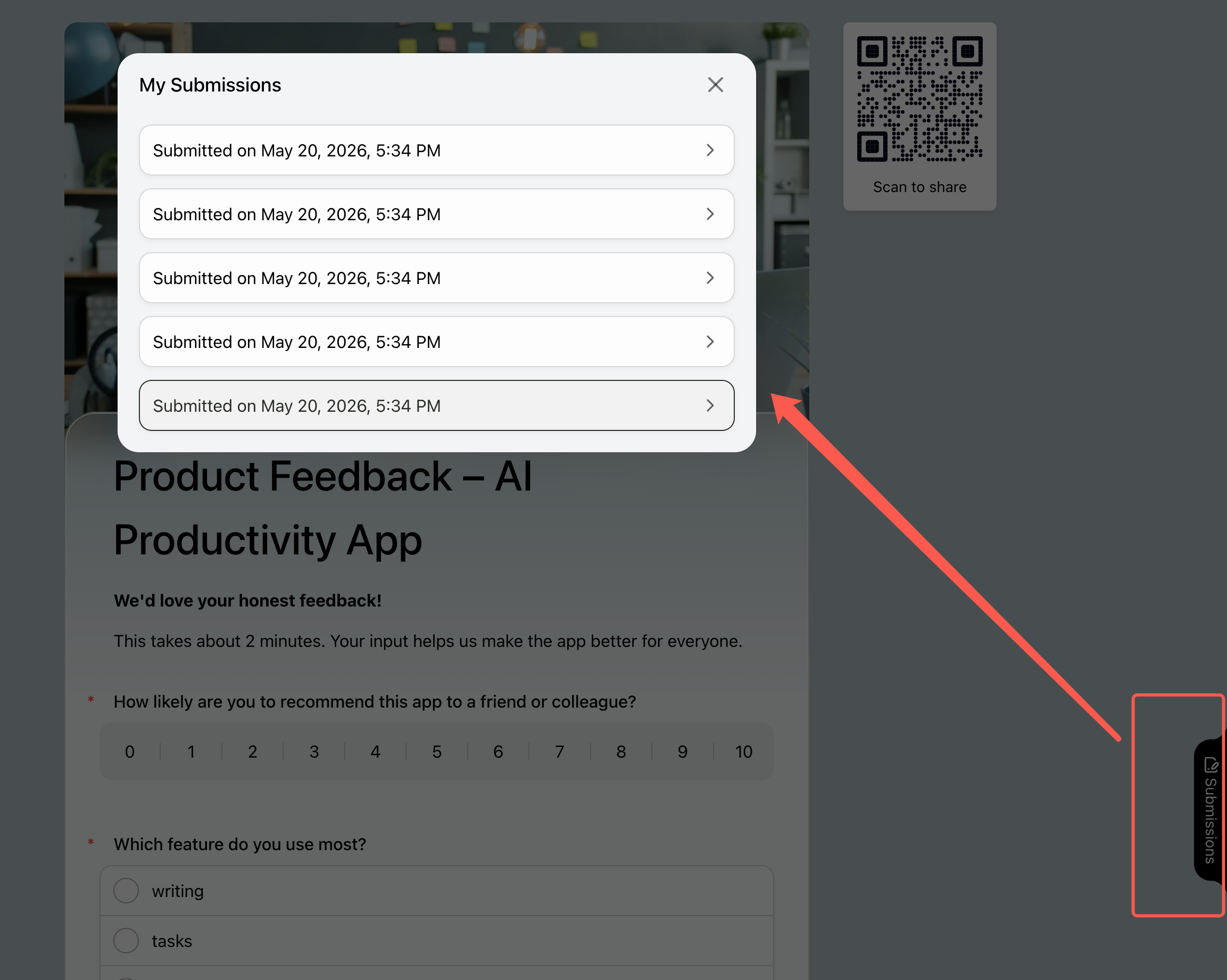
That second path is convenient, but it has a real limitation: the history is stored in the browser cache. If the respondent switches devices, uses a different browser, clears browser data, or opens the form in private browsing mode, those locally remembered submissions may not be available. For any workflow where the record must survive device changes, signing in to save the submission is the safer path.
For workflows where people need a record plus follow-up reminders, pair the form with email follow-ups. The confirmation and reminder email guide explains how to send useful post-submission emails without turning every form into a manual support process.
For workflows where people need to retrieve a private result later, use a lookup pattern instead of sending everyone a spreadsheet or asking them to email you. The exam results lookup guide shows how each person can enter their own identifier and see only their own result.
Step-by-Step: Build a Clear Response Experience
Step 1: Decide whether recovery matters
If the response is an application, registration, order, booking, or client intake, respondents usually need proof. If the response is anonymous feedback, recovery may undermine the trust promise.
Step 2: Collect only the identity you need
For a saved email copy, email is enough. Do not ask for name, phone, organization, and ID unless the workflow needs them. Every extra identity field changes how the form feels.
Step 3: Write the confirmation message before publishing
A useful confirmation message answers three questions: Did it submit? Will I get a copy? Can I change it? Even one clear sentence can prevent dozens of follow-up messages.
Step 4: Test as a respondent
Submit the form from a non-owner account. Confirm what the respondent sees, what email arrives, whether the sign-in-to-save path works, and whether browser-local submission history appears when you reopen the form in the same browser.
Frequently Asked Questions
Can I see my Google Form response after submitting?
Only if the creator enabled a response receipt, edit-after-submit link, or account-based access before you submitted. If the form was anonymous and did not send a receipt, there may be no way to reconnect you to the response.
How do I get a copy of my Google Form response?
Check your email for a Google Forms receipt. If the form offered “send me a copy of my responses” and you selected it, the copy should arrive by email. If it never arrived, check spam and search by the form title.
Can I edit my Google Form response?
Only if the creator enabled editing after submission. The edit link may appear on the confirmation page or in your response receipt. Without that link or account-based access, you usually cannot edit the response yourself.
Can the form owner send me my response?
Yes, if they can identify which response is yours. If the form was anonymous and did not collect identifying information, the owner may not be able to tell which row belongs to you.
Does Google Forms always email a copy of my answers?
No. Email copies depend on the creator’s settings and whether the form collected or requested an email address.
What should creators write after form submission?
Use plain language: “Your response was submitted. A copy has been emailed to you. If you need to make a change, use the edit link in that email.” Adjust the sentence based on your actual settings.
Can FormHug send confirmation emails after submission?
Yes. FormHug supports form workflows where respondents can receive follow-up messages, and you can write confirmation text that matches the purpose of the form.
Can respondents view their own FormHug submissions later?
Yes. After submitting, a respondent can sign in to save the just-submitted data to their FormHug account. If they use the same browser again later, FormHug can also show browser-stored submission history for forms they have already completed, but that local history may disappear if browser data is cleared or the respondent changes devices.
Related
- Google Forms Response Receipts for Creators - decide when form owners should send copies, allow edits, or explain next steps.
- How to Make Google Forms Anonymous - understand when privacy settings make response recovery harder.
- How to Create a Private Exam Results Lookup Page - let each respondent retrieve only their own result later.
If people keep asking whether their response went through, the form did not finish the job after submit. Create a clearer form ->

Written by
FormHug TeamProduct, research, and form automation team
The FormHug Team brings together product builders, workflow researchers, and form automation practitioners who study how people collect, route, and act on information online. Our guides are based on hands-on product testing, template analysis, customer workflow patterns, and deep experience with forms, surveys, quizzes, AI-assisted creation, integrations, and results sharing.