Form Builder for Docs: Turn Google Docs, Word, and PDFs Into Online Forms
Create with AI
Describe the workflow and get a form draft
Use FormHug to create forms from prompts, then share, automate, and reuse the structured responses.
Most forms do not start inside a form builder. They start as a document.
A teacher has a Word file full of quiz questions. An HR team has a PDF training handout. A researcher has a Google Doc with survey sections. An event organizer has a messy planning document that already lists the registration questions. The information is there, but the online form still has to be rebuilt by hand.
A form builder for docs changes that starting point. Instead of copying every question into a blank builder, you can use a Google Doc, Word document, PDF, or existing question list as the source material for a live form, survey, quiz, exam, registration page, or assessment.
TL;DR - FormHug can turn document content into online forms, including surveys, registrations, quizzes, exams, and assessments.
- Start from a real document - use a public Google Doc, Word file, PDF, copied text, or existing question list as the source.
- Generate or recreate - create a new form from the document’s meaning, or recreate an existing document survey question by question.
- Works for learning and research - turn policies, lesson notes, reports, and training manuals into quizzes, exams, surveys, or feedback forms.
- Works for: document surveys, event registration, training checks, classroom exams, intake forms, employee feedback, market research.
- For Google Docs, use a link that can be opened without sign-in so the AI can read the content.
What Is a Form Builder for Docs?
A form builder for docs is an AI form creation workflow that uses an existing document as the starting point. The document can be a Google Doc, Word file, PDF, pasted text, or a list of questions copied from another source.
The output is not another static document. The output is an online form that people can fill out on a phone or computer.
That distinction matters. A document stores instructions and questions. A form collects answers.
| Document source | Better online output |
|---|---|
| Google Doc with survey sections | Online survey with pages, question types, and response collection |
| Word file with exam questions | Scored quiz or mini exam |
| PDF training manual | Knowledge check with correct answers and explanations |
| Event planning brief | Registration form with contact, session, and preference fields |
| Research notes | Market research questionnaire |
| Paper questionnaire | One-to-one online form recreation |
| Client onboarding document | Intake form with structured fields |
The goal is not just “upload a file.” The useful goal is to preserve the thinking already inside the document and convert it into a form people can actually complete.
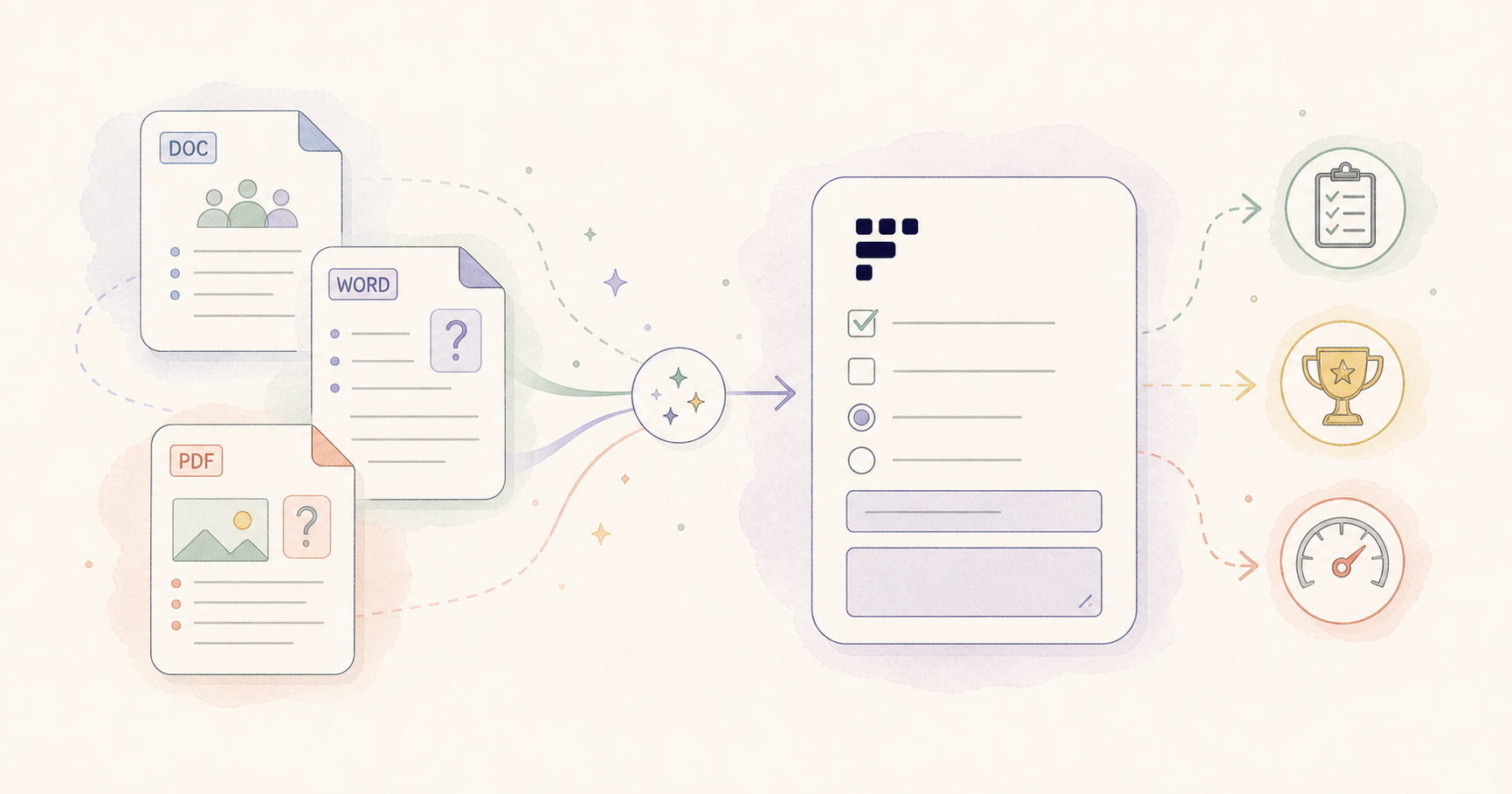
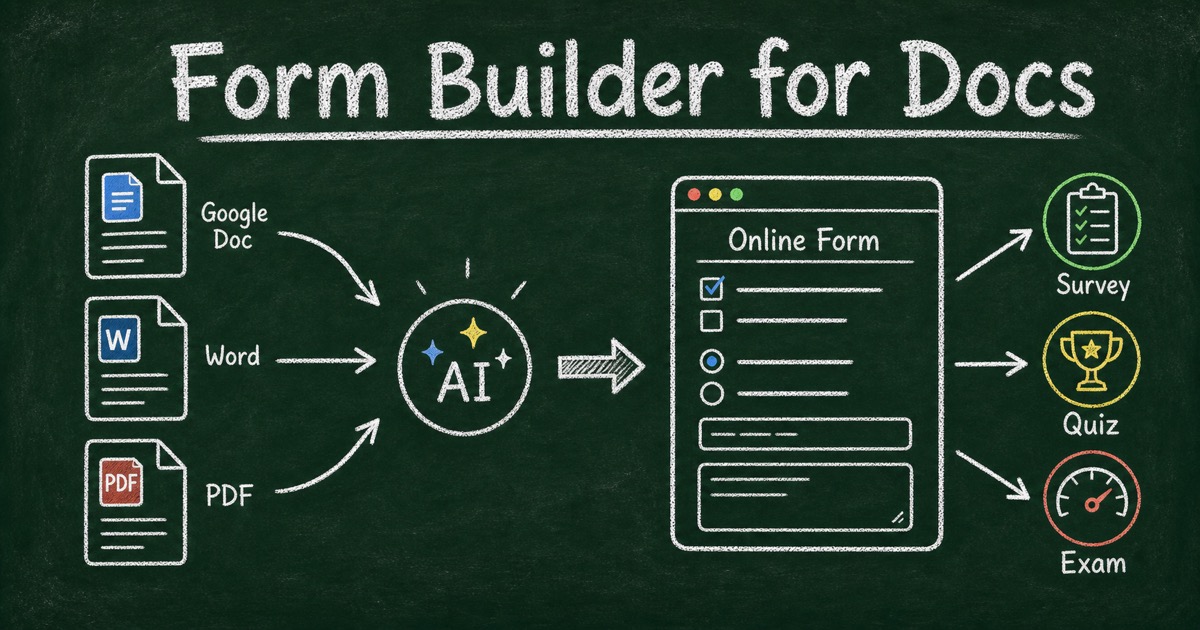
The concept board below summarizes that transformation from document sources into a live online form and several possible outputs.
Two Ways to Turn Docs Into Forms
There are two common workflows, and they solve different problems.
1. Generate a new form from document content
Use this when the document explains a topic, process, event, course, product, or research goal, but does not already contain a finished form.
Examples:
- Turn an employee handbook section into a compliance quiz.
- Turn a course lesson into a mini exam.
- Turn a product research brief into a customer survey.
- Turn a workshop description into a registration form.
- Turn a client onboarding guide into an intake form.
In this mode, the AI reads the document for meaning. It decides what questions need to exist, which field types make sense, and how the form should be structured.
2. Recreate an existing document survey as an online form
Use this when the document already contains the exact questions you want.
Maybe you have a survey written in Google Docs. Maybe someone sent a Word questionnaire. Maybe your team has a PDF form used for years. The job is not to invent new questions; it is to recreate the existing form online as faithfully as possible.
This is where FormHug is especially useful for document-style surveys. If your document already has the survey questions, FormHug can reproduce the question set one by one as an online form, preserving the intent, order, and structure. You can then edit wording, mark required fields, add logic, publish the link, and collect responses without rebuilding everything manually.
Use one-to-one recreation for:
- Customer feedback questionnaires
- Employee pulse surveys
- Class evaluation forms
- Event feedback sheets
- Research screeners
- Paper intake forms
- Application forms
- Training evaluation forms
The practical prompt is simple:
“Recreate this document as an online survey. Keep the same question order and wording. Use the best matching field type for each question.”
If the document contains section headings, instructions, multiple-choice options, rating scales, or open-ended questions, keep them in the source. That context helps the generated online form match the original.
Google Docs, Word, and PDF: What Changes?
The best input depends on what you already have.
| Source | Use it when | Important note |
|---|---|---|
| Google Docs | The source is still being edited or shared by a team | The document must be accessible without login if you are asking AI to read the link |
| Word document | You have a finished questionnaire, exam, policy, or intake template | Keep headings and answer choices clearly formatted |
| The source is a distributed handout, policy, worksheet, or legacy form | Text-based PDFs work better than scanned images | |
| Pasted text | The content is short enough to copy directly | Add instructions about whether to generate or recreate |
| Existing question list | You already know the exact questions | Ask for one-to-one conversion into online fields |
For Google Docs, access is the detail people often miss. If the document requires sign-in, an AI form builder cannot reliably read it from a link. Set the sharing permissions so anyone with the link can view it, or copy the relevant content into the prompt.
For Word and PDF files, clean structure helps. Use headings, bullets, numbered questions, and clear answer options. A document that looks organized to a human is easier to turn into a clean form.
Form Builder for Docs Use Cases
Document survey to online survey
This is the most direct use case. A survey often begins in a doc because teams want to discuss wording before publishing it. That is fine for drafting, but terrible for response collection.
Once the survey is approved, turn it into an online form.
Use this for customer interviews, employee feedback, student perception surveys, event follow-ups, market research, and community polls. If the document already has questions, ask FormHug to recreate it. If the document only has goals and notes, ask FormHug to generate a focused survey from the content.
For survey planning patterns, see the free survey maker guide and the online questionnaire guide.
Google Doc to registration form
Event registration usually begins with a planning document: date, venue, agenda, ticket types, meal notes, capacity, speaker information, and attendee requirements.
That document can become a registration form with fields for name, email, organization, session preference, dietary restrictions, consent, payment intent, and follow-up notes. The AI can infer the form structure from the event brief, then you can trim anything unnecessary before publishing.
This works for workshops, webinars, classes, camps, meetups, volunteer signups, and internal company events.
PDF training manual to quiz or exam
Training documents are full of material people are expected to understand, but reading alone does not prove understanding.
Turn the manual into a quiz or exam:
- Safety training becomes a pass/fail knowledge check.
- Onboarding material becomes a new-hire quiz.
- Product education becomes a certification test.
- Policy content becomes a compliance exam.
- A lesson handout becomes a classroom mini exam.
FormHug’s AI quiz maker and assessment maker are useful when the document should produce scores, feedback, or result pages instead of only collecting open-ended answers.
Word questionnaire to research screener
Research teams often write screeners in a shared doc before they build the live version. The screener may include eligibility questions, demographic segments, product usage questions, and disqualification rules.
The online version needs more than copied text. It needs field types, required questions, answer choices, and sometimes branching logic. For example:
- If the respondent has never used the product category, end the screener.
- If they match the target segment, collect contact details.
- If they choose “Other,” ask for a short explanation.
Start with the Word document, then ask the AI to preserve the screener’s question order while adding logical follow-ups where they are clearly implied.
Policy document to employee acknowledgement form
Not every document should become a quiz. Sometimes the right online form is an acknowledgement.
Use this for HR policies, security rules, remote work guidelines, equipment checkout policies, code of conduct updates, and process changes. The form can summarize the key policy, ask the employee to confirm they have read it, collect a signature-style acknowledgement, and include one or two comprehension questions for high-risk topics.
Client brief to intake form
Service businesses often have onboarding docs that explain what a client should provide: goals, timeline, budget, assets, current tools, brand preferences, technical access, or project constraints.
Turn that document into an intake form so every new client gives structured answers before the first call. This is useful for agencies, coaches, consultants, designers, accountants, tutors, and legal or administrative services.
For a broader intake workflow, read how to create an intake form.
How to Build an Online Form From a Document in FormHug
Think of the workflow as document cleanup, generation, and review.
Step 1: Decide whether to generate or recreate
Before uploading or linking anything, choose the goal.
Use generate when the document is background material and you want FormHug to create the form from its meaning.
Use recreate when the document already contains the survey, quiz, exam, or questionnaire and you want an online version that follows it closely.
This one decision improves the output because it tells the AI whether to be creative or faithful.
Step 2: Prepare the document
For Google Docs, make the document viewable without sign-in, or paste the relevant content directly. For Word and PDF files, keep the layout clean:
- Put each question on its own line.
- Keep answer choices close to the question.
- Use section headings for pages or groups.
- Mark required questions if that matters.
- Remove internal comments that should not become part of the form.
If you are converting a PDF, use the clearest source version you have. A text-based PDF is easier to interpret than a scanned image of a paper form.
Step 3: Ask for the right output
A good prompt names the input, the output, and the level of faithfulness.
For one-to-one survey recreation:
“Turn this document into an online survey. Preserve the question order and wording. Convert multiple-choice items into radio buttons, rating questions into rating scales, and open questions into long text fields.”
For a quiz from training content:
“Create a 12-question quiz from this training document. Use multiple choice, true/false, and short answer questions. Include correct answers and short explanations.”
For a registration form from an event brief:
“Create a registration form from this workshop document. Collect attendee contact information, session preference, dietary restrictions, consent to receive updates, and any questions for the speaker.”
For a research screener:
“Create a research screener from this document. Keep the eligibility questions first, add contact details only for qualified respondents, and include one open-ended question about why they use this product category.”
Step 4: Review the generated form like an editor
AI saves the first draft work, but you should still review the result before sharing it.
Check:
- Did every required question from the document appear?
- Did answer choices stay attached to the right question?
- Are rating scales consistent?
- Did the form use the right field types?
- Are instructions visible but not too long?
- Are quiz answers and explanations correct?
- Is any private internal note accidentally included?
For long forms, publish to a small test group first. The first few submissions often reveal where wording, choices, or required fields need tightening.
How FormHug Compares for Document-Based Forms
| Need | FormHug workflow |
|---|---|
| Create a new form from a document | Use the document as source material and generate a survey, form, quiz, exam, or assessment |
| Recreate a document questionnaire | Preserve the question order and convert each item into the matching online field |
| Work from Google Docs | Use a public viewable link or paste the content |
| Work from Word or PDF | Upload or provide the content, then review the generated structure |
| Turn learning material into a quiz | Generate questions, answer choices, correct answers, explanations, scores, and results |
| Turn research notes into a survey | Generate focused questions from the research goal, audience, and decision |
| Publish the result | Share the form link, embed it, or send it as a QR-code-friendly destination |
FormHug is not only a document converter. It is an AI form builder for the full response workflow: draft, edit, publish, collect, and review. That matters because the useful artifact is not the generated form draft. It is the live form people complete.
Frequently Asked Questions
Can I turn a Google Doc into an online form?
Yes. If the Google Doc can be opened without sign-in, FormHug can use it as source material for an online form. If the document is private, copy the relevant content into the prompt or change the sharing permission to “anyone with the link can view.”
Can FormHug recreate an existing survey from a document?
Yes. If your document already contains the survey questions, ask FormHug to recreate it as an online form while preserving question order and wording. You can then review the field types, required settings, answer choices, and sections before publishing.
Can I convert a Word document into a quiz?
Yes. A Word document with lesson notes, study material, or existing questions can become a scored quiz or mini exam. Ask for the number of questions, question types, correct answers, and explanations.
Can I make a PDF into an online form?
Yes, especially when the PDF contains selectable text or clearly formatted questions. Scanned PDFs may need cleanup because the AI has less reliable text to work from.
Is this different from a normal AI form generator?
Yes. A normal AI form generator starts from a short prompt. A form builder for docs starts from richer source material: a Google Doc, Word file, PDF, policy, lesson, survey draft, or questionnaire. That gives the generated form more context.
What kinds of forms can be created from documents?
Common outputs include surveys, registration forms, feedback forms, intake forms, employee acknowledgements, research screeners, quizzes, exams, and assessments.
Should I use one-to-one recreation or AI-generated questions?
Use one-to-one recreation when the document already has approved questions. Use AI-generated questions when the document is background material and you want the form builder to decide what to ask.
Do I need to code anything?
No. The workflow is document in, online form out. After generation, you edit the form, publish a shareable link, and collect responses without writing code.
Related
- AI Form Builder - compare AI form builders for surveys, registrations, quizzes, and workflows
- Free Survey Maker - create online surveys with AI drafts, templates, and share links
- Everything Can Be a Quiz - the broader idea behind turning documents and content into questions
- How to Create an Online Quiz - build scored quizzes with results and feedback
The next time a survey, quiz, registration form, or exam is trapped inside a document, do not rebuild it field by field. Start from the doc, decide whether you want to generate or recreate, and turn the static file into a live response workflow. Create your form ->

Written by
FormHug TeamProduct, research, and form automation team
The FormHug Team brings together product builders, workflow researchers, and form automation practitioners who study how people collect, route, and act on information online. Our guides are based on hands-on product testing, template analysis, customer workflow patterns, and deep experience with forms, surveys, quizzes, AI-assisted creation, integrations, and results sharing.