How to Limit Submissions per Option in an Online Form
Create with AI
Describe the workflow and get a form draft
Use FormHug to create forms from prompts, then share, automate, and reuse the structured responses.
A 30-person workshop rarely has one simple capacity limit. It has 10 seats in the morning session, 8 seats in the afternoon session, 12 vegetarian lunches, 6 scholarship spots, and 4 volunteer roles that each need a different number of people.
That is where normal form limits break down. A total submission limit can close the whole form after 30 people. It cannot say: “Option A is full, but Option B is still available.” Real-world capacity usually lives inside the options, not only at the form level.
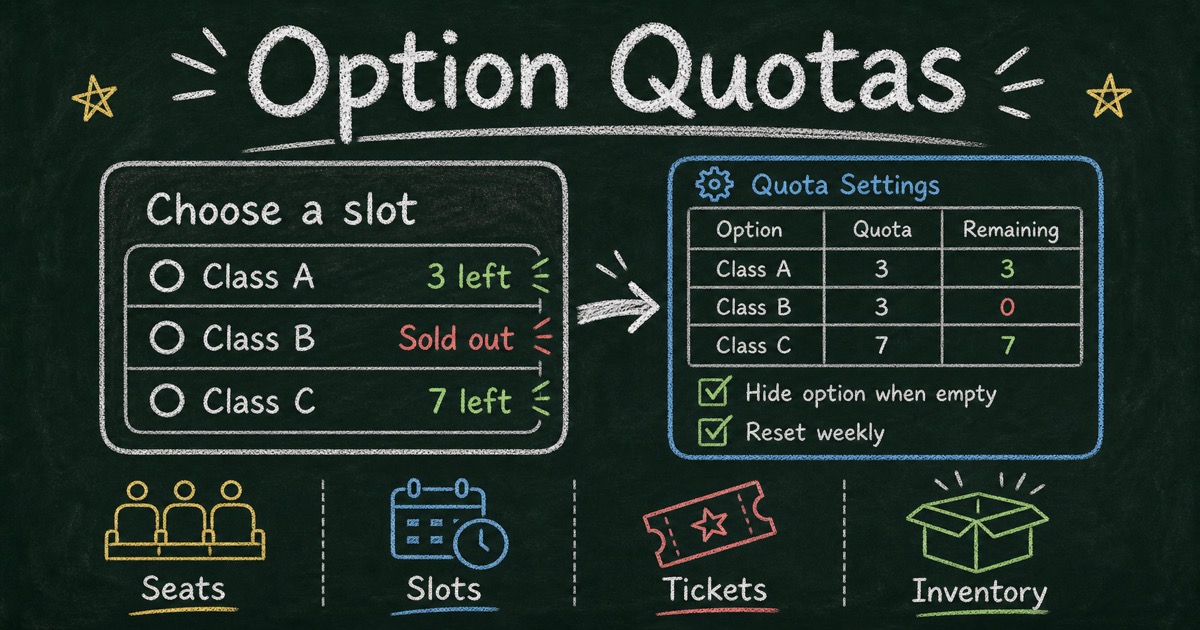
This guide explains how per-option quotas work, when to use them, and how FormHug handles option-level limits for seats, slots, tickets, inventory, and recurring availability.
TL;DR - A per-option quota limits how many times each choice in a form can be selected, so one option can sell out while the rest of the form stays open.
- Use option quotas for limited choices - classes, tickets, appointment slots, volunteer roles, meal counts, giveaways, and research sample groups.
- Do not close the whole form too early - keep available options open even after one choice reaches capacity.
- Decide what respondents see - show remaining spots, hide the count, show a sold-out message, or hide empty options.
- Works for: event registration, class signups, booking slots, camp sessions, inventory claims, research screeners, and volunteer coordination.
- FormHug supports per-option quotas, remaining counts, quota reset rules, and restoring quota when a submission is deleted.
What Does “Limit Submissions per Option” Mean?
Limiting submissions per option means each answer choice has its own capacity.
Instead of saying “this form can receive 100 submissions,” you can say:
| Option | Quota | What happens when full |
|---|---|---|
| Morning workshop | 12 | Hide the option or show “Sold out” |
| Afternoon workshop | 18 | Keep accepting until it reaches 18 |
| VIP ticket | 10 | Stop only the VIP ticket choice |
| Volunteer check-in role | 4 | Remove the role after 4 people choose it |
| Vegetarian lunch | 30 | Prevent meal over-ordering |
This matters because capacity is often attached to a choice. A form-wide response limit treats every submission as identical. An option quota treats each limited resource separately.
The simplest mental model is inventory:
- Every option starts with a number.
- Each submission that selects the option subtracts from that number.
- When the number reaches zero, the form follows your rule: hide it, show it as unavailable, or display a message.
- If a submission is deleted and quota restoration is enabled, the spot can return to the available pool.
That turns a form from a passive collection tool into a lightweight capacity manager.
Form Limit vs Option Quota
Form-wide submission limits are still useful. They close the entire form after a total number of responses.
Use a form limit when every submission consumes the same resource:
- 50 total RSVPs for a private dinner
- 100 total applications before review closes
- 20 total beta testers
- 300 total survey responses
Use an option quota when different choices have different limits:
- Class A has 10 seats, Class B has 15 seats, Class C has 8 seats
- Each appointment slot can accept 1 person
- Each T-shirt size has different inventory
- Each breakout session has a different room capacity
- Each research segment needs a fixed sample count
| Constraint | Best control |
|---|---|
| ”Stop the whole form at 100 submissions” | Form-wide submission limit |
| ”Stop only the sold-out ticket type” | Option quota |
| ”Limit each class section separately” | Option quota |
| ”Collect 50 beginner and 50 advanced survey respondents” | Option quota |
| ”Allow 20 submissions per day” | Form-wide or date-based limit |
| ”Allow 5 people per time slot every week” | Option quota with weekly reset |
The common workaround is to create separate forms for each class, ticket, slot, or role. That works for a tiny event, but it creates new problems: scattered response data, duplicate setup, separate share links, and manual cleanup when capacity changes.
Per-option quotas keep the decision inside one form.
Common Use Cases for Option Quotas
Class and workshop seats
This is the most obvious use case. A course provider offers three sections:
- Monday evening: 10 seats
- Wednesday afternoon: 12 seats
- Saturday morning: 8 seats
If Monday fills first, you do not want to close registration. You want Monday to disappear or show as full while Wednesday and Saturday remain open.
This applies to workshops, training cohorts, small classes, private lessons, office hours, tutoring groups, and internal learning sessions. For broader event tooling decisions, see the event registration software guide.
Tickets, passes, and paid add-ons
Not every ticket type has the same capacity. A small event might offer:
- 50 general admission tickets
- 10 VIP tickets
- 20 student tickets
- 15 dinner add-ons
If the VIP ticket sells out, the general ticket should still be available. If dinner add-ons run out, the ticket form should keep collecting attendee details without over-promising meals.
This is especially useful when payment and registration live in the same form. The form can prevent the unavailable choice before the respondent reaches checkout.
Time slots and appointment windows
Time slots are just options with small quotas.
For example:
- Monday 10:00 - 1 spot
- Monday 10:30 - 1 spot
- Monday 11:00 - 1 spot
- Tuesday 14:00 - 2 spots
For one-on-one bookings, each slot may have a quota of 1. For group office hours, each slot may allow 3 or 5 people. Once a slot reaches capacity, it should stop appearing.
If the whole workflow is calendar-driven, use a dedicated booking form. If the slot is one field inside a richer registration or intake form, option quotas can be the simpler fit.
Volunteer role assignments
Volunteer signups are rarely balanced by accident. If the form only asks “Which role do you want?”, the most popular role may fill up while essential roles stay empty.
Option quotas let the organizer define real staffing needs:
| Role | Quota |
|---|---|
| Check-in desk | 4 |
| Room setup | 6 |
| Photographer | 2 |
| Speaker support | 3 |
| Cleanup crew | 5 |
When check-in reaches 4, it can disappear. People still signing up see roles that actually need coverage.
Meal choices and physical inventory
Forms often ask choices that correspond to real inventory:
- Vegetarian meal: 30
- Vegan meal: 12
- Gluten-free meal: 8
- T-shirt size M: 25
- T-shirt size L: 20
- Gift bag type A: 50
If the form does not know the limit, the organizer finds out too late. Someone has to email people, substitute options, or manually reconcile the shortage.
Option quotas move that constraint into the form before the mistake happens.
Breakout sessions and room capacity
Multi-session events often ask attendees to choose a track, breakout room, demo, or workshop table.
Room capacity is different from event capacity. A conference might have 200 attendees, but one breakout room only holds 35 people. If that session fills, the event can keep accepting registrations while nudging attendees toward open sessions.
This is a better respondent experience than waiting until after registration to say, “Sorry, that breakout is full.”
Research sample quotas
Option quotas are not only for events. Survey and research teams use quotas to balance respondent groups.
Examples:
- 50 beginners, 50 intermediate users, 50 advanced users
- 100 US respondents, 100 UK respondents, 50 Canada respondents
- 30 customers from each pricing tier
- 40 managers and 40 individual contributors
When one group fills, the screener can hide that choice or route the respondent away. The survey stays open for the groups that still need responses.
For broader research form patterns, start with the free survey maker guide.
What Should Happen When an Option Is Full?
The quota number is only half the feature. The respondent experience matters just as much.
Show remaining quota
Showing “3 left” creates urgency and clarity. It works well when scarcity is useful information:
- Workshop seats
- Ticket types
- Camp sessions
- Limited office hours
- Giveaway inventory
Use this when respondents benefit from knowing availability before they choose.
Hide remaining quota
Sometimes the count is operational, not public. You may not want respondents to see that a research segment has only 2 spots left or that one volunteer role is unpopular.
Hiding the count keeps the form clean while still enforcing the capacity behind the scenes.
Hide the option when empty
This is often the cleanest behavior. If an option is no longer available, remove it from the respondent’s choices.
Use this for:
- Time slots
- Sold-out ticket types
- Full class sections
- Unavailable inventory
- Volunteer roles that no longer need people
The respondent never has to choose something that cannot be accepted.
Show a quota exhausted message
Sometimes you want the option to remain visible but unavailable, especially when the respondent might wonder where it went.
Examples:
- “The morning session is full. Please choose an afternoon session.”
- “VIP tickets are sold out.”
- “This research group is now full.”
- “All consultation spots for this week have been claimed.”
This is useful when transparency matters or when the unavailable option is important context.
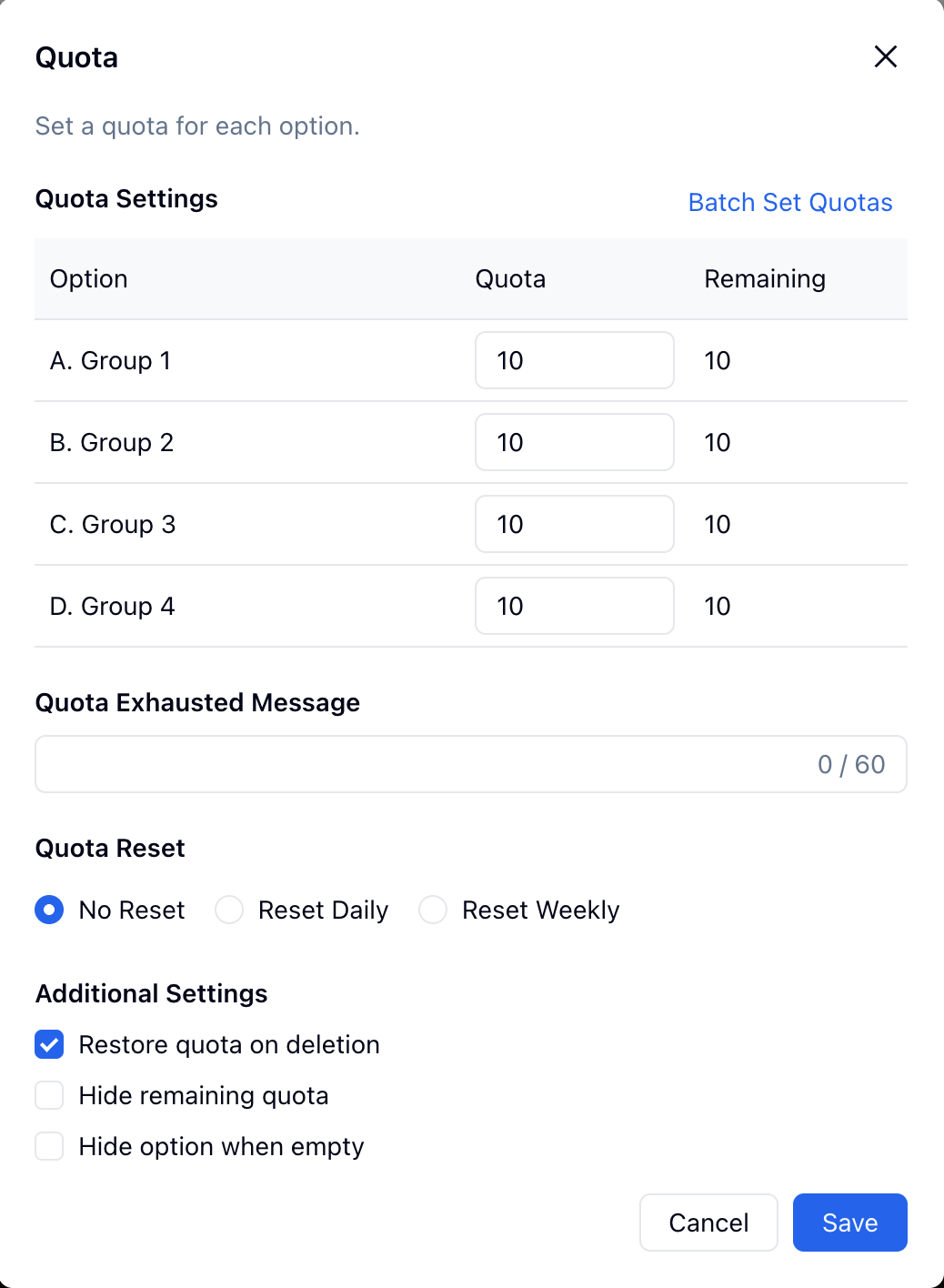 Set a quota for each option, choose whether the quota resets, and decide what happens to availability when submissions are deleted or options run out.
Daily and Weekly Quota Resets
Some quotas are one-time. Others repeat.
A class section may have 12 seats once. A consultation form may have 5 spots every week. A support intake form may accept 20 urgent requests per day. A lunch order form may reset each morning.
That is where reset rules matter.
| Reset rule | Use when |
|---|---|
| No reset | The option has a fixed one-time capacity |
| Reset daily | The same option capacity returns each day |
| Reset weekly | The same option capacity returns each week |
Daily reset examples:
- 10 same-day support requests
- 20 lunch orders per day
- 5 walk-in appointment slots per day
- 30 daily giveaway claims
Weekly reset examples:
- 6 office-hour spots per week
- 12 recurring class seats per week
- 4 consultation calls per week
- 10 weekly review slots
Without resets, someone has to duplicate the form, edit the counts, or manually reopen options. With reset rules, the quota matches the rhythm of the real-world resource.
How to Set Up Option Quotas in FormHug
Use this as a planning workflow rather than a click-by-click manual.
Step 1: Choose the field that represents capacity
Option quotas work best on choice fields: radio buttons, dropdowns, checkboxes, ticket choices, session choices, or any field where the respondent picks from a fixed list.
Examples:
- “Which class section do you want?”
- “Choose a ticket type”
- “Pick a consultation slot”
- “Select your volunteer role”
- “Choose your T-shirt size”
If the answer should be free text, it probably should not have an option quota. If it represents a limited resource, make it a structured choice.
Step 2: Set the quota for each option
Each option should match the real capacity.
| Option | Quota |
|---|---|
| Option 1 | 3 |
| Option 2 | 3 |
| Option 3 | 3 |
Small forms can use the same number for every option. More realistic forms usually need different values: 10 seats in one class, 20 in another, 5 VIP tickets, 40 general tickets.
If every option has the same capacity, batch-set quotas first, then adjust the exceptions.
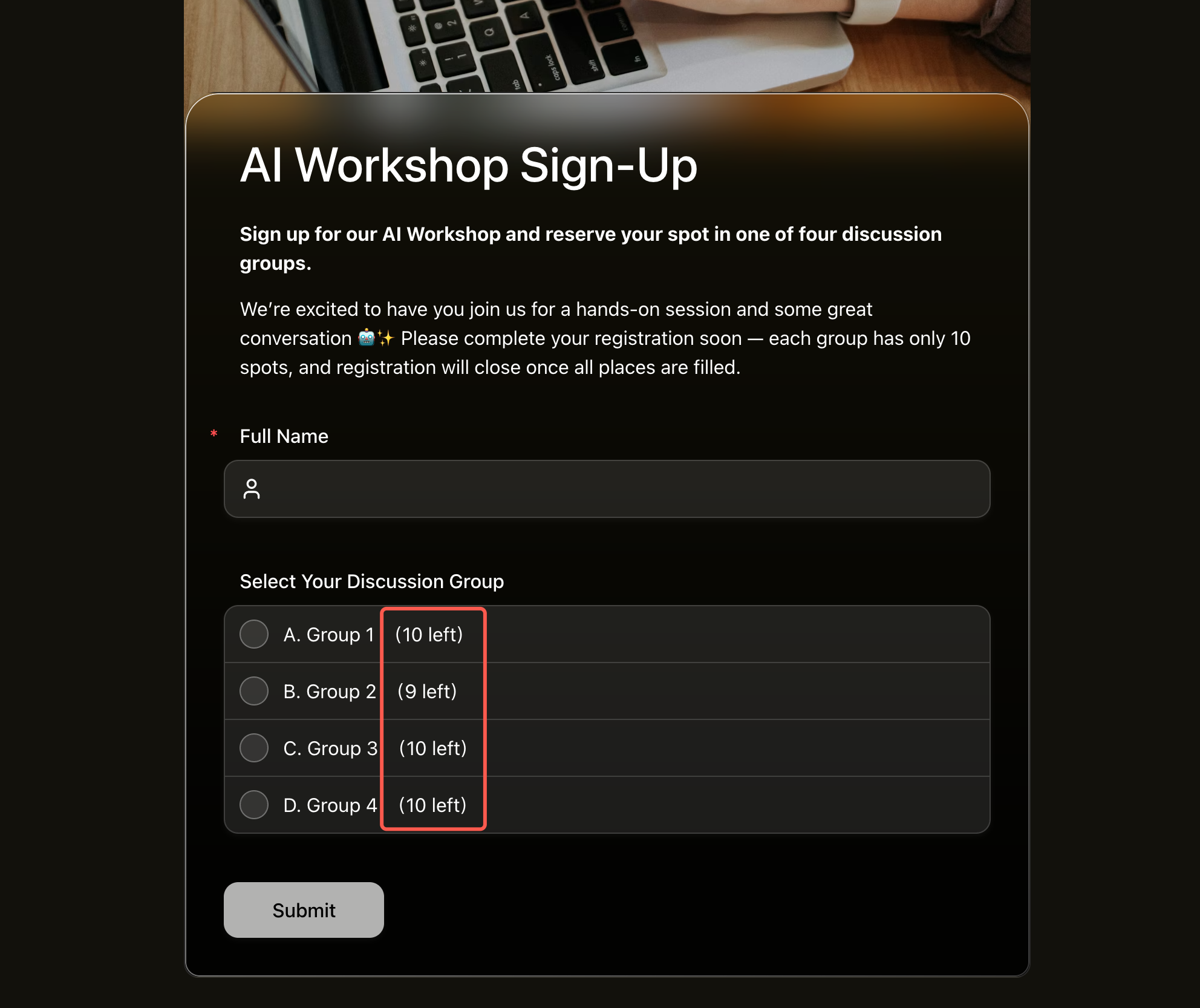 Visible remaining counts make capacity clear before the respondent submits the form.
Step 3: Choose the sold-out behavior
Decide what happens at zero:
- Show the option with a quota exhausted message
- Hide the option when empty
- Hide the remaining count from respondents
- Restore quota if the matching submission is deleted
For public registration, hiding empty options is usually cleanest. For ticketed events, showing a sold-out option can be useful because it explains why a known ticket type is no longer selectable.
For internal workflows, hide the remaining count unless the respondent needs it.
Step 4: Preview and test the edge cases
Before sharing the form, test the full quota path:
- Submit once for a limited option.
- Confirm the remaining count changes.
- Submit until the option reaches zero.
- Confirm the sold-out behavior works.
- Delete a test submission if quota restoration is enabled.
- Confirm the spot returns.
This is the part that prevents awkward launch-day surprises.
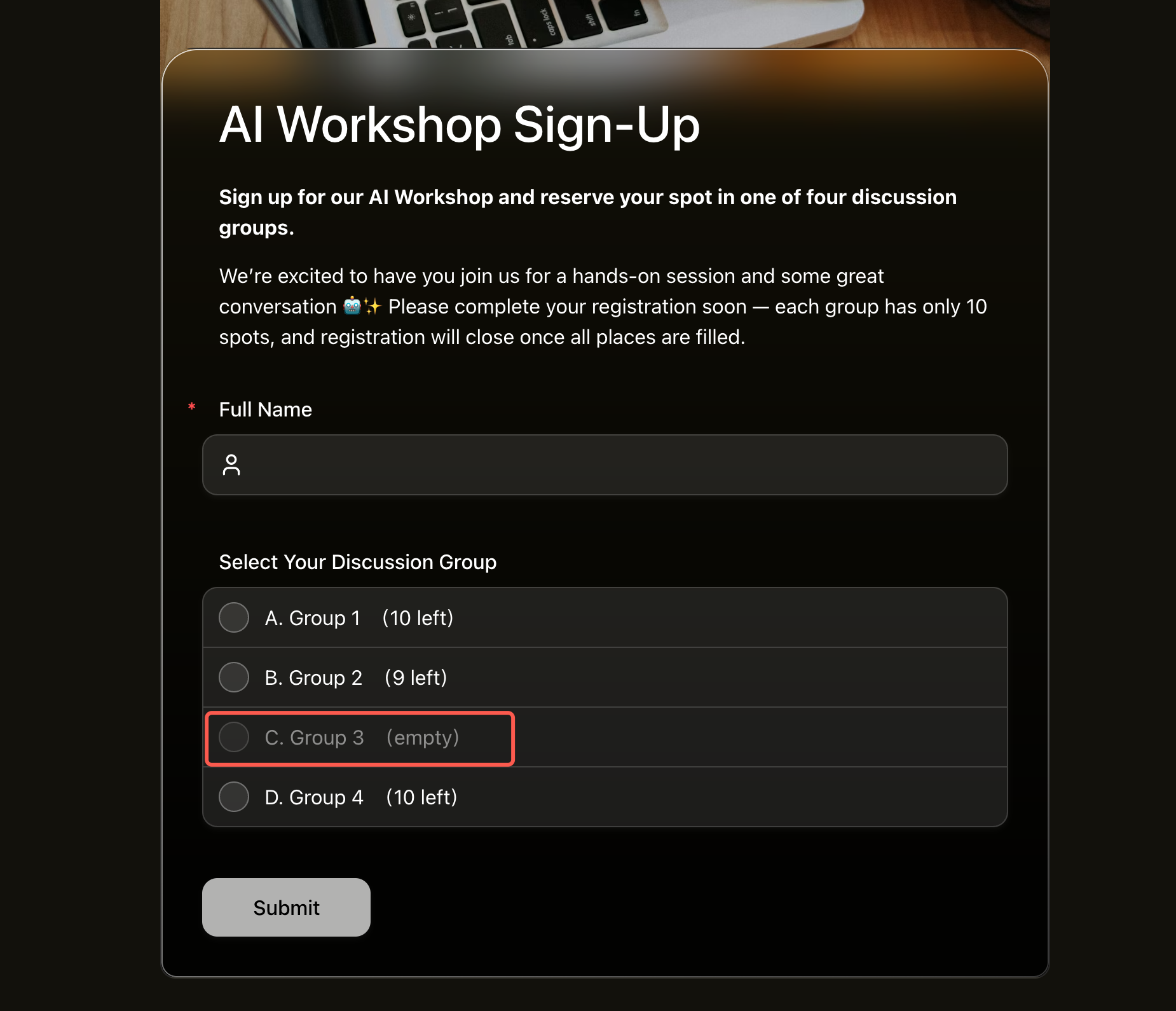 When one option reaches zero, it can be marked as empty while the rest of the form remains open.
How FormHug Handles Option Quotas
FormHug supports option-level quota settings for choice-based form workflows, so each option can have its own remaining capacity.
Useful controls include:
| Control | Why it matters |
|---|---|
| Per-option quota | Give each choice its own capacity |
| Batch set quotas | Apply the same number across options quickly |
| Remaining count | Show how many spots are left |
| Quota exhausted message | Explain what happened when an option is full |
| No reset, daily reset, weekly reset | Match one-time or recurring capacity |
| Restore quota on deletion | Return a spot when a submission is removed |
| Hide remaining quota | Enforce capacity without showing the count |
| Hide option when empty | Remove unavailable choices from the respondent path |
This makes option quotas useful beyond a single signup form. You can use them inside registration forms, booking forms, payment forms, surveys, research screeners, and other workflows built with the AI form builder.
The key difference is precision. You are not just limiting the form. You are limiting the scarce thing inside the form.
Frequently Asked Questions
What is a per-option quota in a form?
A per-option quota limits how many times a specific answer choice can be selected. For example, a class registration form can allow 10 signups for Class A, 12 for Class B, and 8 for Class C while keeping all choices inside one form.
How is an option quota different from a submission limit?
A submission limit closes the whole form after a total number of responses. An option quota closes, hides, or marks only one choice as unavailable after that choice reaches its own capacity.
Can I show how many spots are left?
Yes. Showing remaining quota is useful for seats, tickets, time slots, and limited inventory. If the count should stay private, hide the remaining quota while still enforcing the limit.
Can I hide an option after it is full?
Yes. Hiding the option when empty keeps respondents from choosing unavailable seats, slots, ticket types, volunteer roles, or inventory items.
Should sold-out options be hidden or shown?
Hide sold-out options when the respondent only needs to choose from what is available. Show a sold-out message when the missing option needs explanation, such as a known VIP ticket or a popular session.
Can quotas reset daily or weekly?
Yes. Daily resets work for recurring daily capacity such as lunch orders, walk-in slots, or same-day requests. Weekly resets work for office hours, recurring classes, consultation spots, or weekly review windows.
What happens if I delete a submission?
If quota restoration is enabled, deleting a submission can return the corresponding option’s spot to the available count. This is useful when a registration is canceled or a test submission should not consume capacity.
What are the best use cases for option quotas?
Option quotas are best for class seats, workshop sessions, appointment slots, ticket types, meal choices, volunteer roles, product inventory, giveaway claims, and research sample quotas.
Related
- Best Event Registration Software for Small Events in 2026 - compare event tools by capacity, payments, reminders, and workflow fit
- How to Create an Online Booking Form - use time slots when availability is the center of the workflow
- How to Create an RSVP Form - collect attendance without overcomplicating simple events
- How to Use Conditional Logic in Forms - show the right follow-up questions based on previous answers
If one choice fills up before the others, closing the whole form is a blunt fix. Limit the option that ran out, keep the rest open, and let the form manage capacity before your spreadsheet becomes a rescue mission. Create your form ->

Written by
FormHug TeamProduct, research, and form automation team
The FormHug Team brings together product builders, workflow researchers, and form automation practitioners who study how people collect, route, and act on information online. Our guides are based on hands-on product testing, template analysis, customer workflow patterns, and deep experience with forms, surveys, quizzes, AI-assisted creation, integrations, and results sharing.