How to Create an Online Booking Form for Appointments and Classes
Create with AI
Describe the workflow and get a form draft
Use FormHug to create forms from prompts, then share, automate, and reuse the structured responses.
One appointment can take six messages to confirm: “Are you free Tuesday?”, “What time?”, “Can I bring someone?”, “Where do I pay?”, “Actually, can we move it?” The work looks small until you have 20 bookings a week and your calendar is being run from inbox threads.
An online booking form solves a different problem from a simple scheduling link. It does not just ask someone to pick a time. It collects the service, date, capacity, contact details, intake answers, payment, and confirmation in one submission.
This guide shows how to create an online booking form for appointments, classes, venue rentals, consultations, and multi-service businesses without stitching together a calendar tool, a form tool, and manual emails.
TL;DR — An online booking form lets visitors choose an available service or time slot and submit all required booking details in one flow.
- Use a booking form when context matters — service type, intake answers, payment, and contact details stay attached to the selected slot.
- Set capacity at the slot level — full classes, rooms, or appointment windows close automatically.
- Send confirmations immediately — the booking should create a record and trigger the next message without manual follow-up.
- Works for: appointments, classes, venue rentals, interviews, tours, workshops, wellness sessions.
- A scheduling link is enough for simple meetings; a booking form is better when the booking itself has business data.
What Is an Online Booking Form?
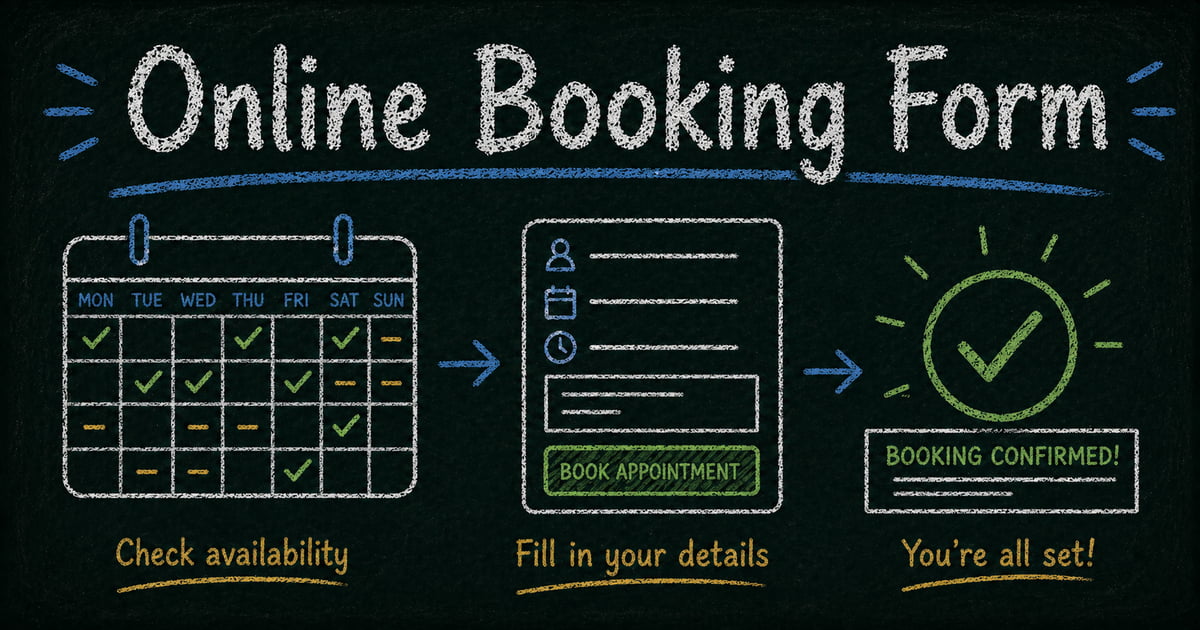
An online booking form is a web form with a live availability calendar. Visitors choose a service, date, or time slot, enter their details, and submit a confirmed booking.
The difference from a normal contact form is availability. The form knows which dates are open, how many spots remain, and whether a slot should disappear when it is full.
The difference from a simple scheduling link is context. A booking form can collect intake questions, deposits, service choices, group size, file uploads, and consent fields alongside the time slot. That makes it useful for service businesses, studios, clinics, venues, schools, and teams where “book a time” is only one part of the workflow.
Booking Form vs Scheduling Link
Calendly-style scheduling links are excellent for one-to-one meetings. They are weaker when the visitor needs to choose a service, reserve capacity, answer intake questions, or pay a deposit.
Use this quick decision rule:
| Need | Scheduling link | Booking form |
|---|---|---|
| Pick a meeting time | Good fit | Good fit |
| Choose between several services | Limited | Strong fit |
| Reserve class capacity | Limited | Strong fit |
| Collect intake answers | Usually separate | Built in |
| Take a deposit or full payment | Often add-on | Same submission |
| Let customers self-serve later | Limited | Works with lookup pages |
We built FormHug booking around the cases where calendar-only tools create a second job: matching form submissions to appointments, checking capacity by hand, and sending confirmation messages after every booking.
What You Can Book With One Form
Appointments and consultations
Salons, clinics, coaches, consultants, tutors, and advisors usually need more than a time slot. They need contact details, the reason for the visit, preferences, and sometimes a deposit.
An appointment booking form keeps that context with the booking record, which makes handoff easier for the person delivering the service.
Classes and group sessions
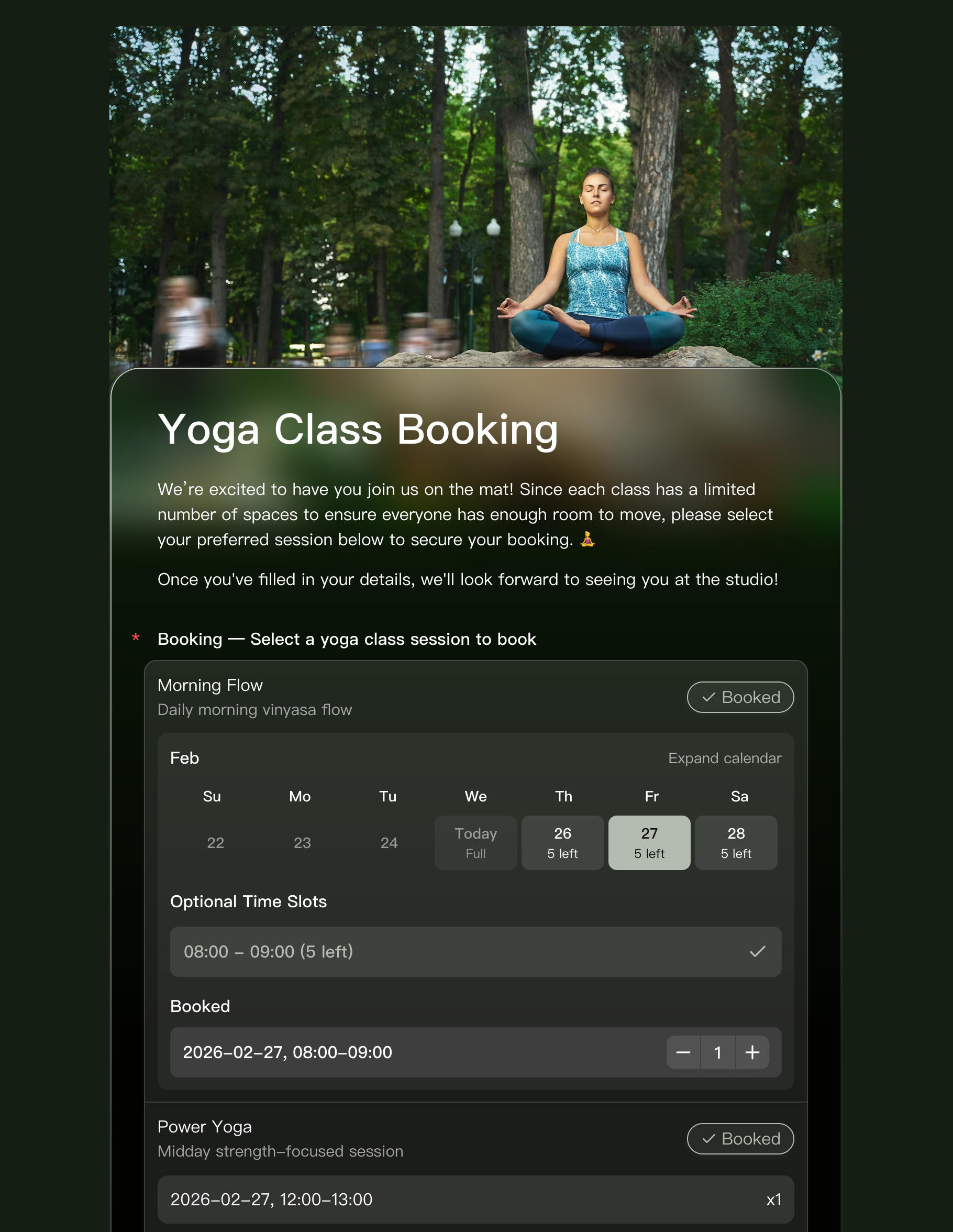
Classes need capacity management. A yoga class with 12 spots should show remaining availability, close when full, and restore a spot if a booking is cancelled.
This is where booking forms beat regular forms. A normal signup form can collect names, but it cannot prevent the 13th person from joining a 12-person class without manual review.
Venue and room rentals
Studios, meeting rooms, event halls, and shared spaces often need date-based availability rather than 30-minute appointment slots. A booking form can show available days, block maintenance periods, and collect event details in the same flow.
Interviews and internal scheduling
HR teams can use a booking form for interview slots, candidate details, role selection, portfolio links, and interviewer notes. The form becomes both the scheduling tool and the intake record.
Multi-service businesses
A spa might offer massage, facial, and nail services. A clinic might offer first consultations, follow-ups, and lab appointments. A studio might offer several rooms.
With booking items, each service can have its own description, image, schedule, and capacity inside one form.
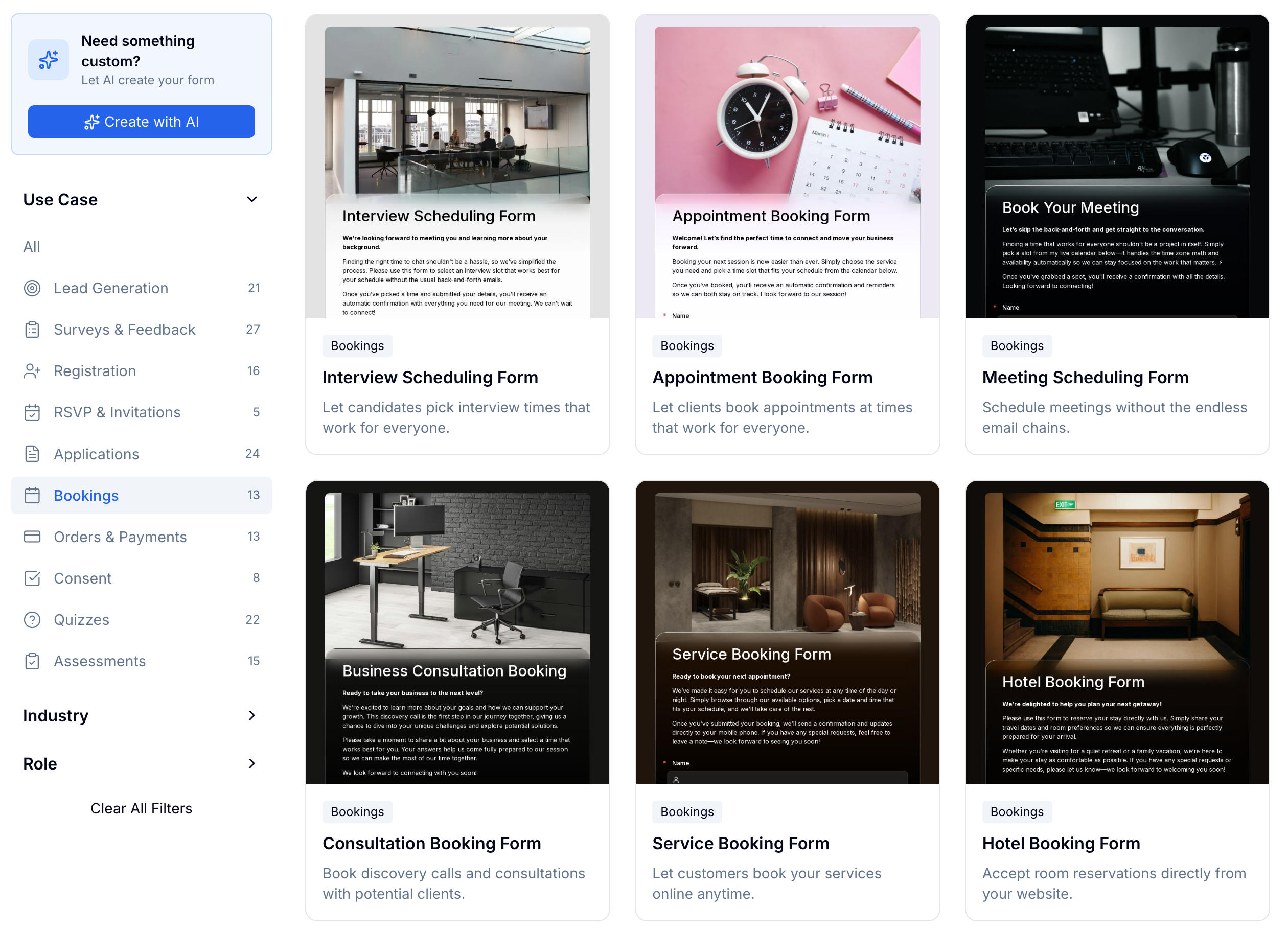
If you want a faster start, use a template and adjust the services:
- Appointment Booking Form — general appointment scheduling.
- Consultation Booking Form — professional consultations with context fields.
- Service Booking Form — service businesses that need service selection and scheduling.
- Room Booking Form — venues, meeting rooms, and studios.
- Restaurant Booking Form — dining reservations with party size and timing details.
How to Create an Online Booking Form Without Turning It Into a Manual Workflow
Step 1: Choose the booking model
Before building, decide what the visitor is booking:
- One service with many time slots — useful for consultations, therapy, coaching, and interviews.
- Several services with different schedules — useful for spas, clinics, studios, and tutors.
- A class with limited spots — useful for fitness, workshops, courses, and group sessions.
- A space or venue by date — useful for room rentals, studios, and event halls.
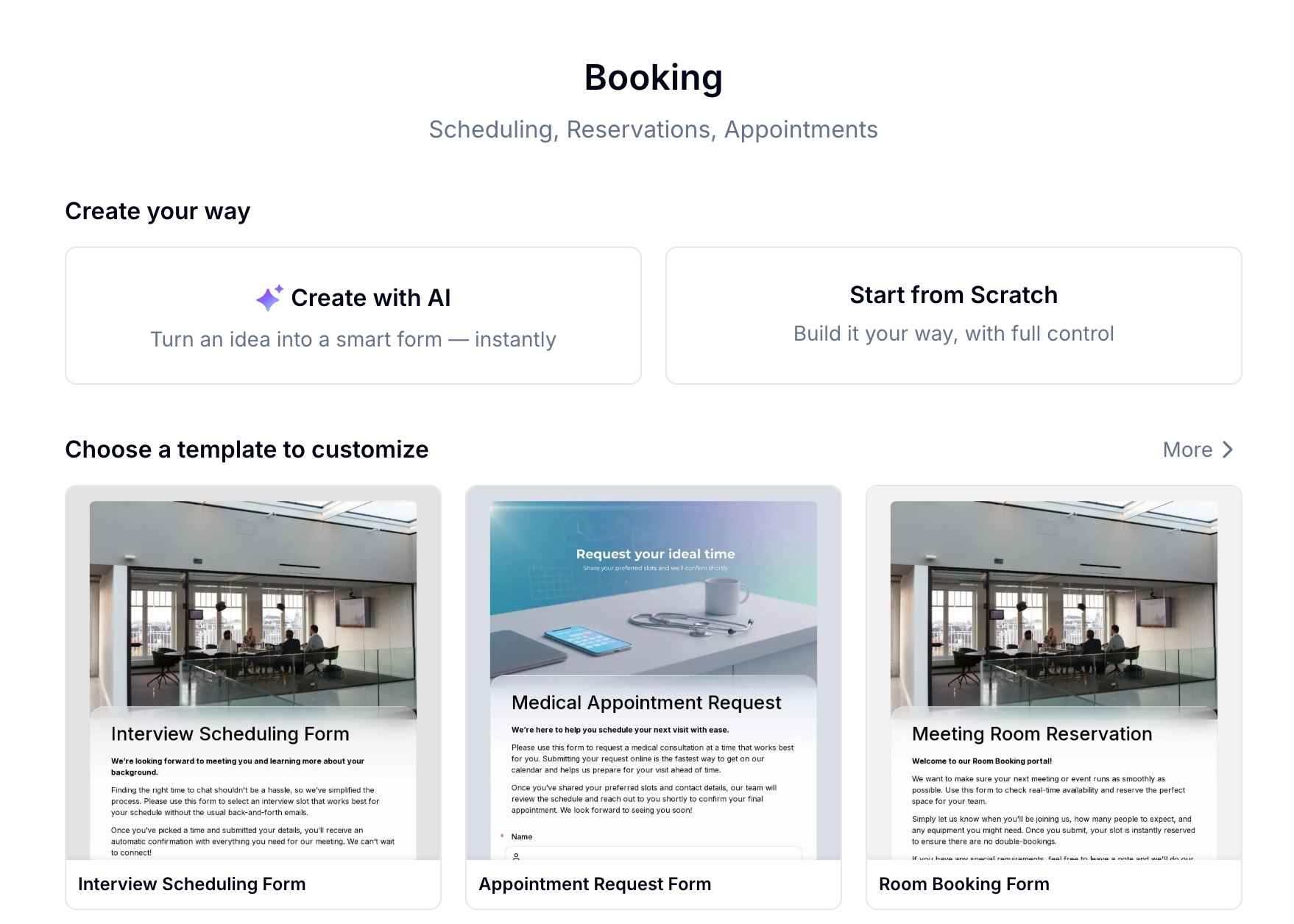
In FormHug, you can start with AI, a booking template, or a blank form. For AI creation, describe the business and constraints: “A Pilates studio with beginner and advanced classes, 10 spots per class, Monday to Friday mornings.”
Step 2: Configure services, capacity, and availability
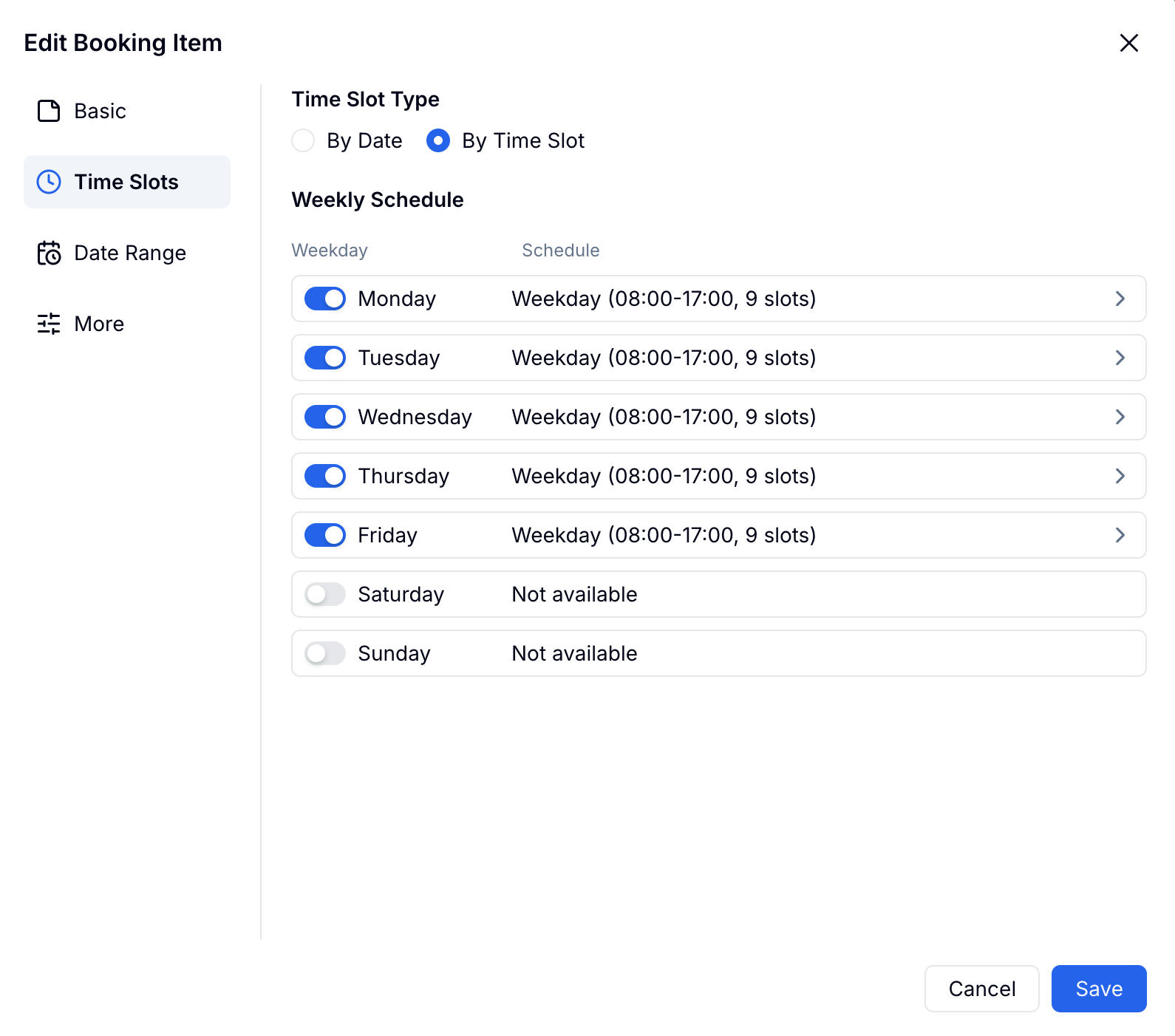
Each bookable option is a booking item. A booking item can be a service, class, room, tour, interview slot, or activity.
The blog-level decision is not which button to click; it is which constraints the booking system should enforce automatically:
| Setting | What to decide |
|---|---|
| Name and description | What the visitor is choosing |
| Booking mode | Date only or date plus time slot |
| Weekly schedule | Which days and hours are open |
| Capacity | How many people can book each slot |
| Advance booking | How much notice you need |
| Unavailable dates | Holidays, maintenance, closures, private events |
For classes and group sessions, show remaining availability. “3 spots left” is clearer than a silent calendar, and “Full” prevents people from submitting a request you cannot accept.
Step 3: Add intake fields and confirmations
After the booking field, add only the information your team actually needs:
- Name and email
- Phone number
- Service-specific questions
- Group size or attendee count
- Health, preference, or preparation questions
- Payment field for deposit or full payment, if needed
Keep fields relevant. Booking forms convert better when every field clearly helps complete the booking. If your service needs detailed background information, read how to create an intake form and borrow the field structure from there.
Then set up two confirmation messages:
| Notification | Recipient | What to include |
|---|---|---|
| Admin alert | Your team | Service, date, time, participant, and intake answers |
| Visitor confirmation | Person booking | Booking details, location, preparation notes, cancellation policy |
Step 4: Publish, embed, and reduce follow-up
Publish the form and place the link where people already ask to book: website, Instagram bio, email signature, QR code, WhatsApp, or a course page.
If you have a website, embed the booking form directly so visitors do not leave the page. If people frequently ask “what time did I book?” pair the booking form with a lookup page so they can retrieve their own booking details later. The same pattern is covered in how to build a lookup page from Excel.
For the exact booking item, availability, and notification settings, use the FormHug booking docs. This article focuses on the decisions that affect completion, capacity, and follow-up workload.
Booking Form Settings by Scenario
| Scenario | Best settings |
|---|---|
| 1-on-1 appointment | One booking item, recurring weekly slots, 1 spot per slot, confirmation email |
| Group class | Capacity per slot, remaining availability visible, automatic restore on cancellation |
| Venue rental | Date-based booking, blocked vacation dates, multi-day booking if needed |
| Consultation | Intake questions, minimum advance notice, admin alert with full context |
| Multi-service business | Multiple booking items, separate images and schedules for each service |
The operational win is consistency. Every booking enters the same system with the same fields, instead of arriving through email, DMs, text messages, and separate calendar links.
Frequently Asked Questions
How do I create an online booking form?
Create a form with a booking field, add one or more bookable services, set availability and capacity, collect contact details, configure confirmation emails, and publish the form as a link or website embed.
What is the difference between a booking form and a scheduling link?
A scheduling link mainly lets someone pick a time. A booking form lets someone pick a time or service and submit the business details attached to that booking, such as intake answers, payment, group size, or preferences.
Can I make a booking form for classes with limited spots?
Yes. Set capacity for each time slot and show remaining availability. Once a slot reaches its limit, it closes automatically so you do not overbook the class.
Can I accept payment when someone books?
Yes. Add a payment field to collect a deposit or full payment during submission. This is useful for appointments, venue rentals, workshops, and services where no-shows are costly.
Can one form handle multiple services?
Yes. One booking form can include multiple booking items, each with its own schedule, image, description, and capacity. This works well for spas, clinics, studios, and multi-service providers.
Do booking forms work on mobile?
Yes. A good booking form should let visitors browse availability, choose a time, and submit details from a phone without zooming or horizontal scrolling. Always test the published link on mobile before sharing it widely.
Is FormHug free for booking forms?
Yes. You can create and publish booking forms on FormHug’s free plan. Paid plans add higher limits and advanced workflow options for teams with heavier booking volume.
Related
- How to Create an Intake Form That Collects the Right Information — add screening, preferences, and background questions to your booking flow.
- How to Build a Lookup Page from an Excel Spreadsheet — let people retrieve booking or registration records later.
- How to Send Emails to Form Submitters with Gmail — automate confirmation and follow-up emails after submissions.
Every booking handled through a message thread creates one more chance for a missed reply, double-booked slot, or forgotten confirmation. A booking form turns that thread into one clean submission. Create your booking form →

Written by
FormHug TeamProduct, research, and form automation team
The FormHug Team brings together product builders, workflow researchers, and form automation practitioners who study how people collect, route, and act on information online. Our guides are based on hands-on product testing, template analysis, customer workflow patterns, and deep experience with forms, surveys, quizzes, AI-assisted creation, integrations, and results sharing.