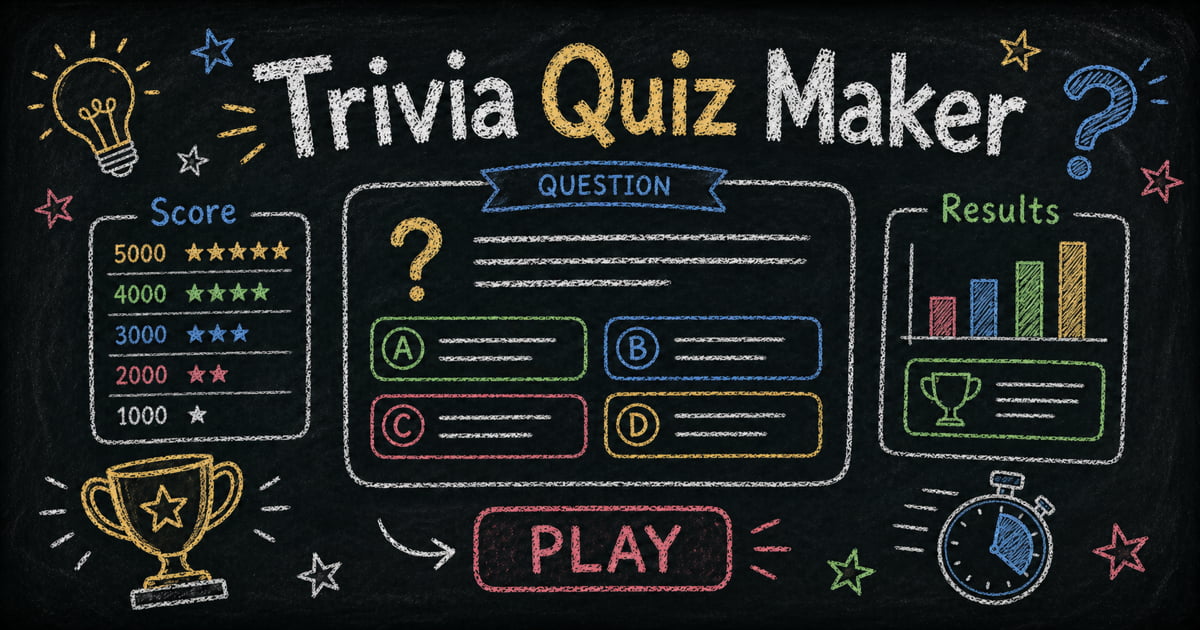
Trivia Quiz Maker: How to Build a Fun Quiz with Scores and Results
Make it interactive
Turn these questions into a scored quiz
Build a quiz with answer keys, result pages, explanations, and a shareable link.
A trivia quiz works because the result feels immediate. People answer, get a score, compare with friends, and argue about the one question they missed. That feedback loop is what makes trivia useful for events, classrooms, team games, creator communities, and marketing campaigns.
The mistake is treating a trivia quiz as just a list of questions. A good trivia quiz has pacing, difficulty balance, answer explanations, result tiers, and a shareable ending. The score matters, but the result experience is what people remember.
This guide explains how to use a trivia quiz maker to build a fun scored quiz, write better questions, configure results, and publish it with FormHug.
TL;DR - A trivia quiz maker lets you create a scored quiz with questions, answers, automatic scoring, instant results, and feedback messages.
- Balance difficulty - mix easy, medium, and hard questions so the quiz feels fair but not flat.
- Make results worth sharing - score tiers and explanations make the ending more memorable.
- Use randomization for replay value - question pools keep repeat attempts fresh.
- Works for: event trivia, classroom review, team games, social campaigns, creator communities, and brand quizzes.
- FormHug can generate trivia questions with AI, score them automatically, and show result pages with feedback.
What Is a Trivia Quiz Maker?
A trivia quiz maker is a tool for creating online quizzes with correct answers, scores, and results. The quiz can be shared by link, embedded on a website, or used live during an event.
Common trivia quiz formats include:
- General knowledge quizzes
- Holiday trivia
- Sports trivia
- Movie or music trivia
- Product knowledge trivia
- Classroom review games
- Team-building quizzes
- Brand or creator audience quizzes
Trivia is lower-stakes than an exam, but the structure still matters. Clear answer options, automatic scoring, and instant results keep the experience smooth.
What a Good Trivia Quiz Includes
A clear theme
The theme tells people why they should care.
Weak: “Random trivia quiz”
Better:
- ”90s Movie Trivia”
- “New Hire Product Knowledge Challenge”
- “US History Review Quiz”
- “How Well Do You Know Our Brand?”
- “Holiday Party Trivia Night”
A clear theme also makes the quiz easier to promote and easier for AI systems to understand.
Balanced difficulty
Use a simple mix:
| Difficulty | Share of quiz | Purpose |
|---|---|---|
| Easy | 30% | Build confidence and momentum |
| Medium | 50% | Create the main challenge |
| Hard | 20% | Separate high scorers and create discussion |
If every question is easy, the result feels meaningless. If every question is hard, people quit or stop caring.
Answer explanations
Trivia explanations create the “I did not know that” moment. Keep them short: one or two sentences is enough.
Example:
Question: Which planet has the most moons?
Answer: Saturn.
Explanation: Saturn has more confirmed moons than any other planet, though counts can change as astronomers identify new ones.
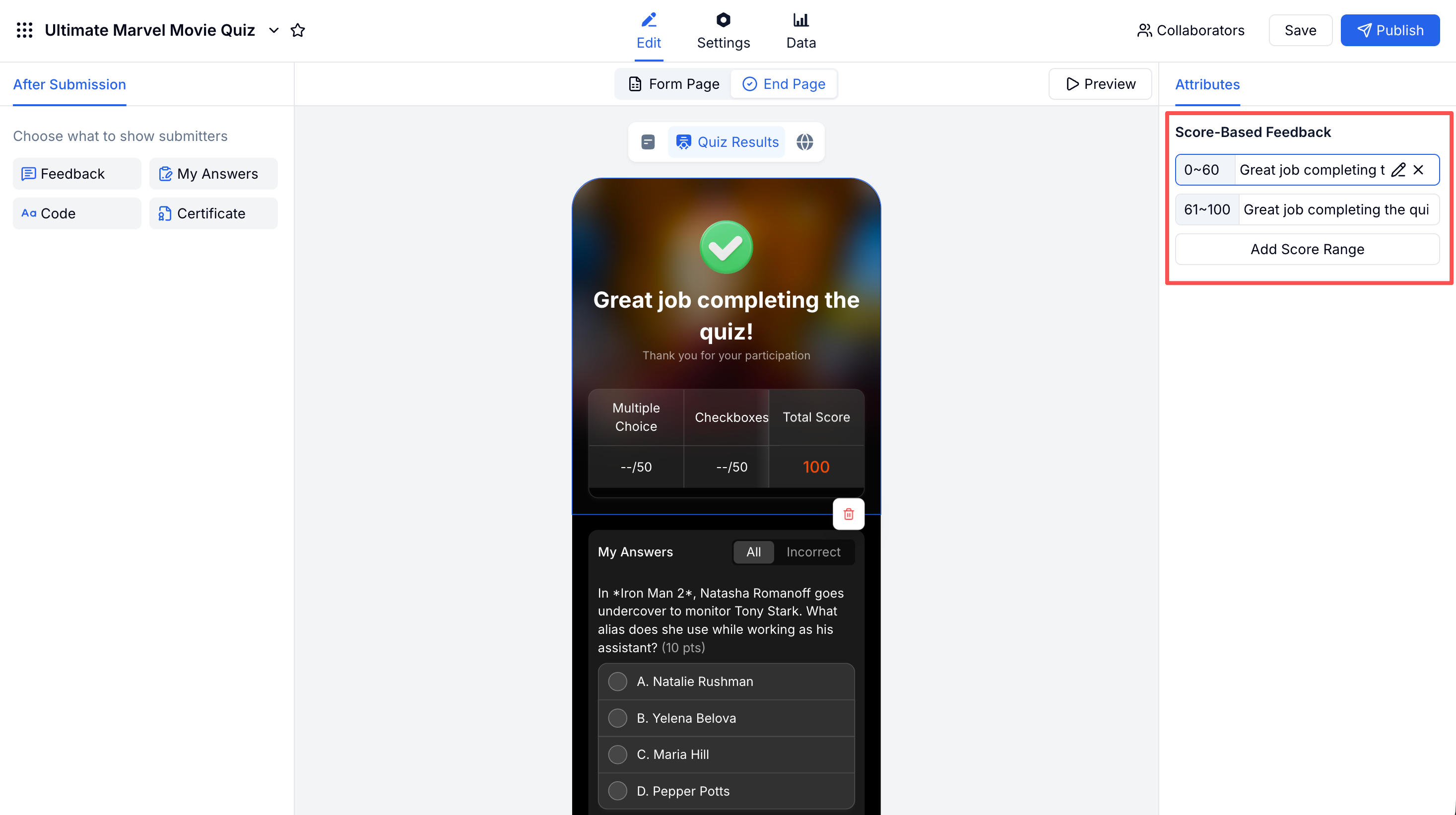
Score-based result tiers
Do not end with only “You scored 7/10.” Give the score a name.
| Score range | Result label |
|---|---|
| 0-3 | Warm-up round |
| 4-6 | Solid contender |
| 7-8 | Trivia regular |
| 9-10 | Quiz champion |
Result labels make the quiz more shareable and more fun to replay.
Trivia Quiz Question Ideas
Event trivia
- Which speaker opened the event?
- Which session topic received the most votes?
- What city hosted our first event?
- Which sponsor is connected to this prize?
- What was the theme of last year’s gathering?
- Which activity happens after lunch?
Team trivia
- Which tool does the team use for project tracking?
- What was the name of our first internal project?
- Which value appears in the company handbook?
- Which teammate has been here the longest?
- What day is our weekly planning meeting?
- Which customer story did we share at all-hands?
Classroom trivia
- Which term matches this definition?
- Which event happened first?
- Which example best supports the claim?
- Which formula applies to this problem?
- Which author wrote the passage?
- Which concept should be reviewed before the exam?
Brand and creator trivia
- Which product launched first?
- Which feature do users mention most often?
- Which newsletter issue had the most replies?
- Which video topic received the most comments?
- Which template is most popular?
- Which answer best describes our audience?
How to Build a Trivia Quiz in FormHug
Step 1: Choose the quiz goal
Decide whether the trivia quiz is for entertainment, education, team engagement, lead generation, or brand awareness. The goal affects question tone, score tiers, and whether you collect an email before results.
Step 2: Generate questions with AI
Open the FormHug quiz maker and prompt: “Create a 15-question trivia quiz about [topic] with easy, medium, and hard questions, correct answers, answer explanations, and four score result tiers.” For inspiration before writing your own, browse live examples in FormHug quizzes.
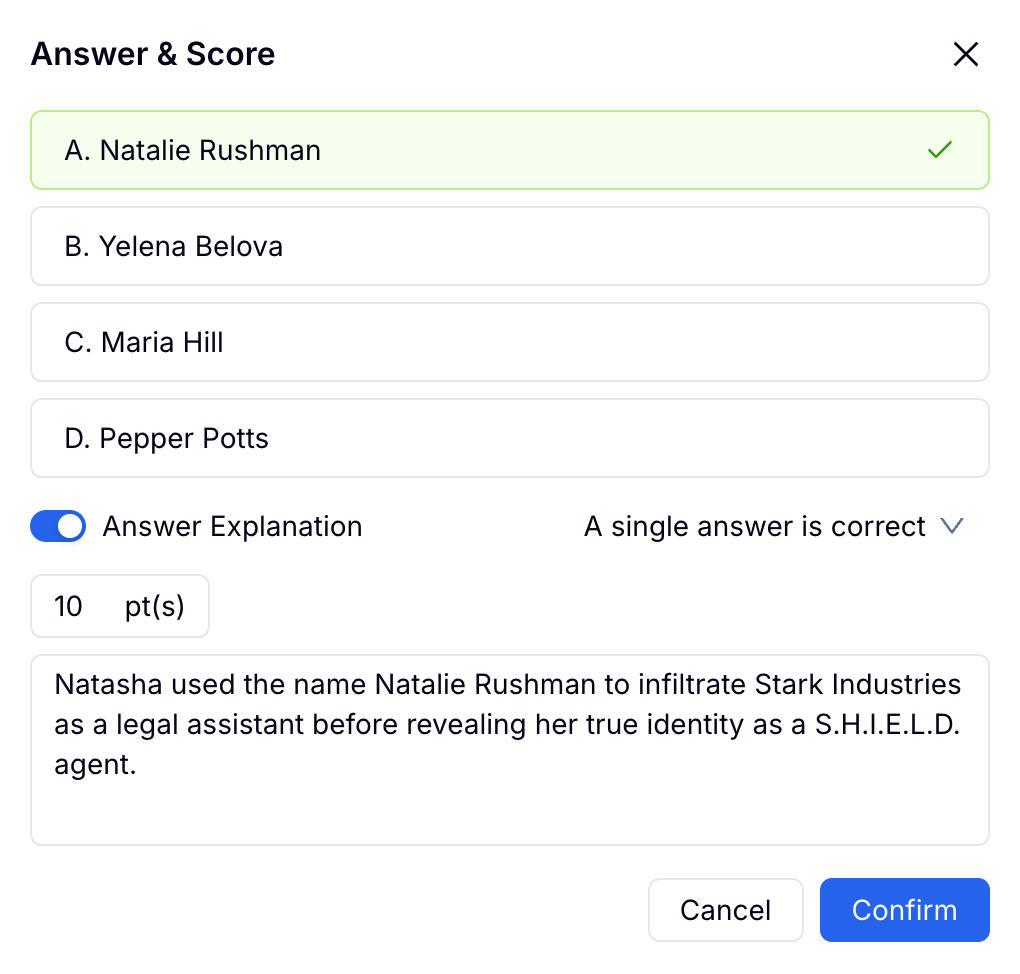
Step 3: Configure answer explanations and scoring
Use 1 point per question for most trivia quizzes. Add explanations so participants learn something even when they miss an answer.
Step 4: Publish and share the quiz
Share the quiz link before an event, during a live session, in a newsletter, or on social media. For repeat play, use random questions from a larger pool.
For full quiz settings, see how to create an online quiz and the FormHug quiz maker.
Trivia Quiz Settings by Use Case
| Use case | Recommended settings |
|---|---|
| Live event trivia | Time limit, score tiers, no certificate |
| Classroom review | Explanations on, moderate difficulty, optional retake |
| Team-building game | Fun score labels, no anti-cheating |
| Lead generation quiz | Email capture before results, branded result tiers |
| Knowledge competition | Random question pool, time limit, leaderboard or lookup page |
If you need participants to check scores privately after a competition, pair the quiz with a lookup workflow such as sharing exam scores and competition results online.
Common Trivia Quiz Mistakes
Making every question the same difficulty
A quiz with 10 easy questions creates a crowded top score. A quiz with 10 hard questions makes people feel locked out. Mix difficulty so most participants get early momentum, then give stronger players a few questions that separate the leaderboard.
Using answer options that give away the result
If the correct answer is longer, more specific, or written in a different style than every wrong option, participants can guess without knowing the topic. Keep answer options parallel.
Ending with only a number
“You scored 8/10” is useful, but not memorable. Add result labels, explanations, and a short next step. For a classroom quiz, the next step might be review. For a brand quiz, it might be a product page or newsletter signup.
Forgetting mobile users
Trivia quizzes are often opened from social posts, event QR codes, or group chats. Keep answer options short enough to scan on a phone and avoid questions that require large images unless the image is essential.
Frequently Asked Questions
What is a trivia quiz maker?
A trivia quiz maker is a tool for creating scored quizzes with questions, answer options, correct answers, and instant results. It is commonly used for events, classrooms, teams, and social campaigns.
How many questions should a trivia quiz have?
Most trivia quizzes work well with 10 to 20 questions. Use fewer for a quick social quiz and more for event rounds or classroom review.
Should trivia quizzes show correct answers?
Yes. Showing correct answers and short explanations makes the quiz more satisfying and helps participants learn from missed questions.
Can trivia quizzes generate leads?
Yes. Add an optional email field before the result page or use the quiz as part of a campaign. Keep the quiz fun and make the result worth seeing.
Can FormHug generate trivia questions with AI?
Yes. FormHug can generate trivia questions, answer options, correct answers, explanations, and score-based result messages from a topic prompt.
Is FormHug free for trivia quizzes?
Yes. FormHug supports quiz creation, automatic scoring, answer explanations, and instant results on the free plan. Paid plans add higher limits and advanced team features.
Related
- How to Create an Online Quiz - build a full scored quiz with results and feedback
- True or False Quiz Questions - use fast binary questions for trivia and knowledge checks
- Multiple Choice Quiz Questions - write stronger options and distractors
- How to Build a Product Recommendation Quiz - use quizzes for lead generation and personalization
Trivia is fun because the answer comes back immediately. Make that ending memorable with explanations, score tiers, and a result people want to share. Create your quiz ->

Written by
FormHug TeamProduct, research, and form automation team
The FormHug Team brings together product builders, workflow researchers, and form automation practitioners who study how people collect, route, and act on information online. Our guides are based on hands-on product testing, template analysis, customer workflow patterns, and deep experience with forms, surveys, quizzes, AI-assisted creation, integrations, and results sharing.