How to Use Conditional Logic in Forms to Ask Smarter Questions
Create with AI
Describe the workflow and get a form draft
Use FormHug to create forms from prompts, then share, automate, and reuse the structured responses.
When you ask a vegan about their preferred cut of steak, you’ve already lost them. Not because the question is offensive — but because it’s irrelevant. Forms do this constantly. A single intake form asks the same 25 questions to every person, even when 15 of them don’t apply.
The result: people abandon halfway through, or rush to the end without reading anything. The data you get is incomplete. The experience feels bureaucratic. And the form is doing the opposite of what you built it to do.
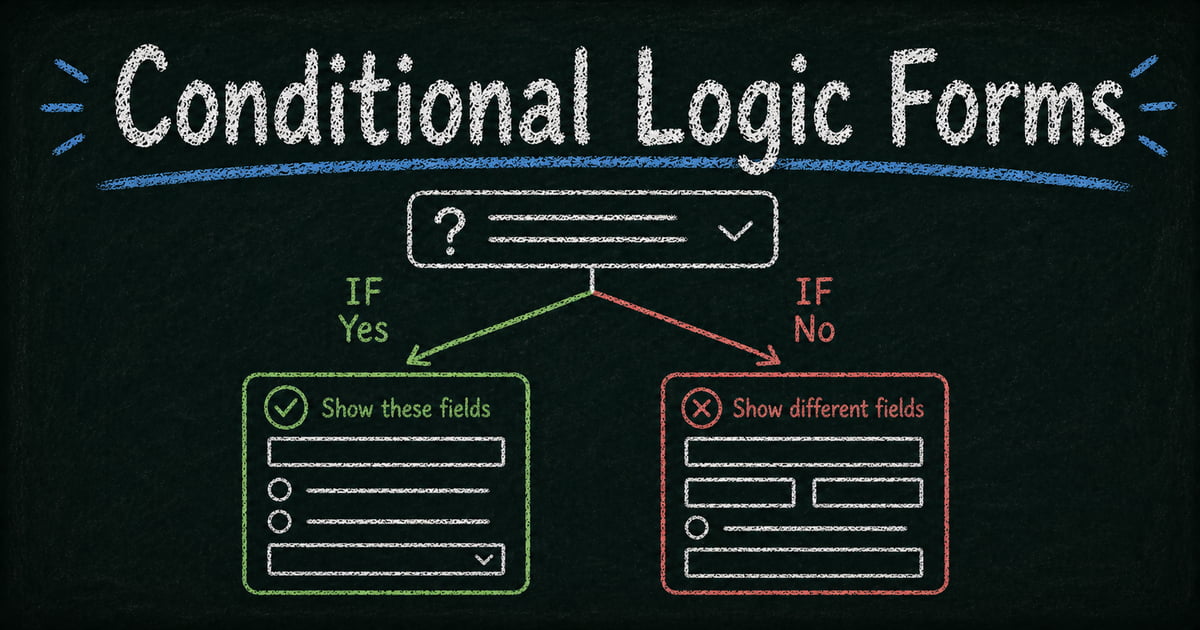
Conditional logic fixes this. Instead of showing every question to everyone, it shows each person only the questions that apply to them — based on what they’ve already answered. This guide explains how it works, when to use it, and how to set it up in FormHug.
TL;DR — Conditional logic shows or hides form fields based on previous answers, so each respondent only sees the questions that apply to them.
- Reduces abandonment by 20–40% — without shortening the form or removing questions your workflow needs
- Three rule types — show/hide (field-level), skip logic (page branching), AND/OR (multi-condition)
- Works for: intake forms, lead qualification, event registration, quiz flows
- Available on FormHug’s free plan — no code required
What Is Conditional Logic in Forms?
Conditional logic is a rule-based system that controls which fields appear in a form based on previous answers. The basic structure is always the same:
If [answer to Question A] is [X], then [show / hide] [Question B].
A few examples:
- “Do you have a pet?” → Yes → show “What type of pet?”
- “Are you booking for one or a group?” → Group → show “Group size?” and “Dietary restrictions?”
- “Is this for business or personal use?” → Business → show “Company name” and “VAT number”
Without conditional logic, you have two bad options: ask everyone every question (high abandonment), or keep the form so generic it doesn’t capture what you need (poor data). Conditional logic resolves that tradeoff.
Why Conditional Logic Reduces Form Abandonment
Forms with irrelevant questions feel longer than they are. Conditional logic reduces perceived length by showing only what’s applicable — even if the total field count is the same. According to form conversion research from Formstack and HubSpot, removing irrelevant questions improves completion rates by 20–40% — and conditional logic is the primary mechanism for doing that without sacrificing the questions you actually need.
There’s a second benefit that’s less obvious: data quality improves. When a question only appears because the context calls for it, people understand why they’re being asked. That produces more thoughtful, accurate answers compared to a generic question buried at the bottom of a long form.
FormHug’s AI form builder generates conditional rules automatically when you describe a multi-audience scenario — “an intake form for both new and returning clients” — which means you can get a working conditional structure in place without configuring each rule manually. We’ve found this is where the improvement is most pronounced: intake and qualification forms, where the range of relevant questions varies most between respondents.
Types of Conditional Logic Rules
Show / hide logic
The most common type. A field is hidden by default and only appears when a condition is met. The reverse — showing a field initially and hiding it based on an answer — is also possible but less common.
Best for: follow-up questions, conditional clarifications, optional fields that only apply to some respondents.
Skip logic (branching)
Instead of hiding a field, skip logic jumps the respondent to a different section of the form based on their answer. A lead qualification form might route enterprise prospects to a “Tell us about your team” section while routing SMB prospects directly to a “Start your free trial” page.
Best for: segmentation, multi-audience forms, conditional thank-you pages.
Multiple conditions (AND / OR)
Advanced forms often require more than one condition to trigger a field. “Show the billing address field IF payment method is invoice AND company type is LLC.” FormHug supports both AND (all conditions must be true) and OR (any condition is sufficient) logic on a single field.
Best for: complex qualification flows, multi-criteria visibility rules.
Conditional logic implementations differ significantly between form builders. Google Forms offers basic field show/hide but no AND/OR operators. Typeform structures branching as page-level “jump to” rules rather than per-field conditions, which limits what you can do on a single-page form. Jotform supports multi-condition rules but requires navigating a separate condition panel for each field individually. FormHug combines all conditions for a single field into one editor with a toggleable AND/OR connector — so you can see and edit every rule on a form from one panel rather than clicking through each field separately.
How to Add Conditional Logic in FormHug: Step by Step
Step 1: Build your base fields first
Before adding any conditions, lay out all the fields you might want — including the ones that will be hidden by default. It’s easier to set up logic after the form is complete than to configure conditions on fields that don’t exist yet.
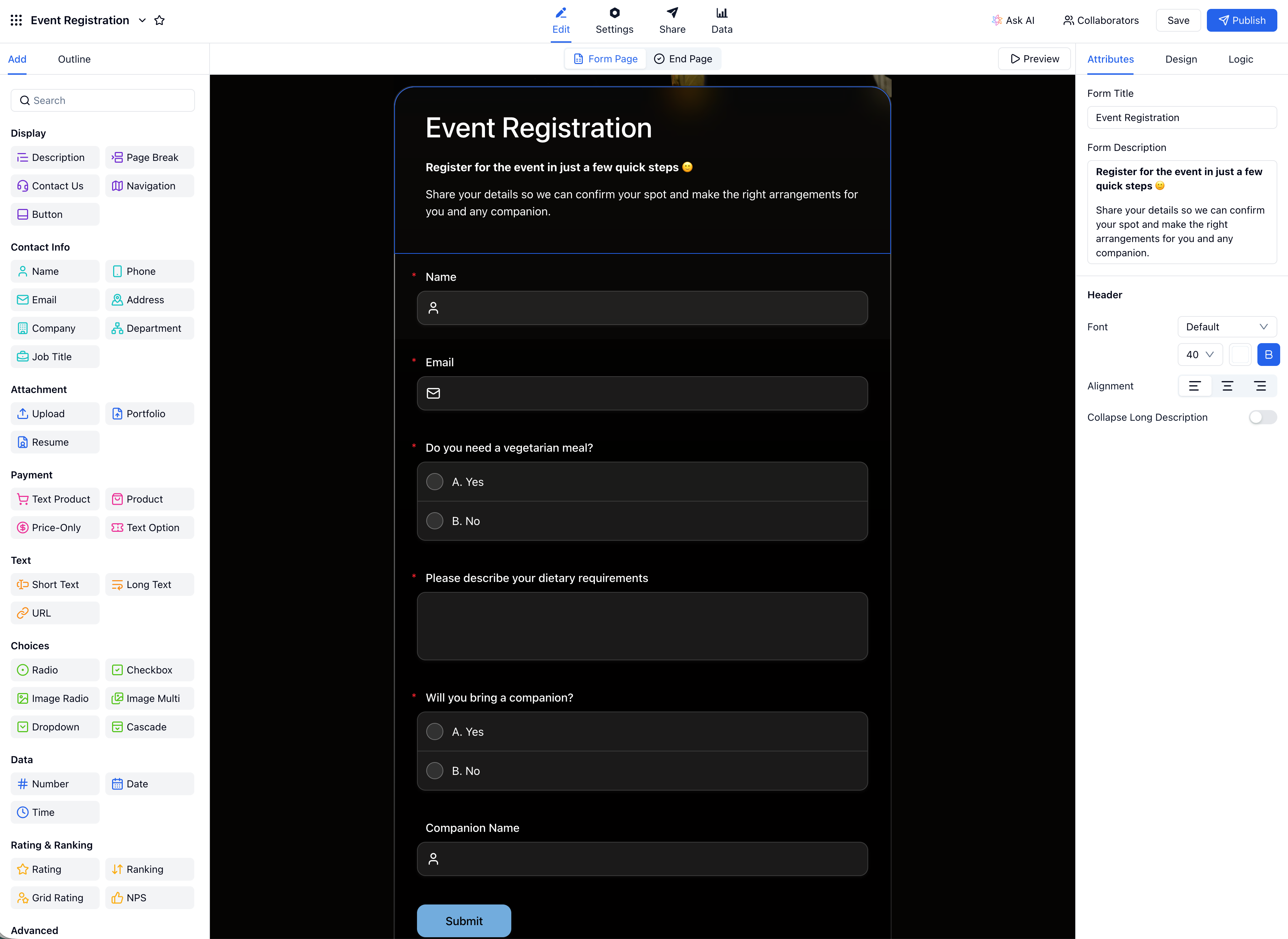 Build your full field list first. You can set display conditions on any field after the fact.
Step 2: Open the Logic tab
In the right-side panel, click the Logic tab. This is where all conditional rules live. You’ll see a When / Then structure and an + Add conditions button. Each rule you create here controls one display behaviour: when a condition is matched, show a field, end the form, or redirect to a page.
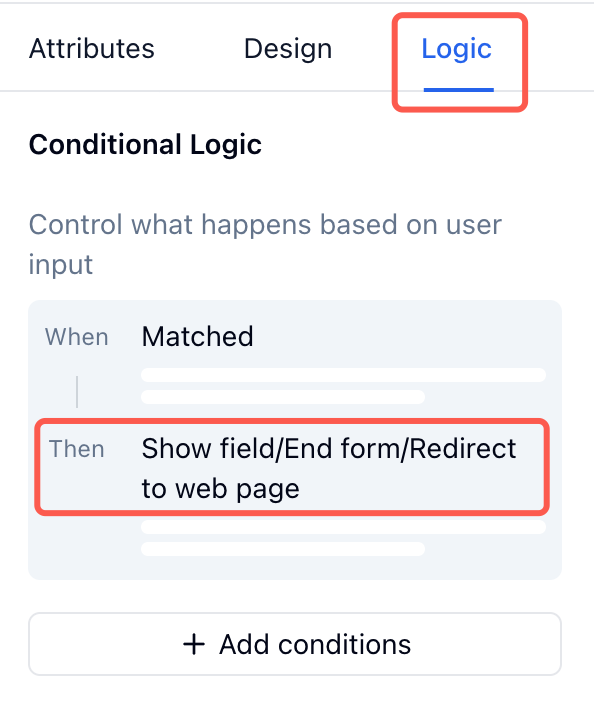 The Logic tab is the control centre for all conditional rules in your form.
Step 3: Create a rule
Click + Add conditions. An Edit Rule modal opens with two sections: When (the trigger) and Then (the action).
When — choosing your trigger
Select the source field. Both choice fields (radio, checkbox, dropdown) and text fields can serve as triggers.
Then choose an operator:
| Operator | Use when |
|---|---|
| Any In | Answer matches any of the selected values — e.g. choice is “Yes” or “Maybe” |
| None In | Answer does not match any of the selected values — e.g. choice is not “Yes” |
| Like | Text field contains a specific string — e.g. company name contains “Inc” |
| Not Like | Text field does not contain a specific string |
Finally, set the value — the specific answer that activates the rule.
Then — choosing your action
| Action | What it does |
|---|---|
| Show field | Reveals a hidden field when the condition is met |
| End form | Terminates the form immediately — useful for disqualification flows |
| Redirect to web page | Sends the respondent to a URL instead of the default thank-you page |
Click Confirm to save the rule.
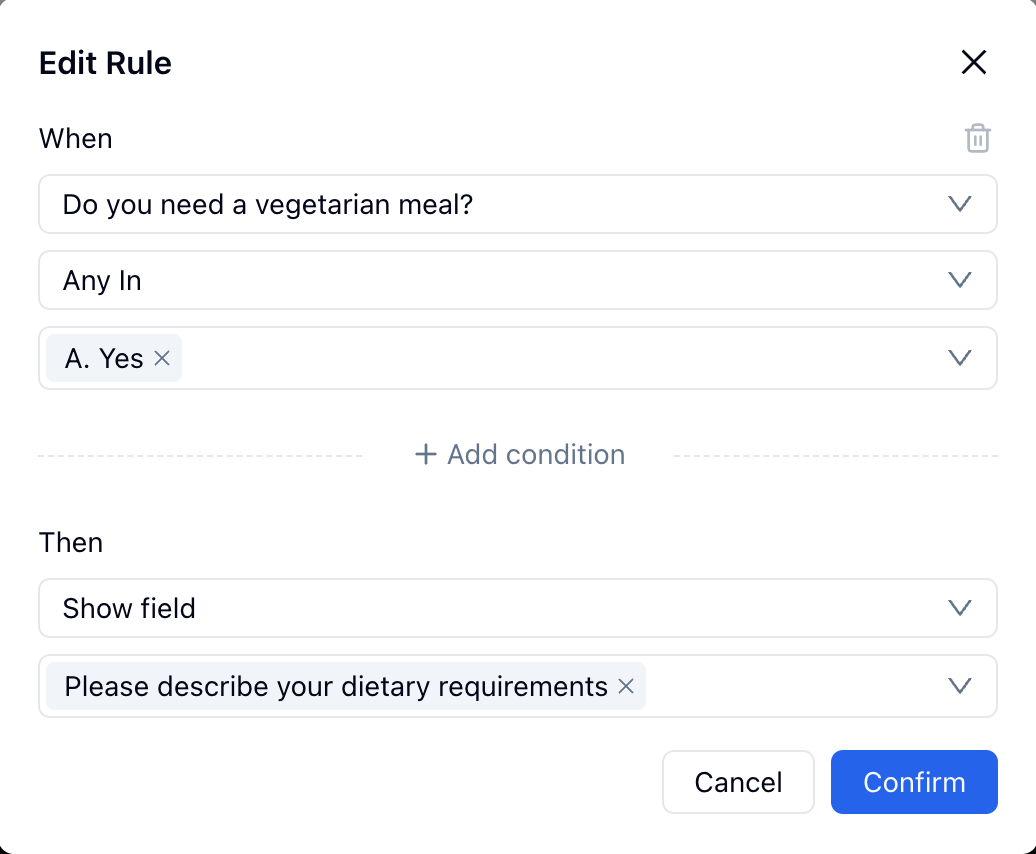 The Edit Rule modal: set the source field, operator, and trigger value in the When section — then choose Show field, End form, or Redirect in the Then section.
Step 4: Add multi-condition rules, then preview every path
Inside a single rule, click + Add condition to add a second When clause. A connector appears between the two clauses — click it to toggle between And and Or:
- And — both conditions must be true for the action to fire. Use this when you need to narrow the trigger precisely: e.g. “company type is Enterprise and budget is above $10,000.”
- Or — either condition being true is enough. Use this to group equivalent triggers: e.g. “dietary choice is Vegan or dietary choice is Gluten-free.”
You can stack as many When clauses as needed inside one rule, mixing And / Or as required.
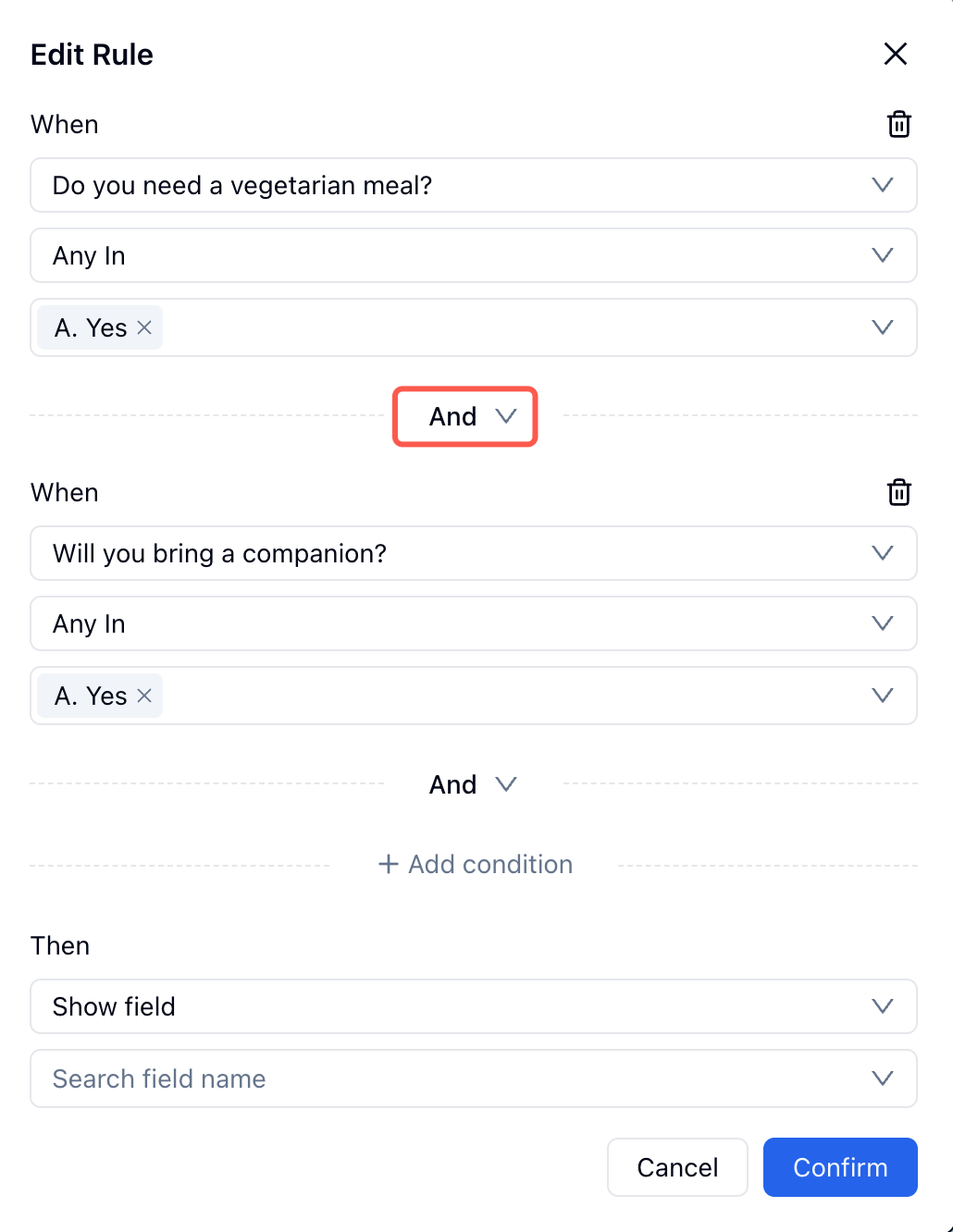 Click the And/Or connector between conditions to switch the combining logic. Stack as many When clauses as the rule requires.
After confirming, the rule appears as a numbered card in the Conditional Logic panel. Add a separate rule for each field that needs its own display behaviour.
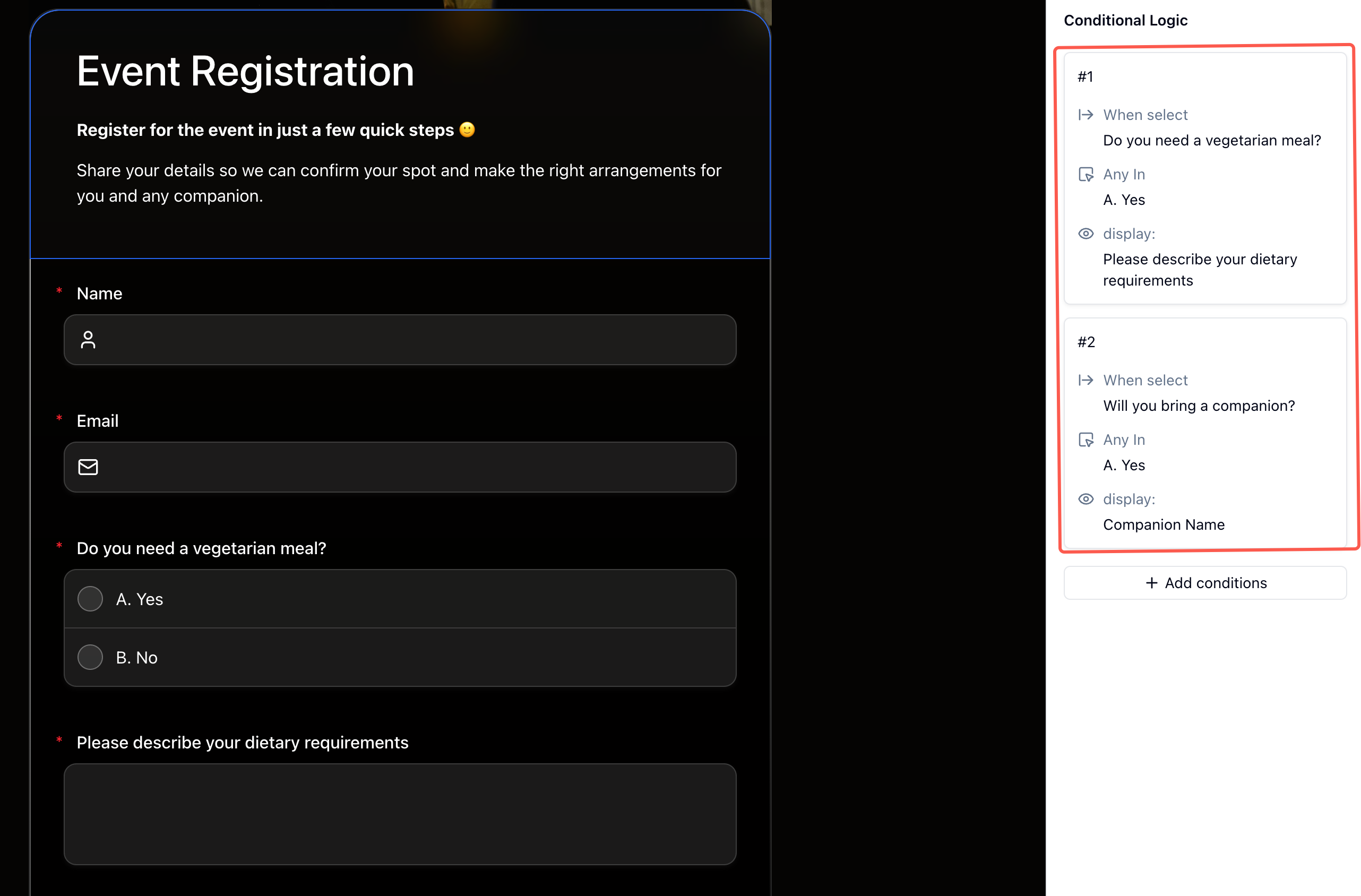 Each rule is listed as a numbered card. You can edit or delete any rule independently.
Click Preview and walk through the form as a respondent. Select “Yes” for a trigger question and confirm the conditional field appears. Then select “No” and confirm it disappears. Test every combination — especially any field that has more than one rule.
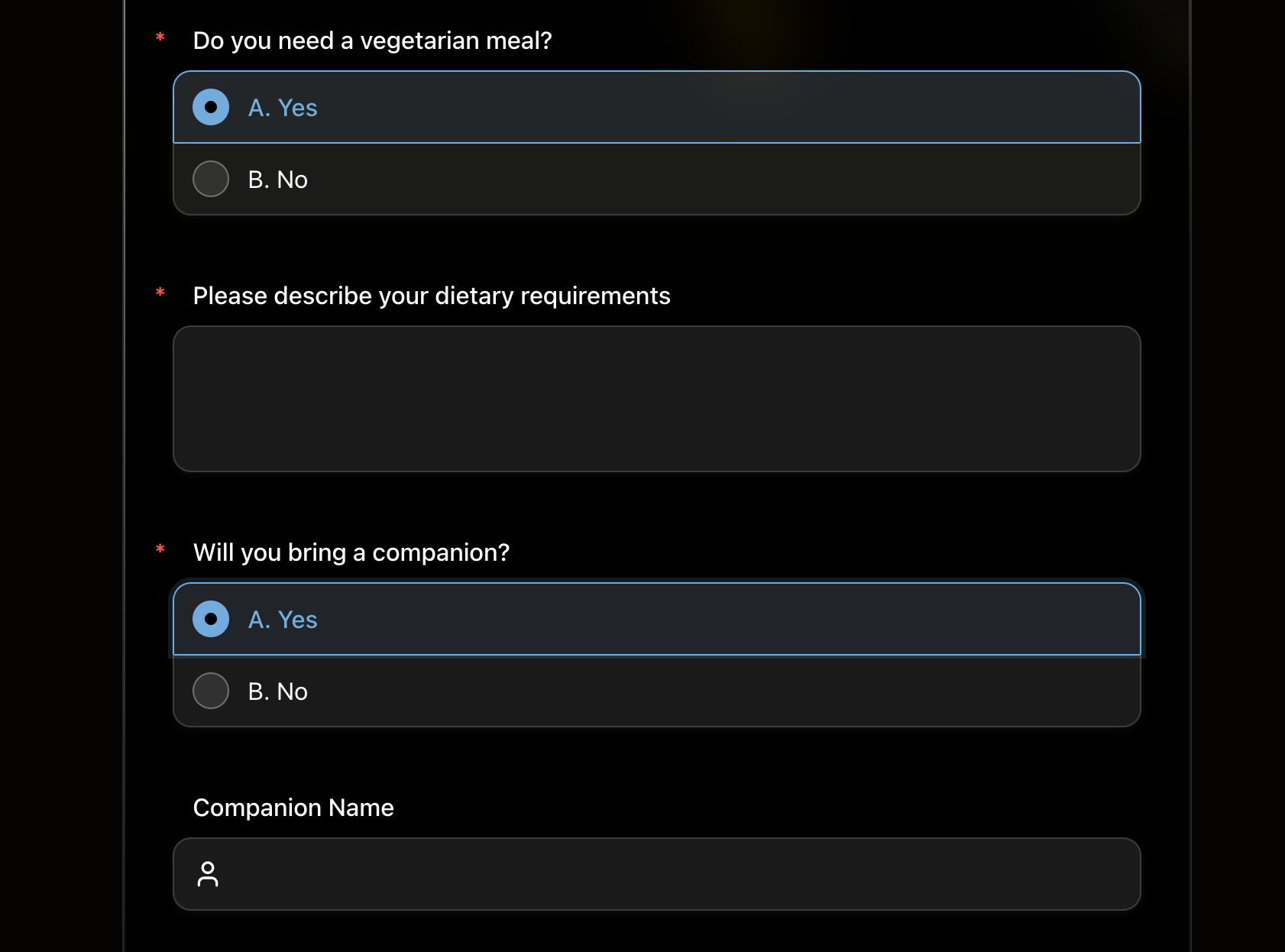 Preview with both conditions active: selecting “Yes” for the vegetarian meal and companion questions reveals the corresponding hidden fields.
Practical Use Cases
Client intake forms
Conditional logic is what separates a useful intake form from a generic one. A single form can serve multiple client types by surfacing relevant follow-ups only when the context requires them:
- “Have you seen a specialist for this?” → Yes → “Which specialist? What was the outcome?”
- “Do you have health insurance?” → Yes → “Provider name” and “Member ID”
- “Is this your first session?” → No → “What did we work on last time?”
A therapist’s intake form is the clearest example: “Have you ever been hospitalized for mental health reasons?” should only surface a follow-up field when the answer is yes. Showing that follow-up to everyone — including people who answered no — adds friction and implies the question was never read. See How to Create an Intake Form for full templates across 14 industries.
Lead qualification forms
Not every lead is the same, and conditional logic lets you collect the right information from each type without creating separate forms:
- “What’s your monthly budget?” → $5,000+ → “Would you like to schedule a call this week?”
- “Are you the decision-maker?” → No → “Who should we follow up with?”
- “How did you hear about us?” → Referral → “Who referred you?”
This is useful beyond just routing — it helps your sales team prioritize follow-ups, since the form itself has already done the qualification work. See How to Build a Lead Generation Form for a full breakdown of qualification logic.
Event registration forms
Group events often have attendees with different requirements. Conditional logic keeps the RSVP form clean while still collecting everything you need:
- “Do you have dietary restrictions?” → Yes → “Please describe your dietary needs”
- “Will you attend the pre-dinner workshop?” → Yes → show session selection dropdown
- “Are you registering multiple people?” → Yes → show additional attendee fields
Quiz and assessment flows
For quizzes and skills assessments, branching paths let you route respondents to different question tracks based on their answers. A beginner and an advanced learner don’t need to see the same follow-up questions — conditional logic shows each group what’s relevant without exposing the full question set to everyone.
See How to Create an Online Quiz for quiz-specific setup, including score-based routing.
Survey follow-up questions
Conditional logic is also useful for survey question design. Dichotomous survey questions can show one follow-up for one binary answer and another follow-up for the other. A yes or no survey question can show one follow-up for “Yes” and another for “No.” A multiple choice answer can reveal a targeted text field only when someone selects a high-priority blocker.
Frequently Asked Questions
What is conditional logic in a form?
Conditional logic is a rule-based system that shows or hides form fields based on a respondent’s previous answers. The basic structure is: if the answer to Question A is X, then show Question B. This lets you build forms that feel tailored to each person, rather than forcing everyone through the same fixed set of questions.
Does conditional logic actually improve completion rates?
Yes. Forms that ask irrelevant questions feel longer and more tedious than they are. Removing those questions for people they don’t apply to reduces perceived form length and improves completion rates — typically 20–40% depending on how many fields are conditionally removed per respondent path.
Can I apply multiple conditions to a single field?
Yes. In FormHug, you can add multiple conditions to one field and choose whether ALL of them must be true (AND logic) or if ANY single condition is sufficient (OR logic). This handles complex scenarios like “show this field only if the respondent is from the EU and selected the invoice payment option.”
What’s the difference between show/hide logic and skip logic?
Show/hide logic controls whether a field is visible on the current page. Skip logic jumps the respondent to a different section or page of the form based on their answer. Both are forms of conditional logic — show/hide for field-level control, skip logic for broader flow branching.
Does conditional logic work on mobile devices?
Yes. FormHug forms are fully responsive, and conditional logic behaves identically on mobile and desktop. Fields appear and disappear instantly as respondents answer, with no page reloads.
What happens if someone changes an earlier answer after a conditional field appeared?
If the condition no longer applies, the field hides again and its value is cleared from the submission. This prevents orphaned data — answers to fields that are no longer relevant — from appearing in your results.
Can I send respondents to different thank-you pages based on their answers?
Yes. FormHug supports conditional end pages — you can route respondents to different confirmation messages or redirect URLs based on their answers. This is useful for lead flows where high-intent leads should land on a booking page, while lower-intent contacts go to a newsletter signup.
Is conditional logic available on FormHug’s free plan?
Yes — conditional logic is available on the free plan. You can add show/hide rules and multi-condition AND/OR logic without upgrading. For a comparison of what’s included across FormHug’s plans, see Best AI Form Builders in 2026.
Related
- How to Create an Intake Form — industry-specific intake templates that rely on conditional logic to surface relevant follow-ups
- How to Build a Lead Generation Form — conditional qualification logic to segment leads without building multiple forms
- Dichotomous Survey Questions — two-choice survey questions that work well as branching gates
- Yes or No Survey Questions — binary survey prompts that work best with targeted follow-ups
Every irrelevant question you ask costs you completions — conditional logic means you never have to include one. Create your form →

Written by
FormHug TeamProduct, research, and form automation team
The FormHug Team brings together product builders, workflow researchers, and form automation practitioners who study how people collect, route, and act on information online. Our guides are based on hands-on product testing, template analysis, customer workflow patterns, and deep experience with forms, surveys, quizzes, AI-assisted creation, integrations, and results sharing.