How to Embed a Quiz on Your Website or Blog
Make it interactive
Turn these questions into a scored quiz
Build a quiz with answer keys, result pages, explanations, and a shareable link.
The easiest way to make a quiz underperform is to hide it behind a button no one clicks. The second easiest way is to embed it so poorly that it feels cramped, slow, or disconnected from the page.
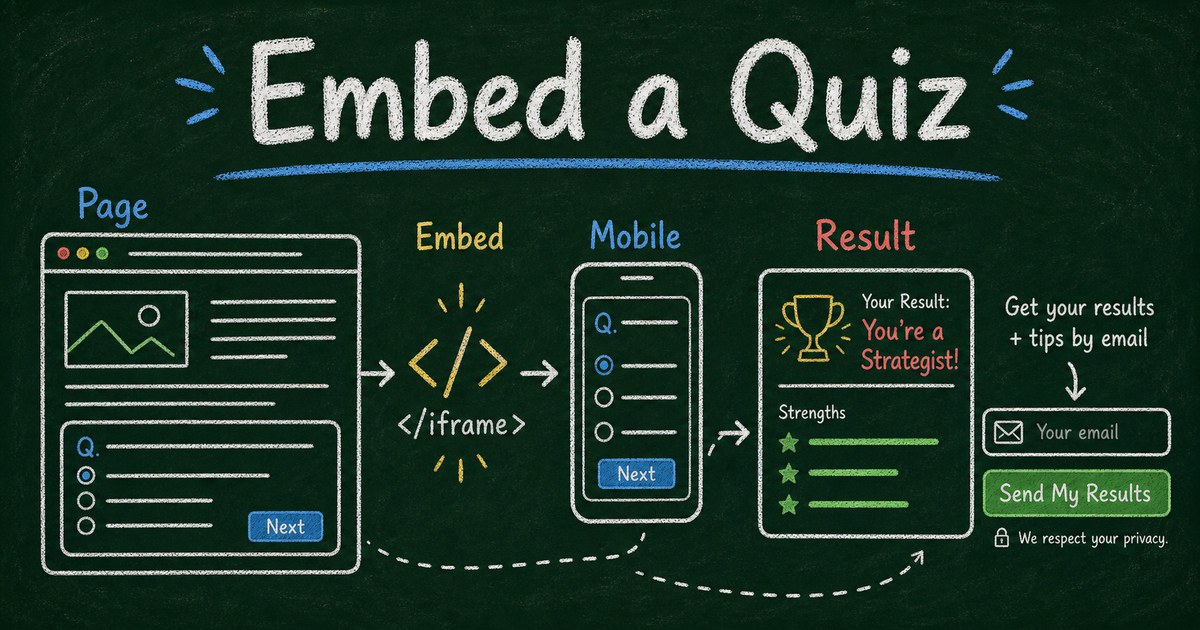
An embedded quiz should feel like part of the article, landing page, course, or product flow. It should appear where the reader has enough context to answer, load cleanly on mobile, and return a result without making the page feel broken.
This guide shows how to embed a quiz on your website or blog, where to place it, what to test, and when a share link is better than an embed.
TL;DR - Embedding a quiz means placing an interactive quiz directly inside a website or blog page, usually with an iframe or no-code embed block.
- Place it after context - readers need a reason to answer before they see the first question.
- Design for mobile first - embedded quizzes often fail because the frame is too short or narrow.
- Match the next step - quiz results should connect to the article, offer, course, or lead workflow.
- Works for: blog posts, landing pages, course pages, product recommendation pages, resource hubs, and creator sites.
- FormHug quizzes can be shared as links or embedded into a website without custom quiz code.
What Does It Mean to Embed a Quiz?
Embedding a quiz means showing the quiz inside another webpage instead of sending visitors to a separate quiz URL. The quiz may appear in a blog post, landing page, website section, course lesson, or resource hub.
Most no-code quiz embeds use an iframe or platform-specific embed block. The important details are placement, size, responsiveness, and what happens after the result.
If you have not built the quiz yet, start with free quiz maker or personality quiz maker.
When to Embed vs Share a Link
Use this decision table:
| Use embed when | Use a share link when |
|---|---|
| The quiz supports the page content | The quiz is a standalone campaign |
| You want visitors to stay on the site | You are sharing through email or social |
| The page explains why to answer | The quiz title is self-explanatory |
| The quiz is short | The quiz needs full-screen focus |
Embedding is not always better. A long assessment, timed exam, or detailed training quiz may work better as a dedicated page.
The Context, Quiz, Result Placement Rule
Use the Context, Quiz, Result rule:
- Context: explain the problem or decision.
- Quiz: let the reader answer while the topic is fresh.
- Result: connect the outcome to a next step.
For example, a blog post about lead qualification can embed a quiz after explaining the Need, Constraint, Urgency framework. The quiz then helps the reader score their own lead funnel.
For lead generation, pair this with how to build a lead gen quiz.
How to Embed a Quiz on a Website
Step 1: Build the quiz
Create the quiz in FormHug with AI, a template, or a blank form. Decide whether it is:
- Scored quiz
- Personality quiz
- Lead gen quiz
- Product recommendation quiz
- Knowledge check
- Assessment
The quiz type affects length and placement.
Step 2: Copy the embed code or share link
Use the embed option when your website supports iframes or custom embed blocks. If your site builder does not allow iframe embeds, use the share link instead.
Common places to embed:
- Blog post body
- Landing page section
- Course lesson
- Resource page
- Product recommendation page
- Help center article, only when interactive support is useful
Step 3: Set the frame size
The embed should be tall enough that the first question does not feel trapped.
Test:
- Desktop width
- Tablet width
- Mobile width
- Dark mode, if your site uses it
- Result page height
If the quiz has multiple screens, test the longest question and the result page, not only the first screen.
Step 4: Connect the result to the page
The result should make the page more useful:
- Recommend a product
- Suggest a course track
- Route a lead
- Show knowledge score
- Offer a checklist
- Invite booking or signup
If the result is unrelated to the page, the embed will feel like a gimmick.
Embed Ideas by Website Type
Blog
Embed a quiz after the main framework section. Example: a productivity blog can embed “What Is Your Productivity Personality?” after explaining work style patterns.
Course website
Embed a knowledge check after each lesson. Keep it short: 3 to 6 questions. For longer checks, use a dedicated knowledge check quiz.
Agency site
Embed a readiness quiz on a service page. The result can qualify the prospect and suggest whether they need audit, strategy, or implementation.
Ecommerce or SaaS
Embed a product recommendation quiz on a comparison or pricing page. For the full workflow, see product recommendation quiz.
Creator site
Embed a personality quiz as a lead magnet. Show a preview result, then ask for email to send the full report or resource.
How FormHug Compares for Embedded Quizzes
| Need | FormHug | Custom quiz code |
|---|---|---|
| No-code creation | Yes | No |
| AI quiz draft | Yes | No |
| Share link | Yes | Needs hosting |
| Embed workflow | Yes | Custom |
| Lead fields | Built in | Custom |
| Result pages | Built in | Custom |
Custom code gives maximum control. FormHug is better when you want to publish quickly and keep quiz creation, scoring, result pages, and response collection in one workflow.
Frequently Asked Questions
How do I add a quiz to my website?
Create the quiz in a quiz maker, copy the embed code, paste it into your website’s embed or HTML block, then test the quiz on desktop and mobile.
Can I embed a quiz in a blog post?
Yes. Embed the quiz after the section that gives readers enough context to answer. For most blog posts, the quiz works better in the middle or near the end than at the very top.
Is an iframe the best way to embed a quiz?
For no-code quiz tools, iframe embeds are common because they keep the quiz interactive without custom development. Test height, mobile behavior, and result pages before publishing.
Should I embed a quiz or link to it?
Embed when the quiz directly supports the page. Use a link when the quiz is long, timed, full-screen, or part of a separate campaign.
Can an embedded quiz collect leads?
Yes. Add name, email, or company fields inside the quiz flow. For better trust, show a useful result preview before asking for contact details.
Is FormHug free for embedded quizzes?
Yes. You can create quizzes with FormHug, publish a shareable link, and embed the quiz on a website or blog on the free plan.
Related
- Free Quiz Maker - create online quizzes with AI and shareable links
- How to Build a Lead Gen Quiz - qualify prospects automatically with quiz answers
- Personality Quiz Maker - build outcome quizzes that produce different results
An embedded quiz should make the page more useful, not heavier. Put it where curiosity is already high and make the result worth the click. Create your embedded quiz →

Written by
FormHug TeamProduct, research, and form automation team
The FormHug Team brings together product builders, workflow researchers, and form automation practitioners who study how people collect, route, and act on information online. Our guides are based on hands-on product testing, template analysis, customer workflow patterns, and deep experience with forms, surveys, quizzes, AI-assisted creation, integrations, and results sharing.