

How It Works
Each notification is a rule: when a trigger fires, then send an email to a recipient you choose. The recipient can be your own address, a teammate, or the submitter themselves — using any email field from the form.Creating a Notification Rule
1
Open Notifications
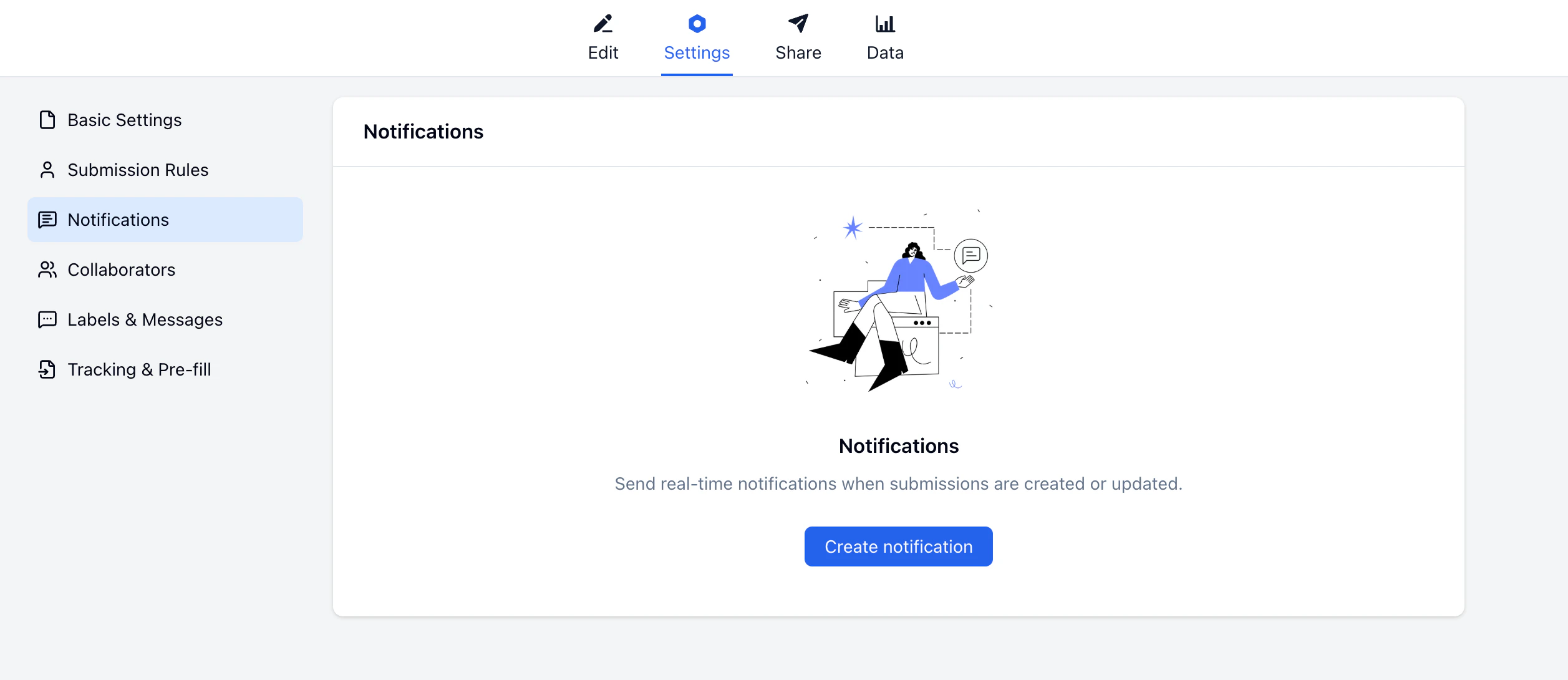
Go to your form → Settings → Notifications, then click Create notification.
2
Choose a Trigger
Select when the notification should fire: New submission created or Submission updated.
3
Connect Your Gmail Account
In the Sender dropdown, select Connect Gmail. A Google authorization screen will open — click Continue to grant FormHug permission to send email on your behalf. Once authorized, your Gmail address appears as the sender.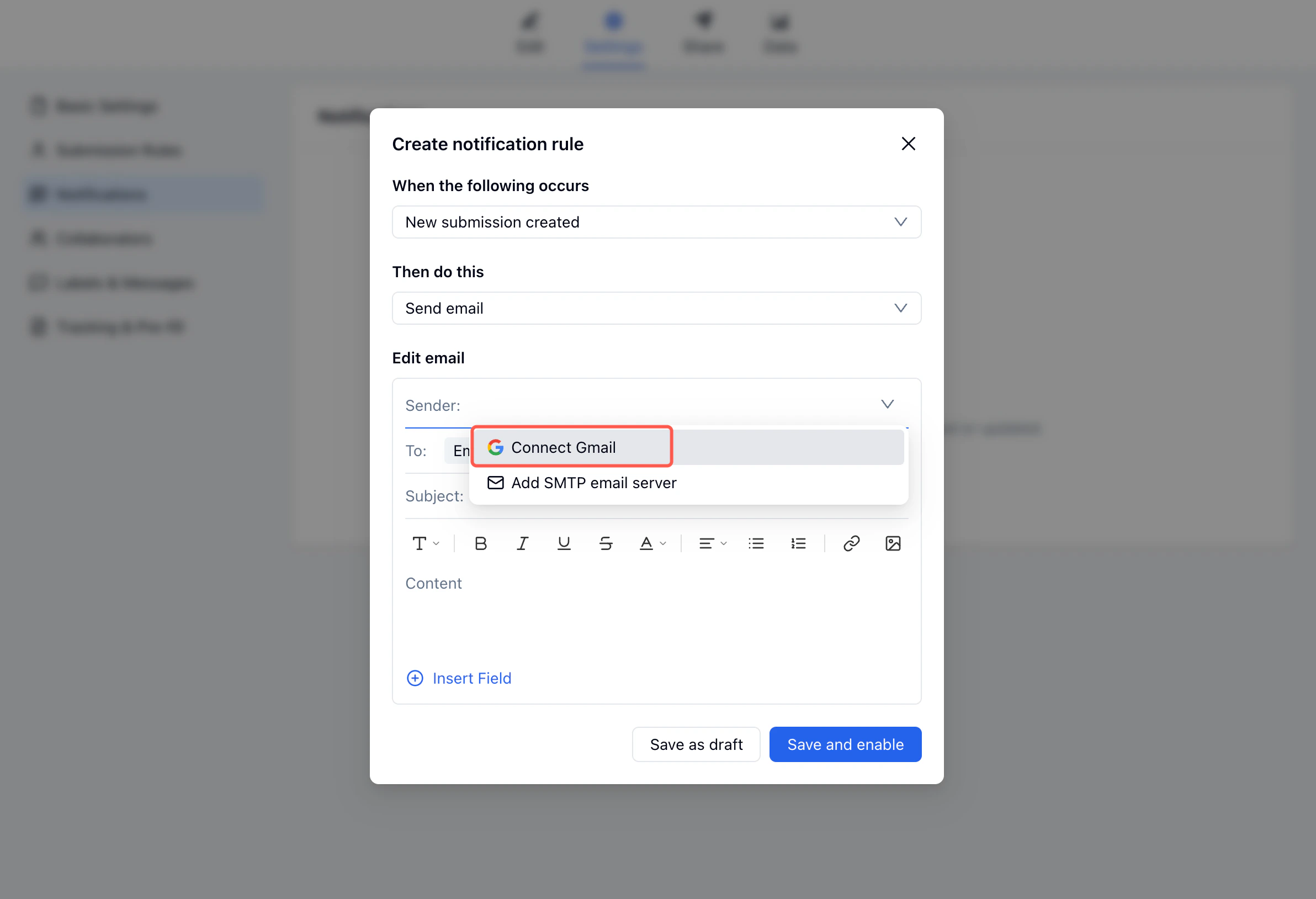
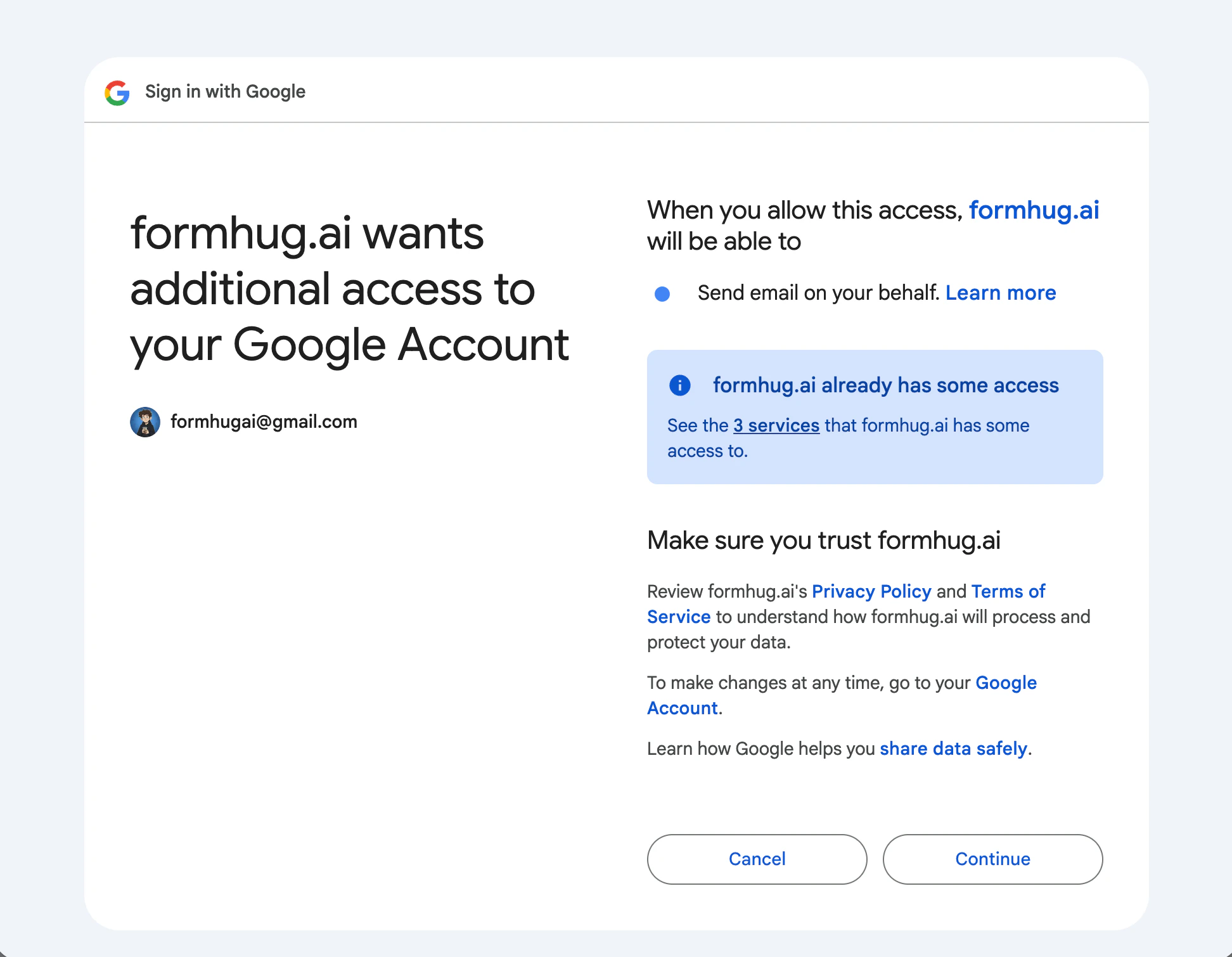
Gmail is connected at the account level. Once you authorize it, all your forms can use the same Gmail address as sender.
4
Configure the Email
Set the To field to the form field that collects the submitter’s email address. Write a subject and body — use Insert Field to pull in submission data like the submitter’s name, registration details, or any custom field value.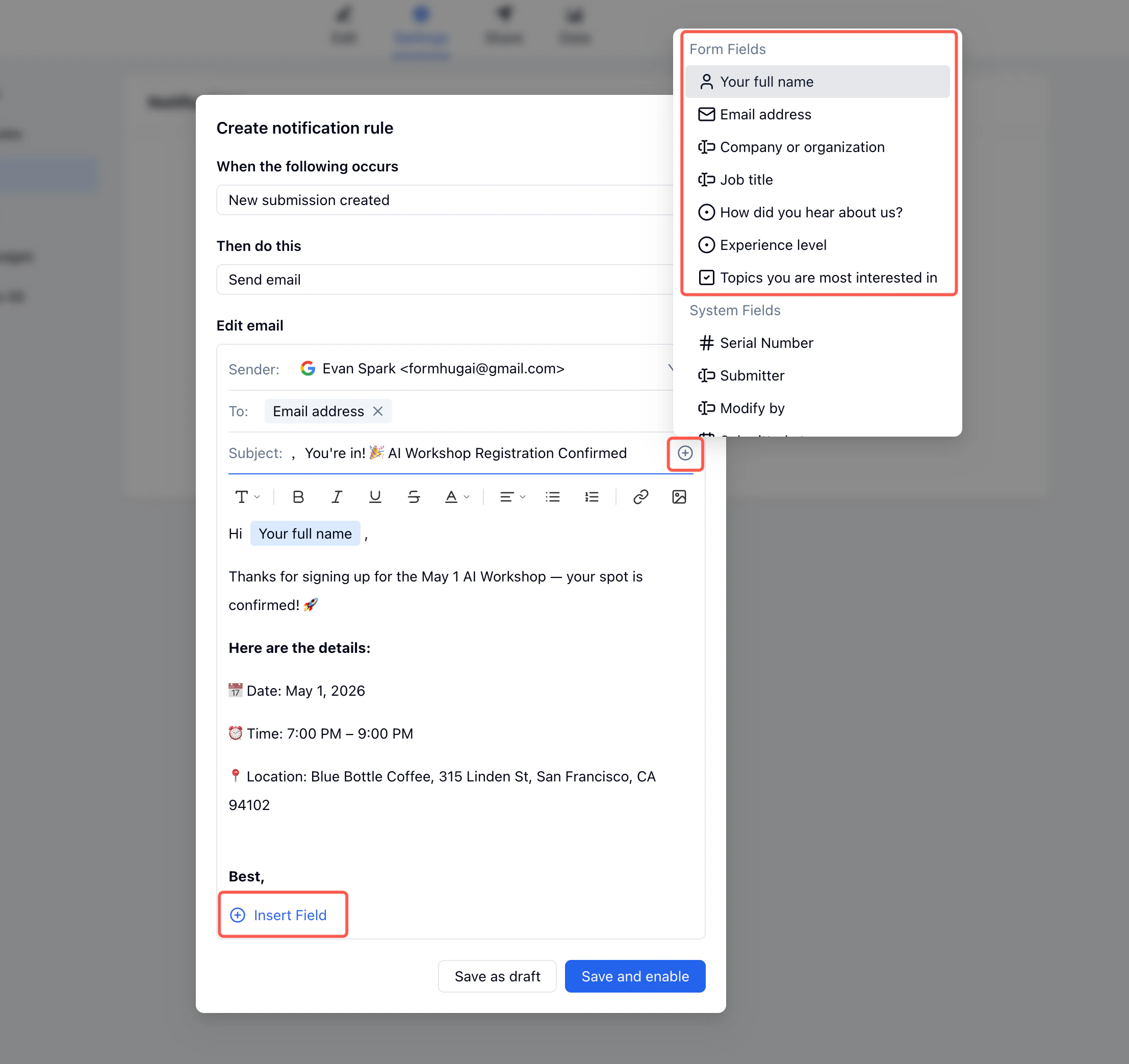
5
Save and Enable
Click Save and enable. The rule activates immediately — every new submission that matches the trigger will fire the email.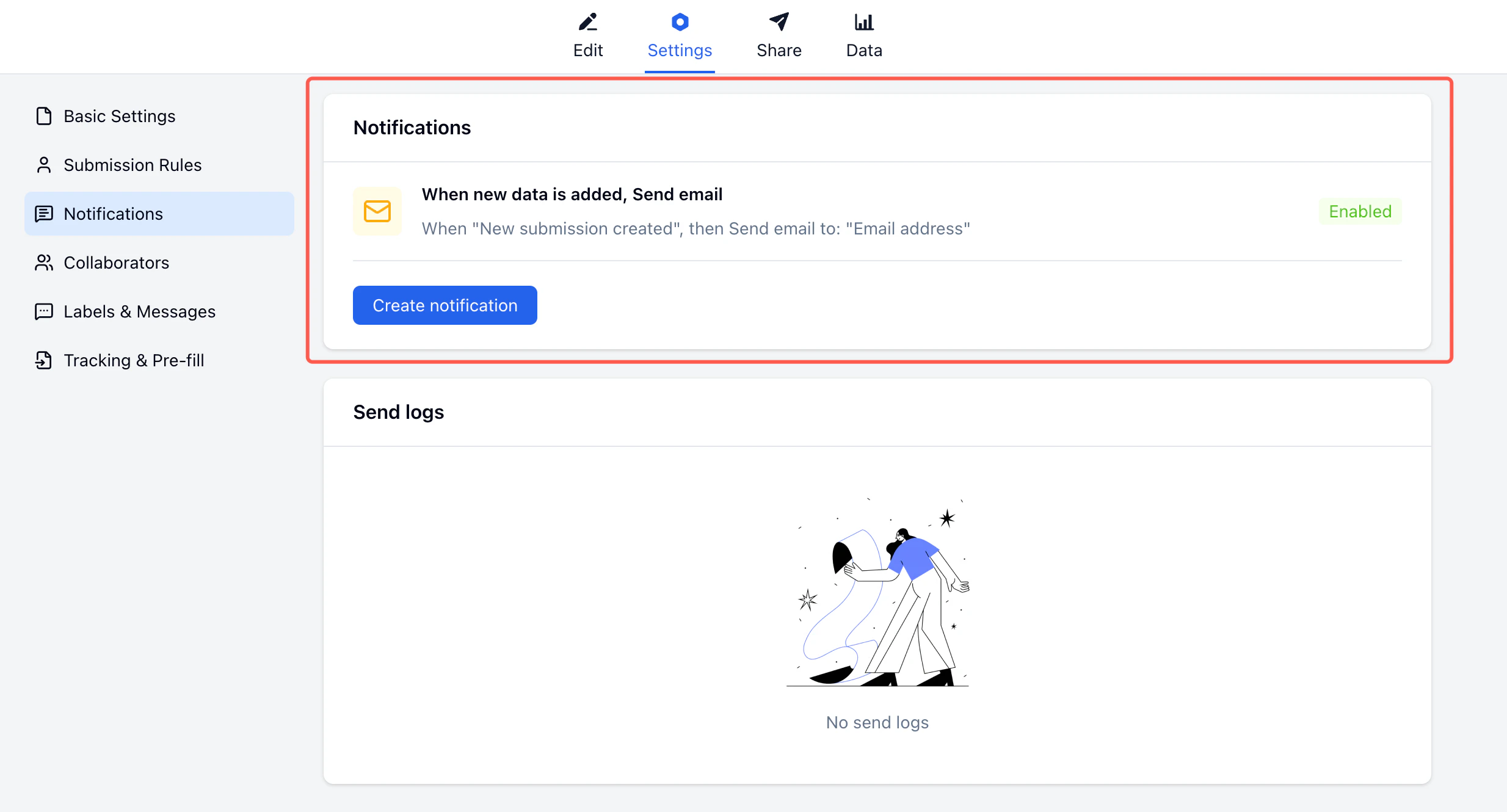
Trigger Events
Inserting Field Values
Use Insert Field in the subject or body to include submission data in each email. FormHug replaces each field reference with the actual submitted value at send time.
Both form fields and system fields (serial number, submitter, timestamp) are available.
Send Logs
Every email sent through a notification rule appears in the Send logs section below the notification list. Each entry shows the recipient address, send time, and status.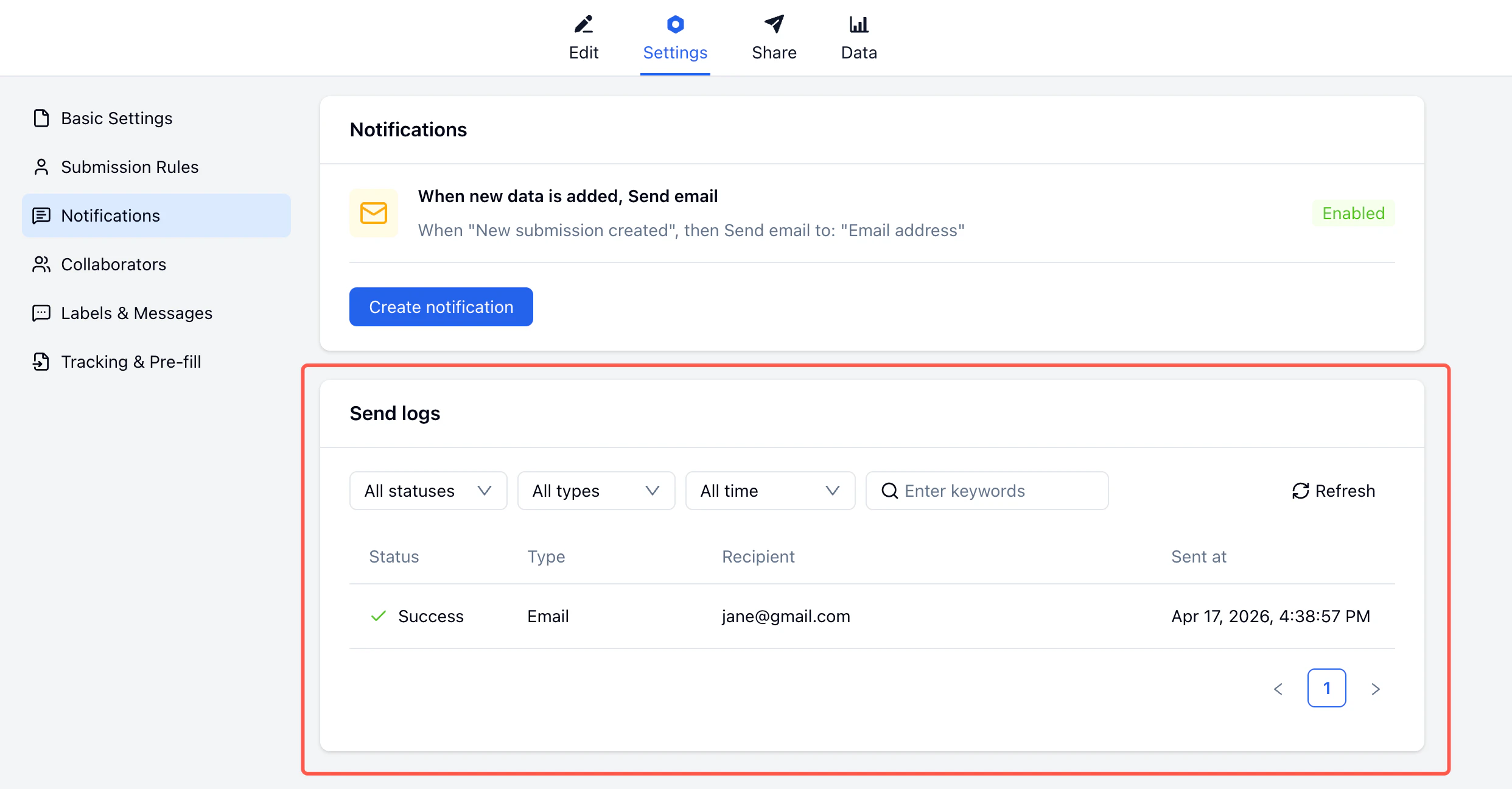
Gmail vs. SMTP
Gmail personal accounts can send approximately 500 emails per day. For forms with high submission volume, consider connecting an SMTP server instead.
Related
Gmail Email Notifications
Step-by-step tutorial using an AI workshop signup as an example
Submission Rules
Set capacity limits and control what happens when they’re reached
Collaborators
Invite team members to manage your form
Labels & Messages
Customize form text and button labels
Email Follow-up Guide
Walk through confirmation emails, reminders, personalization, and send logs
Appointment Reminder Emails
Use reminder copy for bookings, consultations, and classes