How to Share Survey Results with Respondents After They Submit
Start collecting responses
Turn this into a shareable survey
Draft the questions, publish a clean link, and keep every response organized in FormHug.
Most surveys end too early. The respondent clicks submit, sees a generic thank-you message, and never learns whether their answer mattered. That silence is expensive: it lowers trust, weakens future response rates, and turns useful feedback into a one-way extraction.
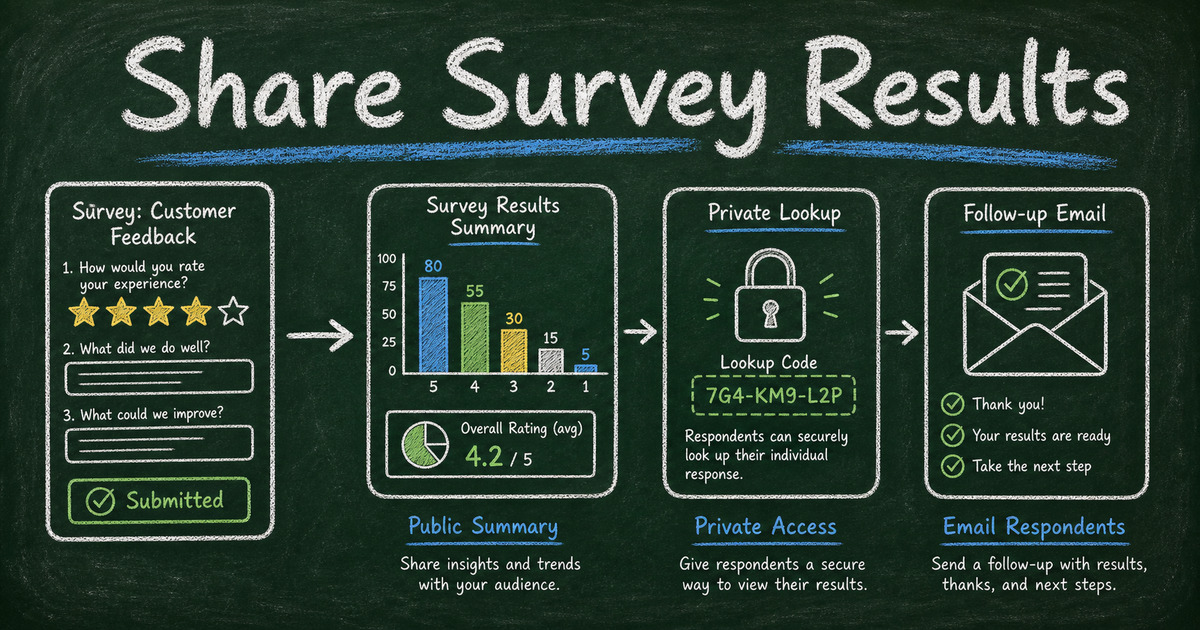
Sharing survey results does not mean exposing every raw answer. It means choosing the right level of visibility: a public summary, a private confirmation, a segmented report, or a follow-up note that explains what changed. The best survey workflows close the loop without breaking privacy.
This guide explains how to share survey results with respondents after they submit, when to use public versus private results, and how to build a clean results-sharing workflow in FormHug.
TL;DR - Sharing survey results with respondents means closing the feedback loop with the right level of summary, privacy, and timing.
- Use the Results Visibility Ladder - private confirmation, aggregate summary, segmented report, and public dashboard are different jobs.
- Never expose raw sensitive answers - share patterns, totals, or personal lookup records instead.
- Close the loop fast - even a short “what we heard” email builds more trust than silence.
- Works for: event feedback, employee surveys, customer research, class surveys, polls, and application updates.
- FormHug can collect responses, show confirmation messages, and support respondent lookup workflows through Public Query.
What Does It Mean to Share Survey Results?
Sharing survey results means giving respondents useful information after they answer. That can be as simple as a confirmation message, as structured as a chart summary, or as private as a lookup page where each person can only see their own record.
The key distinction is aggregate versus individual. Aggregate results show patterns across a group: percentages, rankings, ratings, themes, and totals. Individual results show one respondent’s own submission, score, status, registration, or eligibility result.
For a one-question poll, aggregate results may be fine. For an employee exit survey, aggregate results may need heavy anonymization. For an exam, race, application, or training result, individual lookup is safer because each person should see only their own result. That is why FormHug’s Public Query workflows are useful for results sharing: they turn collected records into searchable, self-service lookup pages without publishing the whole dataset.
The Results Visibility Ladder
Use the Results Visibility Ladder before deciding what to show:
| Level | What respondents see | Best for |
|---|---|---|
| Confirmation | ”We received your response” | any survey |
| Personal record | their own submission, score, status, or receipt | applications, quizzes, registrations |
| Aggregate summary | charts, percentages, top themes | polls, event feedback, product research |
| Segmented summary | results by group without exposing identities | classrooms, teams, cohorts |
| Public dashboard | ongoing results visible to anyone | public polls or community votes |
The higher you go, the more privacy review you need. A public dashboard can be exciting for a fan poll, but reckless for workplace feedback. A personal lookup can be perfect for exam results, but unnecessary for a short customer satisfaction survey.
We use this rule when planning FormHug surveys: share the smallest result that answers the respondent’s next question. If they only need proof of submission, do not publish a chart. If they need to know whether they qualified, give them a private lookup. If they helped choose a workshop topic, share the final ranking.
When to Share Results Publicly
Public or semi-public summaries work best when the topic is low-risk and respondents expect a shared outcome.
Good public-result use cases include:
- Event topic voting
- Community polls
- Fan prediction surveys
- Product roadmap preference surveys
- Classroom icebreaker polls
- Workshop scheduling votes
For example, a World Cup fan survey can show which team the group thinks will win. The answers are opinions, not sensitive records. A product team can share “42% of beta users ranked onboarding as the biggest friction point” without showing who said it.
Avoid public results when answers could identify or embarrass someone. Small group sizes are especially risky. If only five people answered a department survey, a percentage chart can still expose individual opinions.
When to Keep Results Private
Private results are better when the respondent needs their own answer, not the crowd’s answer.
Use private result sharing for:
- Exam scores
- Course completion results
- Race times
- Application status
- Registration confirmation
- Membership eligibility
- Paid order details
The clean pattern is the Identity + Lookup + Limited Display framework:
| Step | Purpose | Example |
|---|---|---|
| Identity | ask for a safe lookup key | email plus registration ID |
| Lookup | let the respondent search their own record | private results page |
| Limited Display | show only the fields they need | status, score, next step |
This is the same pattern behind private exam results lookup pages and race results sharing. The respondent gets the answer they need, and the full response table stays private.
How to Write the Follow-Up Message
The follow-up message matters as much as the chart. A useful results note includes four parts:
| Part | Example |
|---|---|
| Thank you | ”Thanks to the 143 people who answered.” |
| What we heard | ”The top request was shorter onboarding videos.” |
| What changes | ”We are replacing the 18-minute intro with three 4-minute lessons.” |
| What happens next | ”We will send the new version next Friday.” |
This is the Feedback Loop Promise: you asked, they answered, you acted, then you told them. It is simple, but it is the difference between a survey people ignore next time and a survey they trust.
For customer, student, or employee surveys, avoid overclaiming. If you are still reviewing responses, say that. If you cannot act on the top request, explain the constraint. Respondents do not need every decision to go their way; they need evidence that the survey was real.
How FormHug Compares for Results Sharing
| Need | FormHug | Basic survey-only workflow |
|---|---|---|
| Collect survey responses | Yes, with share links and AI drafts | Yes |
| Show confirmation after submit | Yes | Usually yes |
| Build private lookup pages | Yes, with Public Query workflows | Often requires another tool |
| Reuse data for registrations, quizzes, and results | Yes | Usually survey-specific |
| Create related forms quickly | Yes, with FormHug AI | Varies |
If the survey is only a one-time poll, a basic survey tool may be enough. If respondents need confirmations, statuses, scores, or self-service lookup later, FormHug gives the survey a longer life after submission.
How to Share Survey Results in FormHug
Step 1: Decide the visibility level
Choose one level from the Results Visibility Ladder before writing questions. Do respondents need a thank-you message, an aggregate summary, or a private personal result?
Step 2: Collect only the fields needed for that result
If you plan to show personal results later, collect a stable lookup key such as email, registration ID, student ID, or order number. If the survey should be anonymous, do not collect identity fields just because they might be convenient.
Step 3: Create the respondent-facing result path
For simple surveys, use a confirmation message and follow-up email. For private records, create a Public Query lookup page that displays only the fields respondents should see.
Step 4: Send a summary after responses close
After reviewing results, send a short “what we heard and what changes” message. For broader analysis, use how to analyze survey results to turn raw responses into themes before writing the summary.
Frequently Asked Questions
Can respondents see survey results after submitting?
Yes, if the survey owner chooses to share them. Respondents can see a confirmation message, an aggregate summary, a public poll result, or a private lookup record depending on the survey design.
How do I share survey results without showing private answers?
Share aggregate results instead of raw responses. Use percentages, rankings, averages, and themes, and avoid small segments that could reveal individual people.
Should employee survey results be shared with employees?
Usually yes, but at the right level. Share themes, priorities, and planned actions. Do not share raw answers or small-group breakdowns that could identify respondents.
What is the best way to share quiz or exam results?
Use private lookup. Each respondent should enter a safe identifier and see only their own score, status, or next step. For a full walkthrough, see create exam results lookup page.
Can I show poll results immediately?
Yes, if the poll is low-risk and respondents expect public results. For sensitive surveys, wait until responses close and review the data before sharing.
What should a survey results email include?
Include the number of responses, the top finding, the action you will take, and the next update. Keep it short enough that people actually read it.
Can FormHug help respondents look up their own results?
Yes. FormHug supports Public Query workflows, so you can publish a lookup page where respondents search by fields you define and see only the result fields you choose.
Related
- How to Analyze Survey Results - turn raw answers into themes before sharing a summary
- Build a Lookup Page from Excel - create a searchable results page from structured records
- Create a Private Exam Results Lookup Page - share individual results without exposing everyone else’s data
- How to Get More Responses to Your Survey - use follow-up loops to build future response trust
Every survey that ends in silence teaches respondents not to bother next time. Share the smallest useful result, protect private answers, and close the loop while the feedback is still fresh. Create your survey →

Written by
FormHug TeamProduct, research, and form automation team
The FormHug Team brings together product builders, workflow researchers, and form automation practitioners who study how people collect, route, and act on information online. Our guides are based on hands-on product testing, template analysis, customer workflow patterns, and deep experience with forms, surveys, quizzes, AI-assisted creation, integrations, and results sharing.