How to Build an AI-Powered Intake Form with a Database
Create with AI
Describe the workflow and get a form draft
Use FormHug to create forms from prompts, then share, automate, and reuse the structured responses.
A request can be complete enough to submit and still be impossible to act on. The client wrote a paragraph, the deadline is buried in an attachment, and nobody knows who should respond. Putting that paragraph in a spreadsheet only moves the problem.
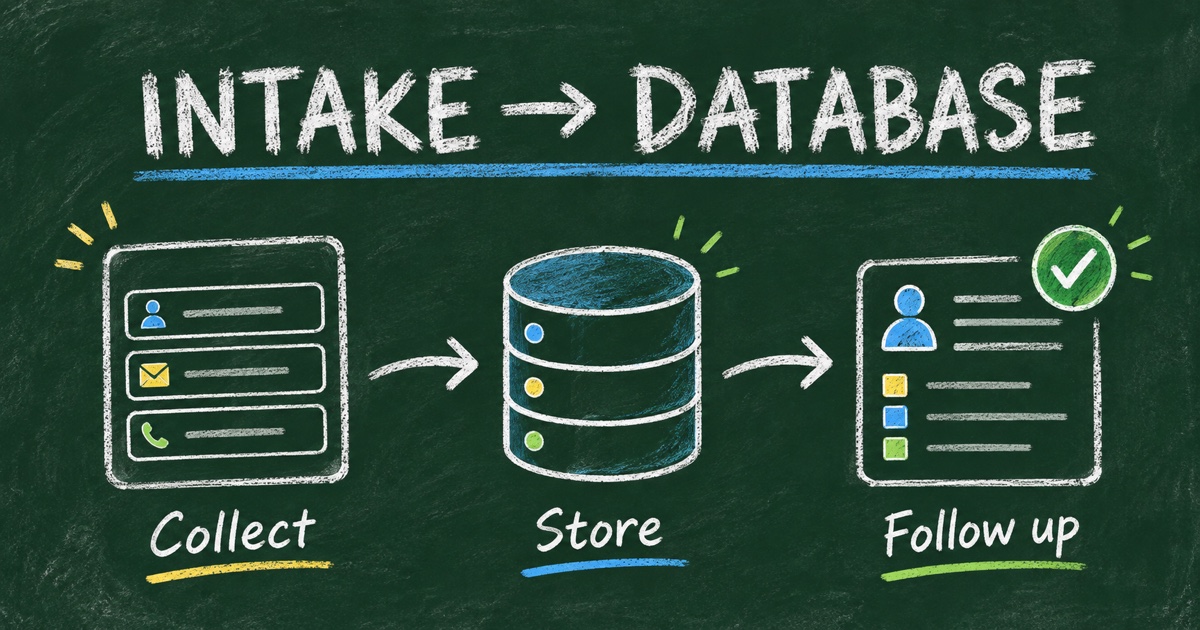
An AI-powered intake form with a database should turn an incoming request into a record your team can understand, find, and follow up. AI helps draft the collection structure. The database gives that structure a place to live after submission. The useful design work is deciding which information belongs in each.
The example below is a proposed setup for a small creative team: a FormHug project intake form feeding an existing Notion database. It is a configuration recipe, not a report of a customer implementation or measured results.
TL;DR — An intake form with a database collects structured request details and stores them as records that can support review and follow-up.
- Define the record before generating the form: category, request summary, deadline, contact, and context.
- Separate respondent answers from internal status and ownership.
- FormHug’s Notion integration creates pages in an existing database from new submissions; it is not a two-way database sync.
- Test both the saved response and the destination record before sharing the form.
What Is an AI-Powered Intake Form with a Database?
An AI-powered intake form uses a prompt to help create fields, questions, and instructions for collecting a request. A connected database stores the answers in a consistent structure so the team can search, group, and process them later.
There are two storage decisions. FormHug stores the submitted entry, which you can review in its submission table. You can also send new submissions to a separate workspace database, such as Notion, when the team manages its follow-up there. You do not need a second system simply to keep form responses.
This differs from asking a chatbot to summarize an email. A summary can help someone read the request, but consistent fields make it possible to compare deadlines, find a category, and distinguish a new request from work already underway. For the basic collection design, start with our intake form guide.
Design the Intake Record Before the Questions
Begin with the decision the team needs to make: can we accept this request, what is missing, and who should handle it? Then give each piece of evidence its own field.
For the creative-team example, a small schema could look like this:
| Information | Form field | Database destination | Why it matters |
|---|---|---|---|
| Request title | Short text | Title property | Makes the record recognizable |
| Contact email | Email property | Gives the reviewer a reply address | |
| Work category | Dropdown | Select property | Groups similar requests |
| Desired deadline | Date | Date property | Supports deadline review |
| Project brief | Long text | Page content | Preserves the full explanation |
| Supporting link | URL | URL property | Keeps reference material accessible |
| Review status | Internal database property | Status property | Tracks what the team has done |
| Assigned reviewer | Internal database property | Person property | Makes responsibility visible |
The last two items belong to the team. A requester can describe urgency, but should not be asked to decide the internal owner or mark their own request approved. Configure those properties or defaults in the destination workspace.
Use defined choices for categories you intend to group. A single dropdown avoids treating “Brand,” “branding,” and “brand design” as three different workstreams. Keep a free-text route for requests that do not fit; review those answers before expanding the category list.
Give AI a Data Brief, Not Just a Form Title
A prompt such as “create a client intake form” leaves the important decisions unspecified. Describe the audience, the record structure, and the next action instead.
Create a project intake form for a small creative team. Collect a short request title, contact email, work category, desired deadline, a project brief, and an optional reference URL. Categories are brand design, website, campaign assets, and other. Explain that submission starts a review and does not confirm acceptance. Keep the form concise. Do not ask the requester for internal assignment, approval status, payment details, or sensitive personal information.
After generation, inspect the field types and required flags. An email address should be an email field; a deadline should be a date. Do not make a phone number mandatory when the review happens by email. Ask whether each required answer is necessary to begin review, rather than merely convenient to have.
AI generation is the drafting stage. Our AI form builder guide explains the broader prompt-to-response workflow; this intake setup adds a destination schema and a defined review process.
Choose Where the Records Will Be Managed
The right destination follows the team’s existing work, not the most complicated architecture available.
| Destination | Useful when | Design responsibility |
|---|---|---|
| FormHug submissions | Review can stay alongside the form | Decide who reviews entries and how follow-up is recorded |
| Notion database | Your team already runs requests in Notion | Create the database and map compatible properties |
| Spreadsheet | You need a familiar tabular handoff | Keep column meanings and update ownership consistent |
| Custom system | Intake must feed an existing application | Plan API/webhook processing, access, and failure handling |
FormHug’s submission tools support reviewing and exporting responses. A custom SQL database is a separate integration project; an AI-generated form does not automatically provide a production database schema, migrations, or application permissions.
For this example, use Notion only because it is where the team will manage review. Avoid maintaining competing status fields in both places without deciding which one is authoritative.
Build the Intake-to-Database Workflow in Four Steps
Step 1: Create the destination and agree on ownership
Create the Notion database first. Add the properties in the schema, choose a default review status such as New, and decide who checks new records. Use a view for requests awaiting review and another for requests that need information.
These are proposed team conventions, not automatic routing rules supplied by the form. A record is only actionable when someone owns the next move.
Step 2: Generate and edit the intake form
Use the prompt above, or adapt a Project Intake Form template. Keep its useful project questions and trim anything that does not affect the team’s review.
Review the instructions and confirmation message together. If the form says the team will review the brief, the end page should confirm receipt and explain the next step. It should not imply that the project is booked or approved.
Step 3: Map structured fields and preserve narrative context
Connect FormHug to the existing Notion database, map compatible fields to properties, and put the longer brief in page content. A useful page title combines the request title with enough context for the reviewer to recognize it.
Our Notion integration documentation covers the configuration and limitations. The connection sends new submissions after setup. It does not create the database, and changes made in Notion do not update the original FormHug entry.
Keep internal status and assignment under the team’s control in Notion. Do not assume that mapping the public form also assigns a reviewer or creates a reminder.
Step 4: Follow one test request through the whole process
Submit a fictional request with a recognizable title. Check the FormHug entry, the new Notion page, the mapped category and deadline, and the complete brief. Then have a teammate find it and explain what they would do next.
Test an optional field left blank and a brief that needs clarification. Inspect the integration event log if a record does not arrive. A form submission confirmation and a successful database sync are separate things to verify.
Keep Search, Follow-Up, and Access Deliberate
After intake, a useful review sequence is: inspect the brief, ask for missing context, assign the request, and record the decision. An AI assistant can help summarize entries when connected through an authorized workflow, but the team should check the original response before accepting a summary or changing a decision.
In this project-intake example, a search for “website requests due this month” needs reliable category and date values. It should not depend on whether the client happened to use a particular word in a paragraph. This is why field design matters more than a polished generated introduction.
Keep the intake database private to the people who need it. If clients later need a status lookup, build that as a separate, limited interface with appropriate search requirements and visible fields. Do not share the team database as the default client portal. The client intake software checklist can help you evaluate that broader workflow.
Frequently Asked Questions
How do I create an intake form connected to a database?
Define the record fields, build the matching form, connect a supported destination, and map the values. Test a submission in both systems and decide where internal status and ownership will be maintained.
Do I need an external database for an online intake form?
No. FormHug stores submissions for review and export. Add a separate database when it supports an existing team process or an application requirement, rather than duplicating records without a clear purpose.
Can AI create the database as well as the intake form?
That depends on the tools and permissions in the workflow. In the FormHug-to-Notion setup described here, you create the Notion database first; the integration creates pages inside it from new submissions.
Does the Notion integration sync changes in both directions?
No. The documented integration creates records from new FormHug submissions. Changes in Notion do not update the original FormHug entry, so choose one place for internal workflow status.
How should I prevent duplicate client records?
Distinguish a request from a client: one client may submit several legitimate requests. Keep a stable contact value, preserve submission identifiers, and define a review or integration rule before merging records. Do not assume matching email addresses mean duplicate work.
Can I build this intake workflow with FormHug?
Yes. FormHug can generate the intake structure, collect responses, and send new submissions to an existing Notion database. Check the current integration requirements and test your own field mapping before accepting live requests.
Related
- How to Create an Intake Form — choose the information needed before service begins.
- FormHug Notion Integration — understand the database handoff and its limitations.
- Client Intake Software for Small Teams — evaluate collection, routing, and follow-up together.
A request should arrive with enough structure for someone to take responsibility for it. Start with one intake workflow and one clear destination, then create your form →.

Written by
FormHug TeamProduct, research, and form automation team
The FormHug Team brings together product builders, workflow researchers, and form automation practitioners who study how people collect, route, and act on information online. Our guides are based on hands-on product testing, template analysis, customer workflow patterns, and deep experience with forms, surveys, quizzes, AI-assisted creation, integrations, and results sharing.