Google Survey Maker: How to Make a Survey with Google Forms
Start collecting responses
Turn this into a shareable survey
Draft the questions, publish a clean link, and keep every response organized in FormHug.
Google Forms is often the first survey maker people try because it is already there. If you have a Google account, you can open a blank form, add questions, send a link, and collect responses without choosing a new tool.
That convenience is real. It is also why searches for “Google survey maker,” “survey maker Google,” and “Google Forms survey maker” usually mean something practical: someone wants to create a survey quickly, preferably for free, without learning a research platform.
This guide explains how to use Google Forms as a survey maker, what it does well, where it starts to feel limited, and when a dedicated free survey maker like FormHug gives you a better path from idea to useful feedback.
TL;DR - Google Forms can work as a free survey maker for simple internal surveys, classroom feedback, and spreadsheet-first workflows, while FormHug is stronger when you want AI survey drafting available in the core survey workflow, templates, conditional follow-ups, QR-friendly sharing, and polished feedback experiences.
- Use Google Forms for simple surveys - especially when the audience already trusts a Google link.
- Use FormHug for survey creation help - AI drafts, templates, and follow-up logic reduce blank-page work.
- Choose based on the workflow after launch - collecting rows is different from turning feedback into a decision.
- Works for: customer feedback, student surveys, event feedback, employee pulse checks, product research, and quick polls.
- No code is required; both tools can publish a shareable survey link.
What Is a Google Survey Maker?
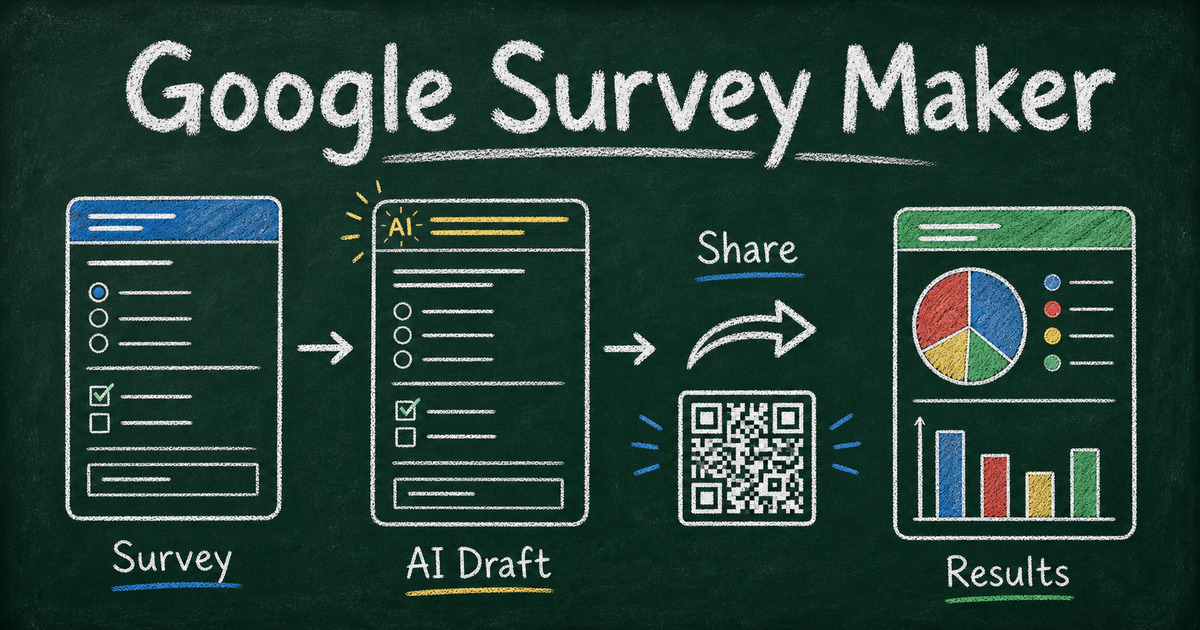
A Google survey maker is usually Google Forms used as a survey tool. Google Forms lets you create a form, add survey questions, share the form link, and collect responses in Google Forms or Google Sheets.
It works well when the survey is simple:
- A teacher asks students for course feedback.
- A team asks coworkers to vote on a meeting topic.
- A club collects event preferences.
- A small business sends a basic customer feedback form.
- A volunteer group collects availability and comments.
In those cases, Google Forms is familiar and low-friction. Respondents recognize the interface, and the creator does not need to learn much before sending the survey.
The limitation is that Google Forms is a general form tool, not a survey-focused workflow. Google has added Gemini features for some users, including form creation and question suggestions, but availability depends on eligible Google Workspace or Google AI plans and the workflow is still centered on building a form. It helps you collect answers, but it is less focused on reusable survey templates, polished feedback flows, or turning responses into a broader customer, classroom, or product workflow.
Google Forms vs FormHug for Surveys
The best survey maker depends on what you need the survey to do after someone clicks submit.
| Need | Google Forms | FormHug |
|---|---|---|
| Simple free survey link | Strong | Strong |
| Familiar Google interface | Strong | Different workflow |
| Google Sheets workflow | Native | CSV export, with broader form workflows |
| AI survey draft | Available with eligible Gemini access; not universal | Built in |
| Survey templates | Basic templates | Survey and feedback templates |
| Conditional follow-ups | Basic branching | Built for cleaner respondent paths |
| QR-friendly sharing | Possible through the survey link | Natural fit for links and events |
| Polished respondent experience | Limited | Stronger design and layout control |
| Grow into polls, quizzes, bookings, or forms | Limited | Built for multiple form types |
Choose Google Forms when the main requirement is familiarity. Choose FormHug when the survey needs to be clearer, faster to draft, more polished, or easier to extend into follow-up workflows.
For a broader tool-selection view, compare options in the best free survey makers guide. If you already know you want a non-Google workflow, start with the free survey maker guide.
When Google Forms Is Enough
Google Forms is enough when the survey is short, internal, and low-stakes. It is especially useful when respondents already use Google Workspace or when the creator wants responses in a spreadsheet immediately.
Good Google Forms survey use cases include:
Classroom feedback
Teachers can create quick student surveys, exit tickets, confidence checks, or course feedback forms. The familiar link lowers friction, and Sheets makes it easy to review responses.
Team and volunteer surveys
Internal teams, clubs, and volunteer groups often need simple preference data: dates, topics, availability, and comments. Google Forms is practical for that kind of lightweight survey.
Simple event feedback
For small events, Google Forms can collect ratings, favorite sessions, improvement ideas, and follow-up interest. Keep the form short so it does not feel like homework after the event.
Basic customer feedback
If the audience is small and brand presentation is not important, a Google survey form can collect basic satisfaction data. For customer-facing feedback at scale, though, design and question quality matter more.
Where Google Forms Gets Limited
Google Forms becomes less comfortable when the survey needs more than a blank form and a spreadsheet.
AI survey drafting depends on access
Google Forms can create forms or suggest questions with Gemini for eligible users, but the feature may not be available on every account and has limits around language, sections, and quiz settings. You still need to decide the structure, choose answer options, and make sure the survey supports one clear decision. That is where a dedicated AI survey maker helps: the survey draft, editing path, templates, and publishing workflow are all part of the same core experience.
Survey design is generic
Google Forms looks like Google Forms. That is fine for internal surveys, but weaker for customer research, event feedback, creator audience surveys, or product discovery where the form represents your brand.
Follow-up paths are limited
Good surveys often ask different follow-up questions based on the answer. A low satisfaction score needs a reason. A selected event session needs a session-specific follow-up. A non-customer should not see customer-only questions. If branching becomes central, a more flexible survey builder is easier to manage.
It is not built for adjacent workflows
A survey can turn into a poll, quiz, registration form, booking form, lead generation form, or customer feedback workflow. Google Forms can stretch into some of those jobs, but it is not designed around them. FormHug is built so the same workspace can handle those related forms without switching tools.
How to Make a Survey with Google Forms
Use this process when you want a simple Google Forms survey.
Step 1: Define the survey decision
Before opening the builder, finish this sentence:
“After reading the responses, we will decide ___.”
Examples:
- Which event topic to repeat.
- Which onboarding step to improve first.
- Whether students need a review session.
- Which product feature customers want next.
That sentence keeps the survey from becoming a random list of interesting questions.
Step 2: Create the Google Form
Open Google Forms, start a blank form or choose a template, then add the survey title and a short description. Tell respondents what the survey is about, how long it takes, and what the answers will help decide.
Keep the first question easy. A simple rating, multiple choice, or confidence check is better than a demanding open-ended prompt at the top.
Step 3: Add focused survey questions
Most simple surveys only need 5 to 8 questions:
- One segment or context question
- One rating or scale question
- Two to four multiple choice questions
- One open-ended follow-up
- Optional contact field only when follow-up is useful
For stronger wording, use the multiple choice survey questions, open-ended survey questions, and survey rating scales guides.
Step 4: Preview, share, and review early responses
Preview the form before sending it. Check that required fields are truly necessary, the first screen feels clear, and the survey works on mobile.
Then share the link by email, chat, class page, event follow-up, or QR code. Read the first 20 responses before sending the survey wider. If people skip one question, rewrite it. If everyone chooses “Other,” your answer choices are missing real categories. If open-ended answers are vague, ask for a specific example.
How to Create the Same Survey Faster in FormHug
If you want the survey maker to help with the first draft, start in FormHug instead.
Use a prompt like:
Create a 7-question customer feedback survey that helps us decide which onboarding step to improve first. Include one satisfaction rating, three multiple choice questions, one yes/no question, and two open-ended follow-ups.
FormHug turns that into a draft survey you can edit. You can then cut unnecessary questions, add conditional follow-ups, publish a shareable link, or browse survey templates if you want a starting point closer to your use case.
That workflow is useful when the hard part is not publishing a form. The hard part is creating a survey that people finish and that gives you answers worth using.
Frequently Asked Questions
Does Google have a survey maker?
Yes. Google Forms is the survey maker most people mean when they search for a Google survey maker. It lets you create survey forms, share links, and collect responses in Forms or Google Sheets.
Is Google Forms free for surveys?
Yes. Google Forms is free to use with a Google account. It is a strong option for simple internal surveys, classroom feedback, and lightweight questionnaires.
How do I make a Google survey?
Open Google Forms, create a blank form or template, add 5 to 8 focused questions, preview the form, then share the survey link. Start with one decision the survey should support so the questions stay focused.
What is the difference between Google Forms and a survey maker?
Google Forms can function as a survey maker, but it is a general form tool. A dedicated survey maker usually offers more help with survey templates, question drafting, conditional follow-ups, distribution, and respondent experience.
Is Google Forms good for customer surveys?
It can work for basic customer surveys, especially when the audience is small and the survey is short. For customer-facing feedback where design, question quality, and follow-up paths matter, FormHug gives you a more polished survey workflow.
Can I make a Google survey with a QR code?
Yes. Create the Google Form, copy the share link, and turn that link into a QR code. QR codes work best when the survey is short, mobile-friendly, and useful in the physical context where people scan it.
What is the best Google Forms alternative for surveys?
FormHug is a strong Google Forms alternative when you want AI survey drafts, templates, conditional follow-ups, better design, QR-friendly sharing, and room to build polls, quizzes, registrations, and feedback forms in the same tool.
Related
- Free Survey Maker - create surveys with AI drafts, templates, share links, and feedback workflows.
- How to Create an Online Survey for Free - plan and publish a survey around one clear decision.
- FormHug vs Google Forms - compare Google Forms against FormHug for surveys, quizzes, payments, booking, and design.
- How to Make a QR Code for a Google Form - share a Google survey form through a scannable QR code.
A Google survey maker is enough when the survey is simple and familiar. When the answers need to drive a real decision, start with a sharper question set, a cleaner respondent path, and a tool that helps before and after the link is sent. Create your survey ->

Written by
FormHug TeamProduct, research, and form automation team
The FormHug Team brings together product builders, workflow researchers, and form automation practitioners who study how people collect, route, and act on information online. Our guides are based on hands-on product testing, template analysis, customer workflow patterns, and deep experience with forms, surveys, quizzes, AI-assisted creation, integrations, and results sharing.