

What You Can Build with Quiz
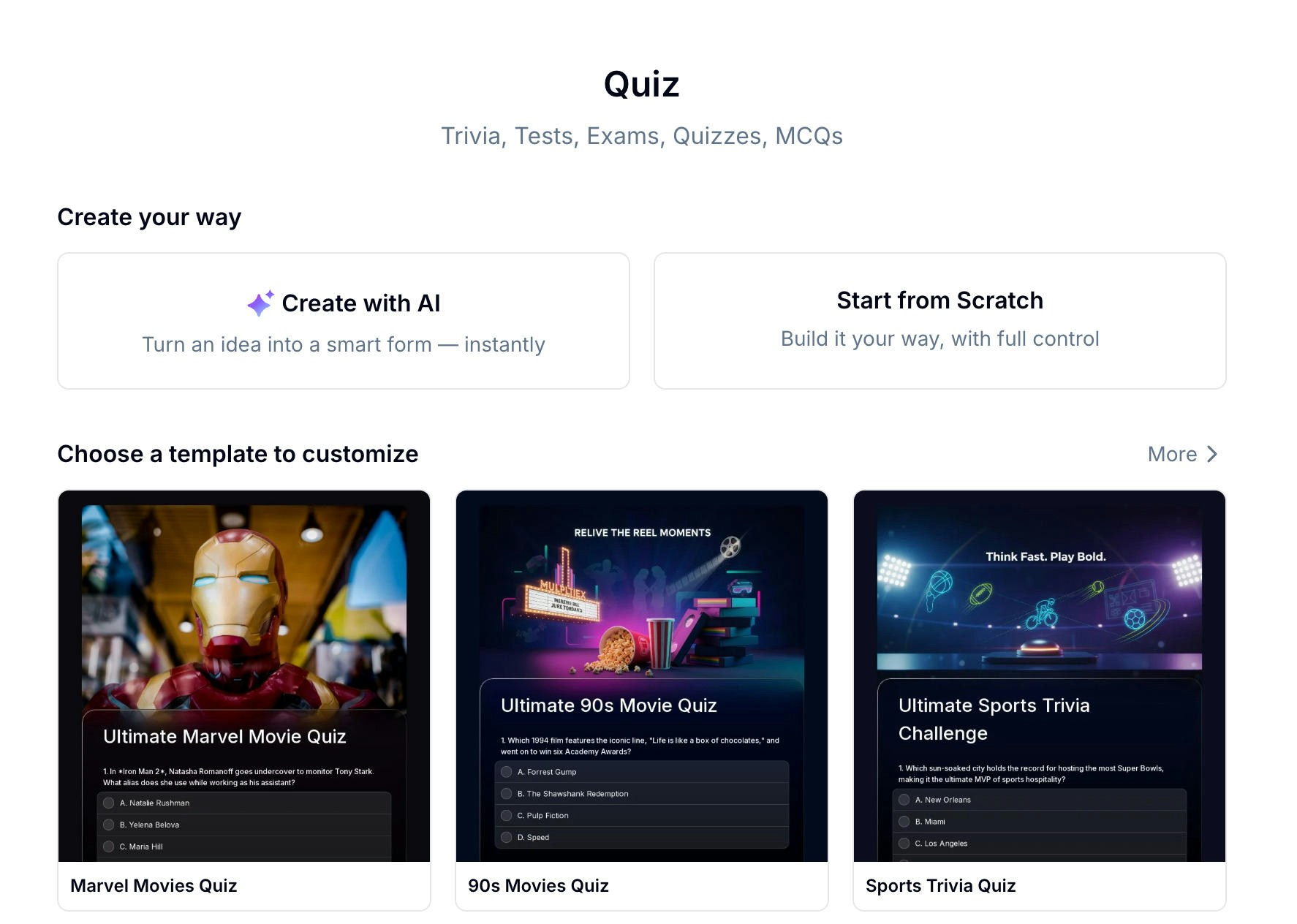
Create a Quiz Your Way
Create with AI
The fastest way to get started. Describe your quiz topic in one sentence, paste a link, or upload an existing question bank — Evan generates the questions, options, and scoring for you.
Start from a Template
Pick from 22+ ready-made quiz templates. Open one, swap the questions, and publish. Great for trivia, general knowledge, and true/false formats.
Build from Scratch
Add questions one by one and configure every detail. Full control over layout, field types, scoring, and results.
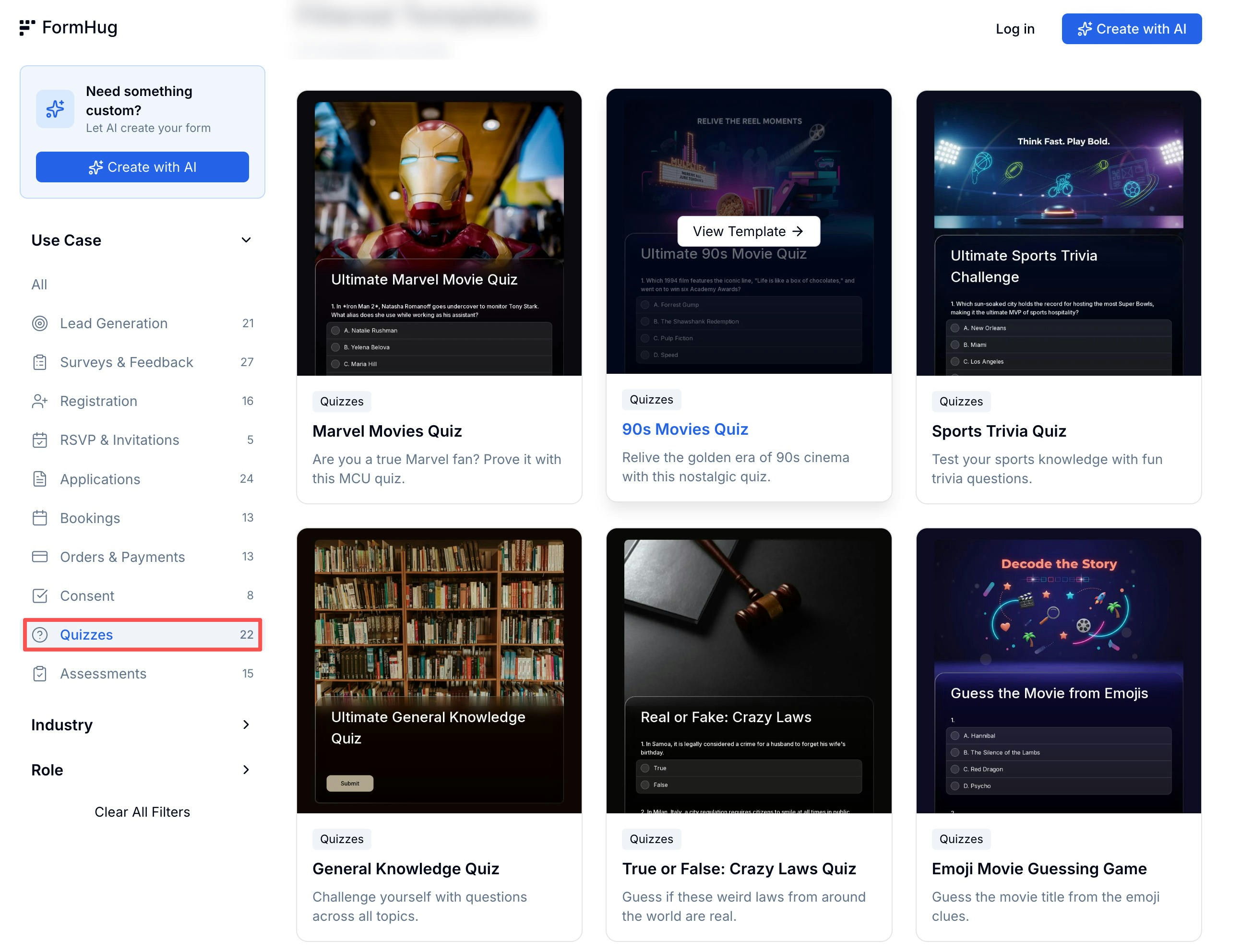
Browse Quiz Templates
22+ quiz templates — trivia, MCQs, true/false, and more
Try a Live Quiz
See how a finished quiz feels from the participant’s side:Ultimate Marvel Movie Quiz
Test your MCU knowledge across 10 questions
Ultimate NBA Trivia Challenge
How well do you know NBA history?
Ultimate Sports Trivia Challenge
10 questions covering sports across the globe
Setting Up Questions
The quiz editor shows your live question count and total score at the top so you always know where you stand.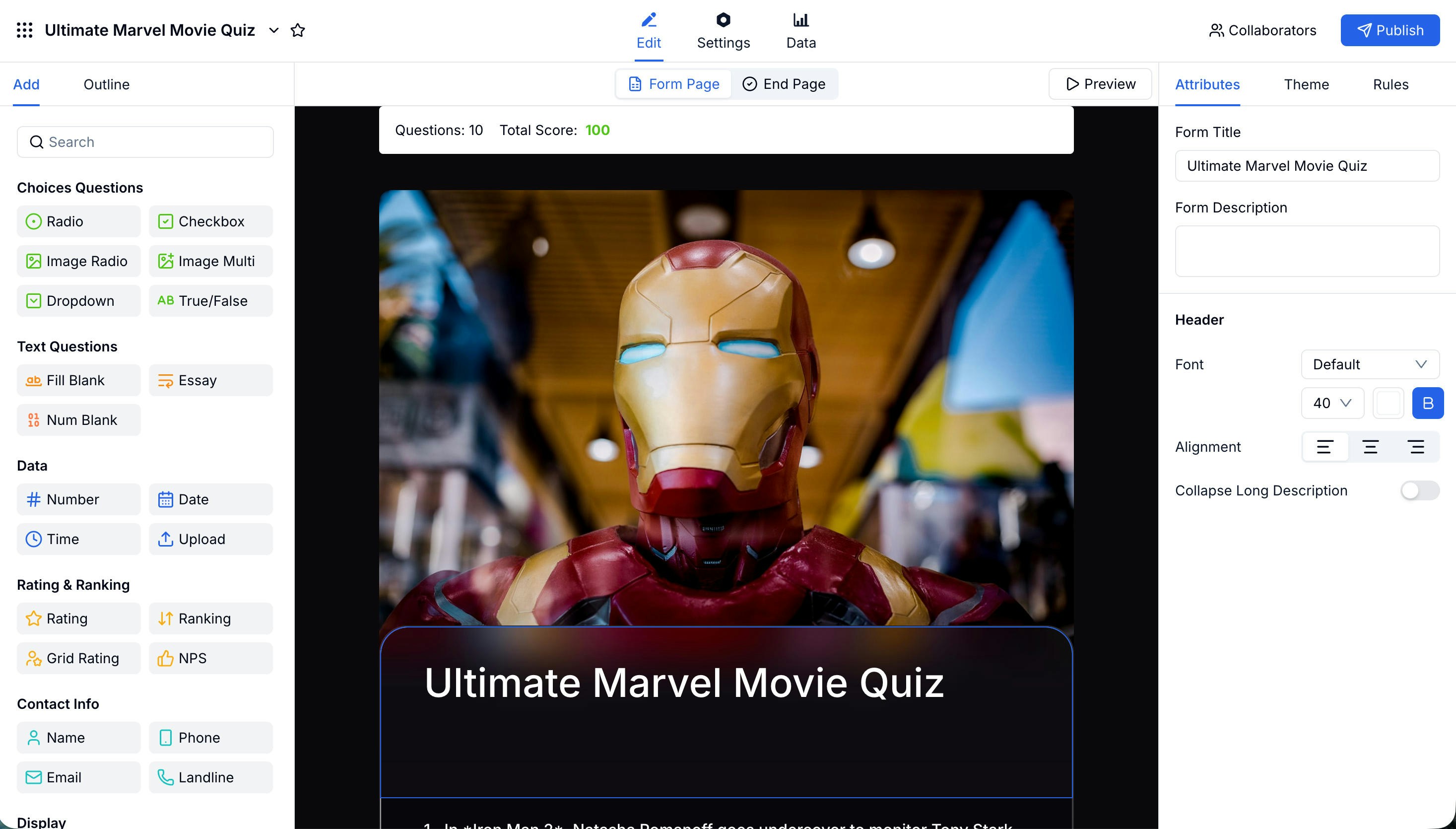
Setting the Correct Answer and Score
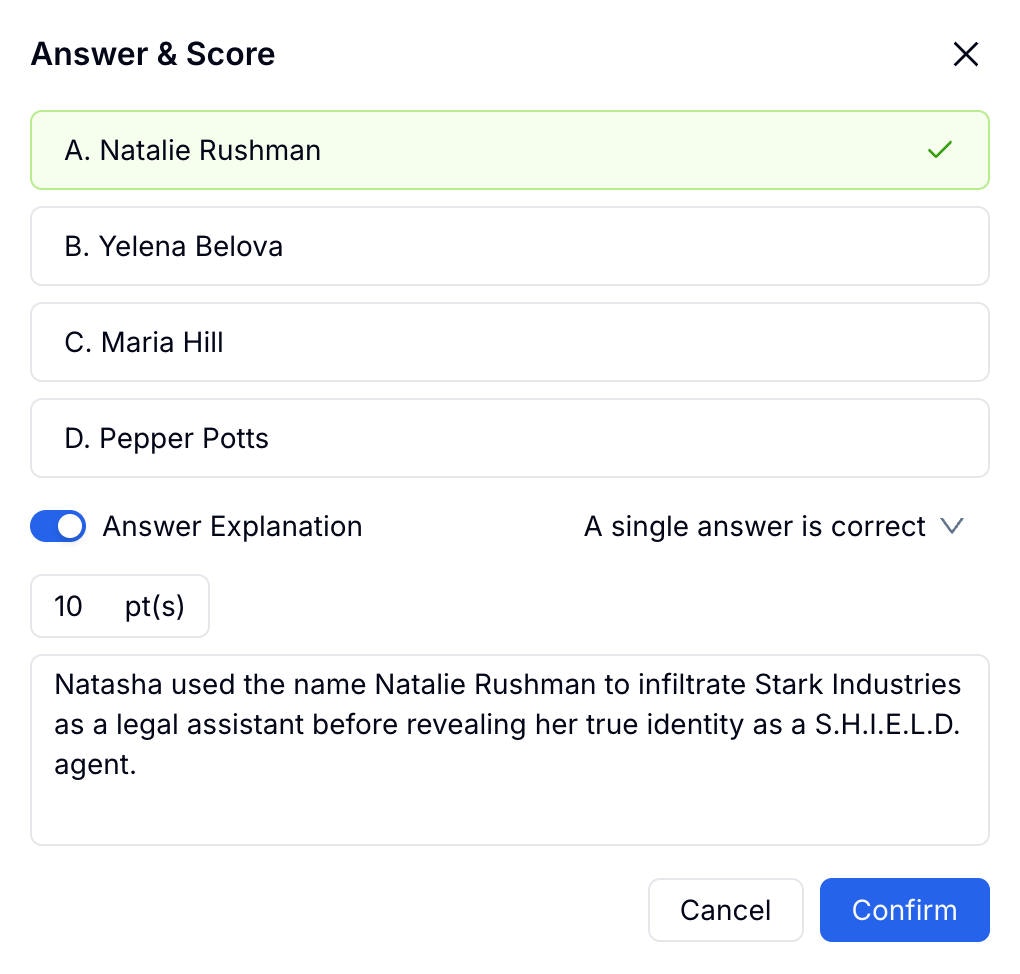
For each question, click Answer & Score in the right panel to open the scoring dialog.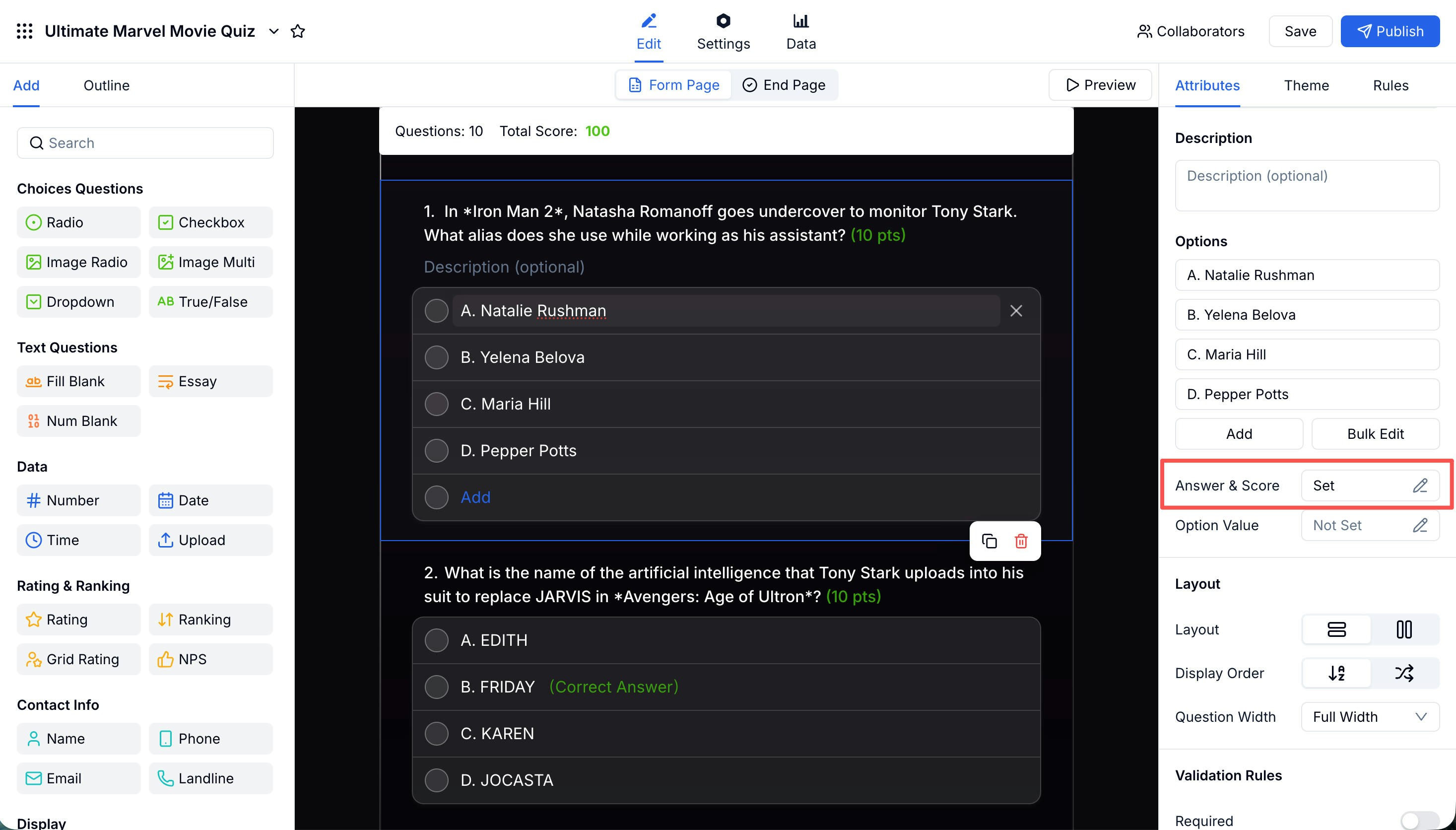
- Mark the correct answer (or multiple correct answers for checkbox questions)
- Set the point value for the question
- Write an Answer Explanation that participants see after submitting
Configuring the Results Page
After participants submit, they land on the Quiz Results end page. You control exactly what they see there using four modules on the left panel.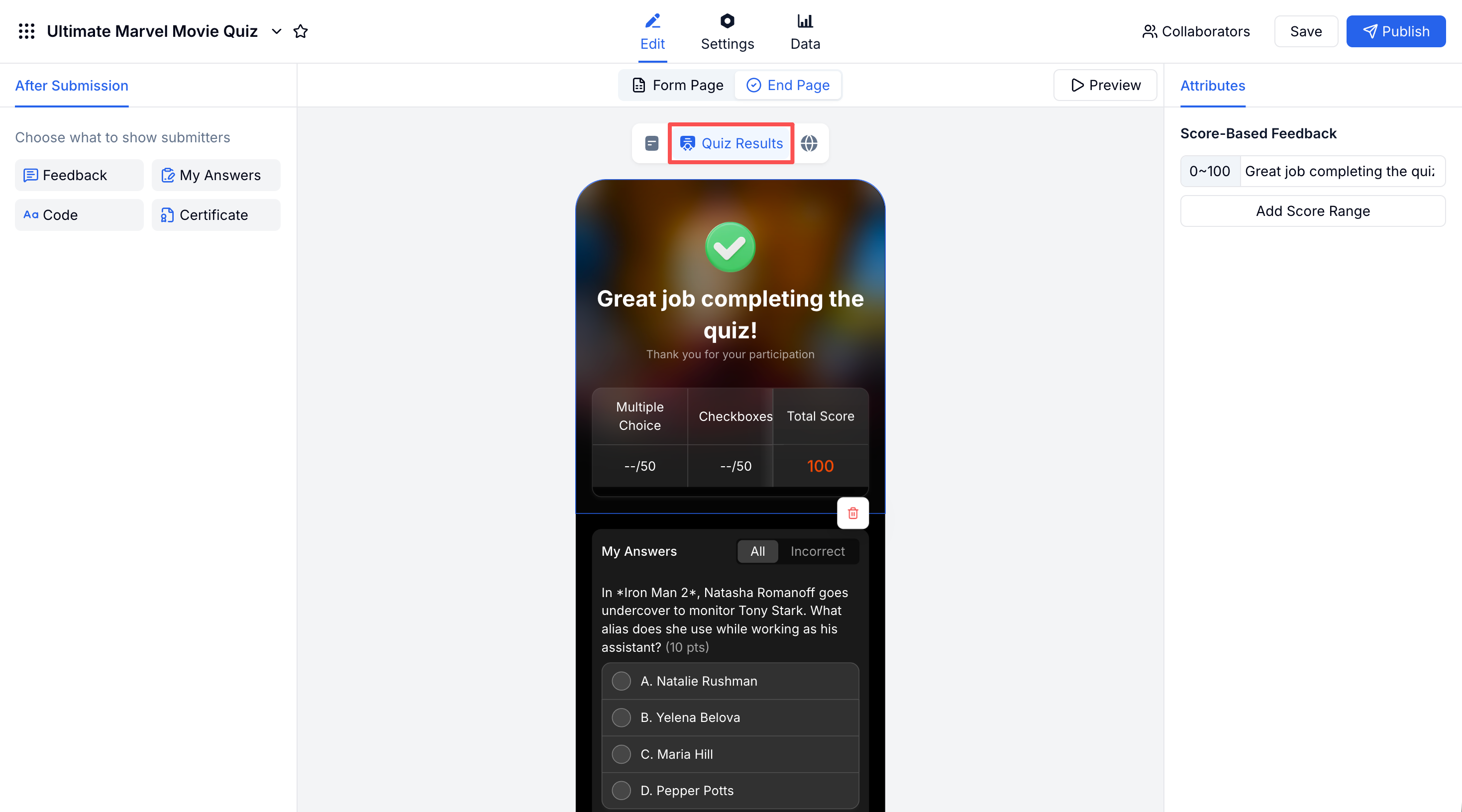
Score-Based Feedback
Set different messages for different score ranges. Add as many ranges as you need — for example, 0–60 gets an encouraging message, 61–100 gets a congratulations.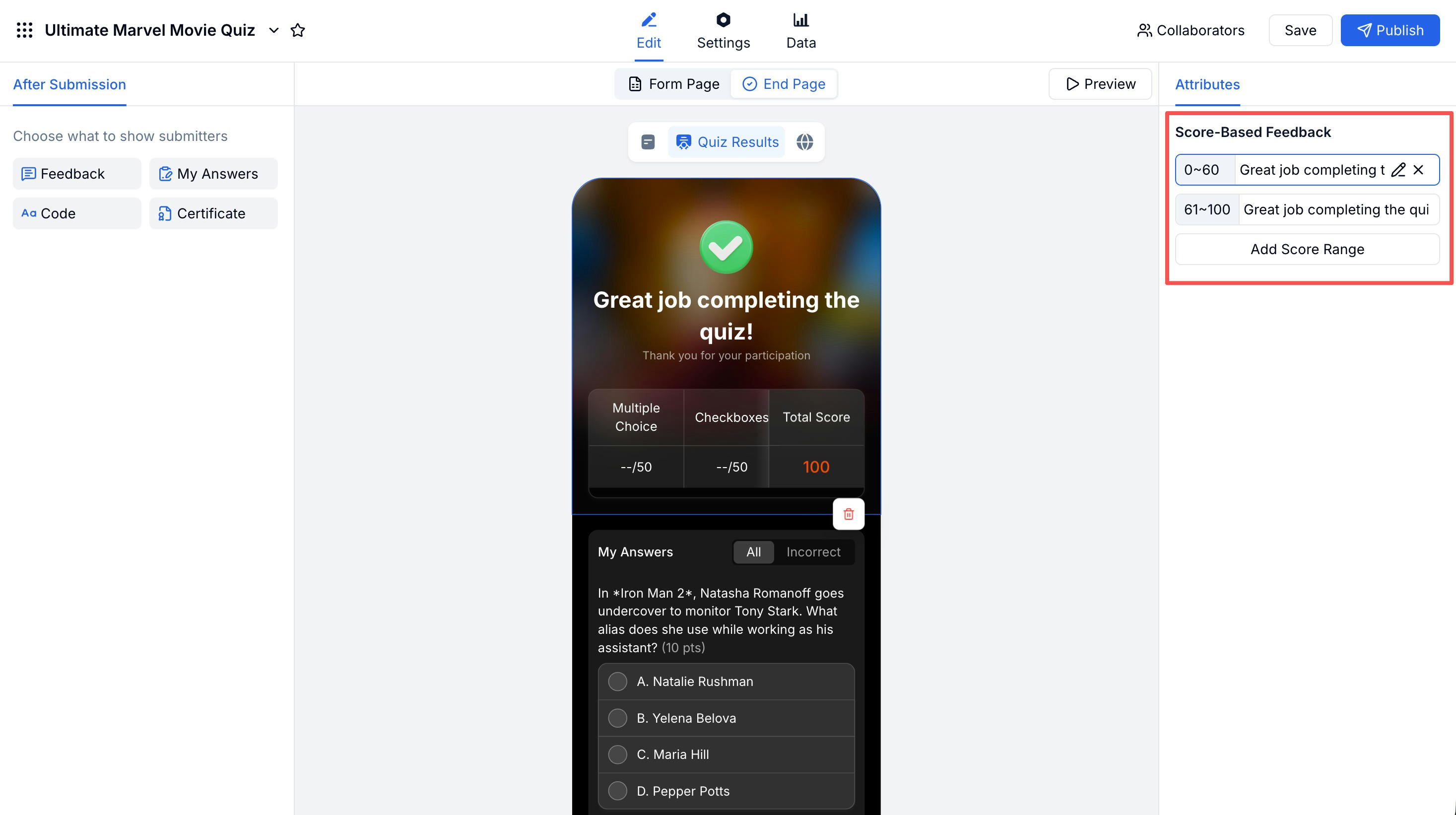
My Answers
Show participants a full review of their answers. With Show Answers and Explanation enabled, correct answers are highlighted in green, wrong answers in red, and the explanation you wrote appears below each incorrect response.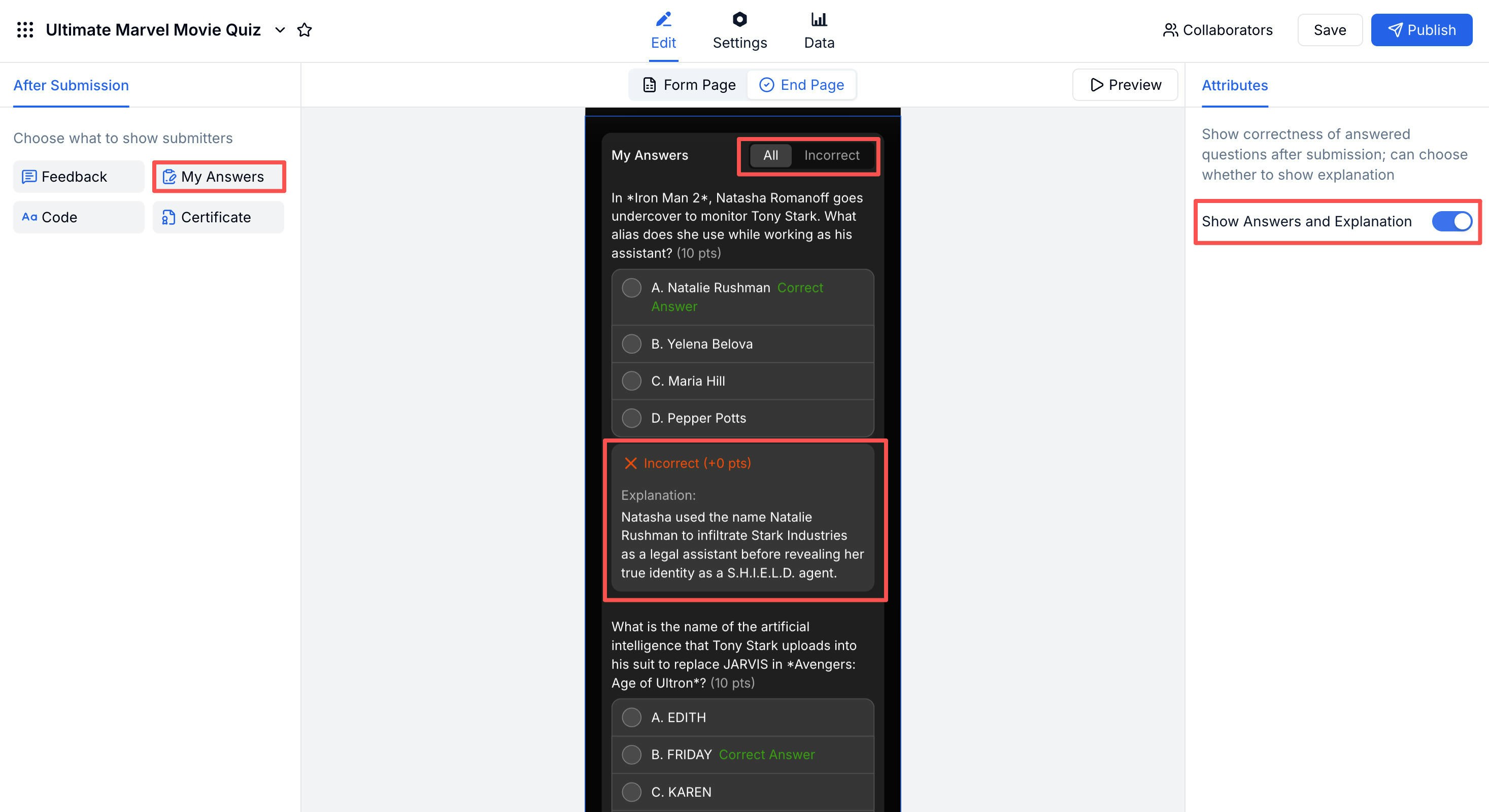
Certificate
Award a downloadable certificate on the results page. You can set a Display by Score threshold so only participants who pass receive one, and choose the generation method: automatic, on-button-click, or manual.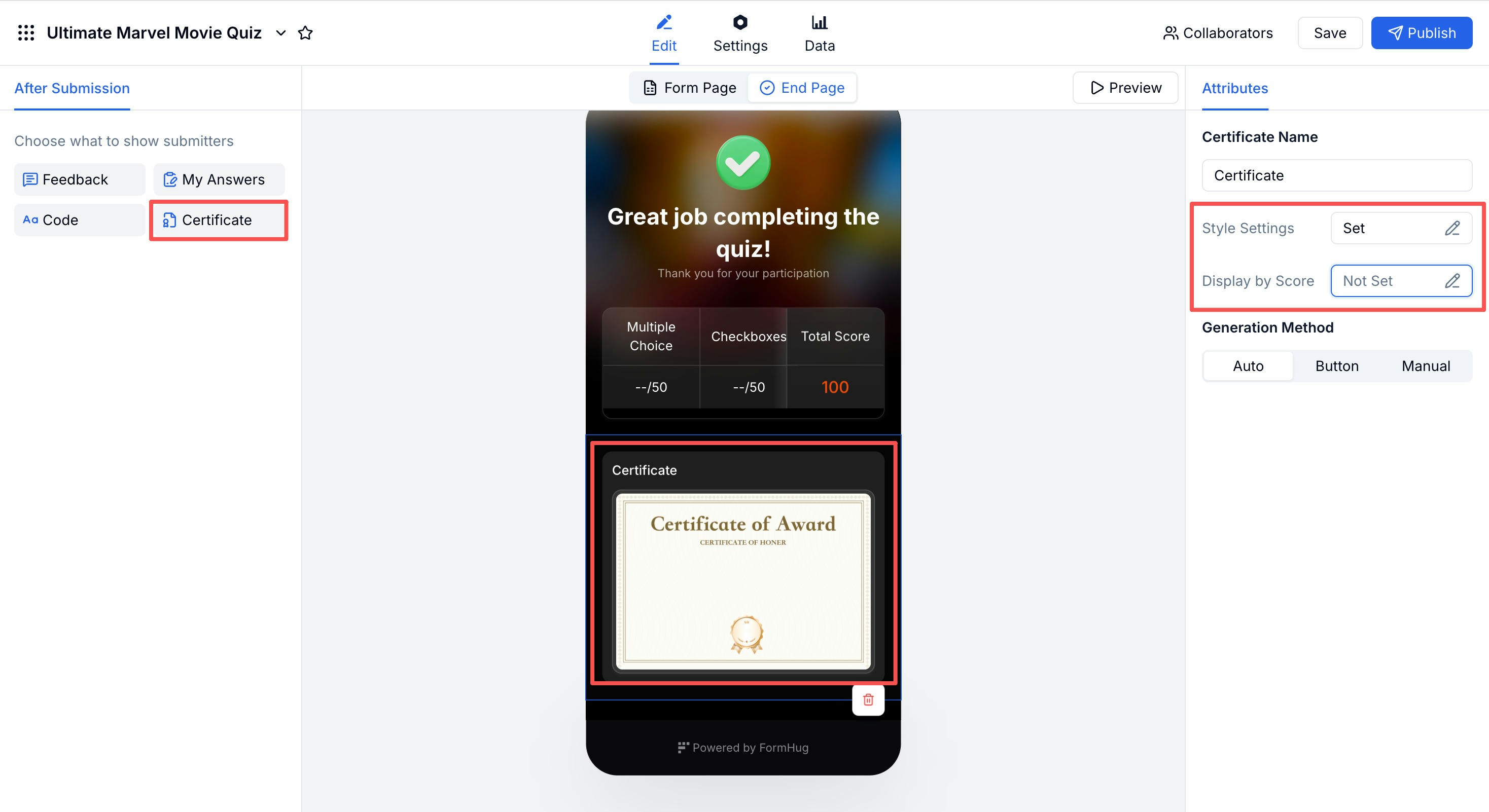
Code
Display a unique code on the results page — useful for redemption campaigns, discount codes, or event check-in vouchers tied to quiz completion.Advanced Settings
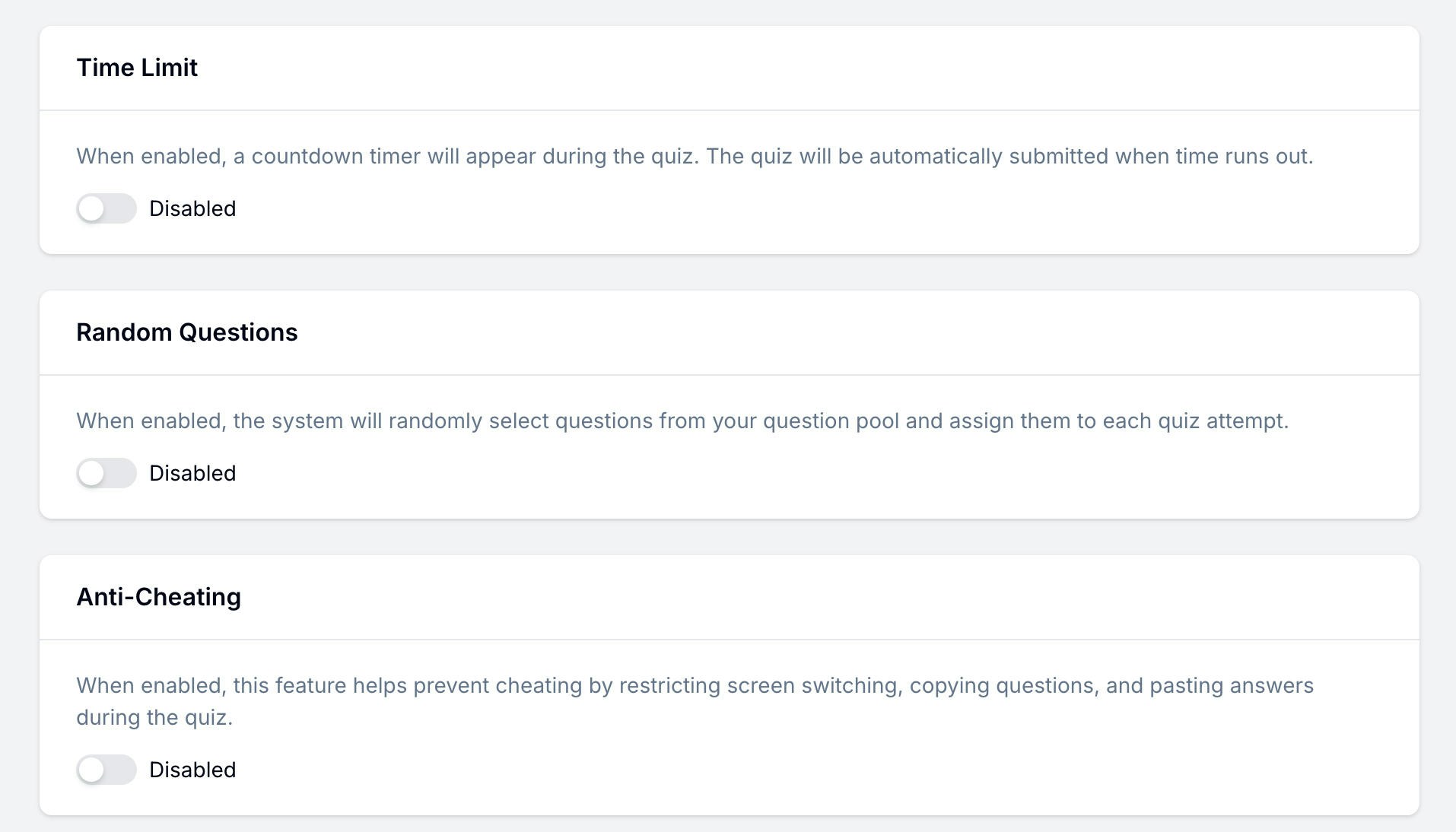
Find these under Settings → Quiz Settings.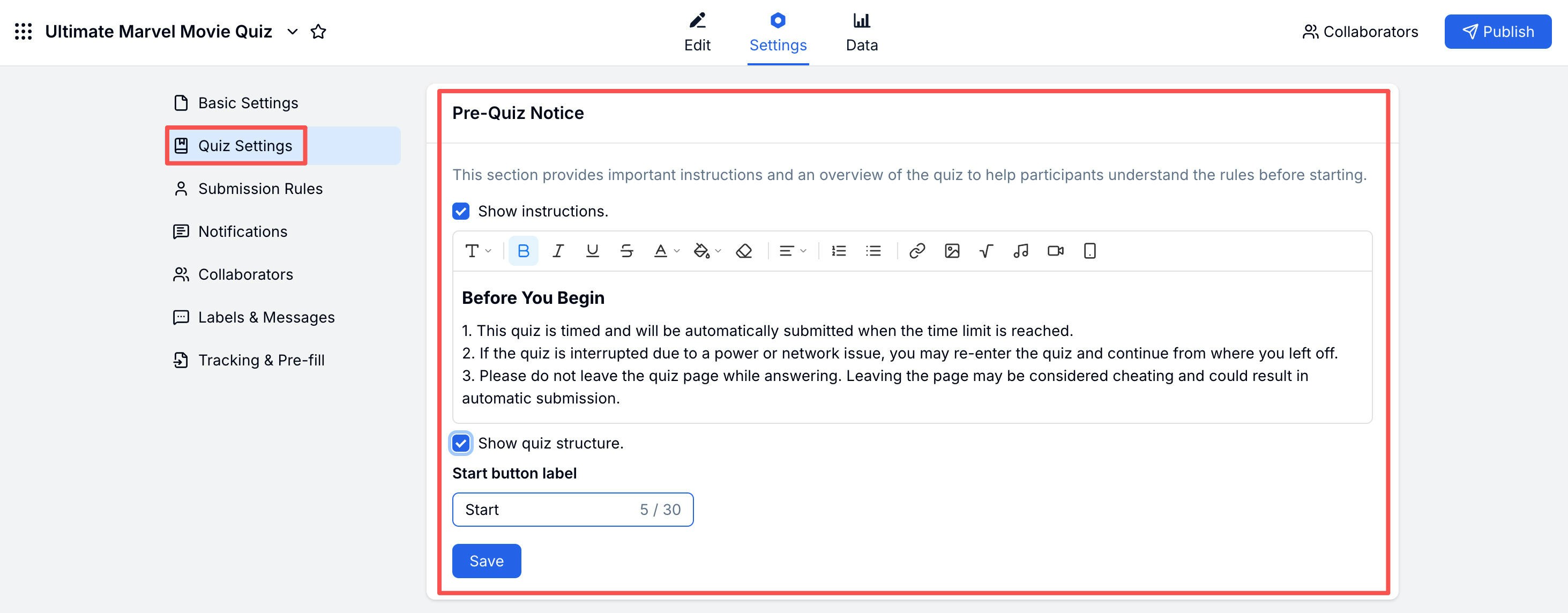
Related
Quiz Guide
Step-by-step: build and publish a quiz from scratch
Quiz Settings
Full reference for all Quiz Settings options
Quiz Maker
See the product page for AI quiz creation and publishing
Quiz Templates
Start from ready-made quiz and trivia templates
Free Quiz Templates
Browse quiz formats and question sets before building your own
Everything Can Be a Quiz
Turn text, links, lessons, and ideas into quiz material with AI