

When Would You Use This?
A few situations where this comes up naturally: You’re running an event or workshop. Someone registers and immediately wonders: did my sign-up go through? With an automatic confirmation email, they get an answer before they even close the tab — with the date, time, and location already in the message. The day before the event, you bulk-select all registrants and send a reminder in two clicks. You’re collecting job applications or program sign-ups. An applicant submits their information and hears nothing. That silence creates anxiety and follow-up emails to you. An automatic “Application received — we’ll be in touch” email fixes that immediately, and costs you nothing to set up. You run a recurring class or membership. At the start of each cycle, you filter your submission list by relevant entries, write a quick update, and send it to everyone at once — no export, no paste-into-Mailchimp, no separate tool. You need to ask submitters to fix something. A batch of submissions came in with an incomplete field. Select those records, write a targeted message, and send — it reads like a personal email from you, not a system alert.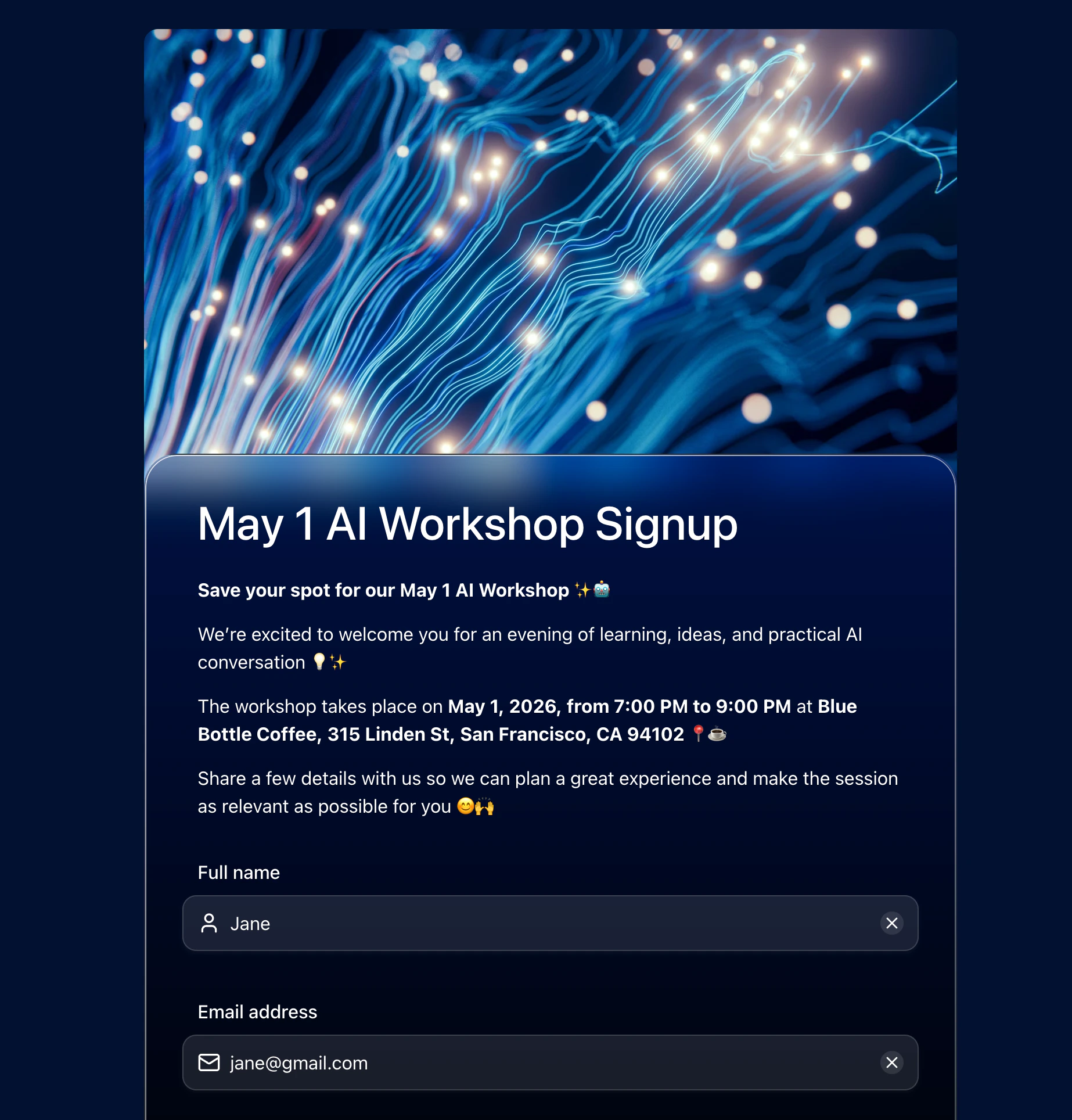
Two Ways to Send Emails
Both modes use your connected Gmail account as the sender. Submitters receive the email as if you sent it personally.
Before You Start
Make sure your form includes an Email field — this is what FormHug uses to address each outgoing email.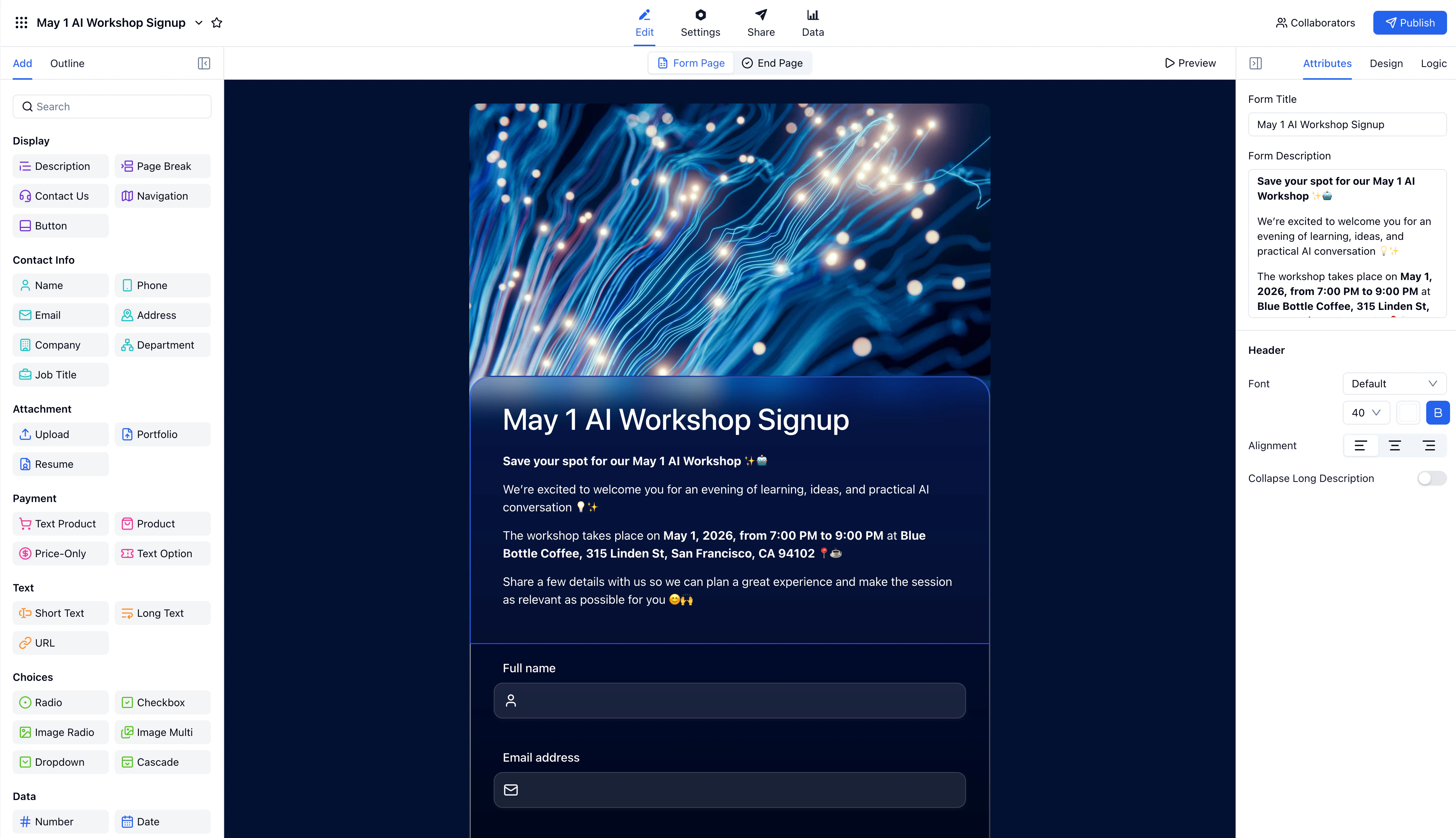
- You have a Gmail account available to use as the sender
- Gmail personal accounts send up to ~500 emails per day — suitable for most small to mid-size forms
Part 1: Send an Automatic Confirmation Email
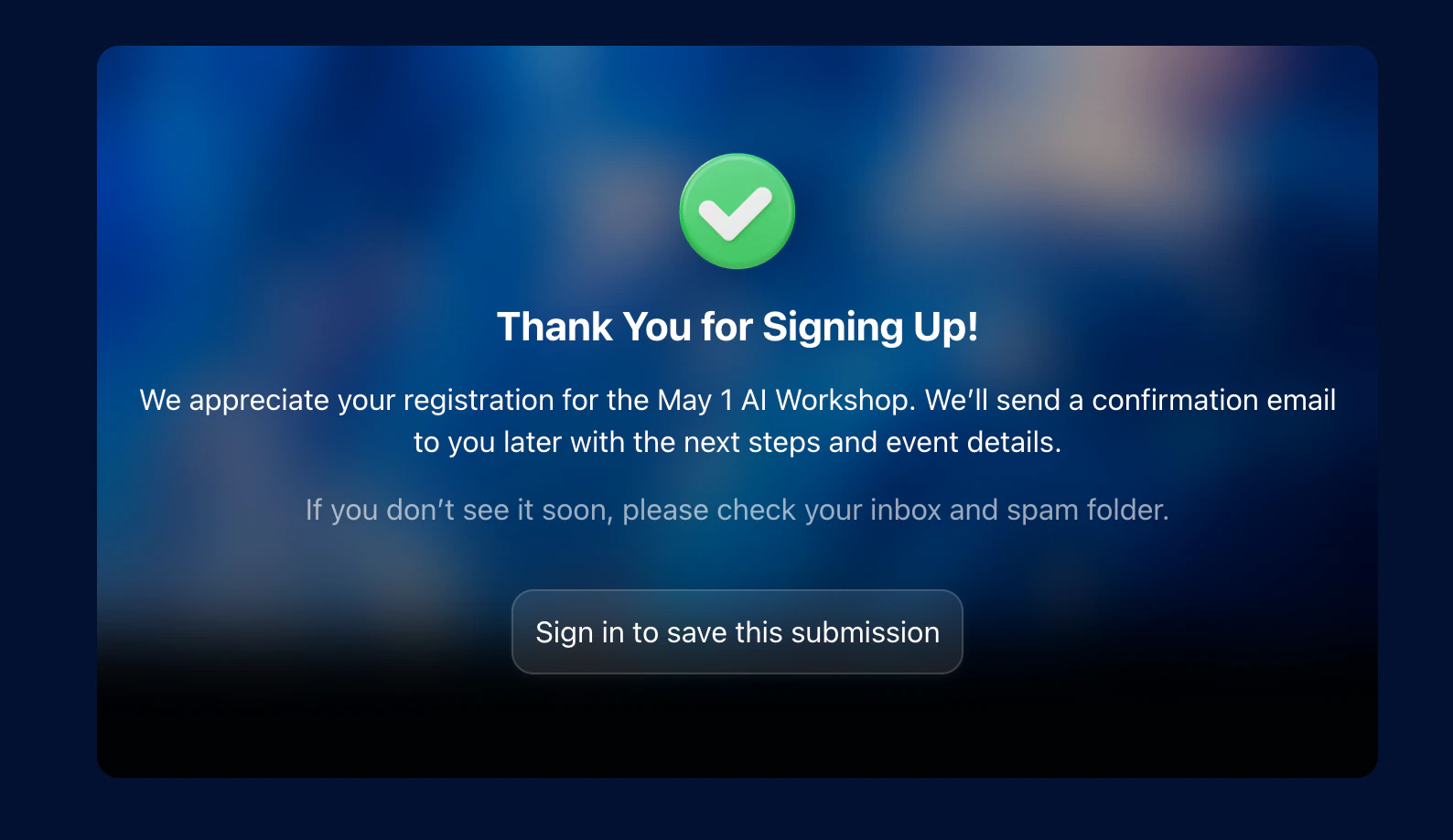
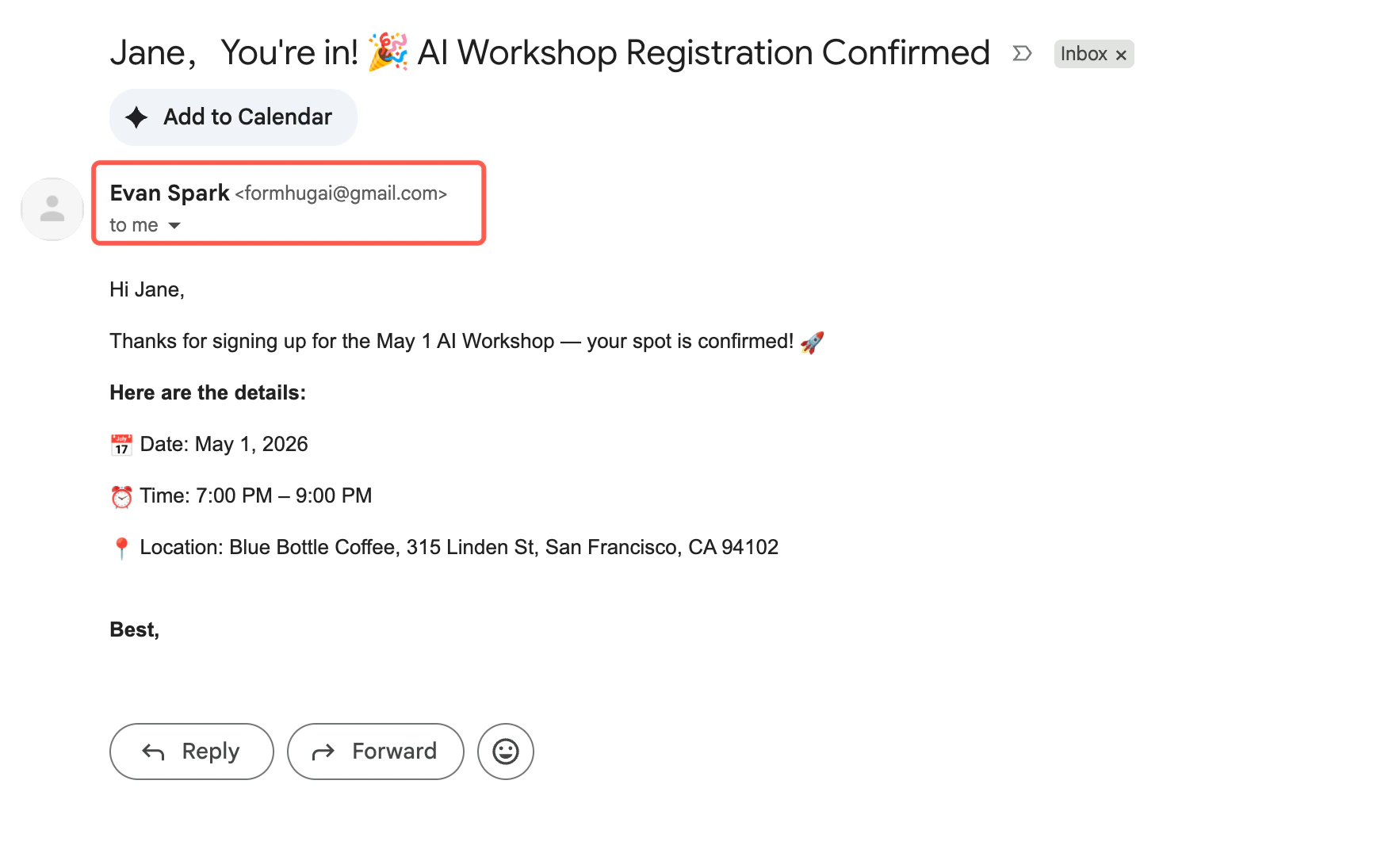
When someone signs up for the AI workshop, they should immediately receive a confirmation with the event details.1
Open Notifications
Go to your form → Settings → Notifications, then click Create notification.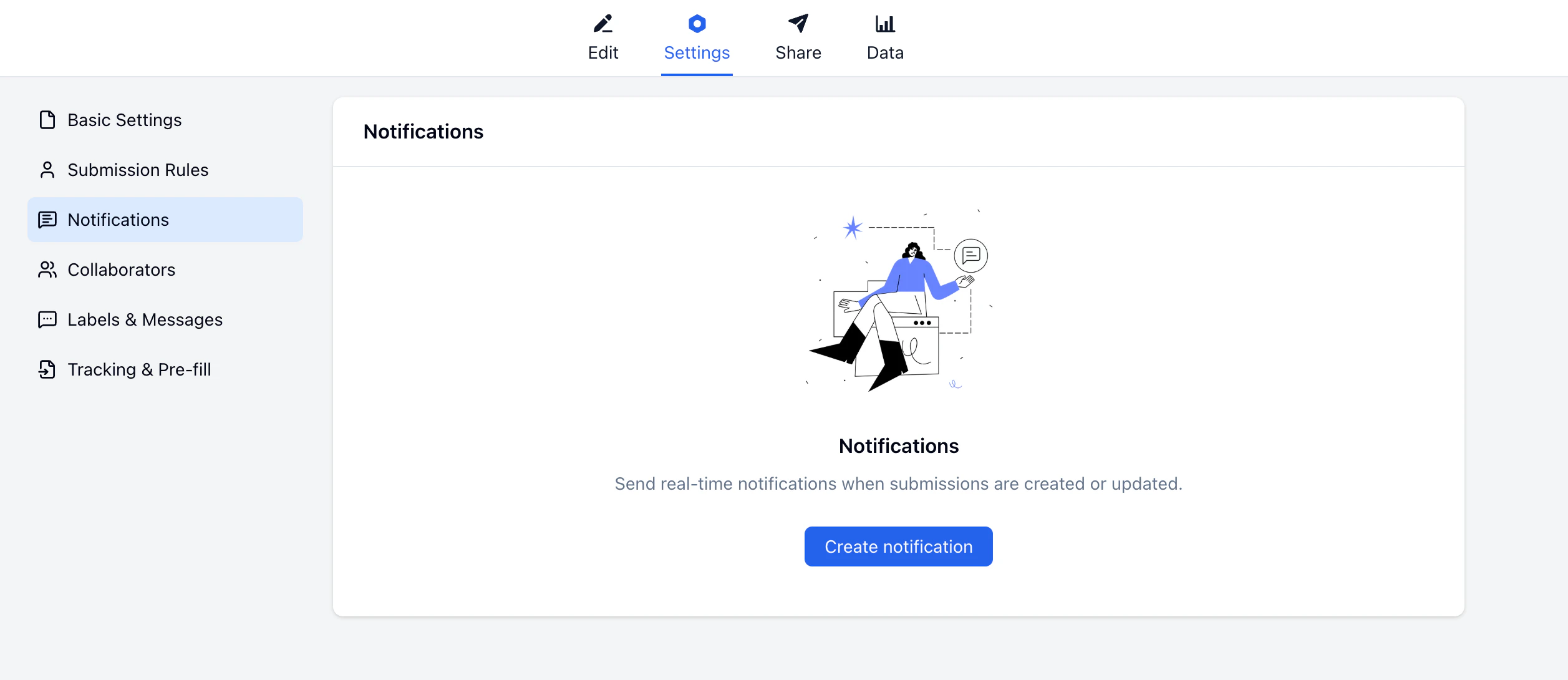
2
Set the Trigger
Set When the following occurs to New submission created.
3
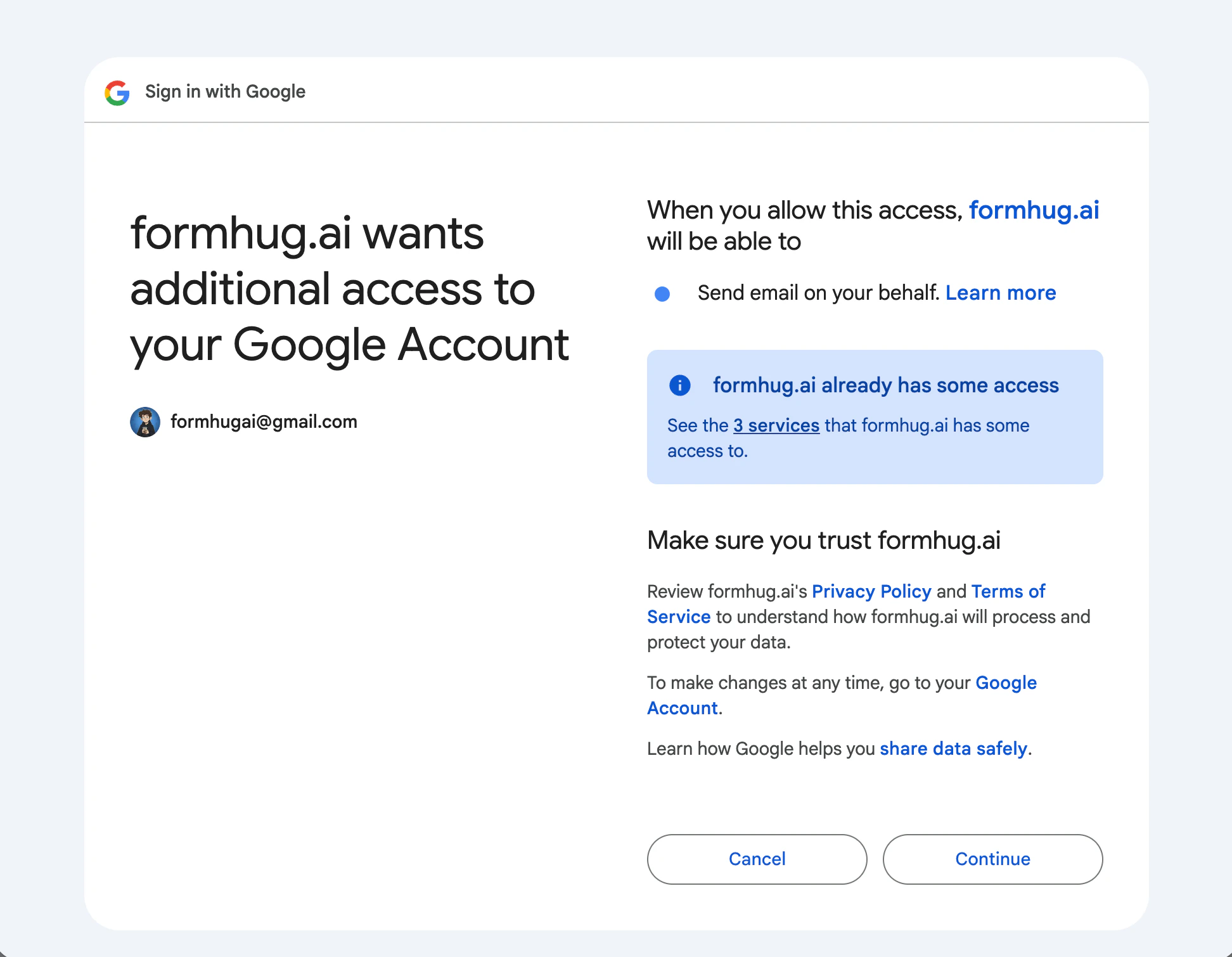
Connect Your Gmail Account
Under Edit email, click the Sender dropdown and select Connect Gmail.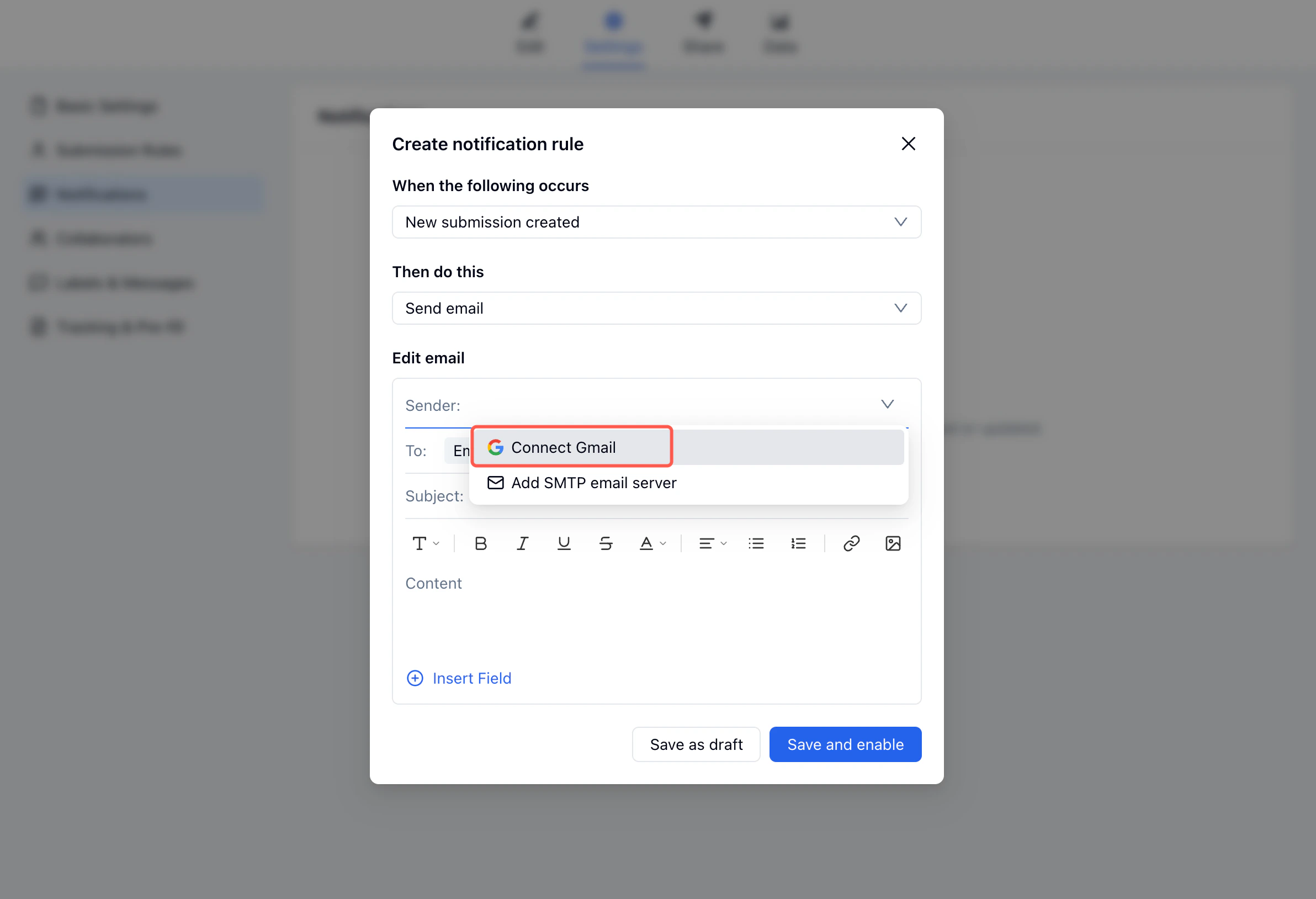
4
Set the Recipient
In the To field, select the form field that holds the submitter’s email address (e.g., Email address).
5
Write the Email
Enter a subject line and body. Use Insert Field to personalize both with values from the submission.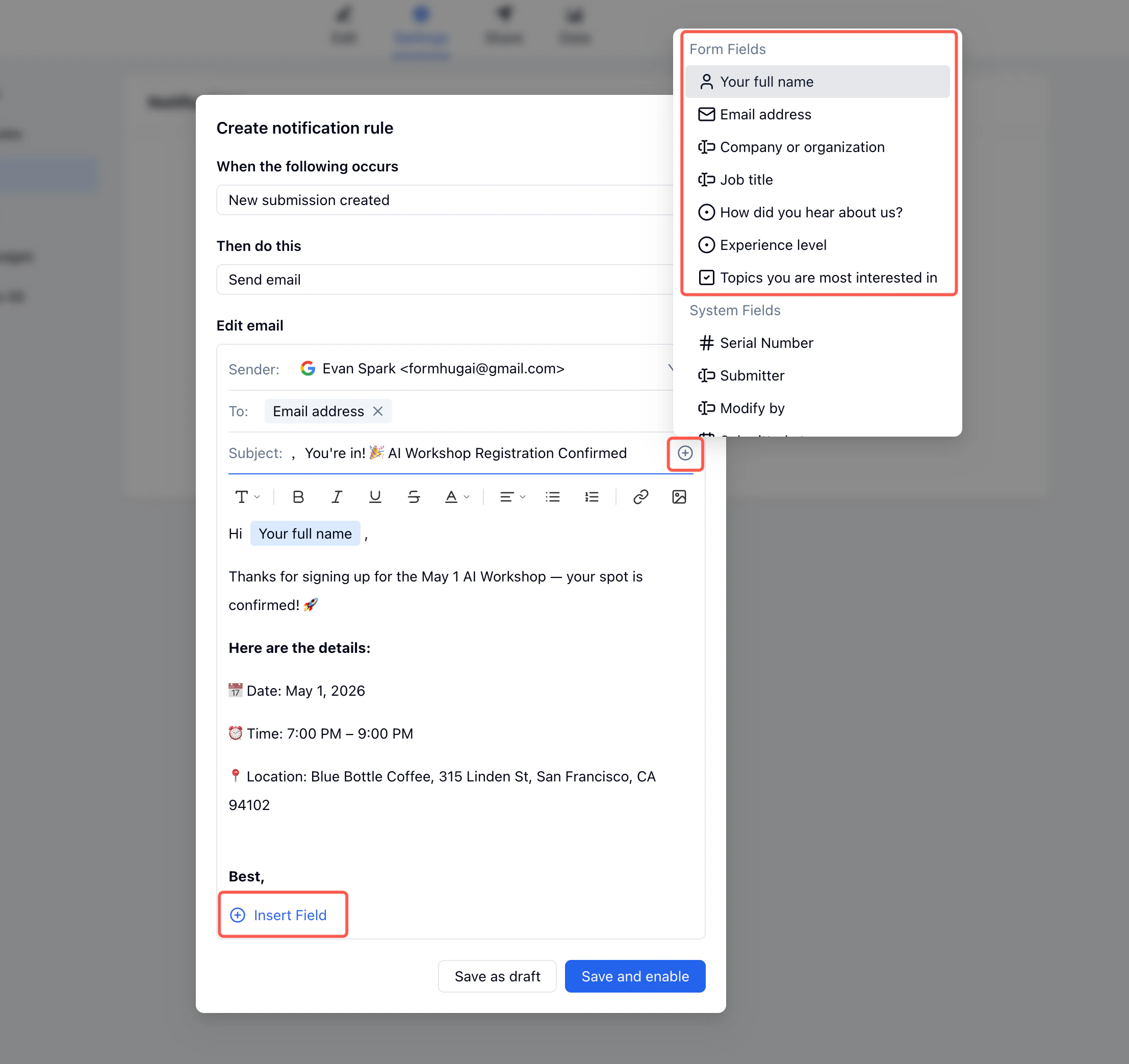
6
Save and Enable
Click Save and enable. The rule activates immediately — every new submission fires the email.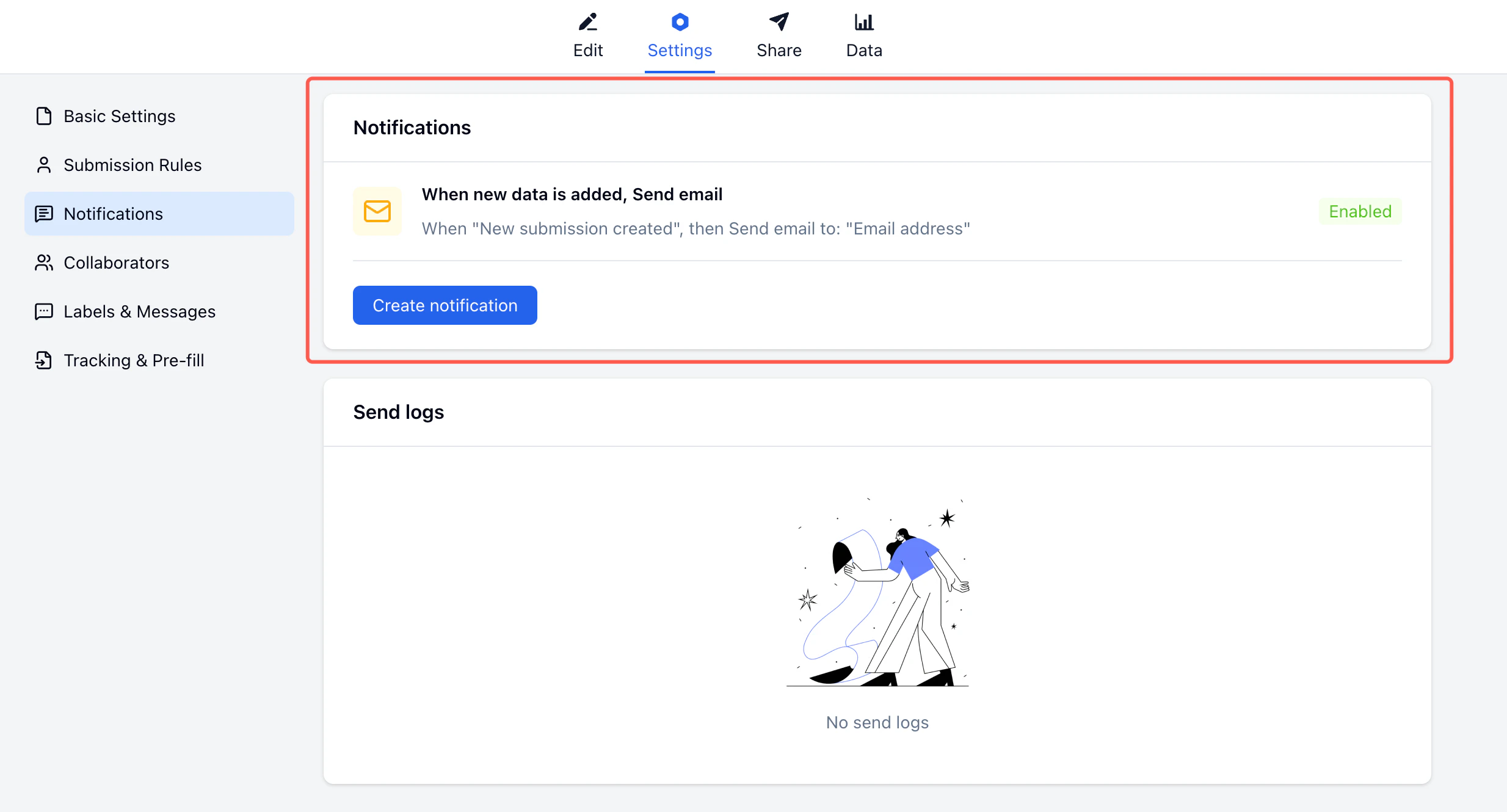
Part 2: Send a Bulk Reminder Email
The day before the workshop, you want to remind all registrants. Go to the submissions table and send directly from there.1
Go to the Data Tab
Open your form and click Data at the top.
2
Select Submissions
Check the boxes next to the submissions you want to email. To select all, check the header checkbox.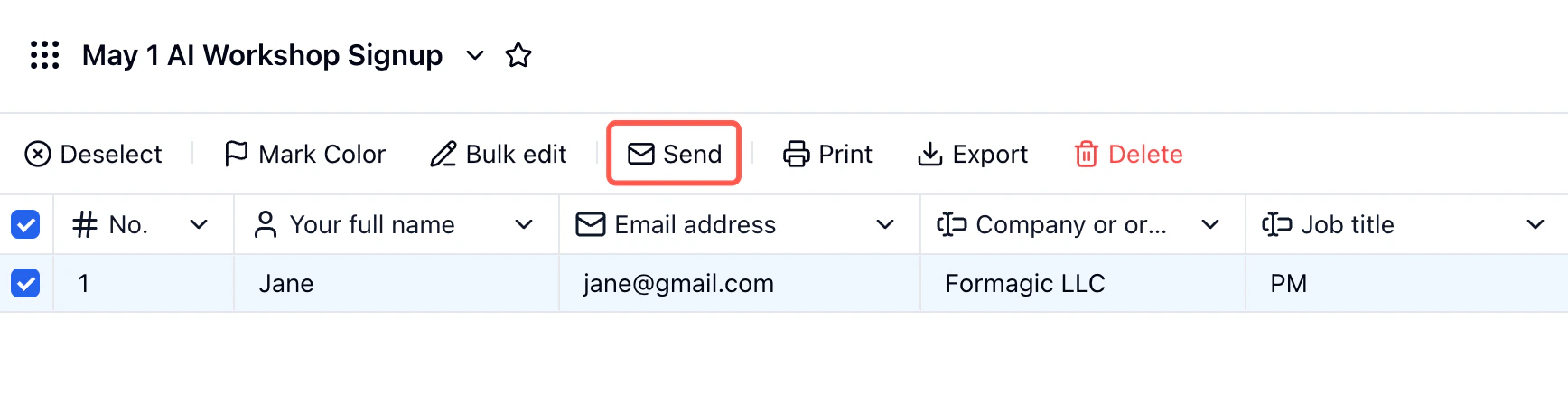
3
Click Send
Click the Send button in the toolbar. The send dialog opens showing your connected Gmail as sender and the number of selected submissions.
4
Write the Reminder
Enter a subject and body. Use Insert Field to address each person by name. Keep the message focused — one reminder, one call to action.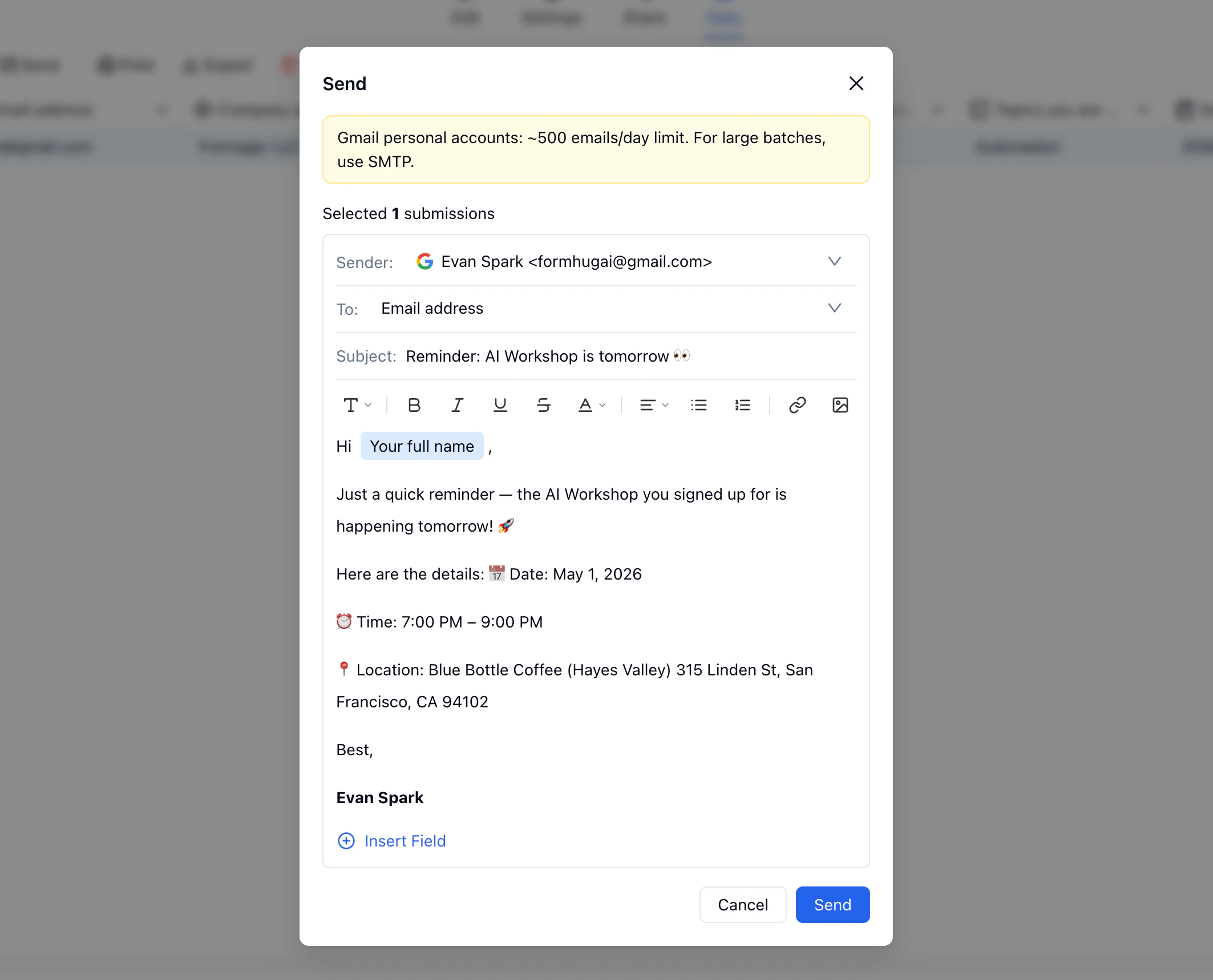
5
Send
Click Send. An Email records panel confirms delivery — subject, recipient, timestamp, and status for each email.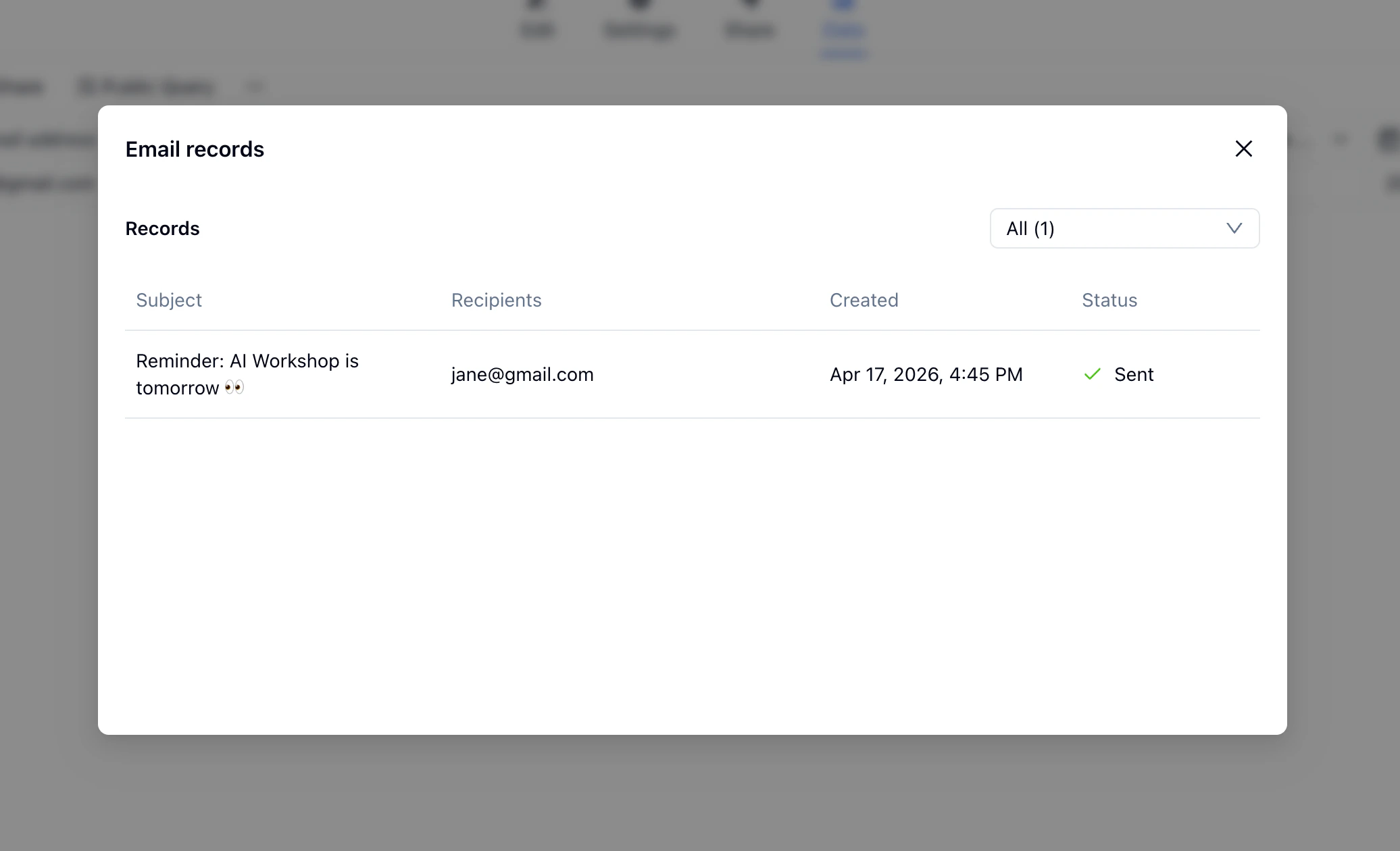
Check Email Records
Sent emails are tracked in two separate places depending on how they were sent. Automatic notification emails are logged in Settings → Notifications → Send logs. Each entry shows the recipient, send time, and delivery status — useful for verifying that confirmation emails fired correctly after new submissions.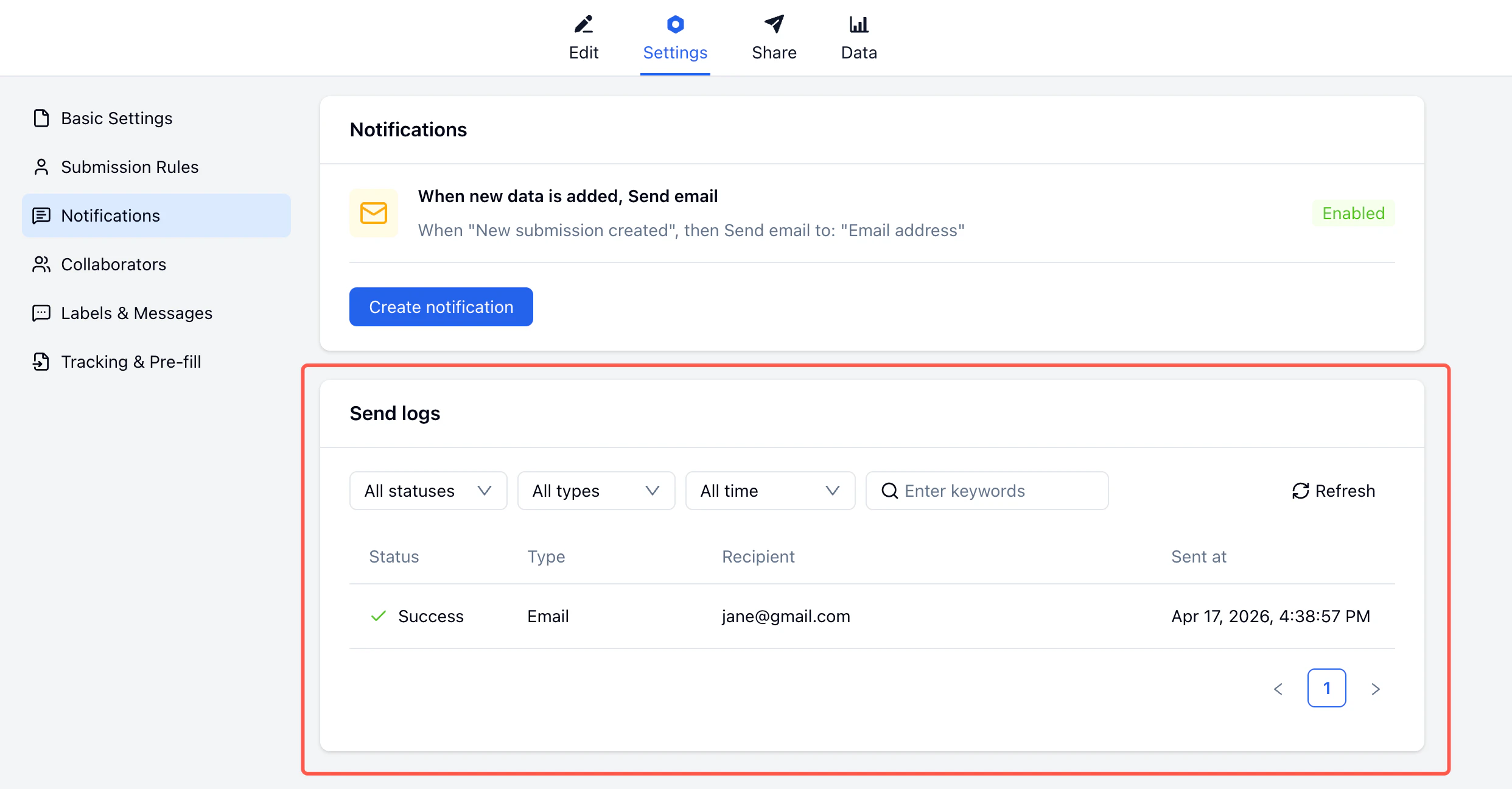
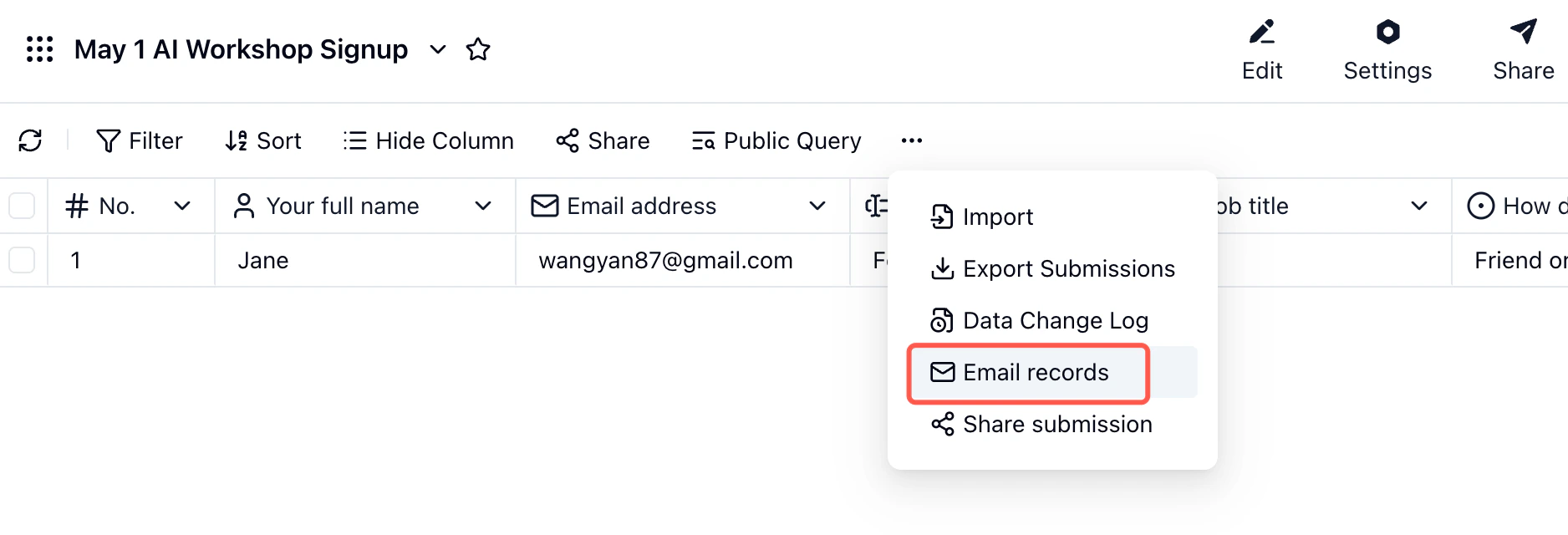
... menu → Email records in the submissions table. This shows the subject, recipients, timestamp, and status for each manual send.
Personalization
Both the subject line and email body support Insert Field — click it to insert any form field or system field as a variable. FormHug replaces it with the actual submitted value when the email is sent.
Personalizing the subject line with the submitter’s name is especially effective — it reads as a direct reply rather than a mass send.
Limitations
- Emails are sent from your connected Gmail address. Submitters reply to that address.
- Only submissions with a valid email address field can receive emails. Bulk send automatically skips records without one.
- Gmail personal accounts are limited to approximately 500 emails per day. For higher volume, connect an SMTP server instead (available in the Sender dropdown).
- This feature is designed for form-related follow-up — confirmations, reminders, and updates. It is not intended for cold outreach or newsletter-style campaigns.
Related
Submission Notifications
Reference guide: notification rules, triggers, Gmail vs SMTP, and send logs
Create a Registration Form
Build the form that collects sign-ups with capacity limits
Submissions
Manage, filter, and export form submission data
Submission Rules
Set capacity limits and close a form when it’s full
Email Follow-up Guide
See the full confirmation and reminder workflow in article form