Online Forms vs Fillable PDFs: When to Replace a PDF Form

Build the form
Create the workflow with AI
Start from a prompt, a template, or a blank form and publish a polished FormHug workflow.
A fillable PDF feels efficient until the file starts traveling. Someone downloads it, fills half of it, saves the wrong version, emails it back, forgets the signature, and now your team is renaming attachments before copying answers into a spreadsheet.
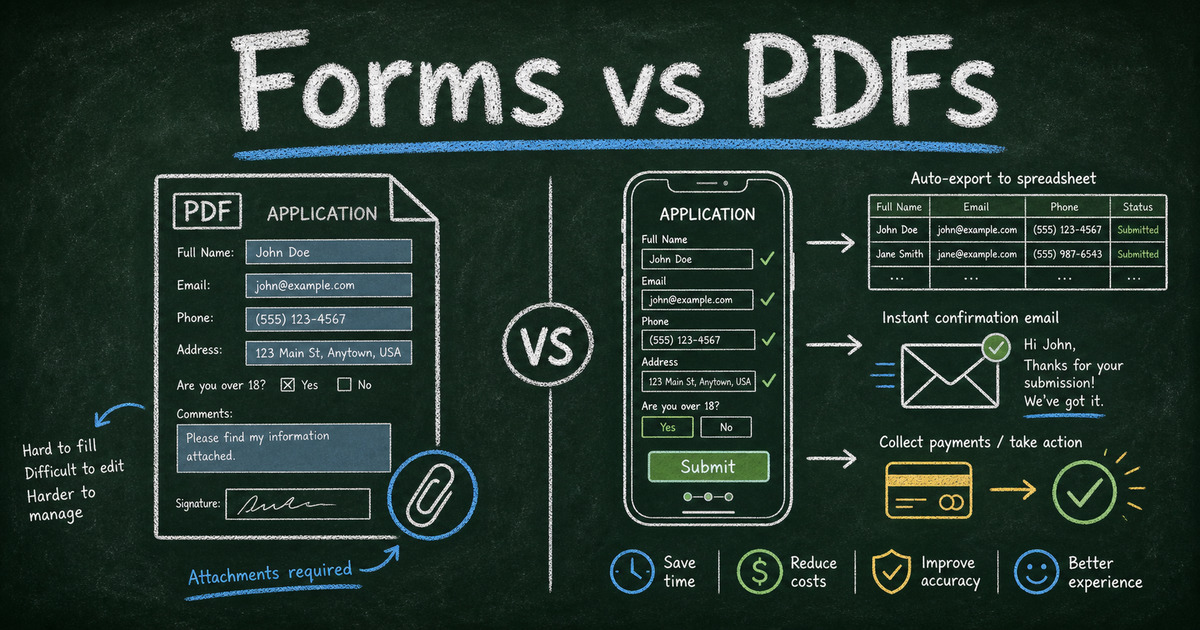
PDF forms are good at preserving layout. Online forms are better at collecting data. That difference matters when the form is not just a document, but a workflow: registration, intake, application, consent, payment, confirmation, or follow-up.
This guide compares online forms vs fillable PDFs, explains when each format is the right choice, and shows when replacing a PDF form with an online form will save more work than it creates.
TL;DR — Use a fillable PDF when the exact document layout matters; use an online form when the answers need to become usable data.
- PDFs preserve documents — useful for printable forms, legal-looking packets, and offline distribution.
- Online forms collect workflows — useful for registrations, intake, applications, payments, confirmations, and exports.
- Mobile completion favors forms — people can submit from a phone without downloading, saving, or emailing a file.
- Works for: client intake, class registration, applications, consent forms, order forms, payment forms, and feedback forms.
- A good online form replaces the attachment loop with a single submission record.
What Is a Fillable PDF Form?
A fillable PDF form is a PDF document with fields that someone can type into, check, sign, save, and send back. It is designed to preserve the original page layout while allowing limited data entry.
Fillable PDFs work well when the document itself is the deliverable. Tax forms, formal packets, printable applications, and offline forms often need a fixed layout. The recipient may need to save the file, print it, sign it, or keep a copy.
The weakness is that the data usually stays trapped inside a file. If you need to sort responses, send confirmations, collect payments, trigger follow-up, or review submissions as a team, every PDF becomes one more attachment to process.
What Is an Online Form?
An online form is a web-based form that someone fills out in a browser. Each submission becomes structured data: fields, timestamps, files, payment status, and respondent details stored in one place.
Online forms are built for workflows. A registration form can send a confirmation. An intake form can route details to a team. A payment form can collect money. A lookup page can later show someone their own record. A survey can turn responses into summaries instead of attachments.
If you already use PDF forms for client intake, class signups, applications, or orders, the real question is not “Can the PDF be filled out?” It is “What happens after it is filled out?”
The Document vs Data Rule
Use the Document vs Data Rule:
If the main output is a completed document, use a fillable PDF. If the main output is usable response data, use an online form.
| Need | Better fit |
|---|---|
| Preserve exact page layout | Fillable PDF |
| Print, sign, and archive a document | Fillable PDF |
| Work offline | Fillable PDF |
| Collect mobile submissions | Online form |
| Export answers to a spreadsheet | Online form |
| Send confirmation emails | Online form |
| Collect payment | Online form |
| Use conditional logic | Online form |
| Avoid attachment handling | Online form |
| Let people update or look up records later | Online form |
This rule prevents a common mistake: turning every existing document into a digital document when the better move is turning it into a data workflow.
When Fillable PDFs Still Make Sense
Fillable PDFs are not obsolete. They still win in specific cases.
The exact document layout is required
Some forms need to look a certain way because the document is reviewed, archived, printed, or submitted to another organization. If the page format is part of the requirement, a PDF may be the safer format.
People need offline access
If respondents may not have reliable internet while completing the form, a downloadable PDF can still be useful. They can fill it out offline and send it later.
The form is part of a signed packet
Some onboarding, legal, school, healthcare, or government workflows still rely on signed document packets. If the signature and packet format matter more than live data handling, keep the PDF or use a formal e-signature tool.
The volume is very low
If you receive two forms a month and do not need reporting, automation, or follow-up, a fillable PDF may be enough. The cost of changing the workflow might be higher than the benefit.
When to Replace a Fillable PDF With an Online Form
People complete it on mobile
PDFs are clumsy on phones. People pinch, zoom, download, open another app, type into tiny fields, save, and attach the file. Each step creates a drop-off point.
Online forms remove the file handling. The respondent opens a link, completes the fields, and submits. For registration, intake, order, and application workflows, that is usually the better experience.
You copy answers into a spreadsheet
If someone on your team manually copies PDF answers into a spreadsheet, the PDF is no longer the system of record. The spreadsheet is. At that point, an online form is usually a cleaner front door.
FormHug submissions are already structured records. You can review, filter, and export them without renaming attachments or retyping answers. If respondents need to retrieve their own record later, Public Query can turn selected form data into a lookup page instead of a portal.
You send the same follow-up every time
Confirmation emails, appointment reminders, application acknowledgments, and payment receipts are all signs that the form is part of a workflow.
An online form can send those messages from the submitted data. A PDF cannot do that by itself. For the email pattern, see how to send confirmation and reminder emails after form submission.
You need conditional questions
PDFs show the whole document to everyone. Online forms can adapt.
Use conditional logic when:
- A registrant only sees payment fields after choosing a paid option
- A parent sees guardian fields for a youth program
- An applicant sees portfolio questions only for certain roles
- A client sees service-specific intake questions
- A guest sees meal choice only after confirming attendance
The full pattern is covered in conditional logic forms.
You collect payment or deposits
A PDF can list payment instructions, but it does not collect payment as part of the submission. That creates reconciliation work: one file, one payment, one message, and sometimes one confused customer.
An online payment form keeps the details and payment status together. FormHug uses Stripe for payments and does not add platform transaction fees on top of Stripe processing. For the setup pattern, see how to create a payment form.
Common PDF Forms That Work Better Online
| Existing PDF | Better online workflow |
|---|---|
| Client intake packet | Online intake form with conditional service questions |
| Class signup sheet | Class registration form with capacity, payment, and confirmation |
| Event RSVP card | RSVP form with guest count and meal choice |
| Order form | Online order form with products, quantities, and payment |
| Job application | Application form with file upload and status follow-up |
| Consultation request | Booking or lead generation form with preferred time and qualifying questions |
| Consent acknowledgement | Online form with required checkbox, timestamp, and respondent details |
The pattern is the same: if you use the answers later, collect them as fields instead of trapping them inside a file.
How to Convert a Fillable PDF Into an Online Form
Step 1: Separate required data from document formatting
Print the PDF or open it side by side. Highlight only the fields you actually need as data. Ignore line spacing, page breaks, and decorative labels for now.
Create three groups:
- Required fields — cannot submit without them
- Conditional fields — only needed for certain answers
- Archive-only text — instructions, policies, legal copy, or context
Most PDFs become shorter once you separate data from layout.
Step 2: Choose the right form type
Do not convert every PDF into a generic form. Choose the workflow:
- Intake form for client onboarding
- Registration form for classes, programs, and events
- Booking form for appointments and time slots
- Payment form for orders, deposits, and fees
- Application form for candidates, programs, grants, or memberships
- Survey form for feedback and research
If you are not sure, start with the AI form builder and describe the old PDF: “Turn this client intake PDF into a mobile-friendly online form with conditional questions and a confirmation email.” You can also browse FormHug templates first if the PDF matches a common workflow.
Step 3: Add conditional logic instead of instructions
PDFs often rely on instructions like “If yes, complete section B.” Online forms can make that automatic.
Convert those instructions into rules:
- If “Will you attend?” is No, hide meal choice
- If “Service type” is Tax Prep, show tax document upload
- If “Participant is under 18” is Yes, show guardian fields
- If “Payment method” is Card, show payment field
This makes the form shorter for every respondent and reduces incomplete submissions.
Step 4: Add confirmation and export
A converted form should not just collect answers. It should improve the workflow after submission.
Set up a confirmation email that tells the respondent what happens next. Then decide who reviews submissions, what gets exported, and whether the data needs to trigger another step.
In our own tests, this is where online forms create the biggest operational difference: the submitter gets proof, the team gets structured data, and nobody has to reconcile attachments.
Online Forms vs Fillable PDFs for Sensitive Information
Any form that collects sensitive personal, financial, health, or student information needs stricter handling than a casual signup form.
Do not choose a format only because it is convenient. Ask:
- Who can access submissions?
- Is data encrypted in transit?
- Do you need a signed record?
- Do you need retention controls?
- Do you need legal, medical, school, or financial compliance review?
- Should some fields be avoided entirely?
FormHug is useful for structured collection, but it is not a substitute for legal, medical, tax, or compliance advice. If the PDF exists because a regulator, institution, or legal process requires that exact document, keep the PDF or consult the appropriate expert before replacing it.
Frequently Asked Questions
Are online forms better than fillable PDFs?
Online forms are better when you need structured data, mobile completion, confirmation emails, conditional logic, exports, payments, or follow-up. Fillable PDFs are better when the exact document layout, offline access, or signed packet format matters more than workflow automation.
When should I use a fillable PDF form?
Use a fillable PDF when the completed document itself is the deliverable, such as a printable packet, formal application, archived document, or offline form that must preserve a fixed layout.
When should I replace a PDF form with an online form?
Replace a PDF form when your team copies answers into spreadsheets, sends the same follow-up email repeatedly, collects payments separately, receives incomplete attachments, or needs people to complete the form on mobile.
Can an online form collect signatures or consent?
An online form can collect acknowledgements, required consent checkboxes, typed names, timestamps, and supporting details. If you need a legally formal signature workflow, use the appropriate e-signature or legal document process for your jurisdiction and use the form for data collection around it.
How do I convert a fillable PDF into an online form?
Extract the required fields, remove document-only layout, group conditional questions, choose the right form type, add rules for sections that only apply to some respondents, and set up confirmation emails and exports.
Can I keep a PDF and still use an online form?
Yes. Some teams use an online form to collect structured data, then attach or generate a PDF for records. This hybrid approach works when you need both usable data and a document archive.
Can FormHug replace my fillable PDF?
FormHug can replace fillable PDFs used for registrations, intake, applications, orders, payments, consent acknowledgements, and feedback when the main goal is collecting structured responses. If the exact PDF layout is legally required, keep the PDF and use FormHug for the surrounding workflow.
Related
- How to Create an Intake Form — turn client background questions into structured submissions.
- How to Create a Payment Form — replace payment instructions with a form that collects details and payment together.
- Class Registration Software for Workshops and Courses — move class signups out of PDF packets and into a registration workflow.
- How to Use Conditional Logic in Forms — show only the PDF sections that apply to each respondent.
If your team is downloading, renaming, emailing, and retyping the same PDF answers, the document has become a workflow problem. Replace the attachment loop with a form that collects the data once. Create your online form →

Written by
FormHug TeamProduct, research, and form automation team
The FormHug Team brings together product builders, workflow researchers, and form automation practitioners who study how people collect, route, and act on information online. Our guides are based on hands-on product testing, template analysis, customer workflow patterns, and deep experience with forms, surveys, quizzes, AI-assisted creation, integrations, and results sharing.