Voice Form: How to Collect Voice Responses Online
Start collecting responses
Turn this into a shareable survey
Draft the questions, publish a clean link, and keep every response organized in FormHug.
Typing a thoughtful paragraph on a phone is still a tiny productivity trap. People know what they want to say, but the text box makes them compress it, delay it, or abandon it entirely.
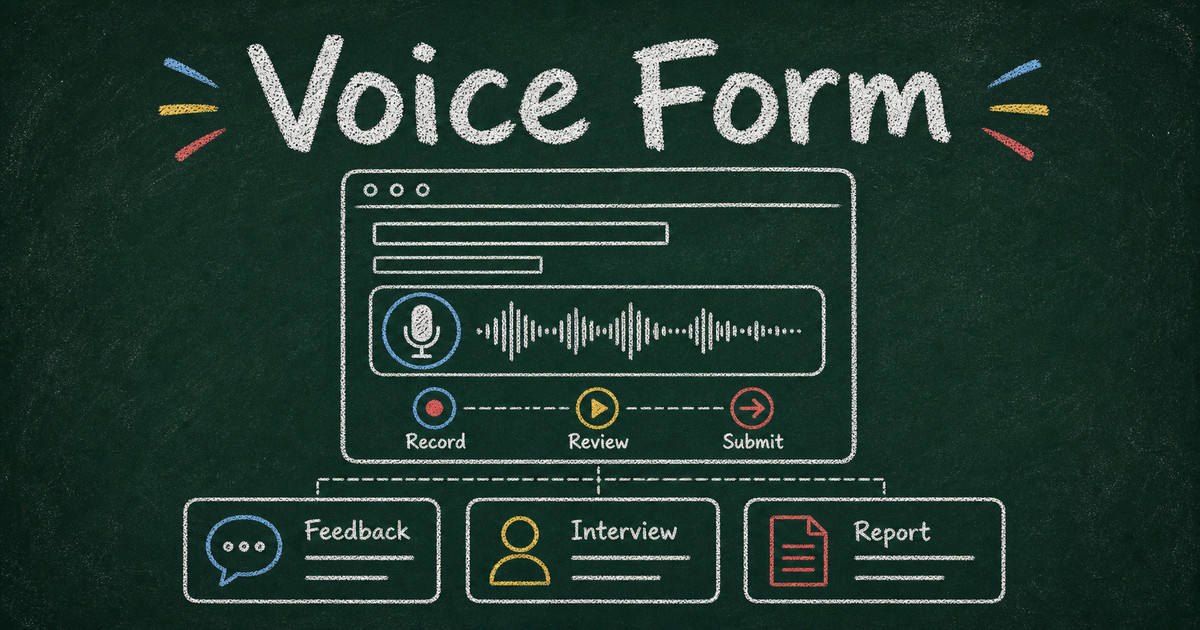
A voice form solves a different problem from voice typing. It does not listen to someone speak and automatically fill out every field. It gives the respondent one focused place to record a short audio answer, then submits that recording alongside structured fields like name, email, rating, category, location, or file upload.
That distinction matters. A good voice response form captures tone, context, hesitation, urgency, and detail that a typed answer often loses. This guide covers when to use voice forms, how to design one, and 16 ready-made FormHug templates you can start from.
TL;DR — A voice form is an online form with an audio field, so respondents can record a spoken answer directly in the browser and submit it with the rest of their response.
- Use voice when tone matters — customer feedback, testimonials, field reports, interviews, and speaking practice often need more than text.
- Keep the prompt focused — ask for one spoken answer with a clear time limit, not a rambling open microphone.
- Pair audio with structure — use ratings, categories, names, emails, locations, or file uploads so recordings are easy to review.
- Works for: NPS follow-ups, candidate introductions, language assignments, site visit notes, support bug reports, oral histories, and client briefs.
- A voice form is not voice autofill; it is a form that collects a deliberate recorded response.
Try a Live Voice Form
The fastest way to understand a voice form is to try one. This example collects short voice wishes for a wedding, birthday, or celebration, so you can feel how a spoken message changes the form experience.
Open the voice wishes form in a new tab ->
Use the embedded version as a respondent: record a short wish, review it, and submit only if you want to. The experience is intentionally different from voice-to-text — the recording itself is the answer.
What Is a Voice Form?
A voice form is a form that collects at least one recorded audio response. The respondent opens the form in a browser, taps or clicks the audio field, records their answer, reviews it, and submits it with the rest of the form.
People may also call this an audio response form, voice message form, or a form to collect voice messages. The intent is the same: give someone a simple way to speak one answer instead of typing it.
The cleanest definition is this: voice forms collect spoken answers, while voice autofill tries to turn speech into field values. If you ask, “Tell us what happened in 60 seconds,” you want a voice form. If you ask someone to say their name, address, email, and appointment date so software can split those into separate fields, that is a different voice-input workflow.
This makes voice forms especially useful when the answer itself matters: the story, complaint, explanation, pronunciation, testimonial, or field note. For structured facts, use normal fields. For human context, use audio.
If your voice form is part of a broader feedback flow, pair it with ideas from NPS survey best practices or open-ended survey questions. The rating tells you where to look; the recording tells you what the person actually meant.
When Voice Forms Work Better Than Text
Voice responses are strongest when typing is slow, the context is emotional, or the respondent needs to explain a sequence.
| Use Case | Why Voice Helps | Good Audio Prompt |
|---|---|---|
| Customer feedback | Captures the reason behind a score in the customer’s own words | ”In 30-60 seconds, tell us why you gave this score.” |
| Job screening | Lets candidates introduce themselves before a live interview | ”Introduce yourself and explain why this role interests you.” |
| Language practice | Collects pronunciation, fluency, and oral responses | ”Read the prompt and record your answer for up to two minutes.” |
| Field reports | Lets people report from a site without typing a long note | ”Describe what you observed and what needs follow-up.” |
| Testimonials | Captures a more natural story after an event or purchase | ”Share one moment from the experience that stood out.” |
| Support reports | Explains a bug sequence better than a single screenshot | ”Walk us through what you tried, what happened, and where you got stuck.” |
The pattern we use internally is the Signal + Story + Sorting framework:
- Signal — a rating, category, status, or short field that helps you filter the submission.
- Story — the audio response where the person explains the context in their own voice.
- Sorting — fields like email, location, team, role, or product area that help you route the response.
Audio alone is expressive but hard to triage. Structured fields alone are easy to filter but thin. Put them together and the submission becomes both human and operational.
What to Include in a Voice Response Form
Most voice forms should be short. The audio field is already asking for effort, so every other field has to earn its place.
| Field | Use It For | Required? |
|---|---|---|
| Name | Identifying the speaker | Optional unless follow-up needs identity |
| Replying, closing the loop, or sending confirmation | Required when follow-up is expected | |
| Category | Routing submissions by topic, product, role, or location | Optional but useful at scale |
| Rating or NPS | Capturing quick sentiment before the spoken explanation | Optional for feedback forms |
| Audio response | The main spoken answer | Usually required |
| File upload | Screenshots, photos, resumes, documents, or supporting evidence | Optional unless the workflow depends on it |
| Consent checkbox | Permission to reuse, publish, train on, or share the recording | Recommended whenever reuse is possible |
The best voice prompt includes three things: what to say, how long to speak, and what detail matters. “Share your thoughts” is too broad. “In 30-60 seconds, tell us what happened, what you expected, and what we should look at first” gives the respondent a path.
For longer operational forms, use the same discipline you would use in a client intake form: collect only what changes how you prepare, route, respond, or decide.
How to Build a Voice Form in FormHug
FormHug’s Audio field is built for browser-based recording. Respondents can record, review, record again, and submit the finished audio file with the rest of the form.
Step 1: Start from the outcome
Decide what the recording is supposed to replace or improve. Is it the “why” behind a score? A candidate’s introduction? A field worker’s note? A student’s spoken answer?
That outcome determines the recording limit. Use 30-60 seconds for quick feedback, one to two minutes for explanations, and longer only when the answer genuinely needs it. Short limits make recordings easier to review and reduce rambling.
Step 2: Add the Audio field
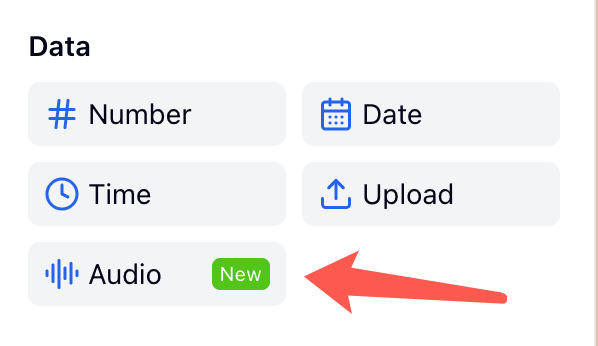
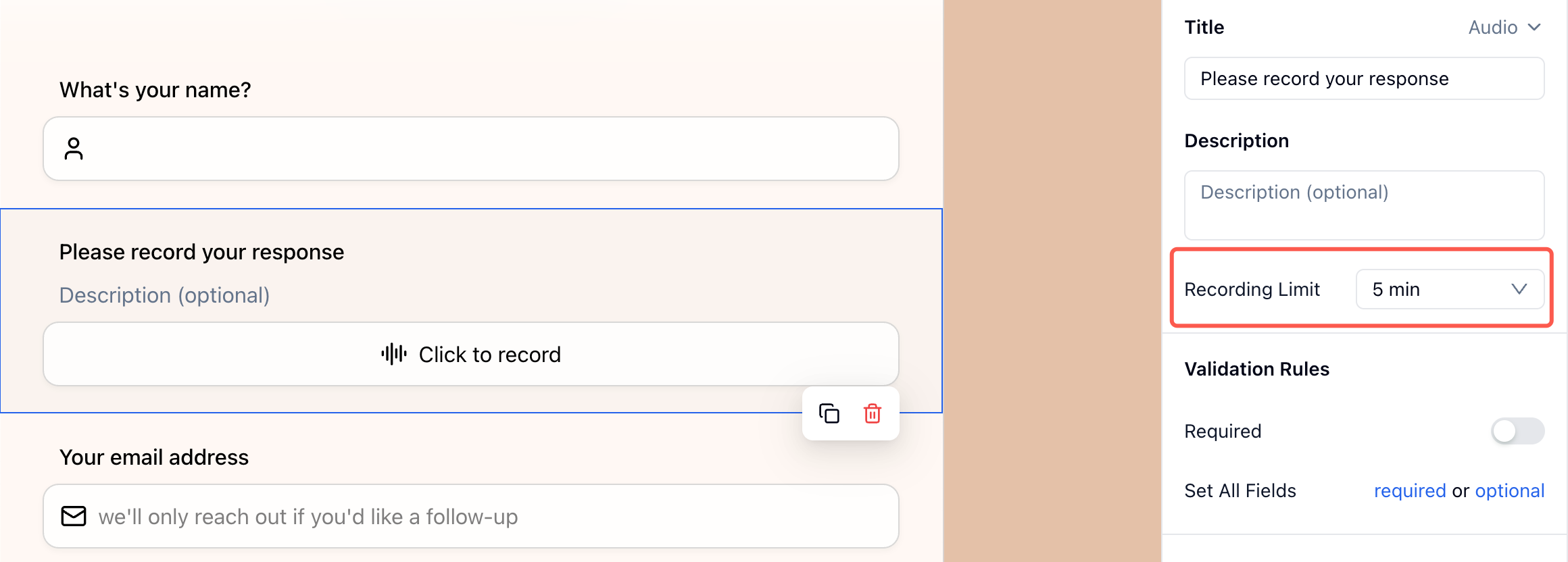
Create a new FormHug form from scratch, with AI, or from one of the templates below. In the builder, add an Audio field and write the field title as the prompt you want the respondent to answer.
Set a recording limit that matches the answer you expect. A voice form for NPS feedback should feel quick; a voice form for speaking practice can allow more time.
Step 3: Add the structured fields around it
Add only the fields you need to act on the recording: email for follow-up, category for routing, rating for sentiment, file upload for supporting evidence, or location for field reports.
If the recording may be reused for marketing, research, training, public sharing, or internal review beyond the immediate workflow, add a consent checkbox. Plain language is better than legal fog: “I give permission for this recording to be used in event marketing” is easier to understand than a generic waiver.
Step 4: Test the recording experience on mobile
Voice forms often shine on mobile, so test on an actual phone before you share the link. The respondent should be able to start recording, see that recording is active, review the audio, record again if needed, and submit without confusion.
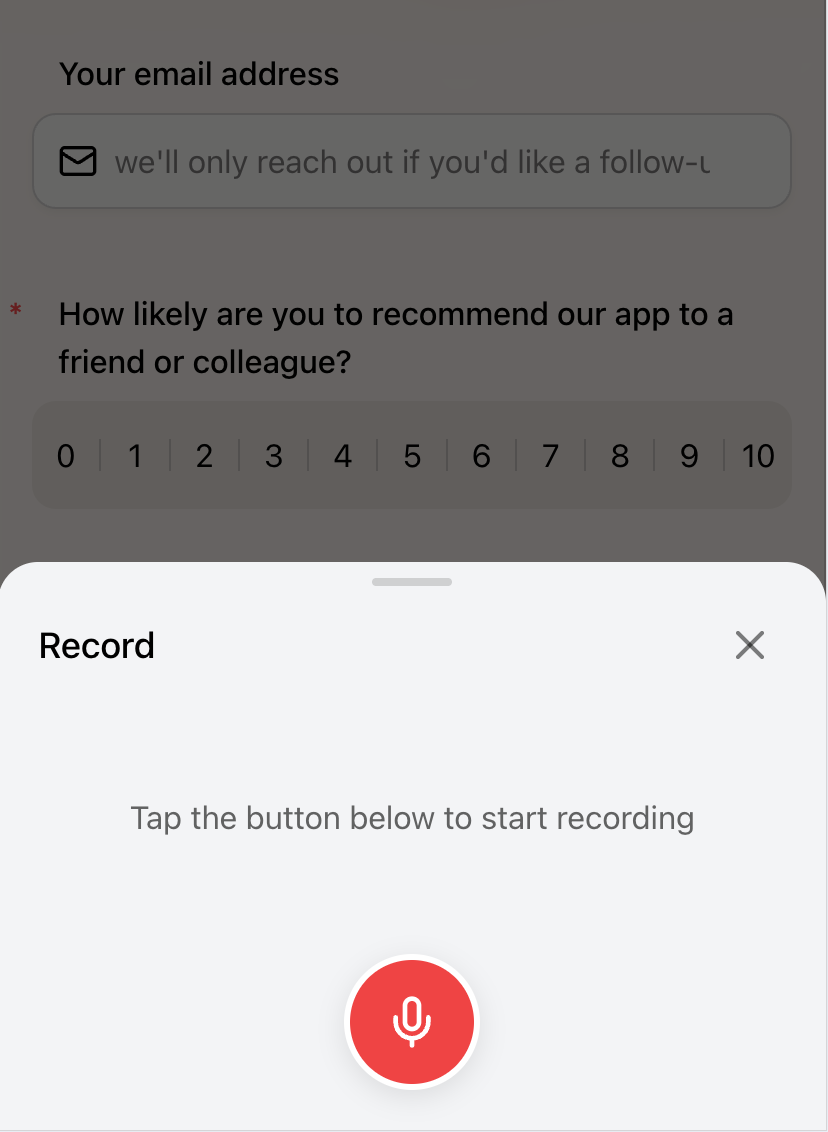
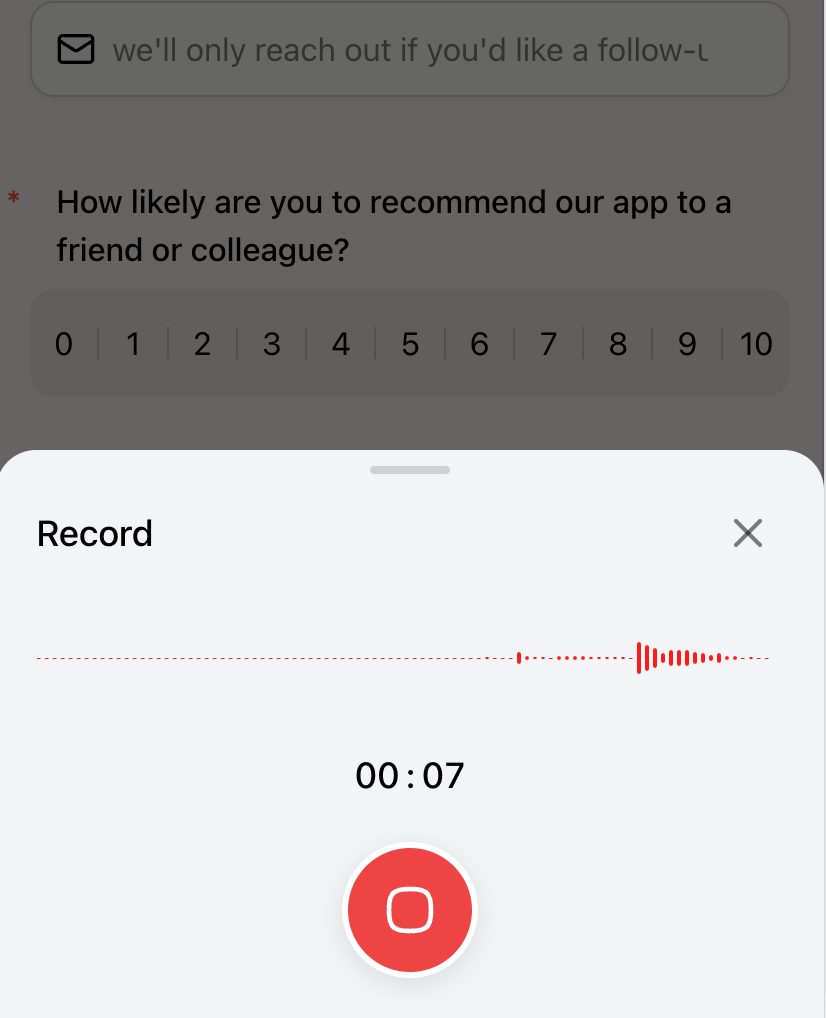
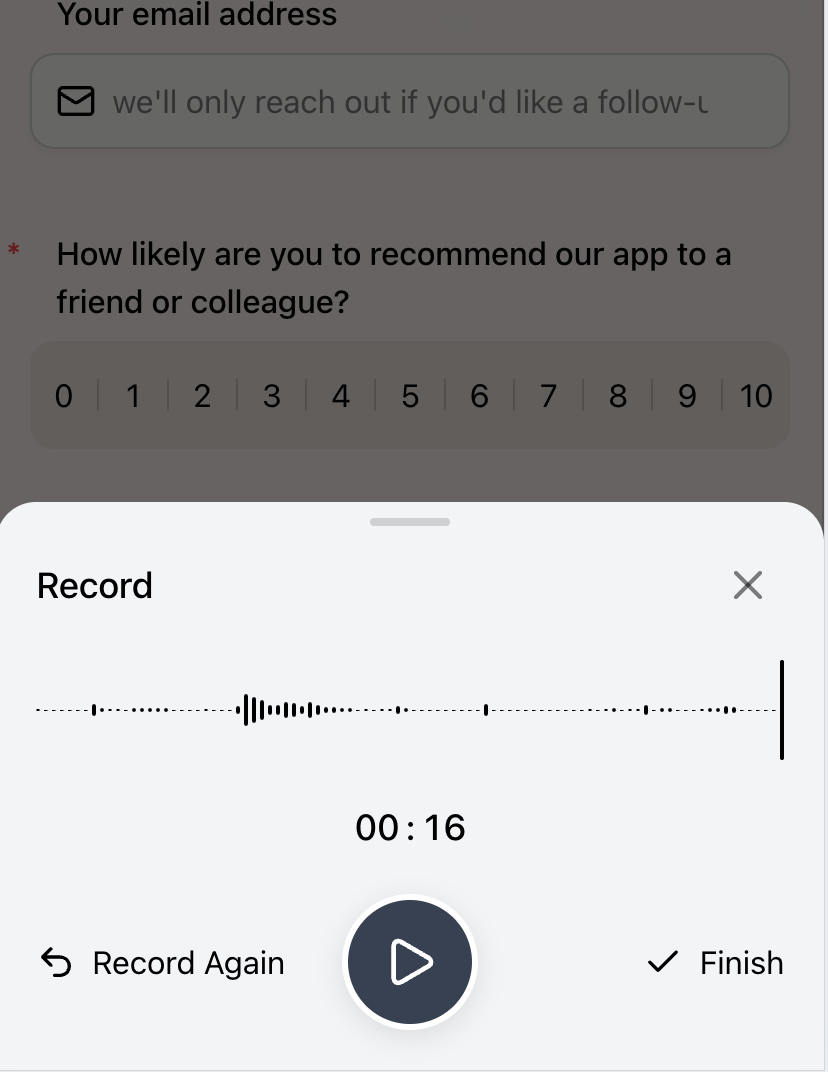
After submission, the audio appears with the rest of the response data, so your team can play it, review the surrounding fields, and download the recording when needed.
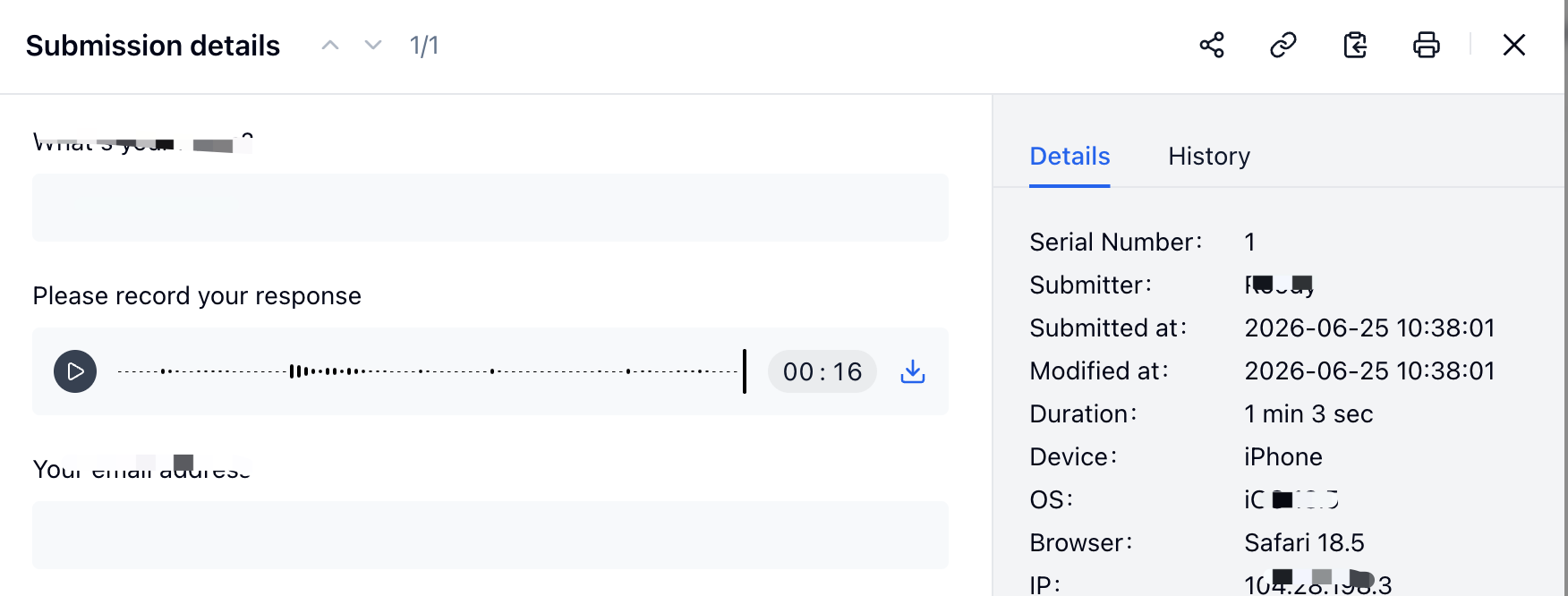
For the full click-by-click walkthrough, use the FormHug docs: Collect Voice Responses.
Ready-Made Voice Form Templates
If you already know the use case, start from a template instead of a blank form. These FormHug templates include the voice response field plus the supporting fields needed for review, routing, or follow-up.
| Template | Best For | Live Example |
|---|---|---|
| Voice Customer Feedback / NPS Follow-up | Capturing why someone gave a score | View form |
| Async Job Screening / Voice Introduction | Candidate introductions before interviews | View form |
| Language Speaking Practice Submission | Oral assignments and speaking practice | View form |
| Field Report / Site Visit Voice Note | Inspections, site visits, and field updates | View form |
| Event or Workshop Testimonial | Post-event stories and testimonials | View form |
| Support Bug Report with Voice Explanation | Bug reports with screenshots and spoken context | View form |
| Community Story / Oral History Collection | Story archives and oral history projects | View form |
| Client Intake Voice Brief | Discovery calls, creative briefs, and consulting intake | View form |
| Voice Wishes Wall — Wedding & Birthday | Collecting personal messages for celebrations | View form |
| Podcast Listener Voice Message | Listener questions, reactions, and show feedback | View form |
| Customer Complaint — Voice Report | Complaints where tone and sequence matter | View form |
| On-Site Incident Voice Report | Safety, operations, and incident reporting | View form |
| Product Idea Voice Brief | Product ideas from customers, employees, or community members | View form |
| Speech & Debate Practice Submission | Speech drills, debate practice, and oral grading | View form |
| Bedtime Story Submission | Family story projects, classroom storytelling, and creator prompts | View form |
| Dialect & Language Pronunciation Collection | Pronunciation samples, dialect archives, and language research | View form |
The common thread across all 16 templates is simple: one focused audio prompt, a few structured fields, and a reviewable submission record. That keeps the form easy for the respondent and useful for the team receiving it.
Voice Form Design Tips
Ask for one recording, not a whole interview
One audio field usually works better than several. Multiple recordings make the form feel heavier and make review harder. If you need several topics, use one prompt with a simple structure: “Tell us what happened, what changed, and what you need next.”
Put the audio field after context fields
Ask for a name, category, rating, or role before the recording. Those fields warm up the respondent and give reviewers context before they press play. For support, category first. For feedback, rating first. For hiring, role first.
Give a time box
A visible recording limit reduces anxiety. People speak more clearly when they know whether you want a 30-second answer or a three-minute story. In our testing, the most reviewable prompts are the ones that explicitly say “30-60 seconds” or “up to two minutes.”
Tell people what happens after submission
Voice is personal. A confirmation message should say whether the recording will be reviewed, whether someone may follow up, and whether it will be reused. This is especially important for testimonials, community stories, candidate screening, and student submissions.
Frequently Asked Questions
How do I make a voice form?
Create a form, add an Audio field, write a clear spoken prompt, set a recording limit, and add any structured fields needed for review or follow-up. In FormHug, respondents can record directly in the browser, review the audio, record again, and submit the final recording with the form.
What is the difference between a voice form and voice-to-text?
A voice form collects the audio recording itself. Voice-to-text converts speech into written text. Use a voice form when tone, emotion, pronunciation, or spoken context matters. Use voice-to-text when you only need a faster way to fill text fields.
Can I collect voice feedback after an NPS survey?
Yes. A strong pattern is rating first, then one audio follow-up: “In 30-60 seconds, tell us why you gave this score.” The score gives you signal, while the voice response gives you the story behind the number.
Are voice forms good for job screening?
Voice forms can help with asynchronous screening when you want candidates to introduce themselves before scheduling a live interview. Keep the prompt narrow, explain the time limit, and avoid using voice recordings as the only evaluation signal.
Can respondents record from a phone?
Yes. FormHug’s Audio field works in the browser, including mobile. Respondents can start a recording, see the timer and waveform, review the result, record again, and submit the finished audio with the rest of the form.
Should I require consent for voice responses?
Add a consent checkbox when the recording may be reused, shared, published, used for marketing, included in research, or reviewed outside the immediate workflow. If the voice note is only for private support follow-up, still explain how the recording will be used.
Can I download submitted audio files?
Yes. After a FormHug voice form is submitted, the audio appears in the submission detail view with the surrounding response data. You can play the recording and download it when needed.
Is FormHug free for voice response forms?
You can start building voice response forms in FormHug for free. Use the Audio field, publish the form, and share the link; for the fastest start, choose one of the voice form templates and customize the prompt.
Related
- NPS Survey Best Practices — pair ratings with a focused follow-up so customer feedback becomes actionable
- Open-Ended Survey Questions — write better prompts when you need people to explain an answer in their own words
- How to Create an Intake Form — collect structured context before a service, call, appointment, or project starts
- How to Use Conditional Logic in Forms — show the right follow-up fields based on earlier answers
Every long text box on a phone is another chance for useful context to disappear. Let people say the part they would rather speak, then collect the structure you need to act on it. Create your form →

Written by
FormHug TeamProduct, research, and form automation team
The FormHug Team brings together product builders, workflow researchers, and form automation practitioners who study how people collect, route, and act on information online. Our guides are based on hands-on product testing, template analysis, customer workflow patterns, and deep experience with forms, surveys, quizzes, AI-assisted creation, integrations, and results sharing.