

When to Use Voice Responses
Use an Audio field when a spoken answer gives you better information than text alone.
For general survey structure, pair voice responses with the Build an Online Survey guide. For issue reports that need files, see Data Fields.
Recommended Fields
Most voice response forms still need a few structured fields. Keep the audio prompt focused, then use other fields for data you need to filter or follow up.Build Your Voice Response Form
1
Create the Form
Click New Form and start from scratch, choose a related template, or use Create with AI to generate the first draft.
2
Add an Audio Field
In the builder, open the Data field group and add Audio. Write the field title as the spoken prompt you want submitters to answer.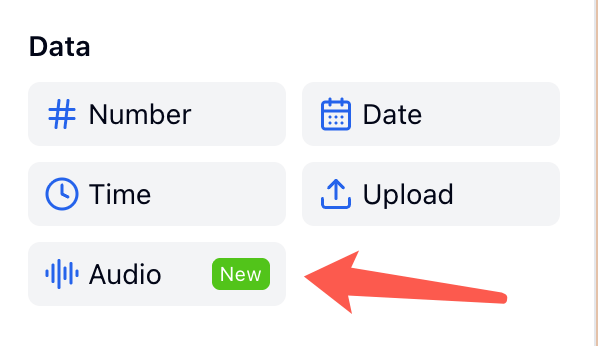
3
Set the Recording Limit
Select the Audio field and choose a Recording Limit. Use a short limit for quick feedback and a longer limit for interviews, speaking practice, or reports.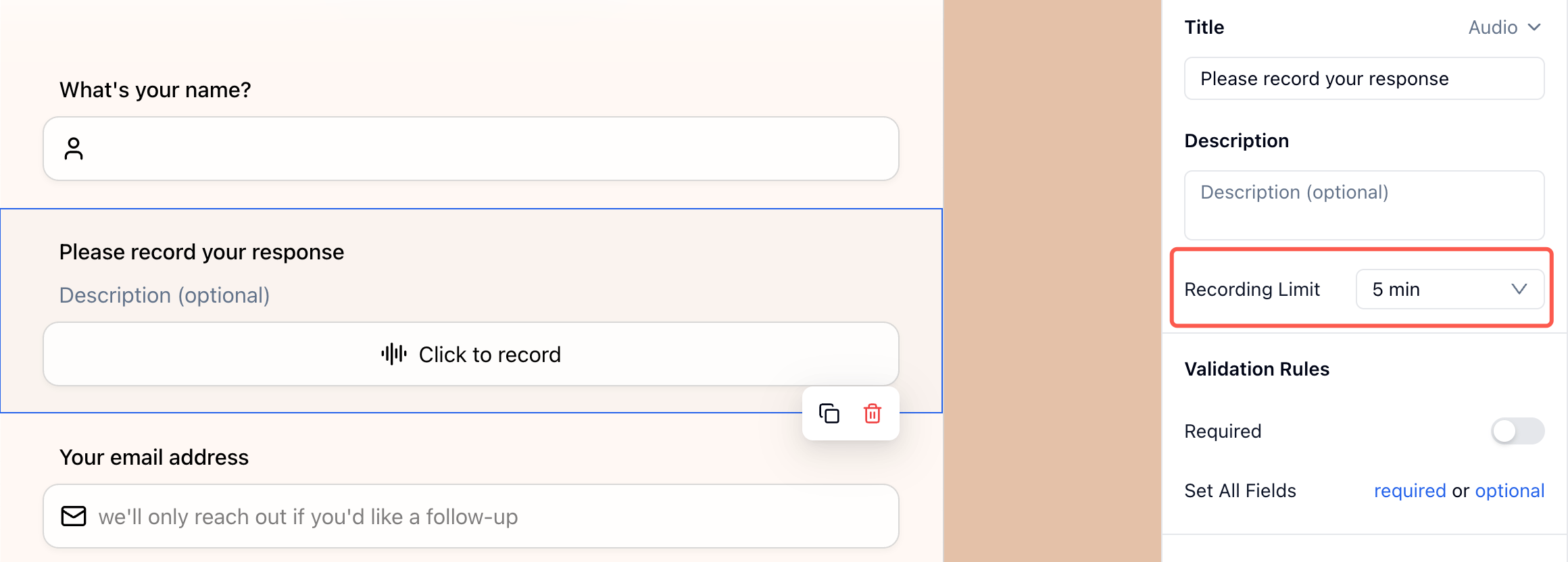
4
Add Context Fields
Add fields such as Name, Email, Rating, Category, File Upload, or Location. These fields make submissions easier to review and route.
5
Add Consent When Needed
If you plan to reuse the recording for marketing, research, training, or public sharing, add a required Checkbox field for consent.
6
Publish and Test on Mobile
Click Publish, then test the form on a real phone. Make sure the prompt is clear and the recording limit fits the answer you expect.
Test the Recording Experience
Before sharing the form, open the published form as a submitter and record a short test answer.1
Start from the Audio field
The Audio field appears as a simple Click to record control in the form.
2
Open the recorder
On mobile, tapping the field opens a recording sheet. The submitter taps the microphone button to begin.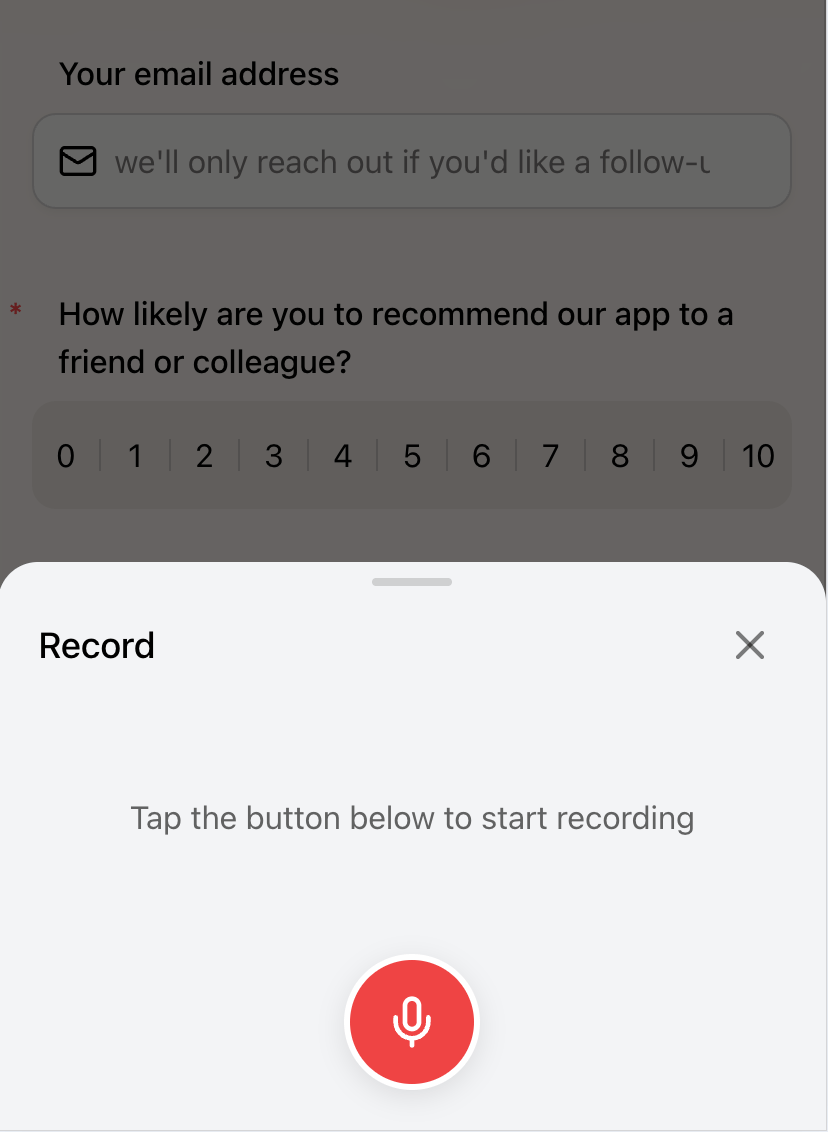
3
Record the response
While recording, FormHug shows the timer and waveform so the submitter knows the recording is active.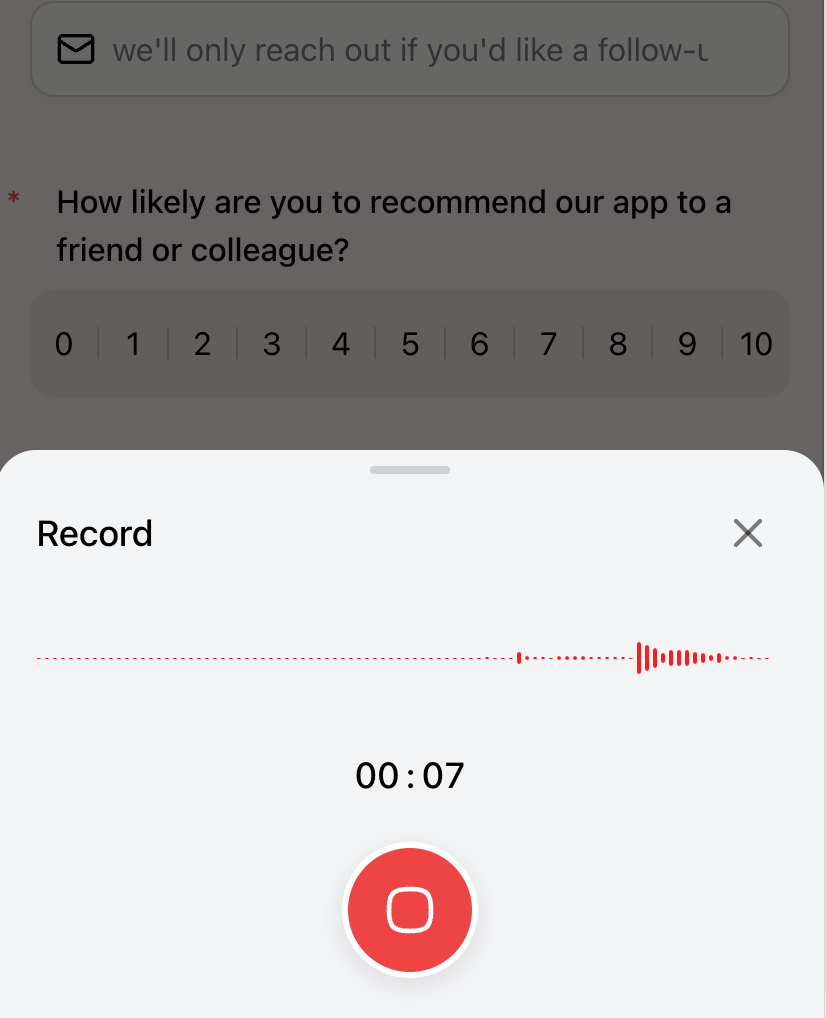
4
Review or record again
After stopping, the submitter can play the recording, record again, or tap Finish to attach it to the form.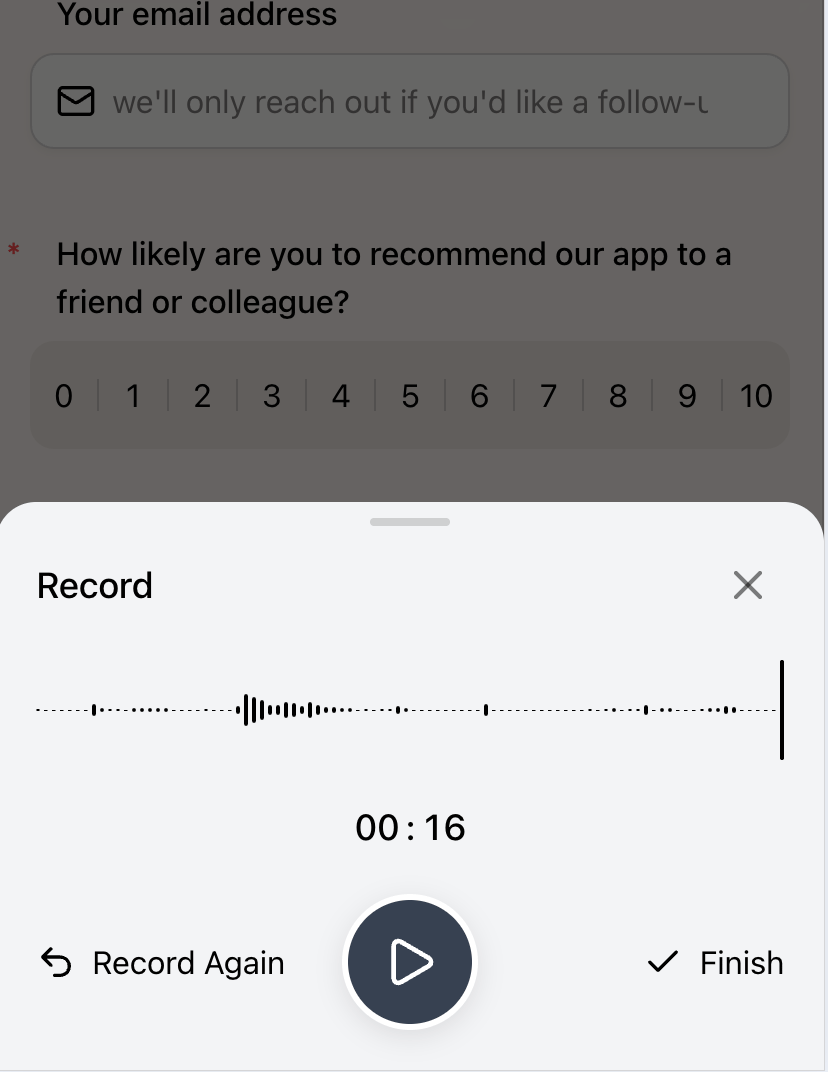
5
Submit the finished audio
The completed Audio field shows a play button, waveform, duration, and remove button before the form is submitted.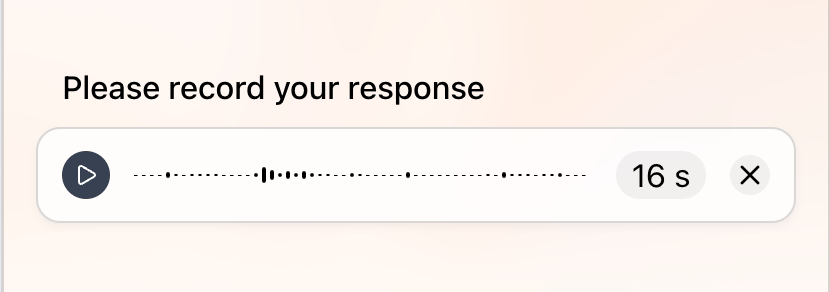
Voice Response Examples
Customer Voice Feedback
Use this when you want the reason behind a score, not just the score itself. Demo: Voice Customer Feedback / NPS Follow-up Suggested fields:- NPS: “How likely are you to recommend our app?”
- Audio: “Tell us why you gave this score.”
- Follow-up permission checkbox
Candidate Voice Introduction
Use this for asynchronous screening before scheduling interviews. Demo: Async Job Screening / Voice Introduction Suggested fields:- Name
- Role applying for
- Resume upload
- Audio: “Introduce yourself and tell us why this role interests you.”
Speaking Practice Submission
Use this for language classes, tutoring, or oral assignments. Demo: Language Speaking Practice Submission Suggested fields:- Student name
- Class or level
- Assignment prompt
- Audio: “Record your answer in English for up to two minutes.”
Field Report
Use this for inspections, site visits, operations checks, or event staff updates. Demo: Field Report / Site Visit Voice Note Suggested fields:- Name
- Location
- Date
- Photo upload
- Audio: “Describe what you observed on-site.”
Event Testimonial
Use this after a workshop, event, or customer experience. Demo: Event or Workshop Testimonial Suggested fields:- Name
- Organization
- Rating
- Audio: “Share one thing you learned or enjoyed.”
- Consent checkbox
Support Bug Report
Use this when screenshots show the issue, but a voice note explains the sequence. Demo: Support Bug Report with Voice Explanation Suggested fields:- Product area
- Screenshot upload
- Audio: “Walk us through what happened.”
Client Intake Voice Brief
Use this when a new client needs to describe goals, constraints, and context in their own words. Demo: Client Intake Voice Brief Suggested fields:- Name
- Project type
- Budget range
- Audio: “Tell us what you’re trying to create.”
Writing Better Audio Prompts
Good audio prompts tell submitters what to say, how long to speak, and what kind of detail matters.
For short prompts, a 30-60 second limit keeps submissions easy to review. For interviews or assignments, use a longer limit only when the answer genuinely needs more time.
Review Audio Submissions
After a form is submitted, audio files appear in Data → Submissions with the rest of the submission details. You can play the recording, review the surrounding fields, and download the audio when needed.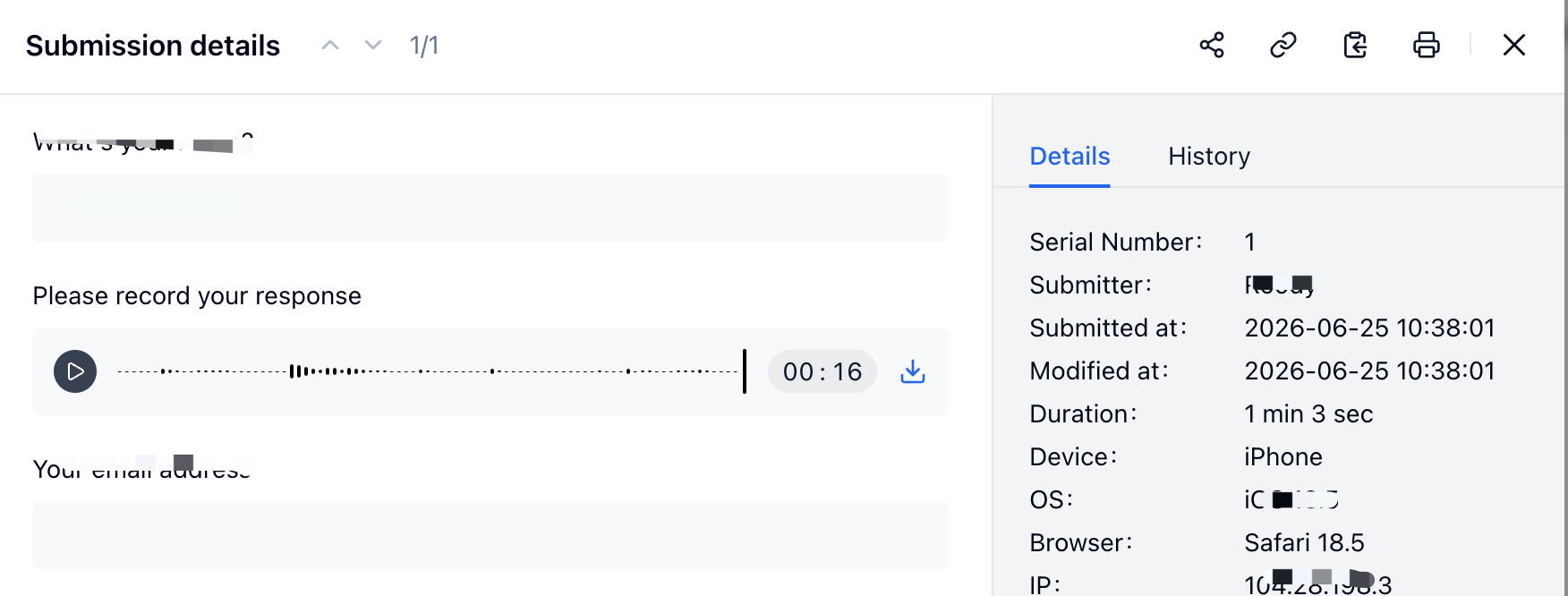
Related
Data Fields
Learn how Audio, File Upload, Date, Time, and Number fields work
Build an Online Survey
Combine ratings, NPS, and open-ended feedback in one survey
Form Design Best Practices
Write clearer prompts and reduce form abandonment
Submissions
Review, filter, and export submitted form data
File Uploads
Collect documents, screenshots, and other supporting files
Notifications
Notify your team when a new voice response arrives