

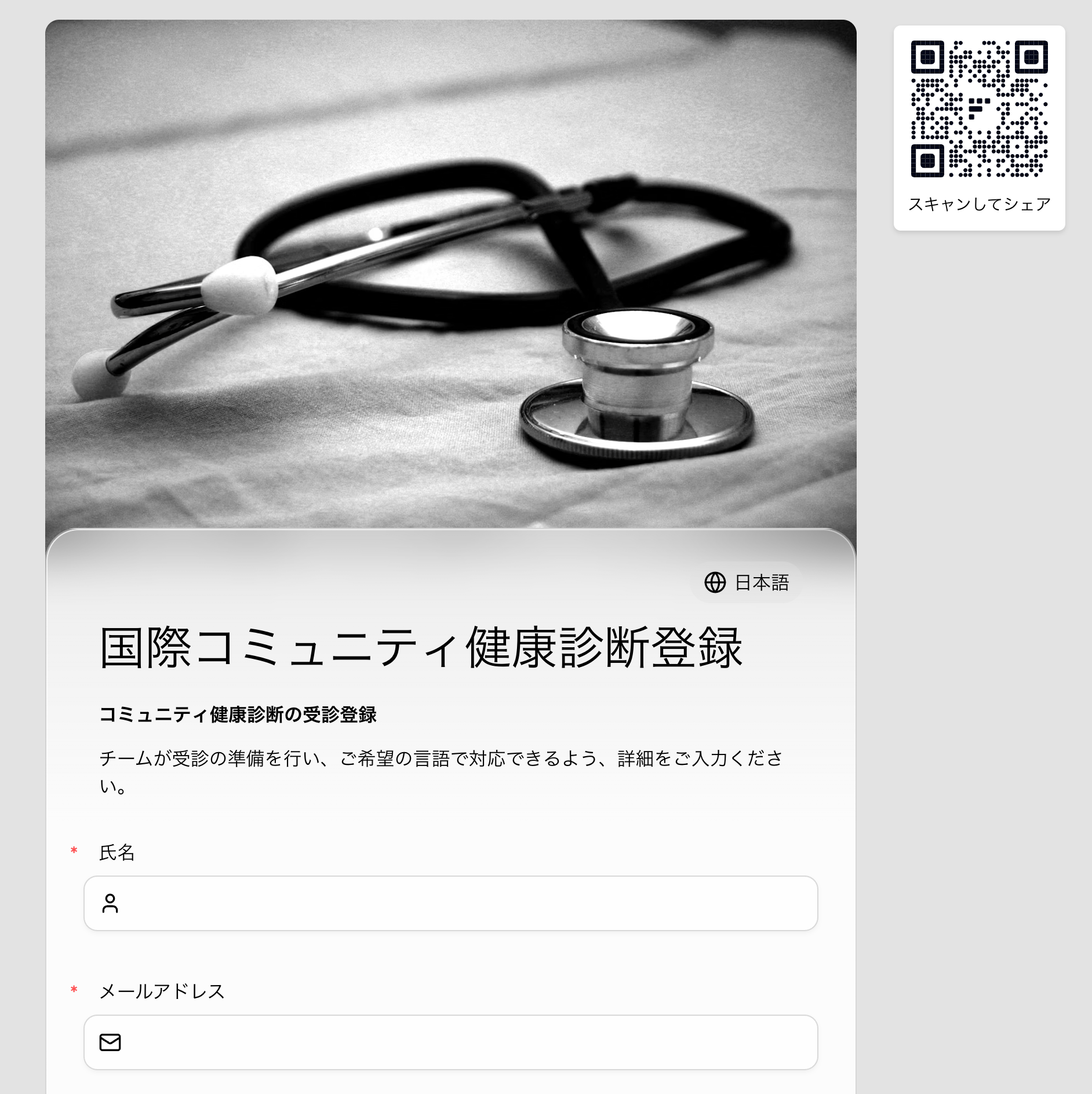
Example Form
Keep the form short so the language experience is easy to understand.
The same approach works for event registrations, school forms, public-service intake forms, customer feedback surveys, applications, and appointment requests.
Why Use Native Form Translation
Browser translation can help people read a page, but a form often needs more control:- Field labels and options should be translated consistently.
- Consent and eligibility text may need review.
- Submit buttons, validation messages, and navigation should match the form language.
- Respondents should be able to switch languages without finding browser tools.
- The form owner should keep one share link instead of creating separate copies.
Step 1: Create the Source Form
Create the form in the language your team uses to manage it. For many teams, this is English.1
Create the form
Start from AI, a template, or a blank form.
2
Keep the structure simple
Use a small set of clear fields. This makes the translated form easier to review and easier for respondents to complete.
3
Publish or preview
Confirm that the source form reads correctly before adding translation languages.
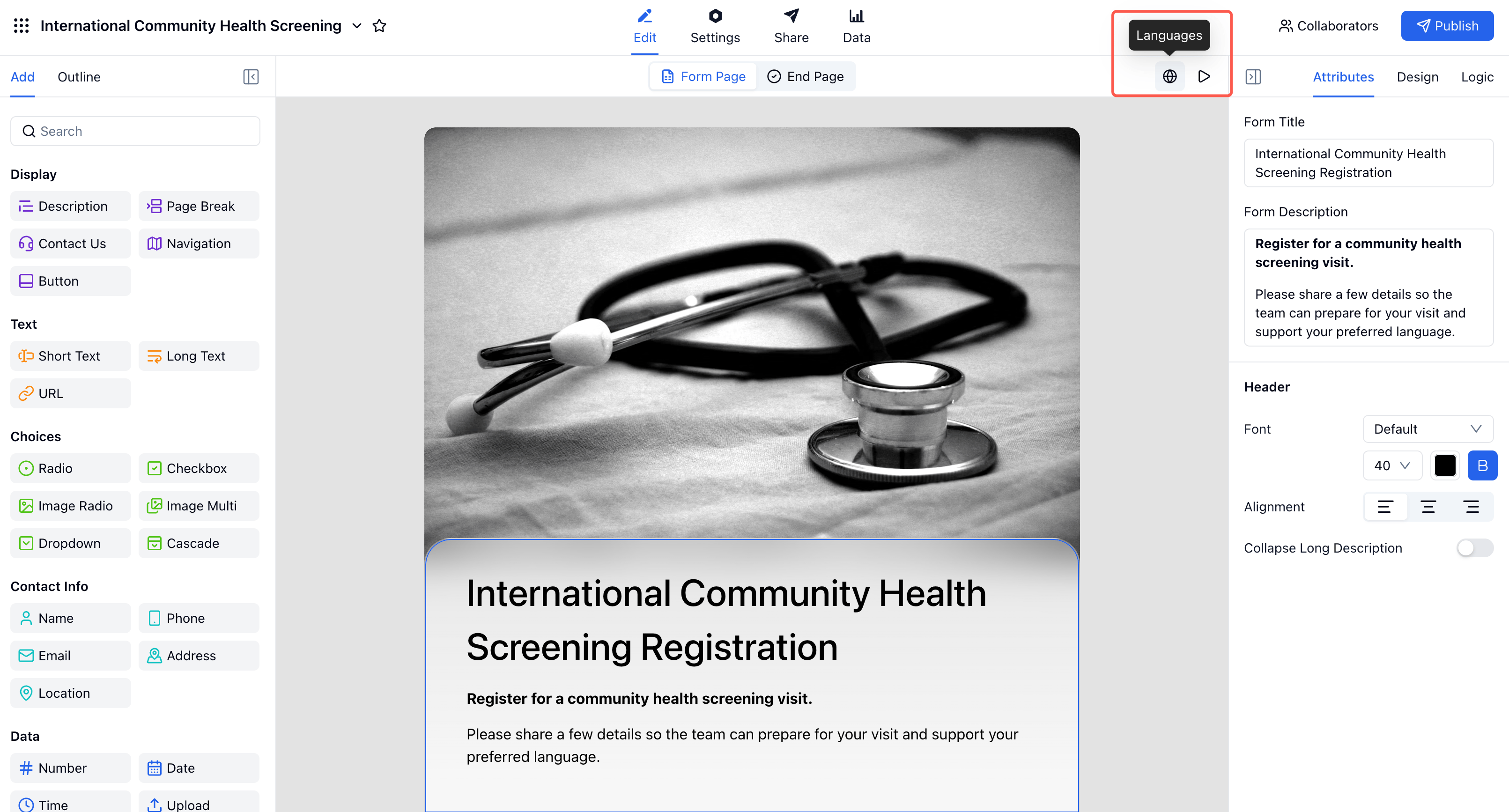
Step 2: Open Language Settings
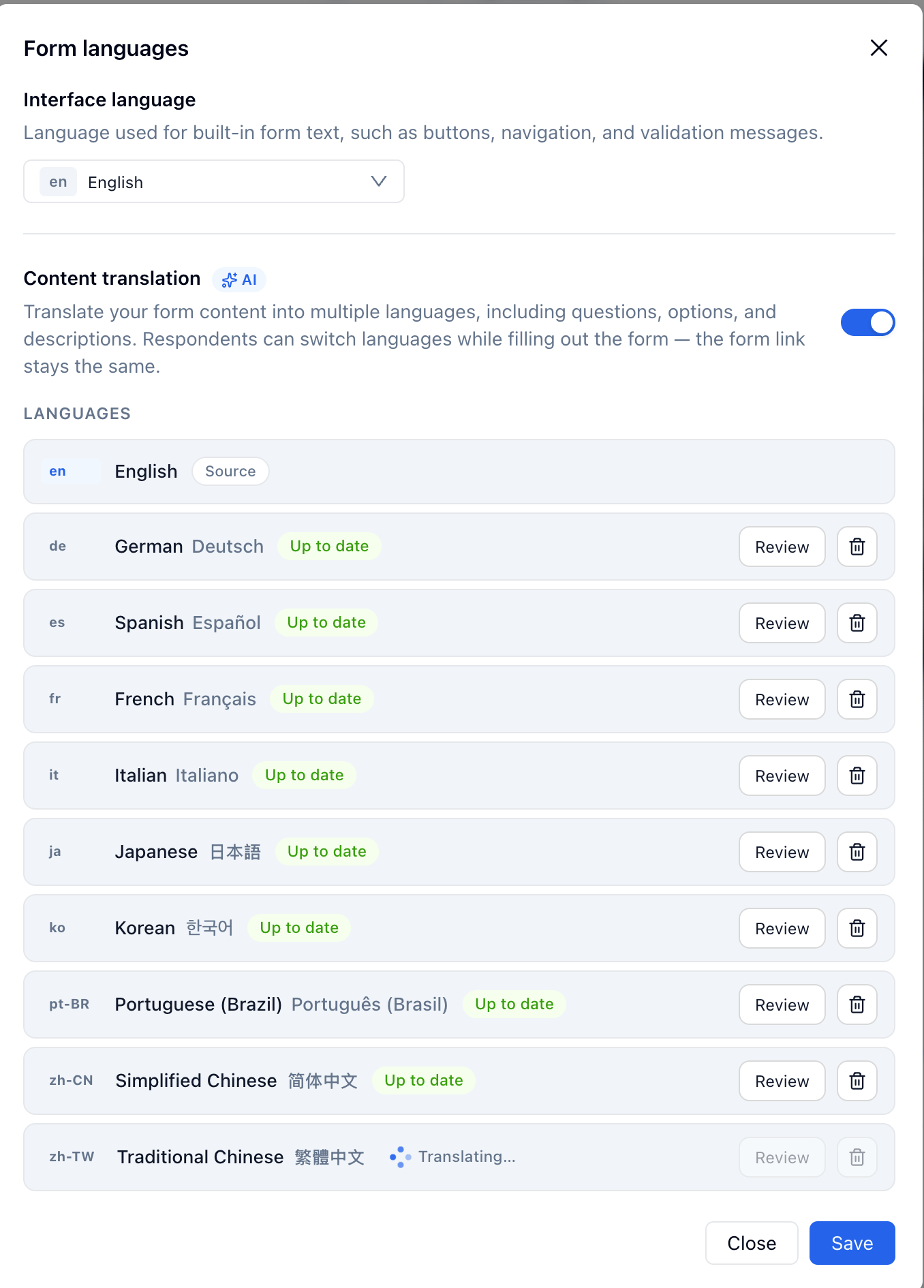
Open language settings from the form editor toolbar or from Settings -> Languages.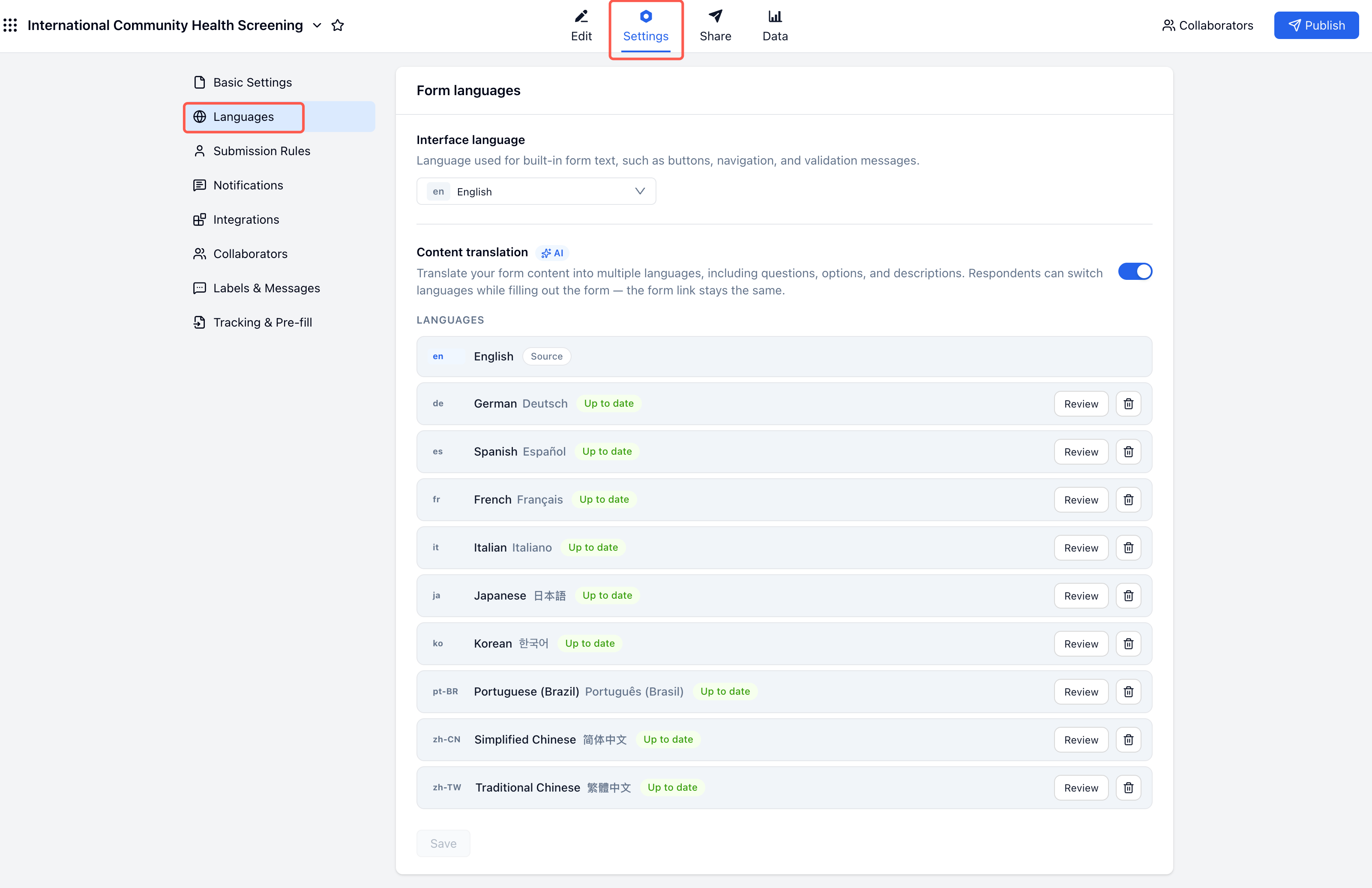
- Interface language controls built-in form text such as buttons, navigation, and validation messages.
- Content translation translates the form content itself, including questions, options, descriptions, and submission-related content.
Step 3: Add Translation Languages
Turn on Content translation, click Add a language, and choose the languages you want to support.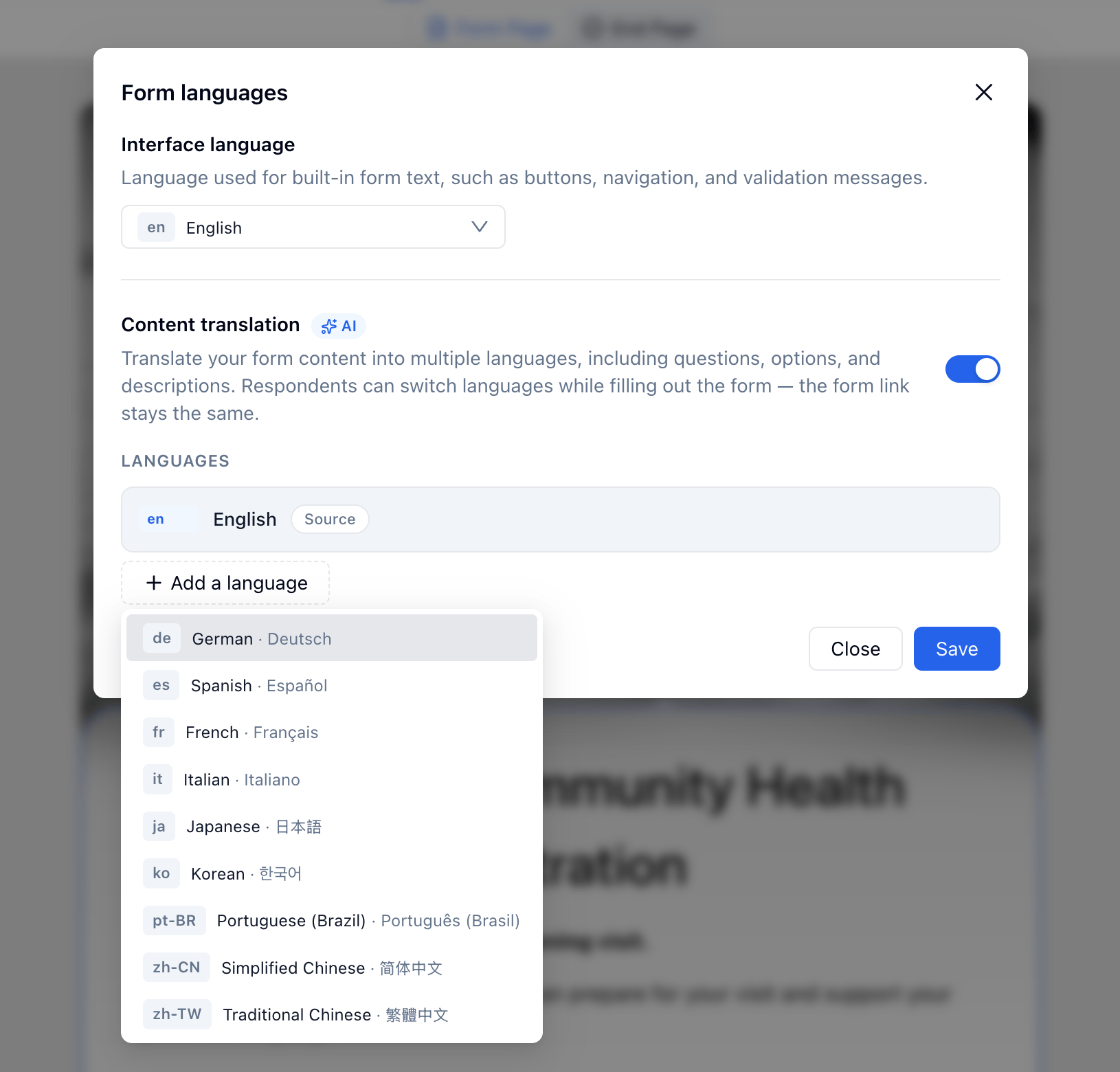
Step 4: Review Translation Quality
Click Review next to a language to compare the source text with the translated text.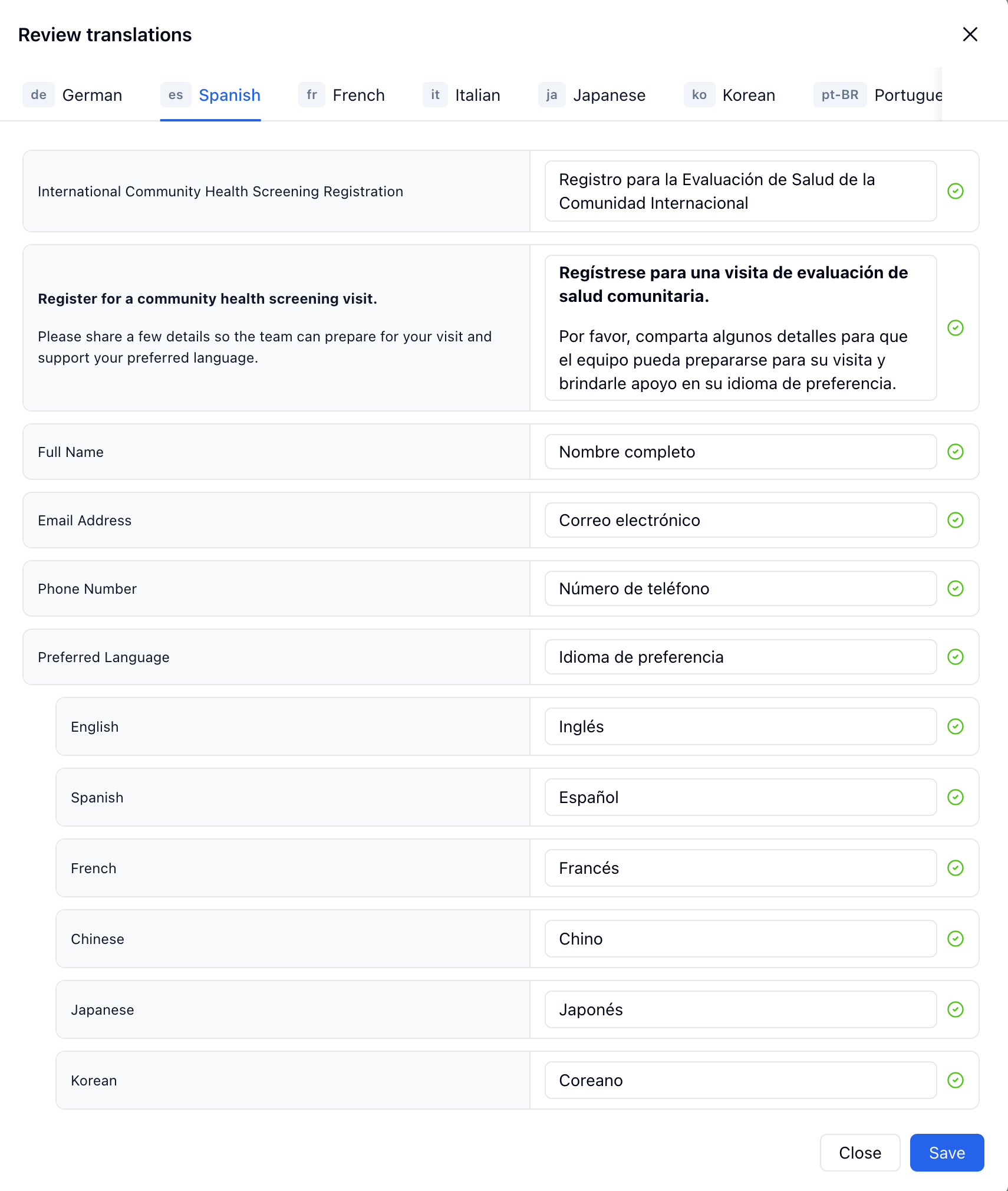
- Form title and description
- Field labels
- Choice options
- Help text
- Consent or policy wording
- Any text shown after submission
Step 5: Share One Link
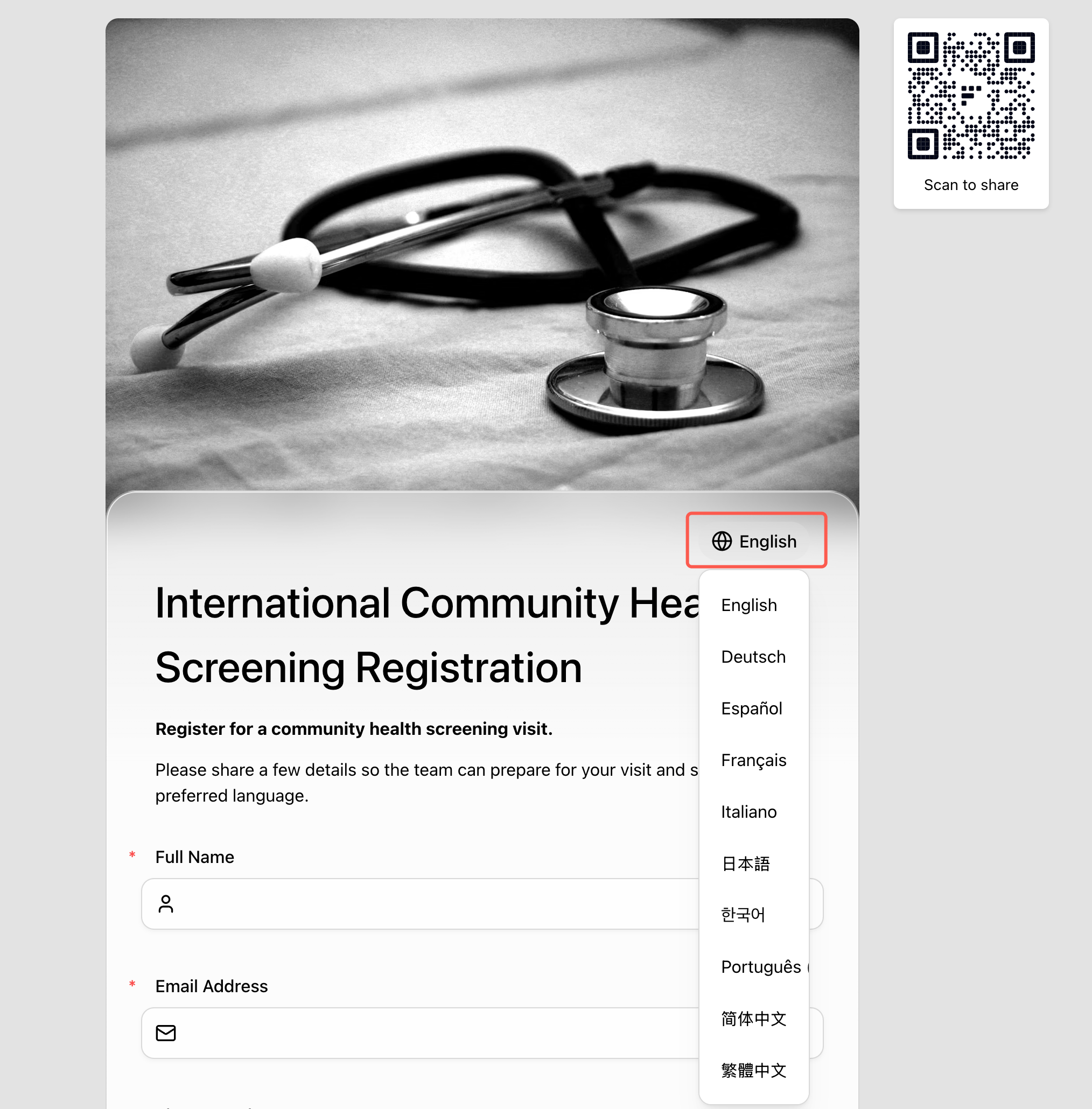
The public form link stays the same for every language. When a respondent opens the form, FormHug checks the browser language:- If a matching translation exists, the form opens in that language.
- If no matching translation exists, the form falls back to the original form language.
- The respondent can still switch languages manually from the top of the form.
Step 6: Check the Respondent Experience
Open the public form and switch to another language to confirm the translated experience.Related
Form Languages
Configure interface language, AI translations, review, and respondent language switching
Create a Registration Form
Build the core sign-up form before adding translations
Share Link
Publish and share one form link for every language
Labels & Messages
Customize built-in labels and messages for your form