

Match the Field to the Scenario
Build Your Payment Form
1
Choose the payment field
Start with the field that matches the buying decision. Use Price-Only for amount-only payments, Product for visual goods, Text Product for text-based packages, and Text Option for option-driven pricing.
2
Configure prices and variants
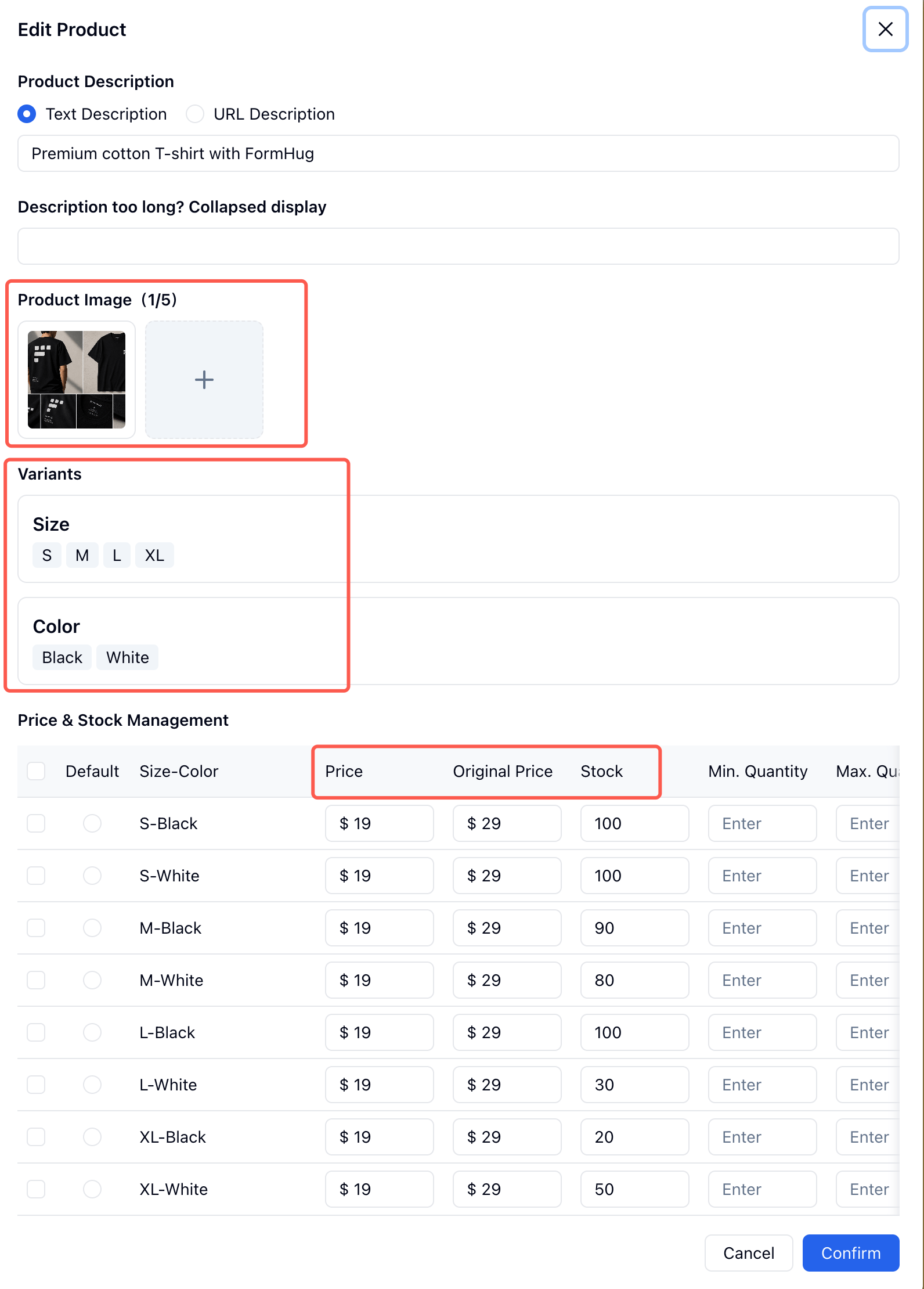
Add products, amount options, or option groups. For Product, Text Product, and Text Option, configure each variant row with price, original price, stock, default quantity, minimum quantity, and maximum quantity as needed.
3
Add discounts
Use early-bird discounts for purchase-by-date campaigns, or bulk discounts when buying more items should reduce the total.
4
Set currency and payment account
Choose the currency. When you are ready to collect online payments, connect Stripe and select the payment account. You can leave the form unconnected while testing product configuration.
5
Preview the order summary
Test the public form. Confirm the add-to-cart flow, selected-product summary, discount, quantity controls, and amount due all match your setup.
Donation Form
Use Price-Only for donation forms, deposits, and simple fees.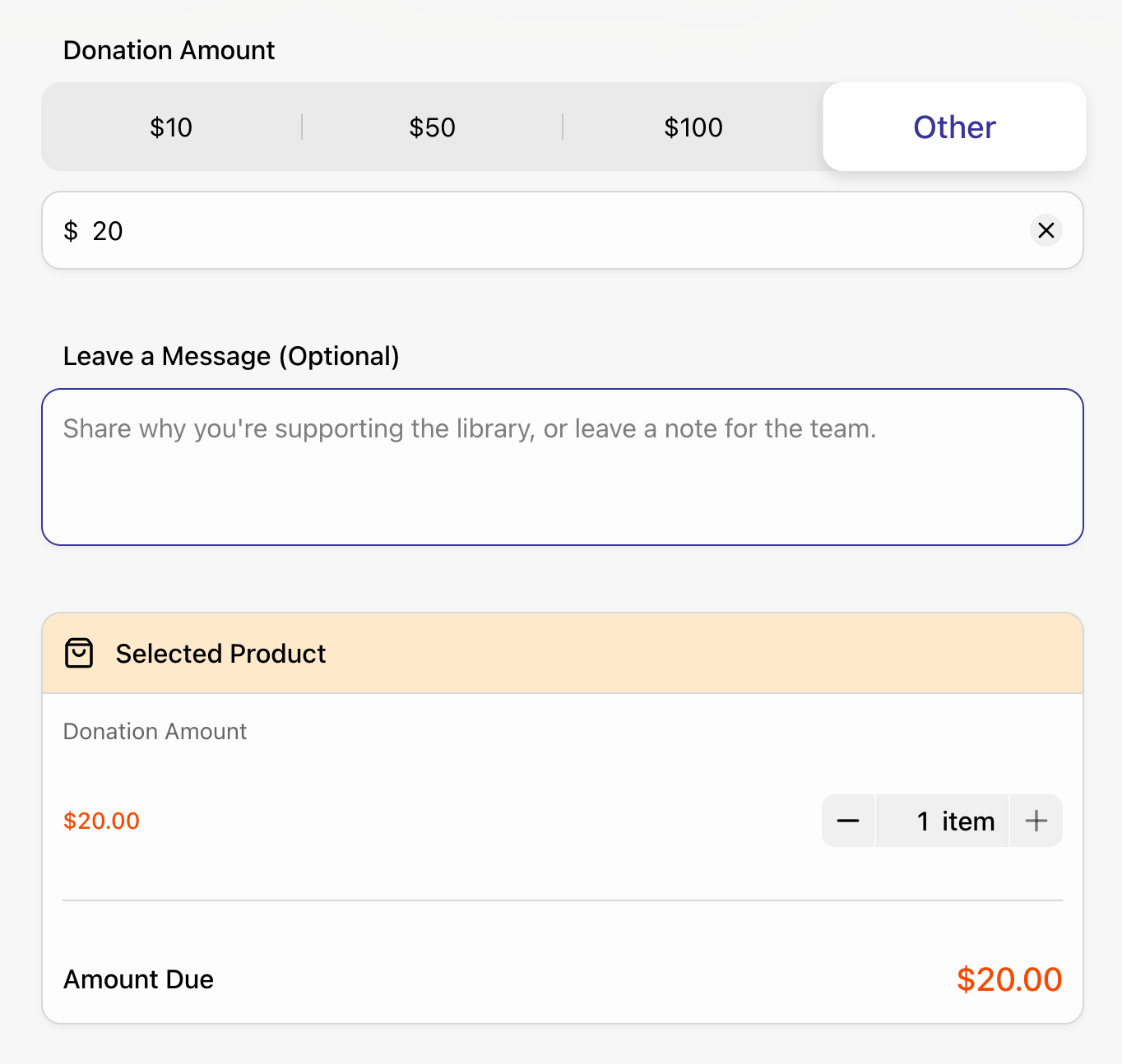
$10, $50, $100, or enter another amount. The selected donation appears in the payment summary before submission.
Open the donation demo
Demo: Children’s Reading Corner Donation
Merchandise Store
Use Product when images matter. This is the best fit for T-shirts, tote bags, stickers, product catalogs, and physical goods.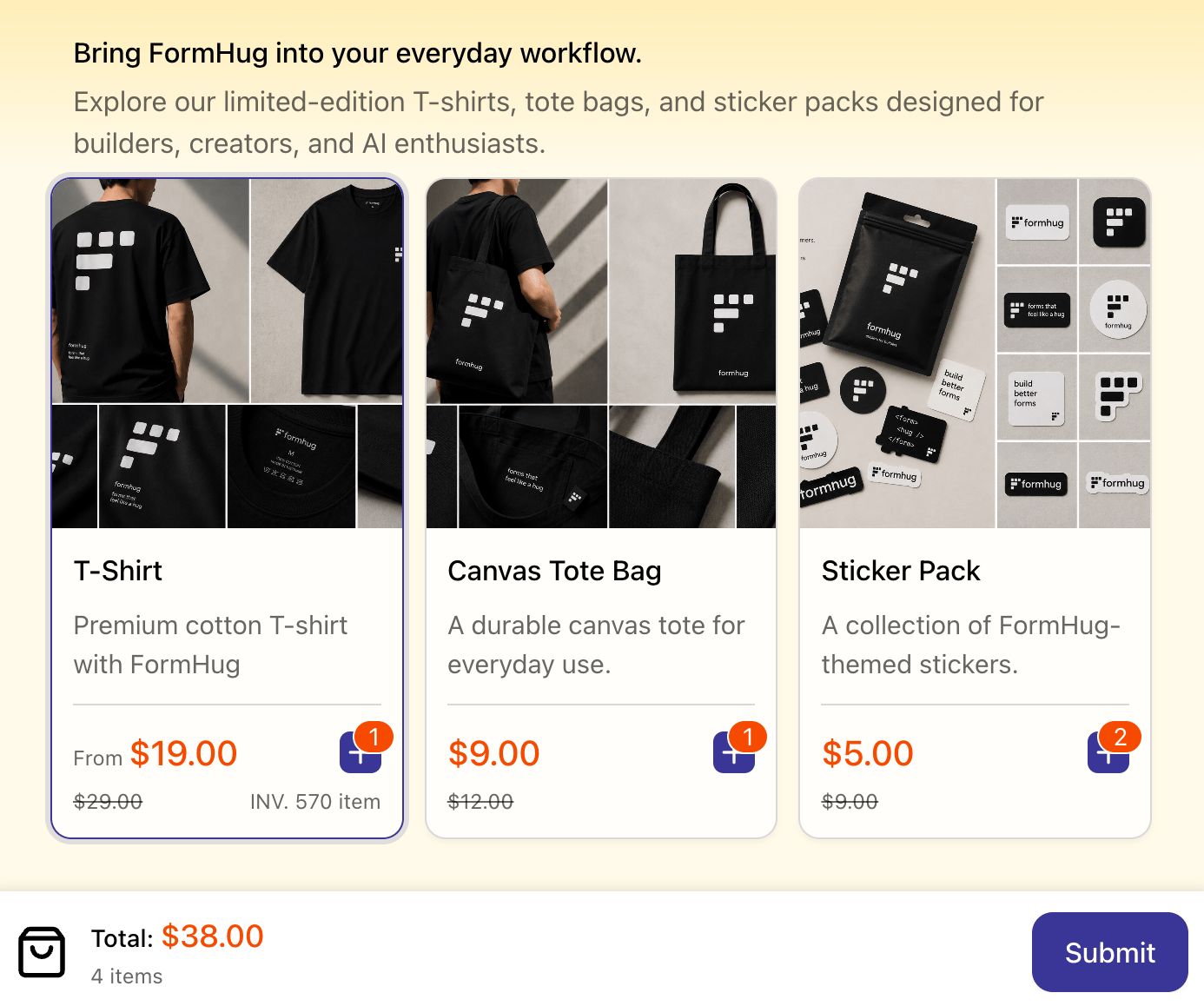
Open the merchandise demo
Demo: FormHug Merchandise Store
Hotel Booking Package
Use Text Product for packages that are easier to compare by name and description than by image. Hotel booking is a good example: the products are hotels, the variant is room type, and the quantity can represent nights or rooms.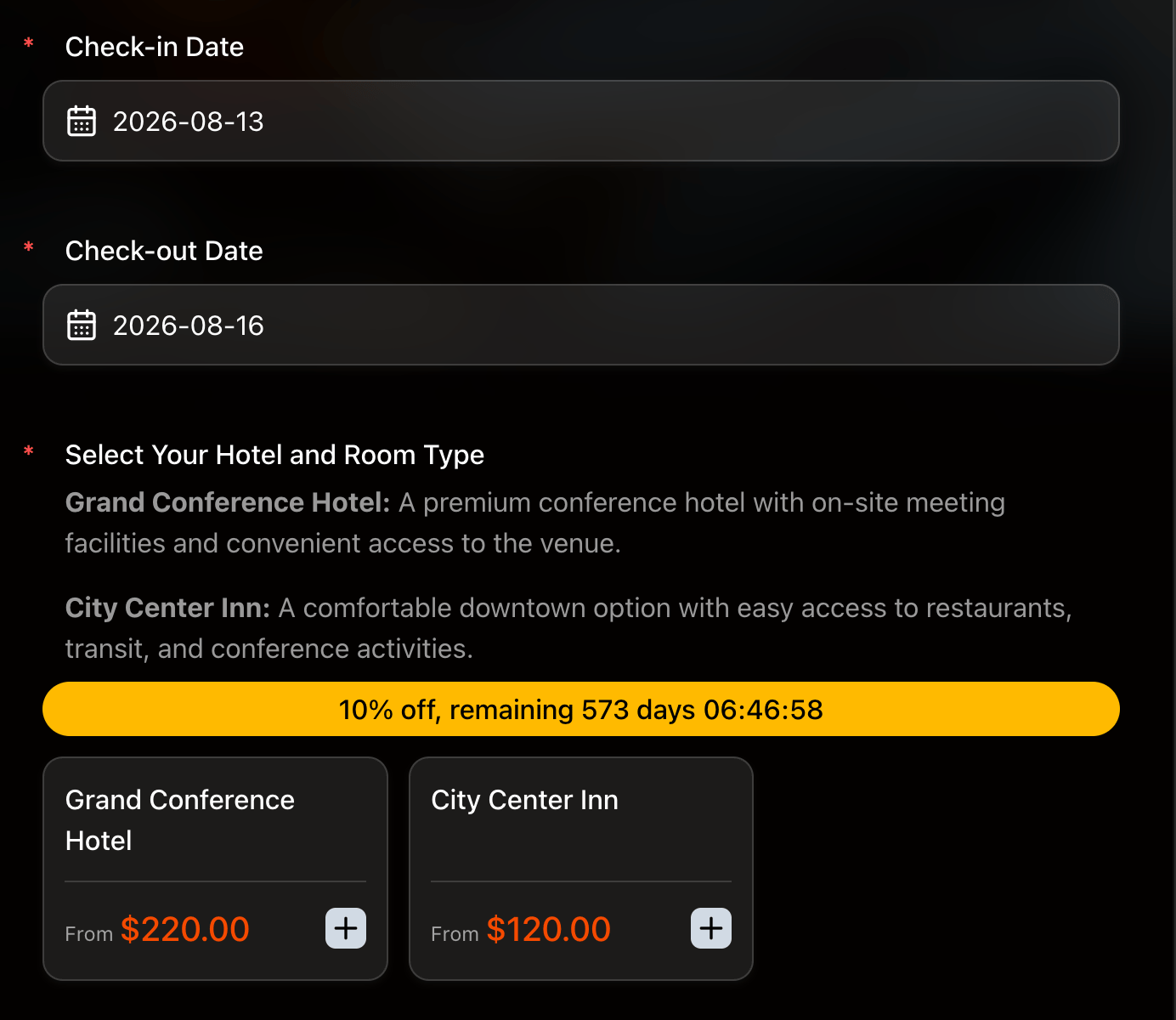
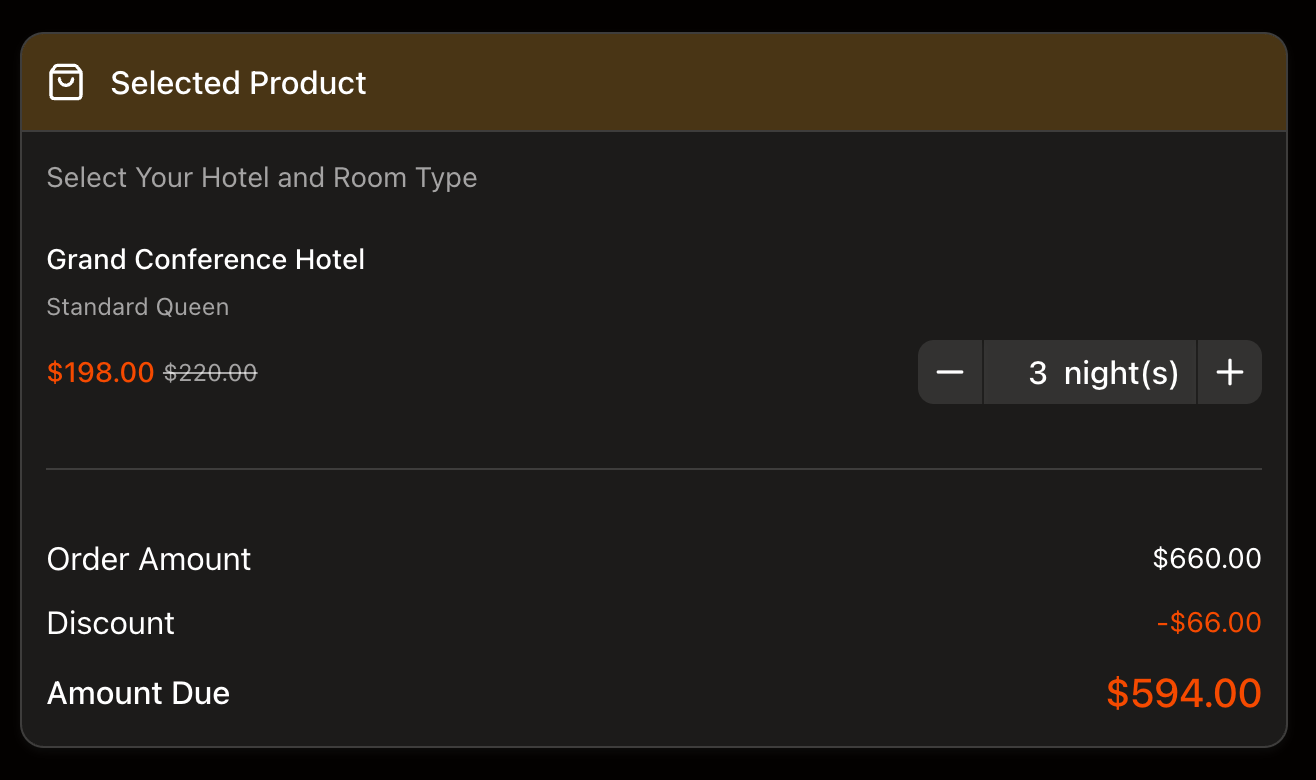
Open the hotel booking demo
Demo: Conference Hotel Booking Form
Ticket Booking
Use Text Option when the final price comes from text choices. Ticket forms often combine ticket type, attendance option, access level, or workshop package.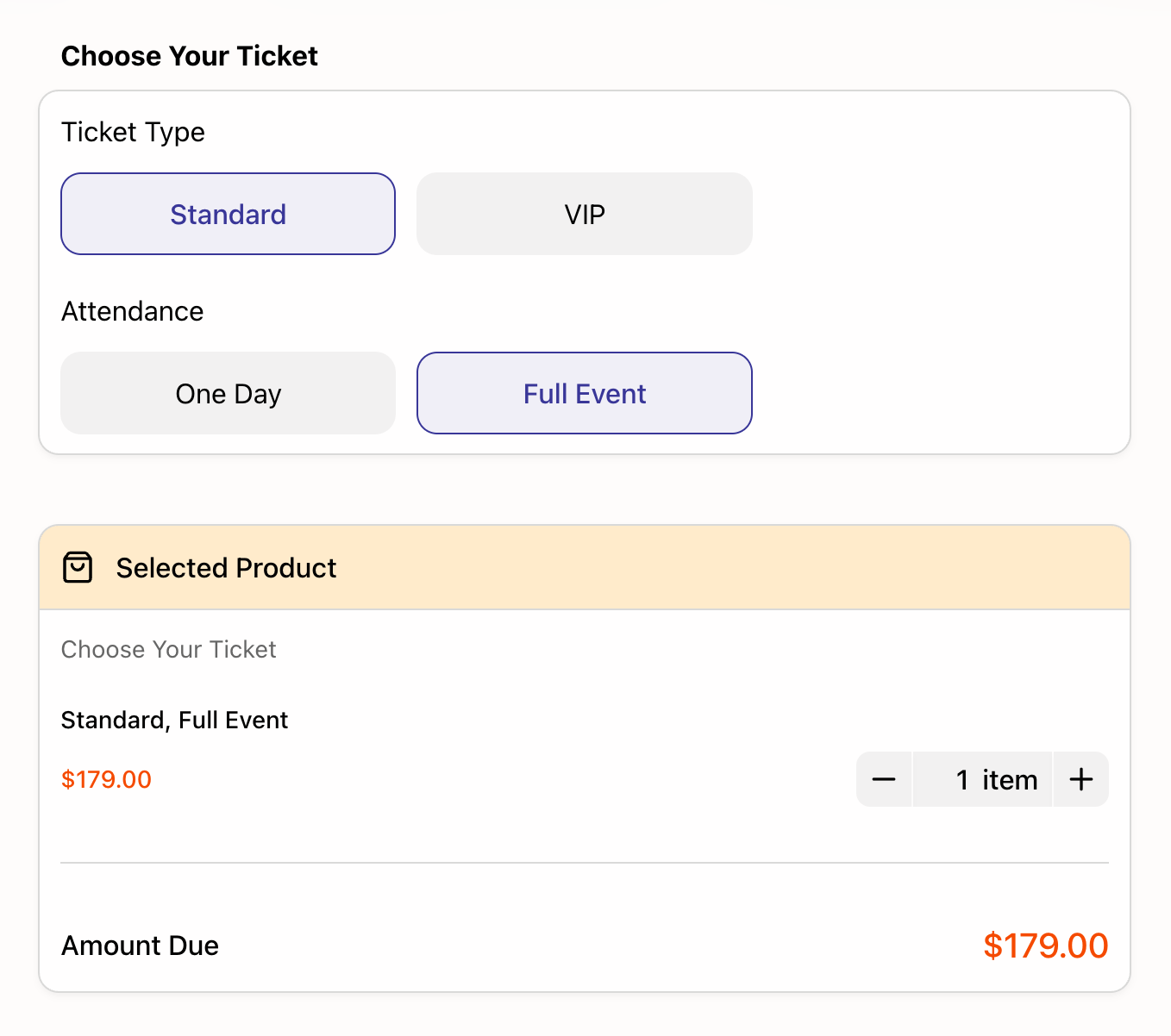
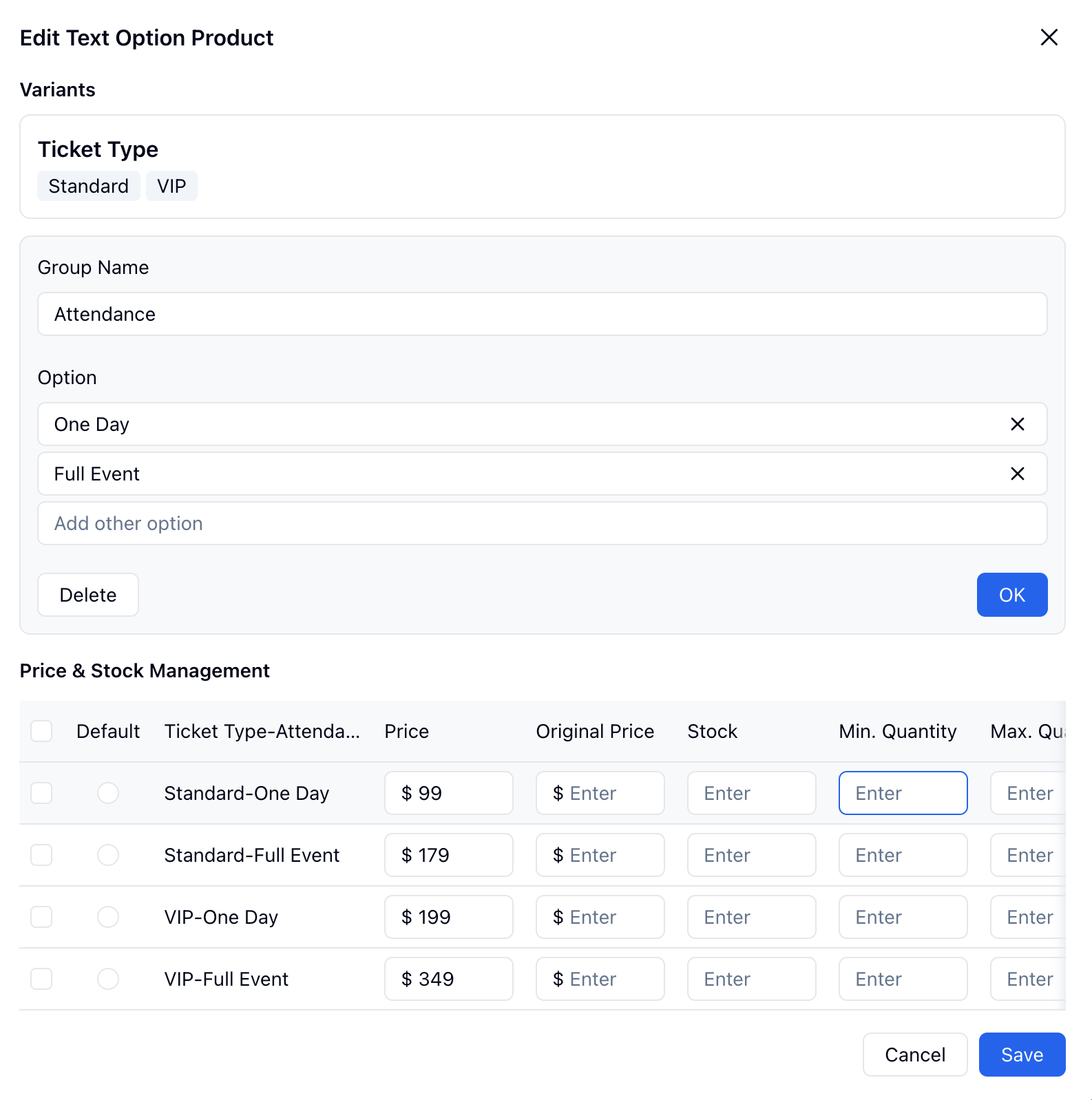
Open the ticket booking demo
Demo: UX Design Workshop Registration and Payment
Payment Form Checklist
- Choose the field type that matches the buying decision.
- Set currency before publishing.
- Add prices, original prices, stock, and quantity limits where needed.
- Configure early-bird or bulk discounts if the offer depends on purchase timing or quantity.
- Connect Stripe only when you are ready to collect real online payments. See Stripe Collect Payments for the connection flow.
- Submit a test entry and check the selected-product summary before sharing the form.
Related
Payment Fields
Learn every payment field type and setting
Stripe Collect Payments
Connect Stripe and review payment status and receipts
Submission Rules
Control capacity, submission limits, and closing behavior
Notifications
Send confirmations and internal alerts after submissions
Order & Payment Templates
Start from ready-made order and payment templates