

Payment Field Types
Choose the field based on what the submitter needs to select before checkout.The demo forms linked from this page are configured to show the product experience, but they do not need to be connected to a live payment account while you are testing setup.
Shared Capabilities
Payment fields share a few important settings.
Product, Text Product, and Text Option also support variant-style pricing. Each variant row can have its own price, original price, stock, default quantity, minimum quantity, and maximum quantity.
Price-Only
Use Price-Only when the payment amount is the main field. It is the simplest choice for donations, deposits, registration fees, service charges, and pay-what-you-want payments.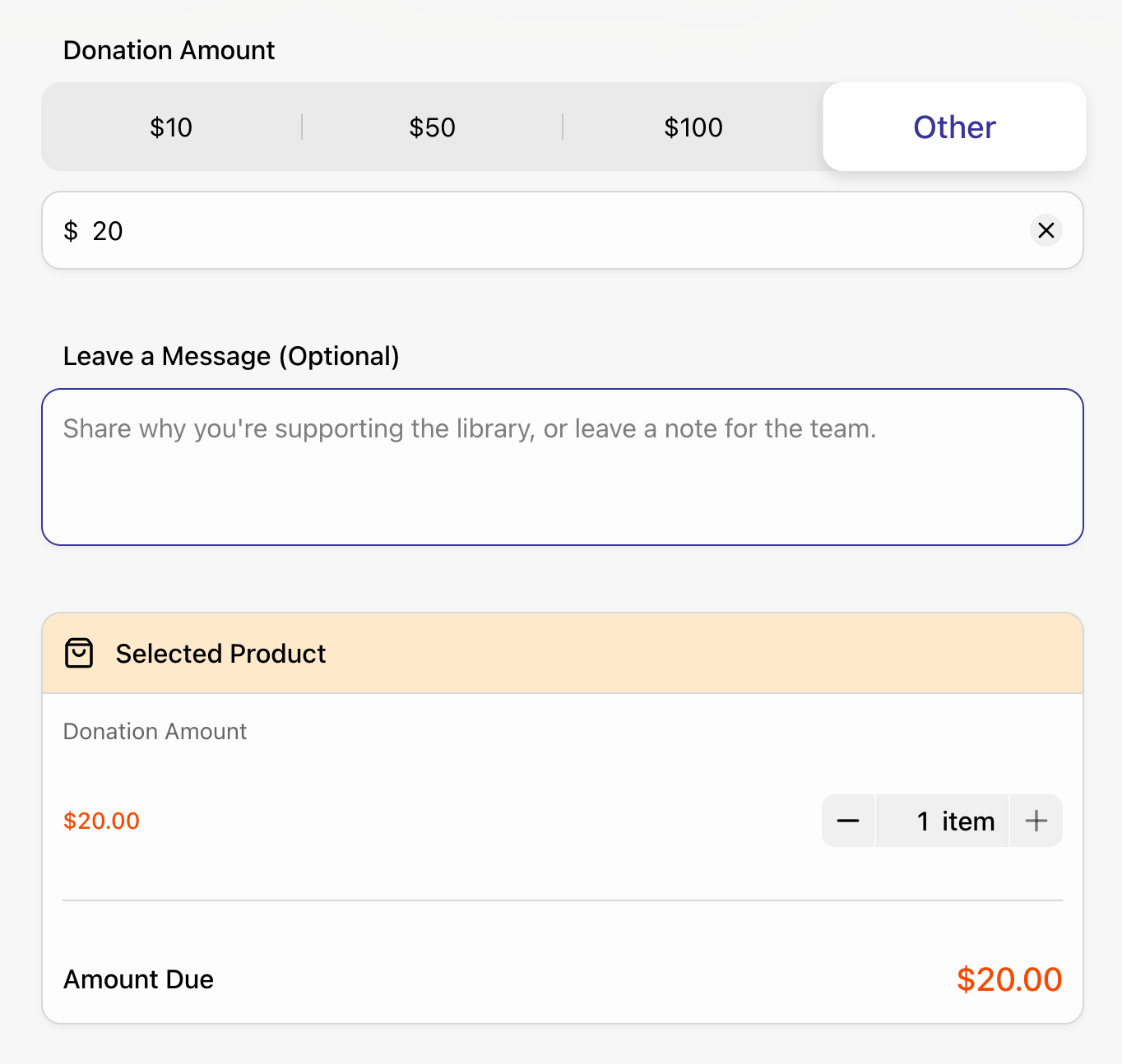
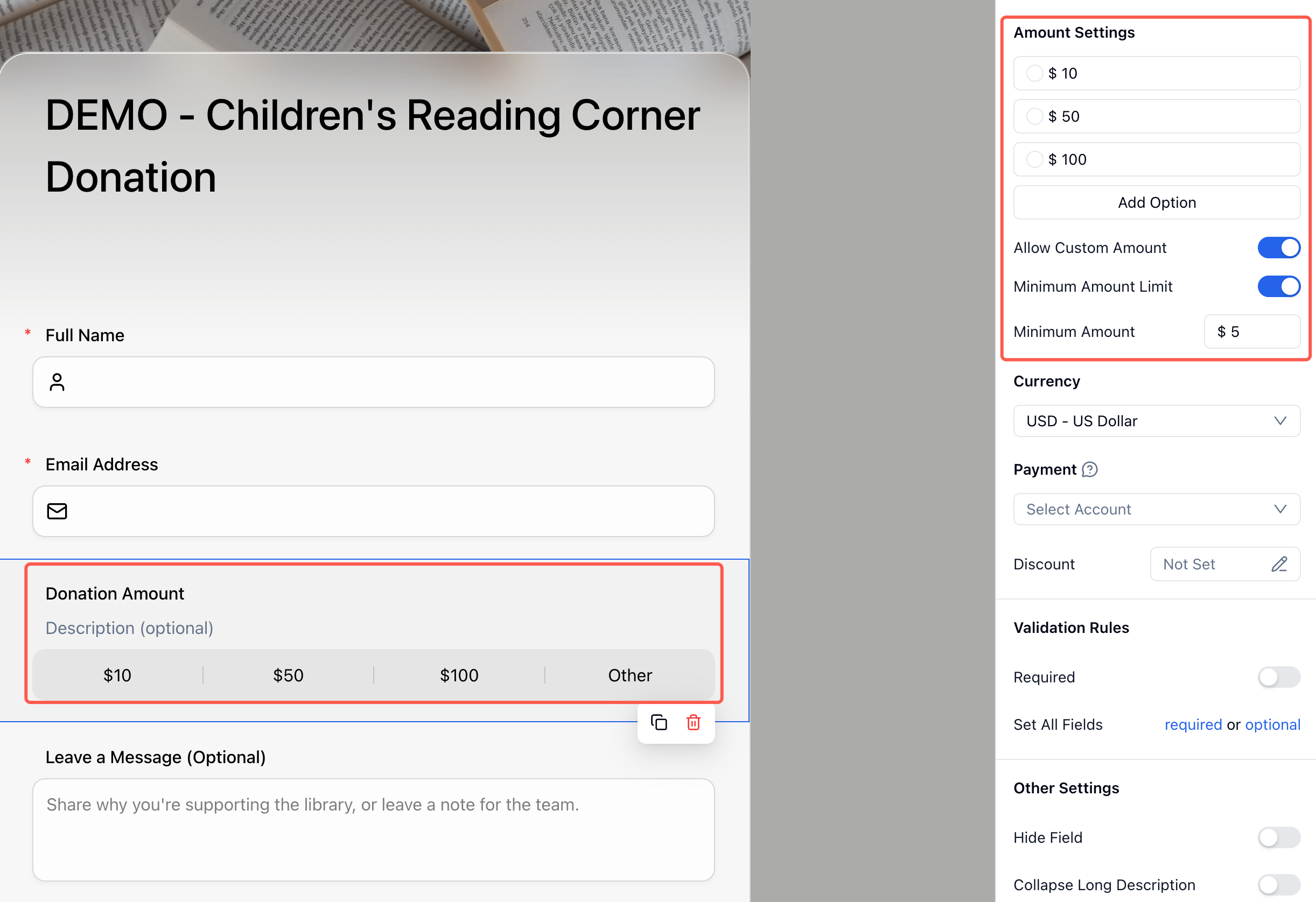
- Fixed amount options
- Custom amount input
- Minimum custom amount
- Currency
- Stripe payment account
- Discount
- Required and validation rules
Open the donation demo
See a Price-Only field used for a children’s reading corner donation form.
Product
Use Product when submitters need to compare visual products. Product fields support product images, descriptions, variants, stock, quantity rules, discounts, and selected-product summaries.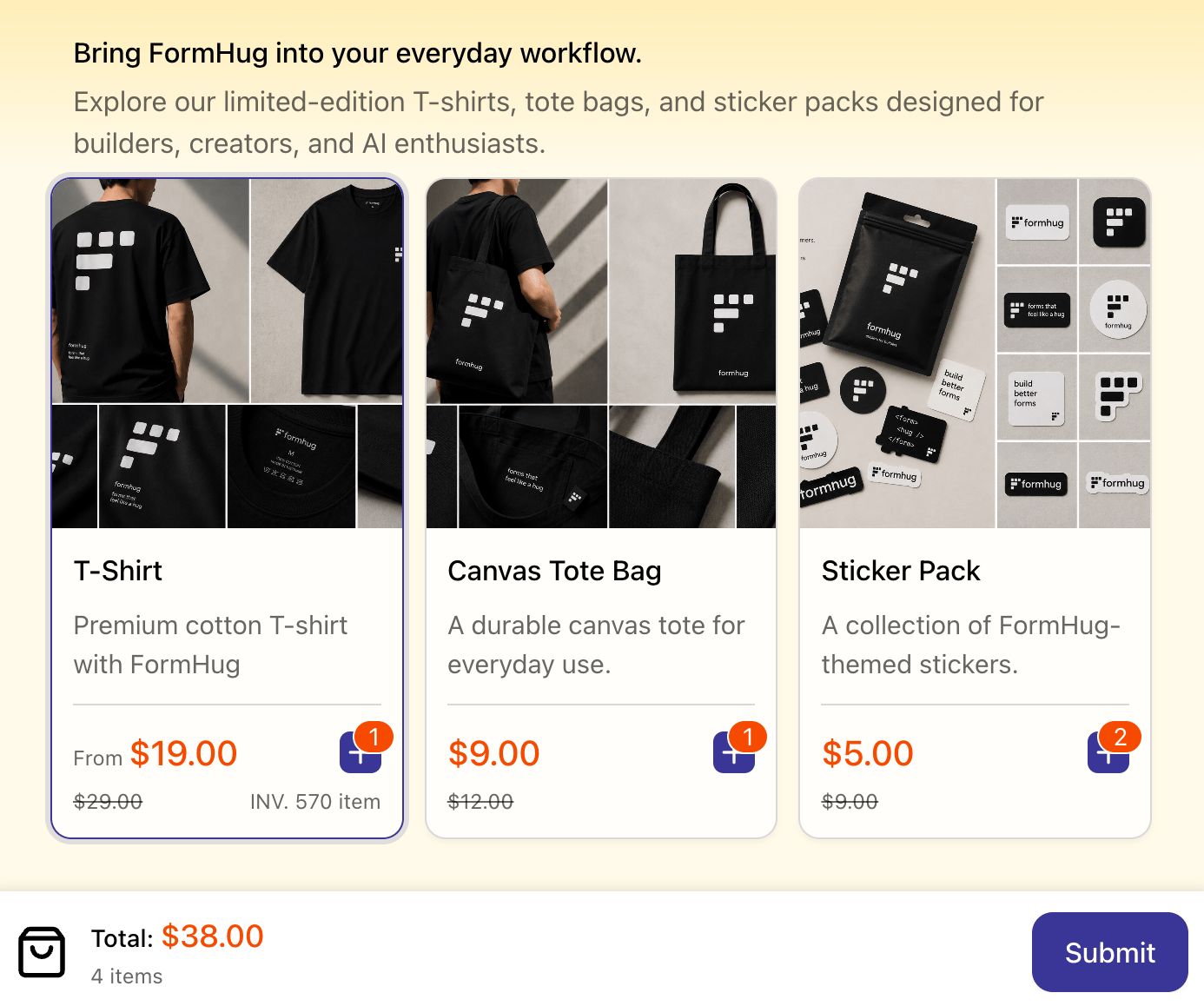
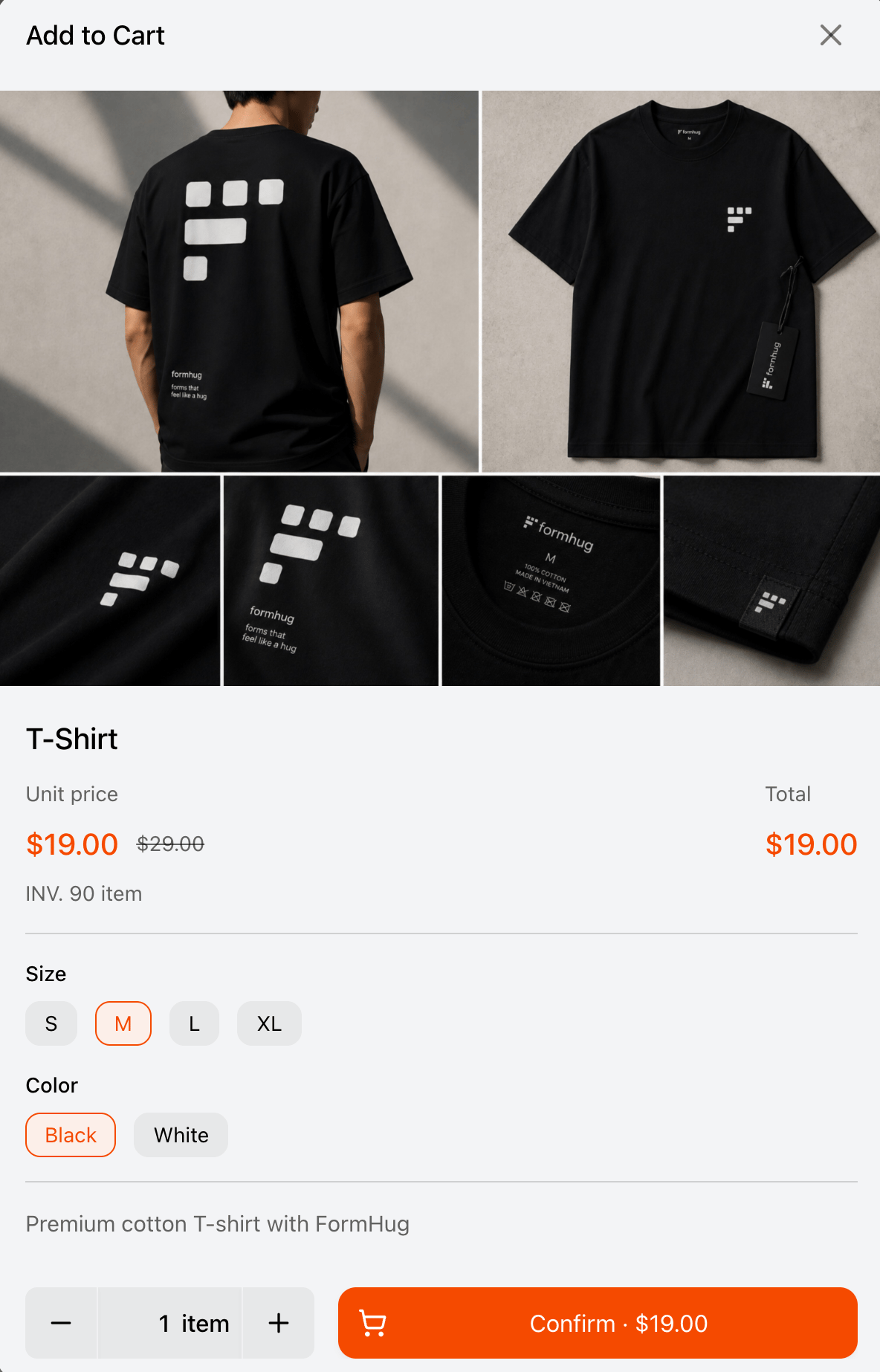
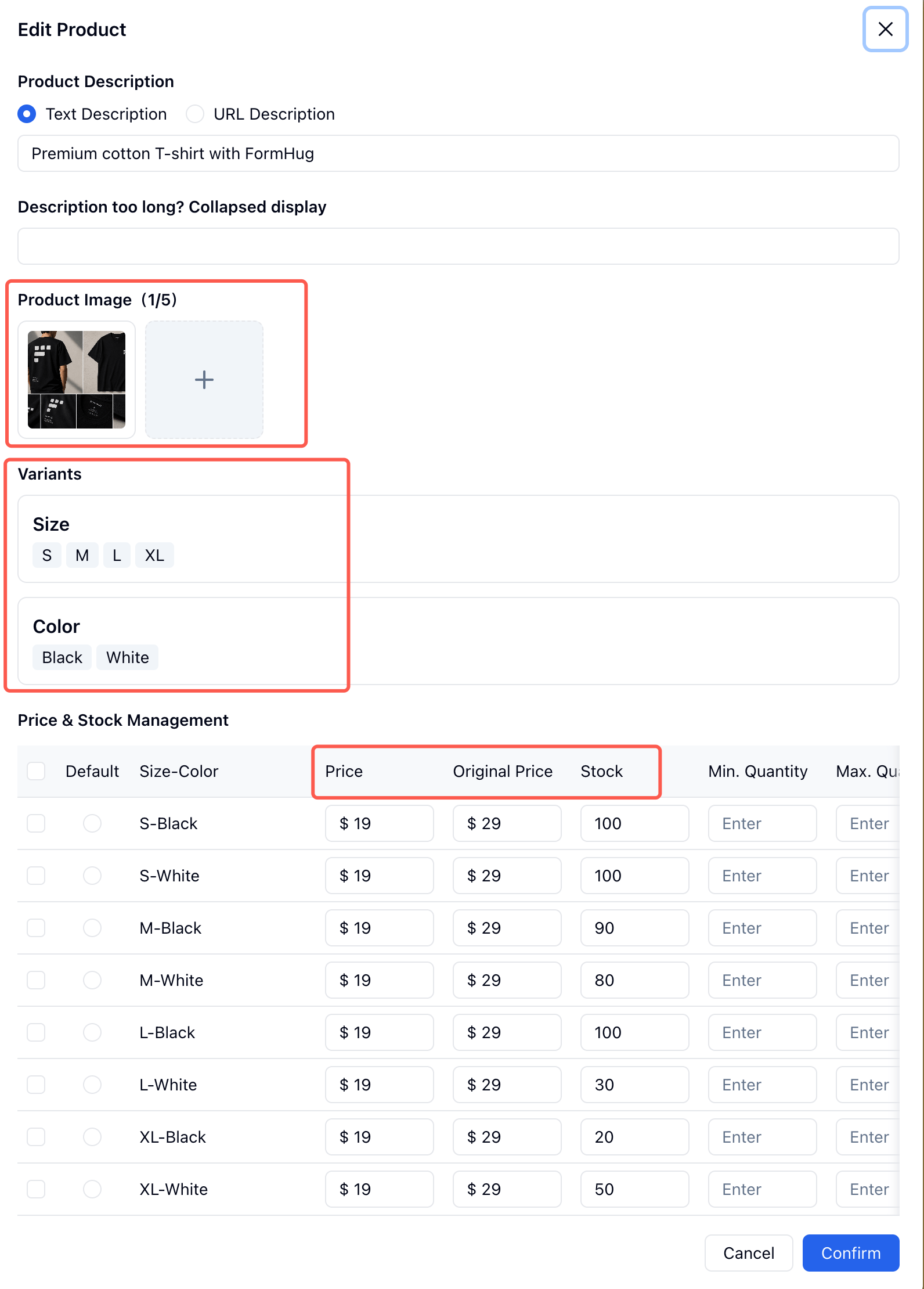
- Product name and description
- Product images
- Variant groups such as Size and Color
- Price and original price
- Stock per product or variant
- Default, minimum, and maximum quantity
- Unit text and stock text
- Discount
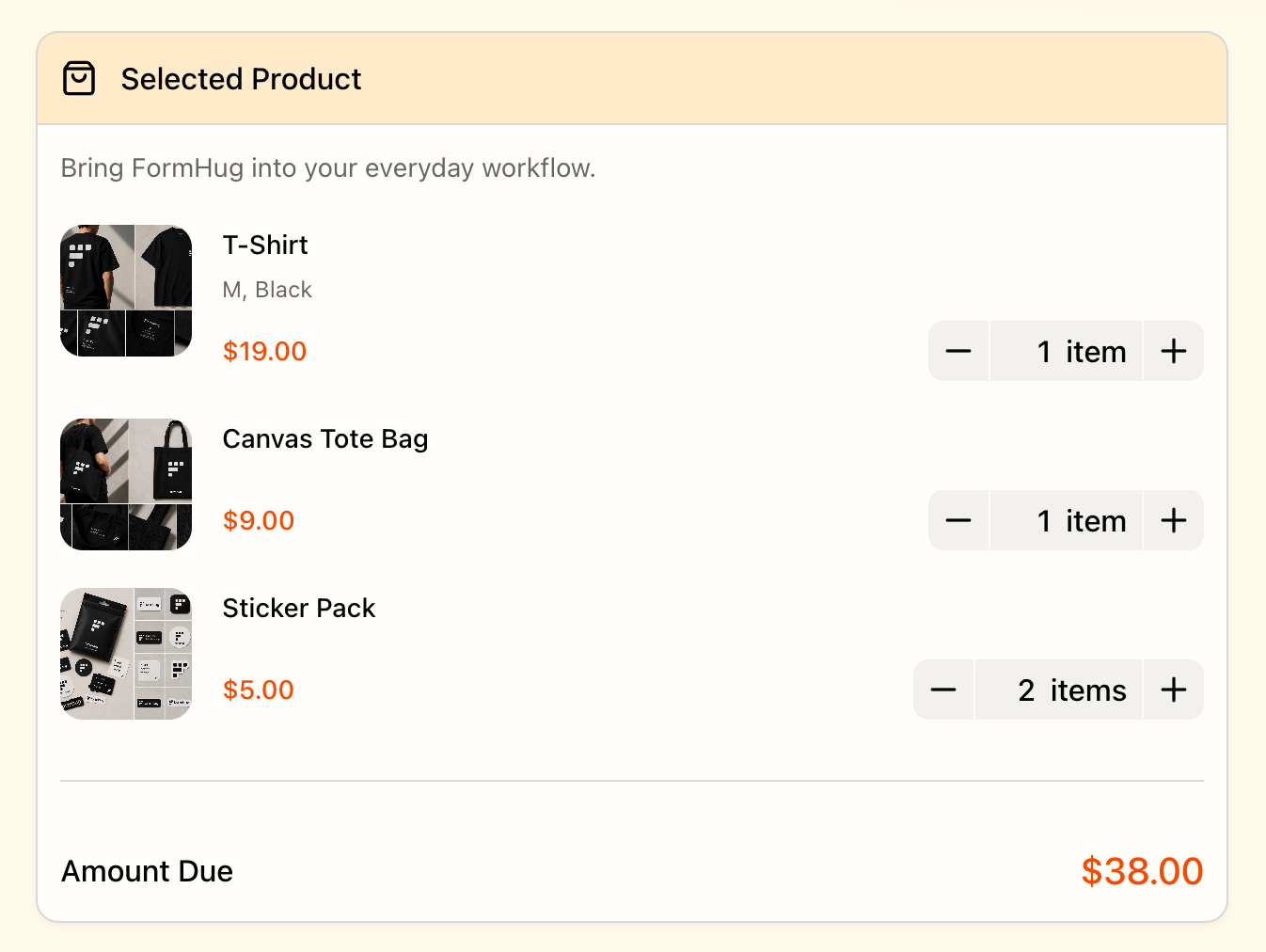
Open the merchandise demo
See a Product field used for T-shirts, tote bags, and sticker packs.
Text Product
Use Text Product when the product or package does not need images. It works well for hotel packages, service packages, workshop passes, appointments with fixed packages, and other text-first purchases.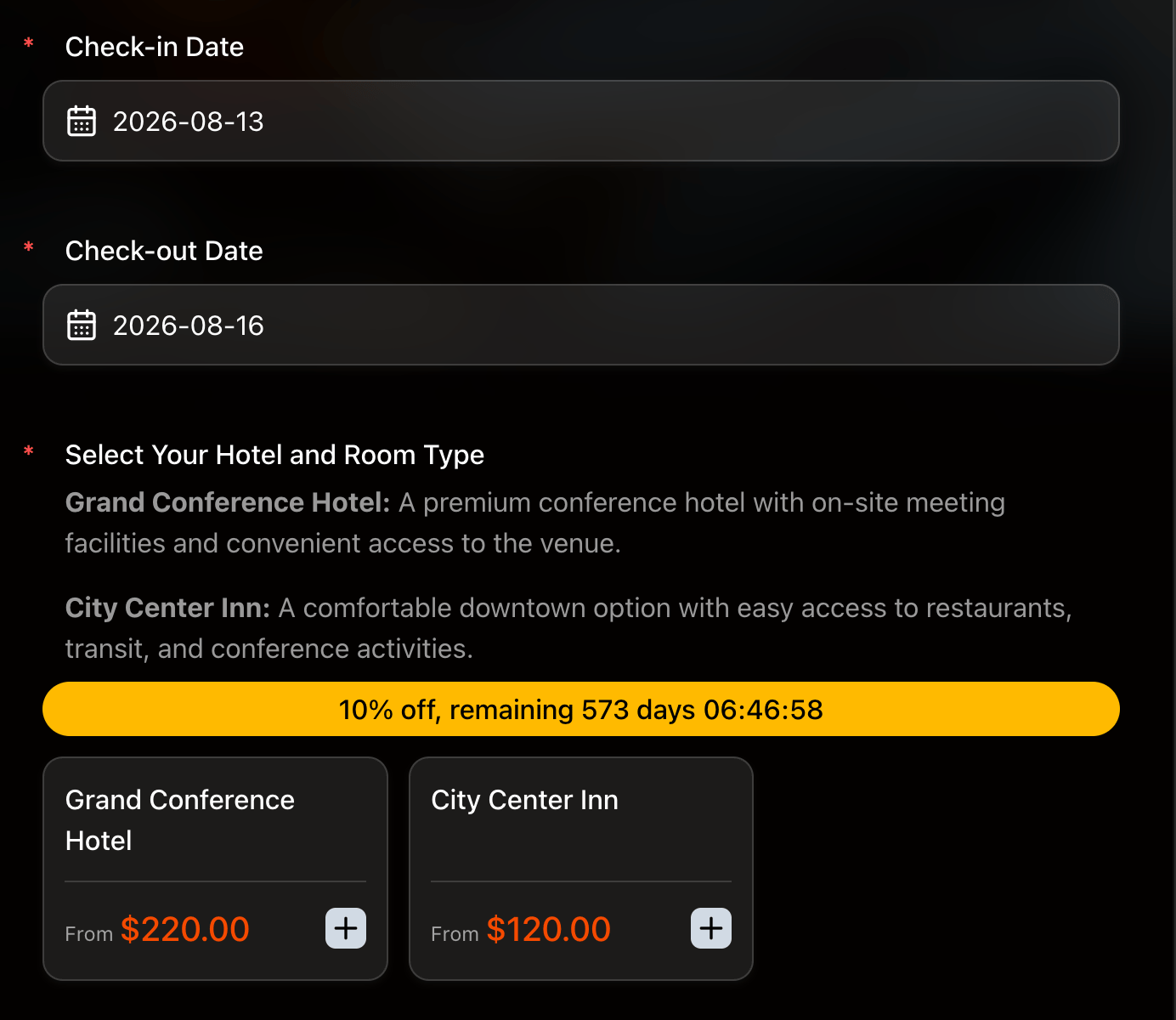
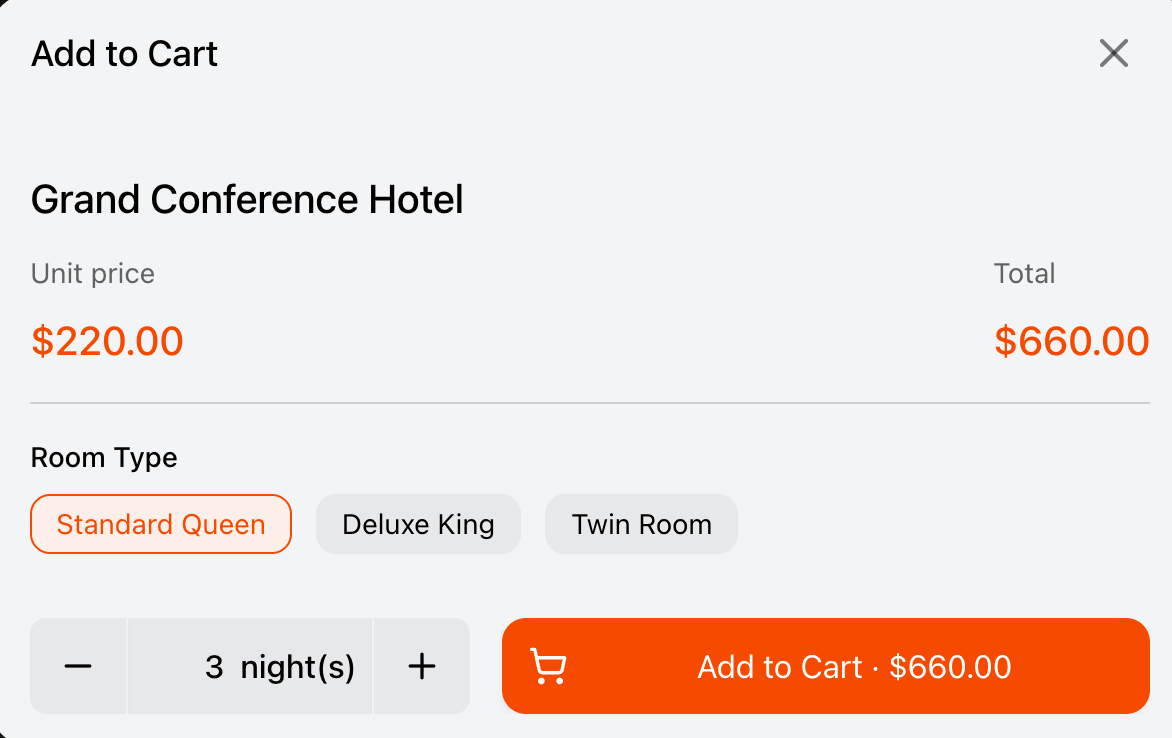
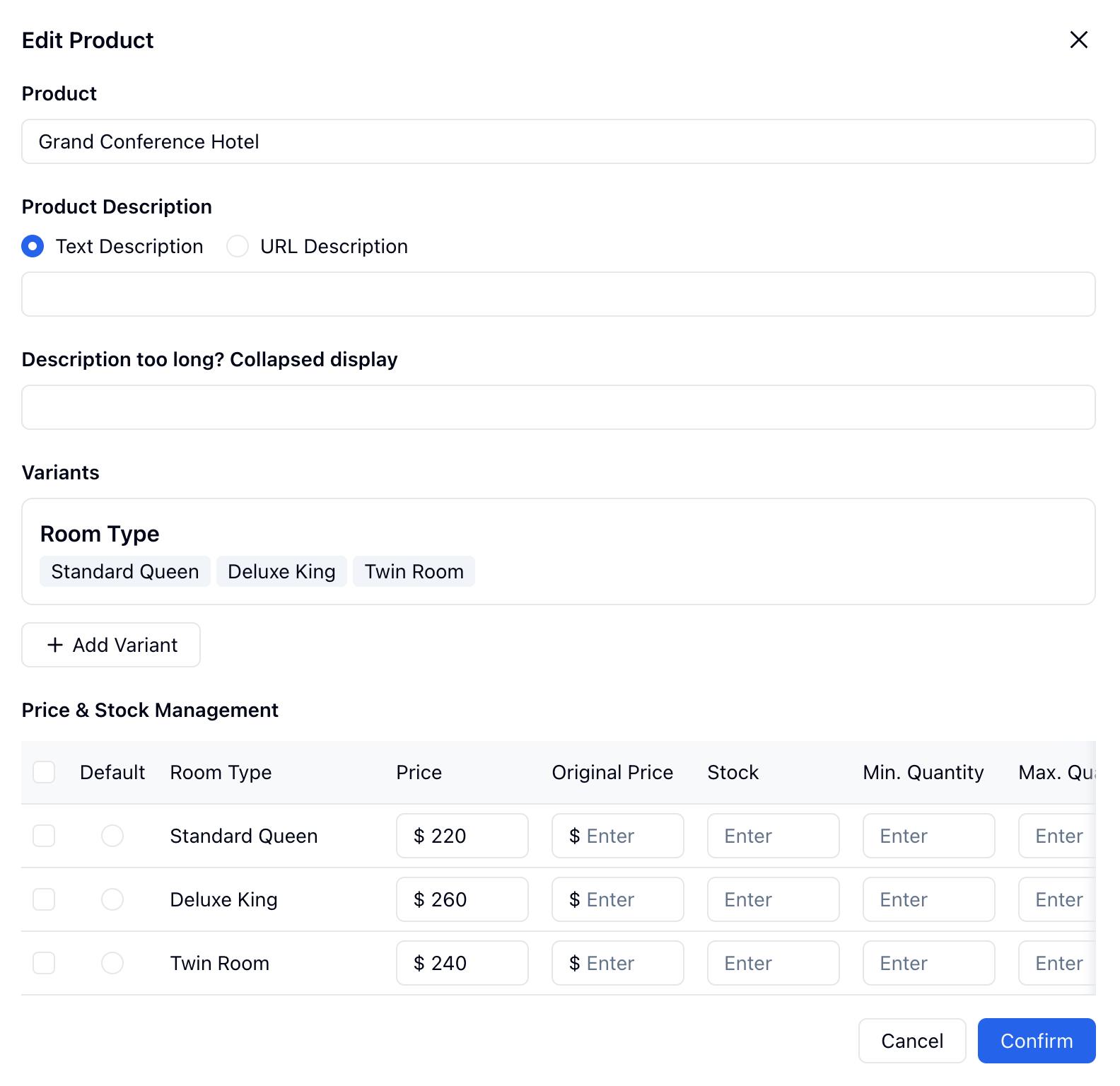
- Product name
- Text description or URL description
- Collapsed display for long descriptions
- Variant groups such as Room Type
- Price and original price
- Stock per product or variant
- Default, minimum, and maximum quantity
- Unit text such as nights or rooms
- Restore stock on deletion
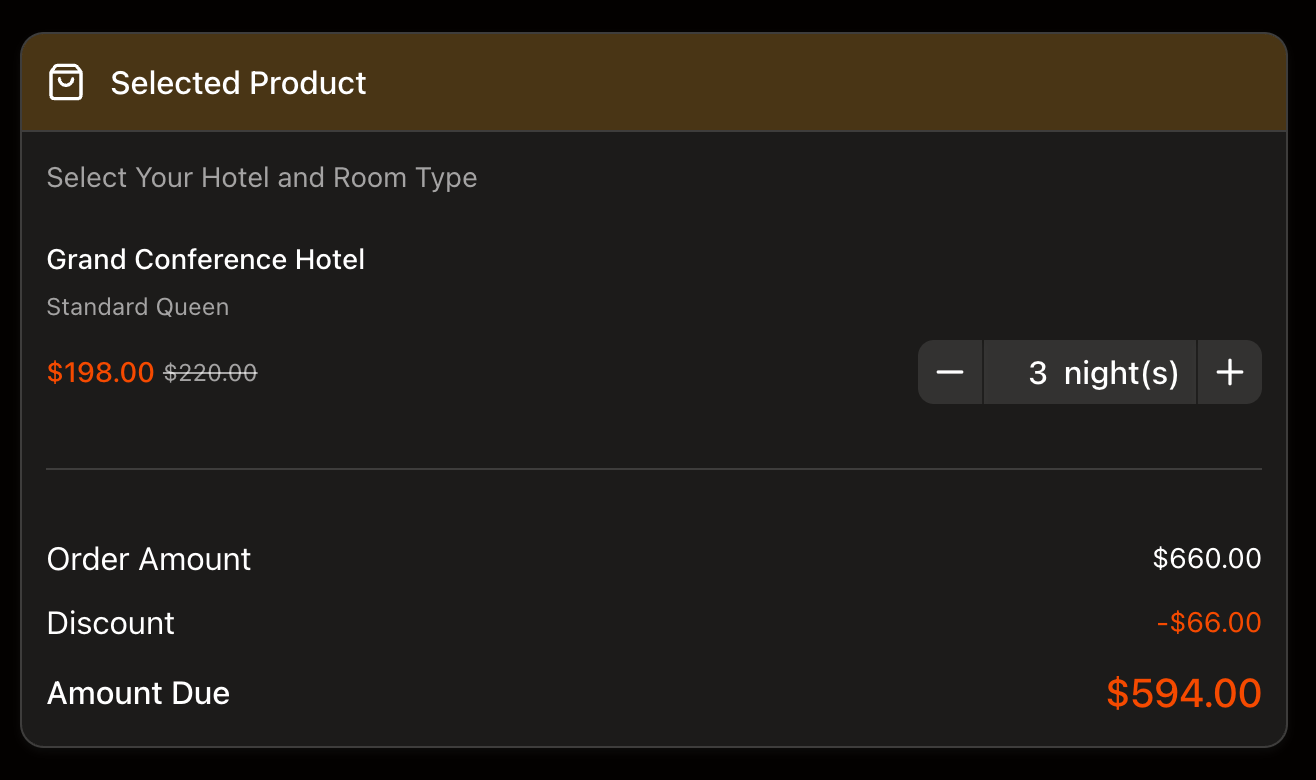
Open the hotel booking demo
See a Text Product field used for a conference hotel booking form.
Text Option
Use Text Option when one paid offer is determined by text choices. It is useful for ticket booking, plans, packages, or registration options where the submitter chooses from option groups.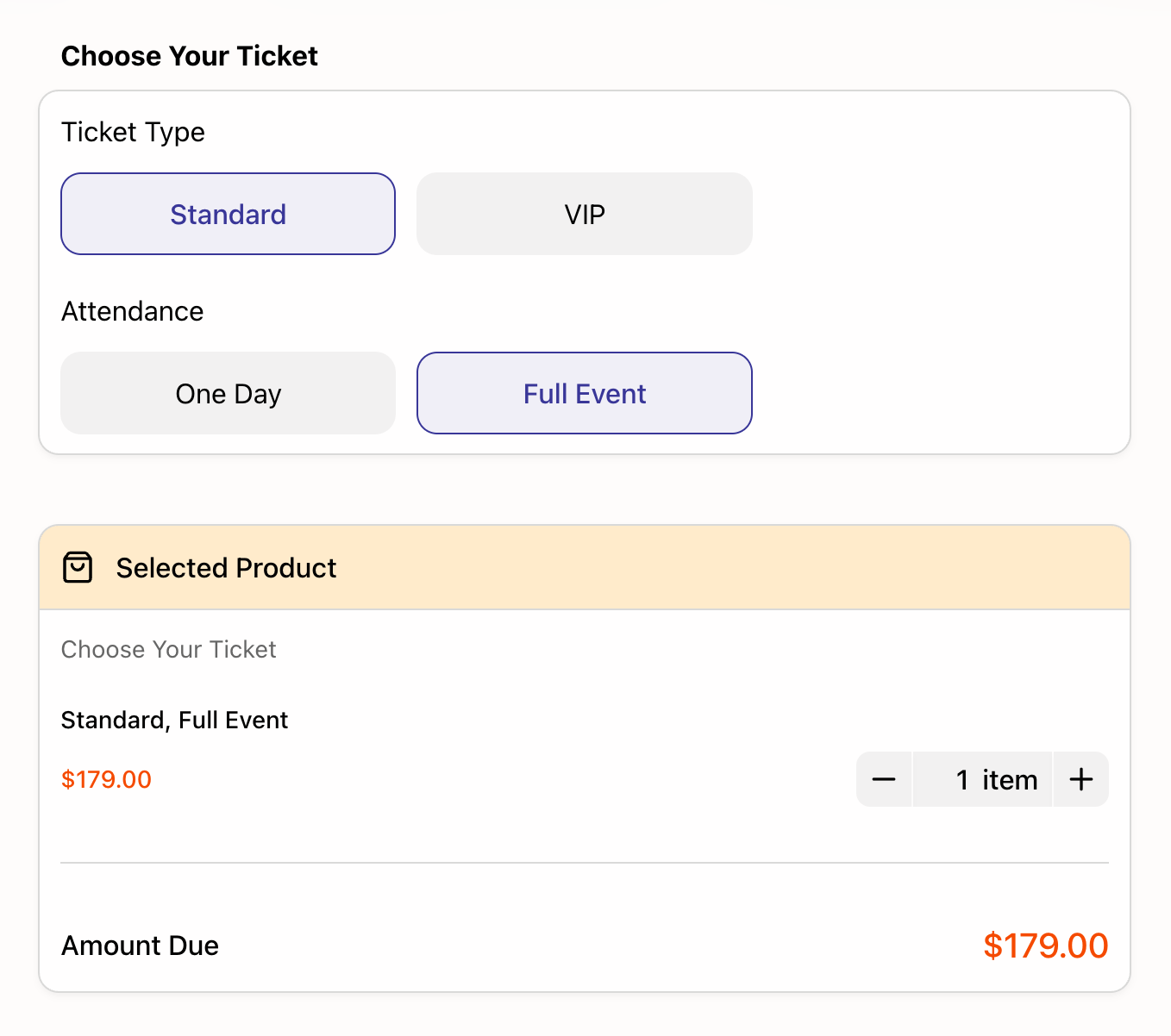
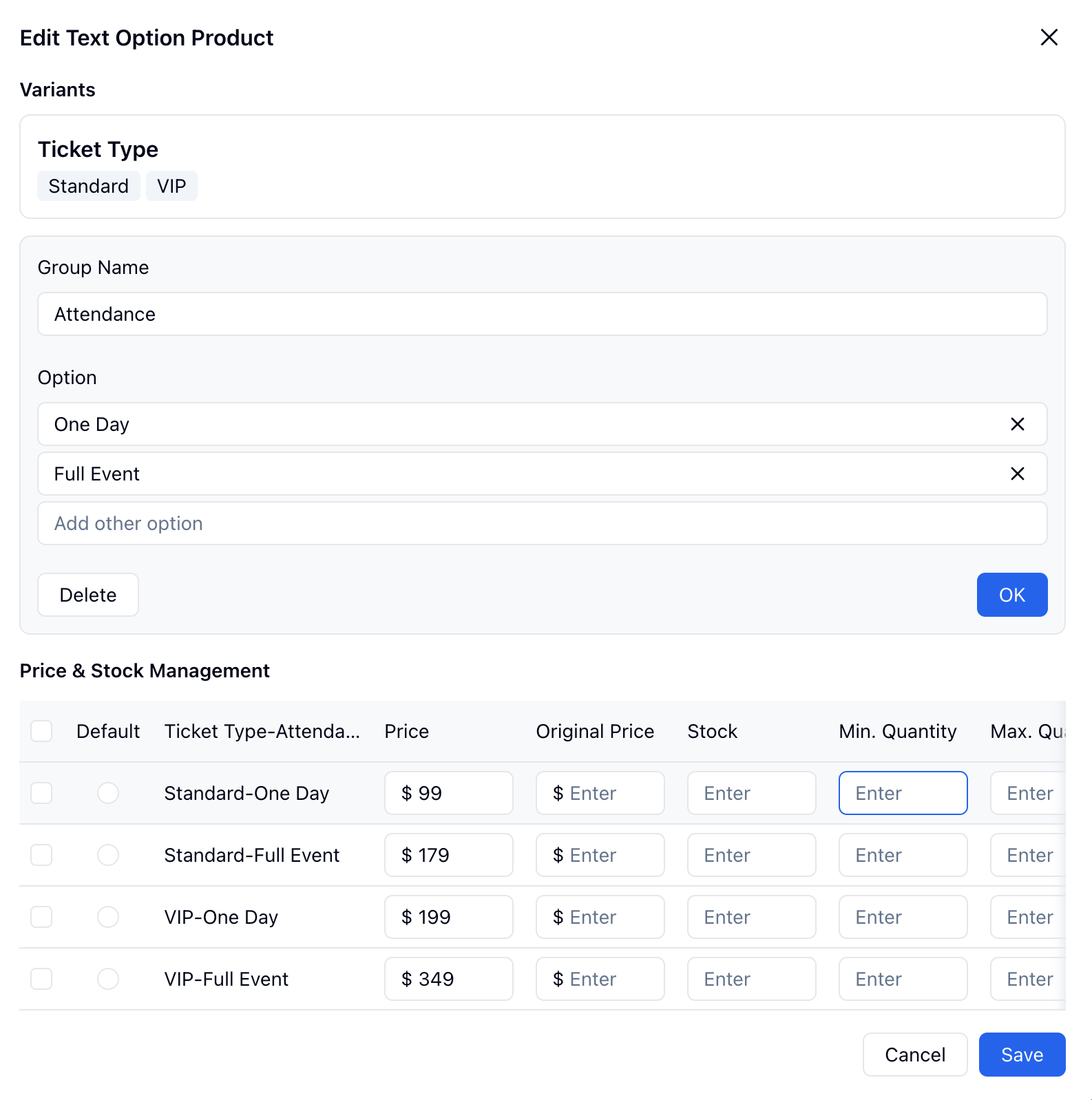
- Option groups
- Option labels
- Combination pricing
- Original price
- Stock per option combination
- Default, minimum, and maximum quantity
- Default option
Open the ticket booking demo
See a Text Option field used for workshop ticket booking.
Discounts
Payment fields can apply discounts before checkout.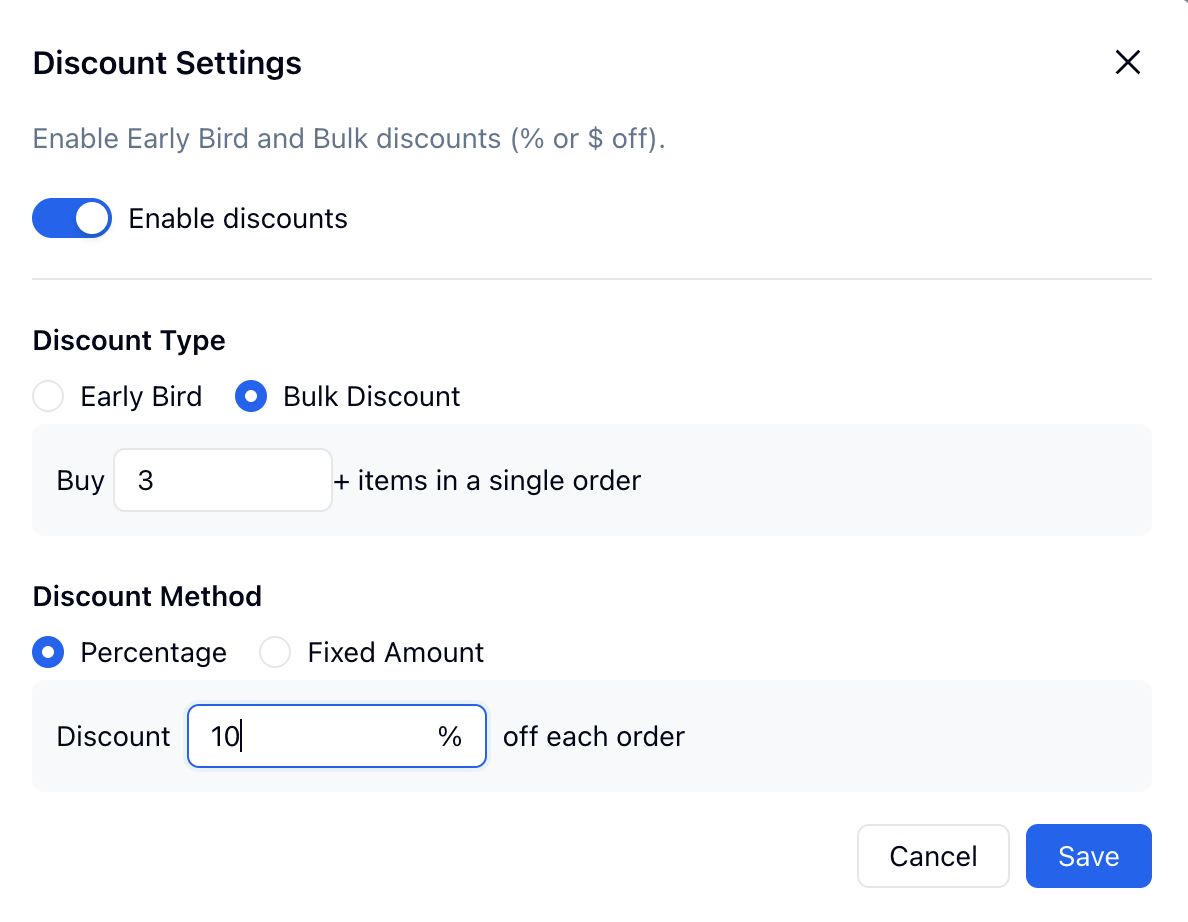
Currency, Stripe, and Testing
Set the currency before you publish a payment form. If you want online payment, choose a connected Stripe account in the payment settings. If you only want to test product configuration, you can leave the form unconnected and use the payment fields in display-only mode. For the full connection flow, see Stripe.Forms that already have submissions may restrict changes to currency or payment method. This helps keep past payment records consistent.
Related
Create a Payment Form
Build donation, merchandise, hotel booking, and ticket payment forms
Workspace Settings
Connect Stripe before collecting online payments
Stripe Integration
Connect Stripe and review payment status and receipts
Form Builder
Add and configure fields in the form editor
Order Form Templates
Start from product order and payment templates
Form Notifications
Send notifications after paid or display-only submissions