

FormHug does not add an extra transaction fee for payment forms. Payment processing fees are charged by Stripe.
How Stripe Works with FormHug
You can configure products, prices, variants, discounts, and order summaries before connecting Stripe. Connect Stripe only when you are ready to collect real payments.
Connect Stripe
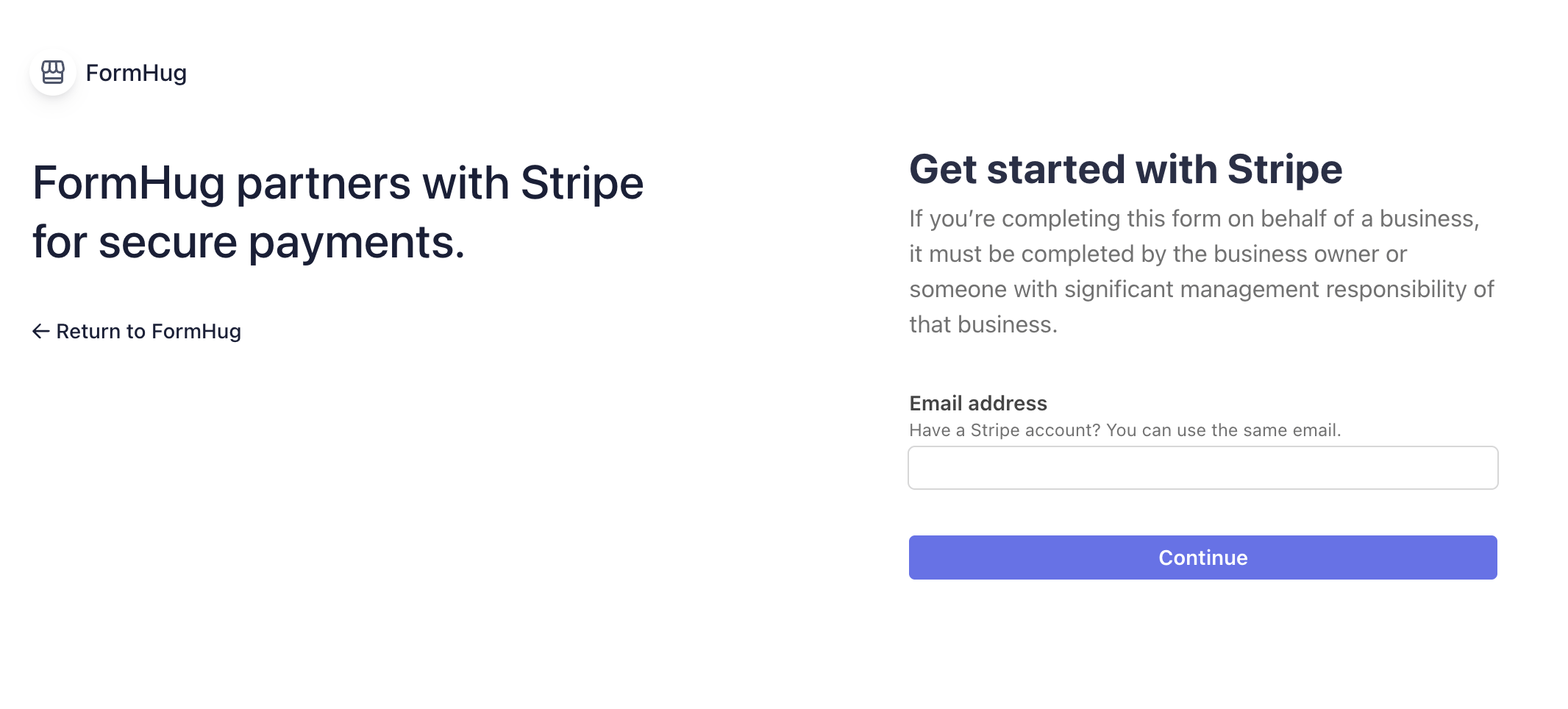
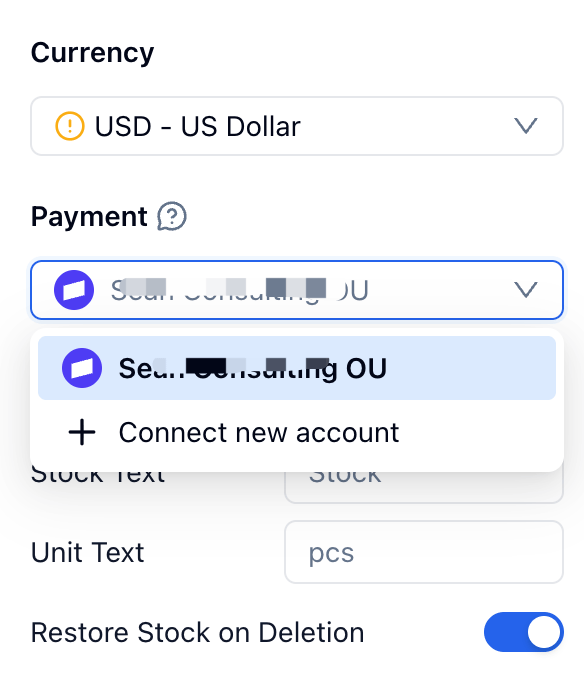
Open a payment field and set the currency first. In the Payment setting, click Connect with Stripe.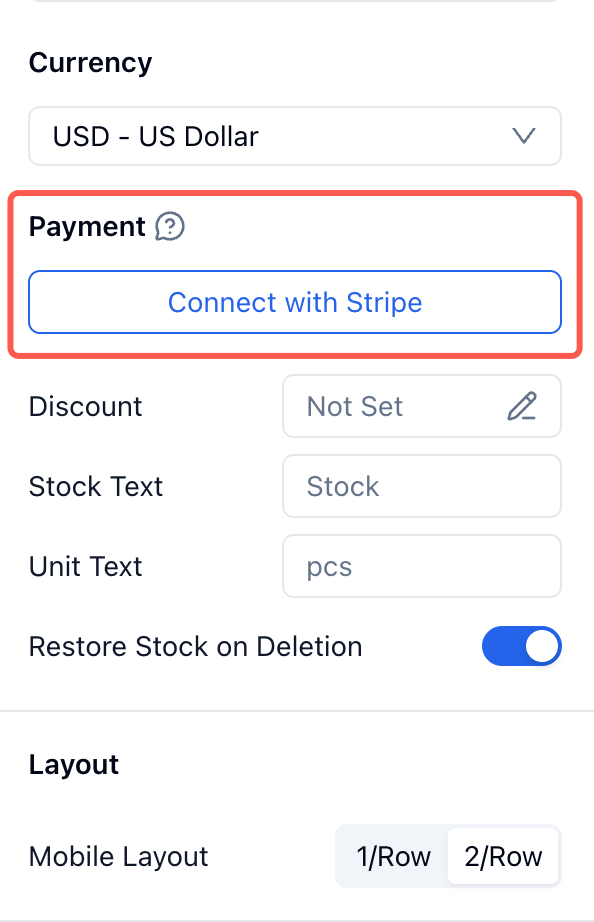
Choose Currency Carefully
Choose the payment field currency before you publish the form. We recommend using the same currency as the connected Stripe account whenever possible. This helps avoid Stripe currency conversion fees and makes settlement easier to reconcile. Different currencies can also have different minimum payment amounts. FormHug shows a reminder when the selected currency affects payment limits.Collect Payments
Once a payment account is selected, publish and test the form flow. The exact form experience depends on the payment field:- Price-Only collects a fixed or custom amount.
- Product collects one or more visual products.
- Text Product collects text-based products or packages.
- Text Option collects a paid option combination.
Review Payment Status
After submissions arrive, FormHug shows payment status in the submissions table. Use Paid and Unpaid to distinguish completed payments from submissions that still need payment.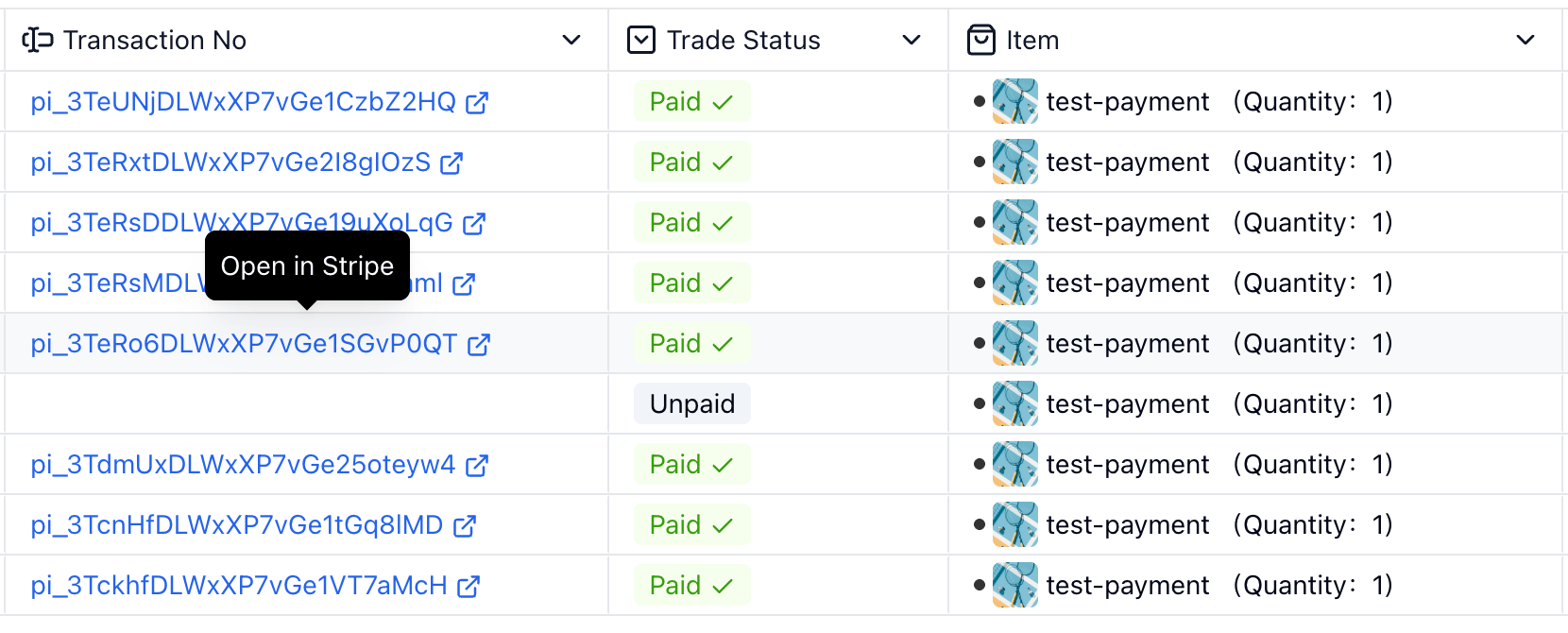
Customer Receipts
Stripe can send a receipt to the customer after successful payment. The receipt includes the amount paid, payment date, payment method, item summary, and a link to view the receipt in a browser.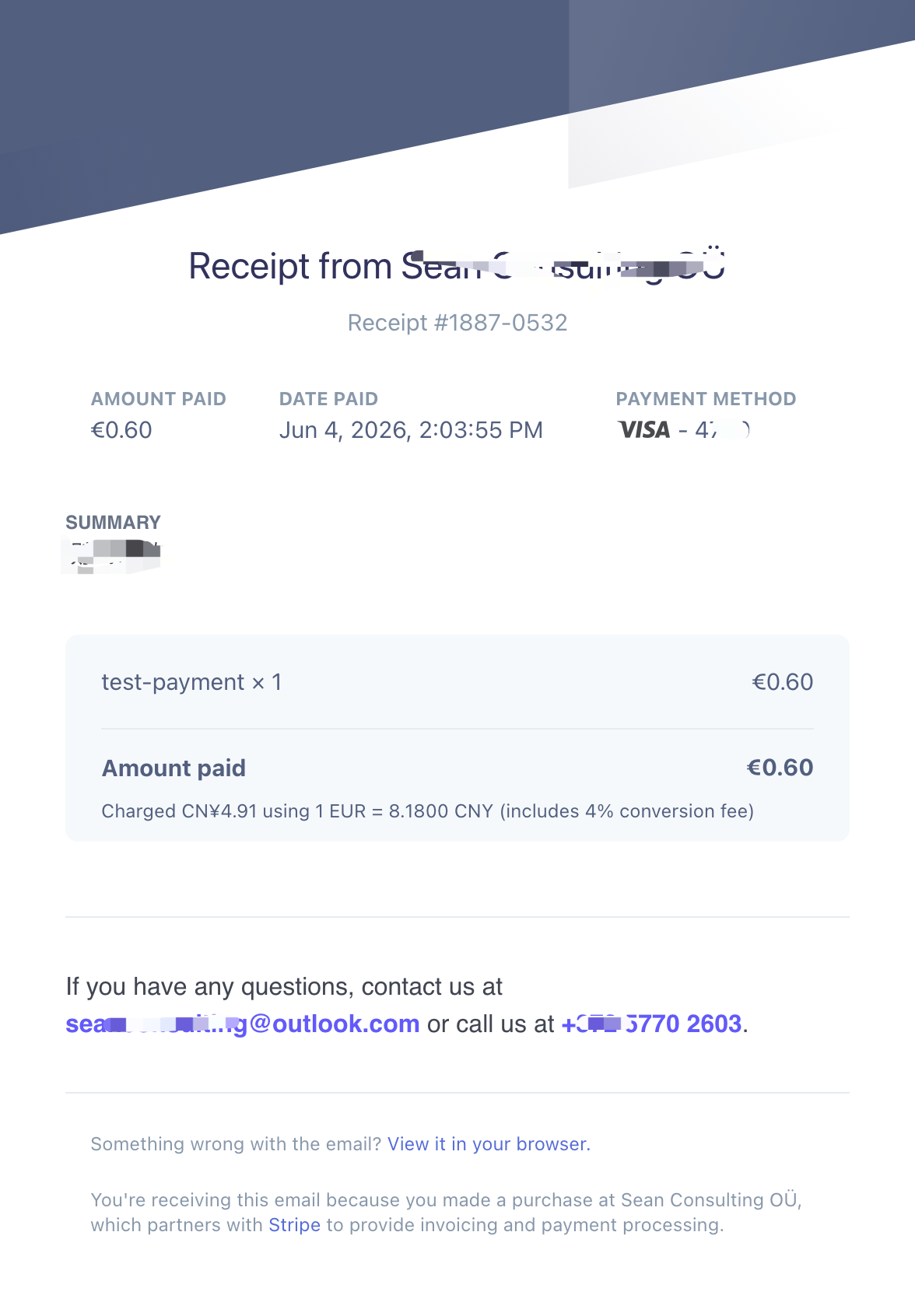
Notes and Limits
- Stripe is required for online payment collection.
- Payment funds go directly through Stripe.
- FormHug does not store card details.
- FormHug does not charge an extra transaction fee; Stripe processing fees still apply.
- Currency should be set before publishing a payment form.
- Matching the form currency to the connected Stripe account currency helps avoid Stripe currency conversion fees.
- Forms with existing submissions may restrict currency or payment account changes to keep historical payment data consistent.
- If a payment field is not connected to Stripe, it can still be used to show products, prices, and selected-product summaries.
Related
Payment Fields
Configure products, prices, variants, stock, discounts, and totals
Create a Payment Form
Build donation, merchandise, hotel booking, and ticket payment forms
Account Settings
Manage workspace-level services and connected accounts
Stripe
Learn more about Stripe payment processing