

Email providers may enforce sending limits, authentication requirements, sender verification, and security checks. Check your email provider’s SMTP documentation before connecting.
When to Use SMTP
Use SMTP when you want FormHug emails to match your organization’s sender identity.- Send confirmation emails from a team or brand address
- Send manual follow-up emails from the submissions page
- Use a verified Google Workspace or business email sender
- Keep outbound form email aligned with your organization’s domain
- Use your provider’s SMTP settings instead of a built-in Google sender
Before You Start
Make sure you have:- A business or organization email address you can authenticate
- SMTP server settings from your email provider
- Permission to use the sender address
- The correct SMTP password or app password
- Access to FormHug workspace settings or the email sender dropdown
Add an SMTP Sender
You can add SMTP from two places.From Third-party Services
Open System -> Third-party services -> SMTP Mail Server. Existing SMTP senders appear in the SMTP Mail Server tab.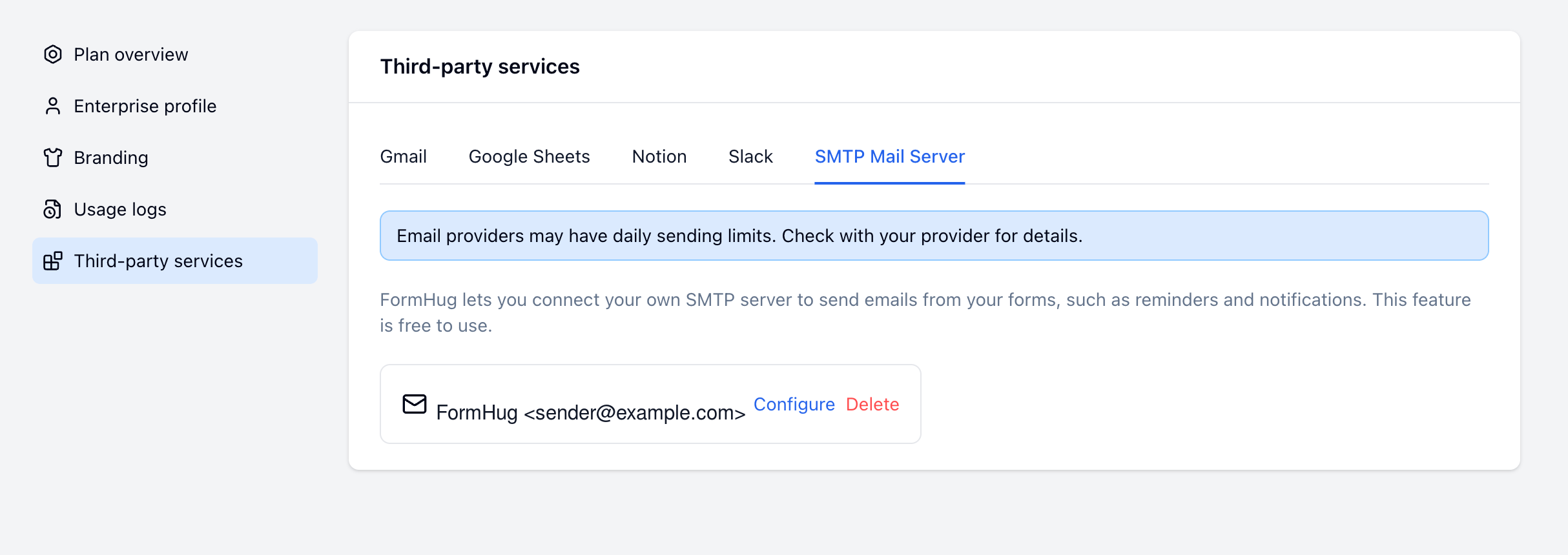
From the Email Sender Dropdown
When composing an email from FormHug, open the Sender dropdown and choose Add SMTP.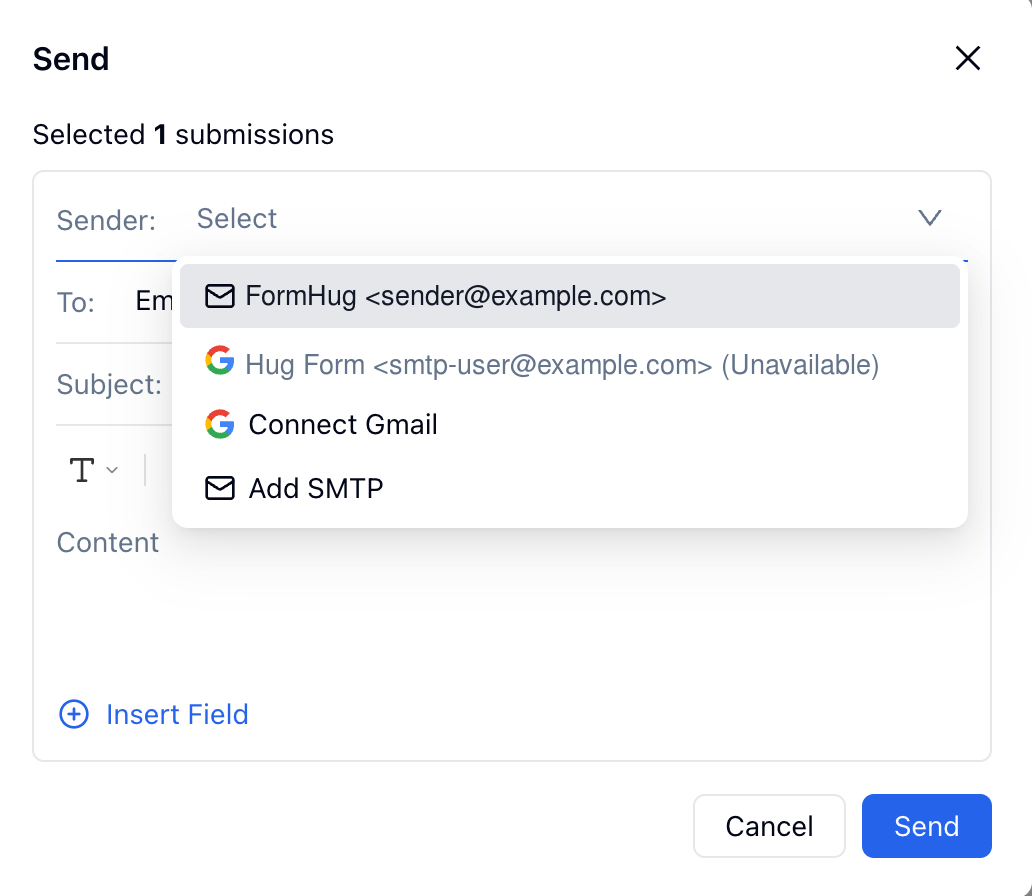
Configure the SMTP Server
Enter the sender details and SMTP server settings, then click Save and test.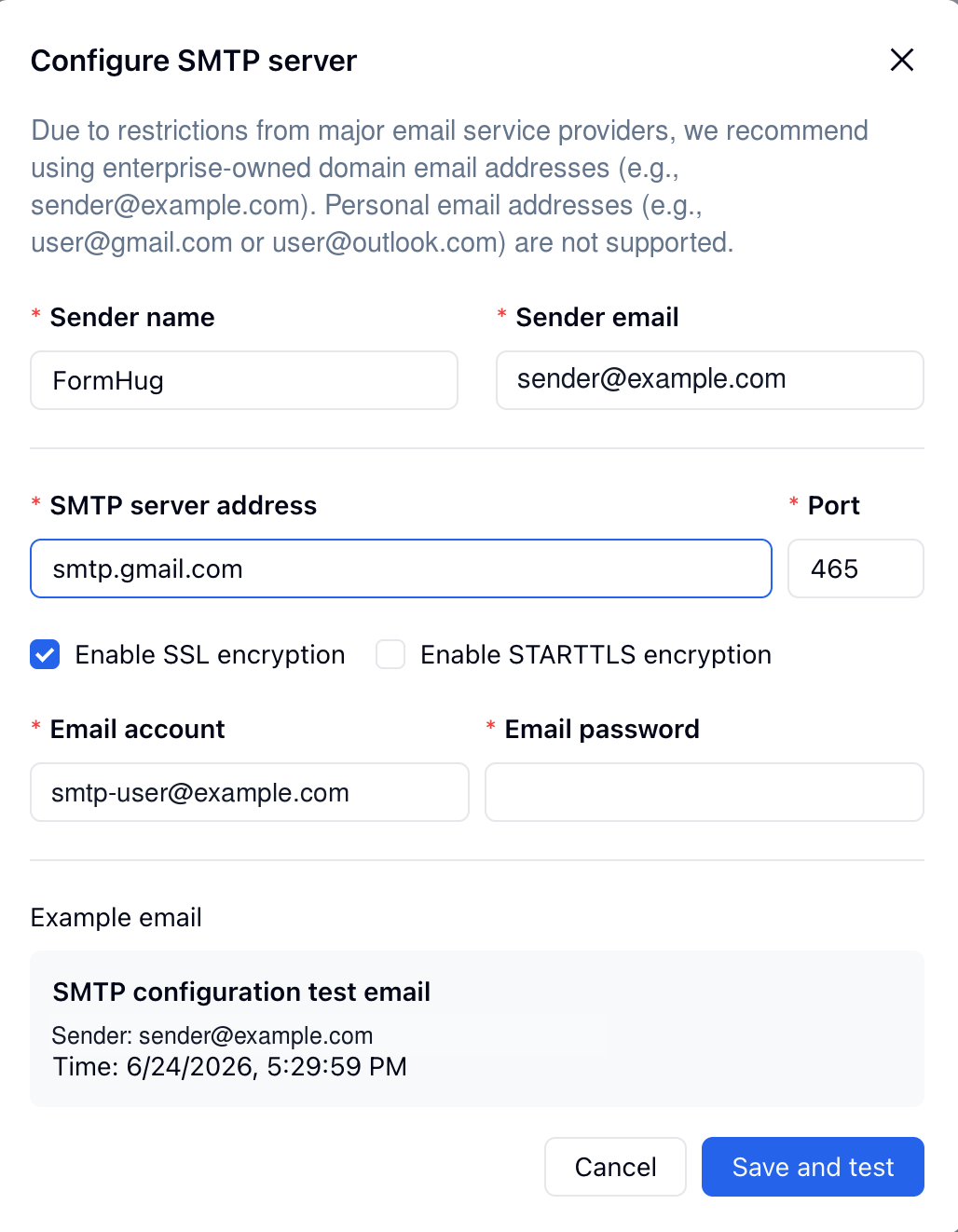
After saving, FormHug sends a test email to confirm that the SMTP settings work.
Gmail and Google Workspace Settings
If you use a Google Workspace email address, such ashello@example.com, use Gmail’s SMTP settings:
Use an App Password
Google does not allow SMTP access with your normal account password for this kind of username/password connection. Before connecting Gmail SMTP:- Enable 2-Step Verification for the Google account.
- Generate an App Password from Google Account settings.
- Use the generated App Password as the Email password in FormHug.
Verify the Sender Address
When using Gmail SMTP, Google may send from the authenticated account if the sender address is not verified. For best compatibility:- Use the same address for Sender email and Email account, or
- Add and verify the sender address as a Send mail as alias in Gmail.
Before using
notifications@example.com as the sender, add and verify it in Gmail:
Example Configuration
Send an Email with the SMTP Sender
After the SMTP sender is connected, select it when composing an email from FormHug.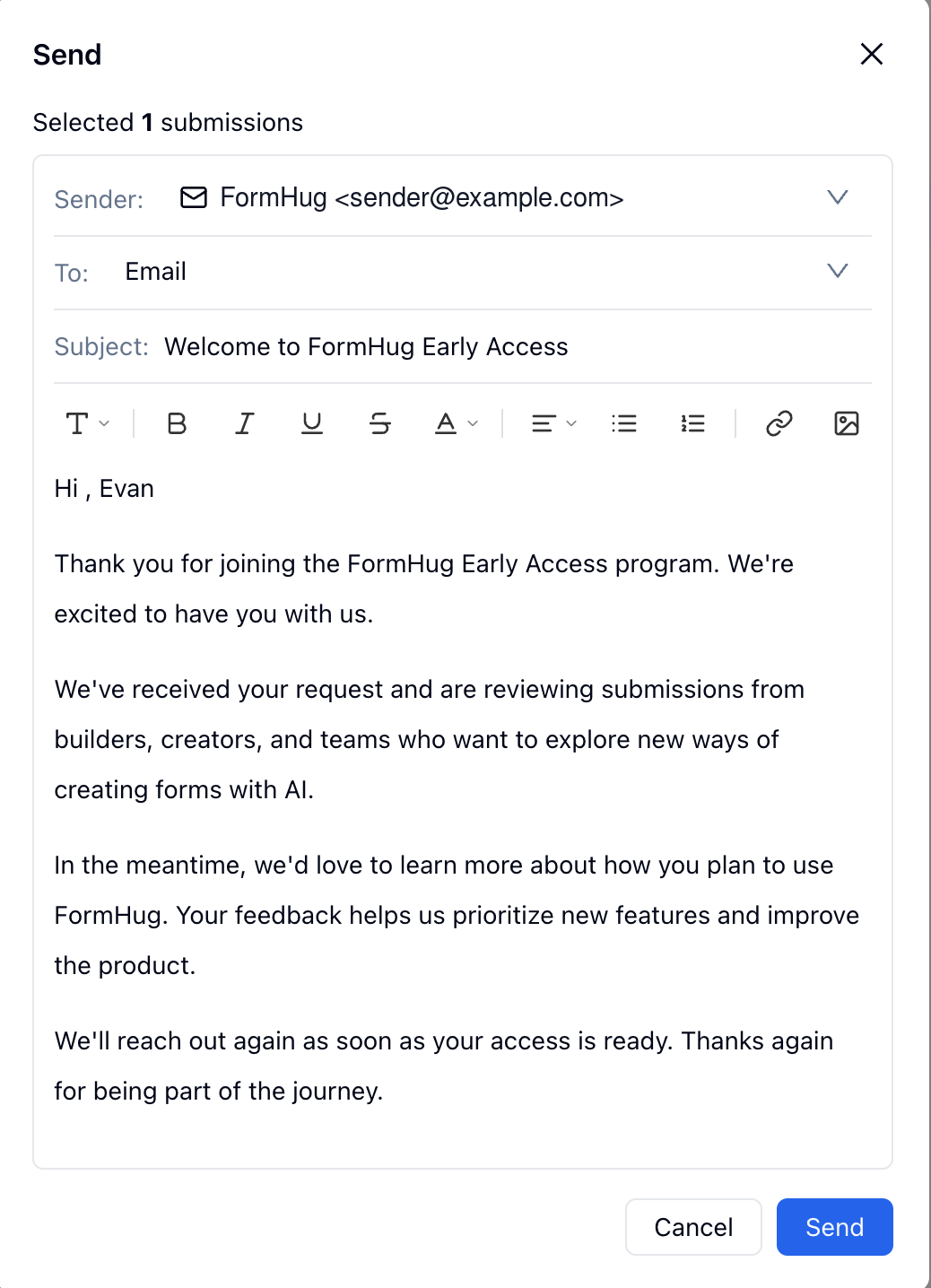
Check the Received Email
Open the recipient inbox and confirm that the email arrived from the expected sender.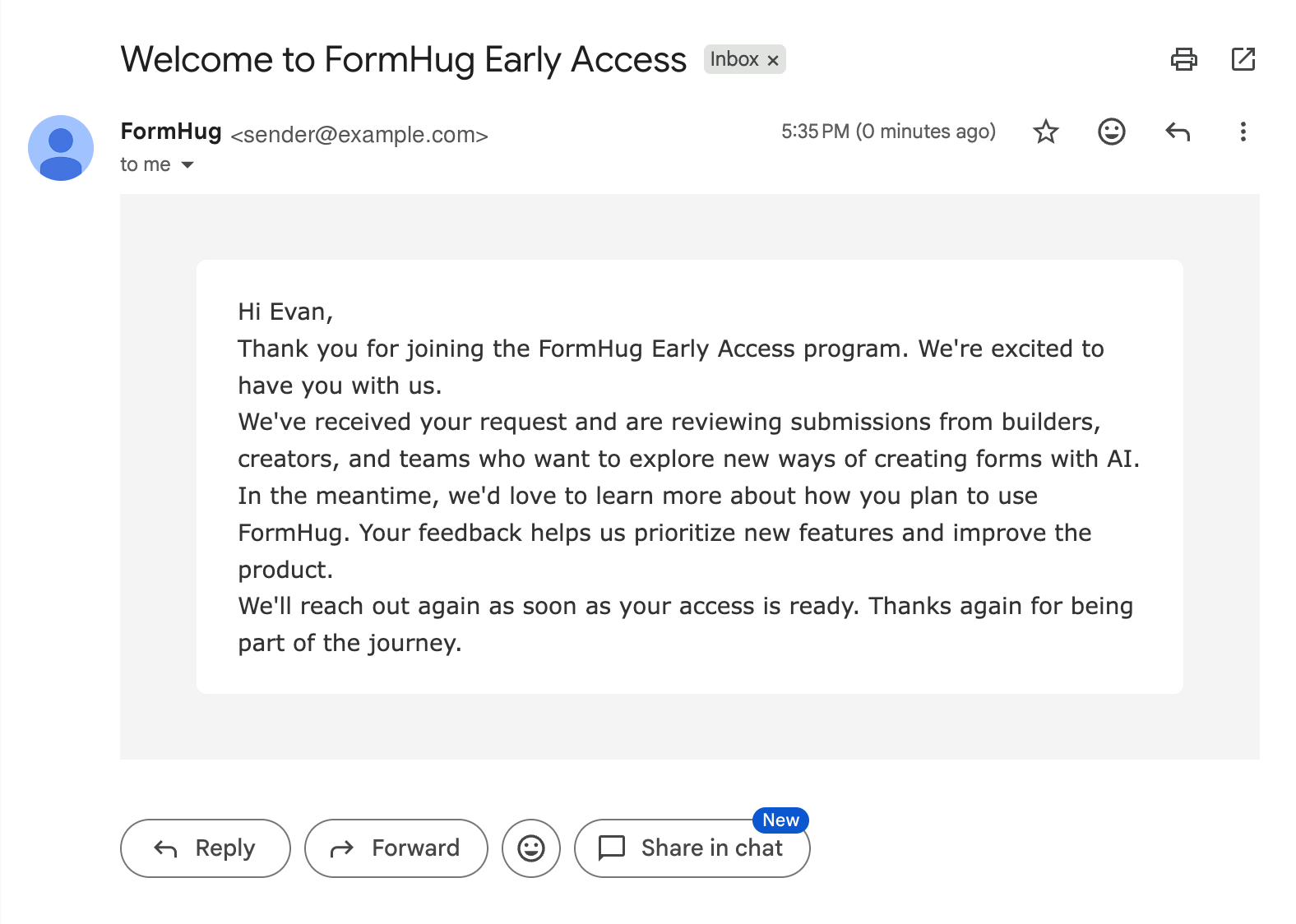
Limitations
- SMTP send volume is controlled by your email provider’s sending limits.
- FormHug cannot bypass provider authentication, app password, or sender verification rules.
- Personal mainstream email addresses may not be supported for custom SMTP sending in FormHug.
- If your provider changes SMTP settings or revokes an app password, reconnect or update the SMTP sender.
- If the sender address is not verified with your provider, the provider may override it.
Troubleshooting
For Gmail and Google Workspace, see Google’s help pages for app passwords, Send mail as aliases, and using Gmail with another email client.
Related
Google Email Notifications
Send confirmation emails and reminders from a connected Gmail account
Notifications
Configure built-in form notification settings
Form Submissions
View submissions and send manual follow-up emails
Integrations Overview
Choose the right integration for your workflow