

When to Use Google Sheets
Google Sheets is useful when your team already works from spreadsheets, or when form data needs to be shared outside FormHug.- Share submissions with teammates who do not need dashboard access
- Build lightweight reports, charts, and pivot tables
- Review event registrations, applications, or survey responses in a familiar table
- Use spreadsheet formulas or Google Workspace automations after submissions arrive
Before You Start
Make sure you have:- A FormHug form that is ready to collect submissions
- A Google account you can authorize
- Permission to create or edit the target Google Sheet
The Google Sheets integration sends new submissions after the connection is created. Existing submissions may need to be exported separately if you want historical data in the same sheet.
Connect Google Sheets
Open the form you want to connect, then go to Settings → Integrations.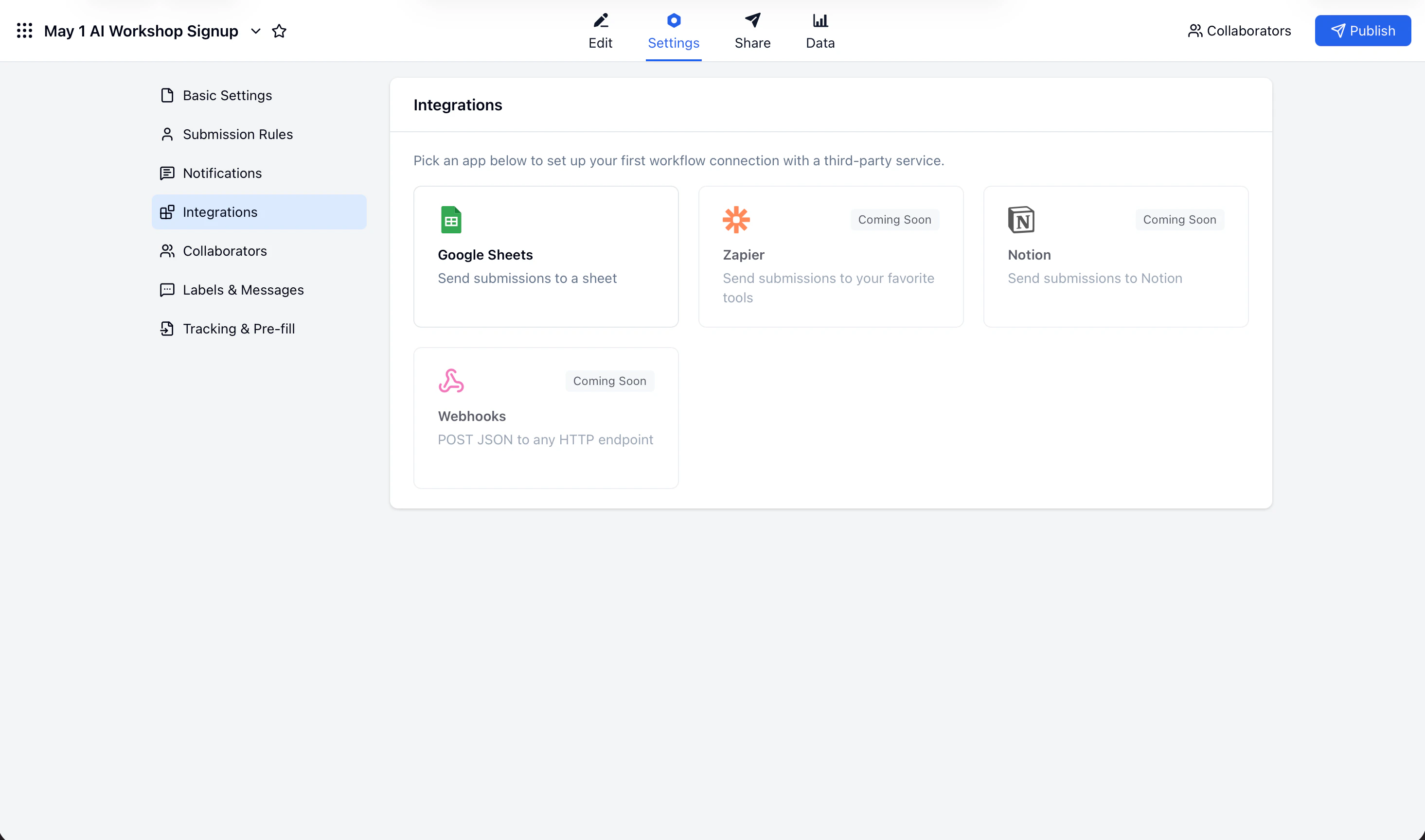
1
Open Google Sheets
In Integrations, choose Google Sheets.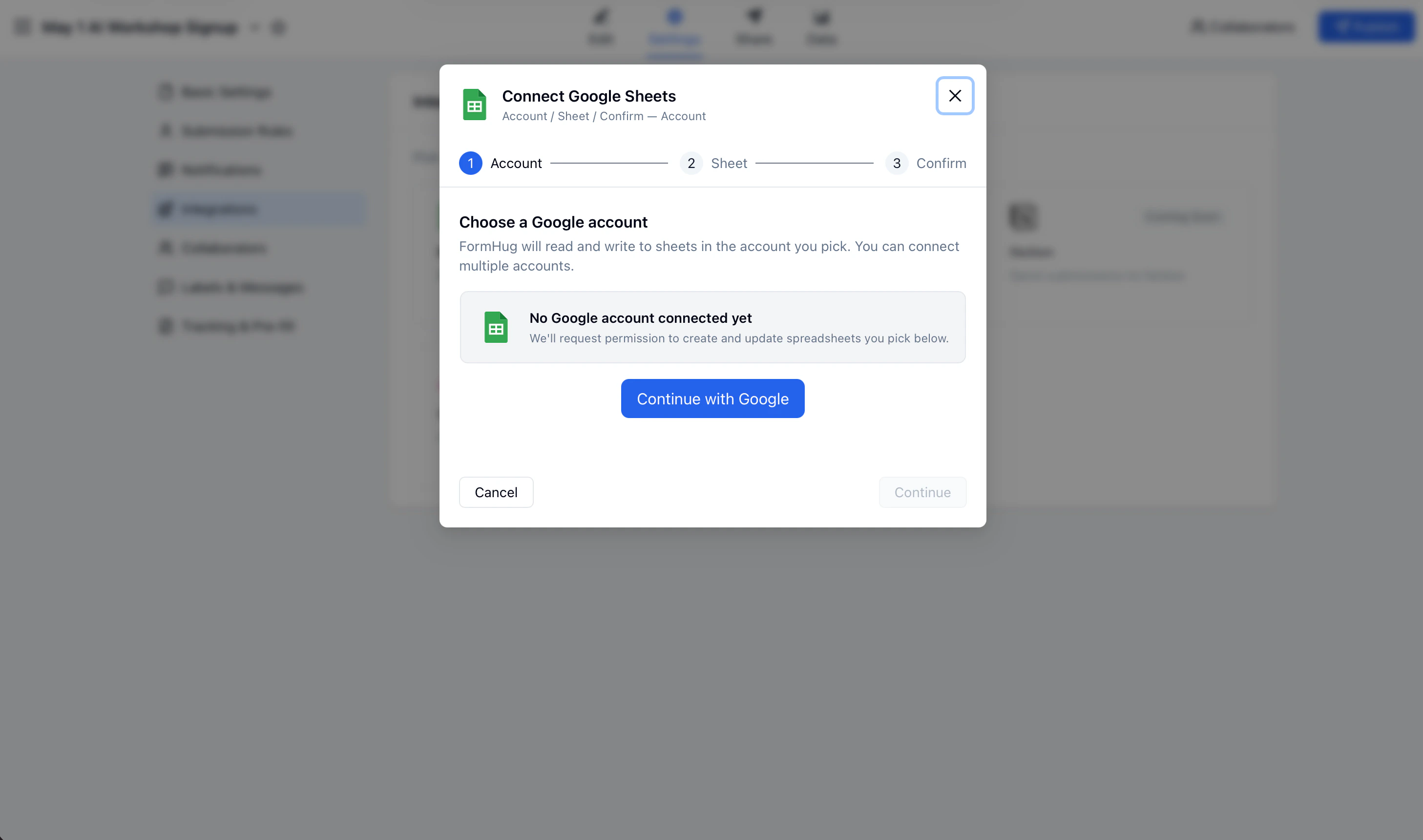
2
Connect Your Google Account
Click Connect Google Account, then sign in and allow FormHug to create and update Google Sheets for your account.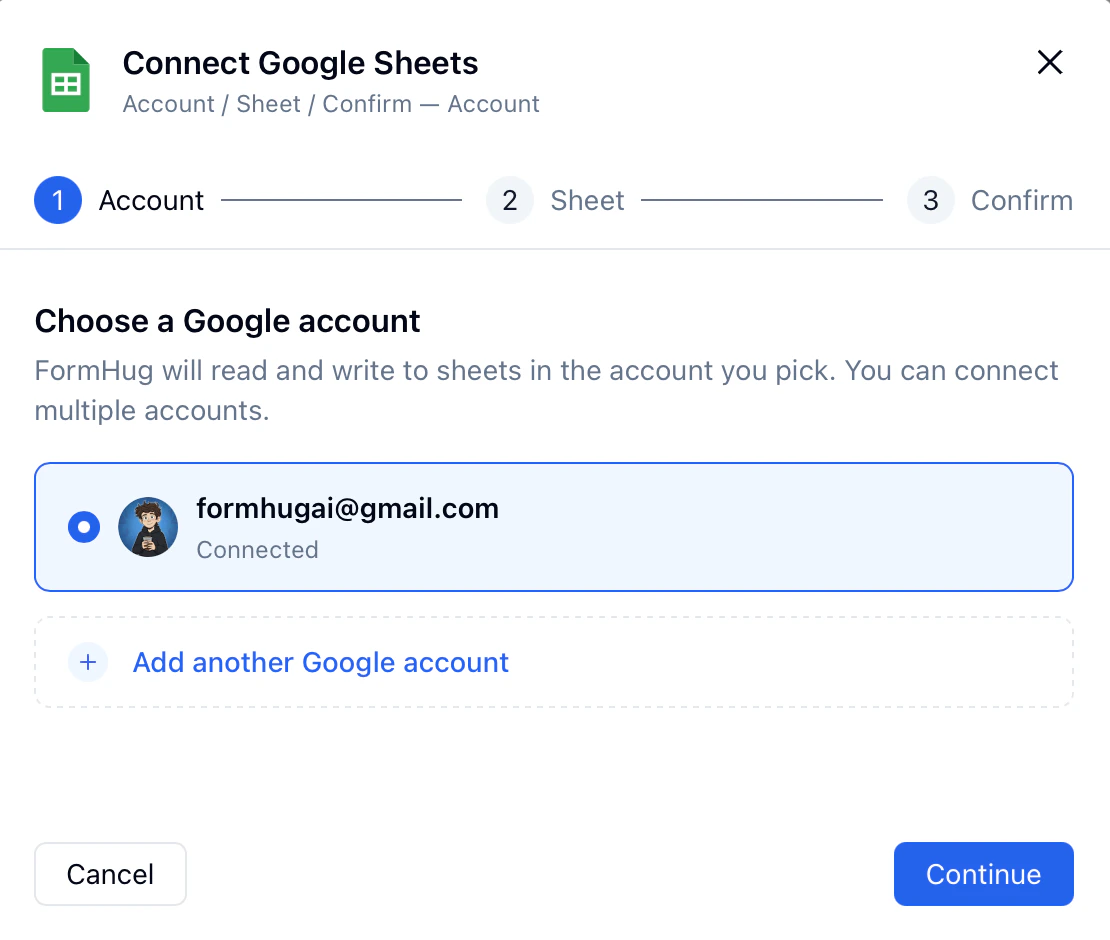
3
Choose How to Connect
Select whether to create a new spreadsheet or use an existing spreadsheet.
Create a New Google Sheet
Choose Create new spreadsheet when you want FormHug to generate a spreadsheet for this form.1
Name the Spreadsheet
Enter a spreadsheet name. FormHug uses your form fields as columns so incoming submissions stay structured.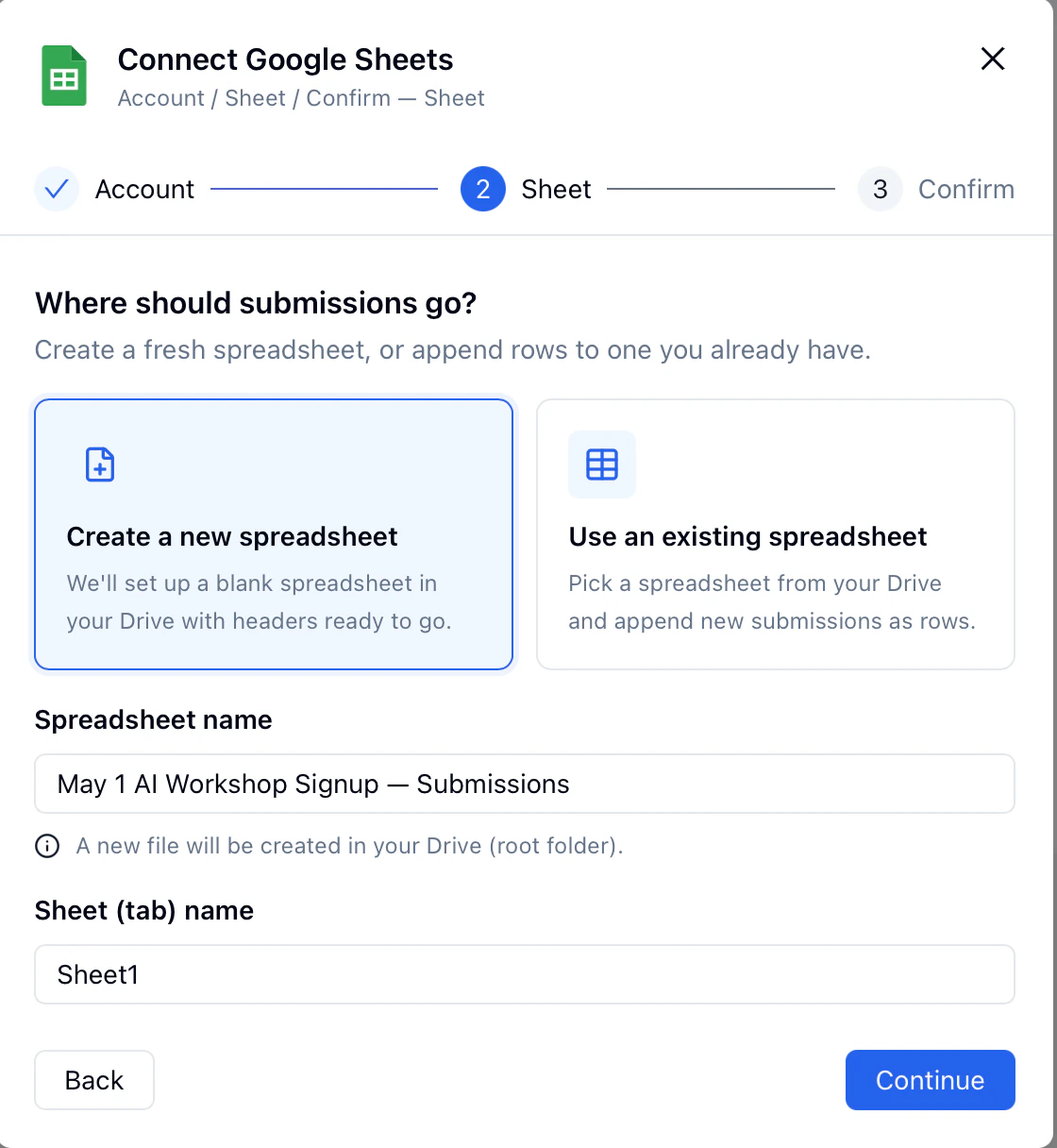
2
Review the Connection
Confirm the Google account, spreadsheet name, and form you are connecting.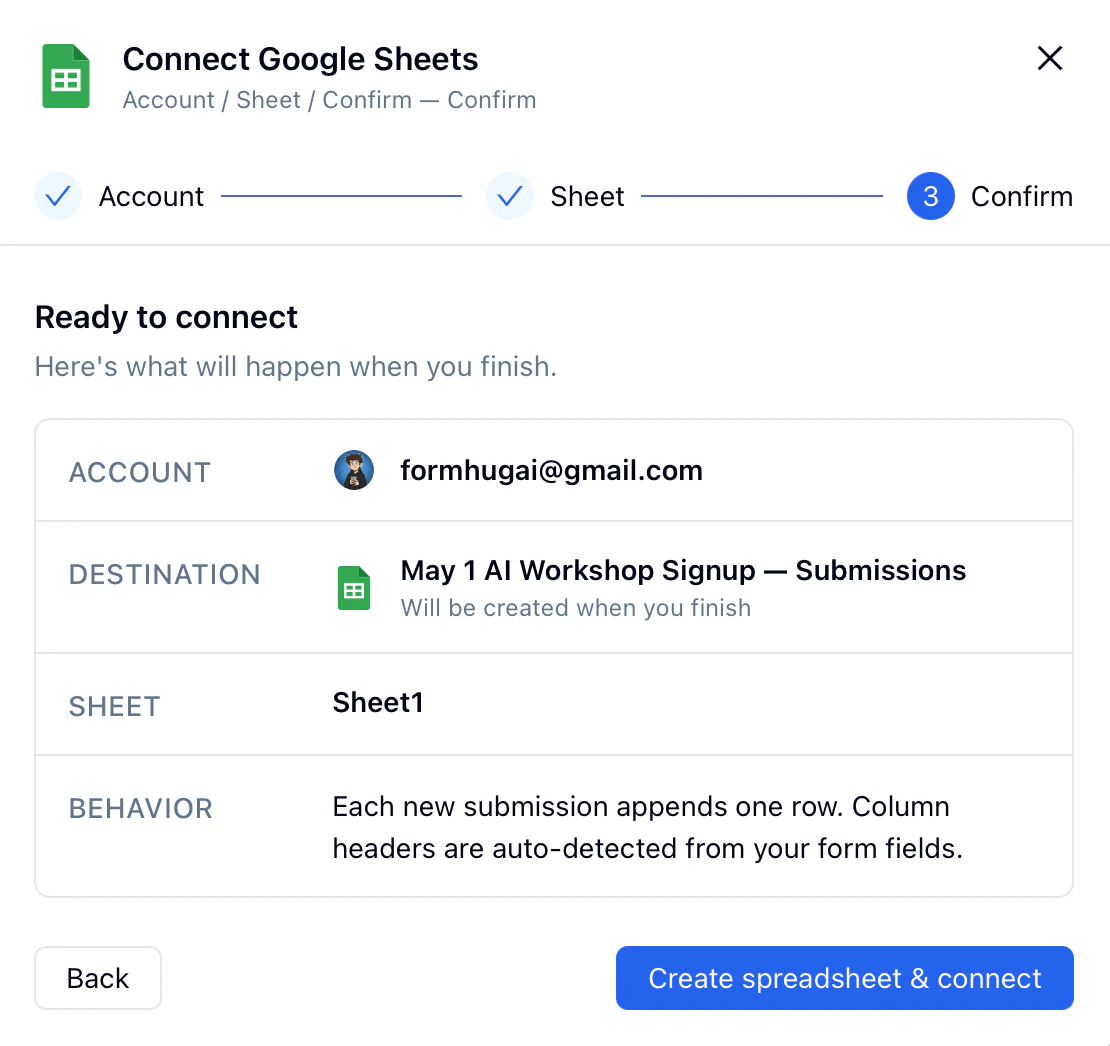
3
Create the Connection
Click Confirm to create the spreadsheet connection. New submissions will appear in the connected sheet.
Use an Existing Google Sheet
Choose Use existing spreadsheet when your team already has a spreadsheet prepared.1
Select the Spreadsheet
Pick a spreadsheet from your Google account. Choose a sheet that you can edit.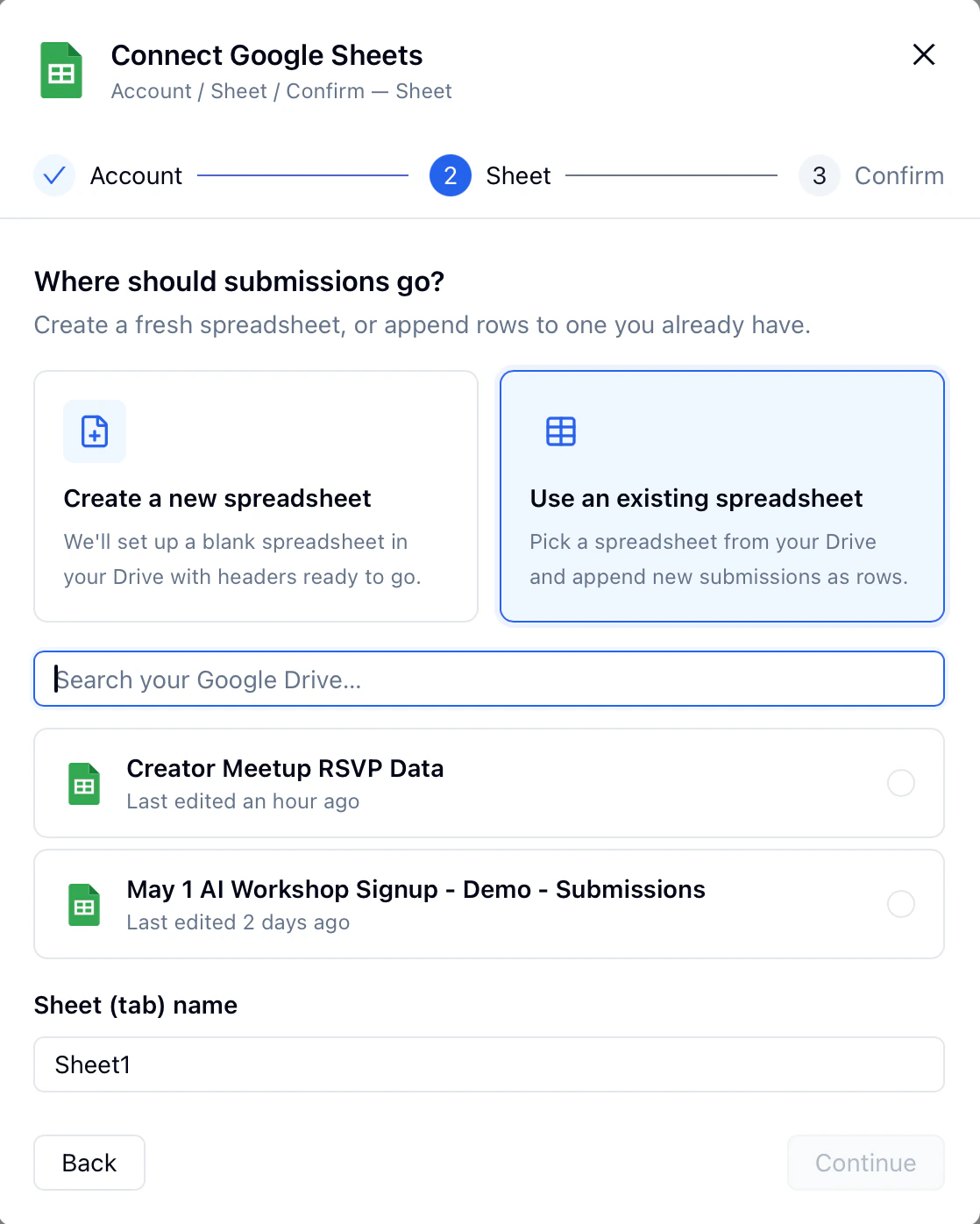
2
Review the Connection
Check the selected account and spreadsheet before saving.
3
Save the Connection
Click Confirm. FormHug starts sending new submissions to the selected spreadsheet.
Manage Connections
After setup, the Google Sheets integration page shows your active connections. Use this list to check which spreadsheet is connected to the form.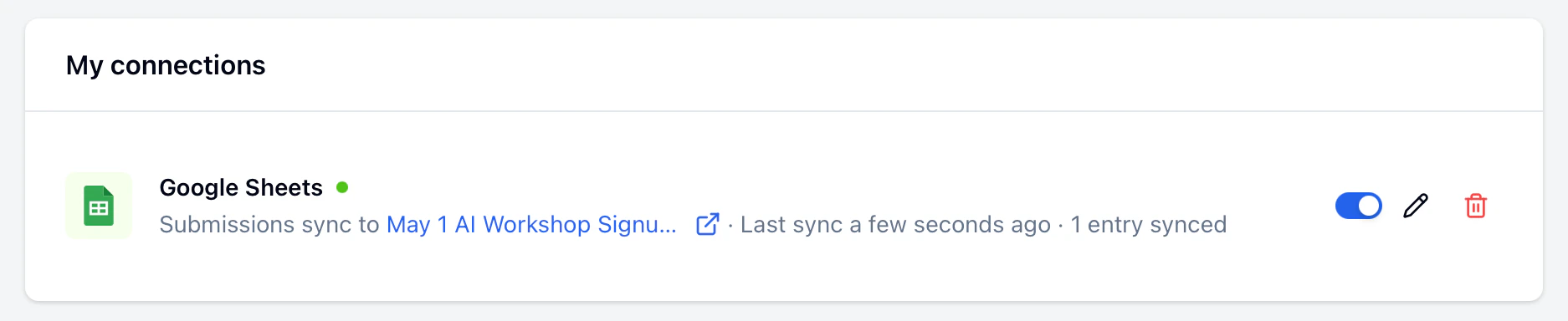
Check Synced Submissions
Submit a test entry after creating the connection. Then open the connected Google Sheet and check that the new row appears. Each row represents one FormHug submission. Form fields become spreadsheet columns, which makes the data easy to filter, sort, and share.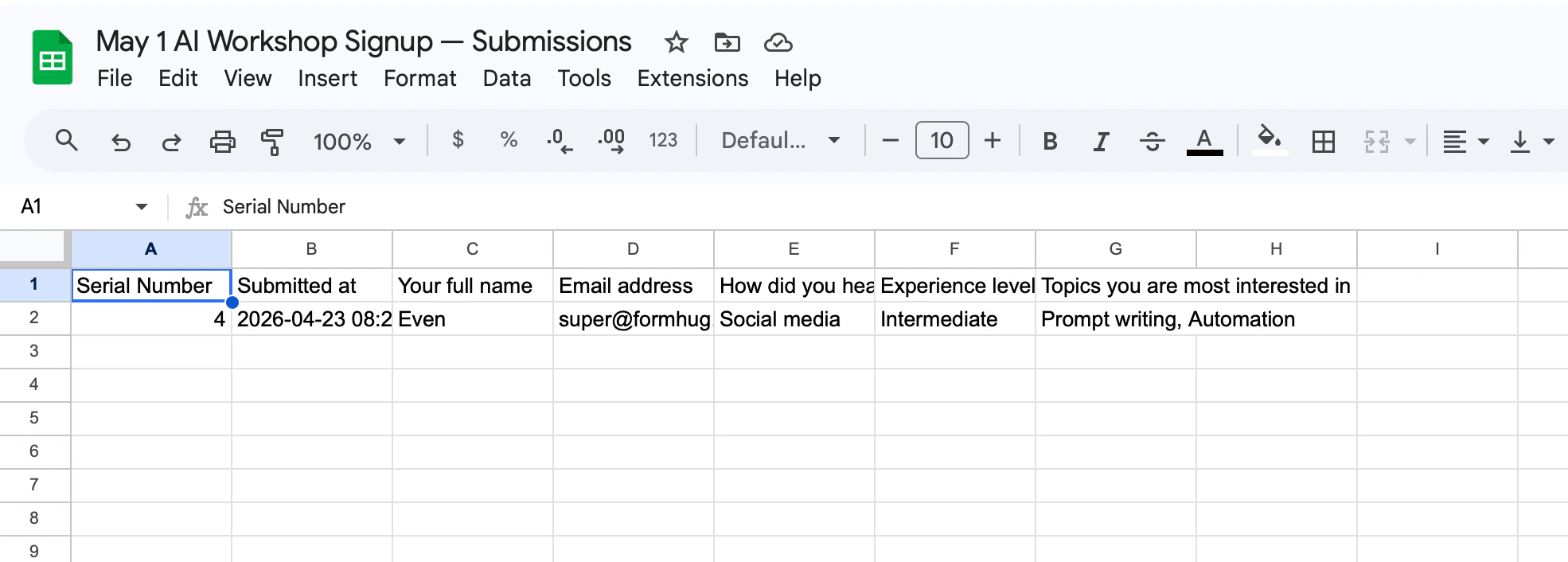
Limitations
- The integration syncs new submissions after the connection is created.
- Changes made inside Google Sheets do not update the original FormHug submission.
- If you remove or rename form fields, review your connected sheet to make sure the columns still match your workflow.
- Google account access is managed by Google. If authorization expires, reconnect the account from the integration page.
Related
Form Submissions
View, filter, and export submissions in the FormHug dashboard
Reports
Analyze form results with built-in charts and summaries
Share Forms
Share a published form with submitters
Google Email Notifications
Send confirmation emails and reminders from a connected Gmail account
Notion
Create Notion database pages from form submissions
Slack
Post submission alerts to a channel or direct message
Zapier
Automate workflows across CRM, email, and productivity apps
Build a Lookup Page from Excel
Turn spreadsheet-style data into a self-service lookup page
Public Query
Let visitors search their own record without opening your spreadsheet